Burnish
 John Cattrall1k downloads
Polish your notes using AI: Tidy, Restructure, Distill, Merge Meeting Notes, Generate Diagrams and more, review every change before it is written.
- Overview
- Scorecard
- Updates12
Polish your notes with an LLM, like burnishing a stone.
Burnish sends the current note (or selection) to an LLM, applies a cleanup action, and always shows a diff preview with per-hunk accept/reject before anything is written. Edits apply as a single undo step, and code, math, embeds and frontmatter are protected from changes.
Use a one-tap preset (Tidy, Restructure, Distill...), write your own reusable prompts, generate Mermaid diagrams and tables, build a Map of Content, or merge several people's meeting notes into one deduplicated note without losing information.
Screenshots
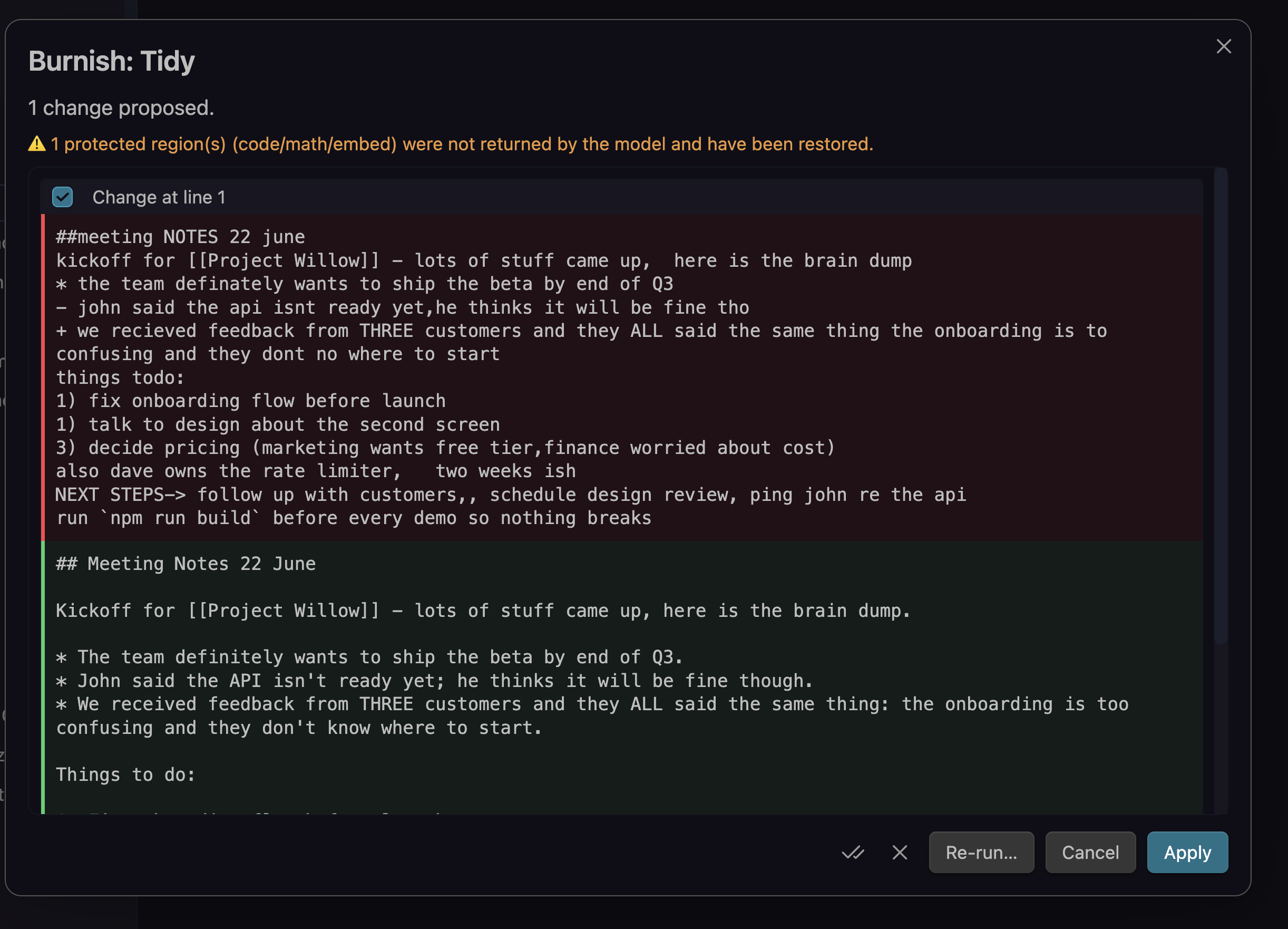
Tidy - fix grammar, spelling and punctuation, with a per-hunk diff before anything is written:
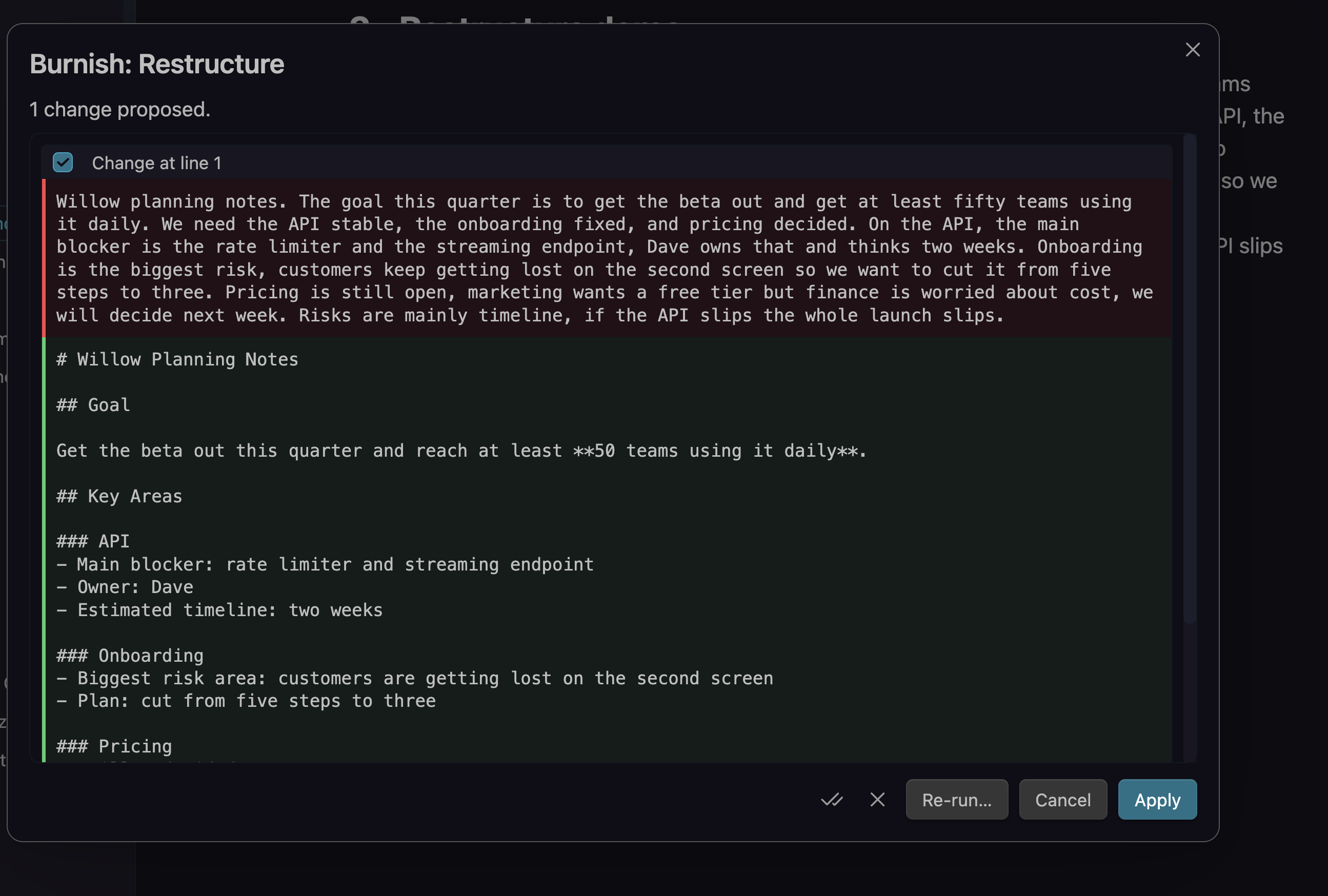
Restructure - turn a wall of text into clean headed sections:
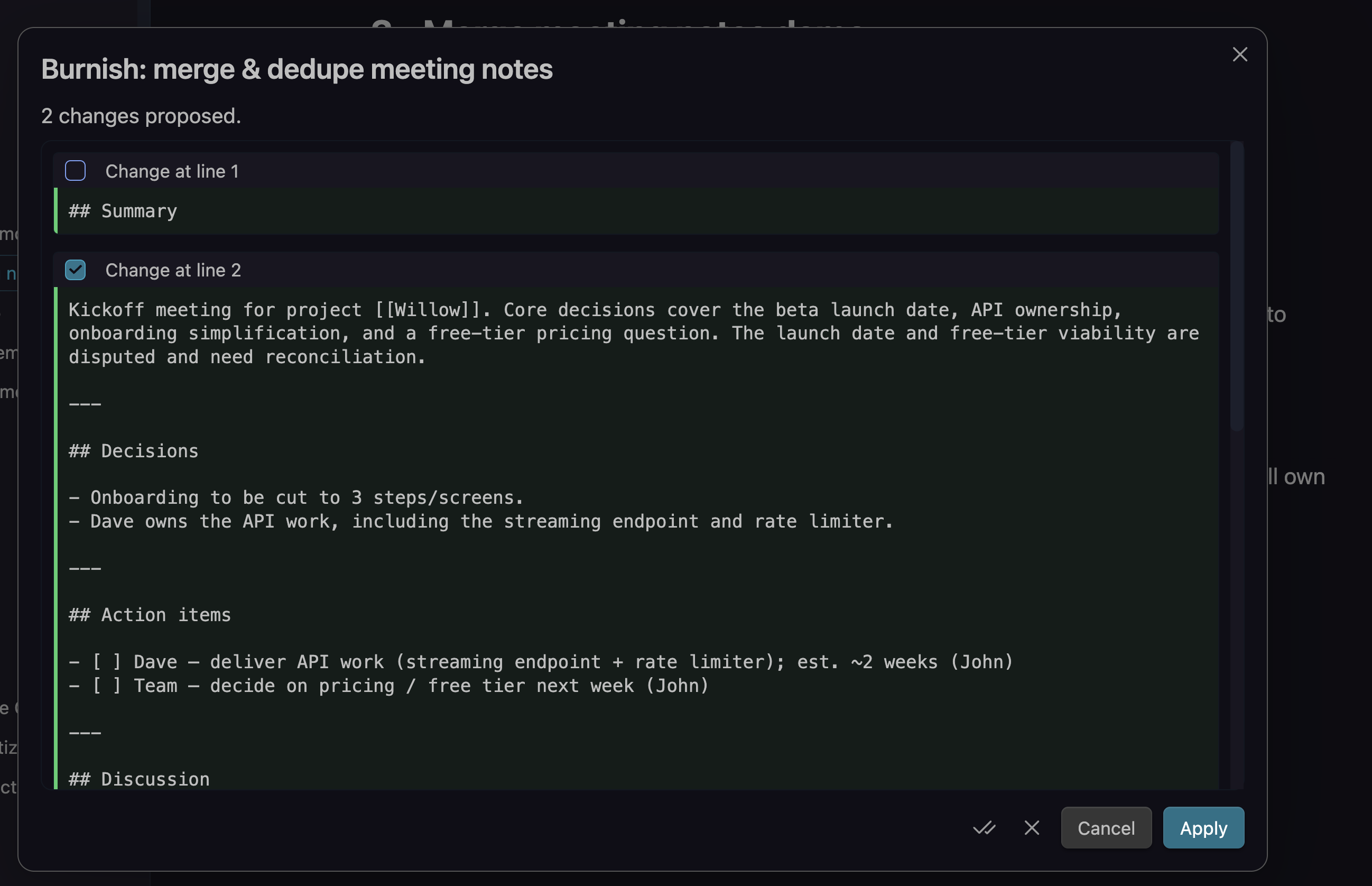
Merge & dedupe meeting notes - combine several people's notes into one structured note, flagging conflicts that need reconciliation:
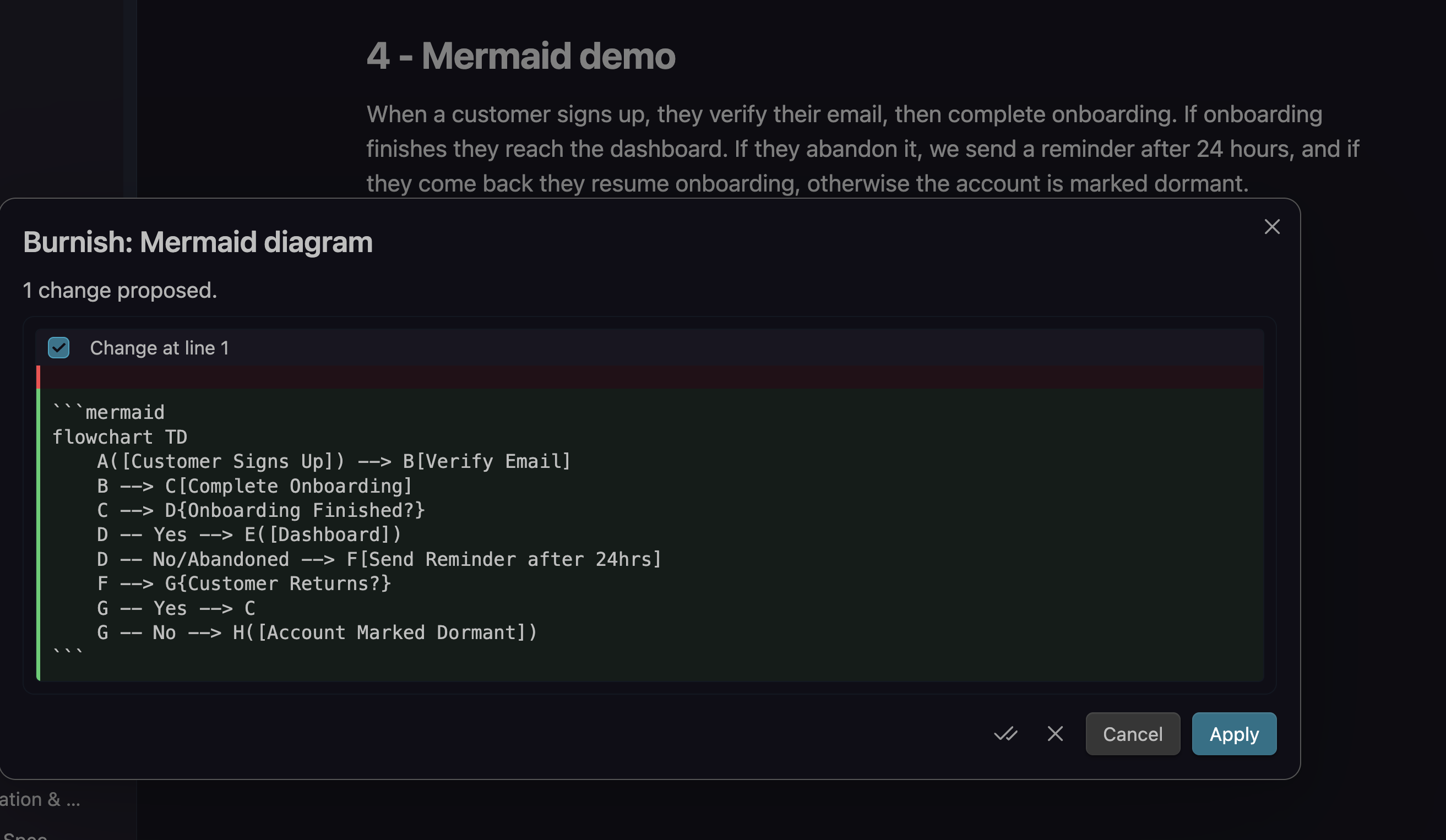
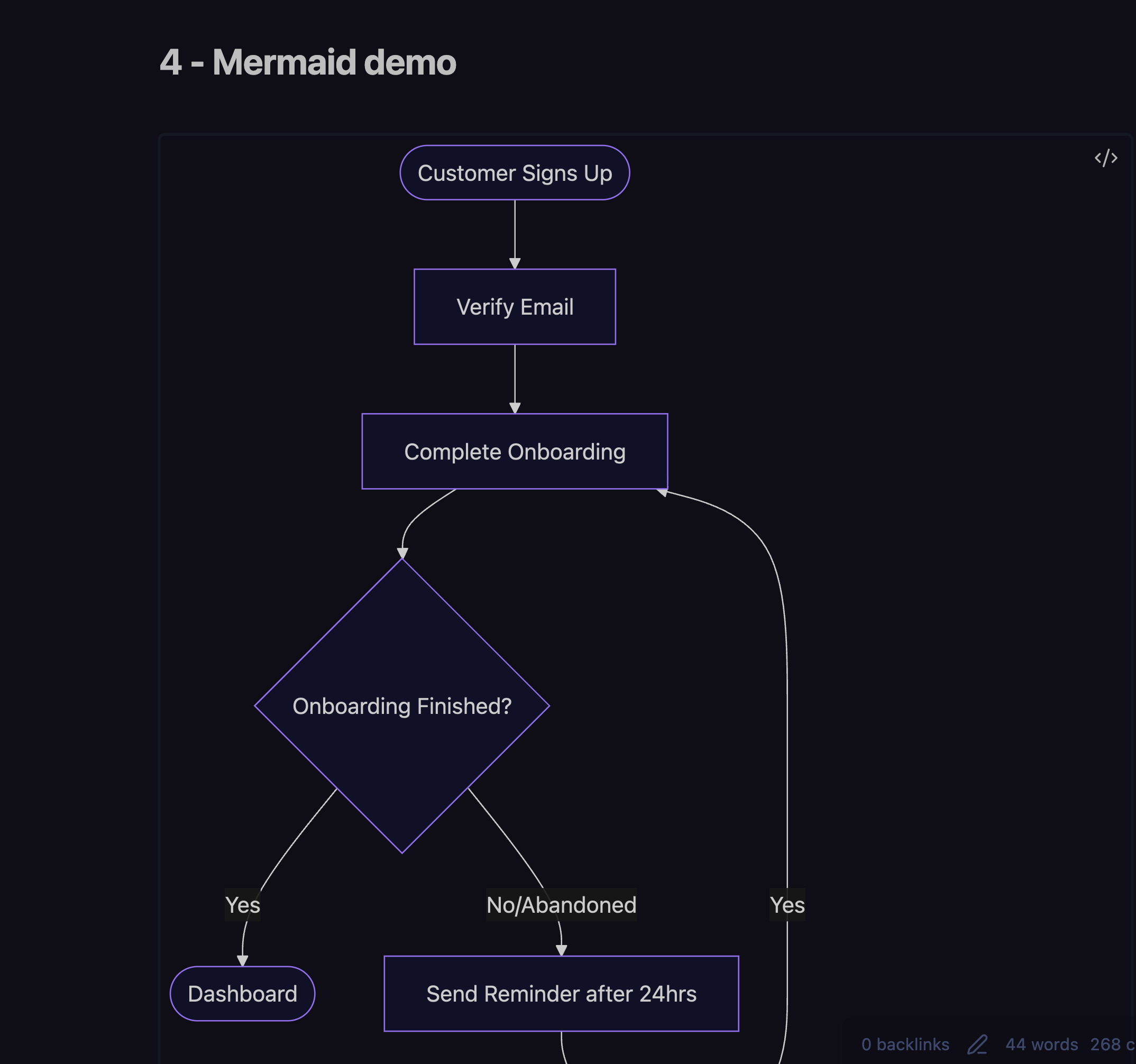
Generate a Mermaid diagram from prose, previewed then inserted at the cursor:
Features
- Diff preview, always. Every change is shown as a per-hunk diff you accept or reject. Nothing is written until you click Apply, and Apply is a single Cmd/Ctrl-Z undo.
- Presets and custom prompts share one mechanism. Edit the built-ins or add your own, each with an optional hotkey, command and context-menu entry.
- Prompt variables -
{{title}},{{date}},{{selection}},{{path}},{{frontmatter.key}},{{grit}}. - Grit levels (light / medium / deep) control rewrite aggressiveness.
- Per-folder defaults - different default action/model by path glob.
- Merge & dedupe meeting notes into one structured note, flagging conflicts and keeping anything unmergeable verbatim in an appendix.
- Generative: Mermaid diagrams and Markdown tables (inserted at the cursor), and Map-of-Content scaffolding across notes.
- Protected regions - fenced code, inline code, math, embeds and YAML frontmatter are masked before sending and restored after.
- History & rollback - Burnish snapshots a note before it rewrites it, so any edit (including batch and scheduled runs) can be rolled back.
- Batch & scheduled - run an action across many notes, or tidy a folder once a day.
- Cost guard - warns before sending very large notes.
Network use
Burnish makes network requests only to the LLM provider you configure, and only when you trigger an action. There is no other network activity. Specifically:
- Anthropic - requests go to
https://api.anthropic.com(or a base URL you set). - OpenAI-compatible - requests go to the base URL you enter (OpenAI, OpenRouter, Groq, or a local server such as Ollama / LM Studio / vLLM). Nothing is sent anywhere else.
- Burnish (optional, hosted) - if you sign up with your email, requests go to the Burnish gateway, which forwards them to a model provider using its own key. No API key needed. See Privacy below.
The content sent is the note or selection you run an action on (with code/math/embeds/frontmatter masked) plus your instruction. Your API keys are sent only to the provider they belong to.
Privacy & data
- Burnish itself collects no data and contains no telemetry or analytics.
- With your own API key (the default, free), your note content goes directly from Obsidian to the provider you chose. Burnish operates no server in this mode and never sees your content.
- Your API key (BYOK) or your Burnish account token (issued at email signup) is stored in this
plugin's settings inside your vault (
data.json). Obsidian does not encrypt plugin settings - treat the file accordingly. - The optional hosted Burnish tiers (Free and Pro) process note content transiently on the server to proxy the model call and do not retain note content. Full details are in PRIVACY.md.
Plans
Burnish works two ways. Bring your own key stays fully free and unlimited - you never need an account. Burnish (hosted) needs no API key: sign up with your email for the Free tier, and upgrade to Pro for every action on stronger models.
| Bring your own key | Burnish Free | Burnish Pro | |
|---|---|---|---|
| Setup | Your own API key | Just your email | Just your email |
| Price | Free (you pay your provider) | Free | $5 / month or $25 / year |
| Tidy + Format cleanup | Yes | Yes | Yes |
| All other actions¹ | Yes | 3 one-time previews | Yes |
| Actions per month | Unlimited | 20 | 500 (fair use) |
| Model | You choose | Managed | Managed (stronger) |
¹ Restructure, Distill, Expand, Action items, Merge & dedupe, Mermaid diagrams, Table from prose, Map of Content, and custom prompts. Burnish Free includes 3 lifetime previews (total, not per feature) of these on the Pro models, so you can try them before upgrading.
No payment or account is required for any feature - everything is available for free with your own API key (or a free local model). The hosted tiers are a convenience for people who would rather not manage a key. Payments are handled by Polar (Merchant of Record); Burnish never sees your card details.
Install
From the community plugin browser
Once listed: Settings → Community plugins → Browse → search "Burnish" → Install → Enable.
Manual
- Download
main.js,manifest.json, andstyles.cssfrom the latest release. - Copy them into
<your vault>/.obsidian/plugins/burnish/. - Reload Obsidian and enable Burnish under Settings → Community plugins.
Setup
- Open Settings → Burnish.
- Choose how to run it:
- Burnish (default) - enter your email and click Start free. No API key needed.
- Bring your own key - pick Anthropic or an OpenAI-compatible / local endpoint and paste your key (or set a local base URL).
- Open a note and run Burnish: Tidy from the command palette, the ✨ ribbon icon, or the editor right-click menu. Review the diff and Apply.
Usage
- Selection vs. note - if text is selected, the action runs on the selection; otherwise the whole note (frontmatter excluded).
- Merge meeting notes -
Burnish: Merge & dedupe meeting notes(current note, or pick files). - History -
Burnish: Version history for current noteto roll back.
Hotkeys
Every preset and every custom prompt is registered as its own Obsidian command, so each can have its own hotkey:
- Open Settings → Hotkeys.
- Search for Burnish (or the action's name, e.g.
Burnish: Tidy). - Click the + next to a command and press your key combination.
Notes:
- Obsidian ships with no default hotkeys for Burnish, so there are no conflicts to clear; you bind only the ones you want.
- Commands run on the active note's selection (or the whole note if nothing is selected), exactly like triggering from the palette.
- When you add or rename a prompt in Burnish settings, its command updates immediately - the new
Burnish: <name>entry appears in the Hotkeys list ready to bind. (After deleting a prompt, its command disappears from the list on the next Obsidian reload.) - Useful ones to bind:
Burnish: Tidy,Burnish: Custom instruction…, andBurnish: Pick an action…(the fuzzy picker) for one keystroke to everything.
Development
npm install
npm run dev      # watch build
npm run build    # typecheck + production bundle
npm test         # unit tests (diff, protect, variables, chunk, history, generative)
This plugin is fully open source (MIT) - all the features above run with your own key, and you can build it from source yourself. Only the optional hosted gateway that powers the Burnish Free/Pro tiers is a separate, closed backend. This is a standard open-core setup: the plugin never depends on the hosted service.
Support
Burnish is free and will stay free with your own API key. If it saves you time and you would like to say thanks, you can buy me a coffee. It is entirely optional and does not unlock anything.
License
MIT © John Cattrall
Burnish is an independent community plugin and is not affiliated with or endorsed by Obsidian.