
- Overview
- Scorecard
- Updates1
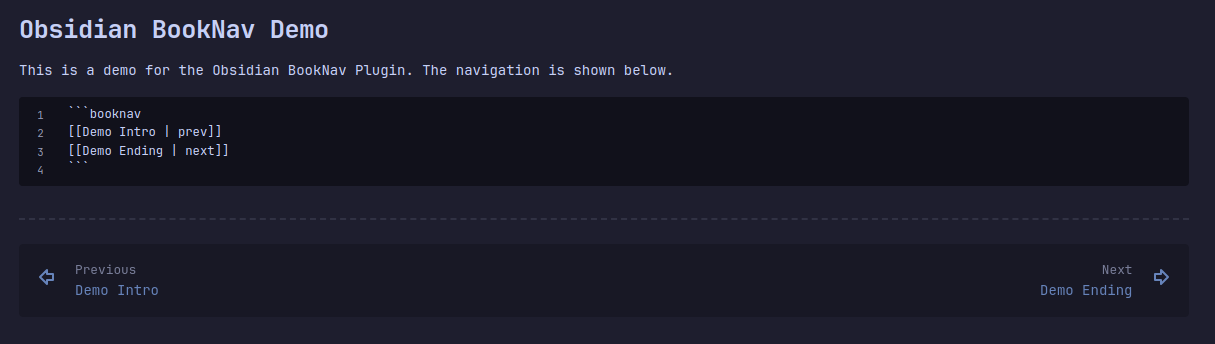
This is a plugin to create clickable internal or external links in a note (usually at the bottom) to guide a reader along an intended path. There are no dependencies on any other plugins. If the note is viewed in another application, it will be shown as a code block.
Why?
I found myself writing documentation for a number of processes. The documentation won't always be read by someone who understands Markdown, who uses Obsidian, or who will know where to find the documents. I have hosted web based documentation on local servers, but found those to be very limiting, costing money to host or license, or dealing with restrictions from IT blocking certain locations from access. It was much easier to share a vault with users (including configurations) and let them just use it.
I prefer the "book" style navigation when reading tutorials and found that most of the people I share my notes with did too. I was getting tired of typing raw HTML into the notes. Readers who liked to contribute also couldn't be bothered to learn HTML in the specific way to recreate the navigation links, so I made it easier (I hope).
Installation
Community Plugin
- Search for "BookNav" in Obsidian's Community Plugins page
- Install & Enable
Manual Plugin
- Download release files (
main.js,manifest.json,style.css) - Copy files into
/path_to_your_vault/.obsidian/plugins/booknav/ - Open Obsidian and goto Community Plugins page
- Scroll down to the installed plugins (you may need to refresh)
- Enable BookNav plugin by toggling the switch
Usage
Add a code block with the language "booknav". Each line of the code block will be parsed as a link. Styling is applied to links marked with "prev", "center", or "next".
```booknav
  [[Page One | prev]]
  [[Page Three | next]]
```
This will generate a full-width element on the note where the codeblock is placed. All links will be parsed and resolved to internal/external links. If the links are internal, the hover action will show the page preview.
Alternate text can be used with the links the way Obsidian normally processes the links. For example:
```booknav
  [[Page One | Alt Text for Page 1 | prev]]
  [[Page Three | Alt Text for Page 3 | next]]
```
This will render the previous and next page links with the text "Alt Text for Page 1" instead of "Page One" and "Alt Text for Page 3" instead of "Page Three". The regex expression used to parse out the "prev" and "next" will allow for the use of the | character in your alternate text. Something like:
```booknav
  [[Page One | Demo Page | A short description | prev]]
  [[Page Three | Alt Text for Page 3 | next]]
```
The rendered text for the previous page link will then be "Demo Page | A short description". The "prev" and "next" must be the last "alt" text for the link or the plugin will not catch it properly.
Styling
The default CSS included with the plugin uses color variables from the Obsidian namespace, so it should match the existing theme. You can customize the styling by adding a snippet and changing the following classes.
| Class | Description |
|---|---|
| .block-language-booknav | The containing element |
| .booknav p | The button container |
| .booknav a | Links inside the navigation element |
| .booknav a.prev | The link marked with the prev alt text |
| .booknav a.next | The link marked with the next alt text |
| .booknav a.prev .title | Element that contains the text for the "prev" link |
| .booknav a.next .title | Element that contains the text for the "next" link |
| .booknav a.prev .title::before | Pseudo-element that contains the word "Previous" |
| .booknav a.next .title::before | Pseudo-element that contains the work "Next" |
| .booknav a.prev .icon | The icon for the "prev" link |
| .booknav a.next .icon | The icon for the "next" link |
| .booknav a.center | Link marked with the center alt text |
| .booknav a:hover | The styling when any link in the navigation is hovered |
[!note] It may be necessary to mark the styling in your snippet with
!importantto take hold.
Configuration & Settings
There is nothing (at the time) to configure, so the plugin has no settings page.
[!note] There are potential plans to add configurable styling for colors, custom icons, and custom pseudo-element text.