BoardMD
 Eric Fisher3 downloads
Plan work with a Jira-style backlog, sprints and boards. Issues and sprints are plain notes.
- Overview
- Scorecard
- Updates3
A lightweight Jira-style backlog, sprints and board for Obsidian. Every issue and every sprint is a plain note, so your project data is just Markdown you own: searchable, linkable, and easy for people and AI agents to read and edit.
Features
- Backlog and sprints. Plan issues into sprints, drag to re-rank, start and complete sprints. Completing a sprint records what was finished and carries unfinished work over.
- Sprint board. One column per status in your workflow, with drag-and-drop between columns.
- Configurable workflow. Define your own statuses (for example To Do / Blocked / Plan Created / In Progress / In Review / Done) and say whether each counts as to do, in progress or done.
- Several projects. Each project is a folder with its own issues, sprints, key prefix, sprint length and workflow, switched from a dropdown on the board.
- Issues are notes. Fields are properties, links to other issues are real links, the description is the note body.
- Links between issues. Parent, blocks, is blocked by, relates to, duplicates, is duplicated by. Both sides are always written, and blocked issues are flagged on the board.
- Pull from GitHub or GitLab. Link a project to a repository and pull its issues into the project's
issuesfolder. - Made for AI agents. The plugin keeps an
index.jsonand anAGENTS.mdin each project folder, so an agent can answer "what did Sprint 3 complete?" or "what blocks OB-7?" without parsing every note.
Install
BoardMD is listed in the Obsidian community plugin directory. Install it from Settings → Community plugins → Browse by searching for "BoardMD", then enable it.
To install by hand instead, download main.js, manifest.json and styles.css from the latest release, or build them from source:
git clone https://github.com/ericfisherdev/boardmd.git
cd boardmd
npm install
npm run build
Then copy main.js, manifest.json and styles.css into <your vault>/.obsidian/plugins/boardmd/, and enable BoardMD under Settings → Community plugins.
Requires Obsidian 1.13.0 or later (the settings use Obsidian's declarative settings, so they show up in settings search). It has only been tried on desktop.
Walkthrough
The screenshots below come from a sandbox vault with two projects, Obsidiboard and Website.
1. Plan in the backlog
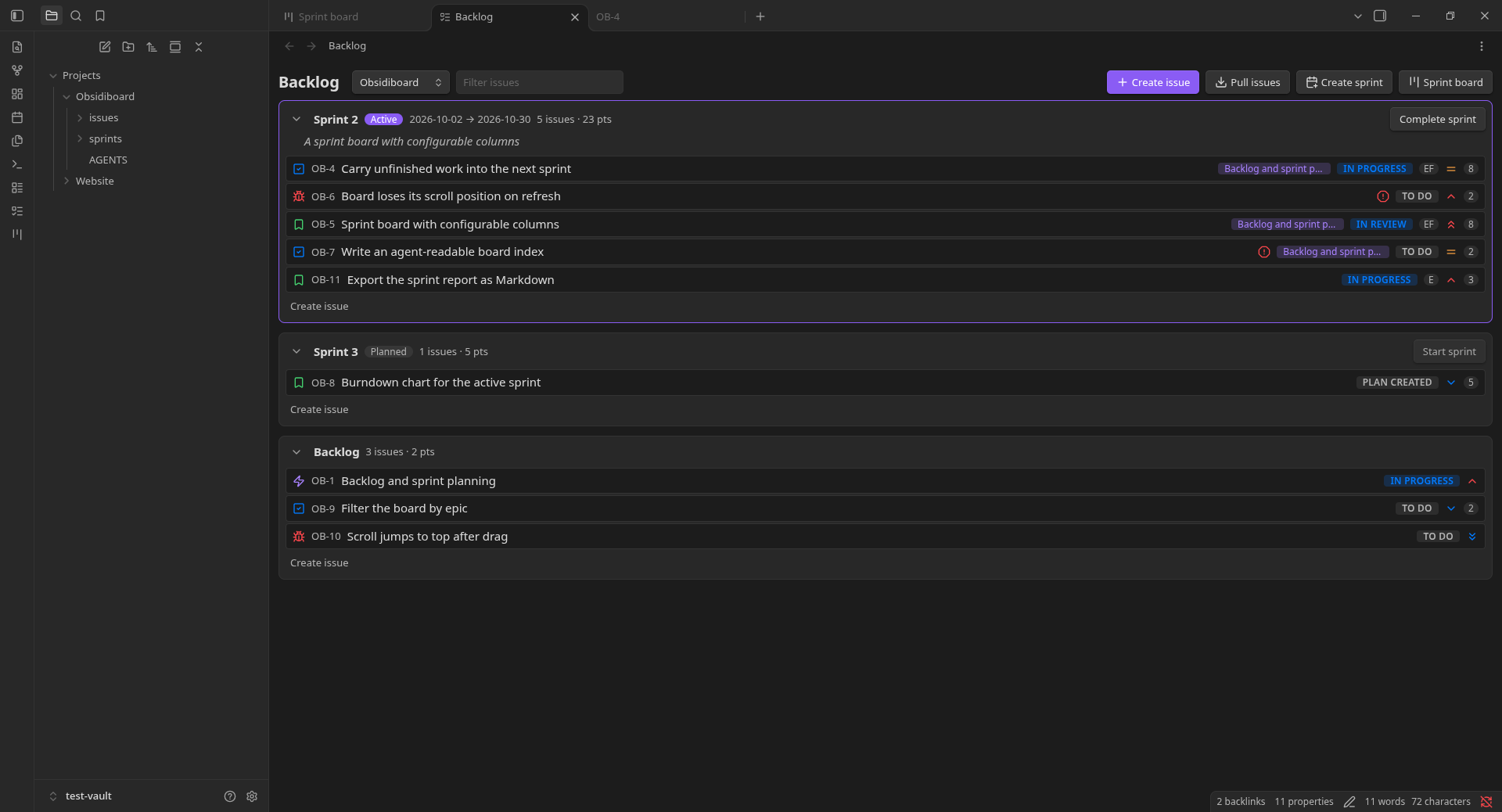
The backlog lists the active sprint, planned sprints and the backlog, in rank order. Each row shows the type, key, summary, a warning when unfinished issues block it, its parent epic, status, assignee, priority and story points. Drag rows to re-rank them or move them between sprints. Start sprint and Complete sprint sit in each sprint's header.
The toolbar has the project switcher, a filter box, and buttons to create an issue, pull issues from a linked repository, create a sprint and open the sprint board.
2. Work the sprint board
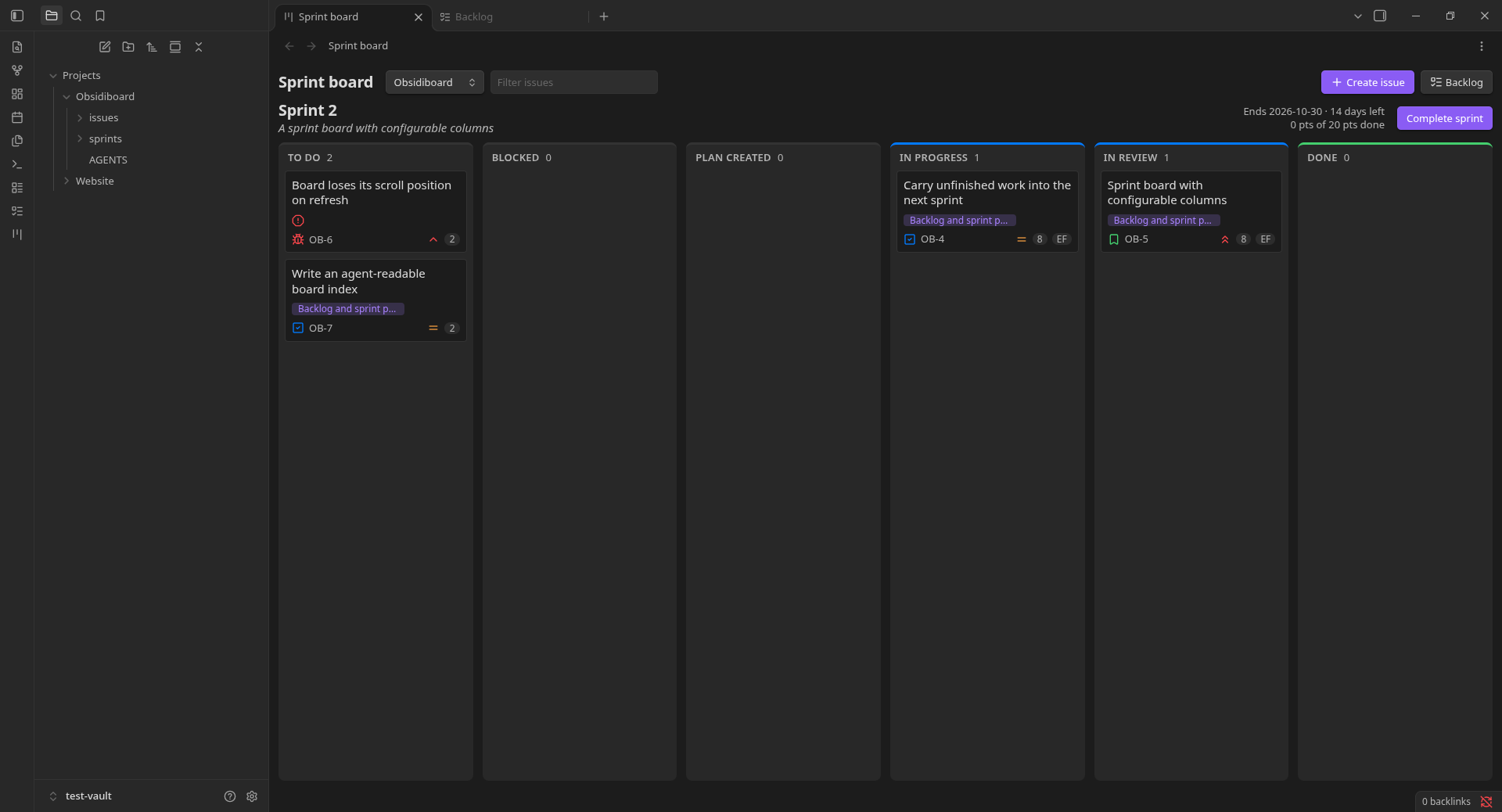
The board shows the active sprint with one column per status in the project's workflow. The header shows the end date, days left and points done.
3. Create an issue
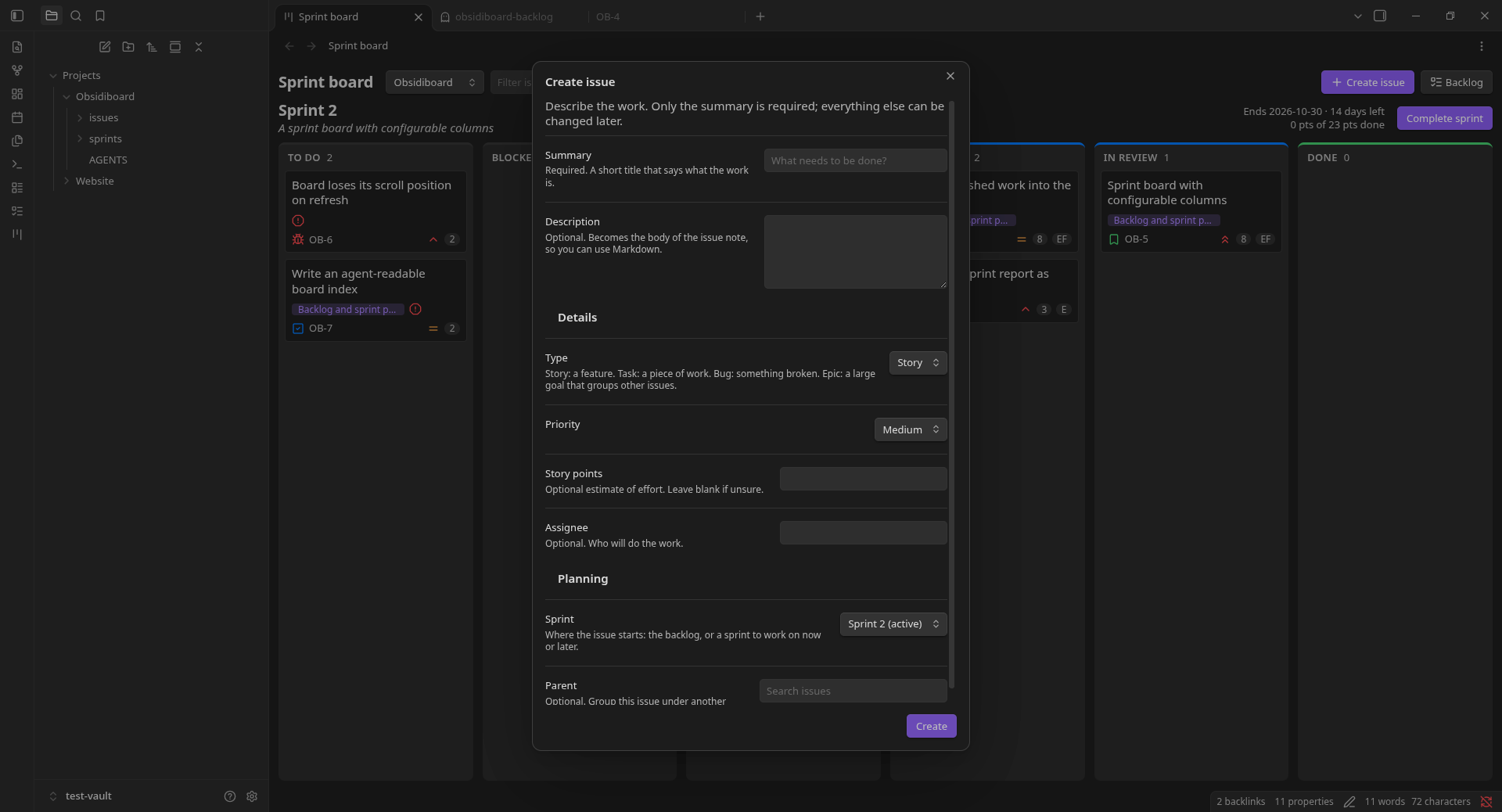
Create issue opens a form that starts with the work itself (summary, description), then optional details (type, priority, story points, assignee), then planning (sprint and parent). Only the summary is required, and the Create button stays greyed out until it has text. Opened from the board, the sprint defaults to the active sprint.
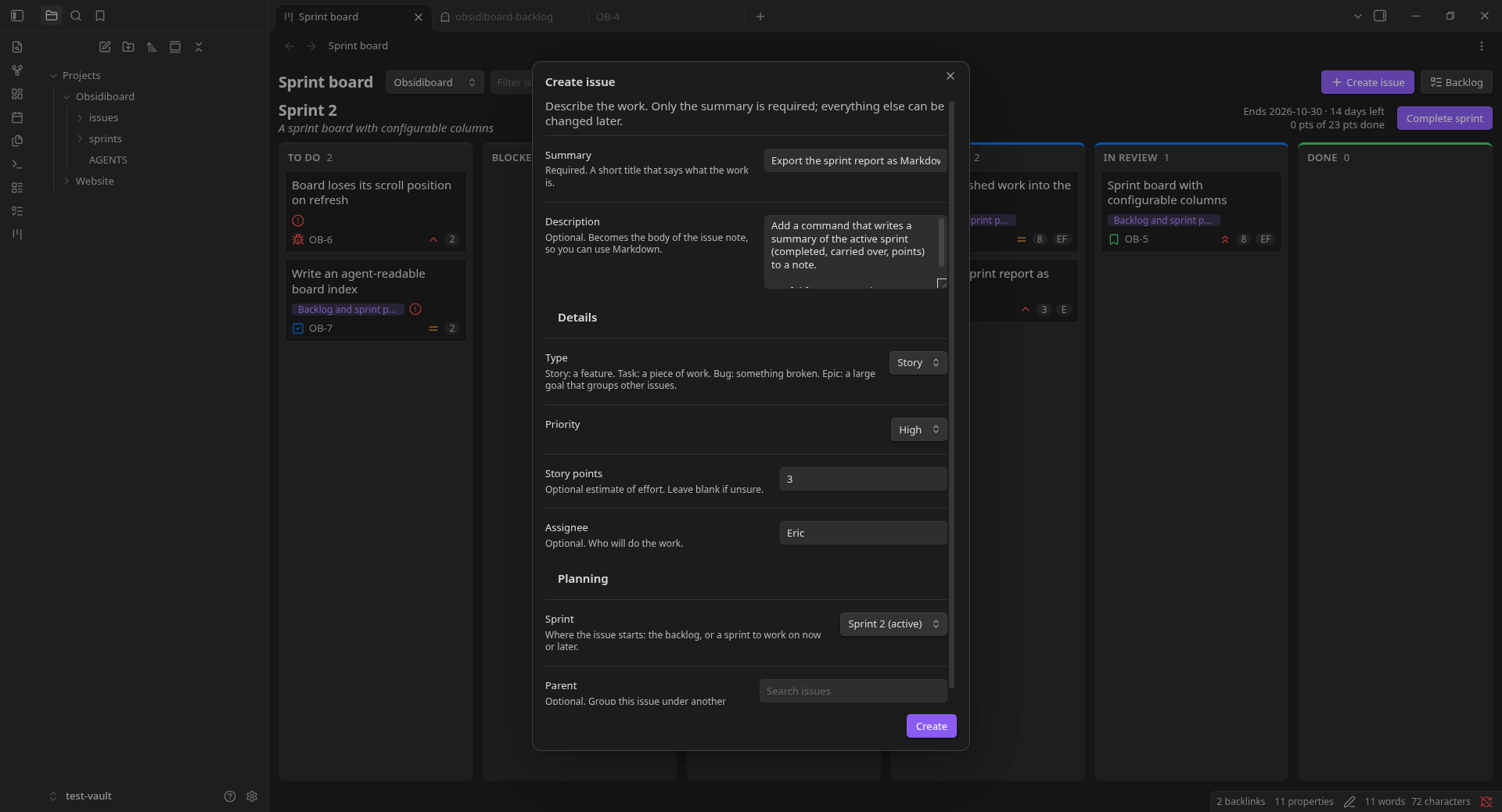
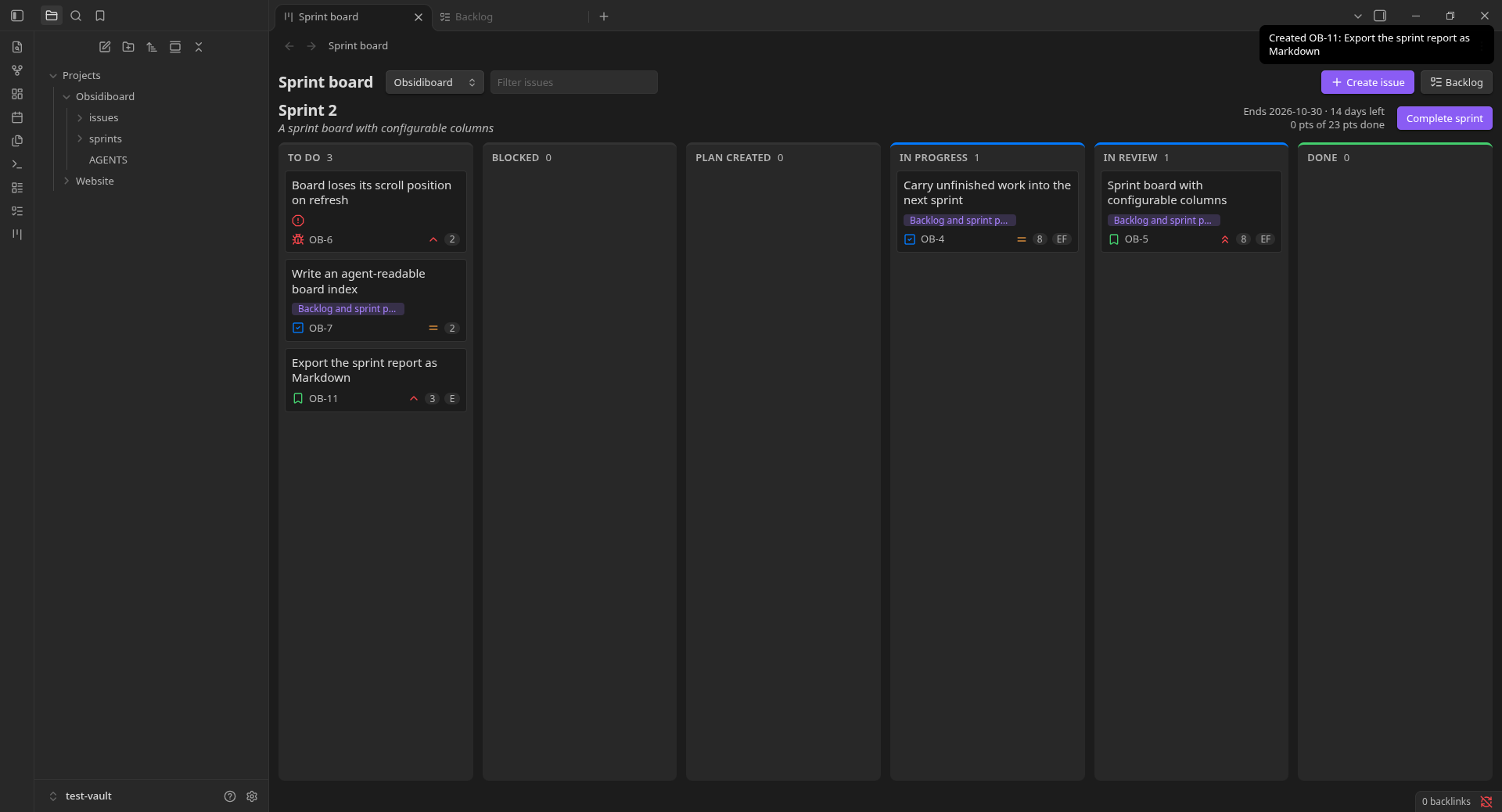
After you create it, a notice shows the new key and the card appears in the first column.
4. Move cards between columns
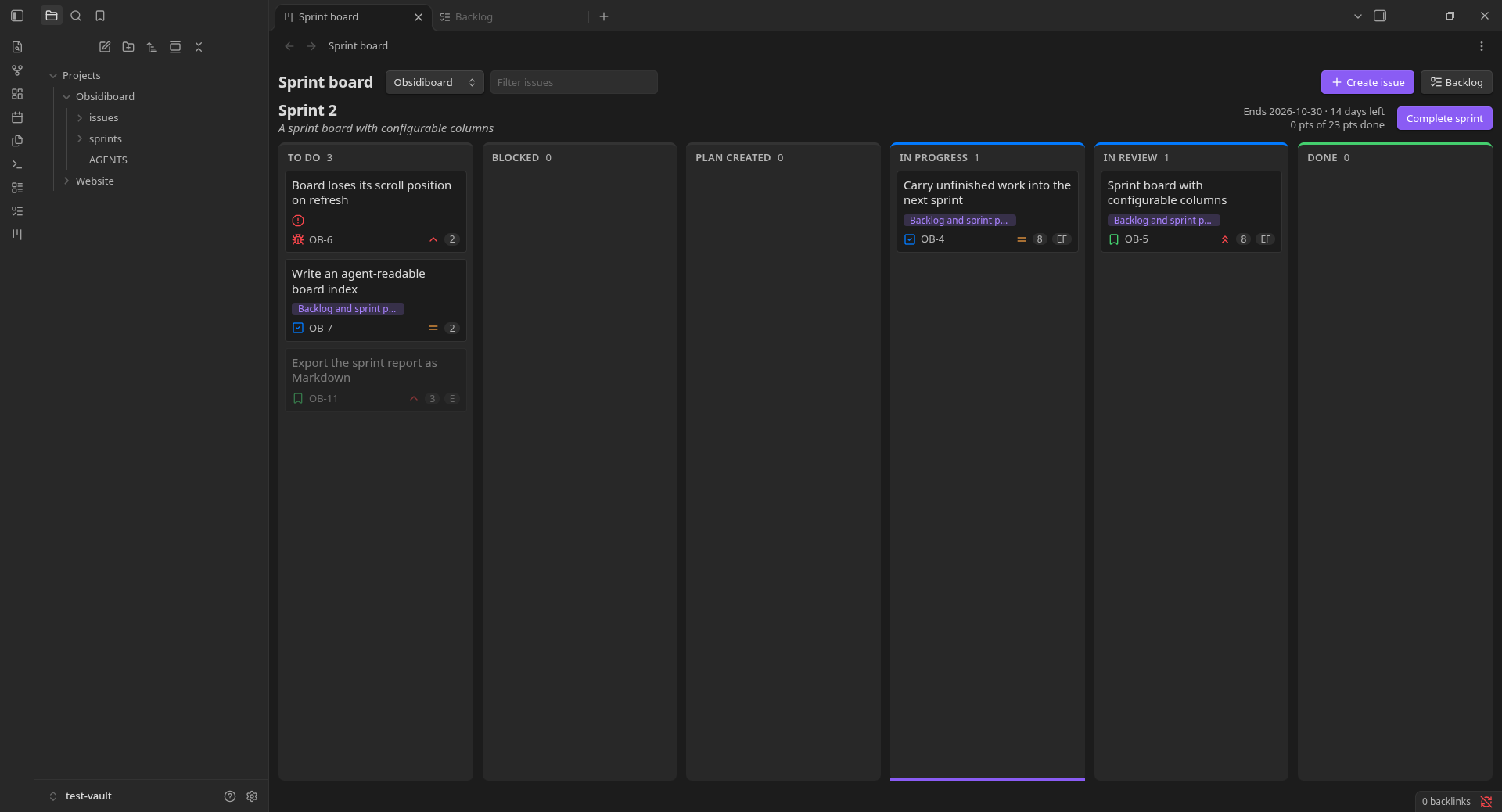
Drag a card to another column or to a different position in a column. A line shows where it will land.
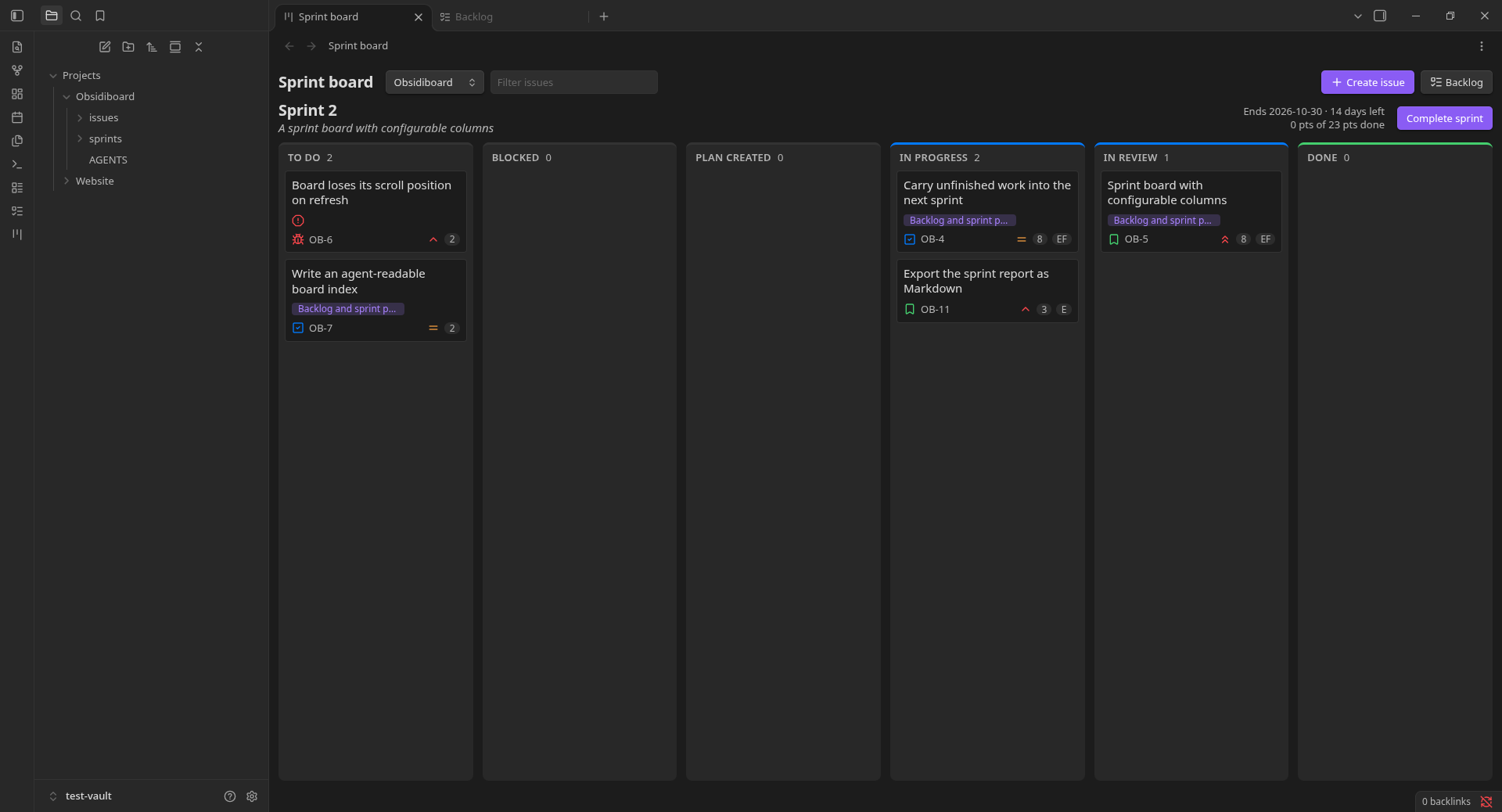
Dropping changes the issue's status and writes it to the note straight away. Moving a card into a Done status also records the date it was resolved.
5. Edit an issue
Click a card to open its edit form. Ctrl or Cmd-click opens the issue's note in a new tab instead. Issue notes also get an Edit issue button in the header and an Edit issue command.
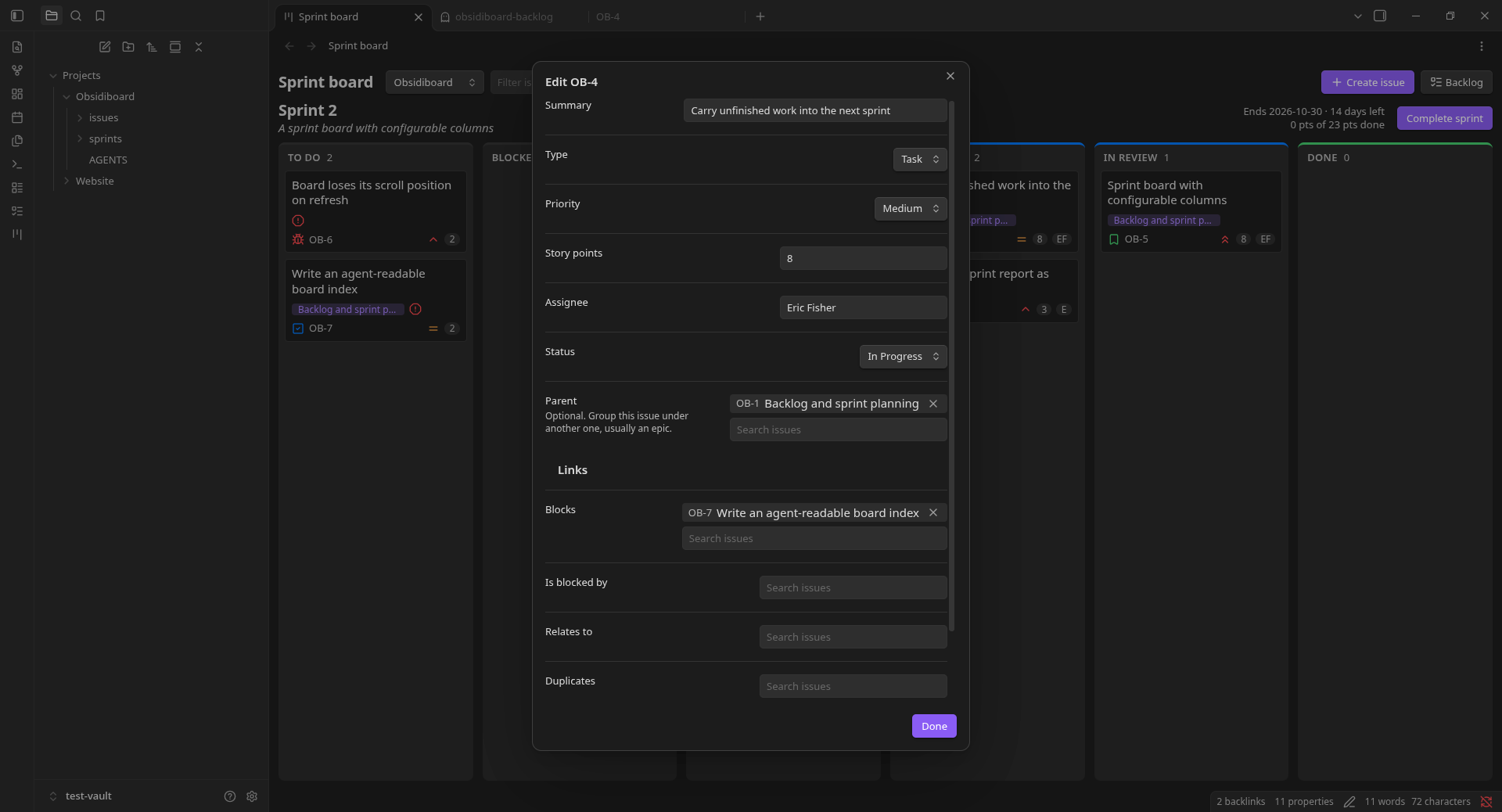
Type, priority and status are dropdowns, and the parent is chosen from existing issues.
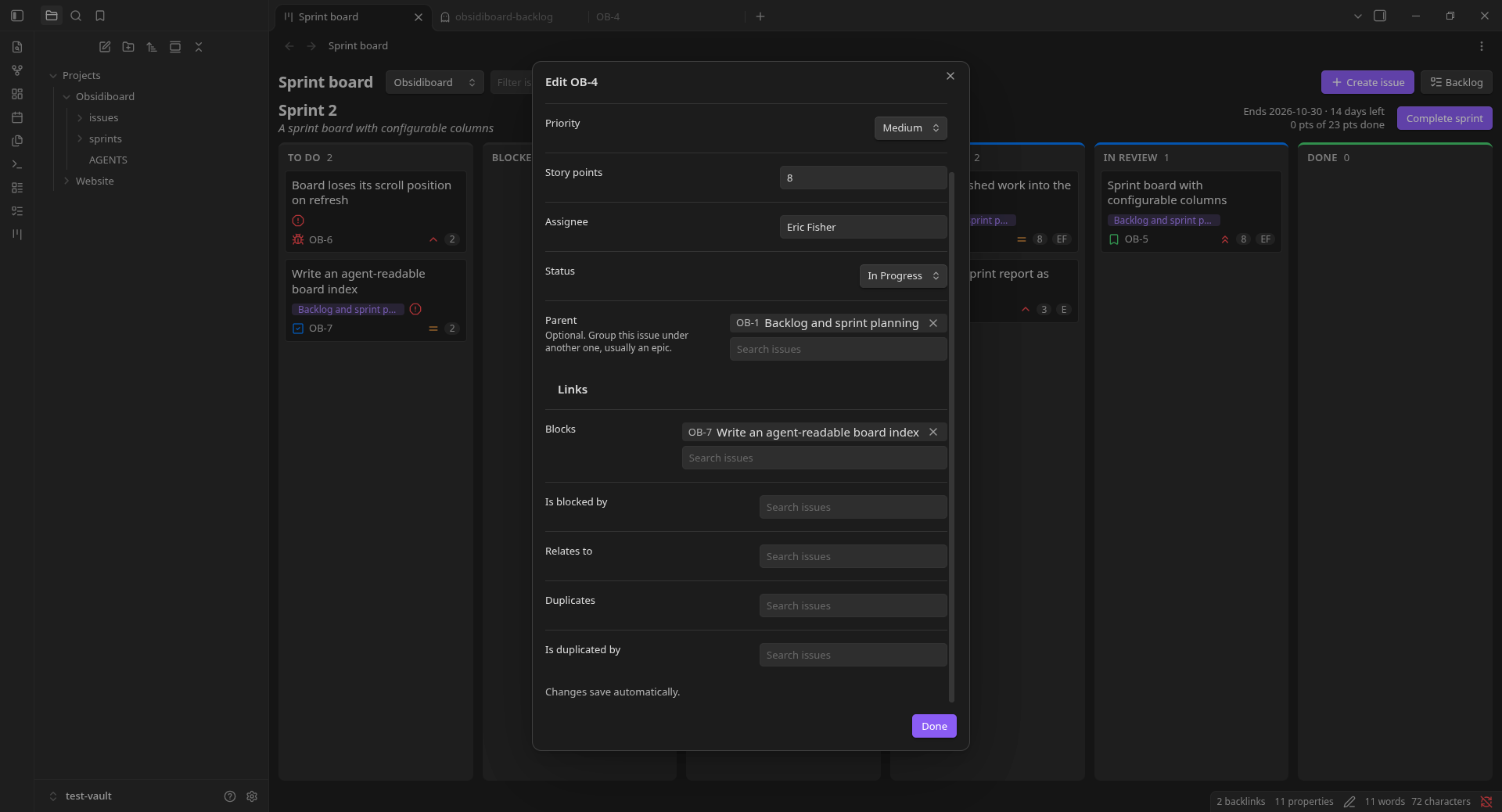
Links to other issues are chosen the same way. Changes save by themselves a moment after you stop typing, and the form says so at the bottom. Done saves anything pending and closes it.
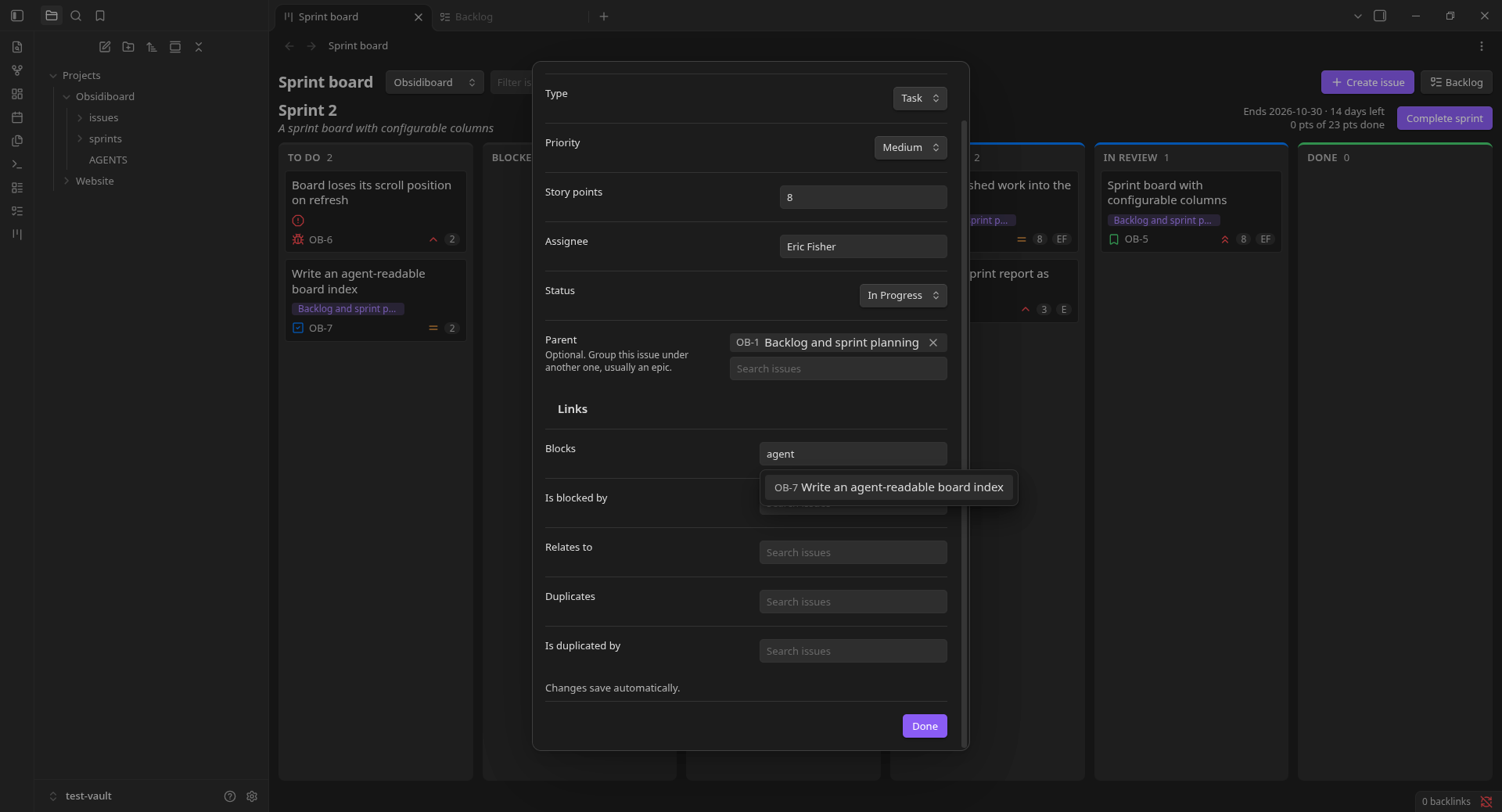
Each picker suggests existing issues by key or summary as you type.
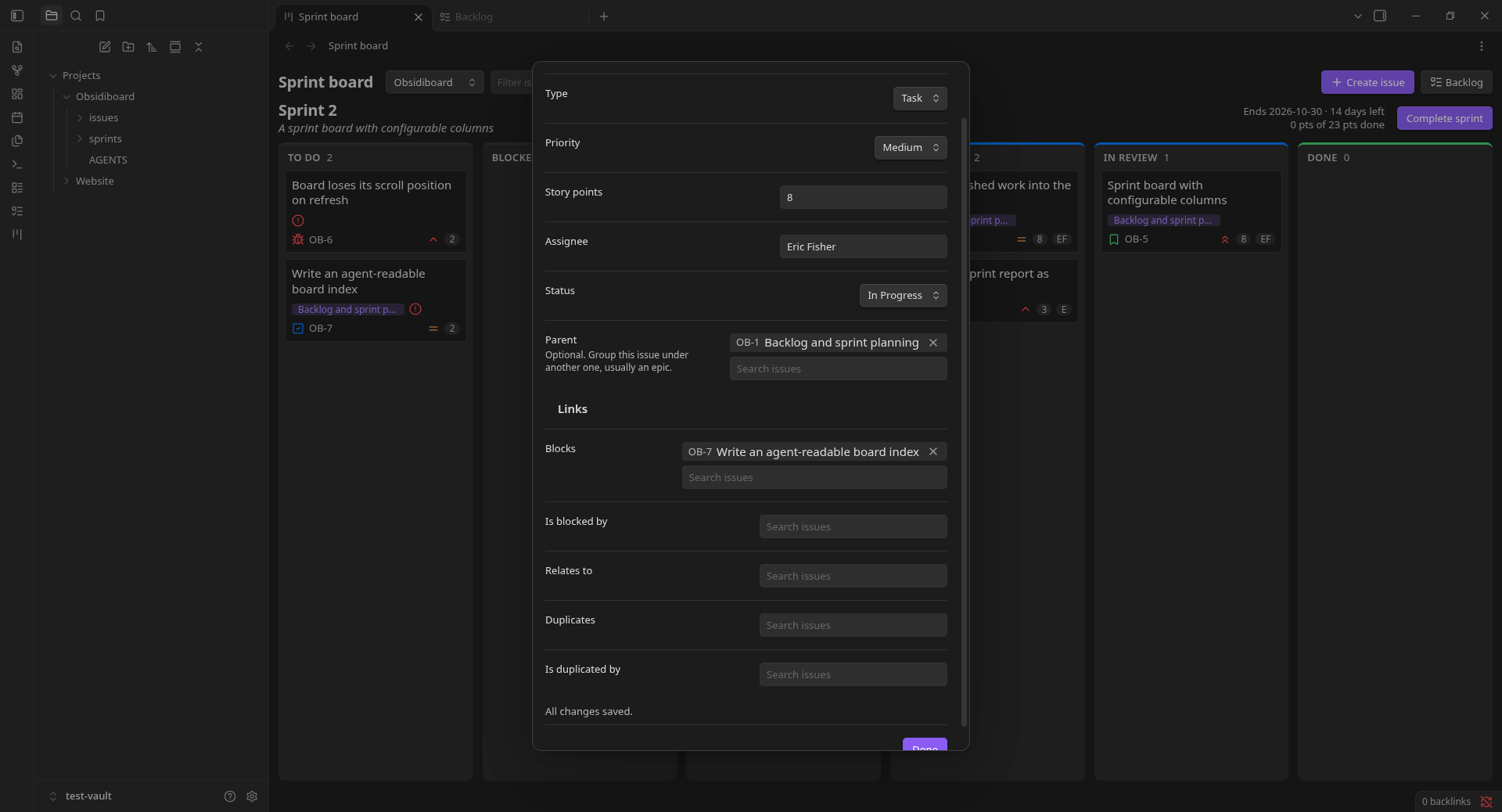
Adding a link writes both sides: OB-4 now lists OB-7 under blocks, and OB-7 lists OB-4 under blocked_by.
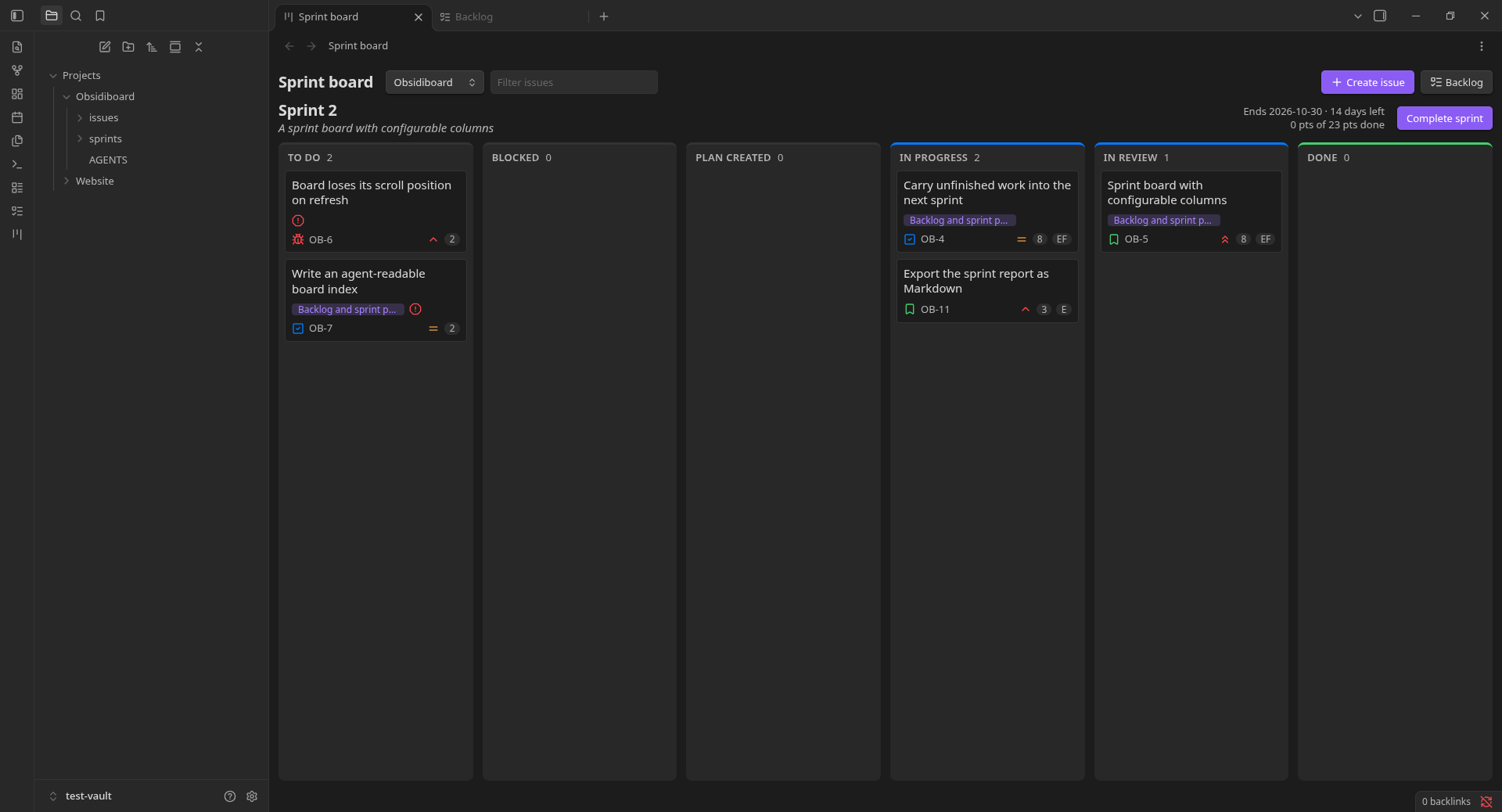
An issue that is blocked by unfinished work gets a red warning icon on its card.
6. Several projects
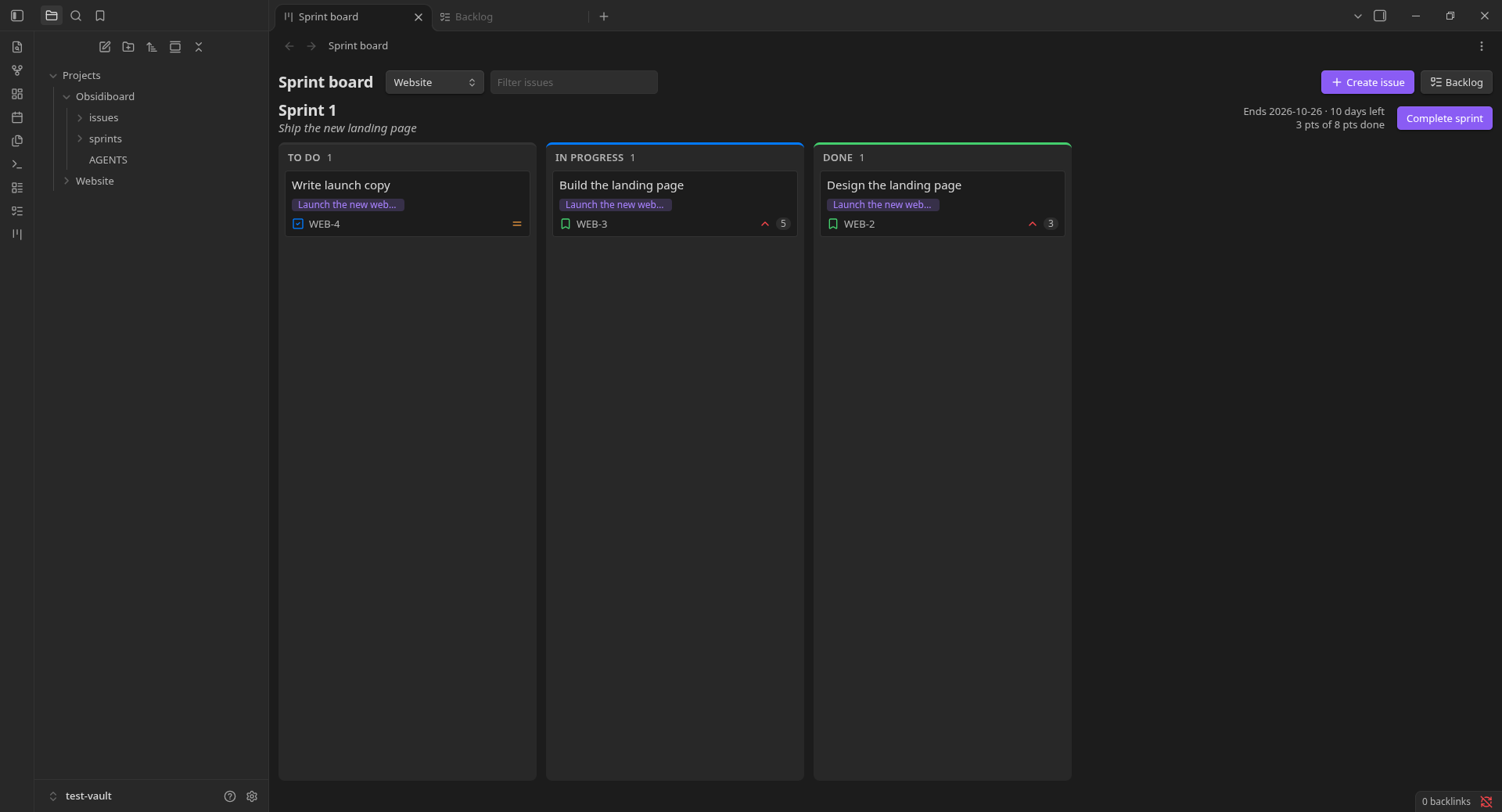
The dropdown next to the title switches projects. The Website project has its own sprint, issues and a three-column workflow (To Do, In Progress, Done), while Obsidiboard has six columns. Each project also has its own issue key prefix (OB-, WEB-) and default sprint length.
7. Settings
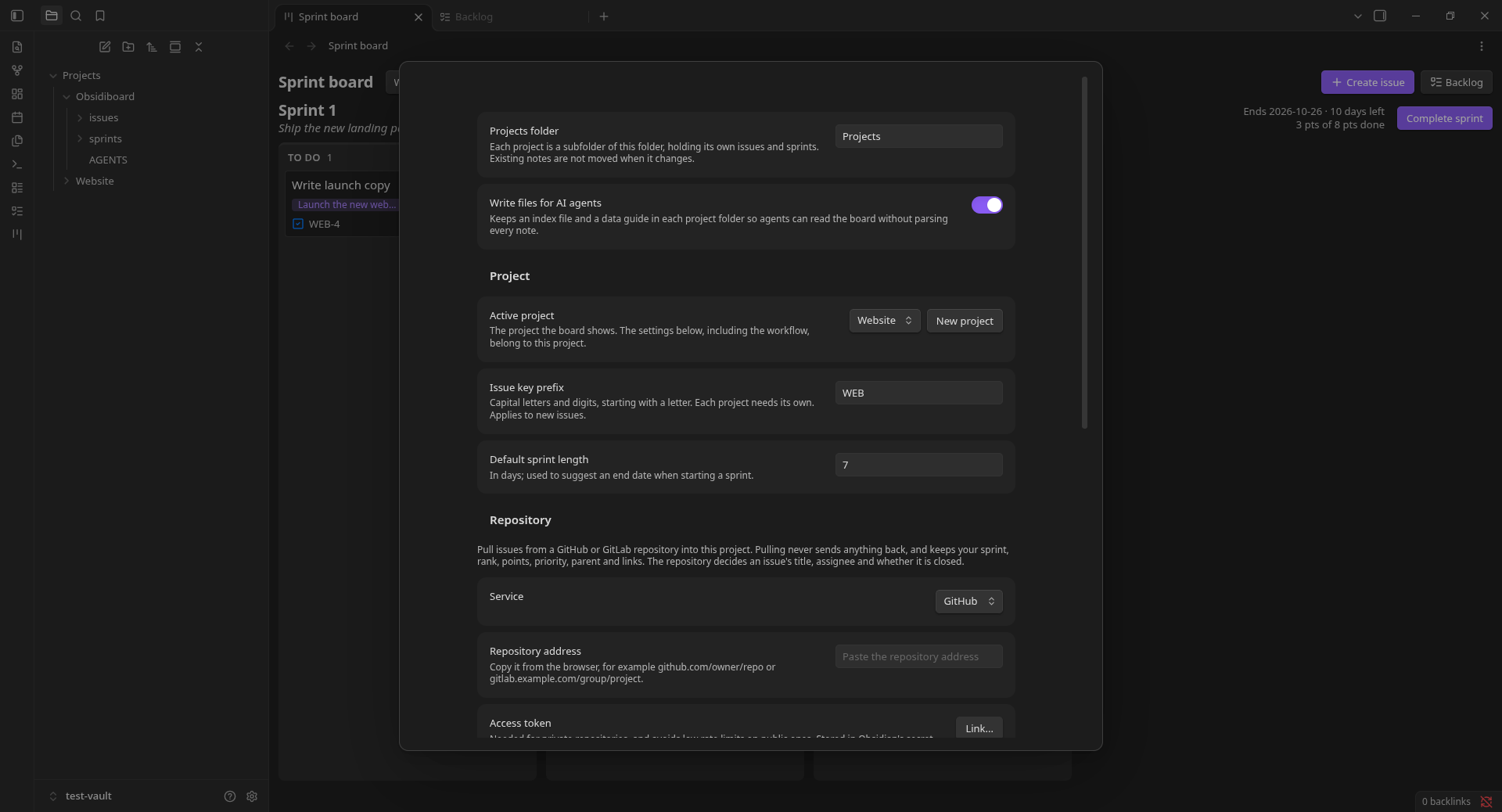
The settings tab holds the projects folder, the switch for the generated AI-agent files, and the active project's key prefix and default sprint length.
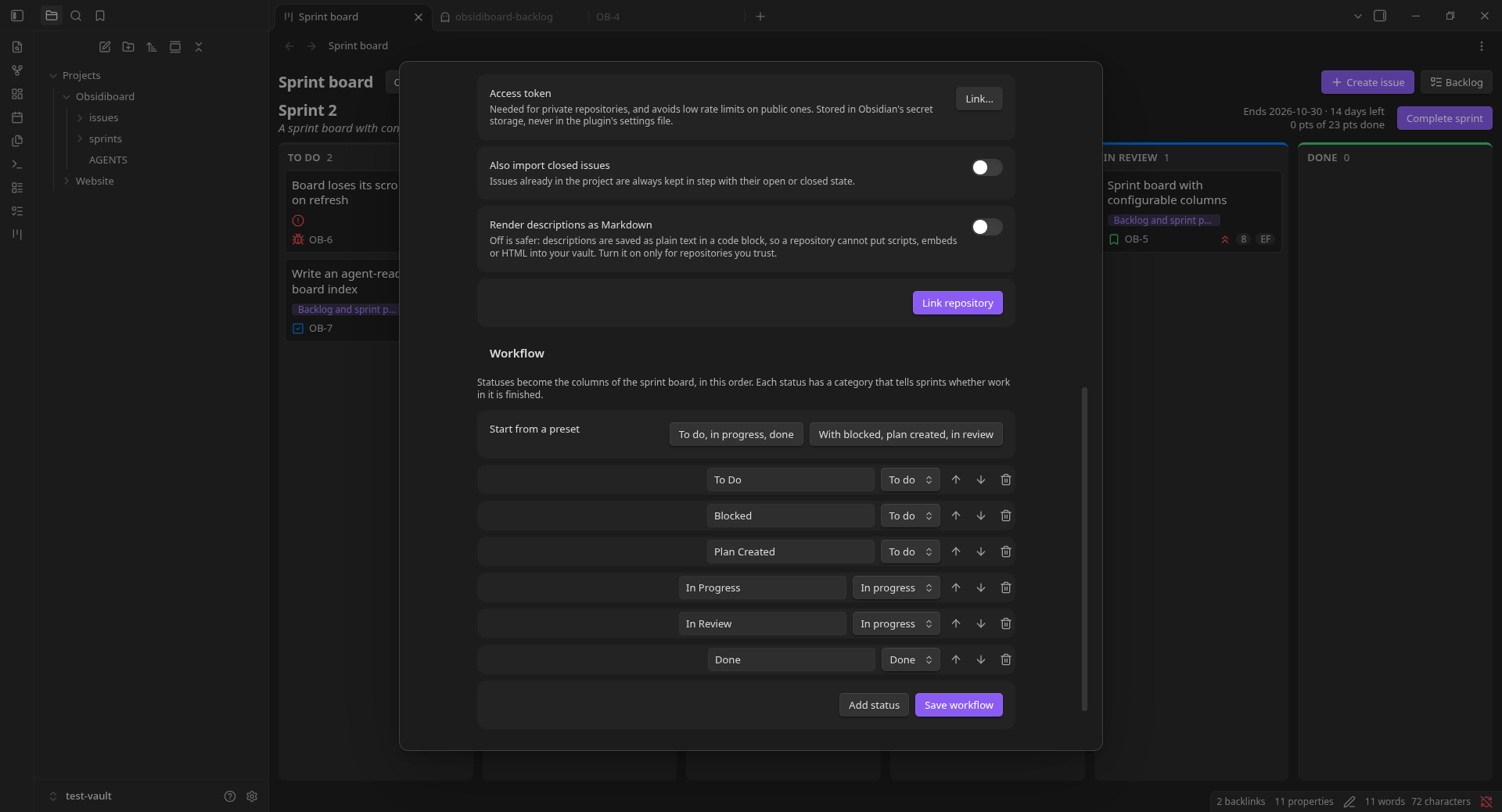
Each project can be linked to a GitHub or GitLab repository, with the access token kept in Obsidian's secret storage. The same page edits the project's workflow: statuses, their order, and whether each counts as to do, in progress or done.
8. It is all plain notes
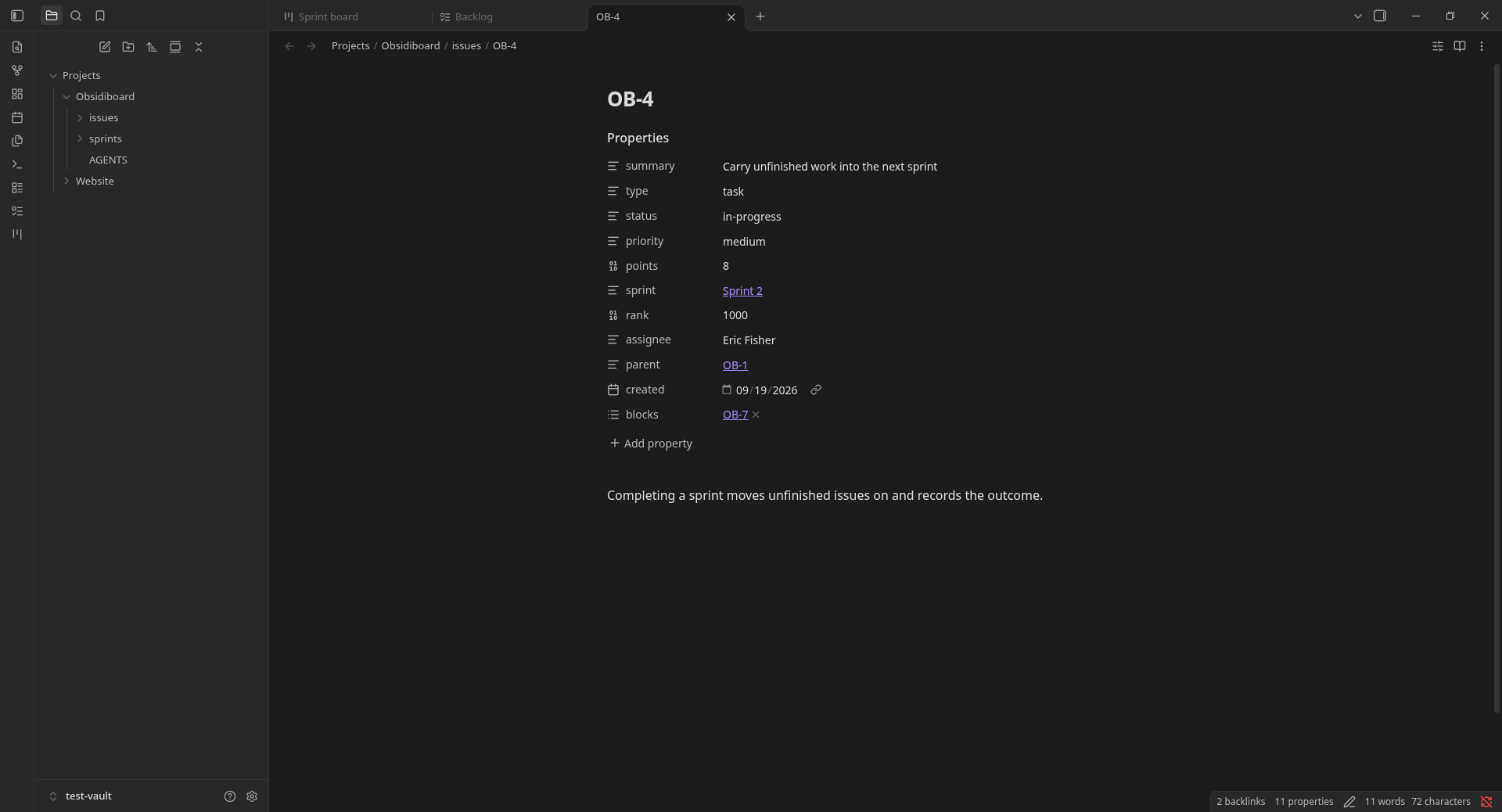
Each issue is a normal note. Its fields are properties, links to other issues are links, and its description is the note body.
How the data is stored
Projects/                      ← the projects folder (a setting)
  Obsidiboard/                 ← one folder per project
    issues/OB-1.md … OB-11.md
    sprints/Sprint 1.md …
    index.json                 ← generated, for AI agents
    AGENTS.md                  ← generated guide to the data
  Website/
    issues/WEB-1.md …
    sprints/Sprint 1.md …
An issue note:
---
summary: Carry unfinished work into the next sprint
type: task
status: in-progress
priority: medium
points: 8
sprint: "[[Projects/Obsidiboard/sprints/Sprint 2|Sprint 2]]"
rank: 1000
assignee: Eric Fisher
parent: "[[OB-1]]"
created: 2026-09-19
blocks:
  - "[[OB-7]]"
---
Completing a sprint moves unfinished issues on and records the outcome.
A sprint note keeps its state, dates, goal and, once completed, what it finished:
---
state: closed
sequence: 1
start_date: 2026-09-18
end_date: 2026-10-01
goal: "Plan work into sprints"
committed_points: 16
completed_points: 8
completed_issues:
  - "[[OB-2]]"
  - "[[OB-3]]"
carried_over_issues:
  - "[[OB-4]]"
---
Things worth knowing:
- Issue keys are the file names (
OB-12.md). Each project needs its own key prefix, so links like[[OB-1]]are never ambiguous. - Sprint links include the sprints folder, because every project has sprints with the same names.
- Edit notes by hand if you like. Link fields come in pairs (
blocks↔blocked_by,duplicates↔duplicated_by); when one note names the other the plugin treats both as linked. index.jsonandAGENTS.mdare regenerated while Obsidian is open. The notes are the source of truth.
Pulling issues from GitHub or GitLab
In Settings → BoardMD → Repository, choose the service, paste the repository address, optionally pick an access token, and press Link repository. Then run Pull issues from the backlog toolbar, the command palette, or the settings page.
- New repository issues become backlog issues, with a
sourceproperty holding the issue's web address. - Later pulls keep title, assignee and open/closed state in step with the repository. Your sprint, rank, points, priority, parent, links and description are never overwritten.
- Open issues are pulled by default. Turn on Also import closed issues for the rest. Issues already in the project are always kept in step with their state.
- Descriptions are saved as plain text in a code block, so a repository cannot put scripts, embeds or HTML into your vault. Turn on Render descriptions as Markdown only for repositories you trust.
- Pulling is one way: nothing is sent back to the repository.
- Access tokens live in Obsidian's secret storage, never in the plugin's settings file. Public repositories work without one but have low rate limits.
Commands
| Command | What it does |
|---|---|
| Open backlog | Opens the backlog view |
| Open sprint board | Opens the sprint board |
| Create issue | Opens the create form |
| Create sprint | Adds a planned sprint |
| Switch project | Picks the project the board shows |
| Create project | Adds a project folder with its own settings |
| Pull issues from linked repository | Pulls issues for the active project |
| Edit issue | Edits the issue note you have open |
Not built yet
- Deleting issues from the board
- Burndown charts
- Filtering the board by epic
- Pushing changes back to GitHub or GitLab, and importing comments or labels as fields
Development
npm install
npm run dev        # rebuild main.js on change
npm run build      # typecheck, then a production build
npm test           # vitest
npm run lint       # eslint with the Obsidian plugin rules
The code is layered: src/domain (pure rules), src/application (commands and queries over ports), src/infrastructure (the vault, frontmatter, agent files, GitHub and GitLab), src/settings and src/ui, wired together in src/compose.ts. Dependencies are passed in through constructors.
To try the plugin, make a throwaway vault, link main.js, manifest.json and styles.css into its .obsidian/plugins/boardmd/ folder, and reload the plugin after each build.
License
MIT © 2026 Eric Fisher