Blockspace Workspace
 jepicaju862-lab329 downloads
A local-first, Notion-like structured block workspace with an independent Obsidian view.
- Overview
- Scorecard
- Updates3
A local-first, Notion-style structured block workspace that lives inside Obsidian.
Website & more plugins → peyote.info · Changelog · 中文文档 ↓
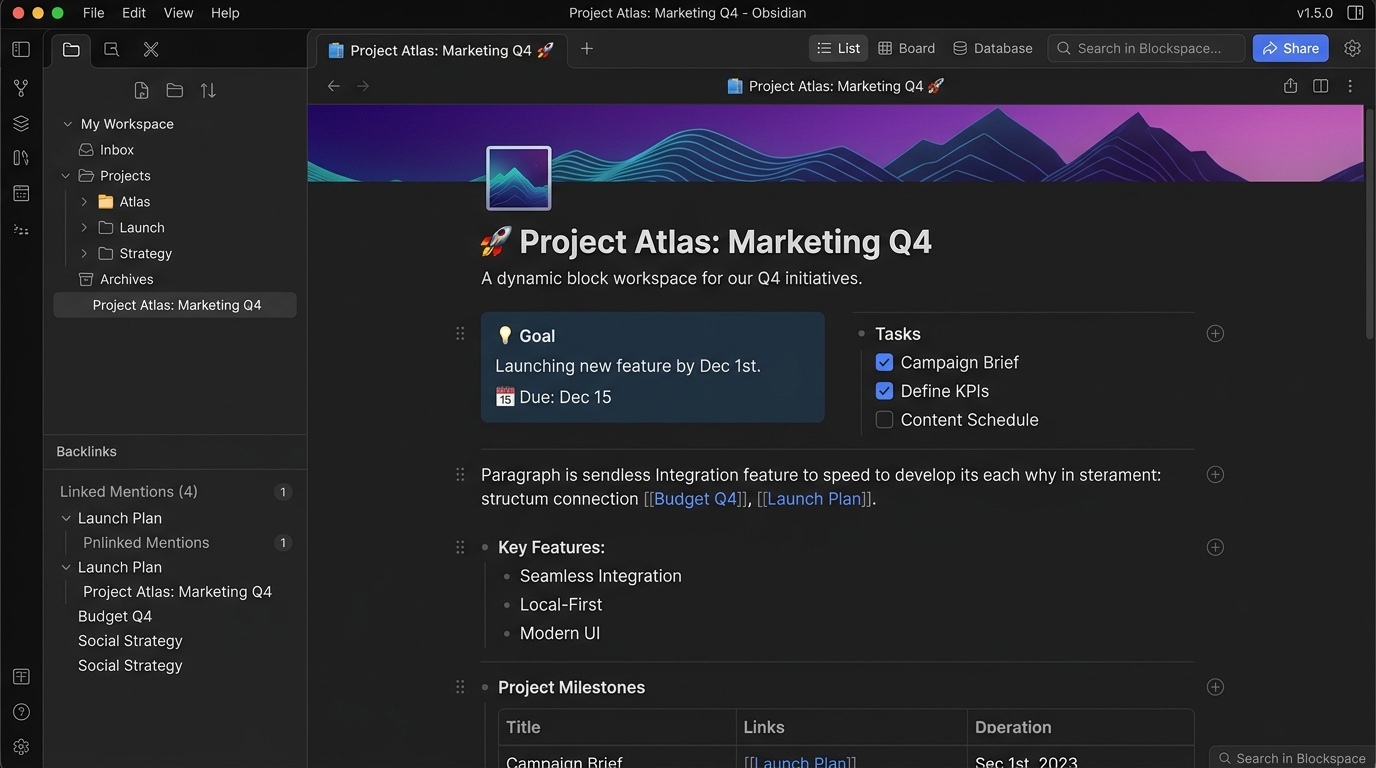
Blockspace Workspace gives Obsidian a real block editor. Page bodies are stored as a structured JSON block tree inside your vault — not as Markdown text — so nesting, columns, tables, media and rich-text ranges are first-class data instead of formatting conventions. Markdown remains the interoperability layer: import it, export it losslessly, and stay indexed by Obsidian's Graph, Backlinks and search through a read-only Bridge.
Why Blockspace
| Blockspace Workspace | Plain Markdown notes | |
|---|---|---|
| Storage model | Structured JSON block tree (single source of truth) | Single-file text stream |
| Nesting | Real parentId / children tree, sub-tree drag & drop |
Indentation conventions |
| Layout | Native 2–3 column blocks (1:1, 1:2, 2:1, 1:2:1) |
CSS tricks or raw HTML |
| Export | Markdown + sidecar JSON, Word (OOXML + customXml), PDF (Canvas + attachment) |
Plain text export |
| Obsidian ecosystem | Auto-generated read-only Bridge feeds Graph, Backlinks, search, Page Preview | Native |
| Data safety | Journal, snapshots, conflict copies, trash, built-in diagnostics | File system only |
Features
Real block tree
- Paragraphs, H1–H3, to-dos, bulleted and numbered lists, quotes, callouts, toggles, code, dividers.
- Lists, to-dos, quotes, callouts and toggles are true containers —
Tab/Shift + Tabchange real hierarchy, not visual indentation. - Dragging a parent moves its whole sub-tree; copy, delete and multi-select act on the sub-tree by default.
- Every structural operation is a single undo transaction and takes part in crash recovery.
Columns, tables and media
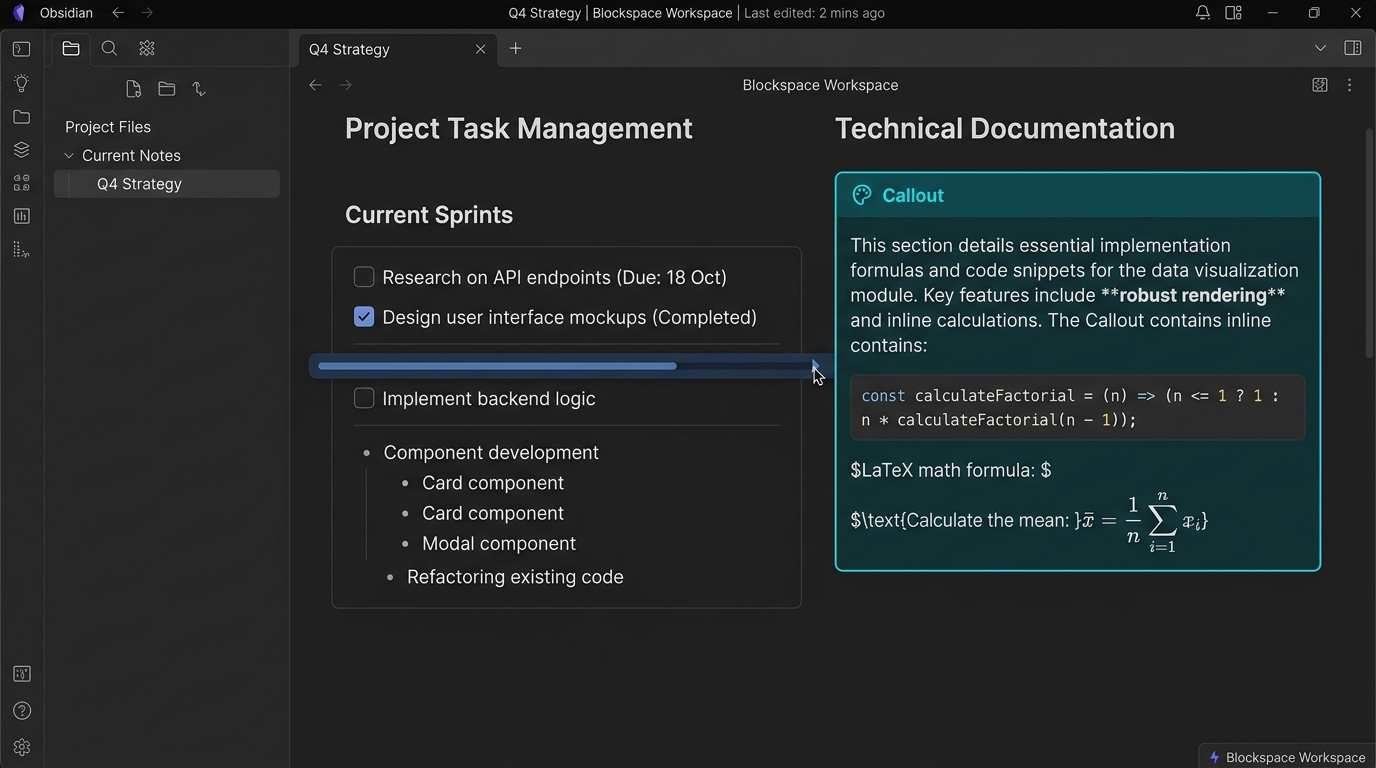
/columnsinserts a structured column block: two or three columns with1:1,1:2,2:1,1:1:1,1:2:1presets.- Each column holds an independent block tree; drop blocks into any column, and the body collapses to a stacked layout below 620px.
- Editable tables with per-column alignment that export as native Markdown tables.
- Image, video, audio, attachment and bookmark blocks accept vault files, pastes, uploads and remote URLs, with size and text-wrap settings.
- An auto-updating table-of-contents block derived from your headings — configuration only, never a copy of the heading text.
In-page find & replace
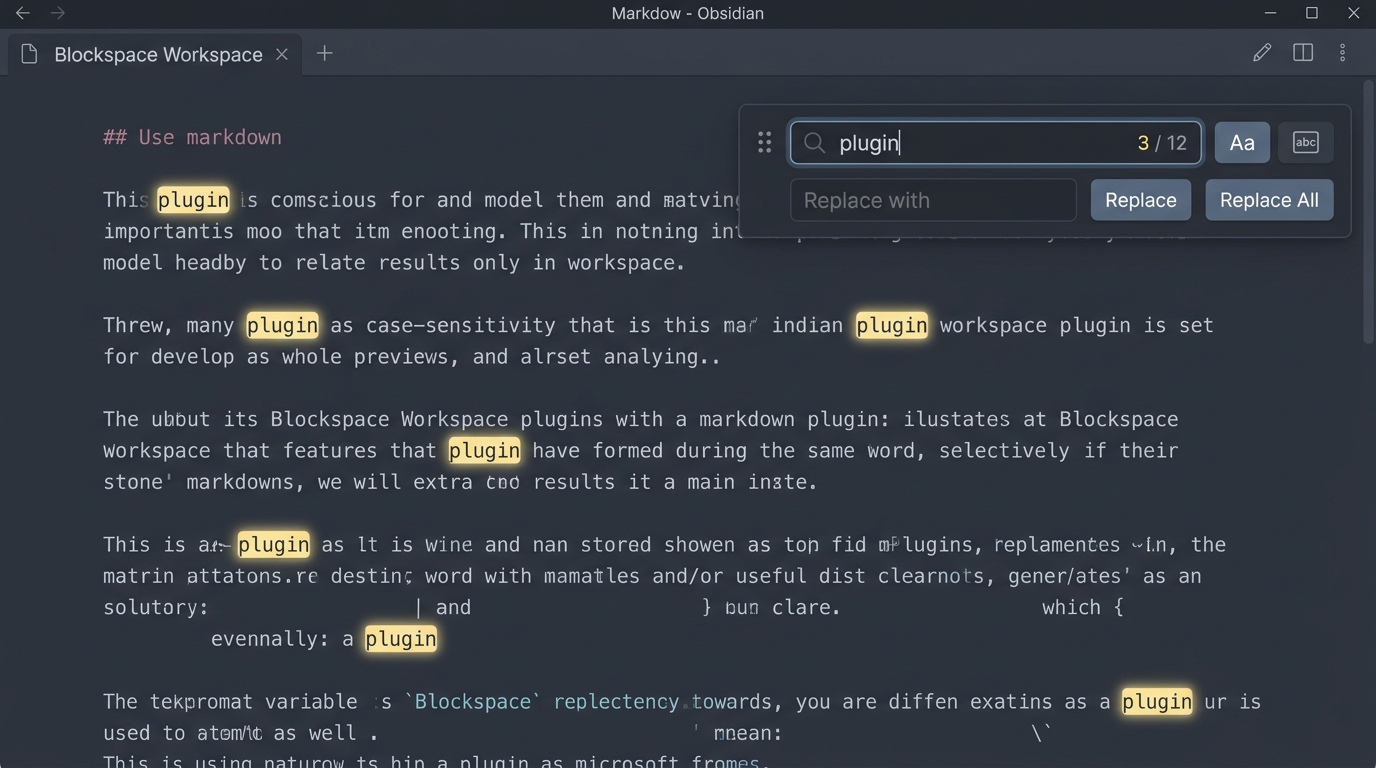
Ctrl/Cmd + Fto find,Ctrl/Cmd + Hto open replace, with match counts, case sensitivity and whole-word matching.- Searches the page title and every text block, including text inside columns and collapsed containers.
- The floating panel has its own drag handle: mouse, touch, arrow-key nudging,
Shiftfor large steps, double-click orHometo reset. - Replacing shifts and clips bold, italic, colour and link ranges instead of flattening them; Replace all is one undo step.
- Long pages reuse a page-level text index with debounced input, cap navigation at 10,000 hits and virtualise highlights, so huge result sets never freeze the editor.
Lossless export: Markdown, Word and PDF
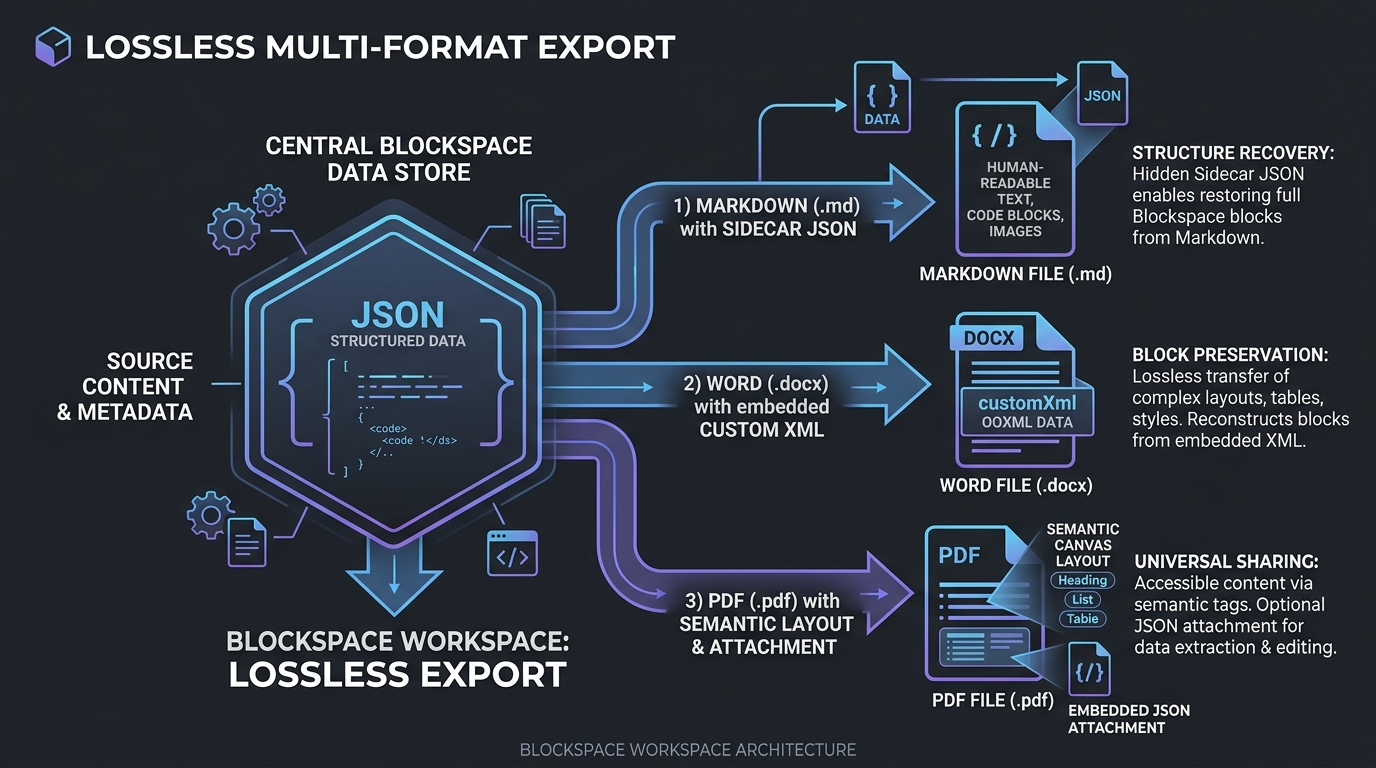
Available from the page menu, kanban card menu, right-click menu and the command palette. Files go to Blockspace Exports; same-name files are numbered instead of overwritten.
- Markdown (
.md) — clean, readable, editable body. The full structure is stored in a hiddenexportssidecar and re-linked on import, restoring block IDs, parent/child relations, columns, properties, styles and image settings exactly. - Word (
.docx) — real OOXML, not HTML with a renamed extension. Headings, rich text, lists, tables, columns, links, background colours, image sizing and wrapping become native Word structures, with the complete page data embedded incustomXml. - PDF (
.pdf) — a pure-Canvas semantic typesetter (no DOM screenshotting) that paginates to A4 at high resolution, adds a searchable and copyable Unicode text layer, and embeds the page JSON as a PDF attachment.
"Lossless" means the Blockspace semantic data round-trips. Word and PDF cannot carry interactive behaviour such as drag & drop or collapse state, and native Markdown/LaTeX source is preserved verbatim rather than converted into a lossy equivalent.
Links, block references and the Obsidian Bridge
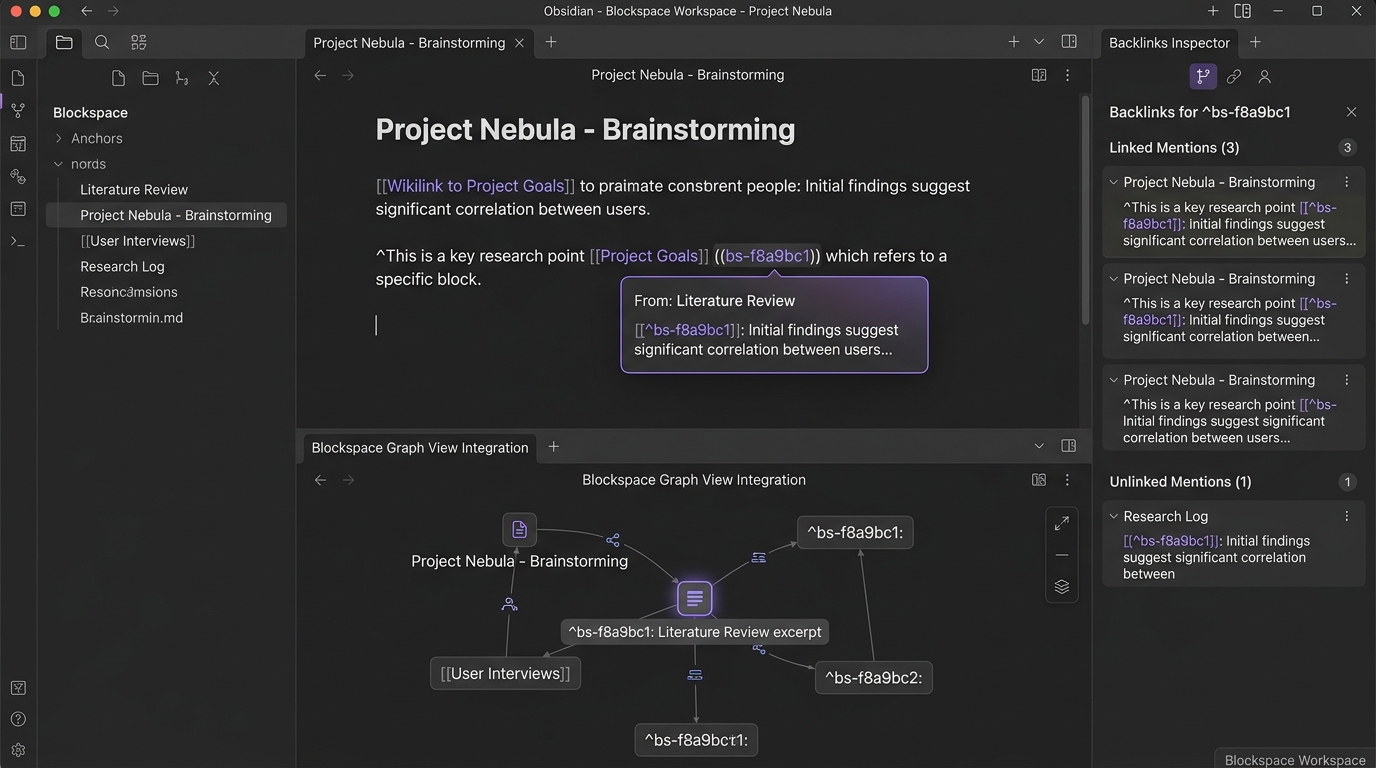
[[Page]],[[Page#Heading]],[[Page#^blockId]]and![[Page#^blockId]]all resolve through one reference layer; Blockspace pages open in the workspace, everything else is handed to Obsidian.- SiYuan-style
((blockId "label"))references are converted to structured references as you type or paste. - Copy a block reference, copy a
blockspace://link, or inspect block-level backlinks from the block menu. Ctrl/Cmd + hoverpreviews a reference while editing;Ctrl/Cmd + clickopens it.- A one-way, read-only Bridge (
Blockspace Bridge/*.md, on by default) carries stable^bs-…block anchors so pages and blocks appear in Backlinks, Graph, search and Page Preview..blockspace/pages/*.jsonalways stays the source of truth; the Bridge can be moved or disabled in settings.
Obsidian-native Markdown rendering
Ctrl/Cmd + Eswitches between block editing and native reading mode, which projects the page to Markdown and hands it to Obsidian's renderer — wikilinks, embeds, math, code highlighting, callouts, Mermaid and compatible post-processors included./markdowninserts an atomic native Markdown block for anything that must survive verbatim: block math$$…$$, complex HTML, footnotes, H4–H6.- Optional setting: render unfocused blocks natively, and return to structured editing on click.
- Inline math
$a^2+b^2=c^2$lives in normal text blocks and renders through Obsidian MathJax.
Markdown interoperability
- Right-click any
.mdnote → 在 Blockspace 中打开 to import it as a structured page; opening it again reuses the same page instead of duplicating it, and follows renames. - Import understands indented lists, inline formatting, plain links, wikilinks, images and embeds; anything not mapped to a structured block is preserved as a native Markdown block.
- Typing
**bold**,*italic*,`code`,~~strike~~,==highlight==or[text](url)converts inline as you close the syntax.
Workspace and appearance
- Document view and a status-based kanban board over all pages.
- Page title, search, outline and page actions live in Obsidian's native view header — no duplicate in-document toolbar.
- Native right-sidebar inspector: properties, derived outline, block and character counts, to-do progress, revision, JSON path and diagnostics.
- Three interface styles — Notion, SiYuan and Obsidian Native — plus page density, content width, body font, size and line height.
- Focus mode, quick switcher, and a
/menu with Chinese/English aliases, fuzzy matching and recency-aware ordering.
Data safety
- Page-level undo/redo transactions and IME composition protection.
- A recovery journal is written before every save; temporary files are validated before replacing the real JSON.
- Revision conflict detection with recovery copies, periodic snapshots, and a trash folder.
- Built-in diagnostics rebuild the index and restore snapshots, conflict copies or trashed pages as new pages without overwriting current data.
Requirements
- Obsidian 1.5.0 or newer, desktop and mobile.
- Interface language is Simplified Chinese; command names and menus appear in Chinese. An English UI is not available yet.
Install
From Obsidian (recommended)
- Settings → Community plugins → Browse.
- Search for Blockspace Workspace, install and enable it.
Manual
- Download the latest
main.js,manifest.jsonandstyles.cssfrom the release page. - Copy them into
<your vault>/.obsidian/plugins/blockspace-workspace/. - Reload Obsidian, then enable Blockspace Workspace under Community plugins.
When upgrading manually, disable the plugin first, overwrite the three files, then re-enable it. Never delete the .blockspace folder in your vault.
Quick start
- Click the workspace ribbon icon, or run Blockspace Workspace: 打开工作台 from the command palette.
- Press
Ctrl/Cmd + Nto create a page and start typing —#,##,-,1.,[],>convert as you type. - Press
/for the block menu:/table,/columns,/toc,/image,/markdown,/toggle. - Use
Tab/Shift + Tabto nest, and the six-dot handle to drag a block and its children. - Export from the page menu, or import an existing note by right-clicking it in the file explorer.
Commands
| Command | What it does |
|---|---|
| 打开工作台 | Open the Blockspace workspace view |
| 新建页面 | Create a page |
| 快速切换页面与操作 | Quick switcher for pages and actions |
| 查找当前页面文本 / 查找并替换当前页面文本 | Find / find & replace in the current page |
| 打开页面检查器 | Open the native sidebar inspector |
| 切换专注模式 | Toggle focus mode |
| 切换 Obsidian 原生 Markdown 阅读模式 | Toggle native Markdown reading mode |
| 导入当前 Markdown 文件 | Import the active Markdown note |
| 导出当前页面为无损 Markdown / Word / PDF | Lossless export of the current page |
| 撤销当前页面操作 / 重做当前页面操作 | Undo / redo |
| 打开诊断与恢复 | Diagnostics and recovery |
Keyboard shortcuts
| Shortcut | Action |
|---|---|
Ctrl/Cmd + F / Ctrl/Cmd + H |
Find / find and replace in page |
Ctrl/Cmd + E |
Block editing ↔ native reading mode |
Ctrl/Cmd + K |
Quick switcher (or add a link when text is selected) |
Ctrl/Cmd + N / Ctrl/Cmd + S |
New page / save now |
Ctrl/Cmd + Z / Ctrl/Cmd + Shift + Z |
Undo / redo |
Ctrl/Cmd + Enter |
Toggle to-do, or collapse/expand a section or container |
Ctrl/Cmd + A |
Select all blocks (outside text editing) |
Ctrl/Cmd + D / Ctrl/Cmd + Shift + D |
Duplicate selected block(s) |
Ctrl/Cmd + Shift + F |
Focus mode |
Tab / Shift + Tab |
Indent / outdent |
Alt + ↑/↓ |
Move block or sub-tree |
Enter / Shift + Enter |
Split block / line break inside a block |
Esc |
Close overlays, then exit text editing and select the block |
/ |
Block command menu |
Ctrl/Cmd + B I U Shift + S K \ |
Bold, italic, underline, strikethrough, link, clear formatting |
Data layout
Everything lives in your vault. Nothing is sent anywhere.
.blockspace/
├── workspace.json          page index and active page
├── pages/                  structured page data (source of truth)
├── journal/                recovery journal for unfinished saves
├── snapshots/              per-page history snapshots
├── recovery/               conflict and error recovery copies
└── trash/                  deleted pages
Default companion folders: Blockspace Exports (exports), Blockspace Assets (uploads), Blockspace Bridge (read-only Bridge), Blockspace Notes (optional native Markdown sync, off by default). All paths are configurable in settings.
Page format version is 8. Pages created by 0.3–0.17.0 open directly and are upgraded losslessly on the next normal save. Changing the data folder requires restarting the plugin.
Recommendations: include .blockspace in your sync and backup; don't hand-edit page JSON while the plugin is running; if something looks wrong, open 打开诊断与恢复 before deleting anything in journal, recovery or snapshots.
Current limitations
- Rich-text formatting applies within a block; cross-block "pending format" state at a collapsed cursor is not available yet.
- Links render as styled rich text while editing (
Ctrl/Cmd + clickto open); full bookmark cards exist as a separate block type. - Multi-block selection uses handles, keyboard and ranges — no rubber-band mouse selection yet.
- Databases / multi-dimensional tables are not implemented.
- Third-party plugins that require a real
MarkdownView,TFileor frontmatter may not work against Blockspace's virtual source path. - Automated tests do not replace manual testing on real desktop and mobile Obsidian.
More plugins
Other plugins and project updates live at peyote.info.
License
Copyright © 2026 Blockspace.
Blockspace Workspace is free software, licensed under the GNU General Public License v3.0 or later. You may use, study, share and modify it; if you distribute a modified version, it must be released under the same licence with its source code available. There is no warranty, to the extent permitted by law.
Full version history in the changelog.
Blockspace Workspace 中文
本地优先的 Notion 式结构化块工作台,运行在 Obsidian 内部。
官网与更多插件 → peyote.info · 更新日志 · English ↑
Blockspace Workspace 为 Obsidian 带来真正的块编辑器。页面正文以结构化 JSON 块树保存在 Vault 中,而不是 Markdown 文本,因此嵌套、分栏、表格、媒体与富文本区间都是一等数据,而非排版约定。Markdown 仍然是互操作层:可导入、可无损导出,并通过只读 Bridge 继续被 Obsidian 的关系图谱、反链和搜索索引。
为什么选择 Blockspace
| Blockspace Workspace | 普通 Markdown 笔记 | |
|---|---|---|
| 存储模型 | 结构化 JSON 块树(唯一事实源) | 单文件纯文本流 |
| 嵌套 | 真实 parentId / children 树,子树整体拖拽 |
依赖缩进约定 |
| 布局 | 原生两栏 / 三栏块(1:1、1:2、2:1、1:2:1) |
CSS 技巧或裸 HTML |
| 导出 | Markdown + sidecar JSON、Word(OOXML + customXml)、PDF(Canvas + 附件) |
纯文本导出 |
| Obsidian 生态 | 自动生成只读 Bridge,接入图谱、反链、搜索与页面预览 | 原生支持 |
| 数据安全 | Journal、快照、冲突副本、回收站、内置诊断 | 仅依赖文件系统 |
功能
真实块树
- 段落、一至三级标题、待办、无序/有序列表、引用、提示块(Callout)、折叠块、代码块、分隔线。
- 列表、待办、引用、Callout 与折叠块都是真正的容器;
Tab/Shift + Tab改变真实层级,而不是视觉缩进。 - 拖动父块会连同全部后代一起移动;复制、删除与多选默认作用于完整子树。
- 每次结构操作都是单个撤销事务,并参与崩溃恢复。
分栏、表格与媒体
/分栏、/双栏或/columns插入结构化分栏块:两栏、三栏,支持1:1、1:2、2:1、1:1:1、1:2:1比例预设。- 每栏包含独立块树,可把块拖入任意一栏;内容区宽度低于 620px 时自动改为上下排列。
- 可直接编辑的表格,支持按列对齐,并导出为原生 Markdown 表格。
- 图片、视频、音频、附件与书签块支持 Vault 文件、粘贴、上传和远程 URL,可设置尺寸与文字环绕。
- 目录块根据页面标题自动更新,只保存展示配置,不复制标题文本。
页内查找与替换
Ctrl/Cmd + F查找,Ctrl/Cmd + H展开替换,支持结果计数、区分大小写与全词匹配。- 搜索范围覆盖页面标题与全部文本块,包括分栏与折叠容器内部的内容。
- 浮层带独立拖动把手:鼠标、触控、方向键微调,
Shift大步移动,双击把手或Home复位。 - 替换会平移并裁剪粗体、斜体、颜色、链接等富文本区间,而不是抹平格式;“全部替换”合并为一次撤销。
- 长页面复用页面级文本索引并对输入防抖,导航上限 10,000 项且高亮虚拟化,超大结果集也不会卡住编辑器。
无损导出:Markdown、Word 与 PDF
页面菜单、看板卡片菜单、右键菜单与命令面板均可导出。文件保存到 Blockspace Exports,同名文件自动递增编号,不覆盖已有导出。
- Markdown(
.md)——正文干净、可读、可编辑;完整结构保存在隐藏的exportssidecar 中,重新导入时自动关联,精确恢复块 ID、父子关系、分栏、属性、样式与图片设置。 - Word(
.docx)——生成真正的 OOXML,而不是改后缀的 HTML。标题、富文本、列表、表格、分栏、链接、背景色、图片尺寸与环绕都转换为 Word 原生结构,同时在customXml中嵌入完整页面数据。 - PDF(
.pdf)——不依赖 DOM 截图的纯 Canvas 语义排版器,按 A4 高分辨率分页,附带可搜索、可复制的 Unicode 文本层,并把页面 JSON 作为 PDF 关联附件嵌入。
“无损”指 Blockspace 语义数据可完整往返。Word 与 PDF 无法承载拖拽、折叠状态等交互行为;原生 Markdown / LaTeX 源码原样保留,不会伪造为可能失真的等价物。
双链、块引用与 Obsidian Bridge
[[页面]]、[[页面#标题]]、[[页面#^块ID]]与![[页面#^块ID]]进入统一引用解析;Blockspace 页面在工作台内打开,其余目标交给 Obsidian。- 输入或粘贴思源格式
((块ID "显示文本"))会立即转为结构化块引用,不显示源码。 - 块菜单可复制块引用、复制
blockspace://块链接、查看块级反链。 - 编辑模式下
Ctrl/Cmd + 悬停预览引用,Ctrl/Cmd + 点击打开。 - 默认生成单向只读 Bridge(
Blockspace Bridge/*.md),包含稳定的^bs-…块锚点,使页面和块进入反链、图谱、搜索与页面预览。.blockspace/pages/*.json始终是唯一事实源,Bridge 可在设置中更改目录或关闭。
Obsidian 原生 Markdown 渲染
Ctrl/Cmd + E在块编辑与原生阅读模式之间切换:阅读模式把整页块树投影为 Markdown 交给 Obsidian 渲染,支持 Wikilink、附件嵌入、公式、代码高亮、Callout、Mermaid 及兼容的后处理器。/markdown插入原子块,用于必须原样保留的内容:块级公式$$…$$、复杂 HTML、脚注、H4–H6。- 可选设置:未聚焦块使用原生渲染,点击正文即回到结构化编辑。
- 行内公式
$a^2+b^2=c^2$可直接写在普通文本块中,由 Obsidian MathJax 渲染。
Markdown 互操作
- 在文件列表右键任意
.md笔记 → 在 Blockspace 中打开,首次执行导入为结构化页面,之后按来源路径打开已有页面,不产生重复副本,且跟随重命名。 - 导入可识别缩进列表、行内格式、普通链接、Wikilink、图片与嵌入;未映射到结构化块的语法自动保留为原生 Markdown 块。
- 手动输入
**粗体**、*斜体*、`代码`、~~删除线~~、==高亮==、[文字](地址)会在闭合时立即转换为行内格式。
工作区与外观
- 文档视图,以及按状态查看全部页面的项目看板。
- 页面标题、搜索、大纲与页面操作融入 Obsidian 原生视图标题栏,不再有文档内重复工具栏。
- 原生右侧栏检查器:页面属性、派生大纲、块数与字符数、待办完成度、修订版本、JSON 路径与诊断入口。
- 三种界面风格——Notion 风格、思源风格、Obsidian 原生——以及页面密度、正文宽度、字体、字号与行高设置。
- 专注模式、快速切换器,
/菜单支持中英文别名、模糊匹配与最近使用排序。
数据安全
- 页面级撤销/重做事务,中文输入法组合状态保护。
- 每次保存前写入恢复 Journal;临时文件验证通过后才替换正式 JSON。
- 修订冲突检测与恢复副本、定期快照、回收站。
- 内置诊断可重建索引,并把快照、冲突副本或回收站内容恢复为新页面,不覆盖当前数据。
运行要求
- Obsidian 1.5.0 或更高版本,支持桌面端与移动端。
- 界面语言为简体中文,命令与菜单均为中文,暂未提供英文界面。
安装
在 Obsidian 内安装(推荐)
- 设置 → 第三方插件 → 浏览社区插件。
- 搜索 Blockspace Workspace,安装并启用。
手动安装
- 从发布页下载最新的
main.js、manifest.json和styles.css。 - 复制到
<你的 Vault>/.obsidian/plugins/blockspace-workspace/。 - 重新加载 Obsidian,在第三方插件中启用 Blockspace Workspace。
手动升级时请先停用插件,覆盖上述三个文件后再启用。不要删除 Vault 中的 .blockspace 目录。
快速上手
- 点击左侧 Ribbon 工作台图标,或在命令面板运行 Blockspace Workspace:打开工作台。
- 按
Ctrl/Cmd + N新建页面并开始输入,#、##、-、1.、[]、>会即时转换为对应块。 - 按
/打开块菜单:/表格、/分栏、/目录、/图片、/markdown、/折叠。 - 用
Tab/Shift + Tab调整层级,拖动六点把手可移动块及其子块。 - 从页面菜单导出,或在文件列表右键已有笔记导入。
命令
| 命令 | 说明 |
|---|---|
| 打开工作台 | 打开 Blockspace 工作台视图 |
| 新建页面 | 新建页面 |
| 快速切换页面与操作 | 页面与操作快速切换器 |
| 查找当前页面文本 / 查找并替换当前页面文本 | 页内查找 / 查找替换 |
| 打开页面检查器 | 打开原生右侧栏检查器 |
| 切换专注模式 | 切换专注模式 |
| 切换 Obsidian 原生 Markdown 阅读模式 | 切换原生阅读模式 |
| 导入当前 Markdown 文件 | 导入当前 Markdown 笔记 |
| 导出当前页面为无损 Markdown / Word / PDF | 无损导出当前页面 |
| 撤销当前页面操作 / 重做当前页面操作 | 撤销 / 重做 |
| 打开诊断与恢复 | 诊断与恢复面板 |
快捷键
| 快捷键 | 操作 |
|---|---|
Ctrl/Cmd + F / Ctrl/Cmd + H |
页内查找 / 查找并替换 |
Ctrl/Cmd + E |
块编辑 ↔ 原生阅读模式 |
Ctrl/Cmd + K |
快速切换器(选中文字时为添加链接) |
Ctrl/Cmd + N / Ctrl/Cmd + S |
新建页面 / 立即保存 |
Ctrl/Cmd + Z / Ctrl/Cmd + Shift + Z |
撤销 / 重做 |
Ctrl/Cmd + Enter |
切换待办状态,或折叠 / 展开章节与容器 |
Ctrl/Cmd + A |
非文字输入状态下选择全部块 |
Ctrl/Cmd + D / Ctrl/Cmd + Shift + D |
复制所选块 |
Ctrl/Cmd + Shift + F |
专注模式 |
Tab / Shift + Tab |
增加 / 减少缩进 |
Alt + ↑/↓ |
移动块或子树 |
Enter / Shift + Enter |
拆分块 / 块内换行 |
Esc |
逐层关闭浮层,最后退出文字编辑并选择当前块 |
/ |
打开块命令菜单 |
Ctrl/Cmd + B I U Shift + S K \ |
加粗、斜体、下划线、删除线、链接、清除格式 |
数据位置
全部数据保存在 Vault 内,不会上传到任何地方。
.blockspace/
├── workspace.json          页面索引与当前页面
├── pages/                  页面结构化主数据(唯一事实源)
├── journal/                尚未完成保存的恢复日志
├── snapshots/              按页保存的历史快照
├── recovery/               冲突和异常恢复副本
└── trash/                  删除页面的回收文件
默认配套目录:Blockspace Exports(导出)、Blockspace Assets(上传附件)、Blockspace Bridge(只读 Bridge)、Blockspace Notes(可选的原生 Markdown 同步,默认关闭)。全部路径均可在设置中修改。
当前页面格式版本为 8。0.3–0.17.0 创建的页面可直接打开,并在下次正常保存时无损升级。修改数据目录后需要重启插件才会生效。
建议: 将 .blockspace 纳入同步和备份;不要在插件运行期间手工修改页面 JSON;出现异常时先打开 打开诊断与恢复,不要直接删除 journal、recovery 或 snapshots。
当前限制
- 富文本格式作用于单个块内;光标折叠时尚未提供“后续输入格式”状态。
- 编辑状态中的链接以富文本样式呈现(
Ctrl/Cmd + 点击打开),完整链接卡片由独立的书签块提供。 - 多块选择基于把手、快捷键与连续范围,暂不支持鼠标拖框选择。
- 尚未实现数据库 / 多维表格。
- 依赖真实
MarkdownView、TFile或 Frontmatter 的第三方插件,可能无法在 Blockspace 的虚拟来源路径下工作。 - 自动测试不能替代真实 Obsidian 桌面端与移动端的人工测试。
更多插件
其他插件与项目动态见 peyote.info。
许可
Copyright © 2026 Blockspace。
Blockspace Workspace 是自由软件,采用 GNU 通用公共许可证 v3.0 或更新版本。你可以自由使用、研究、分享和修改本插件;如果分发修改后的版本,必须同样以本许可证发布并提供源代码。本软件不提供任何担保(在法律允许的范围内)。
完整版本历史见更新日志。