Bigorneau
 Holweck160 downloads
Write long documents as a mind map: organise headings visually, then export a typeset PDF with the line breaking of TeX, footnotes, tables, figures and formulas. Suited to academic reports.
- Overview
- Scorecard
- Updates125
Bigorneau turns an Obsidian note into a long document. Every heading is a node of a mind map that holds a real paragraph, so you can plan, drag and reorganise chapters visually, then write them in place. When the structure is right, one command exports a typeset PDF. The layout engine follows the algorithms of TeX: optimal line breaking, automatic hyphenation, French typography rules, footnotes, captioned tables and figures, a table of contents, cross-references and formulas. No LaTeX installation is needed. It is made for academic reports and any long text with many sections.
A French version of this file is available in README.fr.md.
Installation
Bigorneau is being submitted to the Obsidian community plugin directory. Until it is listed there, install it with the BRAT plugin:
- Install the community plugin BRAT in Obsidian.
- Run the command "BRAT: Add a beta plugin for testing".
- Enter
Bigorneau15652/bigorneau. - Enable Bigorneau in Settings, Community plugins.
The interface exists in French and in English. It follows the language of Obsidian by default, and the language can be chosen in the plugin settings. Bigorneau is made for the desktop version of Obsidian (Mac, Windows and Linux) and is not available on tablets and phones.
On its first launch, the plugin creates two folders in the vault: Bigorneau/Polices for the fonts that you add and Bigorneau/Profils for the saved profiles. Both can be changed in the settings, and the button "Create the folders" of the chapter "Profiles" creates them again.
Writing with the map
Open the map of the active note with the ribbon icon or with the command "Open the map of the active note". The first node of the map is the name of the note, and every Markdown heading is a chapter. Tab creates a sub-heading, Enter creates a heading of the same level, and Delete removes a heading after a confirmation. A double click or F2 on a node opens a small window with the title, a short title that is shown on the map only, a comment and labels. Drag a node, or use Cmd or Ctrl with Shift and the arrow keys, to move it with its branch. Cmd or Ctrl with C, X and V copy, cut and paste headings as Markdown. Cmd or Ctrl with Shift and Enter switches between the map and the note.
Labels have a name, a background colour and a text colour, and there is no limit to their number. They are defined in the menu of the map and appear only on the map. The short title, the comment and the labels of a heading are kept in an invisible comment under the heading. Plugin comments of the form %% mmw ... %% are hidden in the note and protected against accidental deletion.
The eye icon that appears when you hover a node hides the heading and its sub-headings in the note. The text stays in the file, and the nodes stay on the map, greyed out. The eye menu can also show only the active chapter in the note, instead of greying out the others.
Links between headings are written with the chain button: it writes a link [[Note#Target heading|Link to Target heading]] at the start of the text of the first heading and draws a dotted arrow to the target. The same window searches the notes of the vault, so a link can point to another note, which then appears as a node on the left of the map. A globe appears on a heading whose paragraph contains web links or embedded videos, and a click opens the page.
The list view condenses the map into one heading per line, indented by level, with a triangle to fold the children and the same drag and drop to reorganise headings. The list opens in a narrow pane on the left of the note (adjust it with the mouse if needed) and has no frame of its own: it does not pan or zoom, the title of the note stays at the top, a scroll bar, the mouse wheel and the arrow keys bring the lower lines into view, and a heading longer than a line is cut with an ellipsis (the full title appears on hover). The zone of floating headings always keeps about three free lines. Switch with the button of the command bar or with the command "Switch between Mindmap view and List view".
A pinned note copies the selected chapter into its own pane, above the dynamic note that follows the map. Use "Add a pinned note" in the burger menu or the command of the same name. Floating topics are free notes that belong to no chapter: a double click on the background of the map creates one, and it can be dropped near the structure to join the map. The Appearance panel offers six shapes for the nodes, colours, line types and text alignment, applied to the whole map, to one level or to one heading. A question mark at the bottom right of the map opens a help panel with the shortcuts.
Long document composer
The "Preview and PDF export of the note" button of the note panel opens, next to the note, a pane that shows the note as A4 pages, and its "Export to PDF…" button writes the PDF into the vault, in the folder of the note by default, after asking for confirmation before replacing a file. The "Print…" button of the preview opens the print window of the system directly with the pages of the preview, without any other program. The preview and the PDF come from the same page description, so they are identical, except for the few signs missing from the embedded font (Latin, Greek, superscripts and subscripts, the usual mathematical signs): the PDF prints them as "?" and the report names them. Hidden headings, floating topics and plugin comments are not exported. Comments written with %% ... %% or <!-- ... --> are not exported either. Only web links (http and https), mail links (mailto) and internal references stay active in the preview and the PDF. The metadata of JPEG photos (GPS position, camera, date taken) is not copied into the PDF. What the export cannot print (an image inside a sentence, an embedded note, dataview and mermaid blocks) is listed in the report after each export and in the help, under "Known limits of the export".
The text is set with the line breaking algorithm of Knuth and Plass, with French or British English hyphenation (add lang: en to the properties of the note for English), and with the spacing rules of French typography: thin non-breaking spaces before the semicolon, the exclamation mark and the question mark, non-breaking spaces before the colon and inside guillemets, and after abbreviations and between a number and its unit. Punctuation and hyphens at the end of a line protrude slightly into the margin, which can be turned off. The font is Libertinus Serif, with Libertinus Mono for code, embedded in the PDF.
Pages avoid widows and orphans, keep a heading with its text, place footnotes at the bottom of the page of their call, with a rule and carry-over onto the next page, and show the title of the current chapter in the header and the page number in the footer. The PDF has selectable text, hierarchical bookmarks that follow the headings, clickable links, and metadata: title, language, date, and author, taken from the author property of the note or from the plugin settings.
Bold, italic and links are set in the text. Footnotes are written [^id] with a definition [^id]: text anywhere in the note, or inline as ^[text].
A Markdown table is set in a sober style, with a rule above the table, a rule under the header row and a rule below, a bold header row and no grid. Column widths adapt to the content, cell text wraps like a paragraph, column alignment comes from the separator row (:--, :-:, --:), and a long table is split between rows with its header repeated on the next page. A line that starts with Table: or Tableau : directly above a table is its caption, numbered automatically.
The button "Insert a table" opens a small window with a grid of 9 by 9 cells: hover it from the top-left cell and click to choose the number of rows and columns. Three switches add a dark header row with white text, slightly contrasted alternating rows, and a line for the name of the table, written above the table (Tableau :). The choices are kept in a comment line above the table (%% mmw-table {...} %%, invisible in Reading view): the live preview and Reading view show the style, and the PDF export reproduces it, with columns of equal width. In the live preview, a small triangle appears on hovering the right and the bottom of a table to add a column or a row, and a right click on a cell opens a menu to insert, delete and move rows and columns, align a column, and change the style and the name. The same actions are available in the Source mode (right click) and in the command palette.
In the PDF export, each line of text is a paragraph: a single line break, one blank line or several blank lines give the same layout.
The LI button generates Lorem ipsum text: it asks for the size of the paragraphs in lines (6: one paragraph of 6 lines; 6,4,2: three paragraphs of 6, 4 and 2 lines, of about 90 characters per line). In live preview, the caption "Figure N: Name" appears under a named figure and the number of named tables in their "Table: Name" line.
The insert-image button can also paste the image from the clipboard (a screenshot, for example), saved in the attachments folder of Obsidian. After a Ctrl + V paste, a window asks for the name of the figure, which becomes its caption (setting "Name of pasted images"). An Excalidraw drawing is written like a figure (![[diagram.excalidraw|Name of the drawing]]) and is printed thanks to the Excalidraw plugin, which must be installed and turned on: Bigorneau asks it for the drawing, or uses its image export (SVG or PNG) if one exists. The Draw button creates an Excalidraw drawing, embeds it in the note and asks for its name; the image insertion button places an image or a drawing of the vault with its name. A figure without a name has no caption or number. The caption goes below the figure or above it (export setting).
A figure is an image written ![[plan.png|Caption]], or ![[plan.png|Caption|400]] with a width in pixels. PNG, JPEG, WebP, GIF and SVG are supported, reduced to at most 300 dots per inch at the displayed size (colour JPEG files are kept as they are). The caption reads "Figure 1: Caption". A missing image, or an image from the web, which is never downloaded, is replaced by a visible marker and listed in the export report. Captioned figures and tables float like in LaTeX, at the top or the bottom of a page where they fit, unless the setting asks to keep them where they are written.
A table of contents is added under the title when the note has the property toc: true or when the settings ask for it. toc-depth: 2 limits the levels. Page numbers are computed after the final layout, with dot leaders and clickable entries. chapter-toc: true adds a table of contents at the start of each top-level chapter, listing only its sub-headings, with chapter-toc-depth: 3 to set its levels. The properties of a note override the settings.
The Page layout module (off by default) first adds a Page format button: sheet (A3, A4, A5, A6, B5, US Letter and Legal, books 6 x 9 and 5.5 x 8.5 in), portrait or landscape, narrow, normal or wide margins, and one to several columns depending on the width of the sheet (a column stays at least 4.6 cm wide; footnotes go at the bottom of their column). It also adds a button that opens a window with three tabs: Header, Footer and Outer edge, which work the same way (the text of the outer edge is written at 90 degrees). Settings belong to each note, written in a %% mmw-page {...} %% comment line under the properties. A band appears as soon as a zone is filled in: three zones of at most three lines, with bold, italic, four sizes, variable values ({document}, {chapter}, {section}, {author}, {date}, {page}, {pages}), images and Excalidraw drawings from the vault (![[logo.png|200]], width in pixels, at most 300 pixels wide and 60 high, proportions kept), and left pages that may differ from right pages. The page number is written {page} in any zone, with a shape (round, square, rounded corners) and colours behind the number set for each band. Each zone can also have a coloured frame fitted to its text (coloured tabs on the edge, for example), and a distance in millimetres sets how far the band sits from the page edge. A Paragraphs button sets, for the whole note, how paragraphs start (first-line indent, or a 4, 8 or 14 pt space S, M or L with no indent) and their alignment (justified, left, right, centred), with, through a separate button, an optional exception for the paragraph under the cursor, written as a hidden label %% p: right, space m %% at the start of its line. The Page format window shows a to-scale diagram of the sheet, margins and columns. A Page orientation button turns a block (large table, large picture) to landscape or portrait, with its own number of columns, through a hidden label %% page: landscape, 2 columns, only %% written before the block. A Lists of figures and tables button places, at the cursor, a hidden label %% list: figures %% or %% list: tables %%: on export the matching list appears there with the page number of every named figure or table.
A Fonts and headings button sets the body text, the document title, heading levels 1 to 6, captions, footnotes and the header and footer text: font, size in points as in Word, bold and italic, then for headings the case, underline, frame (fitted to the text or full width, with line thickness, line colour and background) and numbering (decimal 1, 1.1, 1.1.1 or outline I, A, 1, a). The setting applies to all notes or, through the same button, to the open note only (which then keeps only what differs from the general style). Fonts are added by dropping .ttf or .otf files into the Bigorneau/Polices folder of the vault (changeable in the settings), one file per style: for Google Fonts, those of the static folder of the download; for DaFont, those of the zip file. Weights other than regular and bold (Light, Thin, Medium...) each form their own family. The fonts folder is chosen in the window or in the settings; links open Google Fonts, Font Squirrel and Fontshare in the browser. WOFF formats, .ttc collections and variable fonts are not supported, and a font whose licence forbids embedding is refused. Check the licence of each font before sharing a document. The Add a font button explains the steps, opens font sites and imports .zip, .ttf or .otf files chosen anywhere on the computer. Each element also has a text colour and a highlight, with a page preview.
Cross-references: [[#Heading]] becomes a clickable link to the heading. To point to a figure or a table, add a block identifier at the end of the line, such as ![[plan.png|Plan]] ^plan, or ^conso alone on the line after a table, then write [[#^plan]], which is displayed "Figure 1". A setting adds "(page N)" after the text of the reference.
Formulas are written $formula$ inside the text and $$formula$$ on their own lines. They are drawn by the MathJax library included in the plugin and written in the PDF as vector graphics, so they stay sharp at any zoom. This is done by the Formulas module, which is off by default (see Modules below): without it, formulas stay written as they are in the PDF. A formula that MathJax rejects is kept as written and reported.
A video, a sound, an embedded PDF or an embedded web content cannot be played on paper. Each one is replaced by a frame with its kind, its title and its address, which is clickable in the PDF when it is a web address. A setting replaces the frame by a plain line of text.
Profiles save all the settings of the plugin under a name (look of the map, layout and options of the export, fonts and headings, bullets, button panel, position of the note). The chapter "Profiles" of the settings, or the commands "Save a profile" and "Load a profile" of the command palette, save, load, rename and delete them. The files are in the folder Bigorneau/Profils of the vault (you can change it), and a profile does not contain the author name, the folders or the open fixed notes (the on or off state of the modules is included). In the "Fonts and headings" window, headings can be left, centred or right, and the body text has its alignment and its paragraph start (first-line indent S, M or L, or a space between paragraphs). A paragraph that starts with a tab or four spaces is shifted to the right in the export, one level per tab. On first launch, the plugin creates the folders Bigorneau/Polices and Bigorneau/Profils.
The settings of the chapter "PDF export" cover the author of the PDF, the page header, the page footer, pages aligned at the bottom, a page break before each chapter, footnote numbering, protrusion, the bullets of bulleted lists (one symbol per level, six levels), the tables of contents, the placement of figures and tables, the references and the media. Two commands of the command palette write into the note, and you can give them a keyboard shortcut in the Obsidian settings: insert a footnote and turn the table of contents of the note on or off. A table caption is written with the switch "Table name" of the table window, or from the right-click menu of a table. Once the Formulas module is turned on, a formula editor button appears, and the commands "Insert an inline formula" and "Insert a block formula" open the same editor. It is a window with tabbed palettes (structures such as multi-level fractions, roots, superscripts, sums, integrals and matrices, then Greek letters, operators, relations, arrows and functions), a TeX input area and a live preview. If the cursor is inside a formula, the editor opens it and replaces it when you confirm. Double-clicking an element of the preview selects the matching part of the TeX text (one more click selects the larger part around it), and Delete erases that whole part, so a formula can be corrected without reading TeX. A help button in the editor opens an illustrated course on the palettes and on what each button does, with step-by-step examples.
The preview is also a visual editor: after a click in it, a cursor blinks in the formula and the keyboard acts on the formula itself. The left and right arrows move one symbol at a time, entering and leaving fractions, exponents and roots; the up and down arrows go from the denominator to the numerator, from the exponent to the base; Tab jumps to the next empty slot, shown as a small square. Clicking a square puts the cursor there, which is how you write under a fraction bar. Digits, letters and signs are typed directly, ^ and _ open an exponent or a subscript, and / turns what precedes it into the numerator of a fraction. In the text area, the arrows move in the TeX text as usual.
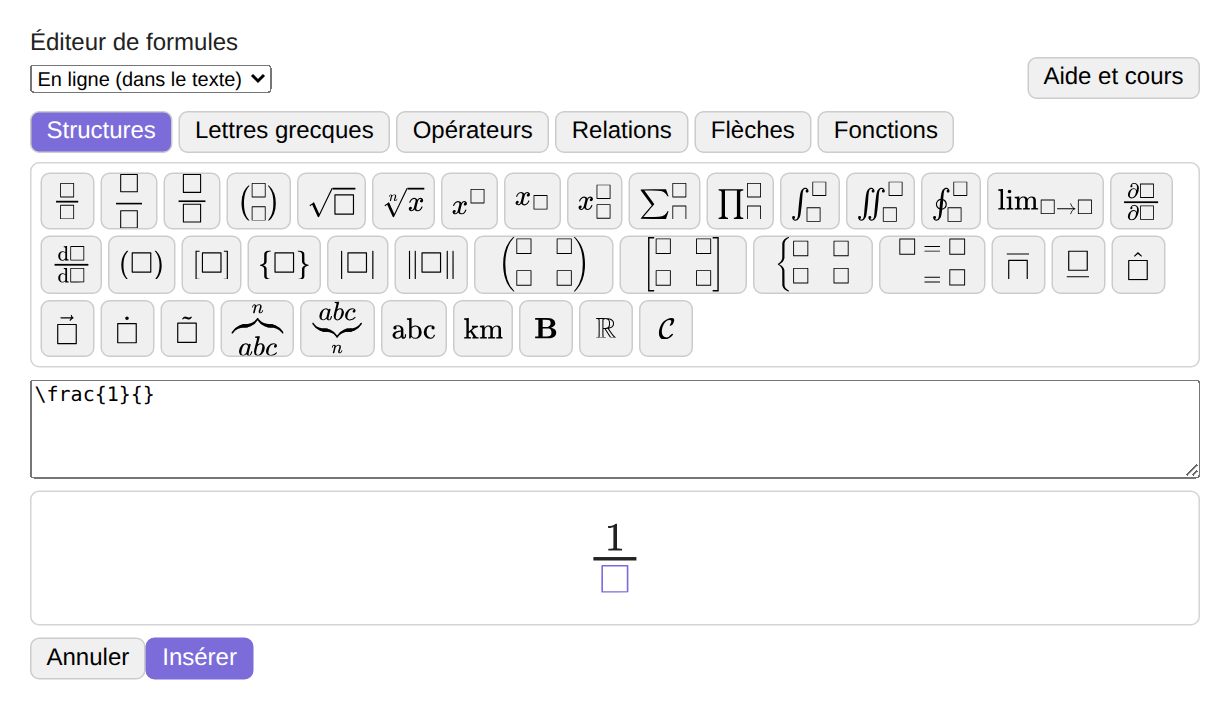
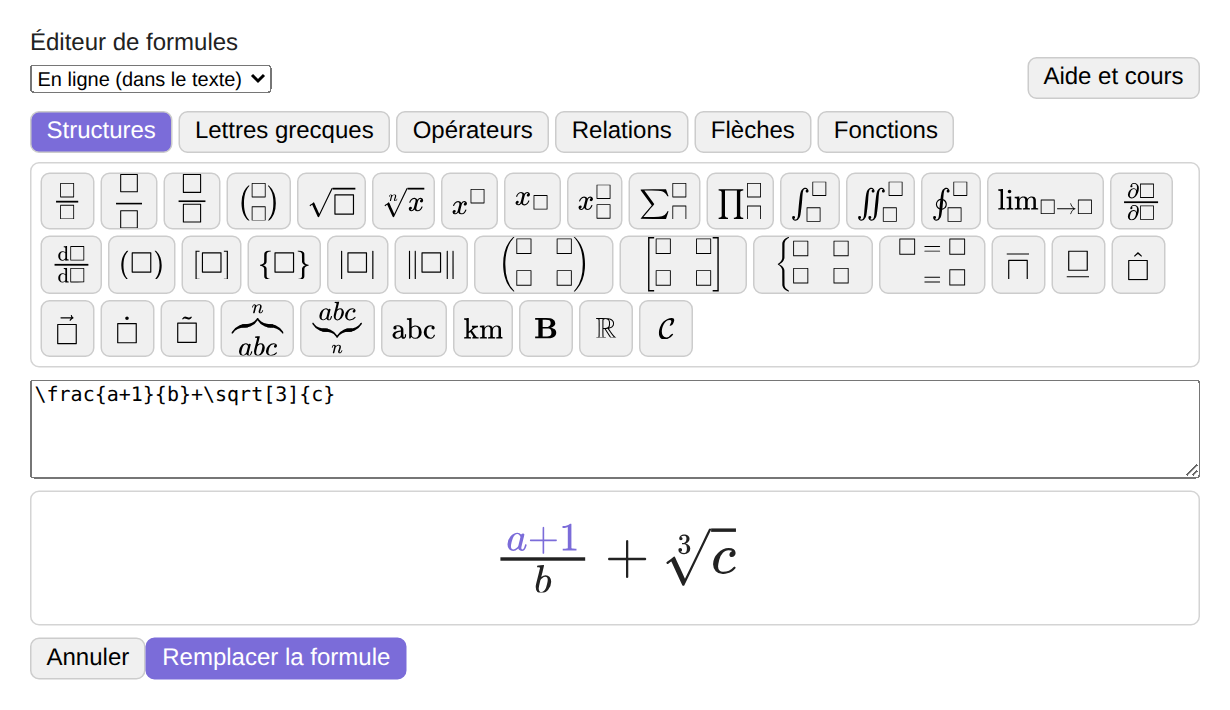

The pictures above show the editor as drawn by the plugin; the colours follow the Obsidian theme in use.
Button panel and help
A panel of small buttons sits on the right of the writing area, halfway up, in every note editor. The first button, the bigorneau icon, opens the modules window. The help button opens a window which has a search box and works offline, in French or in English depending on the plugin language. The other buttons are the functions of the plugin: the commands that write into the note, then the preview and the PDF export, joined in a single button. Each function is also a command of the command palette, where you can give it a keyboard shortcut in the Obsidian settings. A long press on a button, then a drag, moves it, and the order is kept. The window of the bigorneau button lets you hide a button, move buttons and add separators. The chapter "Button panel" of the settings shows or hides the panel, hides a button, moves buttons by dragging their handle, and adds or removes separators between groups of buttons; only the bigorneau button cannot be changed. The command "Show or hide the button panel" toggles the panel. Functions that write into the note work in editing mode only.
Modules
Modules add functions to Bigorneau: each one brings its own buttons and commands. The two modules, Formulas and Page layout, are built into the plugin and are off by default. The bigorneau button at the top of the panel, or the command "Open the modules", opens the modules window, where each module is turned on or off. Turning a module off makes it inactive at once, but its code is only unloaded when Obsidian restarts. A new user turns on Formulas to get formulas in the PDF and the two formula commands, and Page layout to set the sheet, the header and the footer note by note. The on or off state of the modules is part of the profiles.
Bigorneau never loads code from a file or from the internet: everything it runs is in the main.js file that you install.
Privacy and disclosures
Bigorneau does not connect to the internet. It has no telemetry, no advertising, no account and no payment, and it does not load any code other than its own.
What it reads and writes:
- Your notes, in the vault, when you edit headings from the map, insert a table or a figure, or write the page settings of a note.
- The folders of the fonts and of the profiles in the vault. Fonts that you add from your computer (
.ttf,.otfor.zipfiles that you choose yourself) are copied into the fonts folder. Refused: a font file larger than 50 MB, and an archive that holds more than 500 files or more than 150 MB once unpacked. A file with the same name and identical content is not copied again, and a file with the same name and different content is replaced and reported. - Its own technical folder,
.obsidian/plugins/bigorneau, which holdsdata.json: your settings, the name of the PDF author if you enter one, the names and colours of the labels, and the titles of the fixed notes that are open. - For Excalidraw drawings in the export, the plugin asks the Excalidraw plugin (another plugin) for the drawing.
- The clipboard, only when you copy, cut or paste headings, paste an image into a figure, or click the copy button of the diagnostic.
- The list of the files of the vault, to offer the notes of the link window, the images of the figure picker, the fonts folder and the images found in the exported note. The plugin only reads their names and paths, and opens a file only when you choose it or when the exported note uses it.
Links open in your browser only when you click them. A video or an image embedded with the option "Embed" of the link window is loaded by Obsidian itself when the note is displayed, not by Bigorneau. Images from the web are not downloaded for the export. The diagnostic window shows the state of the plugin and the measured times, without your notes and without file paths: read it before sharing it.
Data and uninstalling
Uninstalling Bigorneau removes its technical folder, so data.json disappears. The fonts, the profiles and the PDF files that you created stay in your vault. With a synchronisation service, check that it also copies the folders Bigorneau/Polices and Bigorneau/Profils (files that are not notes are not always synchronised). The names and colours of the labels are only in data.json: the notes keep the identifiers of the labels. The plugin writes hidden comments of the form %% ... %% in your notes (labels, short titles, page settings, paragraph exceptions); other Markdown tools such as Pandoc or GitHub show them as text.
Credits and licences
Bigorneau is published under the MIT licence (see LICENSE). The long document composer includes the following works, and their licences are in the folder licences and in NOTICE:
- The fonts Libertinus Serif and Libertinus Mono, version 7.051, copyright 2012-2024 The Libertinus Project Authors, SIL Open Font License 1.1.
- The MathJax library, version 3.2.2, copyright The MathJax Consortium, Apache License 2.0.
- The hyphenation patterns of French (Daniel Flipo, Bernard Gaulle, Arthur Reutenauer) and of British English (Dominik Wujastyk, Graham Toal), MIT licence, from the hyph-utf8 project.
The line breaking algorithm (Knuth and Plass, 1981) and the hyphenation algorithm (Liang, 1983) are reimplemented from their published descriptions, without reuse of code.
Development
The code is written in TypeScript. npm install installs the tools, npm test runs the tests, and npm run build produces main.js. The folder docs holds the test note of the export, the images of this file and the list of the dependencies.