BeautyTasks
 Avni Bilgin3k downloads
A Todoist-inspired task and project manager built entirely on Markdown — one note per task, no external services, no dependencies.
- Overview
- Scorecard
- Updates130
A Todoist-style task & project manager that lives inside Obsidian — with a fast, native UI on top of plain Markdown. Every task is a single Markdown note, so your data stays open, portable and future-proof, and there are no plugin dependencies and no account required.
Why BeautyTasks
- One note per task. Each task is a normal Markdown file with YAML frontmatter. Nothing is locked in a proprietary database — search it, edit it by hand, sync it, or version it with Git.
- A real task app, natively. A Todoist-inspired dashboard with sidebar navigation, a chip-based task editor, quick capture and keyboard-friendly flows — all rendered inside Obsidian, popout-window compatible.
- Zero plugin dependencies, local-first. No other plugin and no account required. Your tasks are plain Markdown in your vault — the one optional online feature is two-way Google Calendar sync, which stays off until you set it up.
- Your frontmatter stays yours. The two field names BeautyTasks needs —
typeandtitle— are configurable, so it never has to claim a property you already use. Turning an existing note into a task adds frontmatter and nothing else; your text is never rewritten. - Fully themeable. Every color is a CSS variable; works with your theme, CSS snippets, or the Style Settings plugin — including a monochrome mode.
- 10 languages. The interface is available in English, German, Spanish, Portuguese (Brazil), French, Italian, Turkish, Russian, Simplified Chinese and Japanese (auto-detected from Obsidian, or set in settings). Natural-language dates and times work in all of them except Turkish, where English keywords (
tomorrow,next monday) still do. English keywords work in every language, alongside your own.
Screenshots
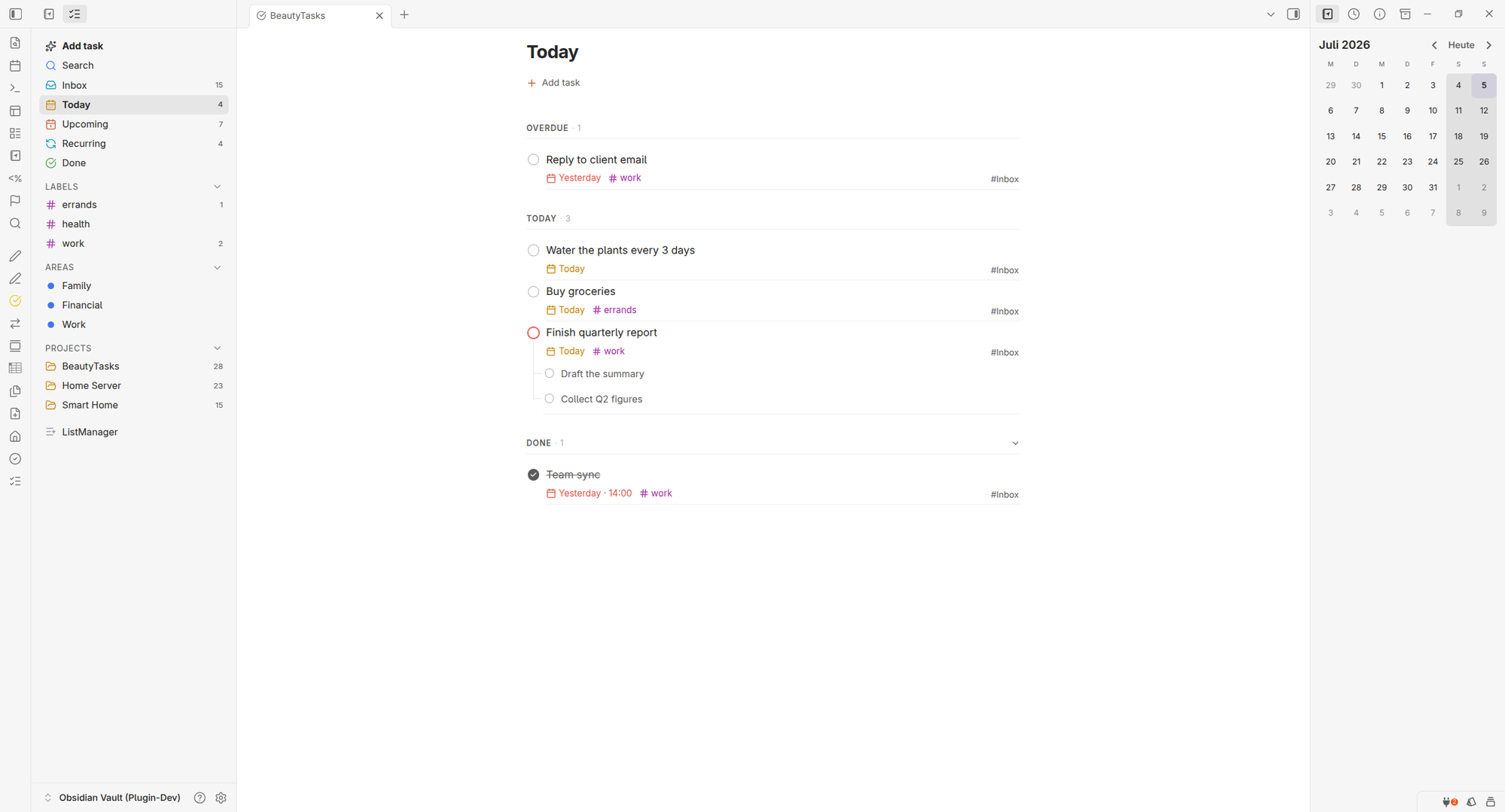
The dashboard
A Todoist-style dashboard with sidebar navigation and grouped task lists.
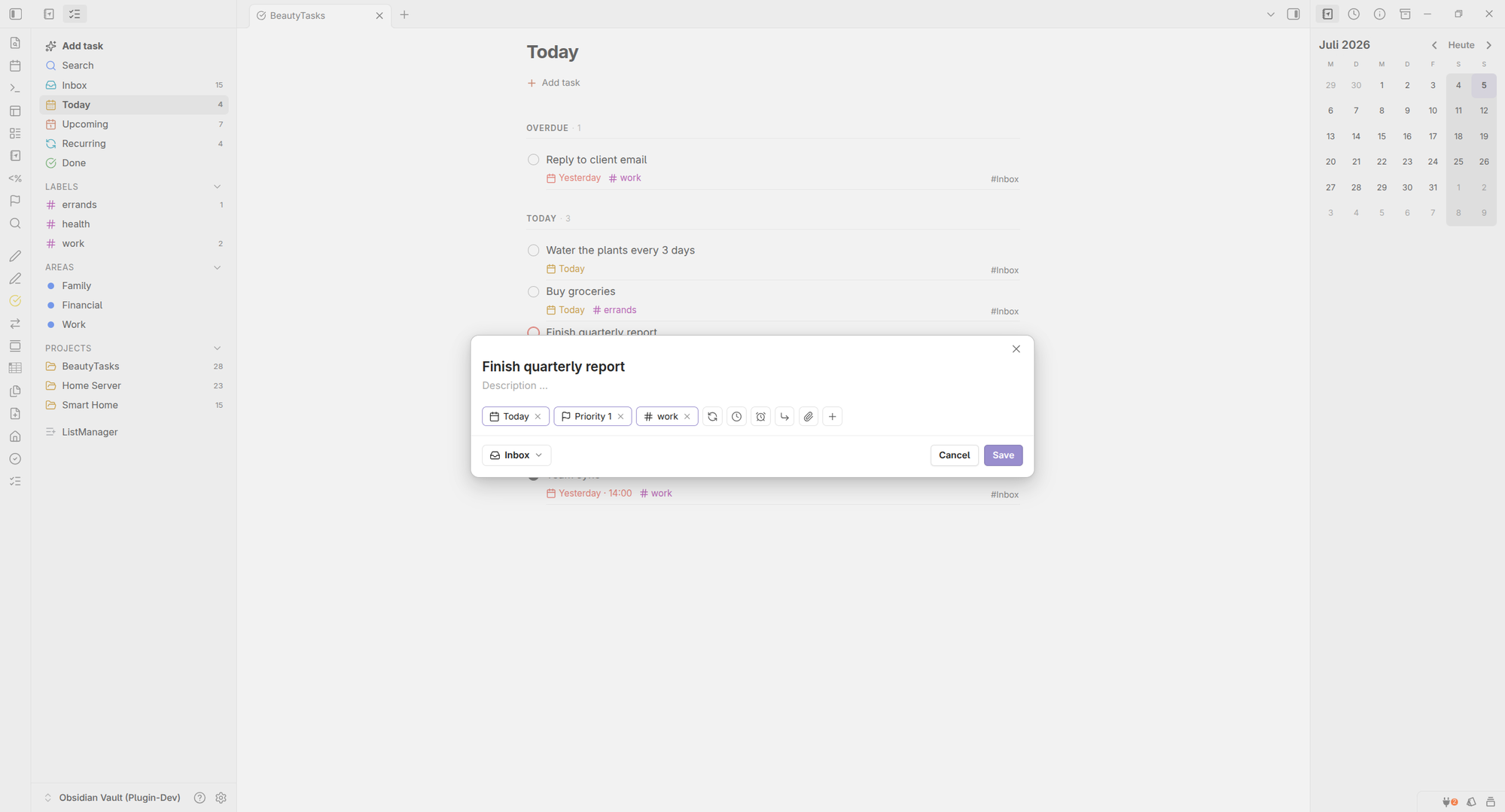
Task editor
The full editor with its chip row for date, priority, labels, recurrence, deadline and reminders.
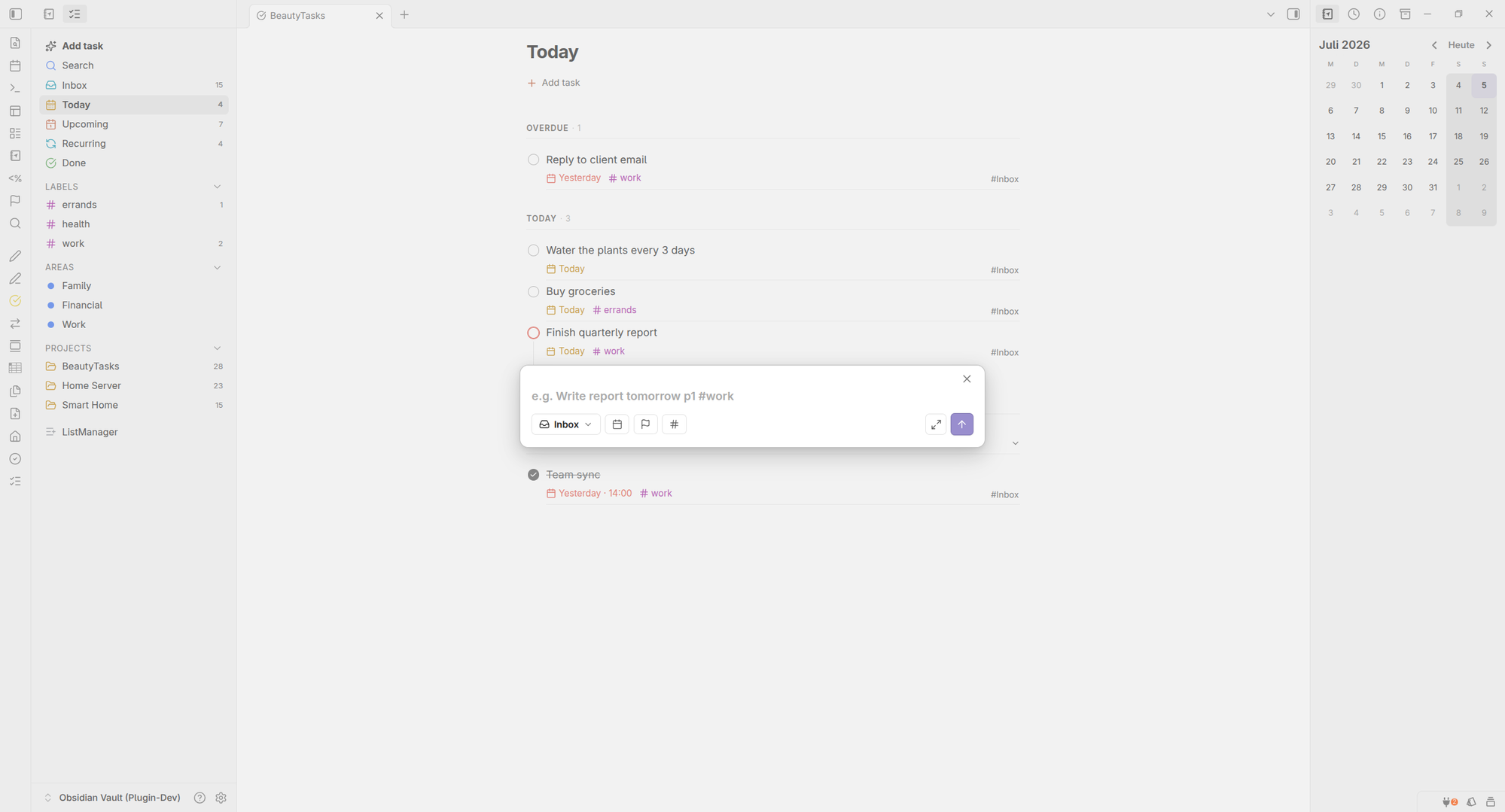
Quick capture
Add tasks in plain language — dates, times, priority and #labels are parsed automatically.
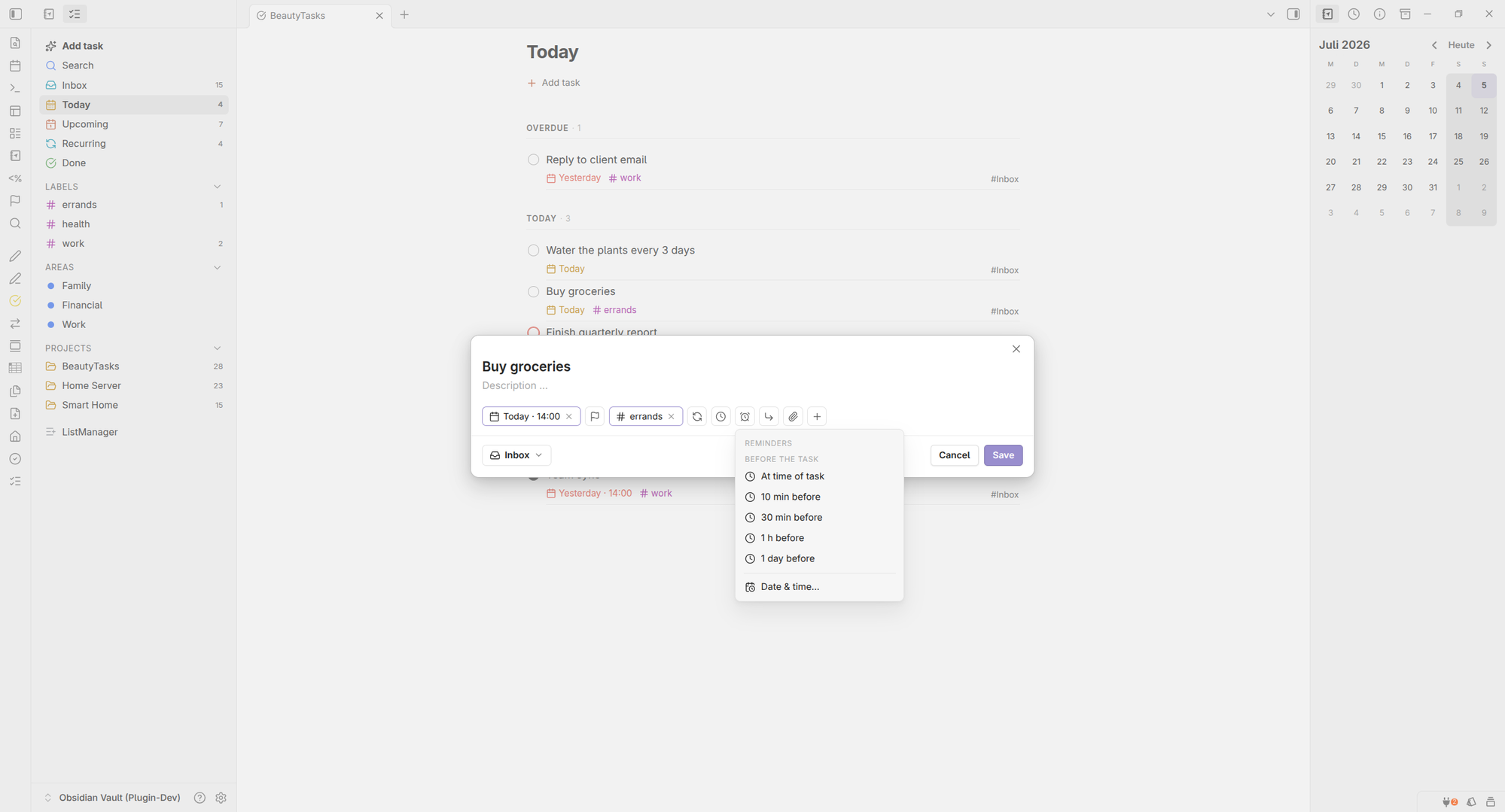
Reminders
Relative (“30 min before”) or absolute reminders, delivered as system notifications.
Features
Views & navigation
A single dashboard with a left sidebar:
- Inbox — everything without a project.
- Today — tasks due today (plus anything overdue).
- Upcoming — a forward-looking, date-sorted agenda.
- Recurring — all repeating tasks at a glance.
- Done — completed tasks, with a built-in Trash for soft-deleted items.
- Projects, Areas, Labels & Filters — collapsible sections in the sidebar; open any project, area, label or saved filter as a list, Kanban board or calendar.
- Search — fast fuzzy search across all tasks; jump straight to a task and highlight it in place.
- Manage — a ListManager with separate Projects, Areas, Labels and Filters tabs: create, rename, recolor, hide, archive or delete each, and restore or permanently remove trashed items.
Every sidebar entry has a right-click menu (go to its note, edit, recolor, convert, hide, reorder, archive, delete), and you can reorder sections by drag or sort them manually, by name or by task count.
Projects vs. Areas. Organize tasks into projects or areas — two independent kinds, each with its own tab in the ListManager and its own + in the sidebar, so you can create, archive and delete either one directly. An Area is a fixed section that keeps its own place in the sidebar — ideal for long-running responsibilities that should never be “finished” — while a project is for work that eventually wraps up. You can convert one into the other at any time.
Saved filters & smart views
Build custom queries — by project/area, label, priority, status, date range and more — and save them to the sidebar as reusable smart views, each with its own color. Per-view display options (layout, grouping, sorting, show completed) are remembered.
If a saved filter points at something you later deleted — a label, a project, a custom status — BeautyTasks doesn't quietly return nothing. The affected dropdown is outlined in red and the entry is listed as “… (missing)”, so you can see the cause and remove it with one click.
Three layouts: list, board or calendar
Every page — projects, areas, labels, saved filters, and Today / Upcoming / Inbox — can be shown in one of three ways. The choice is remembered per page, so a project can stay a board while Today stays a list.
List — the classic, with grouping (by date, deadline, priority, label, project or status), sorting, and optional completed tasks.
Board — a Kanban whose columns follow your statuses (fully customizable, see below):
- Drag & drop a card between columns to change its status instantly.
- Group the board by status, label, priority or project — not just status.
- Reorder columns by dragging their headers (saved per board), and add a task straight into a column with its
+. - Columns stack vertically on narrow panes and mobile, so the board stays usable on the phone.
Calendar — your tasks on a year, month, week or day grid, with a side panel for undated tasks. Drag a task onto a day to schedule it. In Today and Upcoming, your Google events can appear alongside them (read-only, see below).
Because columns map to the task's status field and days map to its date, moving a card or a task is just a normal edit to its Markdown note — nothing lives in a separate board file.
Custom statuses
Define your own workflow beyond the built-in To-Do · In progress · Done · Cancelled. In Settings → Statuses you can add, rename, reorder, recolor and change the icon of statuses, grouped into three categories — open · done · cancelled — that drive behavior (completion timestamps, recurrence, trash). The in-progress state shows as a half-filled checkbox everywhere.
Tasks & attributes
Each task can carry:
- Status — the built-in To-Do · In progress · Done (plus a Cancelled trash state), or your own custom statuses. Set one by right-clicking the checkbox (or long-pressing it on mobile), from the status chip in the task editor, or by dragging on the Kanban board — a left-click still simply completes the task.
- Priority (highest → lowest) with colored checkbox rings (P1/P2/P3).
- Due date & time and an optional duration (event length).
- A separate deadline / scheduled date & time. A task with only a deadline still shows up in Today and Upcoming when it comes due — one rule, no task hiding because you filled in the “wrong” date field. Deadlines are written as a countdown (“in 3 days”) and coloured by distance.
- Project and Area assignment.
- Sub-tasks — nest tasks under a parent, drawn with clean connector lines. Choose per view how they appear: compact (as progress on the parent), indented beneath it, or standing on their own.
- Labels (
#tags). - Recurrence — “every day / week / 3 months …”, repeating from either the due date or the completion date.
- Reminders — get notified before or at a task’s time (see below).
- A Markdown description, a timestamped comment log, and file/image attachments (see below).
Quick capture with natural language
Add tasks at the speed of thought. The quick-add modal understands plain sentences:
Write report tomorrow p1 #workBericht schreiben morgen um 07:30 #arbeitEscribir informe mañana #importante
Dates and times are understood in your interface language — English, German, Spanish, Portuguese, French, Italian, Russian, Chinese and Japanese. English keywords work everywhere, alongside your own, so Escribir informe tomorrow is fine too. Turkish has no date parser yet; there, English keywords are the way.
Everything else in the table below is the same in every language: recurrence is written in English or German (every day, jeden Tag), and p1, #label and @project are symbols, not words.
Recognized tokens are stripped from the title automatically:
| What | Examples |
|---|---|
| Date | today, tomorrow, day after tomorrow, in 3 days, next week, next monday, a bare weekday (friday), 3 Jul / July 3rd, 20.06.2026, 06/20/2026, 2026-06-20 |
| Time | at 7:30, 7:30, 7pm, at 7, um 20.15, um 2015 (four digits and the dot form need at/um in front — otherwise Sort photos from 2015 would become a time) |
| Recurrence | every day, daily, every week, weekly, every 3 days, every 2 weeks, every 3 months, yearly |
| Priority | p1–p4 or !1–!4 |
| Label | #work — any label, created on the fly |
| Project | @project — existing projects and areas only |
A time or a recurrence without a date is anchored to today: a time needs a day to be shown and saved, and a recurrence without a date would never come back.
Not recognized (use the chips instead): reminders, duration, start date, status and parent.
When a word should stay text
Writing Today's plan and getting the word swallowed as a date is annoying. Two ways out — and both are the same thing under the hood:
- Click the ✕ on the chip. The recognized value goes away, the word returns to the title. This is the easy path; you don't need to know any syntax.
- Type it yourself.
\wordprotects a single word — the same backslash escape Markdown uses, and the backslash disappears from the title."a whole phrase"protects several words at once; the quotation marks stay, because they're your punctuation, not syntax.
\Today I go swimming      → title "Today I go swimming", no date
Book "Der Prozess" today  → title kept as typed, due today
every \monday standup     → title "every monday standup", no recurrence
The ✕ simply writes that backslash for you: Dentist tomorrow → ✕ → Dentist \tomorrow. Because the escape lives in the text, it survives — and typing a new date word afterwards is recognized again.
Prefer full control? Open the Todoist-style task editor with its chip row for date, priority, labels, recurrence, deadline, reminder and parent — and show, hide or reorder those chips to taste (separately for quick add and the full editor).
Reminders
Attach one or more reminders to a task — either relative (“at time of task”, 10 min / 30 min / 1 h / 1 day before) or an absolute date & time. When a reminder is due, BeautyTasks shows a system notification on desktop (even when Obsidian is in the background) and an in-app notice; clicking it opens the task.
Good to know: in-app reminders fire while Obsidian is running (on desktop that includes the background; on mobile while the app is open). To be notified even when Obsidian is fully closed, turn on Google Calendar sync — reminders are pushed onto the calendar event, so your phone or OS notifies you.
Notes, comments & attachments
Every task has a Details panel for the story behind the task:
- A free-form Markdown description.
- A timestamped comment log to track progress over time — add, edit and revisit notes, each stamped with its date and time.
- Attachments — click the paperclip, or simply paste or drag & drop files and images straight into a comment. They’re saved to your configurable attachments folder, and images appear as thumbnails with a built-in lightbox (zoom, copy to clipboard).
- Link other notes into a comment to connect related context from your vault.
Because it all lives in the task note’s own Markdown body, your comments and attachments stay readable and portable outside the plugin, too.
Right-click anything
Every task row — in lists, on the board and in the calendar — has a context menu with the things you reach for most: set a date or priority in one click, add a reminder, move it to another project, area or the inbox, jump to its parent task, duplicate it, copy a deep link, open the note in Obsidian, or send it to the trash.
Drag & drop
Drag a task onto a project, area or the inbox in the sidebar to move it there, or onto a label to add that label. On the board, drag between columns; in the calendar, drag onto a day.
Everyday conveniences
- Recolor & organize projects, areas, labels and filters — set a color, convert a project ↔ area, hide, reorder or archive, all from the right-click menu or the Manage screen.
- Duplicate a task, copy a deep link (
obsidian://) to it, or print a clean copy. - Soft delete to Trash, then restore or empty it — nothing is lost by accident (Trash and Done are ordered newest-first).
- Export & import all tasks as JSON — a lossless backup of your task data (fields and description) that you can restore or move to another vault. Import from within the vault or from a file on disk; re-importing is idempotent (existing tasks are matched by id and skipped), and missing projects, areas and labels are recreated. Attachments and the comment log stay as separate files in your vault (back them up with the folder).
- Import from TaskNotes — migrate tasks from the TaskNotes plugin (non-destructive, idempotent), or import existing checkboxes from the Tasks/Lists format.
- Order by hand — switch sorting to Manual and drag rows by their handle or cards on the board. The order is stored in the notes and holds in every view.
- Icons-only chips for a more compact editor, and an optional description preview under task titles in lists.
- Localized in 10 languages, mobile-friendly, and popout-window compatible.
Getting started
- Install BeautyTasks and enable it.
- Click the check-circle ribbon icon (or run “Open BeautyTasks”) to open the dashboard.
- Hit Add task / run Quick add, type something like
Buy milk tomorrow #errands, and press Enter.
That’s it — a new Markdown note is created for the task in your configured folder.
How your data is stored
Every task is a Markdown note with frontmatter. Nothing proprietary:
---
type: task
id: t-8f3a1
title: Write the launch blog post
status: todo            # todo | doing | done | cancelled
priority: high
due: 2026-07-10T09:00
scheduled: 2026-07-08
duration: 30            # minutes
project: "[[Website Relaunch]]"
parent: "[[Draft the outline]]"
labels: [work, writing]
recurrence: every week
recur_basis: due        # due | done
reminders: ["-30m", "2026-07-10T08:00"]
created: 2026-07-04
description: Free-form text shown under the title
---
The body is yours — BeautyTasks keeps its own notes (comments, attachments) in a collapsible
###### BeautyTasks Details-Logbuch section at the bottom and leaves everything above it alone.
Where the title comes from
Tasks keep their title in title:. If a note doesn't have that field, BeautyTasks falls back,
in this order:
title:in the frontmatter- the first level-1 heading in the note
- the file name
Renaming a task writes the new title back to wherever it came from, so the two never drift. The file name is never changed — it is the note's identity, and links to projects and parent tasks resolve through it.
That gives you one guarantee worth spelling out: BeautyTasks only writes into the body of a
note that already has a title there — a level-1 heading as its first heading. If your note
starts with ## Something, or has no heading at all, the title is stored as title: in the
frontmatter instead and your text is left alone. Notes with a structure of their own keep it.
Turning a note into a task never touches its text. The command only adds frontmatter: the
fields that make it a task, plus title: — taken from the note's level-1 heading, or its file
name if there is none. Whatever you wrote in the body stays exactly as it is, heading included.
Add a description in the task dialog if you want one, and use Open task note from the task's
context menu to jump back to it.
Upgrading from an earlier version? A one-time pass moves existing titles from the heading into
title:. It removes that heading line only in notes BeautyTasks created itself — those live in
your tasks folder — and only when the line really was the title. Everything you wrote yourself
keeps its heading, and no task changes the title it displays.
Field names
Two frontmatter fields carry BeautyTasks' own meaning, and both are popular property names:
| Field | What it does |
|---|---|
type |
marks a note as a task, project, area or filter |
title |
holds the task title |
If you already use one of these names for something else, Settings → Field names points
BeautyTasks at your own field instead, e.g. bt_type. Changing a name asks first and shows how
many notes it affects:
type— your notes are rewritten to the new field and the old one is removed. Notes in excluded folders are never touched, and neither are foreign values: a note withtype: meetingstays exactly as it is. Your own Dataview or Bases queries on the old field will find nothing afterwards, so adjust those yourself.title— existing titles always move over, so nothing can get lost. Whether the old field is removed afterwards is a checkbox, off by default: iftitleis yours, it stays exactly as it is.
Project notes
Projects, areas and saved filters are Markdown notes too — and their body belongs to you. BeautyTasks stores what it needs in the frontmatter and writes nothing into the text, so the note is a natural place for everything that belongs to that project: a brief, links, meeting notes, images.
Reach it from the context menu of the sidebar entry, or from the ⋯ menu on the project page → Open project note (or area / filter note). It is worth opening: because every task points at it with project: "[[Name]]", that note is already where Obsidian's backlinks and graph converge.
A description in the frontmatter is shown above the task list (switch it off under Settings → Show description on project pages) — the one-line answer to “what is this for”. Set it in the project's edit dialog; the long version goes in the body.
---
type: project
id: p-8f3a1
description: Everything for the September launch
color: "#4caf50"
---

Your own notes start right here.
The name always comes from the file name, never from the body or a title: field. That keeps one name for one thing: renaming the project renames the file, and Obsidian plus BeautyTasks update every [[link]] pointing at it.
By default, notes live under these folders (all configurable in settings):
| Content | Default folder |
|---|---|
| Tasks | BeautyTasks/Items |
| Projects & Areas | BeautyTasks/Projects |
| Saved filters | BeautyTasks/Filters |
| Attachments | BeautyTasks/Attachments |
Projects and areas are the same kind of note (type: project / type: area), so they share one folder.
Google Calendar sync
BeautyTasks can mirror every task that has a due date into Google Calendar, two-way: the date and time flow in both directions, while everything else (title, duration, reminders) is driven by Obsidian. It uses your own Google API credentials — no third-party server is involved, and your token stays in your vault.
Setup (one-time, ~5 min)
- Project — open the Google Cloud Console and create or pick a project.
- Enable the API — go to APIs & Services → Library, search for Google Calendar API, and click Enable.
- Consent screen — open Google Auth Platform → Get started: set an app name and your email, and choose Audience = External. Then open Audience and Publish app so the status is In production.
⚠️ Important: In Testing mode, refresh tokens for calendar scopes expire after 7 days, so the sync would break every week. In production they stay valid. You do not need Google to verify the app while you are the only user.
- Create the client — go to Clients → Create client, set Application type to Desktop app, click Create, then copy the Client ID and Client secret.
- Connect — in Obsidian open Settings → BeautyTasks → Google Calendar, paste the Client ID and secret, and click Connect. On the “Google hasn’t verified this app” screen choose Advanced → Continue — this is expected for a personal app.
- Calendar — BeautyTasks creates and selects a dedicated “BeautyTasks” calendar (small blast radius; your other calendars are never touched). Done.
The required permissions (calendar.events, calendar.readonly, calendar.app.created) are requested when you connect — there is nothing to pre-register in the consent screen. On mobile, step 5 uses a device-code login (you enter a short code on another device) instead of the desktop loopback flow.
What syncs
| Field | Obsidian → Google | Google → Obsidian |
|---|---|---|
| Title | ✅ | — (Obsidian wins) |
Date / time (due) |
✅ | ✅ written back |
| Duration | ✅ | — |
| Reminders | ✅ (as popups) | — |
- On a conflict (both sides changed the date), Obsidian wins.
- Existence is Obsidian-driven: an event deleted in Google is recreated as long as the task still has a date. To remove it for good, change the task in Obsidian or exclude its list.
- Exclude a project/area from sync via its right-click menu, the icon in the management list, or the edit dialog.
Show your Google events
Separate from the sync, and read-only: switch on Show events in BeautyTasks and your Google appointments appear in Today and Upcoming, next to the tasks due that day. Pick which calendars to show, hide events you declined, and set the text size. Nothing is written back and no note is created — an event never becomes a task.
Project, label and filter pages deliberately stay free of them: those are about your own work, not your day's appointments.
Where credentials live
Your Client ID/secret and the OAuth token are stored locally in .obsidian/plugins/beautytasks/data.json (git-ignored). Disconnect in settings revokes the token with Google and deletes it locally. If you sync your vault by other means (Obsidian Sync, Dropbox, iCloud…), this file travels with it.
On your phone
BeautyTasks itself runs on Obsidian mobile — the views, the editor and quick capture all work there. What a plugin cannot do on iOS or Android is put a widget on your home screen or notify you while Obsidian is closed. That is an operating-system boundary, not something a plugin can work around: reminders only fire while Obsidian is open and in the foreground.
Two ways around it, depending on what you need:
- Notifications — turn on Google Calendar sync (above). Dated tasks become calendar events, and your phone's calendar app notifies you reliably, even with the screen off.
- A real task app with widgets — because every task is a plain Markdown note, other apps can read your vault directly. TaskForge is one such app (third party, not affiliated, free with a paid tier).
Setting up TaskForge
Everything below was tested on a real device against a copy of a real vault, in August 2026. It describes what actually happened, not what the documentation promises.
In TaskForge:
- Point it at your vault and set the tasks folder — by default
BeautyTasks/Items, or whatever you chose under Settings → Folders. - Set task identification to by property →
type: task. Do not skip this: it is also what makes TaskForge write that property, so tasks you create on your phone show up in BeautyTasks. Folder-only detection reads your tasks fine but creates ones BeautyTasks cannot see. - Under field mapping, point
dateCreatedatcreated.
In BeautyTasks → Settings:
- Field names → Labels: set it to
tags. TaskForge writes Obsidian's own tag field and cannot be remapped away from it, so this is the side that has to move. Your labels are stored as slugs already (lower case, no spaces), so they are valid tags as they are. - Statuses: TaskForge writes
status: openfor tasks it creates. Open the stored value of your own open status (the</>button next to it) and set it toopen, so both sides mean the same thing.
What works
| Viewing your tasks | Titles, dates, descriptions, priorities, recurring, completed and cancelled tasks — all read correctly |
| Creating tasks on your phone | They appear in BeautyTasks. Without a project they land in the Inbox, which is where you want them |
| Editing existing tasks | Your project link, manual sort order and Google Calendar link survive untouched — TaskForge keeps properties it does not know |
| Recurring tasks | TaskForge rewrites the rule in iCalendar notation; BeautyTasks reads that as of 1.41.0 |
TaskForge also adds a few fields of its own (taskSource, dateModified). They are harmless — BeautyTasks ignores them and leaves them alone.
Two things worth knowing
Your labels become real Obsidian tags. That is the point of step 4, and it cuts both ways: every tag you put on a task note now counts as a BeautyTasks label. If you use tags on task notes for something else, keep the label field at labels and accept that labels stay behind on the phone.
“Repeat from completion” is ours alone. A task set to repeat after it is done uses an extra field that the iCalendar standard has no concept for — Outlook and Todoist solve it the same way, outside the standard. TaskForge will show such a task as a plain repeat and cannot edit that part. The behaviour in BeautyTasks is unaffected.
Commands
| Command | What it does |
|---|---|
| Open BeautyTasks | Open the dashboard |
| Open Today / Upcoming / Recurring / Done | Jump straight to a view |
| New task | Open the full task editor |
| Quick add task | Fast natural-language capture |
| Turn current note into a task | Make the open note a task — adds frontmatter only, never touches your text |
| Search tasks | Fuzzy search |
| Count tasks | Show total / open count |
| Export tasks (JSON) | Save all tasks to a JSON file in your vault |
| Import tasks (JSON) | Restore tasks from a JSON export |
| Import from TaskNotes | Migrate tasks from the TaskNotes plugin |
| Import from Tasks/Lists | Migrate existing checkbox tasks |
| Sync with Google Calendar now | Run a calendar sync on demand |
| Show what’s new | Open the release highlights |
| Move titles to the frontmatter | Re-run the one-time title conversion (safe to repeat) |
Assign hotkeys to any of these under Settings → Hotkeys.
Settings
- Folders for tasks, projects, filters and attachments — plus excluded folders, whose notes are never treated as tasks.
- Field names — which frontmatter fields BeautyTasks uses for
typeandtitle(see above). - Language — auto (follow Obsidian) or pick one of 10 languages (English, German, Spanish, Portuguese, French, Italian, Turkish, Russian, Simplified Chinese, Japanese).
- Start view — which view opens by default (or the last used one).
- Natural-language parsing — toggle date/label/priority detection in titles.
- Task actions (chips) — show, hide and reorder the attribute chips, separately for quick add and the full editor.
- Statuses — add, rename, reorder, recolor and re-icon your workflow statuses.
- Colors — a muted or a colorful meta style, or set every accent yourself.
- Text size — scale task text, sidebar entries and headings independently.
- Icons-only chips, description preview in lists, and the description on project pages.
- Google Calendar — connect your account, choose the target calendar and sync options (see above).
- Import & Export — JSON backup/restore, plus import from TaskNotes or the Tasks/Lists format.
Theming
BeautyTasks is fully themeable through CSS custom properties. It ships with a built-in color palette (separate values for dark and light mode, defined on .theme-dark / .theme-light). Everything is overridable, so you can adapt it to any theme.
1. Style Settings plugin (color pickers, no CSS)
If you have the community plugin Style Settings installed, open its tab and you’ll find a BeautyTasks → Colors section with color pickers for the semantic colors (overdue, due today, recurring, labels, priorities). These also drive the icon colors. Nothing is required in BeautyTasks itself — without Style Settings the defaults simply apply. A Monochrome (no colors) toggle at the top renders everything in the text color and overrides the pickers.
2. A CSS snippet (full control)
Create a snippet under Settings → Appearance → CSS snippets and override any of the variables:
body {
  --bt-overdue: #e05c4a;        /* overdue tasks & priority-1 ring */
  --bt-add:     #e05c4a;        /* the "+" of Add task / project / subtask */
  --bt-today:   #f97316;        /* tasks due today (also the Today sidebar icon) */
  --bt-recur:   #ec4899;        /* recurring (also the Recurring sidebar icon) */
  --bt-label:   #a855f7;        /* labels (also the Labels sidebar icon) */
  --bt-prio-1:  #ef4444;        /* priority 1 (highest) checkbox ring */
  --bt-prio-2:  #f59e0b;        /* priority 2 (high) */
  --bt-prio-3:  #3b82f6;        /* priority 3 (medium) */
  --bt-sched:   var(--text-muted);   /* deadline / scheduled chip */
  --bt-line:        rgba(255, 255, 255, 0.10);  /* section dividers */
  --bt-line-faint:  rgba(255, 255, 255, 0.05);  /* task-row dividers */
}
Colors deliberately live in CSS variables (not in the plugin’s own settings) so themes, snippets and Style Settings can all drive them.
Left sidebar icon colors are themeable too. Each board has its own variable — --bt-nav-search, --bt-nav-inbox, --bt-nav-heute, --bt-nav-demnaechst, --bt-nav-wiederkehrend, --bt-nav-erledigt, --bt-nav-manage — and the item groups share one each: --bt-nav-label, --bt-nav-area, --bt-nav-project. For consistency, icons that also have a task chip default to the chip color (e.g. --bt-nav-heute → --bt-today).
Per-project / per-area icon color
Individual projects, areas, labels and filters can have their own color. Pick one from the color dot in Manage, or from the edit dialog (right-click a sidebar entry → Edit). For projects and areas you can also set a color: property directly in the note’s frontmatter, e.g. color: "#4caf50".
Roadmap
BeautyTasks is under active development. This one is planned and not yet available — listed here so you know where it's headed:
- Task & project templates — reusable structures with relative dates (“three days after the start”), so a recurring set-up is one click instead of ten.
Recently shipped: calendar layout (year / month / week / day), configurable field names, titles in the frontmatter, read-only Google events, drag & drop onto projects and labels, and a context menu on every task row.
Have an idea or a request? Open an issue — feedback shapes the priorities.
Support & feedback
Found a bug or want a feature? Please open an issue. Contributions and suggestions are welcome.
License
Released under the MIT License.