Banxin Typography
 simon chen336 downloads
版心(banxin),让您像用 Word 一样用图形界面排版中文笔记:中文字号、中英文分字体、行距、首行缩进、标题自动编号,内置国标公文、学术论文模板。Chinese typography for Obsidian.
- Overview
- Scorecard
- Updates5
版心 · 中文排版 · 作者 Simon 老陈
版心:排版术语,指一页纸上排放正文的区域。
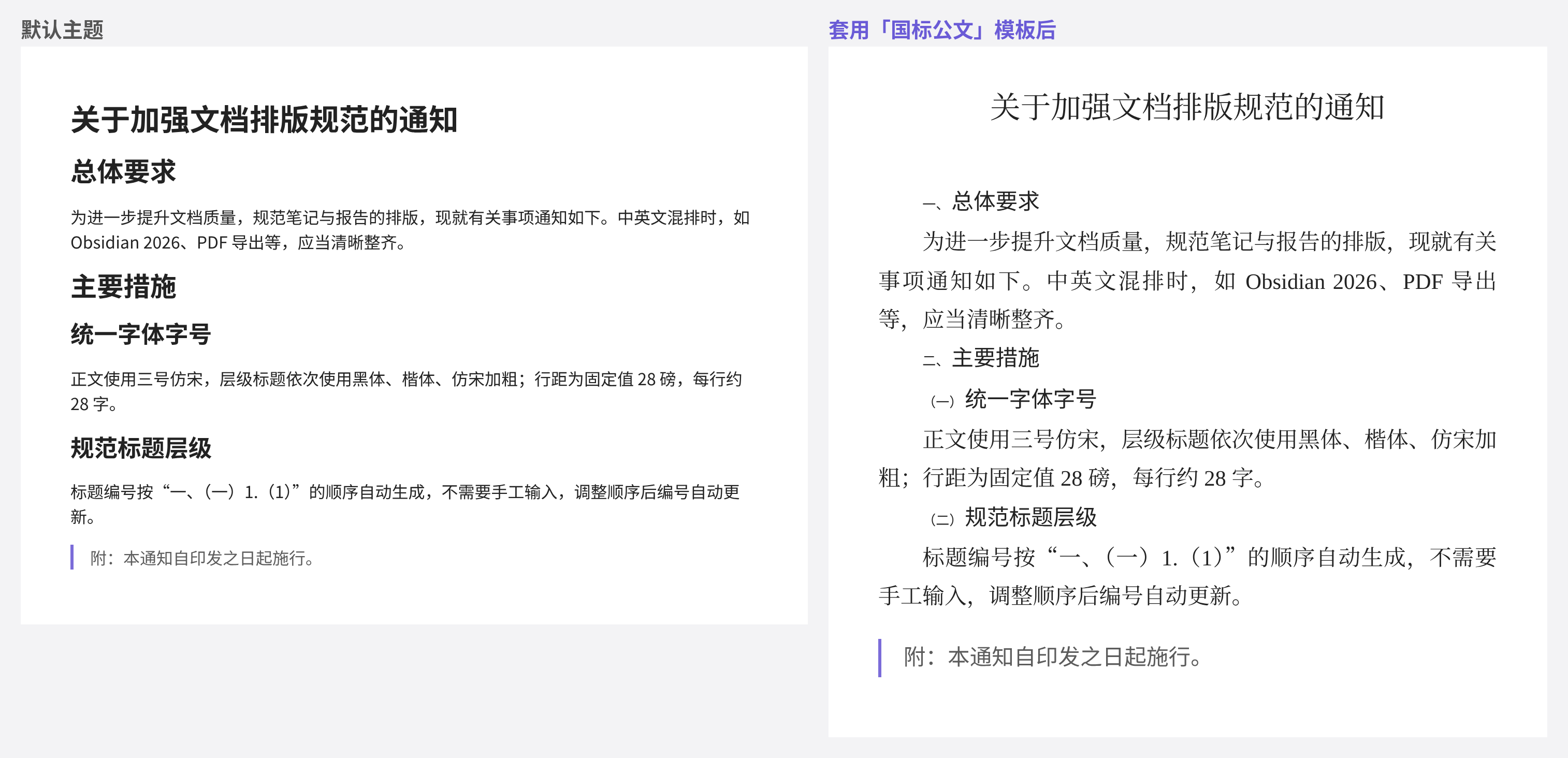
像 Word 一样,用图形界面设置 Obsidian 笔记的标题、正文、引用、表格等样式:中文字号、中英文分字体、行距(倍数 / 固定值)、段前段后、首行缩进、标题自动编号,以及国标公文、学术论文等现成模板。不用写一行 CSS。
Word-like typography for Obsidian, built for Chinese writing: CJK/Latin font pairing, Chinese font sizes (三号, 小四…), fixed line spacing, first-line indent, automatic heading numbering, and ready-made templates (official documents, theses, comfortable reading). No CSS required.
English
Word-like typography for Obsidian, built for Chinese writing. Set heading, body, blockquote, table and code styles in a GUI: Chinese font sizes (初号 through 六号 or point values), separate CJK and Latin fonts, multiple or fixed line spacing, space before/after, first-line indent, and automatic heading numbering. Ships with templates for Chinese official documents (GB/T 9704-2012), academic theses and comfortable reading. No CSS required.
What it does
| Feature | Detail |
|---|---|
| A style sheet, like Word | Document title (the inline file-name title), headings 1–6, body paragraphs, lists, blockquotes, tables, callouts, code, bold and links each get their own CJK/Latin fonts, size, color, line spacing, spacing before/after and first-line indent |
| Three-layer inheritance | theme → global → element; anything you don't touch keeps following your theme |
| CJK/Latin font pairing | Two dropdowns; the plugin generates the @font-face + unicode-range rules and declares real 400/700 faces, so bold uses a true bold face |
| Chinese font sizes | 初号 through 六号, or a point value (12 pt = 小四) |
| Line spacing | Multiples, or a fixed point value (Word's "exactly 28 pt") |
| Automatic heading numbering | Chinese official style (一、(一)1.(1)) or thesis style (1 / 1.1 / 1.1.1). Generated at display time only — your Markdown stays untouched — and it carries into PDF export |
| Templates | Chinese official document, academic thesis, comfortable reading. Missing fonts are reported with suggested substitutes |
| Style sets | Save multiple sets, switch with one click, import/export as JSON |
| Per-note style set | Give a single note a different set by writing a class into its frontmatter cssclasses |
| Undo / redo | 50 steps |
Install
From the community directory: Settings → Community plugins → Browse → search "Banxin" or "版心".
Manually: download main.js, manifest.json and styles.css from the release page into <vault>/.obsidian/plugins/banxin/. Then enable it under Settings → Community plugins.
Requires Obsidian 1.7.2 or later, desktop only.
Known limitations
- In the editor view, space before/after applies to body paragraphs and headings only; blockquote and list spacing appears in reading view and PDF export.
- Editor-view spacing is implemented with padding, so adjacent paragraphs can merge slightly differently than reading view's margins.
- Properties left unset in a per-note style set fall back to the vault-wide set, not to the theme defaults.
- Letter spacing is a single element-level value; it cannot differ between CJK and Latin text.
- Tables get font, size, color, alignment and line spacing — no borders or backgrounds.
- Desktop only. Chinese official-document fonts (方正小标宋, 仿宋_GB2312) must be installed separately; some are commercial.
License
MIT © 2026 老陈 (Simon).
适合谁
- 用 Obsidian 起草通知、报告、方案的人:套用「国标公文」模板,写完即接近正式文件格式,导出 PDF 不用再回 Word 重排。
- 写论文的人:宋体小四、1.5 倍行距、章节编号 1 / 1.1 / 1.1.1,一键套用。
- 长文和读书笔记作者:更舒适的中文字体、行距和每行字数。
主要功能
| 功能 | 说明 |
|---|---|
| 文章标题 | 笔记顶部的文件名标题单独设置,不受「标题 1」影响;也可以打开「跟随标题 1」让两者一致 |
| 全局层 | 在「全局」里选一次中文字体,所有标题和正文一起变化;个别元素再单独调整。继承关系:主题 → 全局 → 元素 |
| 中文字号 | 初号到六号,或直接填磅值。12 磅(小四)= Obsidian 设置里的正文字号 |
| 中英文分字体 | 汉字用中文字体、字母数字用英文字体,自动拼合;加粗调用真正的粗体字面;中文引号、破折号、省略号可交给中文字体(全角) |
| 行距 | 倍数行距或固定值(磅),与 Word 相同 |
| 段前 / 段后 / 首行缩进 | 以「行」「字符」为单位;阅读视图、编辑视图、导出 PDF 都生效 |
| 标题自动编号 | 公文式(一、(一)1.(1))或论文式(1 / 1.1 / 1.1.1),只在显示时生成,不改动笔记原文;编号与标题文字同字体同字号 |
| 模板 | 国标公文、学术论文、舒适阅读;缺少字体时提示并给出替代字体 |
| 样式集 | 可保存多套样式,一键切换;可导入 / 导出 JSON 与他人分享 |
| 按笔记使用 | 指定某篇笔记使用另一套样式集,其余笔记不受影响 |
| 撤销 / 重做 | Ctrl/⌘ + Z、Ctrl/⌘ + Shift + Z;重置等操作的提示里也有「撤销」按钮 |
| 明暗模式 | 默认明暗共用;也可分别设置。颜色对比度不足时提示,色板会把看不清的颜色置灰 |
安装
从插件市场安装
「设置 → 第三方插件 → 浏览」,搜索「版心」或「Banxin」,安装后启用。
手动安装
- 在 Releases 页面 下载
main.js、manifest.json、styles.css三个文件。 - 在笔记库的
.obsidian/plugins/下新建banxin文件夹,把三个文件放进去。 - 重启 Obsidian 或在「设置 → 第三方插件」里刷新,启用「版心 · 中文排版」。
需要 Obsidian 1.7.2 及以上的桌面版。
使用
- 点左侧边栏的 ¶ 图标,或在命令面板运行「版心 · 中文排版:打开样式编辑器」。
- 第一次打开会显示欢迎页:选一个模板开始,或选「保持主题,自己调」。
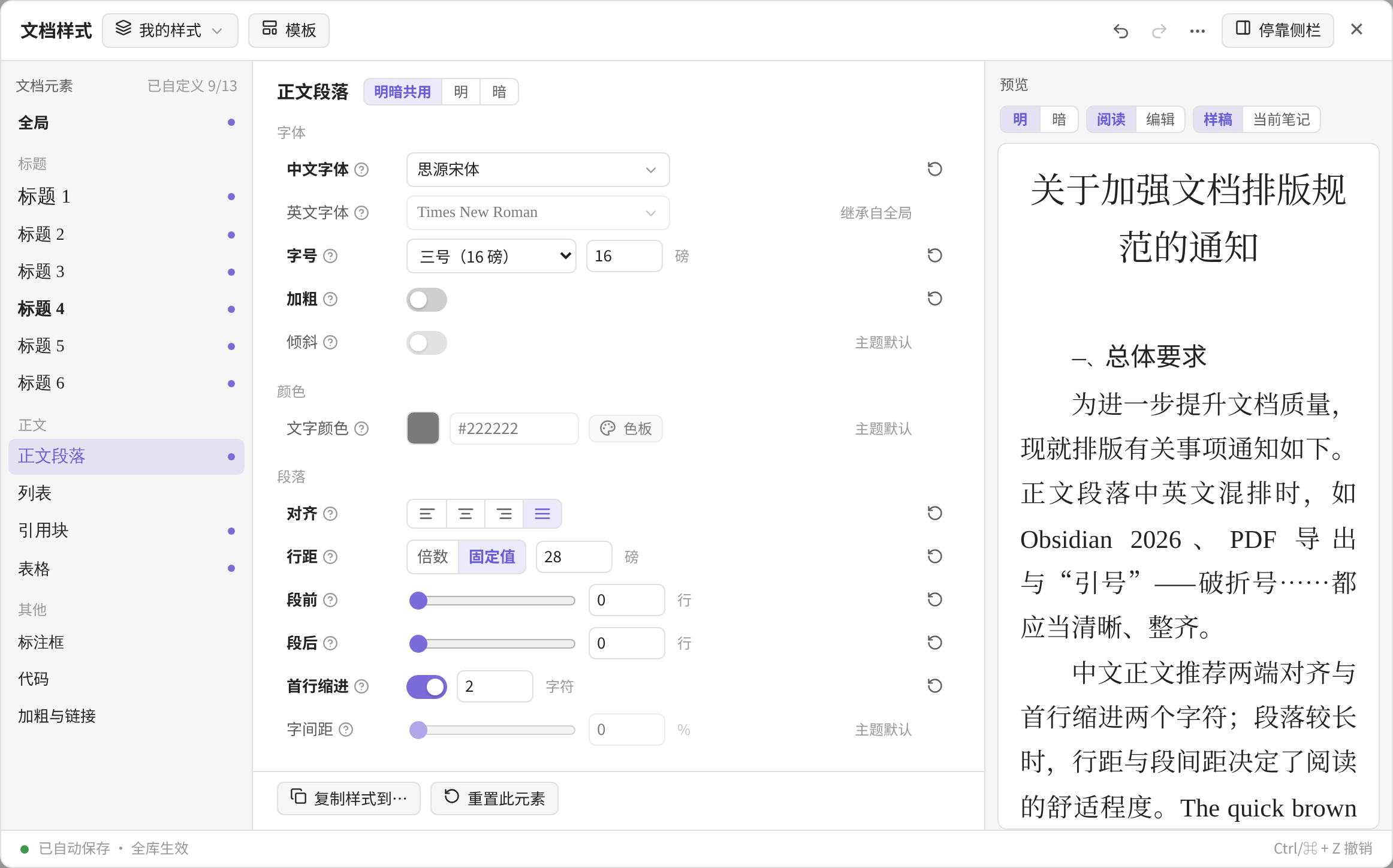
- 左边选元素,中间改属性,右边实时预览。每一行旁边的问号有说明。
- 想边改边看真实笔记,点右上角「停靠侧栏」。
常用命令:
- 编辑光标所在元素的样式:光标放在某个二级标题上运行,编辑器直接选中「标题 2」。
- 给当前笔记指定样式集:这篇笔记改用选中的样式集(写入 frontmatter 的
cssclasses)。 - 取消当前笔记的单独样式集
- 切换样式集、套用模板、撤销上一次样式修改
常见问题
字体菜单里没有我装的字体? 插件通过系统接口读取本机字体,个别系统或 Obsidian 版本读不到时,会显示常用字体列表。可以点「手动输入字体名」直接填写,中文名、英文名都可以。
提示「未安装」,或公文模板缺字体? 方正小标宋、仿宋_GB2312、楷体_GB2312 等公文字体需要自行安装(部分为商业字体,请使用有授权的版本)。套用模板时会自动建议可用的替代字体,以后装好原字体,在字体菜单里换回即可。
和主题冲突、样式没生效? 在设置里打开「降低优先级以兼容主题」,主题自带的排版细节会优先于插件。也可以先在「全局」里只改字体,确认生效后再逐项调整。
停用插件后会怎样? 笔记恢复主题原样;设置会保留,重新启用即恢复。插件不会修改笔记正文(只有「给当前笔记指定样式集」会在 frontmatter 里写入一个类名)。
文章标题(文件名)跟着标题 1 一起变? 在元素列表里选「文章标题」单独设置即可。0.5.4 以前的版本里文章标题直接使用标题 1 的样式,升级后保持原样:「文章标题」里的「跟随标题 1」处于开启状态,关掉后两者互不影响。
从 0.1 升级会丢设置吗? 不会。旧设置自动迁移:原来的「段间距」拆成段前、段后各一半,其余保持不变。
已知限制
- 编辑视图里,段前段后只对正文段落和标题生效;引用块、列表的段距只在阅读视图和导出 PDF 中生效(界面上有标注)。
- 按笔记使用的样式集里没有设置的属性,会沿用全库样式集的设置,而不是回到主题默认。
- 编辑视图的段距用内边距实现,与阅读视图的外边距在相邻段落之间的合并方式不同,视觉上可能略有差异。
开发
npm install
npm run build     # 类型检查 + 打包,生成 main.js
npm test          # 单元测试:生成器快照、单位换算往返、清洗、迁移、编号
npm run lint      # 与 Obsidian 社区目录自动审核相同的 ESLint 规则
npm run dev       # 监听模式
浏览器验证:scripts/harness/ 用一个 Obsidian API 替身在 Chromium 中加载真实界面,逐项检查字号是否叠乘、撤销、模板、编号等(需要 Playwright)。
npx esbuild scripts/harness/entry.ts --bundle --format=iife --outfile=scripts/harness/harness.js --alias:obsidian=./scripts/harness/obsidian-shim.ts
node scripts/harness/run.mjs /tmp/shots
源码结构:
src/
  main.ts               插件入口、命令、样式集、按笔记套用、设置页
  constants.ts          元素注册表(所有选择器集中于此)、字号、色板、字体别名
  schema.ts             数据结构、清洗、版本迁移、导入导出
  resolve.ts            继承解析(主题 → 全局 → 元素)
  units.ts              单位换算(读写互逆)、对比度
  store.ts              样式仓库:唯一数据源、撤销栈、变更广播
  css/generator.ts      CSS 生成器(纯函数)
  css/fontface.ts       中英文分字体 @font-face
  numbering*.ts         标题编号(计算 / 阅读视图 / 编辑器装饰)
  fonts.ts  probe.ts    本机字体、主题取值
  templates.ts          内置模板
  ui/                   编辑器、控件、预览、对话框
关注作者
版心由 Simon 老陈 制作。更多排版模板、使用技巧和更新预告,欢迎关注:
- 公众号:数字化流程再造
- 小红书:数字化流程再造
遇到问题、想要新的模板,也欢迎在公众号或小红书留言。
许可
MIT © 2026 老陈。可以自由使用、修改和再发布,请保留原作者署名与版权声明。