
- Overview
- Scorecard
- Updates9
This plugin provides you with a component that will display a small image with some accompanying text. That's it.
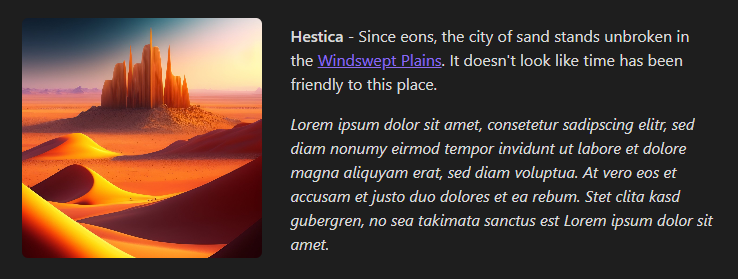
To use, insert the following snippet into your markdown.
```avatar
```
Editing the picture / description
In source mode, you can edit the codeblock directly:
```avatar
image: your-image-here.png
description: This will be displayed as the description!
```
In live preview mode, click on the image to change it (then either select one from your vault, or paste in a URL to a picture online), or edit the description by clicking on it (Don't forget to click the button to save your changes!)
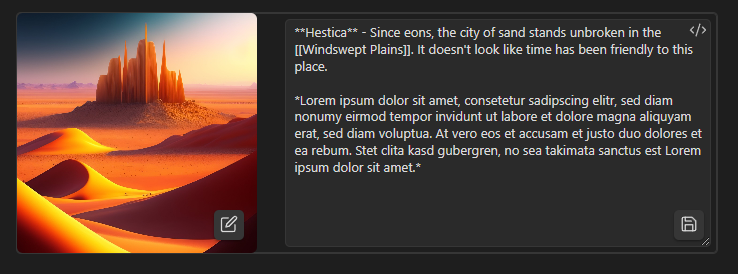
The description editor supports all markdown features of Obsidian.
More options
The following options are available through the YAML codeblock:
image?: string- A path or URL to an image. Optional, defaults to a picture of the file path initials.
description: string- The description displayed next to the image.
side?: "left" | "right"- The side on which the avatar will be displayed. Optional, defaults to
"left".
- The side on which the avatar will be displayed. Optional, defaults to
size?: "small" | "medium" | "large" | number- The size of the avatar. May be either
small(180x180px),medium(240x240px),large(320x320px), or any custom width as a number. Optional, defaults tomedium.
- The size of the avatar. May be either
objectPosition?: string- How to position the image within the square container surrounding it. For example,
"left"would show the left side of a landscape picture,"right"the right side. Refer to https://developer.mozilla.org/en-US/docs/Web/CSS/object-position for more information.
- How to position the image within the square container surrounding it. For example,
Installation
Using Obsidian
- Open Obsidian
- Open
Settings->Community Plugins - Click on
Turn on Community pluginsif prompted - Click on
Browse, and search forAvatar - Install & enable the plugin
Manual installation
- Download the latest release .zip from the
Releasessection of this Github repository - Extract the .zip to your vault's plugin folder:
<vault>/.obsidian/plugins - Reload Obsidian
HealthGood
ReviewSatisfactory
About
Display a compact avatar component showing an image alongside a Markdown description via an avatar codeblock. Edit the image in live preview or update the YAML in source to provide a path/URL, side, size, and objectPosition for precise layout.Details
Current version
1.1.0
Last updated
Last year
Created
4 years ago
Updates
9 releases
Downloads
12k
Compatible with
Obsidian 0.15.0+
Platforms
Desktop, Mobile
License
MIT