Auto Anki
 cadrianxyz8k downloads
Using AI to automate card creation for Spaced Repetion in Anki.
- Overview
- Scorecard
- Updates11
Plugin for Obsidian.md that uses OpenAI or Claude to generate Anki notes from your Obsidian notes. Anki uses each note's note type to create one or more flashcards from them.
The plugin only works on desktop.
For provider, model, generation and note-type settings in detail, see the setup guide.
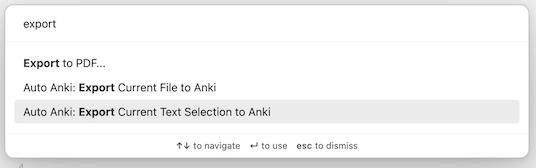
The plugin adds two commands to Obsidian:
- Generate notes from current file
- Generate notes from highlighted text (only in an open note in editing view; it needs selected text)
Plugin Requirements
The following are required for the plugin to work:
- Obsidian 1.13.1 or newer, on desktop
- An API account and key for OpenAI or Claude. API usage is billed by the provider; a ChatGPT or Claude chat subscription is not a substitute for API access
- The Anki program, installed locally
- AnkiConnect, which exposes Anki's API for Obsidian to call
Your notes are sent to the provider you choose when you generate cards. Nothing is sent before you click Generate Anki notes.
Plugin Setup
- Download and install the plugin (Options > Community Plugins)
- Make sure you have everything in Plugin Requirements
- Open Settings → Auto Anki. Under AI providers, open OpenAI or Claude, enter that provider's API key and click Save key.
- On the provider's page, open Manage models (the settings icon beside Your models). Turn models on or off, then click Save changes; Cancel discards your changes. Only models that support text generation can be turned on (OpenAI's Responses API or Claude's Messages API). If there is no default yet, the first model you turn on becomes it. To change the default, use Use as default model on a model's page, or Default model on the main settings page. Disabling a model keeps its settings, so turning it back on restores them.
- Start Anki with AnkiConnect enabled, then open Settings → Auto Anki → Anki:
- Set AnkiConnect address if needed. The default is
http://127.0.0.1:8765, a full address, not just a port. - Under Note types, turn on the existing Anki note types the AI may generate. Use the refresh button beside Note types after you change the address or your note types in Anki. The field descriptions shown there come from Anki, so describe your fields in Anki if you want the AI to know what they are for.
- Under Default deck, choose the deck new notes start in. You can still pick another deck each time you export.
- Set AnkiConnect address if needed. The default is
- Open Generation to choose coverage, whether to send diagrams, and your extra instructions.
- Optionally, open Anki → Tags to tag new Anki notes (see Tags).
- Open a note and run one of the commands.
API keys are saved in Obsidian's Keychain on this device, not in your vault. The Keychain does not sync, so enter your provider keys once on each device. Obsidian encrypts Keychain secrets using the operating system's secret store when available; Settings → Keychain reports when it is unavailable.
Upgrading
What changed in each version, and what to check after upgrading, is in the changelog.
Tags
Auto Anki can tag the Anki notes it adds, so you can later find, compare or delete them in Anki: for example, every note one model made. Tagging is off until you turn it on in Settings → Auto Anki → Anki → Tags, with Tag Anki notes. While it's off, new notes get no tags, and the other options on the page are greyed out.
Once tagging is on, choose which tags to add:
| Option | Default | Adds | Example |
|---|---|---|---|
| Model | on | The provider and model that made the note | auto-anki::anthropic::claude-haiku-5-5 |
| Reasoning effort | off | The reasoning effort chosen for that run. default means the model used its own default |
auto-anki::effort::high |
| Prompt version | off | The version of the built-in note-writing instructions. It ends in -edited if you replaced them with your own (Generation → Advanced); extra instructions don't count |
auto-anki::prompt::1.0.0, auto-anki::prompt::1.0.0-edited |
Prefix tags with auto-anki:: |
on | Puts auto-anki:: in front of the three tags above |
Off: anthropic::claude-haiku-5-5 |
| Extra tags | empty | Your own tags, for every new note. Separate them with spaces; use :: for nested tags |
obsidian uni::cs101 |
The provider in the model tag is its ID (openai or anthropic), not the name shown in settings, so it never changes. The page's Example line shows the tags one new note would get with your default model.
The prefix keeps the plugin's tags together. With it on, searching tag:auto-anki::* in Anki's browser finds every note these tags were added to, and tag:auto-anki::anthropic::* finds every note a Claude model made. With it off, tags such as effort::high can mix with your own tags of the same name. The prefix is never added to your extra tags.
Changing tags for one export. While tagging is on, the deck step has a collapsed Tags section. Its title lists the tags the notes will get. Open it to edit Extra tags for this export: it starts with your extra tags, and changes apply to that export only. Your settings stay the same.
A few rules:
- Tags are added only when a note is created. Auto Anki never changes the tags of notes already in Anki.
- The tags come from the moment you click Generate. Changing tag settings while you review doesn't change the tags of those notes.
- Spaces in a model ID become
_, and::becomes-, so a model ID can't add extra levels to Anki's tag list. Your extra tags are kept as you wrote them, except that empty levels are dropped (a::::bbecomesa::b). A tag repeated, even in different capitals, is added once, since Anki treats those as the same tag. - Earlier versions tagged every note
auto-gpt-imported. That tag is no longer added; notes that already have it keep it.
Feature Details
Generating Notes from the Current File (Command: Generate notes from current file)
The command opens a dialog for the open note. The dialog says what will be sent: the note's text (with frontmatter and %%comments%% removed) and its diagrams.
- Choose the coverage, the note types, and optionally a model, reasoning effort, a maximum number of notes, or extra instructions. These apply to this run only; your saved settings don't change.
- Click Generate Anki notes. The status bar shows that generation is running.
- In the review, each note's fields are shown as plain text. Tick the notes you want (Select all and Deselect all help), then click Confirm selection.
- Choose a deck, then click Confirm and export. The default deck starts selected.
Anki adds the notes you chose. Notes that Anki refuses, for example because they are duplicates, stay in the review so you can export them again. The plugin only adds notes; it never edits or deletes notes that are already in Anki.
For a long note, the run may take a while.
Generating Notes from Highlighted Text (Command: Generate notes from highlighted text)
This command works the same way, but uses only the text you have selected. It needs an open note in editing view, with text selected. Only images embedded in the selected text are sent.
Diagrams and Images
- Images in the text are sent when Send diagrams is on and the selected model accepts images. At most 20 diagrams are sent, and large images are scaled down first.
- Supported formats are PNG, JPEG, GIF, WebP, BMP and AVIF.
- A GIF is analysed as its first frame only. Anki keeps the original animated file.
- A diagram used in a card is stored once in Anki's media. The file name comes from the image's content, so exporting the same note again does not store a second copy.
Anki Notes
- Each field is written in Markdown and shown in Anki with its formatting. Inline maths
$…$and display maths$$…$$are shown with Anki's built-in MathJax. Raw HTML is shown as text, not run. - Cloze deletions such as
{{c1::…}}are kept as written. - The plugin only uses the note types you enabled, and it fills their fields as Anki defines them.
- If the deck you chose is missing, Anki's Default deck is used. The plugin never creates decks.
Motivation
With the kajillion things I read and watch on a daily basis, I've recently found myself struggling to retain knowledge of the things I've consumed. Hence, I've found myself trying to find new ways to enhance my self-education. I came upon Spaced Repetition, and wanted to try to use Anki to supplement my daily learnings. Being a long-time user and lover of Obsidian.md as my PKM (Personal Knowledge Management), I wanted to see if there was a way to automate my learning using spaced repetition with my current Obsidian vaults.
I looked at other similar plugins that attempt to connect Obsidian to Anki, but a lot of require you to change how you write your notes in Obsidian, or just don't seem automated enough. What this plugin does is automate the creation of "flashcard-style" questions and answers but without needing to format your notes for this purpose.
I consider myself a complete beginner when it comes to Spaced Repetition, Anki, or the general world of learning techniques, so I am always very open to suggestions, discussions, or any comments about the topic!
Issues, Discussion, etc
I keep track of all things related to this plugin mostly in issues. Feel free to report bugs and/or requests there!
Development
Requires Node.js 24, the version the release workflow uses.
npm install
npm run dev     # rebuilds main.js on every change
npm run build   # type-checks, then makes a production build
npm run lint    # checks the code with ESLint, including Obsidian's own plugin-review rules
npm test        # runs the tests
The tests (in test/) load the plugin in Node against a stand-in for Obsidian, with a fake Keychain, fake OpenAI and Claude APIs and a fake AnkiConnect, so they need no vault, no API key and no Anki. They cover moving the API key out of data.json (including synced vaults and a Keychain that fails), reading settings saved by every earlier version, the export flow with its error messages, image handling and field rendering.
To test in a vault, point OBSIDIAN_PLUGIN_DIR at the plugin's folder inside that vault. Every build is then copied there (main.js, manifest.json, styles.css):
OBSIDIAN_PLUGIN_DIR=~/path/to/vault/.obsidian/plugins/auto-anki npm run dev
Then reload the plugin in Obsidian (Settings > Community Plugins), or install the Hot Reload plugin to have it reloaded after every build.
Releasing
Add a ## [<new-version>] section to CHANGELOG.md first: the release workflow copies it into the GitHub release, and stops without releasing if it's missing. npm version <new-version> updates manifest.json and versions.json. Push the tag (git push origin <new-version>): the release workflow builds the plugin and attaches main.js, manifest.json and styles.css to a GitHub release with that tag. The workflow does not run npm test, so run it before tagging. Push the branch afterwards, since Obsidian reads manifest.json from the default branch to decide which release to install.