
- Overview
- Scorecard
- Updates1
All-in-one file explorer enhancement for Obsidian — per-folder sorting and drag-and-drop, focus mode, file counts, blank cleanup, and file pinning.
Aio Explorer brings together several file-tree improvements into one settings page, so you do not have to install and configure a separate plugin for each one. Every module has its own master switch and can be limited to specific devices.
中文说明见下方 中文说明。
Features
Drag and drop
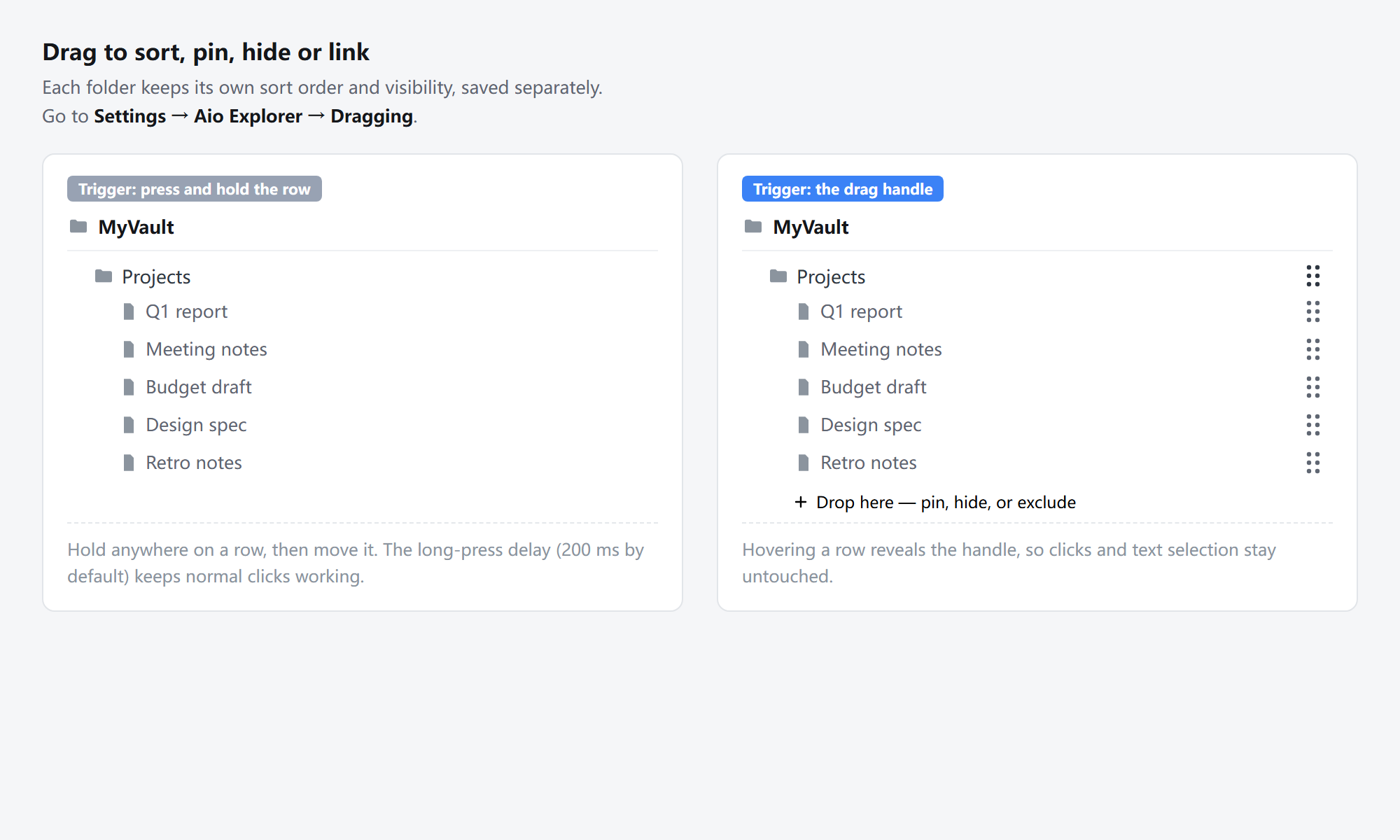
- Two trigger modes. Press and hold anywhere on a row, or hover the row to reveal a dedicated drag handle. The handle mode leaves ordinary clicks and text selection completely untouched.
- Per-folder order. Each folder keeps its own sort order and visibility state, saved separately.
- Long-press delay. The delay (200 ms by default) keeps normal single clicks working, so a drag never turns into an accidental open.
- Drop targets. A folder can be pinned, hidden, or excluded from the file tree.
Focus mode
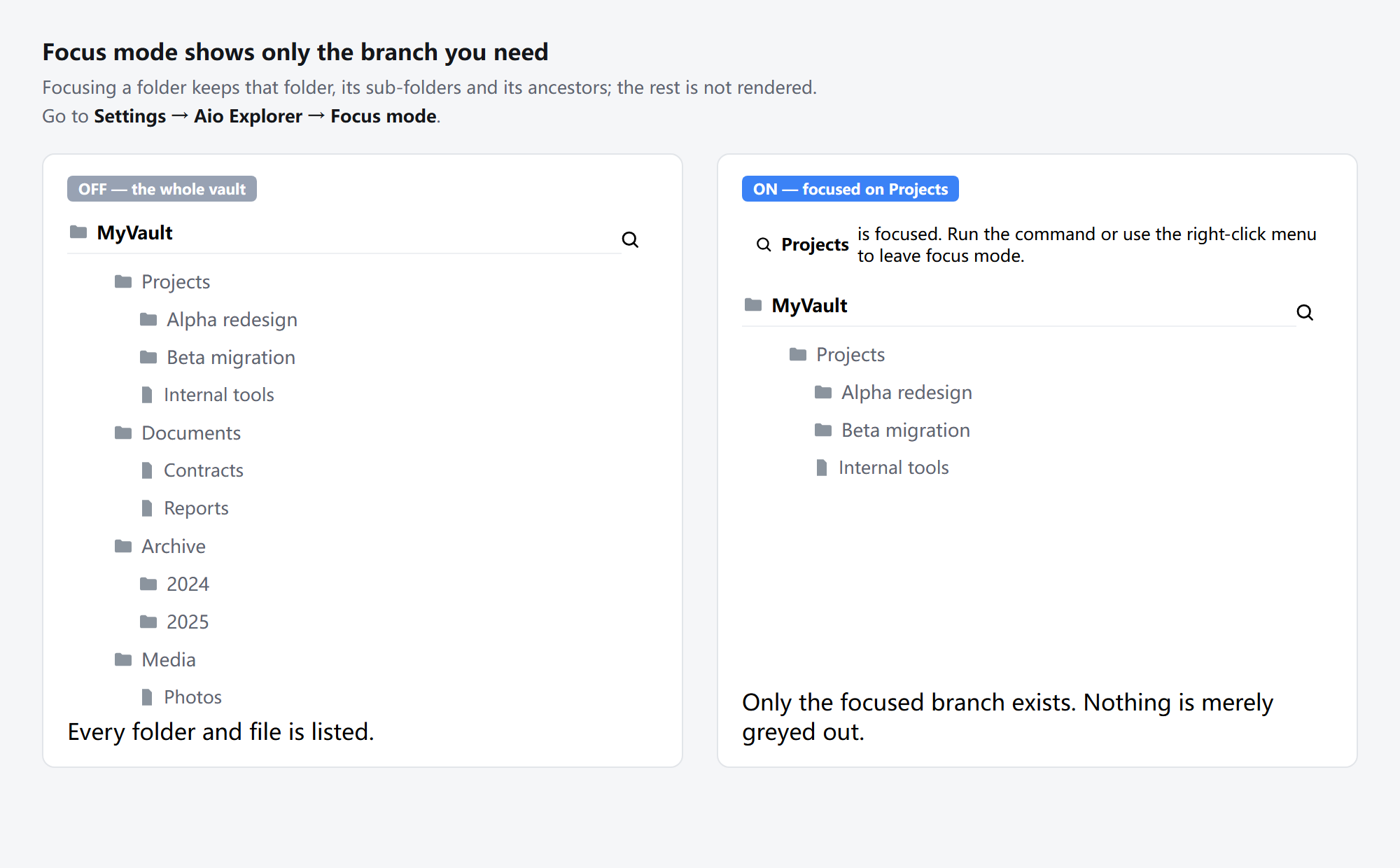
- One click to narrow the tree. Focusing a folder keeps that folder, its sub-folders, and its ancestors. Everything else is not rendered at all — nothing is merely greyed out.
- Several entry points. A button at the top of the file explorer, the command palette, and the right-click menu.
- Per-device control. Focus mode can be enabled separately on desktop, tablet, and mobile.
File icons
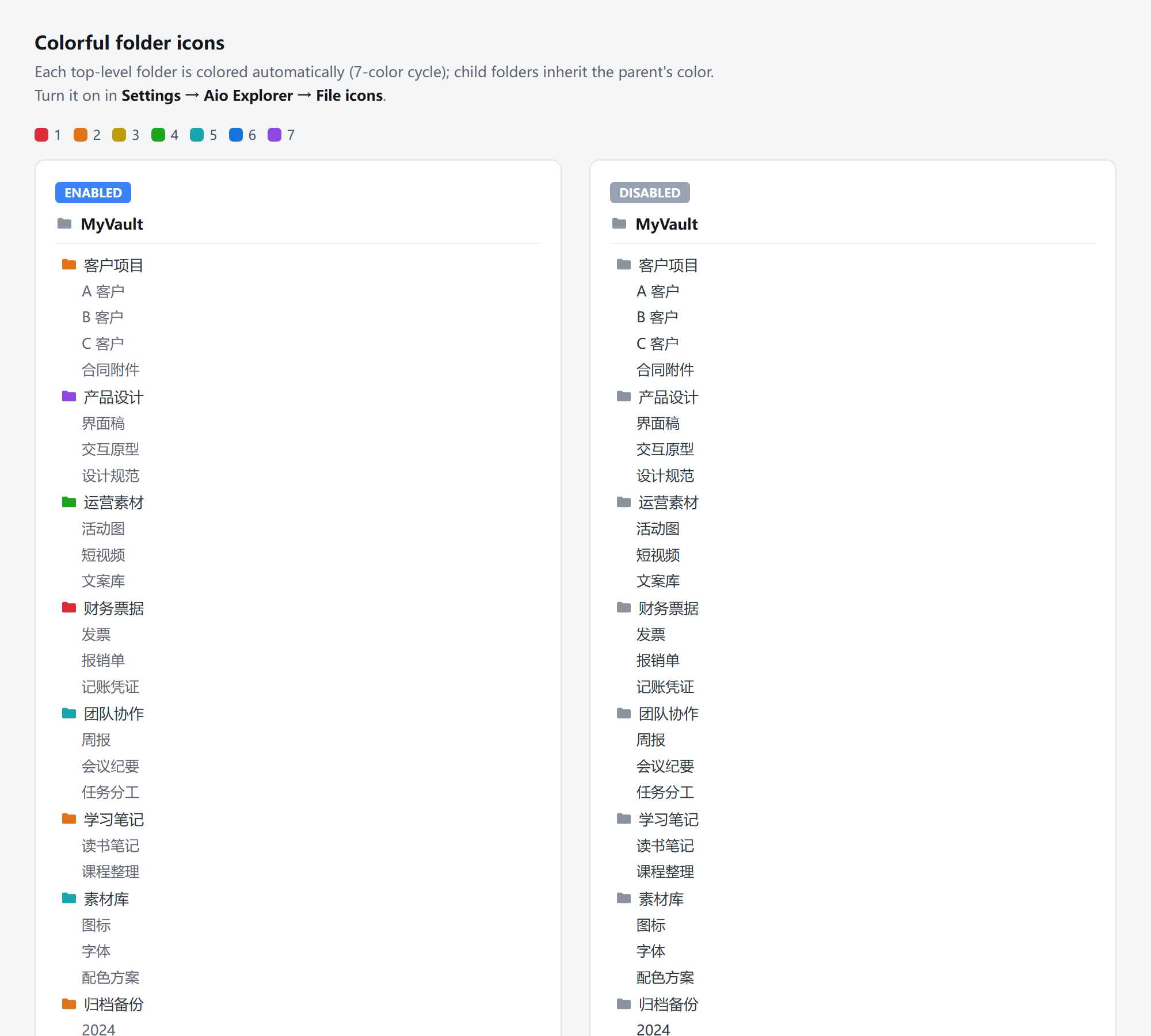
- Colorful folder icons. Folders cycle through a seven-color palette so you can spot structure at a glance.
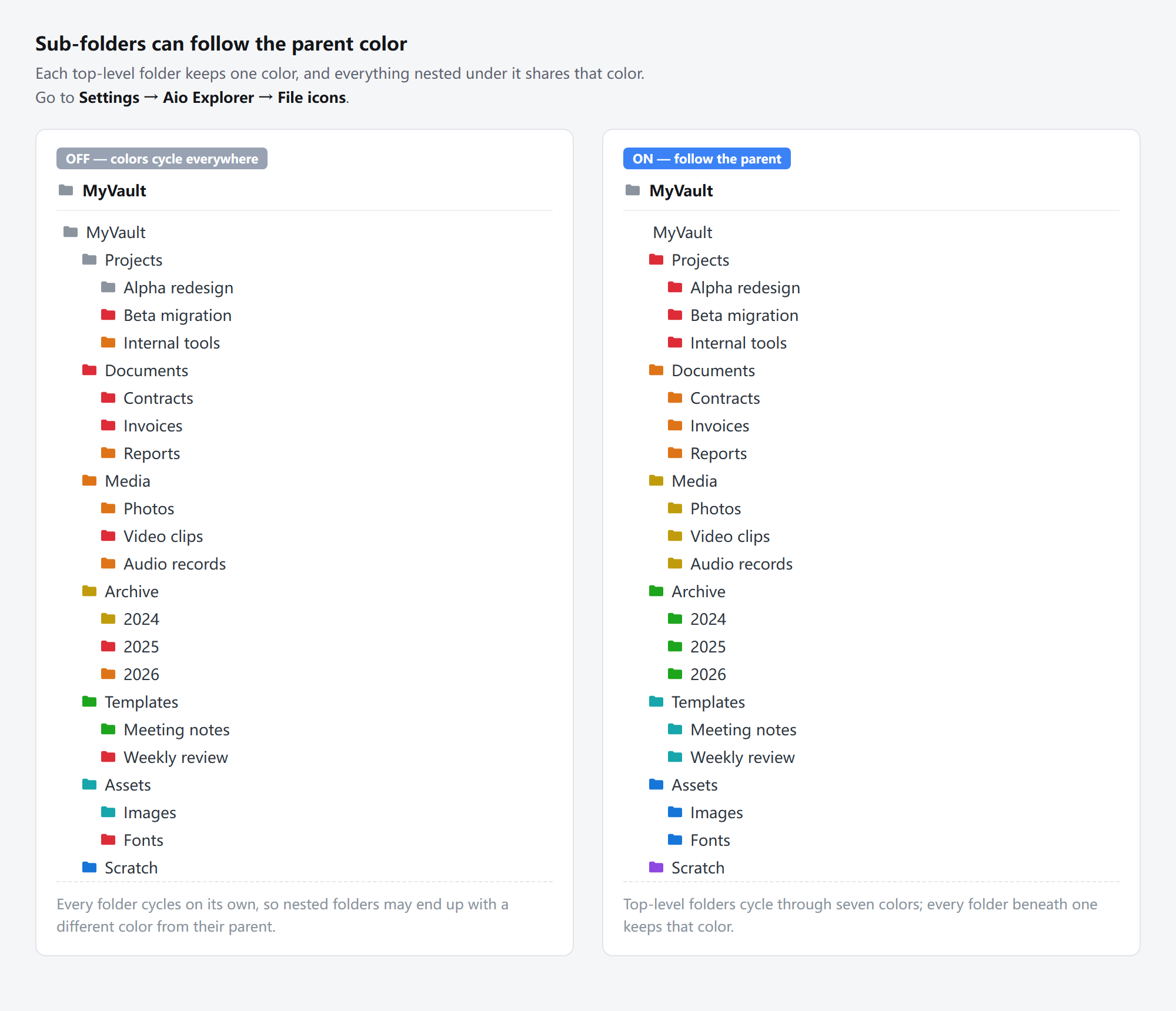
- Sub-folders can follow the parent color. Instead of cycling on their own, nested folders inherit the color of the top-level folder they live in. Each top-level folder cycles through the same seven-color palette, and everything nested under it keeps that color — so the palette never reshuffles while you scroll.
Title adjust
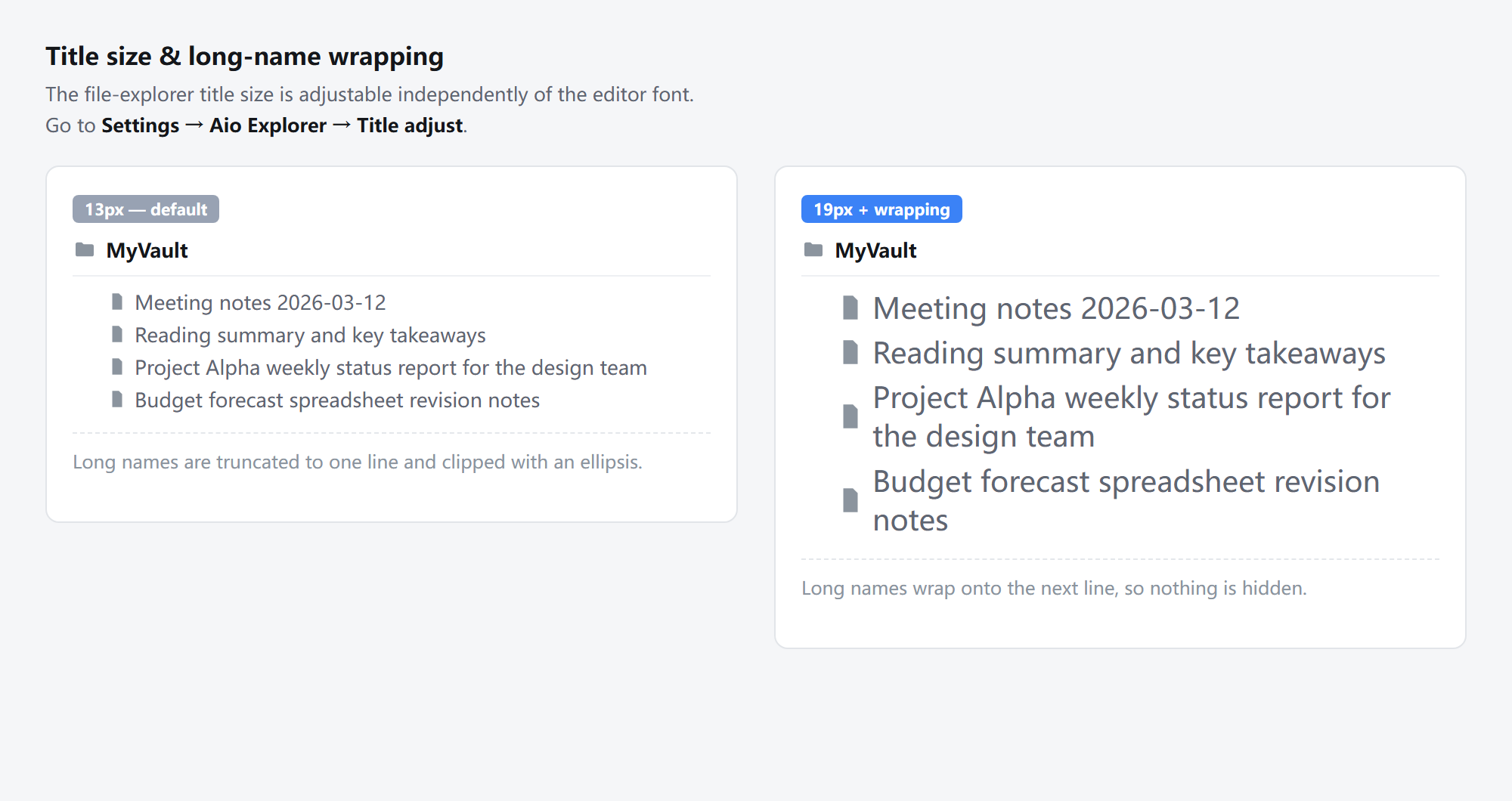
- Independent title size. The file-explorer title size is adjustable on its own, separate from the editor font size.
- Separate desktop and mobile sizes. The desktop and mobile values live in the same settings file, so one sync covers every device — phones pick up their own size automatically, with no per-device setup.
- Long names wrap instead of disappearing. Names that do not fit can wrap onto the next line, so nothing is silently truncated.
File count
- Shows the number of elements under each folder in the file explorer, with an option to include expanded folders.
File cleaner
- Finds empty Markdown files, unreferenced attachments, and empty folders.
- Supports include/exclude extension patterns and a file-age threshold, so only genuinely stale files are ever targeted.
- You get a summary of everything found before anything is deleted.
File pin
- Pin notes and folders to the top of their folder, with per-folder pin groups and easy reordering.
Installation
From the community directory
- Open Settings → Community plugins.
- Turn off Restricted mode if it is on.
- Click Browse and search for Aio Explorer.
- Select Install, then Enable.
Manual installation
- Download
main.js,manifest.json, andstyles.cssfrom the latest release. - Create the folder
<your vault>/.obsidian/plugins/aio-explorer/. - Copy the three files into that folder.
- Enable the plugin in Settings → Community plugins.
To update, disable the plugin, replace the three files, keep data.json,
then enable it again. Your settings live in data.json and survive updates.
Commands
All commands are available in the command palette (Ctrl/Cmd + P).
| Command | What it does |
|---|---|
| Toggle focus mode | Enters or leaves focus mode |
| Clean files | Opens the file-cleaner summary |
| Reload order | Re-reads the saved sort order |
| Reset order — root | Resets the root folder order |
| Show hidden / Hide hidden | Toggles hidden items |
| Save as custom — root | Saves the current root order as a custom preset |
| Open pinned view | Opens the pinned "file area" view |
| Reveal active file | Locates the current note in the file tree |
| Toggle selection mode | Switches the pinned view into multi-select mode |
Settings
Open Settings → Aio Explorer. The page is organised into eight tabs: General, Dragging, Focus mode, File cleaner, File count, File pin, File icons, and Title adjust.
Every module has a master switch. The focus mode, file cleaner, and file count modules can also be limited to specific devices, so you can keep the full feature set on your desktop and a lighter setup on your phone.
The interface follows the Obsidian language setting, with a manual override in the General tab.
Privacy
Aio Explorer makes no network requests and collects no telemetry. It does not read the clipboard and does not scan your vault beyond the files it already needs to display counts and folder contents.
All settings are stored in data.json inside the plugin folder in your vault.
Credits
Aio Explorer is a derivative work built on top of several open-source Obsidian plugins and a theme. All of them are MIT licensed, and their copyright notices are preserved in THIRD-PARTY-NOTICES.md.
- File Cleaner Redux — husjon
- Obsidian File Explorer Count — ozan.pl
- Folder Pin View — cimuyang
- Immersive Folder — Blink
- Obsidian Border Theme — Akifyss
中文说明
Aio Explorer 是一个 Obsidian 文件树增强插件,把多项常用功能整合到一个设置页里,不用为每个功能单独装插件。每个模块都有独立总开关,也可以按设备分别启用。
核心功能
拖拽交互 —— 支持两种触发方式:整行长按,或悬停后显示专用拖拽手柄(手柄模式下普通点击和文字选完全不受影响)。每个文件夹的排序和显示状态独立保存。默认 200ms 长按延迟,避免拖拽被误判成点击。文件可拖到文件夹进行置顶、隐藏或排除。
专注模式 —— 一键收窄文件树。只保留当前聚焦的文件夹、它的子文件夹和它的上级路径,其余部分完全不渲染(不是变灰,是真的不显示)。支持文件树顶部按钮、命令面板、右键菜单三种入口,可按电脑/平板/手机分别开关。
文件图标 —— 文件夹按七色循环上色,一眼看清结构。子文件夹可以选择跟随父级颜色:一级文件夹按七色循环,它下面所有层级的子文件夹都跟着同一个颜色,滚动时颜色不会乱跳。
标题调整 —— 文件树标题字号可独立于正文字号单独调整。长文件名可以换行显示,不会被静默截断。电脑端与手机端字号各自独立,但存在同一份设置文件里一起同步,手机上自动生效,无需分别设置。
文件计数 —— 在文件树中显示每个文件夹下的元素数量,可选是否包含已展开的文件夹。
文件清理 —— 找出空 Markdown 文件、未被引用的附件和空文件夹。支持包含/排除扩展名模式和文件年龄阈值,只处理真正该清理的旧文件。删除前会先给出完整清单。
文件置顶 —— 把笔记和文件夹置顶到所在文件夹的顶部,每个文件夹独立分组,可自由调整顺序。
安装方法
从社区插件市场安装
- 打开 设置 → 第三方插件
- 如果开着安全模式,先关掉
- 点浏览,搜索 Aio Explorer
- 点安装,再点启用
手动安装
- 从 Releases 下载
main.js、manifest.json、styles.css - 新建文件夹
<你的笔记库>/.obsidian/plugins/aio-explorer/ - 把三个文件放进去
- 在 设置 → 第三方插件 中启用
更新方法:先停用插件 → 替换三个文件 → 保留 data.json → 再启用。你的设置都存在 data.json 里,更新不会丢。
设置页
设置 → Aio Explorer,共八个标签页:通用、拖拽交互、专注模式、文件清理、文件计数、文件置顶、文件图标、标题调整。
每个模块都有总开关。专注模式、文件清理、文件计数还可按设备分别启用 —— 电脑上开全套,手机上用精简版。
界面语言跟随 Obsidian 的语言设置,也可以在「通用」里手动指定。
隐私
不发起任何网络请求,不收集任何遥测数据,不读剪贴板。所有设置保存在笔记库插件目录下的 data.json 里。
致谢
本插件整合了多个 MIT 开源项目,它们的版权声明都保留在 THIRD-PARTY-NOTICES.md 中。
License
MIT — see LICENSE.