ActionDeck
 tashihiki140 downloads
A customizable sidebar launcher that lets you run any command with a single click. Organize buttons into groups, use emoji, Lucide icons, images, or SVG as icons.
- Overview
- Scorecard
- Updates2
A customizable sidebar launcher for Obsidian that lets you run any command with a single click.
Organize your most-used commands into a tidy panel on the right sidebar — no more digging through the command palette.
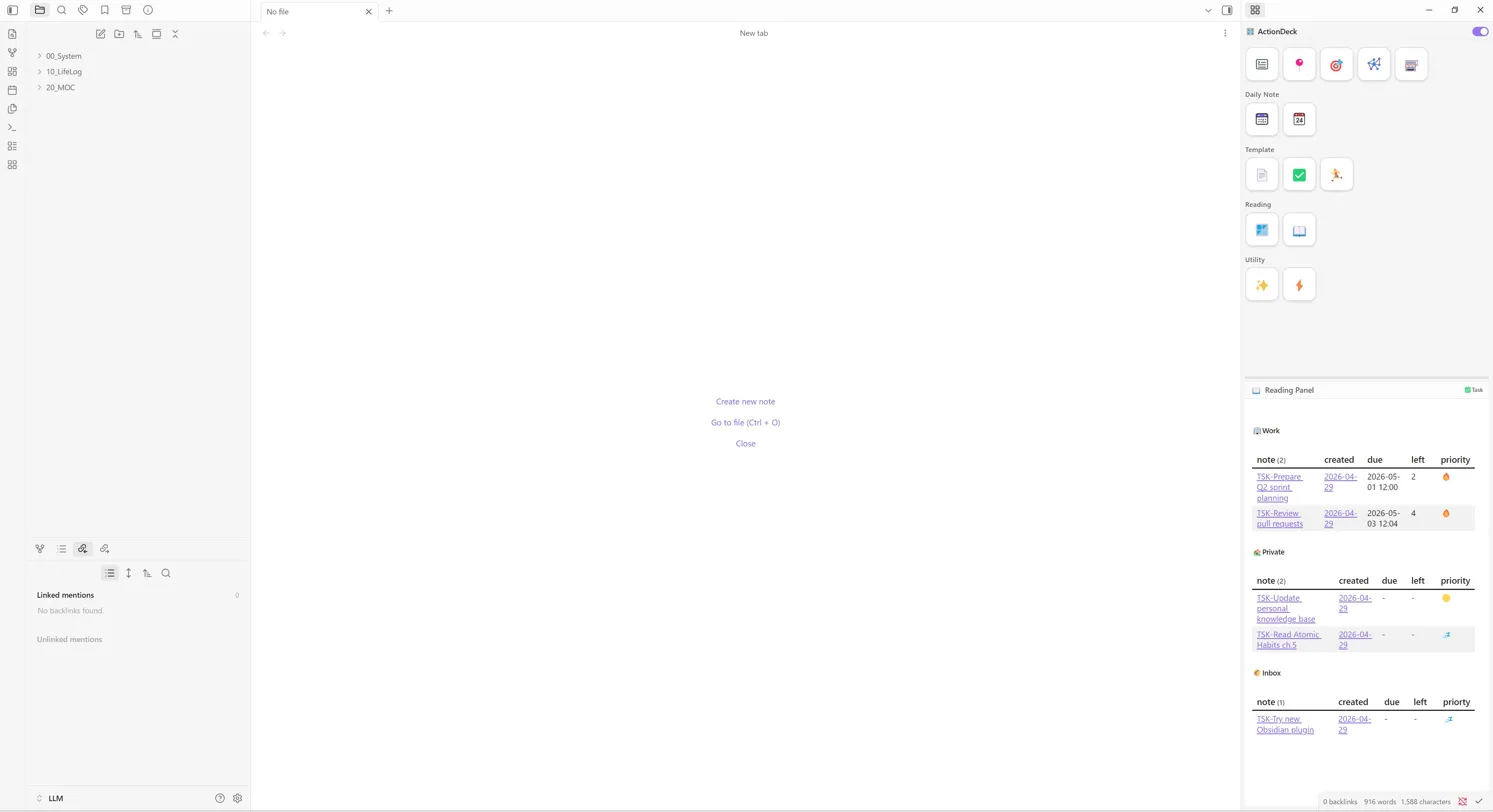
| Desktop View | Mobile View |
|---|---|
 |
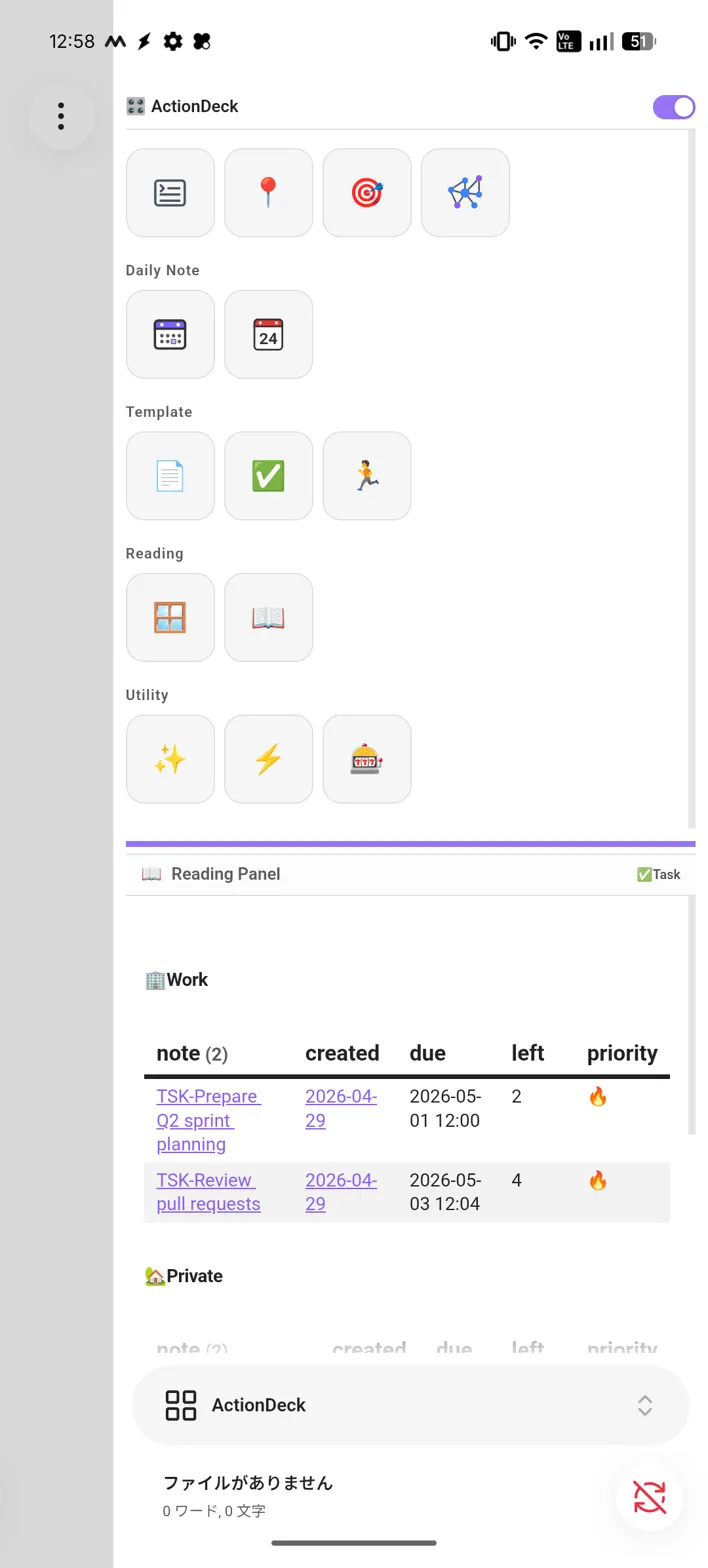 |
Note: Screenshots show an upcoming version featuring the Reading Panel.
Why ActionDeck?
Most Obsidian workflows assume a keyboard-first environment. ActionDeck was built for users who prefer GUI-driven interaction — especially on mobile, where command palettes and shortcuts create unnecessary friction.
Born from a personal need to reduce cognitive load, ActionDeck turns any Obsidian command into a single tap.
Features
- One-click command execution — assign any Obsidian command to a button
- Flexible icon types — Emoji, Lucide icons, Vault images, external image URLs, or raw SVG code
- Group organization — arrange buttons into named groups with custom ordering
- Deletion history — accidentally deleted a button or group? Restore it with one click
- Multilingual UI — English and Japanese supported out of the box (auto-detected from Obsidian's language setting)
Installation
From the Community Plugins browser (recommended)
- Open Settings → Community plugins
- Click Browse and search for
ActionDeck - Click Install, then Enable
Manual installation
- Download
main.js,manifest.json, andstyles.cssfrom the latest release - Copy all three files into your vault at
.obsidian/plugins/action-deck/ - Reload Obsidian and enable the plugin under Settings → Community plugins
Usage
Opening the panel
- The ActionDeck panel opens automatically in the right sidebar on startup
- Click the grid icon (⊞) in the ribbon to reopen it at any time
- Or run the command "ActionDeck: Open launcher panel" from the command palette
Adding a button
- Go to Settings → ActionDeck
- Scroll to Launcher Buttons and click + Add Button
- Choose an icon type, enter the icon content, set a label, and paste a Command ID
- The button appears in the sidebar immediately — no save or reload needed
Finding a Command ID
You don't need to memorize Command IDs. In Settings → ActionDeck, simply start typing the name of the command in the Command ID field. The autocomplete feature will help you find and select the correct ID.
Grouping buttons
- Go to Settings → ActionDeck → Launcher Groups
- Add one or more group names
- Edit each button's Group dropdown to assign it to a group
Settings
| Setting | Description |
|---|---|
| Launcher icon size | Font size (px) for all button icons. Default: 22 |
| Launcher Groups | Define and reorder named groups for organizing buttons |
| Launcher Buttons | Add, edit, reorder, and delete individual launcher buttons |
Button options
| Option | Description |
|---|---|
| Icon Type | Text / Emoji, Lucide, Image (Vault), Image (URL), SVG Code |
| Icon Content | The emoji, icon name, file path, URL, or SVG markup |
| Label | Tooltip text shown on hover |
| Group | The group this button belongs to (optional) |
| Icon Color | CSS color value for the icon |
| Command ID | The Obsidian command to execute (autocomplete supported) |
Roadmap
- Basic launcher functionality and icon customization
- Group organization and deletion history
- Reading Panel integration (Shown in screenshots)
- Advanced Settings Dashboard (Centralized UI for managing modules)
- Automation & Triggers (Event-driven action execution)
- Action Deck Utilities (Execute specific workflows managed within the plugin)
Contributing
Bug reports and feature requests are welcome via GitHub Issues.
Pull requests are also appreciated — please open an issue first to discuss larger changes.