Ariane
 liotou45 downloads
Downstream companion of ZotFlow for Obsidian: atomises Zotero annotations and notes, live Zotero citations, local suggestions, Word export with refreshable Zotero fields.
- Overview
- Scorecard
- Updates36
🤖 Written by vibe coding with Claude. This plugin was designed and written in conversation with Claude (Anthropic), from the real needs of a doctoral student. I am not a developer. I describe what I need, I test, I correct, and the code takes shape through the exchange. I say this up front, out of honesty, so you know what you are installing. The code is readable, commented, and has no dependency: a single
main.jsfile, no TypeScript, no bundler, nonpm.Français : voir README.fr.md.
🔗 Ariane is the downstream companion of ZotFlow. ZotFlow brings Zotero into Obsidian: references, attachments, annotations, notes. Ariane picks up from there and works that material. It atomises it, links it, cites it and exports it. Without ZotFlow, Ariane has nothing to work on.
✍️ Upstream, Annota prepares the material. It is my Zotero plugin: you assign a prompt to each highlight colour, and the moment you highlight a passage, a model writes the annotation comment, already shaped into a title, a paraphrase and references. That shape is exactly what Ariane expects in order to name its notes. Annota stays optional and Ariane never needs it, but the two form a chain: Annota writes, ZotFlow carries, Ariane exploits.
🌍 Interface available in English and French.
🧭 Table of contents
- ⚠️ Before you start
- ⚛️ Atomising
- 🧮 A base for your annotations
- 🔖 Citing Zotero, live
- 🖱️ Drag and drop
- 🪗 Folding citations
- 🏷️ The aside
- ✨ Suggestions
- ↩️ Back to Zotero
- 📚 Bibliographies
- ⏳ Pending references
- 👥 Authors
- 📝 Exporting to Word
- ⏱️ Tracking time
- 🧹 Housekeeping tools
- 🗂️ Fitting your own organisation
- ✅ Tasks
- ⌨️ Commands
- 📦 Installing
- 🔐 What the plugin can do
- ☕ Buy me a coffee
⚠️ Before you start
Read this first. Everything else depends on it. 🧱
Ariane does not read your PDF, it reads what you wrote in Zotero. So the way you write your annotation comments is the contract between the two tools, and the most important part of that contract is the title.
The expected shape, with the profile shipped by default, is this:
**A short title for this idea**
Your paraphrase, in your own words, over as many lines as you like.
*(Fan et al., 2022 ; Stål et al., 2023)*
Three lines, three roles:
- 🏷️ The title, in bold, on the first line. This one is required. It becomes the name of the note, the label you see in the file explorer, in the suggestions panel and in every link pointing to that annotation.
- ✍️ The paraphrase, on the lines that follow. Optional, and free.
- 📎 The secondary references, in italics, on the last line. Optional. See below.
Be aware of what happens without a title: by default, an annotation whose comment does not open with a bold line is not atomised at all. It is not turned into a note with a missing name, it is simply skipped, and the passage stays in Zotero without ever reaching your vault.
🩹 That default can be lifted. In Advanced → Untitled annotations, turn Atomise untitled annotations on: the whole comment then becomes the paraphrase, and Ariane infers a title from it, cutting at the end of the first sentence or at the last whole word. You choose whether the title is taken from the comment or from the highlighted text, and how long it may run. It works well, and it is still a fallback: a title you wrote yourself will always beat a title a machine guessed.
So the habit to build is the same one every time: highlight, then write a bold title, then paraphrase. It costs a few seconds per annotation and it is what makes the whole vault navigable afterwards.
🤖 You do not have to write it by hand. That is what Annota, introduced above, is for: the academic prompt it ships with produces exactly the structure described here, which is no accident. It is what turns the discipline into a reflex.
📐 This shape is not imposed. If your own convention differs, the Analysis tab lets you describe it: a profile is a pair of regular expressions, one for the title and one for the reference line. You may declare several profiles, and Ariane uses the first one that matches. The default profile simply follows what ZotFlow writes.
📎 Secondary references, entirely optional
The italic last line is for the works the passage reports without being their author, the ones you would write as "as cited in".
**Two ways of producing knowledge**
The authors distinguish mode 1 from mode 2 and take up the earlier framing.
*(Gibbons, 1994 ; Nowotny et al., 2001)*
Write nothing there and you lose nothing: the annotation is atomised as usual, with its title and its paraphrase. Write it and Ariane takes it in hand. It turns each name into a pending reference, groups the works reported by the same source into a single citation, checks whether the reported work is already in your Zotero library, and cites it directly when it is. It also builds the authors and pending references pages from it.
It is an addition, never a requirement. 🙂
⚛️ Atomising
Every Zotero annotation becomes a standalone note with a stable identity that survives regeneration. Rename the note, edit its paraphrase, move it: the link to the source holds.
Zotero child notes, the ones attached to the whole reference rather than to a single passage, become reading notes in their own right, citable and linked back to their source. The Zotero citations they contain are converted into Ariane citations along the way, so they feed your bibliography like any other.
Three behaviours you can turn on or off:
- regeneration: when the source changes, the annotations are rebuilt;
- deletion propagation: when an annotation disappears from Zotero, its note is deleted and its links are removed. This one is destructive, and off by default;
- locking: generated notes carry
locked: trueand cannot be edited by accident.
Annotations that no note ever cites can be tagged automatically, which lets you colour them in the graph and see at a glance what you have read but never used.
🧮 A base for your annotations
Atomising gives you thousands of small notes. To actually see them, Obsidian has
Bases, its built in database view, and Ariane writes exactly the properties a
base needs. This view is not shipped with the plugin: a base is a file in
your vault, yours to shape, so here is everything you need to build it. A ready
made one sits in docs/annotations.base, which you can
copy into your vault and open straight away. 📋
What Ariane writes on every annotation note
| Property | Contents |
|---|---|
aliases |
the annotation title, the readable name |
zotflow-anno-key |
the Zotero annotation key, stable across regenerations |
zotflow-source |
a link to the source note, [[@authorTitle2020]] |
ordre |
position of the annotation in the document |
page |
page in the PDF |
couleur |
Zotero highlight colour, as a readable name |
références-citées |
links to the secondary works the passage reports |
références-pages |
the page given for each of them |
collections |
the Zotero collections, from root to leaf |
couleur, zotflow-auto, zotflow-locked |
colour, generated, locked |
tags: orphelin |
added to annotations no note ever cites |
Source notes come from ZotFlow and carry citationKey, title, creators,
year, itemType, zotero-key and collections. A base can reach them from an
annotation through asFile(), which is what makes the whole thing work.
The formulas
formulas:
  source: note["zotflow-source"]
  appels: file.backlinks.length
  auteurs: note["zotflow-source"].asFile().properties["creators"]
  annee: note["zotflow-source"].asFile().properties["year"]
source gives you a clickable link to the reference. appels counts how many
notes cite this annotation, which is the single most useful column: it separates
the material you have exploited from the material you merely collected. The last
two reach into the source note and pull the author and the year back out, so you
can sort annotations by author without ever leaving the table.
Sorting by Zotero collection
collections is a list running from the root down to the deepest folder, for
example My Library, Doctorat, 04 - Risks, Systemic risk. The first two
carry no information, so drop them, and what remains is your actual thematic
path:
formulas:
  chemin: note["collections"].filter(value.toString().containsAny("My Library", "Doctorat") == false).join(" › ")
  collection: note["collections"].filter(value.toString().containsAny("My Library", "Doctorat") == false).reverse().slice(0, 1).join("")
chemin renders the whole path, collection keeps only the last item, the
deepest subcollection, which is the right key to group by. Replace the two names
with whatever your own library puts at the top.
    groupBy:
      property: formula.collection
      direction: ASC
Group a table this way and you read your corpus by theme rather than by reference: every annotation on systemic risk together, whichever book it came from. Obsidian prints the number of rows in each group header, so grouping is already a counter. 🔢
Counting annotations per source
The other direction is a table whose rows are the sources, with the number of annotations each one produced. Backlinks give it to you:
formulas:
  annotations: file.backlinks.filter(value.asFile().path.startsWith("1 - Annotations/")).map(value.asFile().path).unique().length
  jamaisCitees: file.backlinks.filter(value.asFile().path.startsWith("1 - Annotations/")).filter(value.asFile().hasTag("orphelin")).map(value.asFile().path).unique().length
Read it from the inside out: take everything that links to this source, keep only
what lives in the annotations folder, reduce each one to its path, remove
duplicates, count. The map and unique steps matter: an annotation links to
its source twice, once in its properties and once in its body, and without them
every source would count double. jamaisCitees adds one filter and tells you how
much of what you read you never used.
Filter the view with file.hasProperty("zotero-key") to keep the ZotFlow source
notes and nothing else, then sort by formula.annotations descending. You get
your reading effort ranked, most annotated first, with the unused share beside
it. Adapt "1 - Annotations/" to your own folder name.
Views worth having
- by source, grouped on
formula.source, sorted byordre: the annotations of a book in reading order; - by Zotero collection, grouped on
formula.collection, sorted byformula.appelsdescending: your themes, most exploited first; - never cited, filtered on
file.backlinks.length == 0: what you have read and never used; - counter per source, described above;
- by colour, grouped on
note.couleur, as cards: useful if your highlight colours carry a meaning, definition, objection, method.
🔖 Citing Zotero, live
Citations are written in plain sight inside your notes:
([[KEY|Dresch et al., 2015, p. 63]] ; [[OTHER|Gibbons, 1994, p. 12]])
The label is produced from a template you control, for example
{{auteurs}}, {{annee}}, p. {{page}}. The citation goes before the closing
punctuation, as French typography wants.
Secondary sources. When an annotation reports a work you have not read yourself, Ariane writes it as "Fan et al., 2022 and Stål et al., 2023, as cited in Raizada & Sinha, 2025, p. 1". Several works reported by the same source are gathered into a single citation, so the reference style cannot collapse the author name of the second one. If the reported work is itself in Zotero, it is cited directly instead, since you can read it.
Rather than naming every reported work in the running text, the source can carry a counter instead, and hovering it shows them as clickable links.
🖱️ Drag and drop
This is the fastest way to cite while writing.
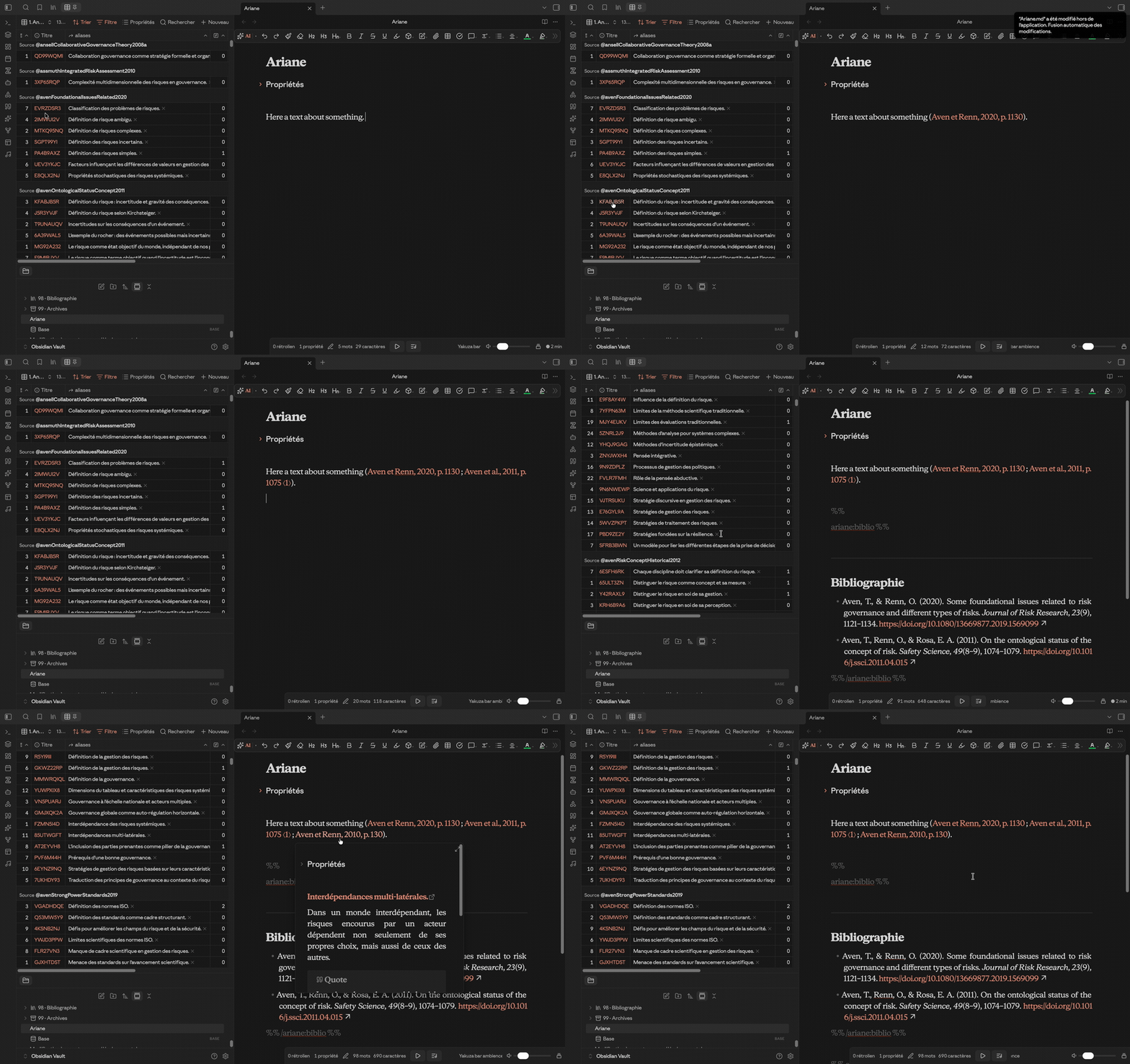
Drag an annotation, or a source, onto a sentence. Its reference is inserted inline, in brackets, before the closing punctuation. You never leave the keyboard flow for more than a second.
In the recording above, three annotations are dropped one after another onto the same sentence. Each one inserts its citation before the full stop, and the bibliography at the end of the note builds itself as they arrive.
The target follows your cursor: hovering the text places the citation at the end of the sentence under the pointer, hovering the left margin of the paragraph places it at the end of the paragraph. The area being targeted is highlighted while you drag, so you see where it will land before you let go.
The annotation basket, opened from the ribbon, lets you gather annotations as you read, then place the whole set at once when you write. Drag the basket onto a paragraph, or drop it at the cursor, and every annotation it holds arrives as a single citation.
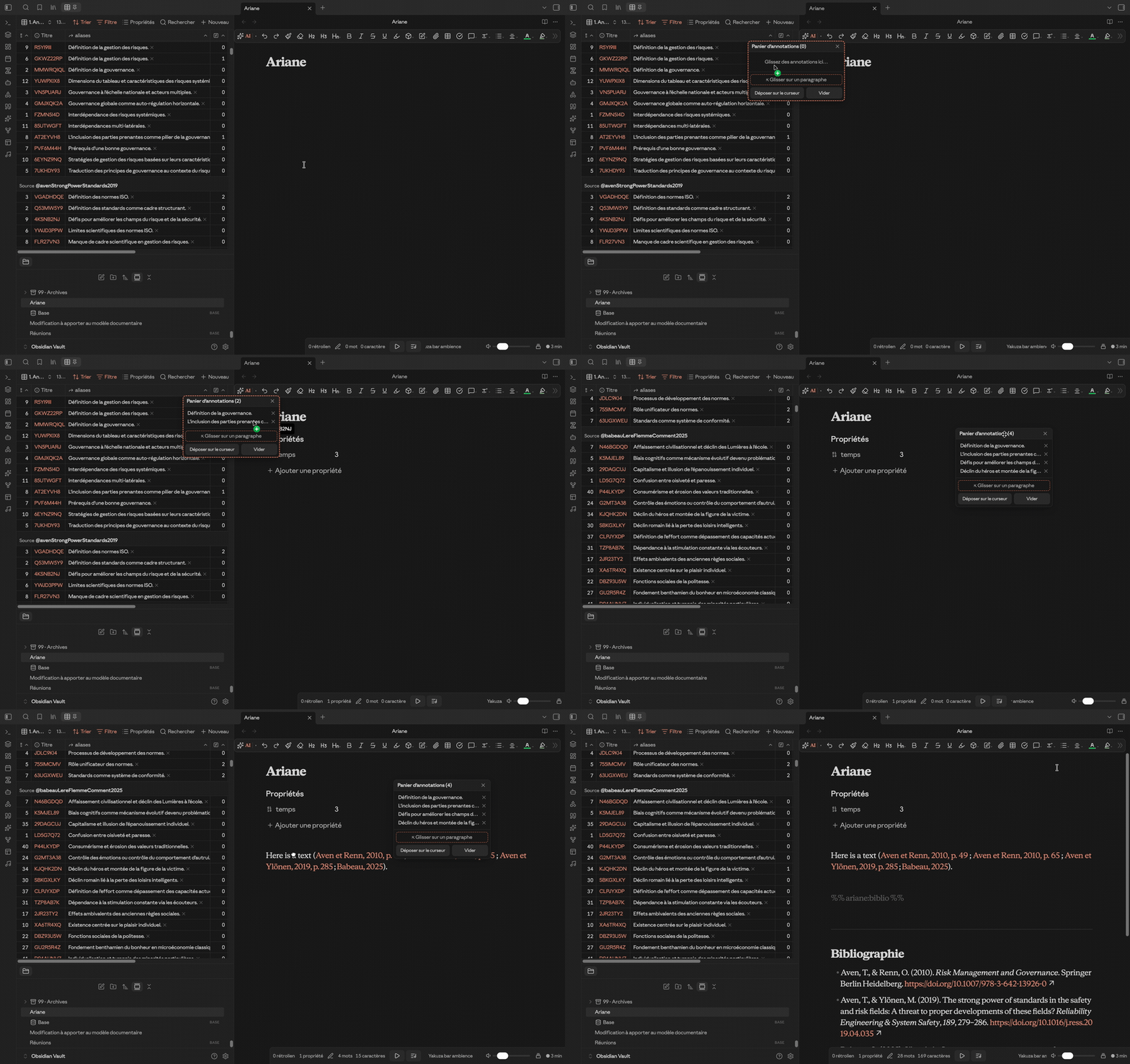
Four annotations are gathered here, from three different sources, and land in
one go as (Aven and Renn, 2010, p. 49 ; Aven and Renn, 2010, p. 65 ; Aven and Ylönen, 2019, p. 285 ; Babeau, 2025). The bibliography follows on its own.
Two details that took some work:
- reusing a citation is a copy, never a move. Without forcing that, the editor would remove the citation from the paragraph it came from;
- a link rendered outside a markdown view arrives with an empty payload, so Ariane records the dragged item at the moment the drag starts, which is the only reliable moment.
You can choose whether any note may be dropped or only annotations, and whether Ariane tells you when a dropped item matches nothing in the vault, rather than silently doing nothing.
🪗 Folding citations
A long citation can crowd the reading. Fold it, and it gives way to a small badge carrying the number of references it holds.
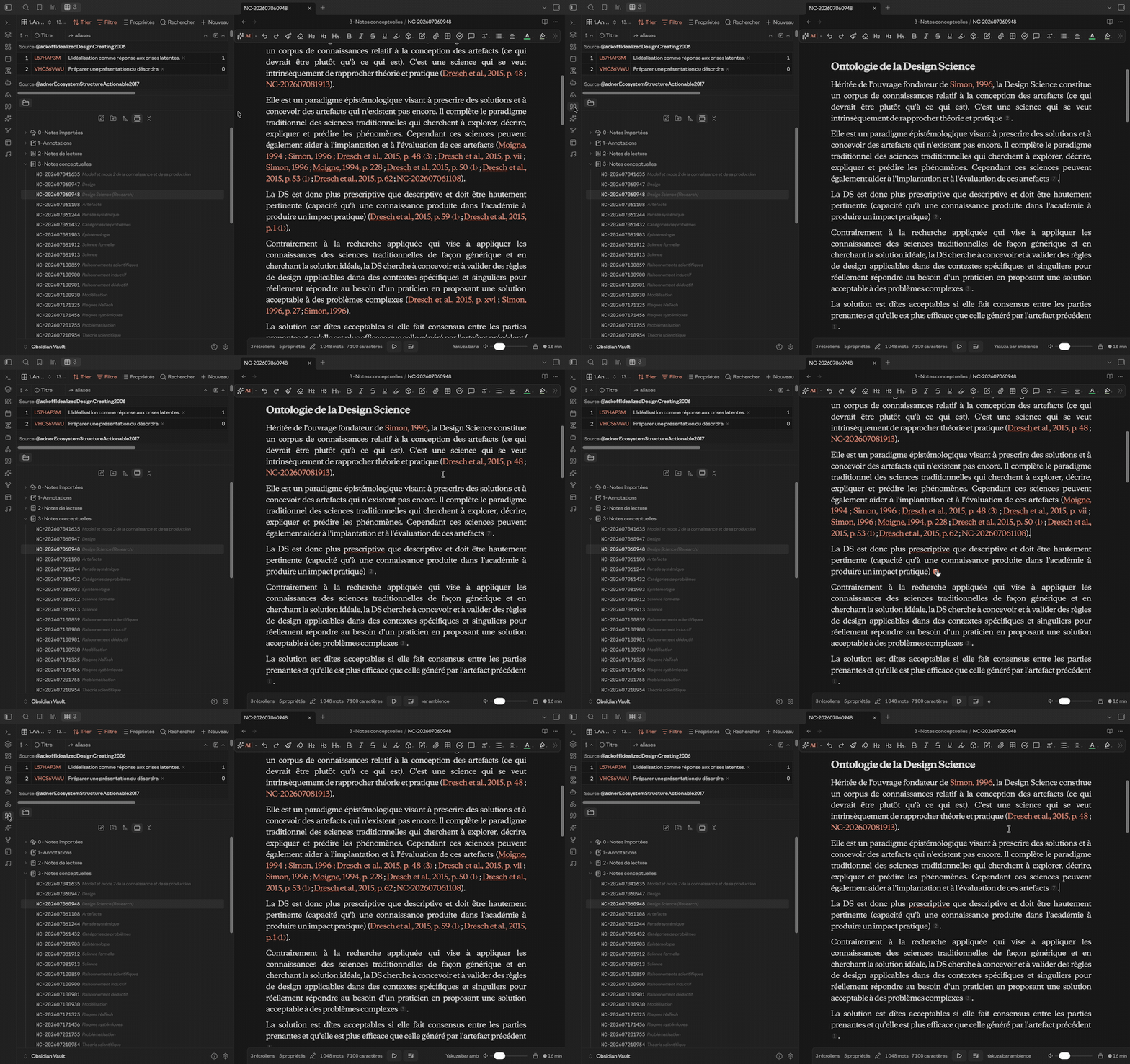
The note above holds five citations, and reads as continuous prose. The badges carry two, seven, two, three and one reference respectively, and give them back the moment you need them.
- click the badge to unfold that one citation;
- use the commands, or the ribbon button, to fold or unfold the whole note;
- while editing, a citation unfolds on its own as soon as the cursor enters it, and folds again when you leave.
🏷️ The aside, or reading coded names
A vault built this way fills up with names nobody can read. Annotation notes are
named after their Zotero key, 6BH5SHHB. Concept notes carry a timestamp,
NC-202607041635. Those names are excellent for the machine, stable and never
colliding, and useless for you. The aside gives you back the reading without
touching a single character of your files. ✨
Inside a note, the aside prints the title just after the link, in reading
view and while editing. You write [[6BH5SHHB]] and you read
[[6BH5SHHB]] Two ways of producing knowledge. Its format, colour and size are
yours to set, and you decide family by family which notes get one.
In the file explorer, the same idea applies to filenames. Ariane can show the alias instead of the filename, and display chosen folders in a fixed width font so the coded part lines up column by column.
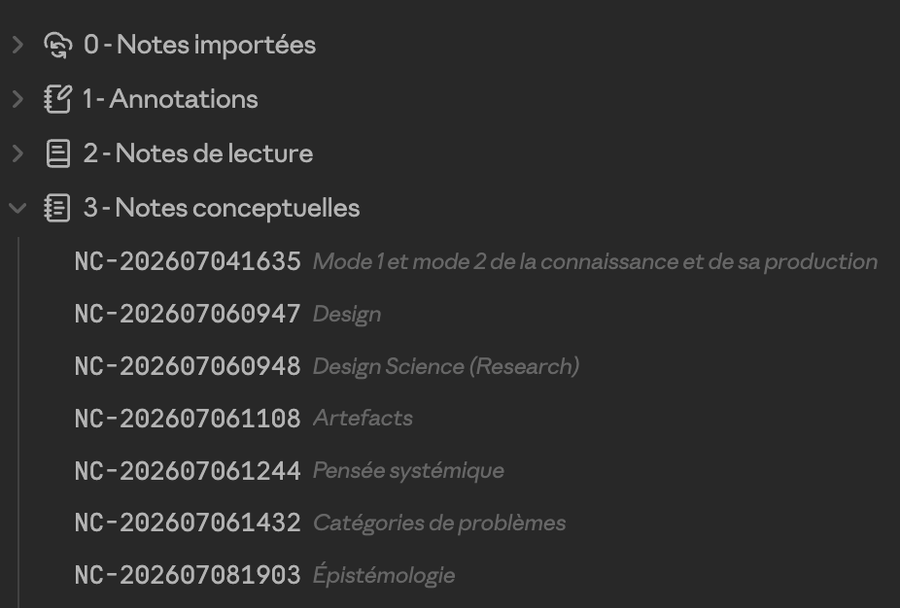
The folder above holds concept notes. The reference is on the left, aligned and
scannable, and the alias reads beside it: NC-202607060948 is Design Science
(Research), NC-202607061244 is Systems thinking. You keep a stable
identifier and a readable name at the same time, without choosing between them.
Both displays are decoration only. The file on disk is untouched, the filename is untouched, so search, sorting, backlinks and any other plugin keep seeing exactly what was always there. Turn the option off and everything falls back to its coded name.
✨ Suggestions
A side panel proposes the closest notes as you write.
Three engines: lexical (shared words, no dependency at all), semantic (meaning, through local embeddings) and hybrid, which combines the two and is the recommended choice. Everything runs locally, offline and free of charge, through Ollama or LM Studio.
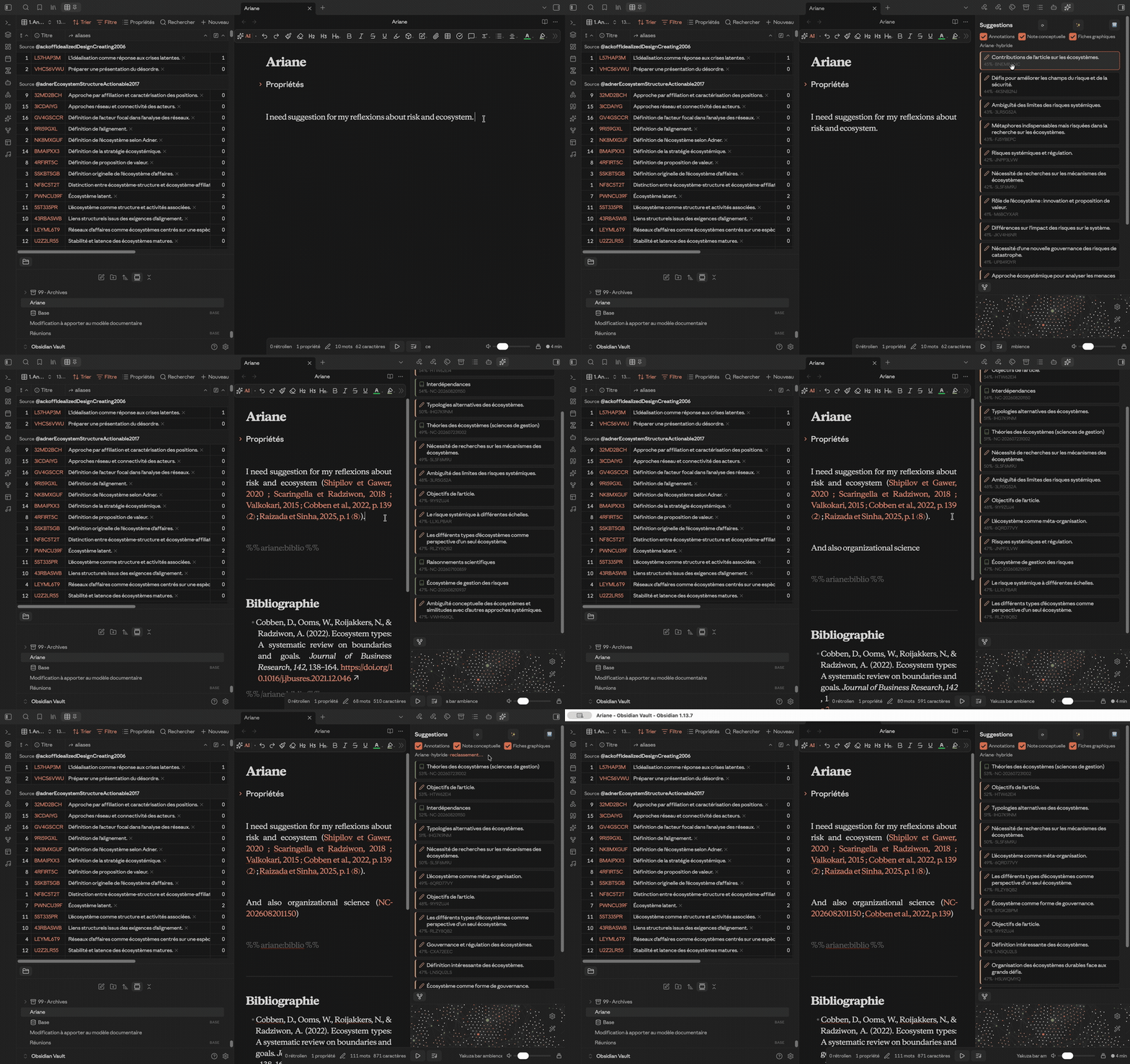
- filter the panel by note family, with the colour and icon you gave each one;
- right click a passage to get suggestions for that passage alone, rather than for the whole note;
- drag a suggestion straight into your text to cite it;
- the ✨ button reranks the best candidates with a local language model, on demand only.
⚡ That last point matters. Reranking is by far the heaviest thing the plugin does, so it never starts on its own, it is bounded both in answer length and in time, and nothing is computed at all while the panel is not actually visible.
↩️ Back to Zotero
A button in the ZotFlow reader, and a command, take you back to Zotero at the right place:
- from the reader, Zotero opens the same PDF at the page you were on;
- from an annotation note, Zotero opens the PDF and scrolls to that very highlight;
- from a source note, Zotero opens its attachment, or selects the entry if there is none.
📚 Bibliographies
At the end of a note. Ariane collects the sources cited in the body and maintains a bibliography between two markers, the way Zotero does in Word. The formatting is the one ZotFlow already produced, so your citation style is respected. Each entry gets a clickable link placed after it, never around it, so the italics of the style survive.
Sort by author or by order of appearance, and rebuild in the active note or across the whole vault.
Per source. Ariane can fetch the works a source itself cites, through Crossref and OpenAlex, and write them into a dedicated note. Give it an email address and the two services grant you better rate limits.
⏳ Pending references
A reference cited by one of your annotations but absent from Zotero is not lost. Ariane keeps it as a provisional note, and tries to attach it to a real Zotero entry by author and year.
Certain matches, where only one pairing is possible, are attached without asking anything. For ambiguous cases you choose the behaviour: skip them, let a local language model decide, or be asked each time. A decision you make by hand is remembered and never asked again, and you can wipe those memories in one click.
There is also a command for the classic 2005a and 2005b problem, where you link a given reference to the right Zotero entry yourself.
👥 Authors
Ariane can keep one note per author, listing their sources. Author names arrive in many shapes, so a command finds the duplicates, groups the variants, and lets you tick which ones to merge and which entry to keep.
📝 Exporting to Word
The hardest part, and the most polished: a .docx export with live Zotero
fields, not frozen text. Reopen the document in Word, click Refresh, and
Zotero redoes the formatting.
Layout is driven by your own Word template, not by the code. You place tokens in it, the plugin fills them in:
| Token | Filled with |
|---|---|
{{titre}} |
the note title |
{{dossier}} |
its folder, without any leading number |
{{date}} {{date:long}} |
its creation date, short or spelled out |
{{réf}} |
its reference, from a property or from the filename |
{{propriété:key}} |
a named property |
{{propriétés.nom}} / {{propriétés.valeur}} |
a row repeated for each remaining property |
{{encadré.titre}} / {{encadré.contenu}} |
your > [!info] callouts, wrapped in the frame you designed |
Move a token, add a row, change a style, redesign the frame: all of that happens in Word. A command checks your template and tells you what it found, which tokens it does not recognise, and which layouts are missing.
Along the way the export also:
- shifts headings by one level, so
##becomes Heading 1, and strips numbering you typed by hand, leaving Word to number on its own; - turns
> [!info]callouts into the framed table from your template; - converts markdown tables, with borders and your own table styles;
- removes the brackets from property values, so
[[Jane Doe]]comes out asJane Doe; - turns spaces already present before
;:!?into non breaking ones, without ever adding a space, so URLs and clock times stay intact; - adds the Zotero bibliography field at the end, so you do not have to insert it yourself.
⚠️ Requires pandoc, the Better BibTeX Lua filter, and Zotero running.
⏱️ Tracking time
Time spent in each note, in minutes, written back to a property.
It pauses on its own as soon as keyboard and mouse go quiet, or the window loses focus, so it counts actual work rather than presence in front of the screen. You set how long the silence must last.
The reference total is kept in seconds and the property is only a rounded view of it, because rounding at every write, starting from an already rounded value, inflates the total by several percent. Writes are spaced out so your sync stays quiet, and pending time is never lost.
A daily journal can be written automatically when the day turns, and a status bar item shows the time on the current note, solid while the timer runs and hollow when paused. The journal is an ordinary note, so it stays searchable and links back to the work it accounts for:
---
type: journal-temps
date: 2026-08-21
total-minutes: 34
---
# Temps de travail du 2026-08-21

**Total : 34 min** sur 3 note(s).

| Note | Temps |
| --- | --- |
| [[3 - Notes conceptuelles/NC-202608210937]] | 29 min |
| [[3 - Notes conceptuelles/NC-202607231002]] | 4 min |
| [[Modification à apporter au modèle documentaire]] | 1 min |
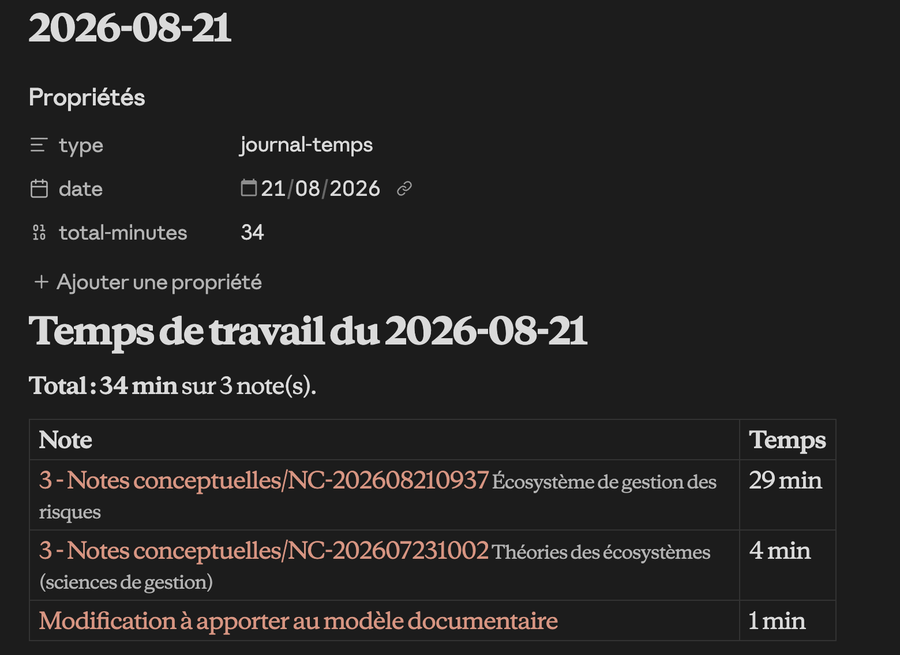
Because every row is a real link, the journal appears in the backlinks of the notes it mentions. Opening a note months later tells you how long it took.
🧹 Housekeeping tools
- Rename a property across the whole vault. Changing a name in the settings only affects future writes, so this carries the old value over to the new one. It counts first, and never overwrites a note that already has the new property.
- Export and import a settings profile. Paths specific to your machine never travel with it, and an imported profile never touches them.
- Check the Word template, before an export rather than after.
- Restore any generated note that was edited by hand.
🗂️ Fitting your own organisation
Ariane assumes nothing about your vault. You describe your note families in the settings, giving each a label, one or more folders, an optional filename prefix, and what Ariane should do with them: show the title after links, feed the suggestions, change the look in the file explorer. Rows are reordered by dragging them. No note type is named in the code.
One button proposes the families found in your vault and guesses their prefixes from the filenames. Another detects which folders play each functional role, meaning where annotations are filed, where reading notes go, where exports land, and so on.
✅ Tasks
A task is a note in your tasks folder, named from an incremental counter
dressed by a template — T-{n:3} by default, giving T-001, T-002… Change
the template in the Tasks settings tab ({n} = the number, {n:3} = padded
to three digits, the rest literal); a live preview shows the result, and a vault
already numbered the old way (T26-041) keeps counting from there. Its title
goes into aliases, as in your other note families.
Every property is written as prefix + readable name (Tâche - Échéance), so
task fields never collide with same-named properties on other notes. The prefix
and the readable names are set in the Tasks settings tab; "Masquer le préfixe
à l'affichage" drops it from timeline columns, articulation cards and base column
headers without touching the data.
The Tasks: create a task form carries a working note field, written into
the note's ## Note de travail section, and every planning field including an
optional time on the due date. Two properties are kept up to date for you and
not meant to be typed: Terminée le follows the status, and Sans échéance (a
checkbox) is true while the task has no due date — so you can filter or sort a
base on it like any real property.
Families
A task carries a famille field. Families live in the Folders and families
settings tab: a name, a colour, a Lucide icon, the extra properties the family
adds to the header, a description used by the AI assistant, and an Apple
Reminders list. Reading, output and action come preloaded.
Timeline (Gantt) and Articulation
Both are base views (ariane-frise, ariane-articulation): they obey Bases'
native filter, sort and grouping, and each view of a .base keeps its own
settings.
The timeline left column is a flat table — every task treated the same,
whatever its links. Order follows the active sort (tasks nest under their parent
only in the default date order); an undated task follows the sort like any
other, its row simply hatched. Columns match the base view — drag-reorder them
by their header, rename per-view through Edit property…, hide from the header
menu. Bars carry the family colour, are resizable at either edge, and dragging a
child that leaves its parent's span stretches the parent. A task whose due date
has passed and is not done gets a warning mark on its bar, with a count in
the toolbar. Hovering a bar reveals its lineage — parents and subtasks,
joined by a line — with nothing permanent on screen. The toolbar's Export
button writes the timeline exactly as shown — same columns, same row order — to
an .xlsx in the attachments folder and opens it: the data columns, then a
cell-grid Gantt (one column per period, the scale following the current
zoom), bars painted in the family colour, overdue in red, milestones marked;
frozen header and data columns, autofilter, real Excel dates.
The articulation draws the graph of links. A grey line is composition (parent → subtask), an accent line is blocking; arrows route around the target card. Cards created while the view is open drop onto it; blocking and hierarchy relatives collapse into badges you expand into the plan.
Calendar view
A third base view, ariane-calendrier: a month or week grid. Tasks land
on their dates — a début → échéance span shown all-day, or one block per
créneau if the task carries Créneaux. Créneaux is a list
(2026-09-08 14:00-16:00, …): a task is worked over several sessions. Ariane
keeps a ## Créneaux table in the note with duration stats (sessions, planned
time, upcoming), so the information stays self-contained in the note.
Drag a chip to reschedule it; in week view, drag or resize a block to rewrite
that créneau, Delete to remove it. Dragging a row's left-column link from the
timeline (or a [[T26-001]] link from anywhere) onto a calendar day adds a
créneau at the drop time. Stack the timeline and the calendar by splitting a
pane.
Cards carry the base's visible properties (like the timeline): title, time, then one line per property as the block's height allows. The toolbar is slimmed down (icon arrows, a clickable title that jumps to today, a Month/Week segment, a "+ New" button). Trackpad navigation: a two-finger horizontal swipe slides the grid from one period to the next, snapping on release. The week view's all-day band collapses and disappears when empty. Right-click a card (status, priority, delete the créneau, remove from the calendar) or an empty cell (new task that day, paste a link as a créneau). Clicking a day selects it: "+ New" then dates the task on that day.
To drop a créneau from the timeline, drag the left-column link of a row onto a calendar day (the SVG bars themselves are no longer draggable).
Links between tasks
Rattachement gives a task one parent; Bloquée par lists its blockers.
Both are set from the forms, the articulation, or by hand in a base cell.
- Cycles are refused as you create them, on the merged graph — a task that would end up parent and blocked by the same branch is turned down, with a message, wherever the link comes from.
- A parent shows a derived "blocked" status when one of its subtasks is blocked, and freezes its subtree when it is blocked itself. Never written.
- A parent's progress is the duration-weighted mean of its subtasks (recursively). Never written.
- A parent's bar spans the union of its own dates and its subtasks'.
Milestones cannot be parents. Deleting a parent re-attaches its subtasks to the grandparent, or leaves them as roots.
AI assistant
Local (Ollama / LM Studio) or cloud (Mistral, Claude CLI) — the provider is the one already set for bibliography splitting. Every proposal is reviewed before it is applied. Commands and context-menu entries:
| Feature | What it does |
|---|---|
| Structure a draft | an indented outline → a tree of tasks (indentation = hierarchy, "Jalon:" → milestone, "BONUS" → low priority, parentheses kept as a note, no invented dates) |
| Split a task | proposes subtasks for the task under the cursor |
| Normalise titles | rewrites titles to a consistent style, batch, row by row |
| Check families | flags tasks whose family looks wrong |
| Add in plain language | one sentence → one task, with a blocker linked by name |
| Resolve sources | matches a reading task's plain-text source to a @citekey |
Apple Reminders (macOS)
Two-way sync through EventKit, so every list is visible, including those
filed inside a group. Each dated task becomes a reminder in its family's list:
title from a template ([{ref}] - {intitule} by default, tokens {ref},
{intitule}, {famille}), due date and time, priority, a link back to the note.
Checking a reminder completes the task; a reminder added by hand in a watched
list becomes a new task — or links to an existing one if its title carries that
task's reference. When both sides changed, the note wins. Runs on save and on a
timer when enabled in the Apple Reminders settings section; the first sync
asks for Reminders access.
Apple Calendar (macOS)
Also through EventKit, running alongside reminders without overlap. Each
family can target an Apple calendar (several families may share one, or each
get its own); a family with no calendar is not synced. Every créneau of a
task becomes an event in that calendar — title from a template, a
(session N) suffix when the task has several créneaux, a link back to the note.
Moving or resizing the event in Calendar rewrites the créneau (the real duration
flows back into the stats); deleting it removes the créneau. The note wins if it
moved since the last sync. Events from watched calendars — including ones that do
not come from Ariane — show as background in the calendar view: a left
vertical bar in the calendar's colour, a click opens them in Calendar.app; an
event and a créneau at the same time split the column. Runs on save and on a
timer when enabled in the Apple Calendar settings section; the first sync
asks for Calendar access.
⌨️ Commands
| Command | What it does |
|---|---|
| Atomise the active source note | one note per annotation |
| Re-atomise every source | the whole vault |
| Reading notes: atomise Zotero child notes | notes attached to the reference itself |
| Citations: fold all, unfold all, fold or unfold | the badges |
| Citations: refresh labels | after changing the citation template |
| Bibliography: rebuild in the active note, or in every note | end of note bibliography |
| Build the cited bibliography of this source, or of every source | through Crossref and OpenAlex |
| Attach pending references to Zotero sources | by author and year |
| Link this reference to a Zotero entry | the 2005a and 2005b case |
| Merge duplicate authors | groups the name variants |
| Open in Zotero | reader, annotation or source |
| Check the Word template | tokens and layouts |
| Export to Word with live Zotero citations | the whole chain |
| Time: write today's journal, write it into the notes now | the timer |
| Annotation basket: show or hide | for drag and drop |
| Annotation suggestions: open the panel, rebuild the index | the side panel |
| Tasks: create a task, modify a task | form with a working-note field |
| Tasks: inconsistencies | cycles, contradicted dates, competing parents |
| Tasks: structure a draft, split the active task (AI) | outline → task tree |
| Tasks: normalise titles, check families (AI) | batch review |
| Tasks: add (plain language, AI) | one sentence → one task |
| Tasks: resolve sources of reading tasks | plain text → @citekey |
| Tasks: sync to Apple Reminders, pull reminders | two-way, macOS |
| Tasks: sync to Apple Calendar, pull Apple Calendar | créneaux ↔ events, macOS |
🔐 What the plugin can do on your machine
Obsidian's automated review flags three kinds of access. They are real, they are needed, and you deserve to know why.
Running commands (child_process). Three opt-in paths, each idle until you
use it: the Word export calls pandoc, its Better BibTeX filter and a Python
script shipped in pandoc/, all installed by you; the task AI may call the
claude command line if you pick it as provider; Apple Reminders and
Apple Calendar sync run osascript against EventKit. No program is launched
otherwise, nothing is downloaded. On mobile these paths are refused up front.
Direct filesystem access (fs). Same reason: pandoc works on real files,
outside the vault. The document lands in the export folder you named, and the
Word template is read where you put it. Everything else goes through Obsidian's
own API.
Vault enumeration. Atomising, the suggestion index and the bibliographies need to know which notes exist. Network calls are all opt-in and named: the reference lookup on Crossref and OpenAlex; local models on Ollama or LM Studio, on your own machine; and, if you configure it, Mistral's API for the task AI or bibliography splitting. Nothing else leaves your machine.
Clipboard. Write only, and only when you click a "copy" button. The plugin never reads what you copied elsewhere.
Local storage. A single read, that of your interface language, to know whether to speak French or English to you. Plugin settings go through Obsidian's data API, as they should.
The code is one readable, commented file, with no dependency and no minification: you can check all of this yourself.
📦 Installing
Ariane is not in the official Obsidian catalogue. Two ways in:
With BRAT ✅ (recommended, automatic updates)
- install the BRAT plugin;
- run the command "BRAT: Add a beta plugin for testing";
- paste
Liotou/obsidian-ariane.
BRAT follows the releases of this repository and offers you updates.
By hand
Download main.js, manifest.json and styles.css from the
latest release and drop them into
YourVault/.obsidian/plugins/obsidian-ariane/.
For the Word export
- pandoc;
- the Lua filter from Better BibTeX
(
pandoc-zotero-live-citemarkers.lua); - Zotero running, with Better BibTeX;
- your own
.docxtemplate carrying the tokens.
For semantic suggestions
Ollama or LM Studio, with an
embedding model. bge-m3 handles French well.
🙏 Thanks
ZotFlow first and foremost. Ariane would be nothing without it. ZotFlow is what makes Zotero live inside Obsidian, and everything Ariane does starts from what ZotFlow puts there. Thank you to Xianpi Duan, who built it.
Thanks as well to Better BibTeX and its pandoc filter, without which live citations in Word would remain wishful thinking.
☕ Buy me a coffee
If Ariane saves you time, you can buy me a coffee.
I said at the top that this plugin was written by vibe coding with Claude, and I stand by it. But a model does not know what a reading note should look like, nor why a citation goes before the full stop, nor what breaks when you regenerate an annotation whose paraphrase you have edited. All of that came from months of writing my own thesis, of testing, of finding what was wrong and saying so, over and over. The code is not mine. The plugin is. ☕
⚖️ Licence
MIT, see LICENSE.