Zim Notebook Import
 theluckystrike1 downloads
Convert basic Zim pages into linked Markdown notes.
- Overview
- Scorecard
- Updates1
Zim Notebook Import converts basic Zim Desktop Wiki pages into linked Markdown notes. Select a source folder already in your vault, review the proposed paths, and write the notes to a new folder. The source files stay in place so that you can compare the result with your notebook.
The free converter handles a small, tested set of Zim syntax. The report identifies unresolved page links and recognized unsupported sections. Pro adds saved import rules and a comparison of source text for a later import.
Features
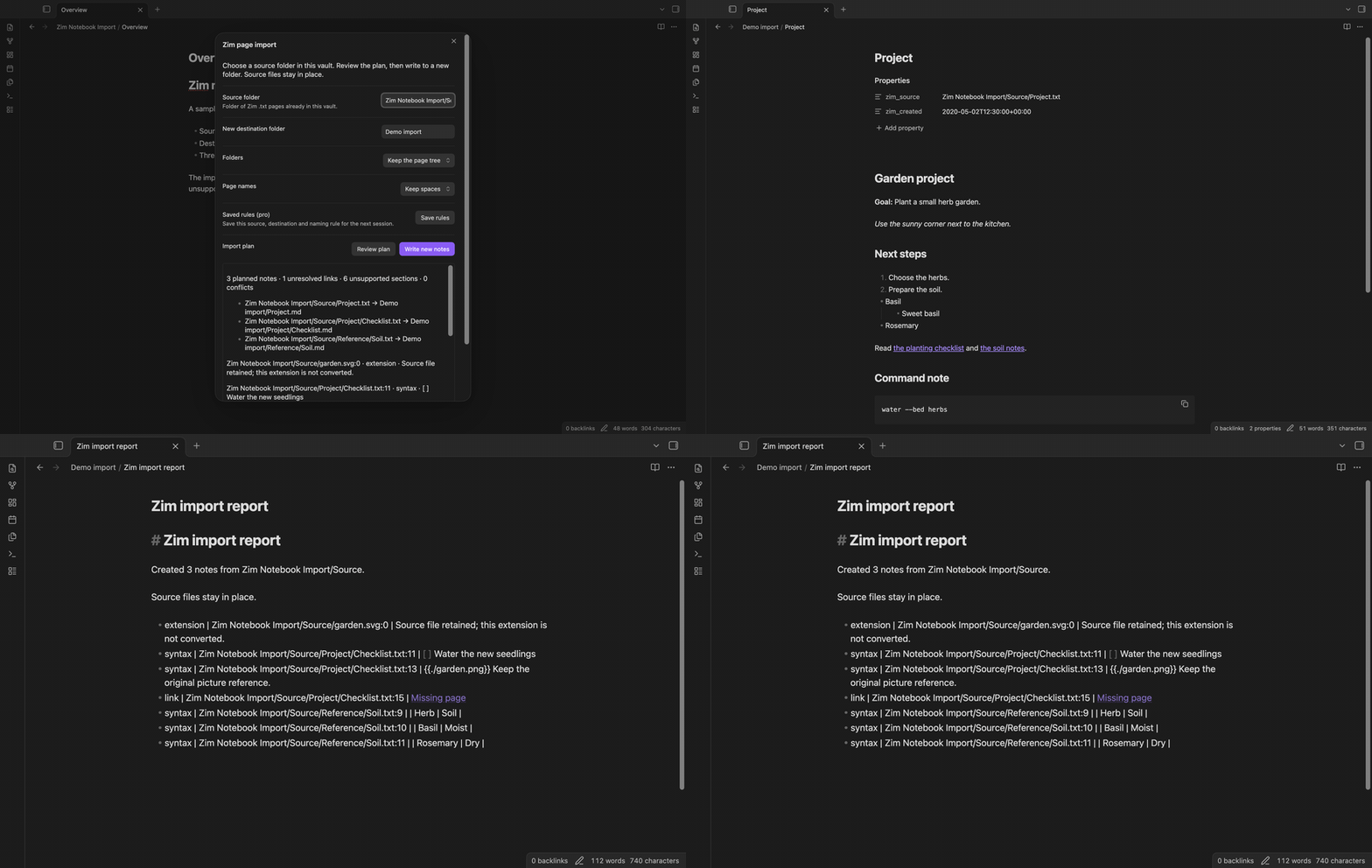
Review a source folder
Use a folder of Zim .txt pages within the current vault. The plan shows the source path and output path of each selected page. It also shows a preview of the first note, issue counts and conflicts. Review that list before you select "Write new notes". Editing an input makes the previous plan invalid.
The destination must be new and separate from the source. A case-insensitive output collision stops the batch before a write. The conflict message identifies the source paths. An existing destination also blocks the import, including a destination that already has a planned note.
Convert basic page text
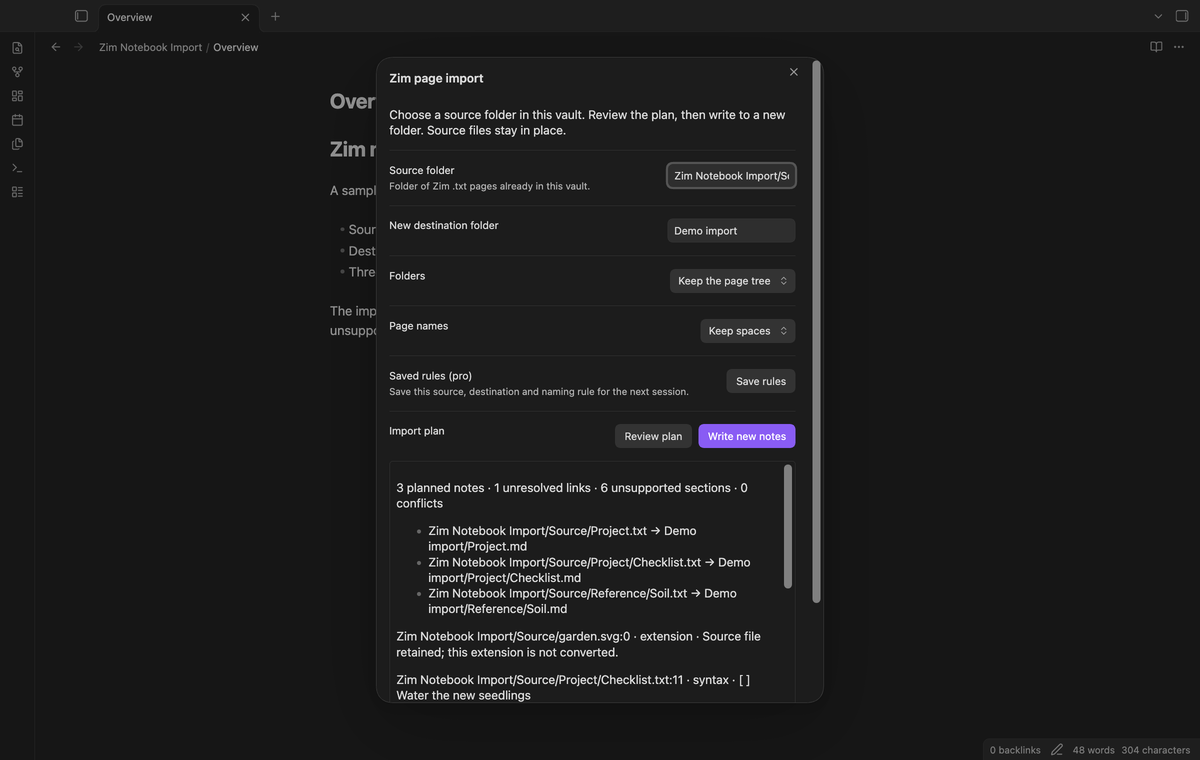
The converter removes recognized Zim 0.4 format headers from the body. Other header fields stay as text and go in the report. Headings with two through six equals signs become Markdown headings. Bold text keeps its markers; supported italic text becomes Markdown emphasis. Basic numbered and bullet lists retain their line order and indentation. Triple-quoted code blocks become fenced Markdown code. Code text is kept inside the fence, including strings that look like links.
Supported page links use mapped output paths. A leading plus selects a child page, while a leading colon selects a page from the notebook root. Bare links search the current section, then its parents. Lookup resolves the first component before the remaining children. A closer namespace with a missing child does not redirect to a distant page. Labels remain on resolved links. Missing targets and ambiguous matches remain as source links and appear in the report.
Keep source properties
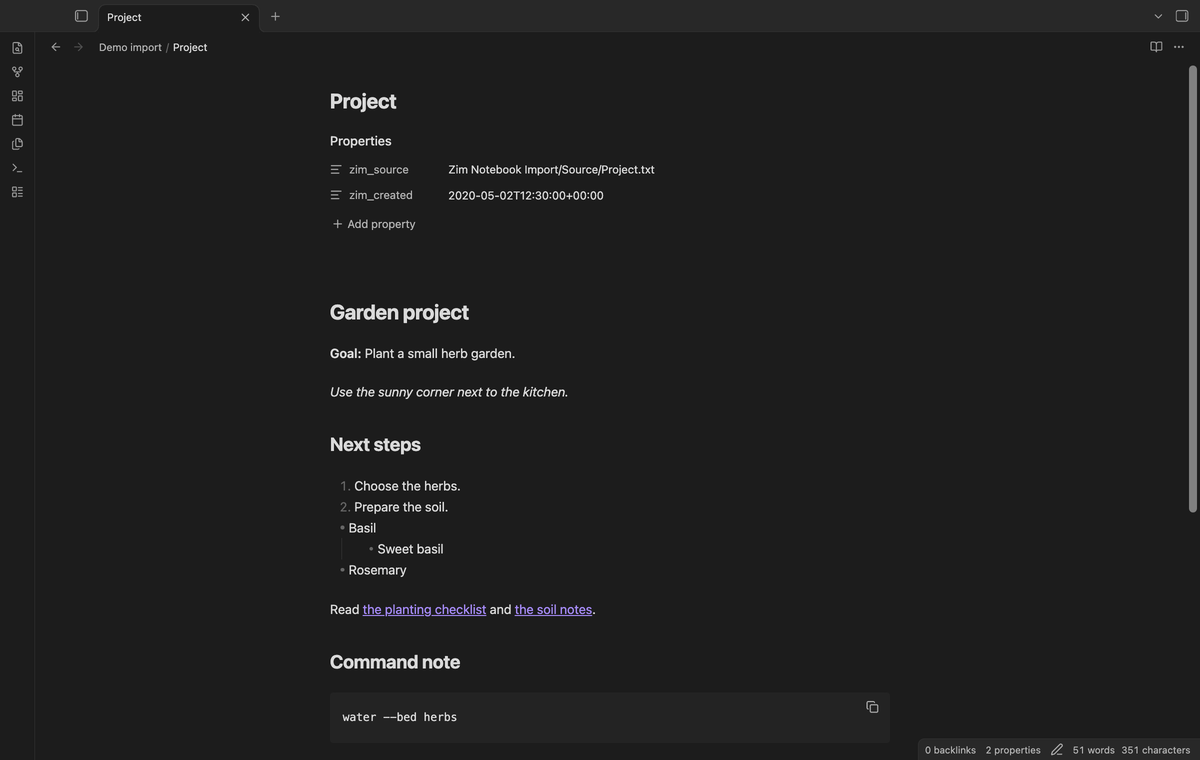
The zim_source property records the original vault path. A supported source header's creation date becomes zim_created. The date text is preserved rather than replaced with the import date. A page without a creation-date header gets the source property without a guessed date.
Zim file names encode spaces with _; those characters become spaces in page names. Unicode text remains in the note. Reserved characters become hyphens. The converter removes trailing dots and spaces. Reserved device names get an underscore prefix. Output spaces follow vault path normalization. These changes take place before link mapping and conflict checks, so a renamed note and its supported links use the same path.
Read the import report
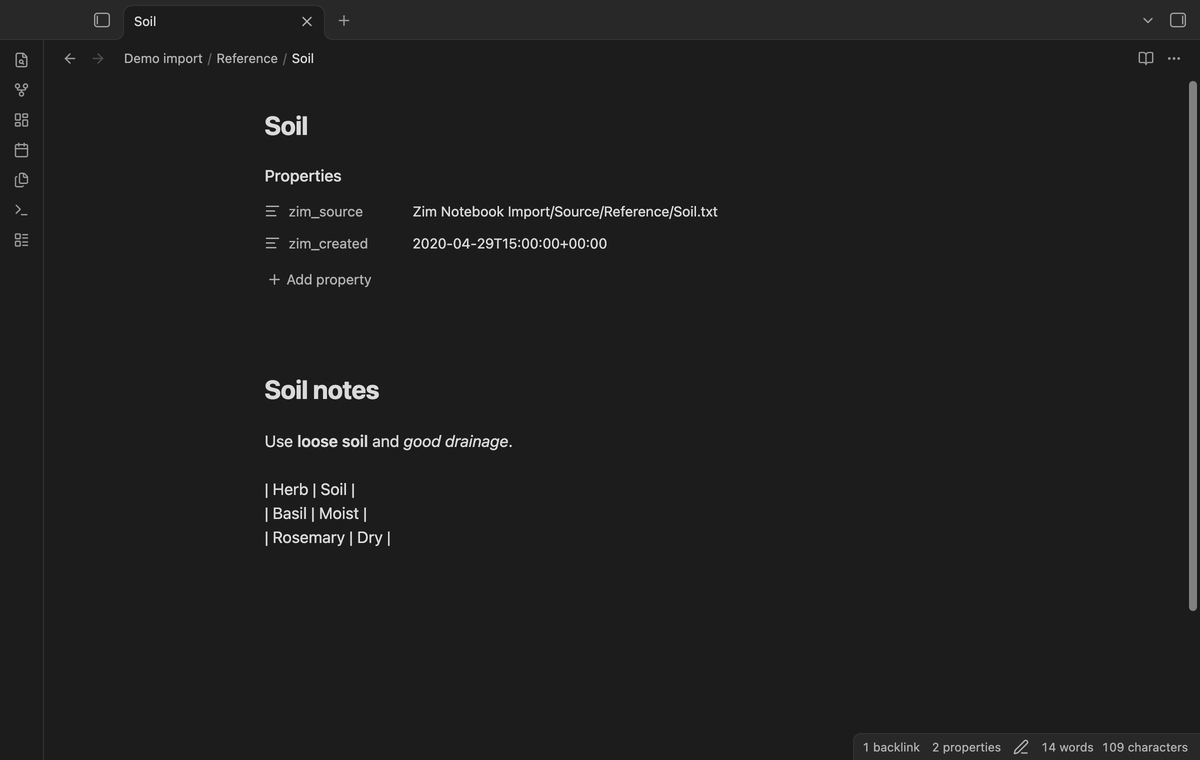
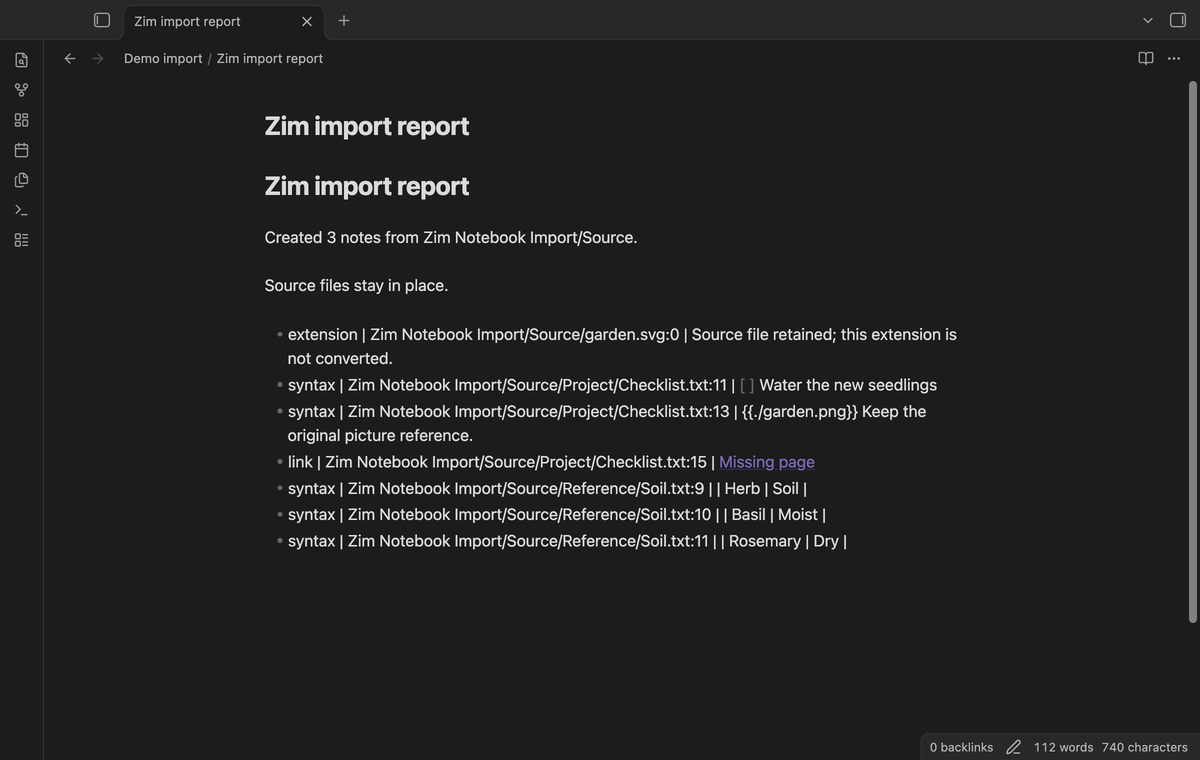
The destination receives Zim import report.md. It lists created-note counts and the source path, line and reason for detected issues. Images, table lines, checkboxes, underline and recognized object blocks stay as source text. They are not converted into assets or interactive controls. Files with other extensions remain in the source folder and their paths appear in the report.
Review these entries against the originals. A successful basic conversion does not mean that the complete Zim format was supported. An unclosed triple-quoted block remains text and is reported. An unsupported or incomplete Zim header keeps the page text without basic conversion.
Save import rules (Pro)
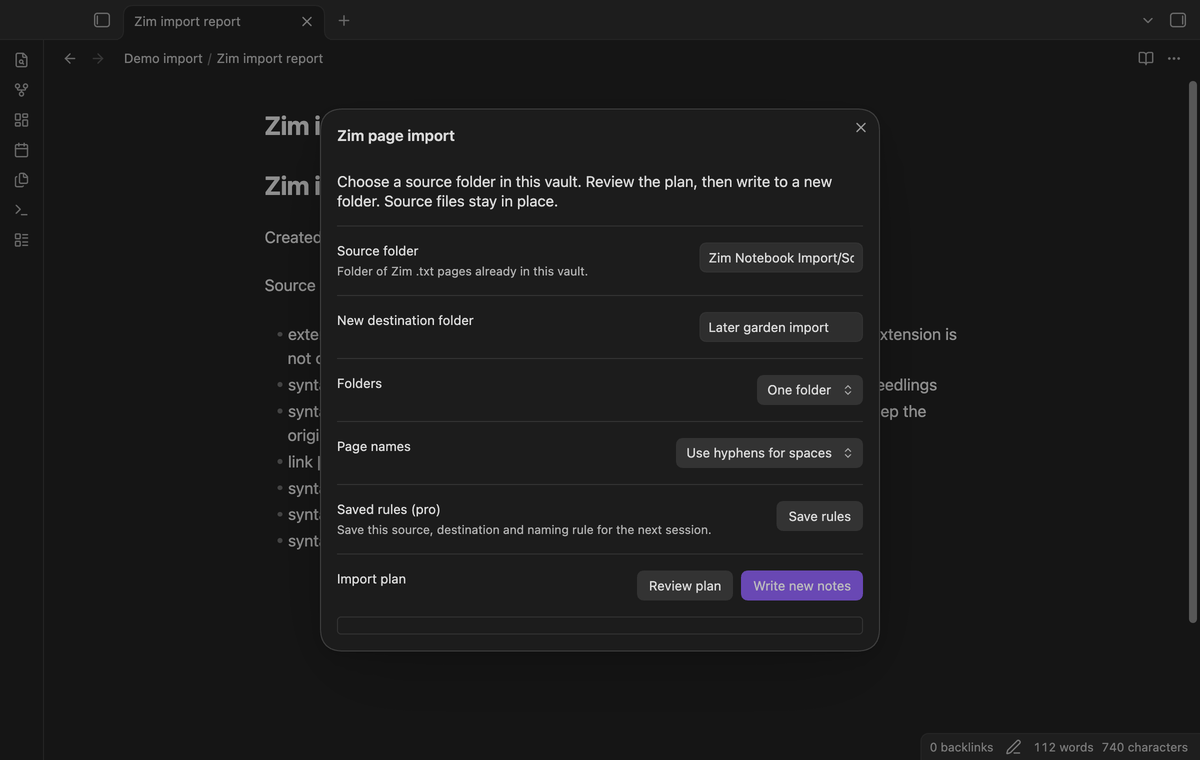
Choose tree folders or a flat destination. Choose spaces or hyphens in output page names. These choices can be used for a free import in the open import screen. With Pro, select "Save rules" to retain the source, destination and naming choices for the next command. Saved choices load when Pro is active. Change the destination when the previous folder already exists.
Compare a later source (Pro)
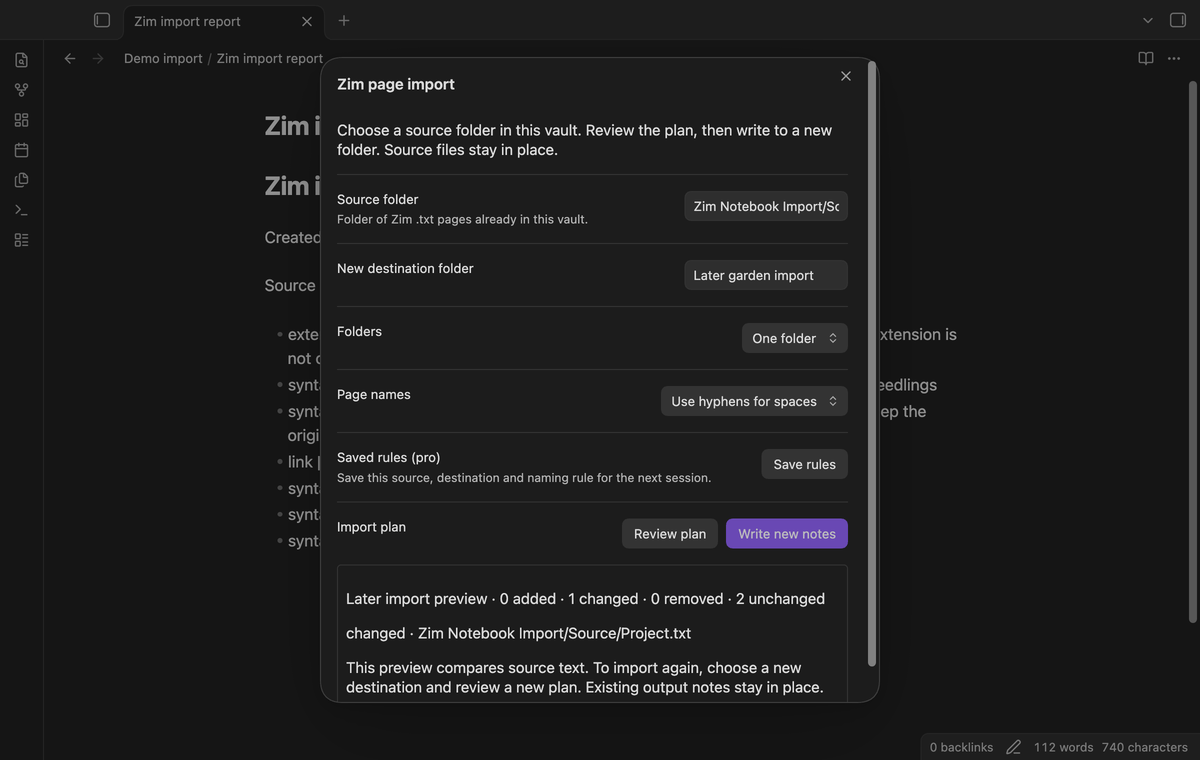
After a completed import, the plugin saves a source-text snapshot in its vault settings. The later-preview command compares that snapshot with the current .txt pages. It lists added, changed and removed paths, plus an unchanged count. The preview compares source text. It does not merge edited output notes.
To convert again, review a new plan and use a new destination. The preview does not overwrite previous results. The snapshot contains a copy of imported source text; include that settings file in your storage and sync decisions.
Install
This version is prepared for release. Until it is listed, install the release files by hand. Copy main.js, manifest.json and styles.css into <vault>/.obsidian/plugins/zim-notebook-import/. Open Community plugins and enable Zim Notebook Import. It requires Obsidian 1.13.4 or later.
Usage
- Copy a Zim notebook folder into your vault. Keep the directory structure around its page files.
- Run "Zim page import" from the command palette.
- Enter the source folder path and a new destination path relative to the vault.
- Select "Review plan". Check paths, conflicts and report entries.
- Select "Write new notes". Open the destination and compare the notes with the originals.
The plugin rereads the source and repeats conflict checks before writing. If the source changed after review, make a new plan. If storage fails during writing, a partial destination can remain. The error states how many notes were created. Keep that output for review and use a fresh destination for a retry.
Settings
The import screen holds folder and page-name choices. The plugin settings tab holds GitHub Sponsors controls. Free conversion needs no account. Source and destination paths cannot contain parent path segments. The reserved report name cannot also be a converted page name.
FAQ
What was not tested?
A physical mobile device, Windows and Linux app runs, live GitHub sign in, payment, large production notebooks, network-mounted vaults and full Zim extension syntax were not tested. The plugin uses public vault and browser APIs without Node or Electron dependencies. That code choice does not establish device compatibility.
Does this import ZIM archives?
No. This accepts Zim Desktop Wiki text pages. Offline web archives with a .zim extension are a different format. Attachments, equations and complete table conversion are outside this version.
Can I remove the plugin after conversion?
The output is Markdown with YAML properties and vault links. You can read and edit those notes without this plugin. Keep the original notebook until you finish checking the result.
Payment, account and network
The core features are free and stay free. Pro features need a GitHub Sponsors sponsorship of theluckystrike: $5 a month or more, or $15 once. When you have paid $15 in total, Pro stays on. Your notes stay readable and editable with or without Pro.
GitHub handles the payment. Sponsor at https://github.com/sponsors/theluckystrike. You need no account for the free features. Pro needs the GitHub account that sponsors.
The seven-day interval below applies after a successful check. Failed checks can retry after six hours. The 14-day offline period starts at the last successful check. This period also applies after a one-time payment. Imported text can contain HTML or remote image links. If you open that text or the report in a rendered view, Obsidian can request those remote resources. Review untrusted source text before you open the result.
Until you select "Sign in with GitHub" in the settings, Zim Notebook Import makes no network requests of its own. Sign in uses the GitHub device flow. Zim Notebook Import sends its public client ID and the scope read:user to https://github.com/login/device/code and shows you a code. While you enter the code at https://github.com/login/device, it asks https://github.com/login/oauth/access_token every few seconds whether sign in is done. The scope read:user is read-only access to your profile, which GitHub needs to show the sponsorship tier. It gives no access to repositories and no write access.
After sign in, Zim Notebook Import sends one query to https://api.github.com/graphql: does the signed-in account sponsor theluckystrike, at which tier, and how much it has paid theluckystrike in total. It asks again at most once every 7 days, or when you select Refresh. It sends no note content, file names or other vault data, and it has no telemetry.
Pro keeps working for 14 days without a successful check. The GitHub token stays in the secret storage of Obsidian on this device. It is not written to data.json or other vault files, so it does not sync or reach a git repository. The local storage of this device keeps your GitHub login, the tier and the time of the last check. Sign out deletes the token. You can also revoke the access in your GitHub settings, under Applications.
Support
Report a bug through the repository issues after publication. Include your Obsidian version, the reported source line and a small sample you can share. Remove private text before posting. This project uses the MIT license.