YouTube Playlist Sync
 DagerottDev191 downloads
Sync public YouTube playlists into notes with metadata, transcripts, mobile support, and optional AI summaries.
- Overview
- Scorecard
- Updates6
An Obsidian plugin that automatically syncs public YouTube playlists into notes with the same metadata as YT Knowledge Notes (title, channel, URLs, IDs, thumbnail, description, upload date, category, duration, keywords) plus a transcript. YouTube syncing requires no YouTube API key. Optional AI summaries can use OpenAI, NVIDIA NIM, or another OpenAI-compatible endpoint chosen by the user.
The plugin supports Obsidian on desktop, iOS, iPadOS, and Android.
What's new
- Custom AI instructions: Keep the built-in summary prompt, append your own guidance, or replace the guidance while retaining the structured summary format.
- Custom video-note properties: Define video frontmatter with a validated YAML template and preview or migrate existing generated notes without changing their bodies.
- Timestamped summary fix: Manual and bulk AI summaries now strip the plugin's timestamp links before sending transcript text to the selected provider.
Features
- Fetches each configured playlist straight from YouTube (via the same internal API youtube.com uses — no YouTube API key required).
- First sync: creates one note per video in
YouTube/<Playlist Name>/. - Later syncs: only creates notes for videos that are new to the playlist. Existing user content is preserved.
- Fetches the transcript for each video when one exists (readable paragraphs or timestamped lines) and embeds the video or thumbnail.
- Maintains an
_Index.mdper playlist (table of all videos) and a rootIndex.md. - Runs automatically: when Obsidian opens, on an interval while Obsidian is active, and via a Sync now command / ribbon button. Mobile re-checks the interval after the app resumes.
- Optional AI summaries with Summary, Key Takeaways, Important Concepts, Action Items, and Questions / Things to Explore.
- AI provider presets for OpenAI and NVIDIA NIM, plus a Custom OpenAI-compatible endpoint option.
- Users control the AI base URL, API protocol, model ID, and SecretStorage credential.
- AI summaries can run automatically for new notes, manually for the active note, or in bulk for existing notes that are missing summaries.
- Regenerating an AI summary replaces only the plugin-managed AI block and preserves the rest of the note.
- A validated YAML template controls video-note frontmatter, with an explicit preview-and-confirm migration for existing notes.
Screenshots
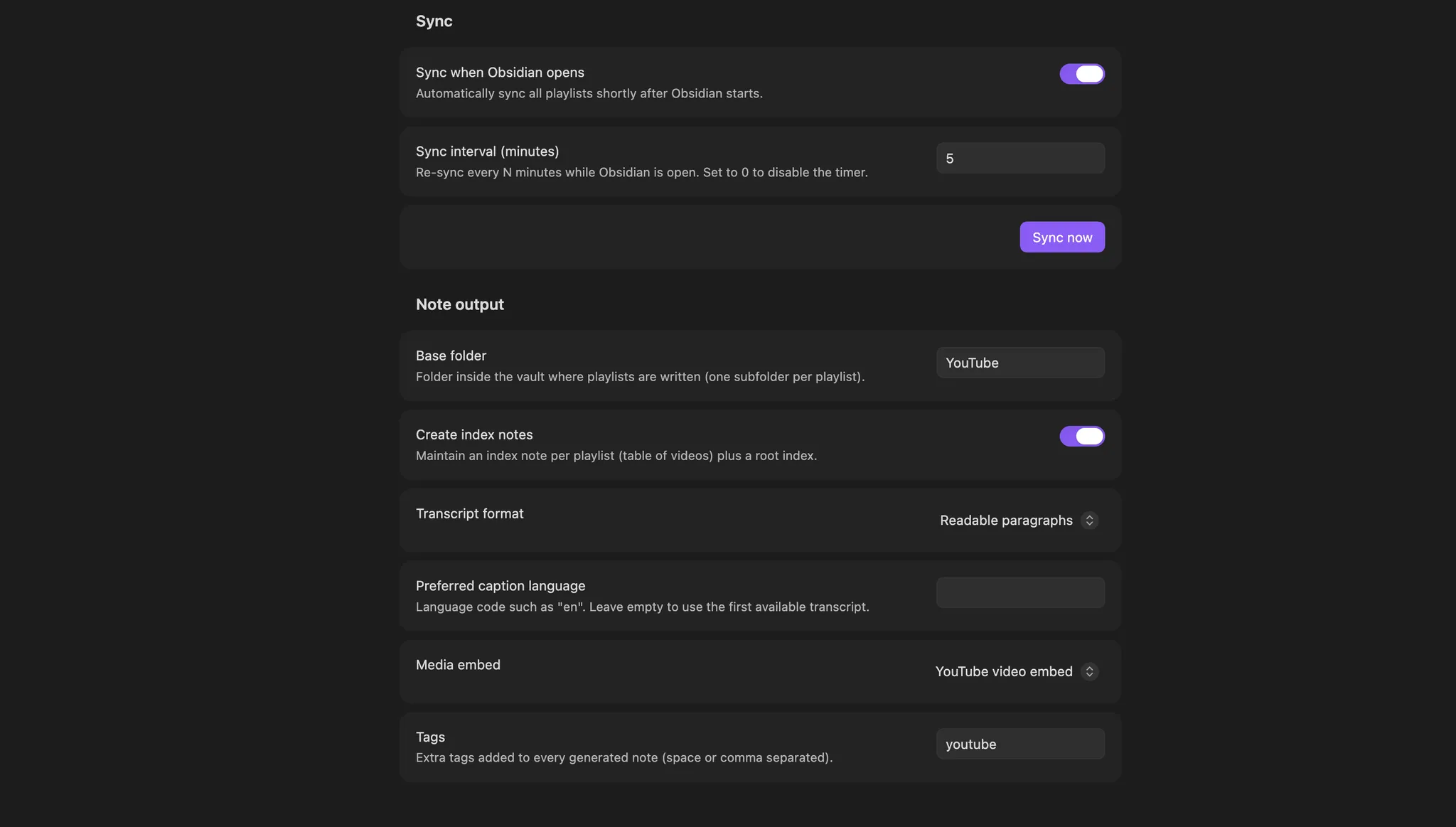
Configure sync and note output
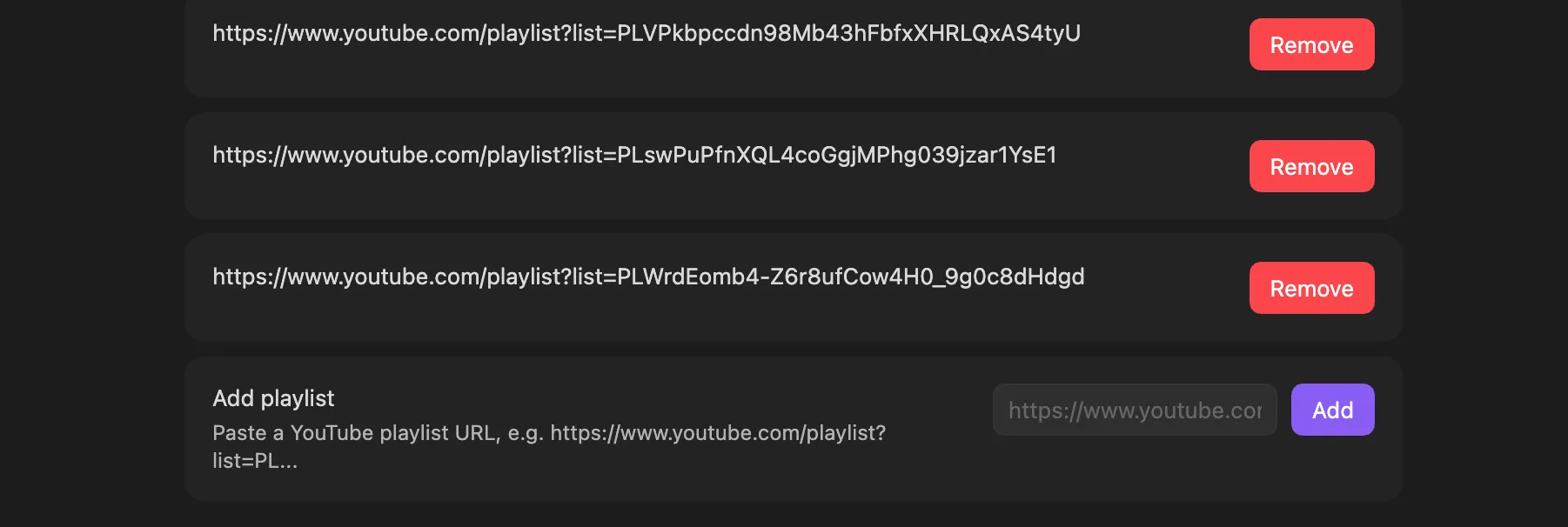
Manage multiple YouTube playlists
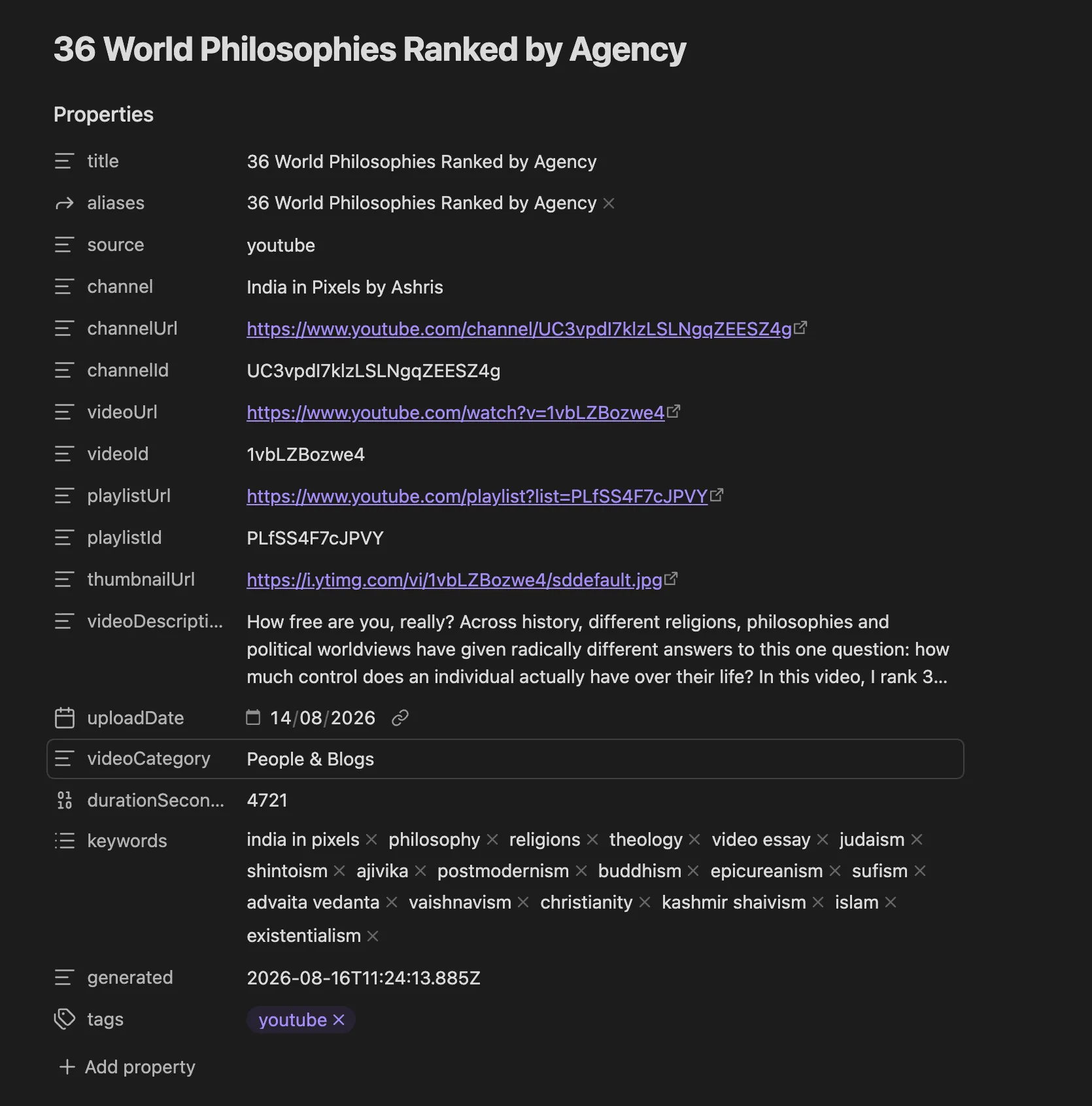
Generated video note metadata
Video embed and transcript
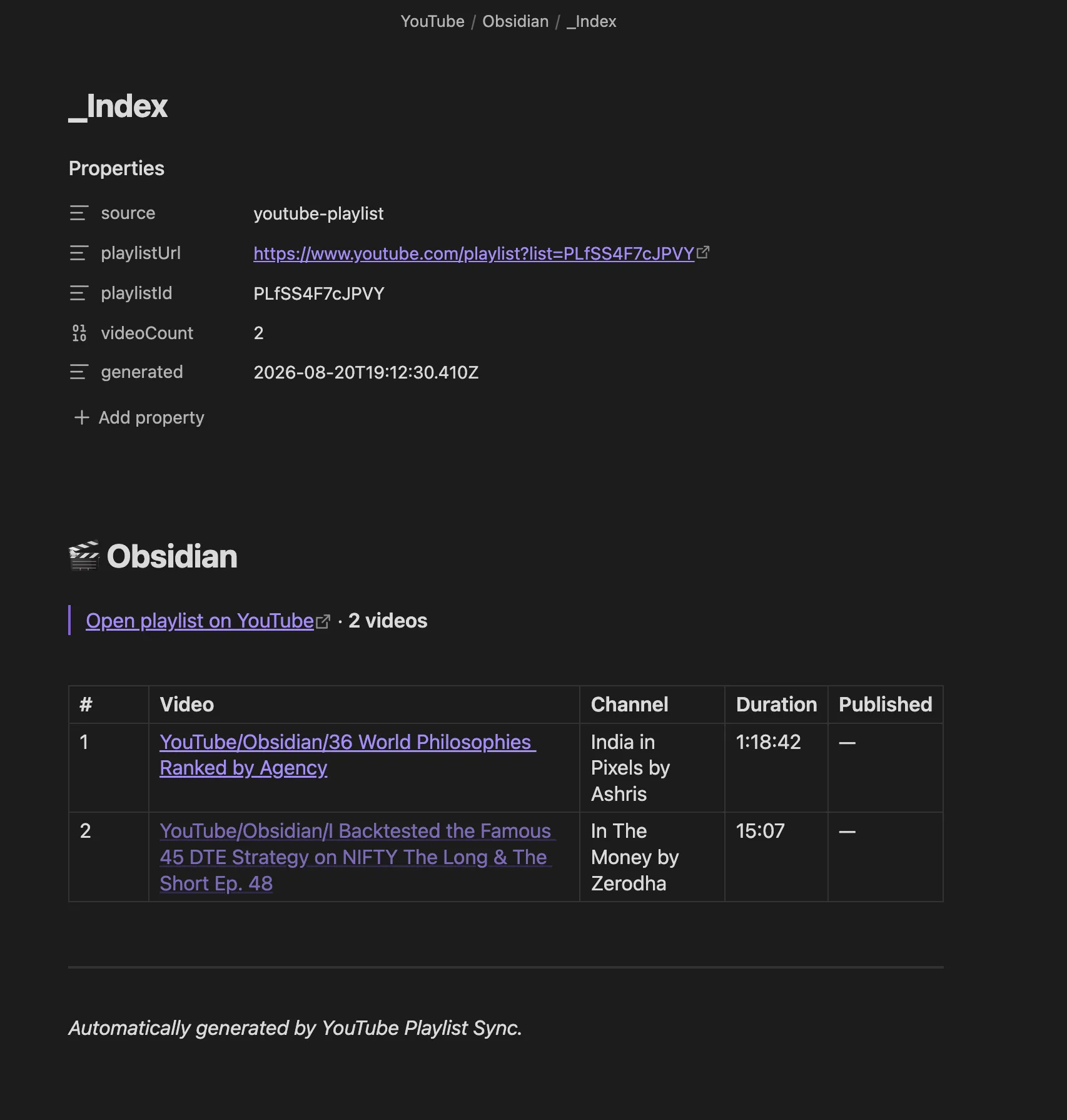
Playlist index with linked notes
Install
From the community plugin directory
Install YouTube Playlist Sync directly from the Obsidian Community Plugins directory, then enable it.
With BRAT
- Install BRAT from the community plugin directory.
- In BRAT settings, add this repository as a beta plugin.
- Reload Obsidian and enable YouTube Playlist Sync.
Manually
- In your vault, open the folder
.obsidian/plugins/(create it if missing). - Create a folder named
youtube-playlist-syncinside it. - Copy
main.jsandmanifest.jsonfrom the latest release into it. - Reload Obsidian and enable the plugin under Settings → Community plugins.
Setup
- Settings → YouTube Playlist Sync → Playlists — paste a public playlist URL
(e.g.
https://www.youtube.com/playlist?list=PL...) and click Add. Repeat for as many playlists as you want. - Click Sync now (or the ribbon icon, or the command palette → "Sync YouTube playlists now").
The first sync creates all video notes; later syncs only add new ones.
Settings
| Setting | Default | What it does |
|---|---|---|
| Playlists | — | Public YouTube playlist URLs to sync |
| Sync when Obsidian opens | on | Run a sync shortly after Obsidian starts |
| Sync interval (minutes) | 30 | Re-sync every N minutes while active; 0 disables |
| Base folder | YouTube |
Vault folder where playlists are written |
| Create index notes | on | Per-playlist _Index.md + root Index.md |
| Transcript format | readable | Readable paragraphs or timestamped lines |
| Preferred caption language | (empty) | e.g. en; empty = first available transcript |
| Media embed | video | Embed the YouTube player, thumbnail, or nothing |
| Tags | youtube |
Extra tags added to every generated note |
| Video frontmatter template | built-in metadata template | Customize properties for newly generated video notes |
| Enable AI summaries | off | Enables optional AI summary features |
| AI provider | OpenAI | OpenAI, NVIDIA NIM, or Custom OpenAI-compatible endpoint |
| API key | — | Secret selected from Obsidian SecretStorage; optional for unauthenticated custom/local endpoints |
| API base URL | provider default | Endpoint base URL, normally ending in /v1 |
| API protocol | provider default | Responses API or Chat Completions |
| Model ID | provider default | Any model ID available from the configured endpoint |
| AI prompt mode | default | Use, append to, or replace the built-in summarization guidance |
| Custom AI instructions | (empty) | Optional focus, tone, and detail instructions |
| Generate summaries automatically | on | When AI is enabled, summarize new notes after they are created |
AI summaries
AI is completely optional. YouTube playlist syncing, metadata, transcripts, and note creation continue to work without any AI provider.
To enable AI summaries:
- Open Settings → YouTube Playlist Sync → AI summaries.
- Turn on Enable AI summaries.
- Choose an AI provider.
- Select or create its API-key secret when required.
- Confirm the API base URL, protocol, and model ID.
- Use Test connection.
OpenAI
The OpenAI preset uses:
- Base URL:
https://api.openai.com/v1 - Protocol: Responses API
- Starter model:
gpt-5.6-luna
The model ID and endpoint remain editable.
ChatGPT subscription OAuth is not used. OpenAI currently does not expose a supported public flow that lets an arbitrary third-party Obsidian plugin consume OpenAI API models against a user's ChatGPT plan. The plugin therefore uses a user-supplied API key today. Its internal auth type is designed so a supported OAuth token flow can be added later without rewriting the AI summary engine.
NVIDIA NIM
The NVIDIA NIM preset uses:
- Base URL:
https://integrate.api.nvidia.com/v1 - Protocol: Chat Completions
- Starter model:
openai/gpt-oss-20b
Replace the starter model with any model ID available to your NVIDIA endpoint. NVIDIA NIM is OpenAI-compatible, so the same summary provider can be reused with a NIM API key.
Custom OpenAI-compatible endpoint
Choose Custom OpenAI-compatible endpoint to use another service or your own server. Configure:
- API base URL
- Responses API or Chat Completions
- model ID
- optional SecretStorage API key
This can work with compatible hosted providers or self-hosted servers such as NIM/vLLM-style endpoints. A trusted local endpoint that requires no authentication may leave the secret unset. Compatibility depends on the endpoint implementing the selected OpenAI-style API.
Security: the selected credential is sent as a Bearer token to the configured base URL. Only configure endpoints you trust. Switching provider presets clears the selected secret to reduce the chance of accidentally sending one provider's key to another provider.
Commands:
- Generate AI summary for current YouTube note — creates or regenerates the AI block in the active generated YouTube note.
- Generate missing AI summaries — scans the configured base folder and summarizes existing generated notes that contain transcripts but do not yet have an AI summary.
Automatic AI generation happens only after the YouTube note is successfully created. An AI-provider error therefore never causes the underlying playlist sync or note creation to fail.
For very long transcripts, the plugin summarizes transcript chunks first and then produces one final coherent summary.
Custom AI instructions
The AI prompt mode setting has three choices:
- Default guidance uses the plugin's built-in prompt.
- Append custom instructions keeps the built-in prompt and adds your guidance.
- Replace guidance (advanced) replaces the built-in guidance with your text.
The fixed JSON response contract is always retained so the five rendered summary sections stay reliable. The video title, channel, and transcript are supplied separately; custom instructions should describe the desired focus, tone, or level of detail. Clear the instructions and switch back to Default guidance to restore the original behavior.
Note format (metadata parity with YT Knowledge Notes)
Every video note has YAML frontmatter with the same core property set ytkn uses:
title, aliases, source, channel, channelUrl, channelId, videoUrl, videoId,
playlistUrl, playlistId, thumbnailUrl, videoDescription, uploadDate, videoCategory,
durationSeconds, keywords, generated, plus your tags.
When an AI summary is generated, the plugin also records aiSummary, aiProvider, aiModel,
and aiGenerated. The AI content is wrapped in internal markers so regeneration can safely
replace that block without touching your other edits.
Frontmatter templates
The Video frontmatter template setting accepts YAML without the opening and closing ---
lines. Values are inserted with placeholders:
title, aliases, source, channel, channelUrl, channelId, videoUrl, videoId,
playlistUrl, playlistId, thumbnailUrl, videoDescription, uploadDate, videoCategory,
durationSeconds, keywords, generated, tags, aiSummary, aiProvider, aiModel, and
aiGenerated.
For example:
title: {{title}}
source: youtube
videoId: {{videoId}}
url: {{videoUrl}}
creator: {{channel}}
topics: {{tags}}
Placeholder values are YAML-encoded. If an optional value is unavailable, its entire template
line is omitted. source: youtube and a non-empty videoId are required so the plugin can
recognize notes and avoid duplicates. Use Validate and save before syncing, Preview to
inspect sample output, or Reset default to restore all standard properties.
Template changes affect new notes only. To update existing generated video notes, run Apply frontmatter template to existing YouTube notes from the command palette or plugin settings. The migration shows a sample and note counts before confirmation, preserves note bodies and unknown user properties, and reports changed, unchanged, skipped, and failed notes. YAML comments and formatting may be normalized. Playlist and root index notes are never migrated.
Mobile behavior
The plugin supports iOS/iPadOS and Android using Obsidian's cross-platform Vault and HTTP APIs. Mobile operating systems may suspend Obsidian when it is in the background, so the plugin does not claim background execution while the app is closed or suspended.
Supported mobile behavior:
- manual Sync now
- sync on Obsidian startup
- interval sync while Obsidian remains active
- interval re-check when Obsidian returns to the foreground
- playlist management, metadata, transcripts, note/index creation
- manual and automatic AI summaries
If a mobile sync is interrupted, already-created notes are detected on the next run and skipped, so syncing resumes with the remaining videos.
Notes & limitations
- Public playlists only. Private playlists require login and are not supported.
- Videos are processed one at a time with a small delay to be polite to YouTube — first sync of a large playlist can take a few minutes.
- If a video has no transcript, its note is still created with full metadata. AI summary generation is skipped for that video.
- YouTube or an AI provider can rate-limit requests. Failed YouTube videos can be retried on a later sync; failed AI summaries can be generated later with the manual/bulk commands.
- Provider compatibility depends on support for the selected OpenAI-style endpoint and response format.
Network use and privacy
For normal playlist syncing, the plugin makes outbound HTTPS requests to YouTube to fetch playlist data, video metadata, thumbnails, and captions for the public playlists you configure. It does not collect telemetry.
When AI summaries are disabled, no vault content is sent to an AI service.
When AI summaries are enabled, the plugin sends only the generated video's title, channel,
transcript, and configured summary instructions to the AI endpoint you configured. Other vault
notes and unrelated vault content are not sent. API keys are referenced through Obsidian
SecretStorage rather than stored in the plugin's data.json.
The hidden metadata marker used for repeatable frontmatter migrations contains video and playlist metadata plus AI provider/model status. It never contains transcripts, summary text, credentials, or API keys.
Development
npm install
npm run typecheck   # type check only
npm test            # unit tests
npm run check       # type check + unit tests
npm run build       # type check + bundle main.js
node test/smoke.mjs <playlistId>   # end-to-end check of the YouTube fetch layer
The YouTube fetch layer lives in src/youtube.ts, note rendering in src/noteRenderer.ts, sync
orchestration in src/main.ts, and AI integration in src/ai/.
Support
If this plugin saves you time, you can support its development: