- Overview
- Scorecard
- Updates152
If you like this project, feel free to check out my page on
Likes, coins, and feedback are greatly appreciated.
Overview
Obsidian plugin for Chinese chess rendering and exploration inside notes. Supports PGN file viewing, two code block types (fen, tree), full xiangqi rules via xiangqi.js, interactive board via xiangqiground, variation tree visualization, and built-in engine analysis powered by Pikafish (WASM).
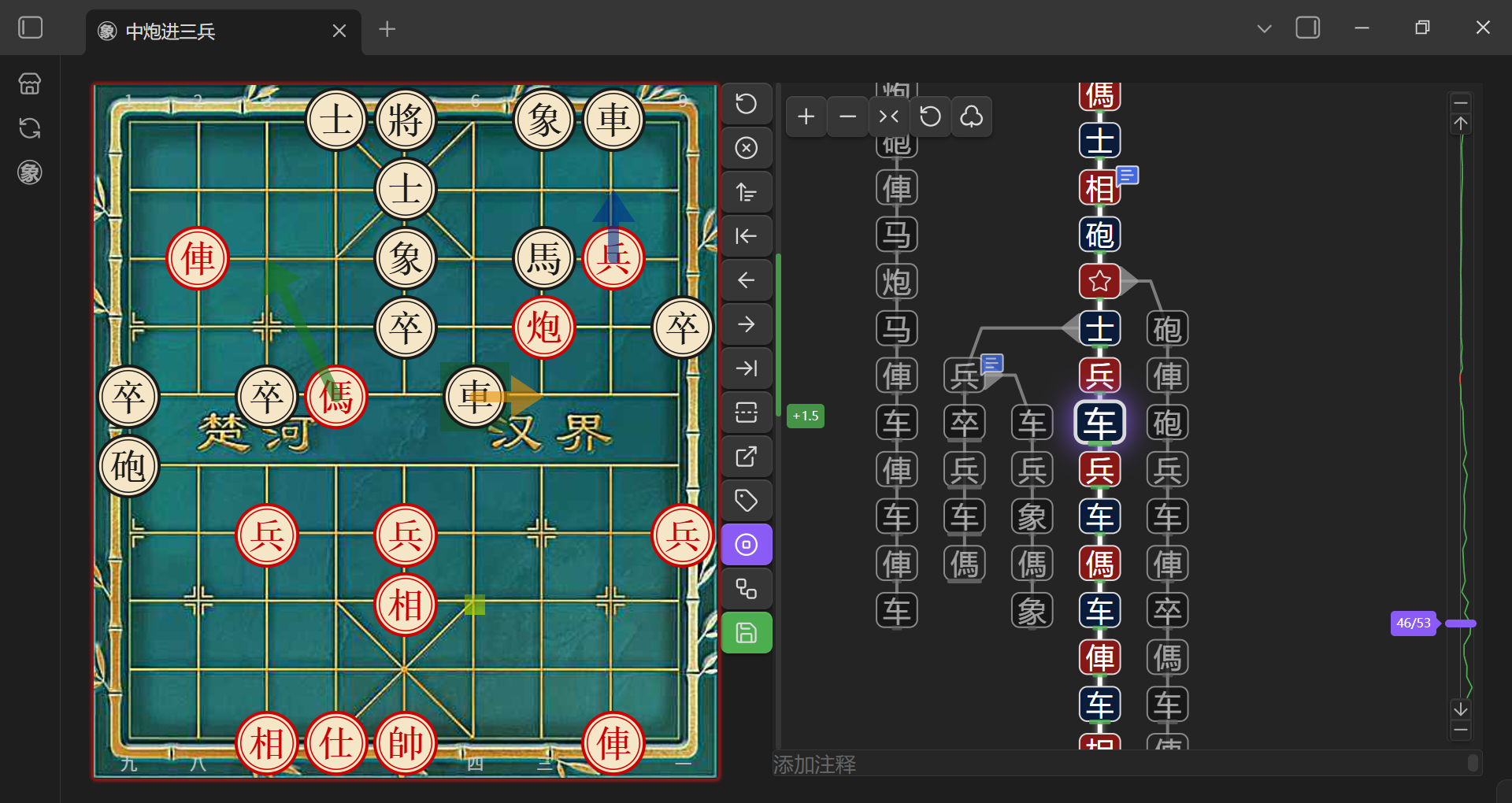
PGN File Support
Open .pgn files directly in Obsidian — the plugin registers a dedicated .pgn file view with an interactive board interface.
Manual Save: Any changes (moves, variations, comments, annotations) are saved back to the file when clicking Save button
Variation Tree: Interactive tree graph showing all branches — click nodes to navigate
Comments & Annotations: Supports branch diagram and board annotation symbols, comments
Mode Toggle: Switch between icon mode and text mode in branch diagram
Quick Create: New PGN files from the ribbon button
Custom File Types: Set specific file types as PGN files
Context Menu: Right-click PGN files to switch between PGN view and Markdown view
Multi-Game Support: Navigate between multiple games within a single
.pgnfile using the game navigation bar; create, delete, and reorder games
Code Blocks
Two code block types — all code block names are customizable.
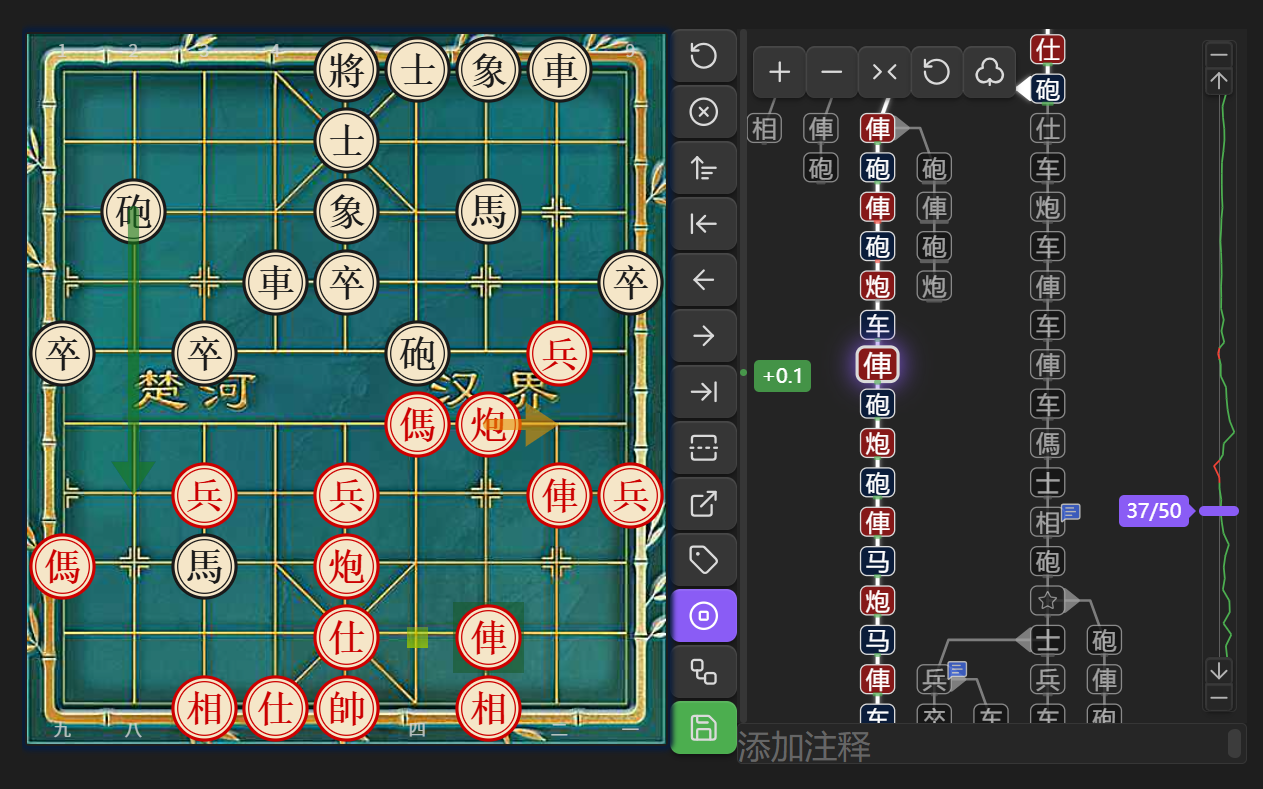
xiangqi: Display and explore Chinese chess games with variation tree
```xiangqi
1. H2-E2 H9-G7
2. H0-G2 I9-H9
3. I0-H0 B9-C7
```
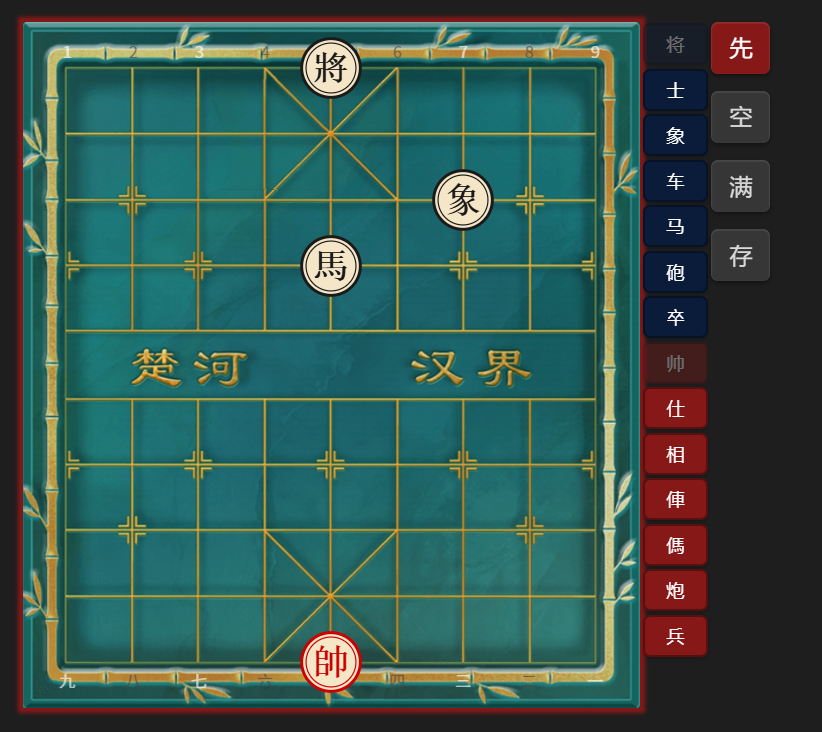
fen: Visual board editor — set up a position and save as a xiangqi code block
```fen

```
Mobile Usage
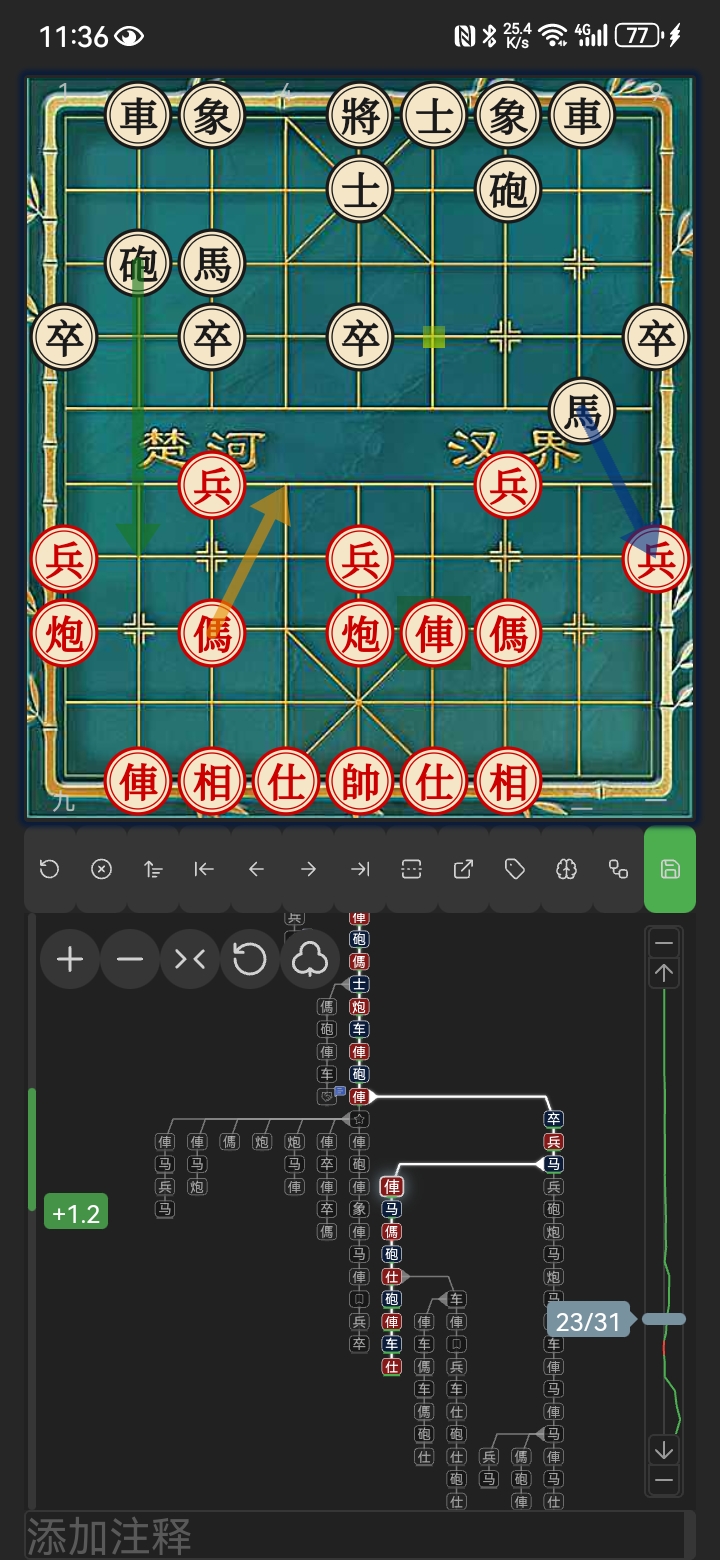
For the best experience on mobile devices, it's recommended to install the Full Screen Toggle plugin (donkeypacific/obsidian-full-screen-cross-platform-plugin) or similar fullscreen plugins and adjust the top/bottom margins in Settings > Xiangqi > Board Margins to optimize the board display area.
Settings
Board Appearance
- Theme: Auto, Light, Dark, Parchment, Green, Wood, Bamboo
- Board Size: Adjust board and piece display size (0–100%)
- Show Coordinates: Show coordinate labels on board edges
Game Hints
- Show Last Move: Highlight the origin and destination of the previous move
- Show Next Moves: Whether to show next moves
- Show Turn Border: Show a highlighted border indicating whose turn it is
- Speech: Read moves aloud (unavailable on mobile)
- Auto Jump: Where to position the board when opening a game — Never / Always / Only for default position
Move List
- Show Move List: Display the move list panel when opening a tree
- Move Text Size: Font size for the move list
Board Margins
- Top Margin: Adjustable top margin (0–100 px)
- Bottom Margin: Adjustable bottom margin (0–100 px)
Code Block Names
Customize code block aliases in Settings > Xiangqi > Code Block Names:
- Code block names: Default
xiangqi, tree— both names render the tree view with variation tree and engine analysis. Add custom aliases separated by commas - FEN save as: Choose which code block name to use when saving from the FEN editor (default
tree)
Note: Changes require restarting the plugin or Obsidian to take effect.
Engine Analysis
- Engine Depth: Search depth for Pikafish analysis (1–30, default 18)
- Engine Skill Level: Skill level for engine play (0–20, default 20)
- Save Eval by Default: Automatically include eval data when saving (default off)
- Save Eval Prompt: Show prompt when saving with eval data (default on)
Save
- Save Eval by Default: Whether to include eval annotations when saving PGN (default off)
- Save Eval Prompt: Whether to show a prompt about eval when saving (default on)
PGN File View
Enable/disable PGN file view and customize file extensions:
- Enable PGN file view: Toggle to register/unregister PGN view
- PGN file extensions: Default
pgn, add custom extensions separated by commas
Note: Changes require restarting the plugin or Obsidian to take effect.
Features
- Complete Rules Engine: Check/checkmate detection, move validation — all via xiangqi.js
- Board Rendering: High-quality chessboard via xiangqiground with drag-and-drop moves
- Move List: Full move record with click-to-navigate
- Variation Tree: Tree graph with icon/WXF display modes for node labels
- Visual FEN Editor: Drag/click to place pieces, clear/fill board, toggle side to move
- PGN Saving:
- Button colors — gray (empty), green (saved), orange (modified)
- Confirmation dialog before saving
- i18n: Supports English and Chinese UI
- Board Markers: Draw arrows and highlights on the board
- Engine Analysis: Built-in Pikafish WASM engine with single position analysis, batch analysis, and auto-analysis
- Best Move Arrow: Green arrow shows the engine's best move; yellow arrow shows the ponder move
- Eval Bar: Left sidebar bar showing evaluation (green = red advantage, red = black advantage)
- Eval Trend Chart: Vertical polyline in the slider background showing evaluation across moves
- Eval Color Bar: Color bar on tree nodes indicating evaluation (green = red advantage, red = black advantage, gray = equal)
- Eval Persistence: Engine evaluations saved as
%e:comments in PGN
- Responsive Layout: Automatically switches between single-column and double-column based on screen orientation and width
- Mobile Friendly: Adjust board size for small screens
Usage
fen Code Block
- Add a
fencode block to start the editor - Drag pieces or click piece buttons to set up the position
- Use clear/fill/turn buttons as needed
- Click Save — the
fencode block is replaced with axiangqicode block containing the FEN, ready for play
xiangqi Code Block
- Write your game inside a
xiangqicode block (optionally with FEN and ICCS moves) - FEN is optional — defaults to the standard starting position
- Controls:
- The variation tree displays all branches graphically
- Click any node to navigate to that position
- Click Save to overwrite the original PGN
- Click Edit board in the Edit menu to switch to position editor mode
- Modify the position by dragging/clicking pieces
- Click Save to apply the new position (existing moves will be discarded)
- Click Cancel to return to tree view
- Use engine analysis:
- Click Analyze for single position analysis, Batch to analyze all nodes, or enable auto-analysis
- Green arrow = best move, yellow arrow = ponder move
- Eval bar on the left shows position evaluation
- Eval color bars on nodes and eval trend chart on the slider show evaluation across the game
Optional Parameters
| Name | Value | Description |
|---|---|---|
protected / p |
true / false | When true, Save button is disabled; default false |
rotated / r |
true / false | When true, board is flipped (Red on bottom) |
Example
```xiangqi
r:true
p:true
2bk1a3/5n3/3Pb4/R7p/2p6/C3p2N1/PR2c3P/1nr1B1C2/4A4/1rB1KA3 w
1. G2-G9 F9-E8
2. D7-D8 D9-E9
3. D8-E8 E9-E8
4. A6-A8 E8-E9
```
- Colons can be Chinese or English;
randpare case-insensitive - FEN value works with or without quotes
- PGN moves can be numbered together, not numbered, or written one by one
Installation
This plugin is available on the official Obsidian plugin marketplace. Search for "Chinese chess" or "xiangqi" to install.
- Open Obsidian
- Go to Settings
- Click Community plugins
- Ensure Restricted mode is off
- Click Browse
- Search for "Chinese chess" or "xiangqi"
- Find this plugin and click Install
- Click Enable
Build
Clone this repository:
git clone https://github.com/west-shell/obsidian-xiangqi.gitInstall dependencies (xiangqi.js and xiangqiground are installed from npm):
cd obsidian-xiangqi
npm install
Build the plugin:
npm run build        # Dev build (unminified, with sourcemaps)
npm run build:min    # Minified build (for release)
Donation
If you like this plugin, feel free to support me!