Week Life Circles
 Dmytro Kuzhel119 downloads
Life-in-weeks grid journal: one colored circle per week or day of your life, each linked to a note.
- Overview
- Scorecard
- Updates36
A life-in-weeks journal for Obsidian · week.dth.ink
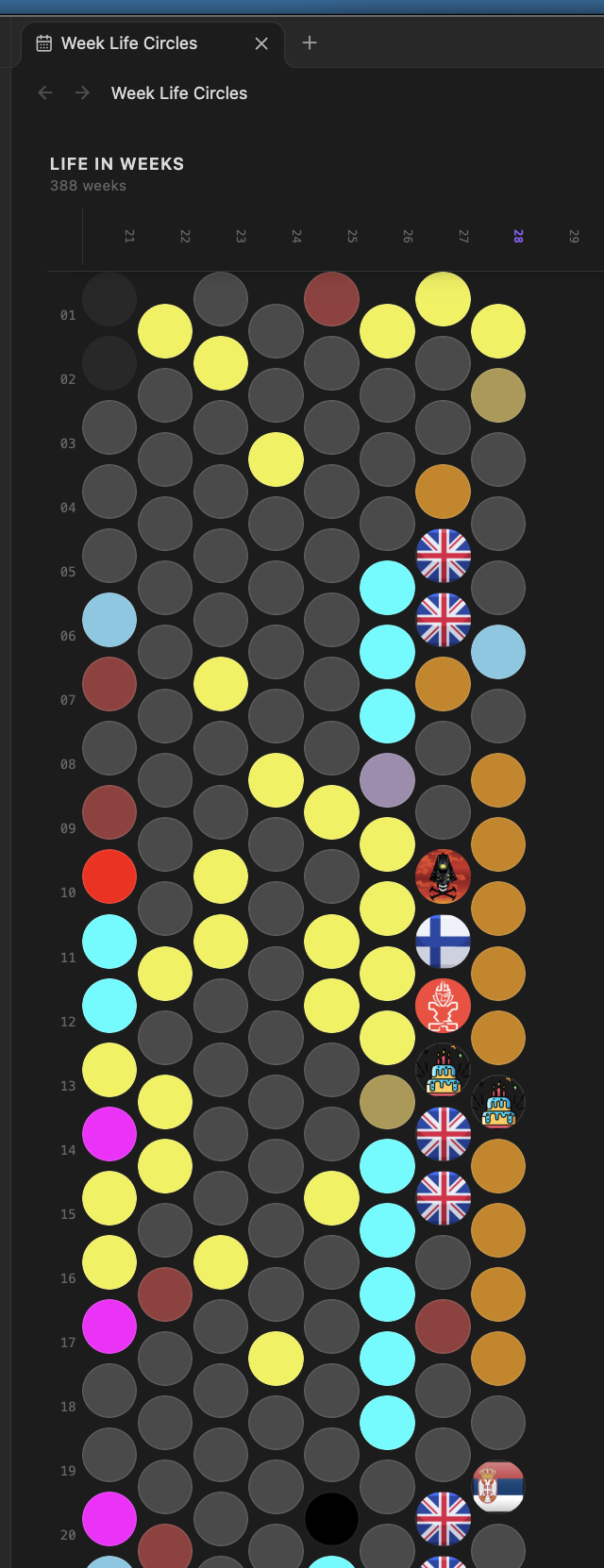
Week Life Circles draws your life as a grid: 52 weeks down, one column per year, one circle per week. Write a note for a week, choose what kind of week it was, and its circle fills in with that colour or a small image. Click a filled circle to open its note, or an empty one to create it. A second view does the same for single days, and every note is a plain Markdown file in your vault.
Screenshots
The week grid — one circle per week of your life, colored by what kind of week it was, with image circles for trips and milestones:
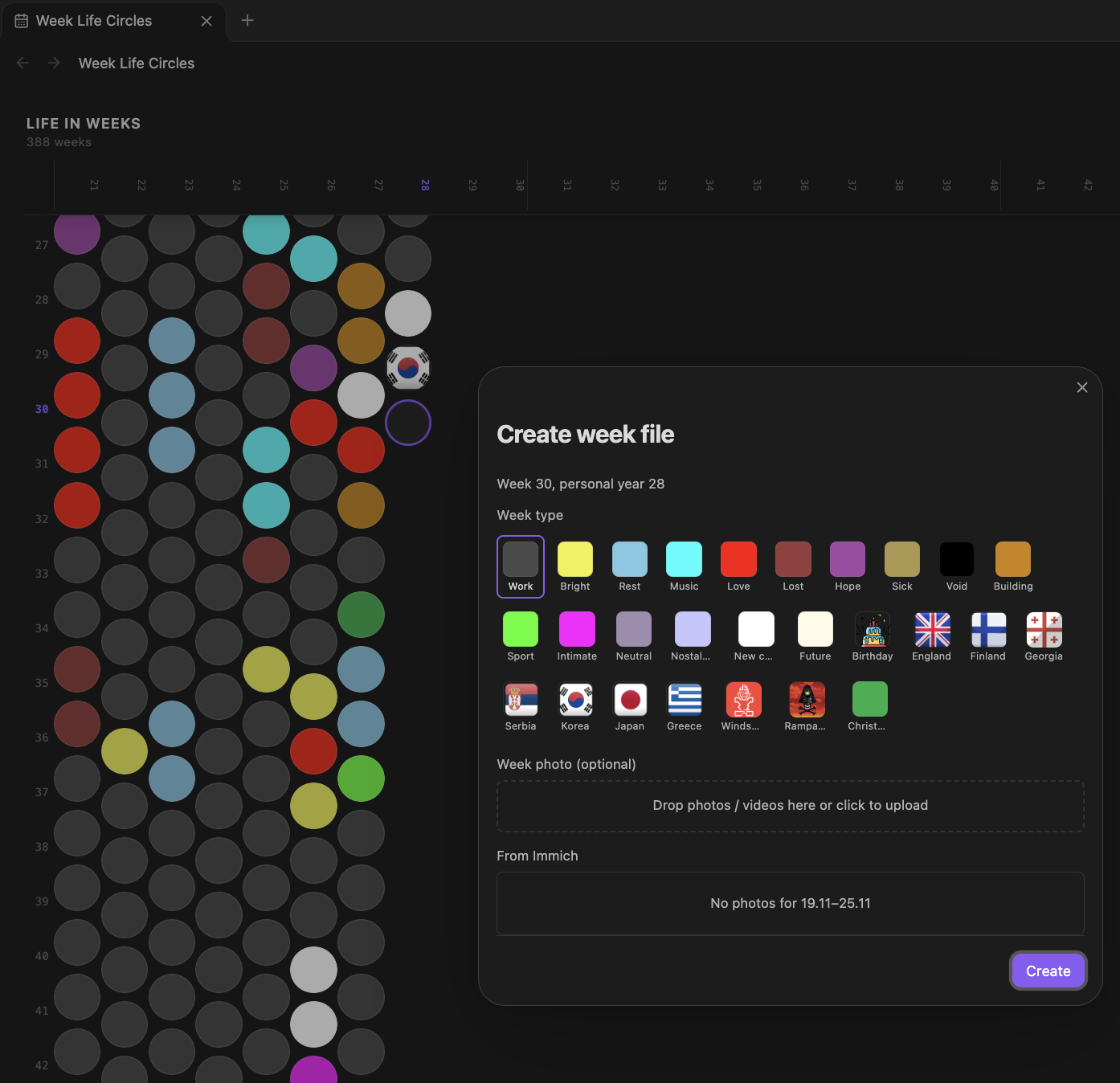
Creating a week note — pick a circle, and optionally attach photos (including from an Immich server):
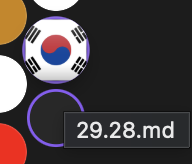
Every circle links to its note:
How it counts
Weeks are personal, not calendar weeks: by default year 28, week 01 starts on your
28th birthday. Each personal year has 52 weeks (the last one absorbs the extra
day or two). That is why the plugin needs your birth date before it shows anything.
Prefer a calendar-style grid? Year starts lets each year begin on your birthday (default), on 1 January, or on any day you choose (e.g. 1 September for a school year).
Features
- Week grid — every week of your life from a start age to an end age, as a staggered grid of circles. The current week pulses. Rows and columns can be swapped.
- Day grid — the next ten personal years, one circle per day. The row labels show the calendar date (the month's short name on the 1st), and each month's 1st is marked in every column (a thin ring in the honeycomb, a line in the aligned views).
- Three views — the first button at the top right of the grid switches between circles in a honeycomb (the default), squares in a plain aligned grid like the classic "life in weeks" poster, and circles in that same aligned grid. The choice applies to both grids and is remembered.
- Circles — each note carries one colored circle (or a small image, e.g. a flag for a trip). The set of circles is yours to edit in the settings: rename, recolor, reorder, delete, and upload images straight from your device (or pick one already in your vault) — with a live preview in your cell shape.
- Hover preview — hovering a filled circle opens Obsidian's own note popover (the one links show), rendered with headings and photos, so you can recall a week without opening it. It uses the core Page preview plugin; in its settings, Week Life Circles can be set to require Cmd/Ctrl.
- One-click notes — clicking an empty circle opens a dialog: pick the circle, optionally attach photos or videos, and the note is created from your template.
- Multi-week notes — one note can cover several weeks (
03-05.28in its first lines, with one circle per week). - Templates — the week and day note templates are plain text in the settings.
- Works on mobile — including a floating button to open the grid. On a narrow screen the year columns page by decade: swipe sideways to flip exactly ten years (20–29, 30–39, …), scroll up and down as usual. The cells shrink a little so a whole decade fits the screen.
- Follows your theme — light or dark; every filled circle has a subtle contrasting ring, so white circles stay visible on a light background and black ones on a dark background.
- English, Ukrainian, Polish — the interface follows Obsidian's language, or the one you pick in the settings.
- Optional Immich photo picker — see below. Off by default.
Getting started
- Install and enable the plugin.
- Open Settings → Week Life Circles and enter your birth date (
YYYY-MM-DD). - Open the grid: the ribbon icon, or the command Open week calendar.
- Click the current week and create your first note.
Where notes live
| What | Path (defaults) |
|---|---|
| Week note | Week life calendar/28/07.28.md (week 07 of personal year 28) |
| Week attachments | Week life calendar/Attachments/28/07.28.jpg, 07_2.28.jpg, … |
| Day note | Week day status/07.28/2026-11-18.md |
The circle is read from the first lines of the note — a line such as
07.28 <span class="sq sq-work"></span> 18.11.2026. Image circles are written as
an embed: ![[england.png|14]].
Settings
| Setting | What it does |
|---|---|
| Language | Auto (follows Obsidian), English, Ukrainian or Polish: the settings, dialogs, buttons and notices. A language you pick also sets the month and weekday names; on Auto they follow Obsidian. Command names update after reloading the plugin. |
| Birth date | Needed before anything is shown; the default start of every grid year. |
| Year starts | On your birthday (default), on 1 January, or on a custom day (MM-DD). Existing notes keep their week/year numbers, so after a change they map to different dates. |
| Start from year | The first year of the week grid: the current year (default, moves forward on its own) or any year from 0 (your whole life) up to now. Notes from earlier years stay in your vault. |
| End age | Last personal year shown in the week grid. |
| Week folder / Day folder | Where week and day notes are stored. |
| Week template path / Day template path | Optional path to a note used as the week or day template instead of the built-in one. The same placeholders work in it. |
| Week template / Day template | Text of new notes. Placeholders: {{ww}}, {{yy}}, {{circle}} ({{square}} still works), {{date}}, {{photos}} (week), {{weekday}} (day). The weekday is written in Obsidian's language, or in the plugin's language if you picked one. |
| Marker shape in notes | Circle (default for new installs) or rounded square: how the marker at the top of a week/day note is drawn. Colour and image markers always share one size and shape. |
| Circles | Restore defaults brings back the seven default circles in one click. The list of circles, previewed in your cell shape. Each is a name plus a color, or an image. Rename, recolor, reorder (the first one is preselected for new notes) or delete them; Replace image uploads a new picture under the same file name, so existing notes keep working. A colour circle can become an image circle (upload or pick a picture) and back again; notes that already use it follow along and show its new look. Add a circle: pick a color, or upload an image (shrunk to a small PNG and saved to your attachments folder) or choose a PNG/JPG already in your vault. |
| Immich | Optional photo picker, see below. |
| Configuration | Export copies all settings as one code; Import applies a pasted code, or fetches one from a URL you paste. Good for setting up a second device. |
Import / export configuration
Set up another device (e.g. a phone) without re-typing everything: on the already-configured device, go to Settings → Week Life Circles → Configuration → Copy config code. On the other device, paste it into Import config and press Apply — every setting fills in.
The code is base64 of your settings and includes your Immich API key, so treat it like a password. You can also paste a URL that returns the config (raw JSON, or the same code) — the plugin fetches it only when you press Apply (see the network disclosure below).
Commands
- Open week calendar
- Open day calendar
- Create next week file — the week after the last one you wrote this year
- Create week file — any week, by number
Optional Immich integration (network use)
If you run your own Immich photo server, the "Create week file" dialog can show that week's photos so you can pick some to attach.
Disclosure. The plugin touches the network in only two places, and each runs only when you ask: this Immich picker, and Import config when you paste a URL (it fetches that URL's text and reads it as your settings). There is no telemetry and nothing is ever sent to the plugin author. For Immich specifically:
- It is off by default. Nothing is contacted until you enable it and enter a server URL and an API key.
- Requests go only to the server URL you enter — never to the plugin author or any third party. There is no telemetry.
- What is sent: your API key (as the
x-api-keyheader) and the date range of the week you are creating. What is fetched: the list of assets in that range, their thumbnails, and the photos or videos you select, which are saved into your vault. - The API key is stored in the plugin's
data.jsoninside your vault, in plain text. Use a key with read-only permissions, and keep it in mind if you sync or share the vault.
Without Immich you can still attach photos by dropping files into the dialog.
Installing manually
Download main.js, manifest.json and styles.css from the latest release and
put them in <vault>/.obsidian/plugins/week-life-circles/.
Development
npm install
npm test        # unit tests (calendar math, parsing, templates, migration)
npm run build   # type-check and bundle to main.js