VS Code Workbench
 Dan43 downloads
Open vault code files in a real VS Code editor (code serve-web) inside a tab, with VS Code's own terminal in a drawer at the bottom.
- Overview
- Scorecard
- Updates4
Every code file in your Obsidian vault opens in a real VS Code editor, inside an ordinary Obsidian tab, with VS Code's own integrated terminal in a drawer at the bottom of the window. Your installed VS Code extensions, settings and keybindings come with it.
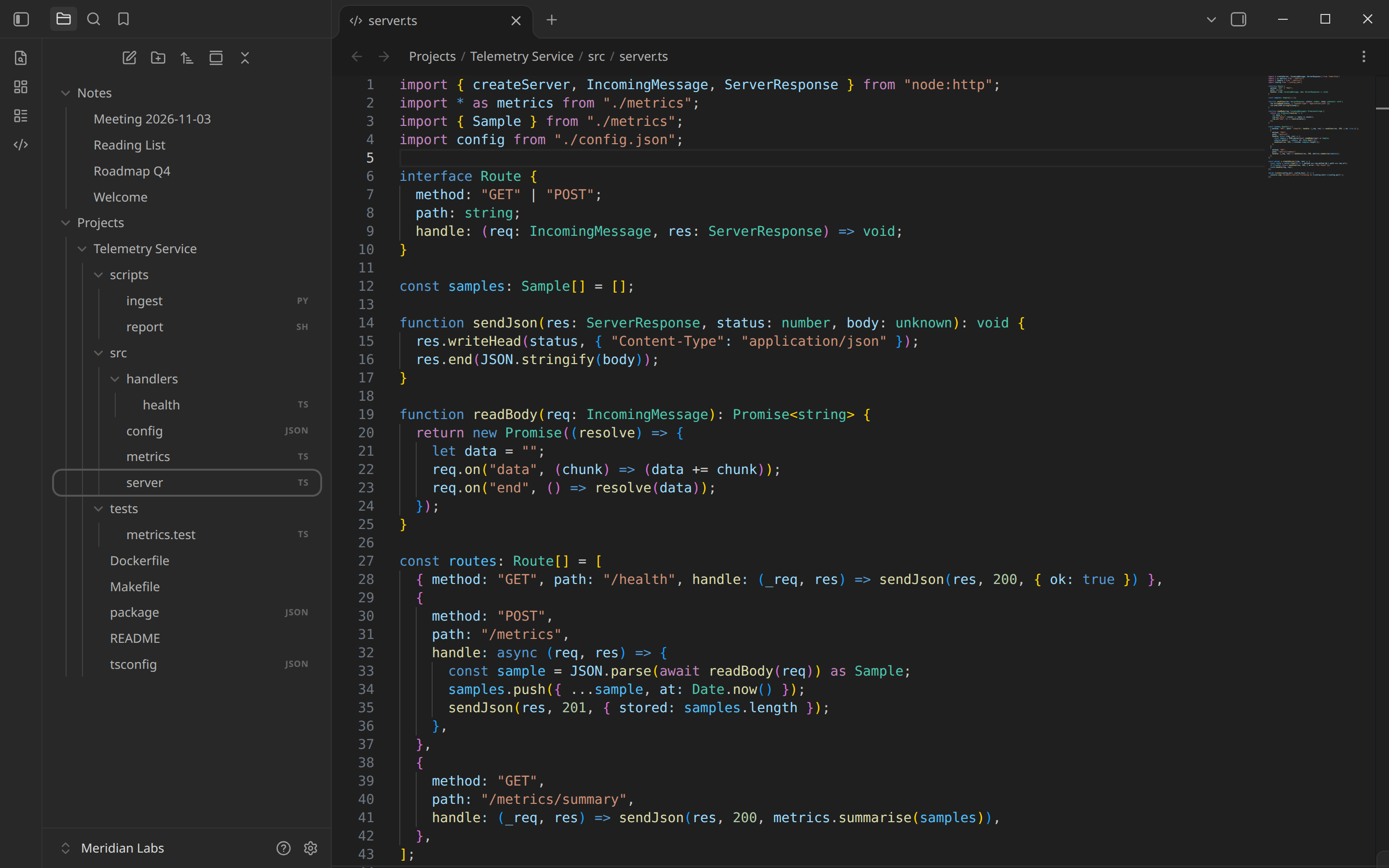
It is not a Monaco look-alike. The plugin runs the official code serve-web on your machine and embeds the real workbench: IntelliSense, diagnostics, formatting, the command palette and your extensions all run in the editor, and the tab still behaves like any other Obsidian pane.
Desktop only. Needs Obsidian 1.13.0 or newer and an installed VS Code (any build whose code command has serve-web).
What you get
A Code tab that is just the editor
- Every text file opens in it. Nothing to register by hand: the plugin walks the vault, finds every file extension and registers it. Extensionless files and dotfiles (
Makefile,Dockerfile,.env) open from a click in the file explorer, where Obsidian lists them. Markdown, canvas, base files and binaries stay with Obsidian. - Editor only. No VS Code explorer, tab strip, side bar, activity bar, status bar or panel. The file explorer, quick switcher, tabs, splits and links stay Obsidian's.
- The path reads like a note's. One crumb per parent folder, then the file name. Click a folder crumb to reveal it in the file explorer.
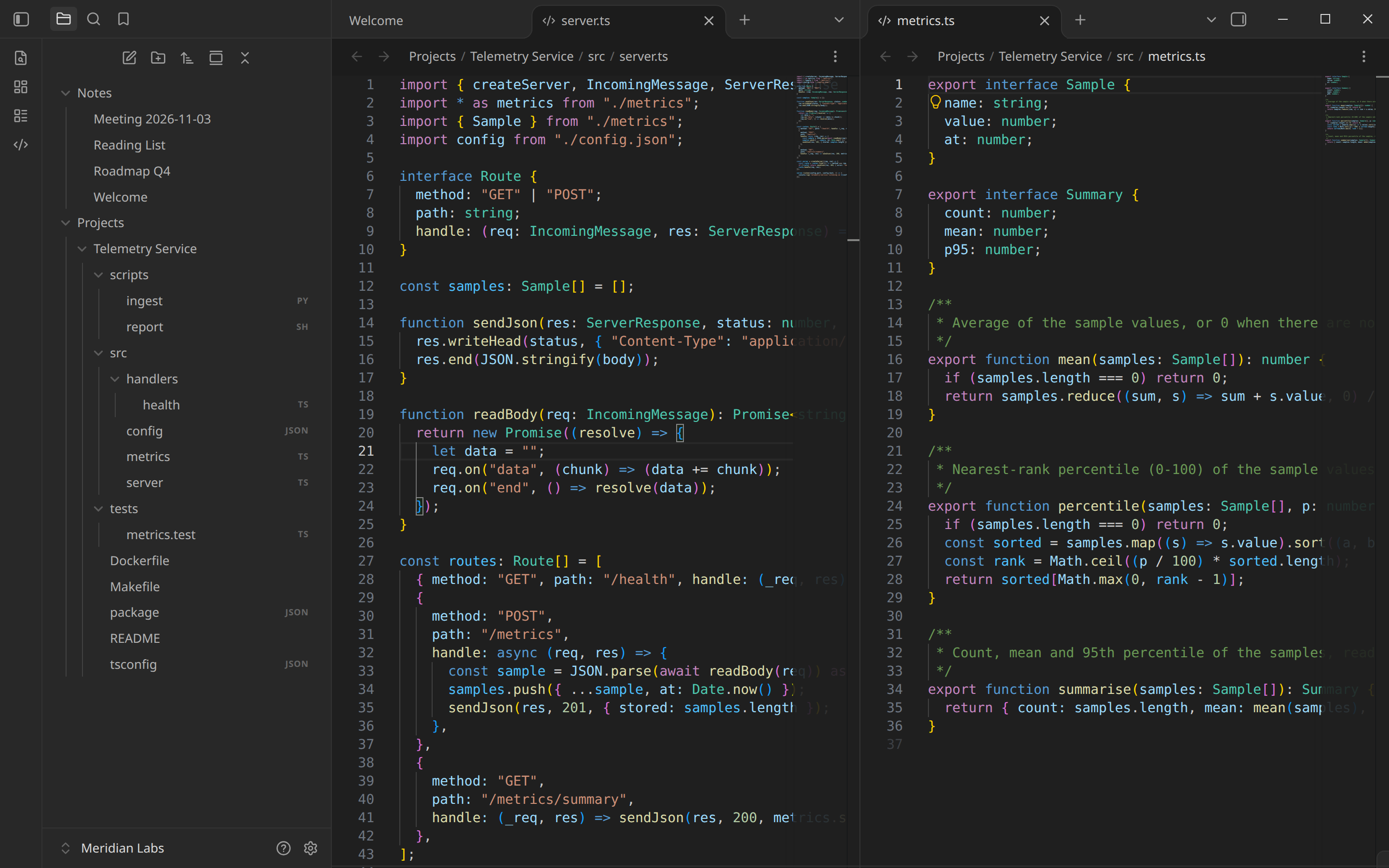
- One tab per file. Opening a file that is already open focuses it. Go to Definition,
Cmd+Pand links inside the editor open as a new Obsidian tab at the right line. - Follows Obsidian. Rename or move a file and the tab follows it; the editor is Dark Modern or Light Modern to match Obsidian, switching live without losing your cursor.
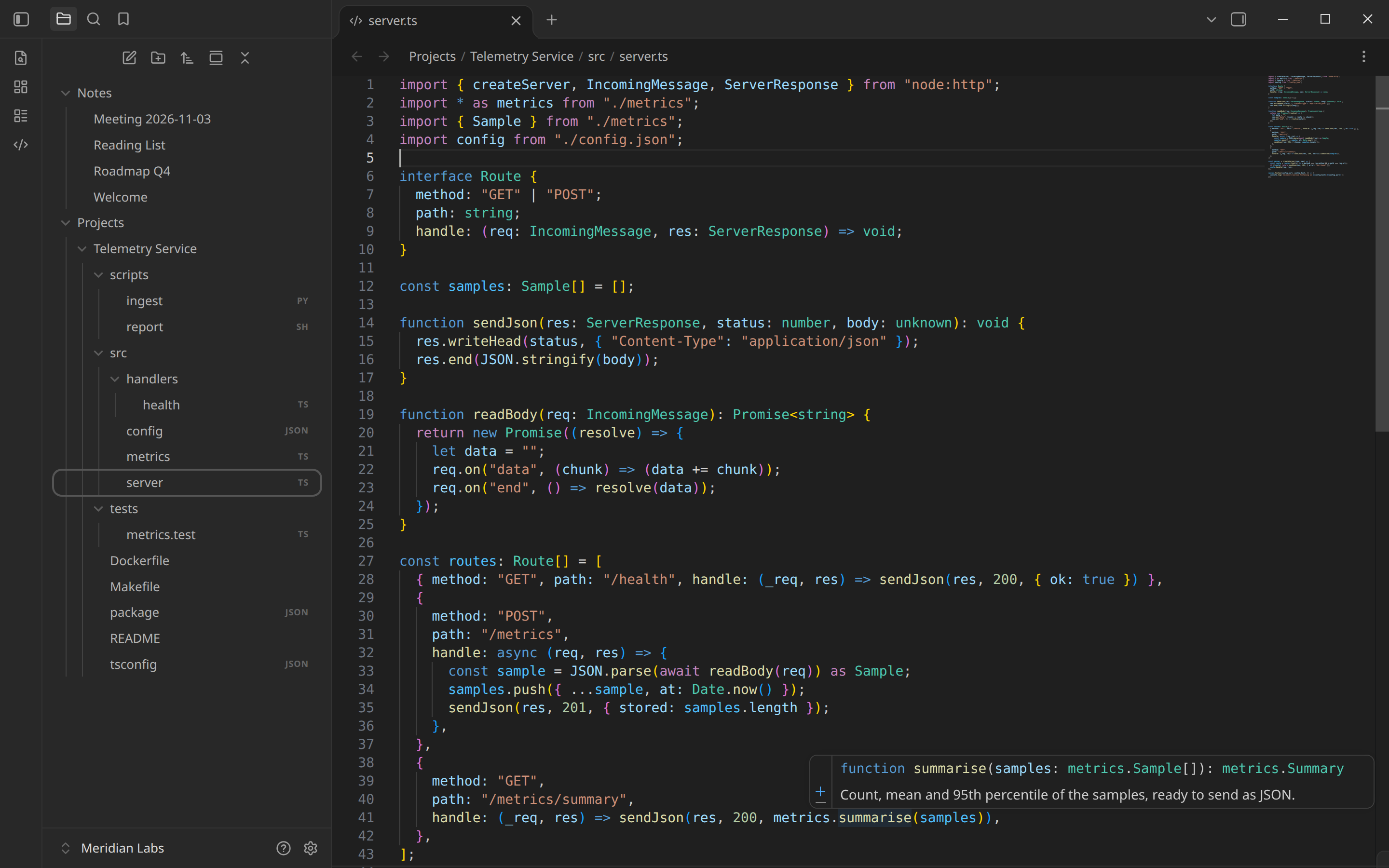
Real IntelliSense and your extensions
Completions, hovers, diagnostics, formatting and the Command Palette are VS Code's own. The plugin mirrors your desktop VS Code setup read-only: the extensions you have enabled, the profile VS Code uses for the vault, your settings.json and keybindings.json. Desktop VS Code stays the source of truth. Nothing is written back, and the tab never installs, enables or disables an extension.
A terminal drawer, over any view
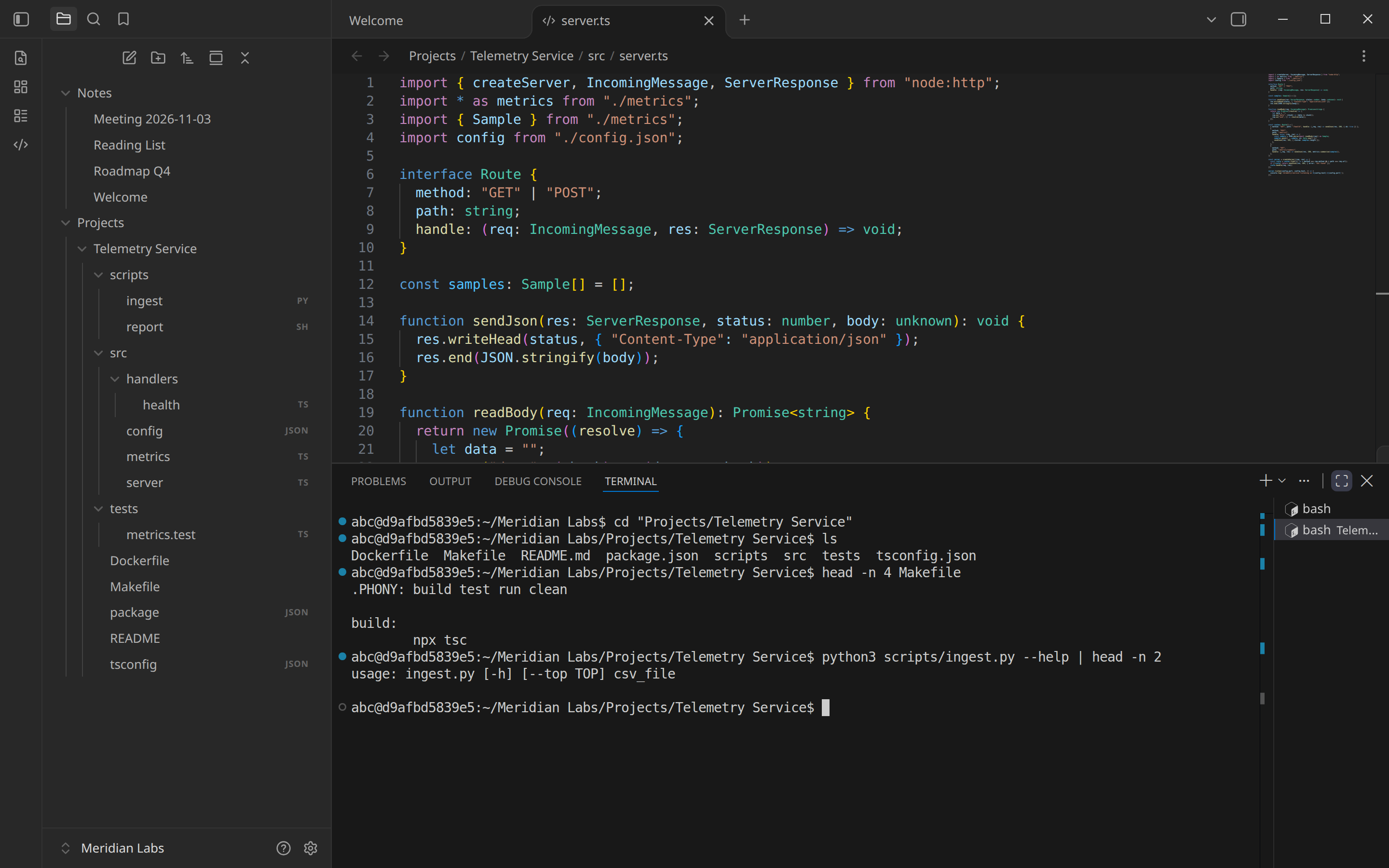
Drag up from the bottom edge of the window (or press Ctrl+`, rebindable in Settings > Hotkeys) and VS Code's integrated terminal opens. Drag it to the bottom to close it. It is VS Code's own terminal: terminal list, profiles, the + button and middle-click to close. Shells start in the vault root and keep running while the drawer is collapsed.
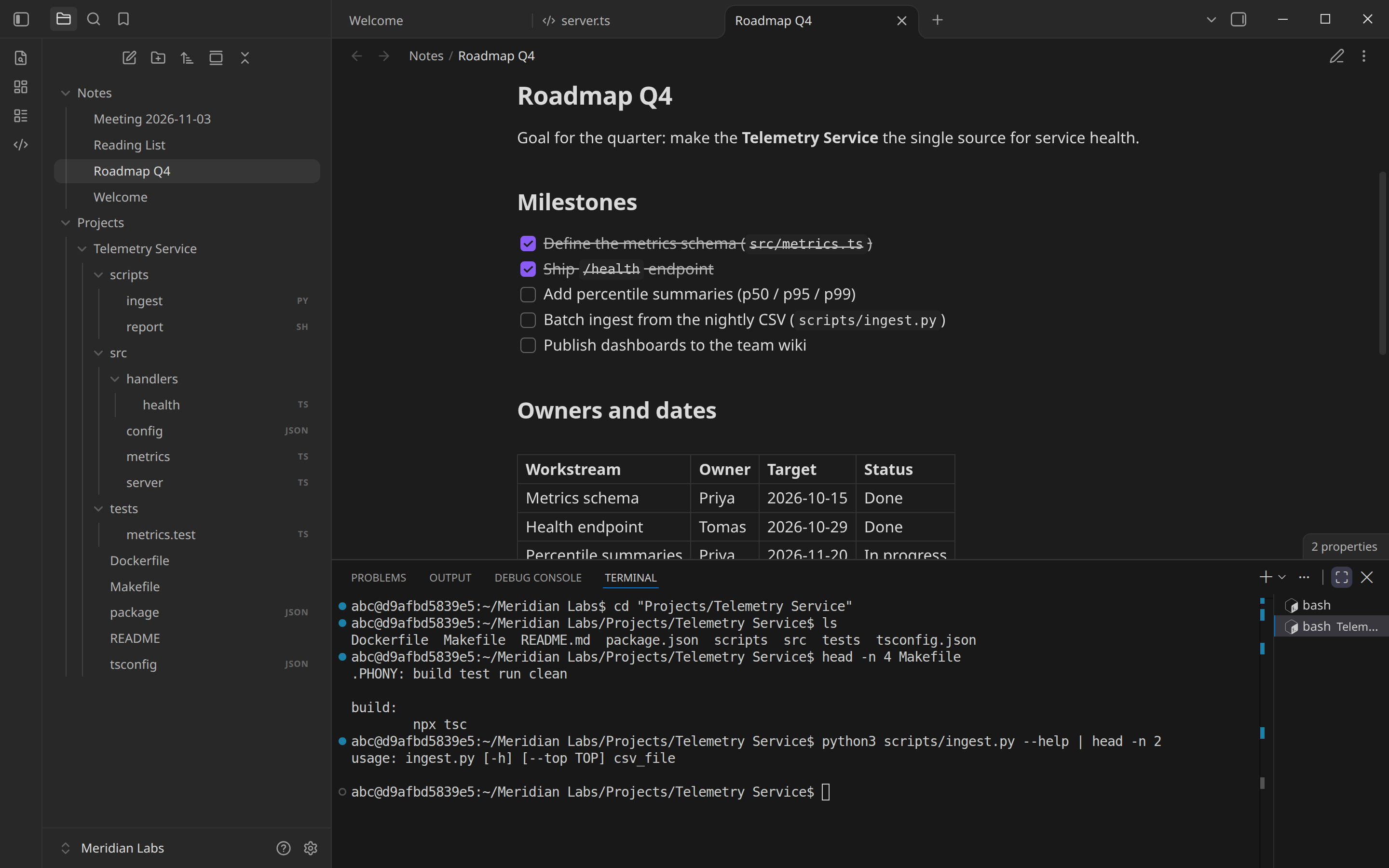
It works over notes, canvas, graph and PDFs too (switch that off in settings if you want it on Code tabs only). The server does not idle-stop while a shell is alive.
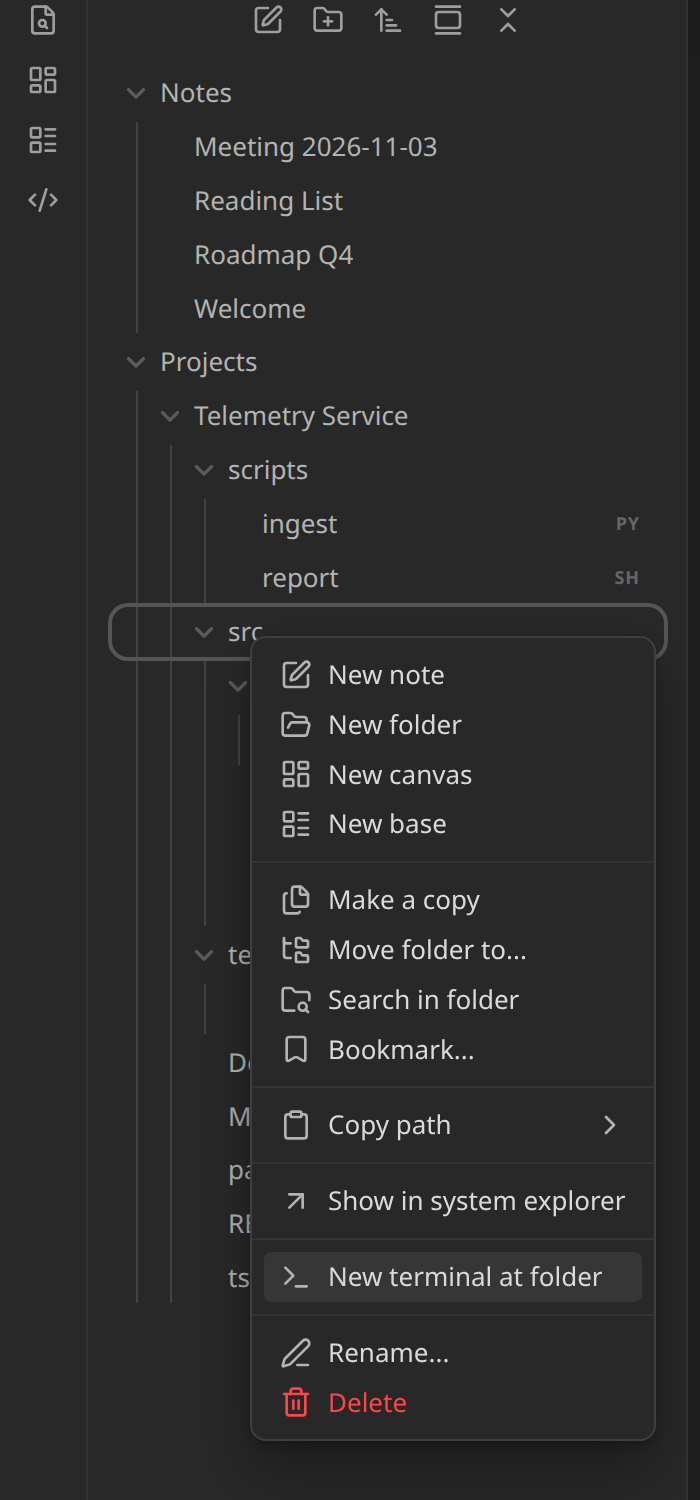
Right-click any folder in the file explorer and choose New terminal at folder to open a terminal there.
Safe to close
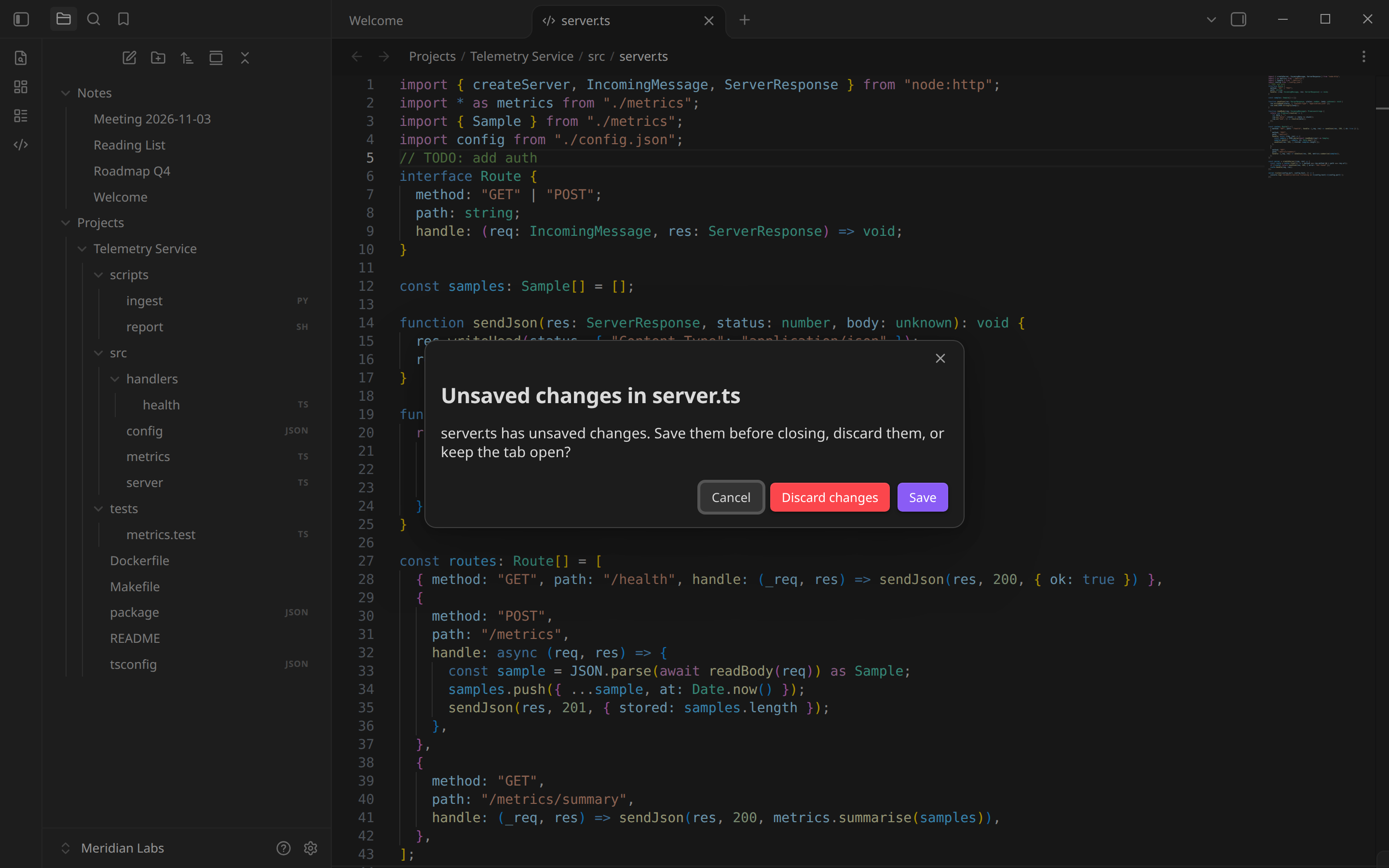
Closing a Code tab with unsaved edits asks Save, Discard changes or Cancel, once per file, the same way for the close button, Cmd+W, close all and close others. If the plugin cannot tell whether the editor is dirty, it asks rather than guess. Quitting Obsidian with unsaved buffers asks first too.
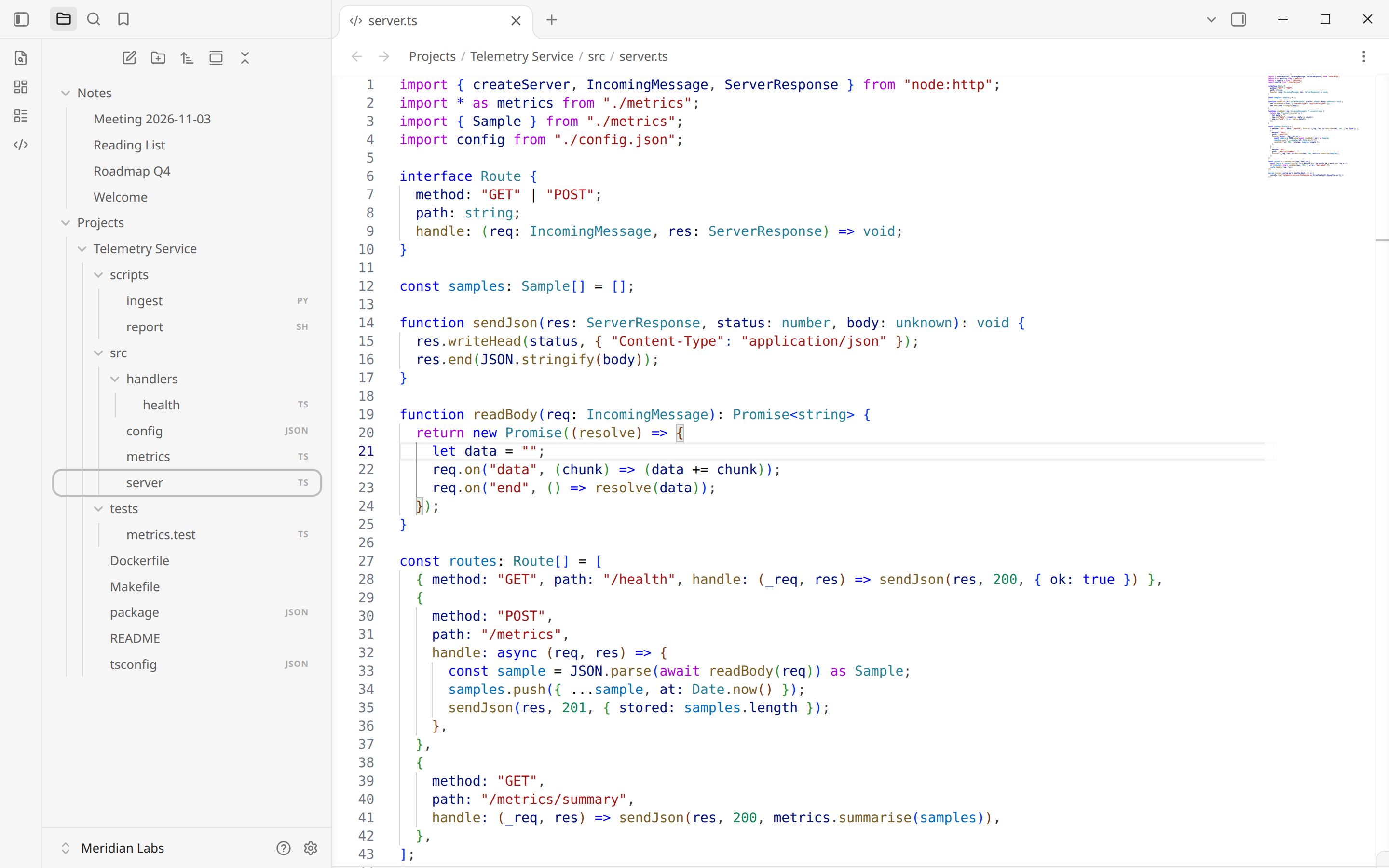
Light and dark, split panes
Settings
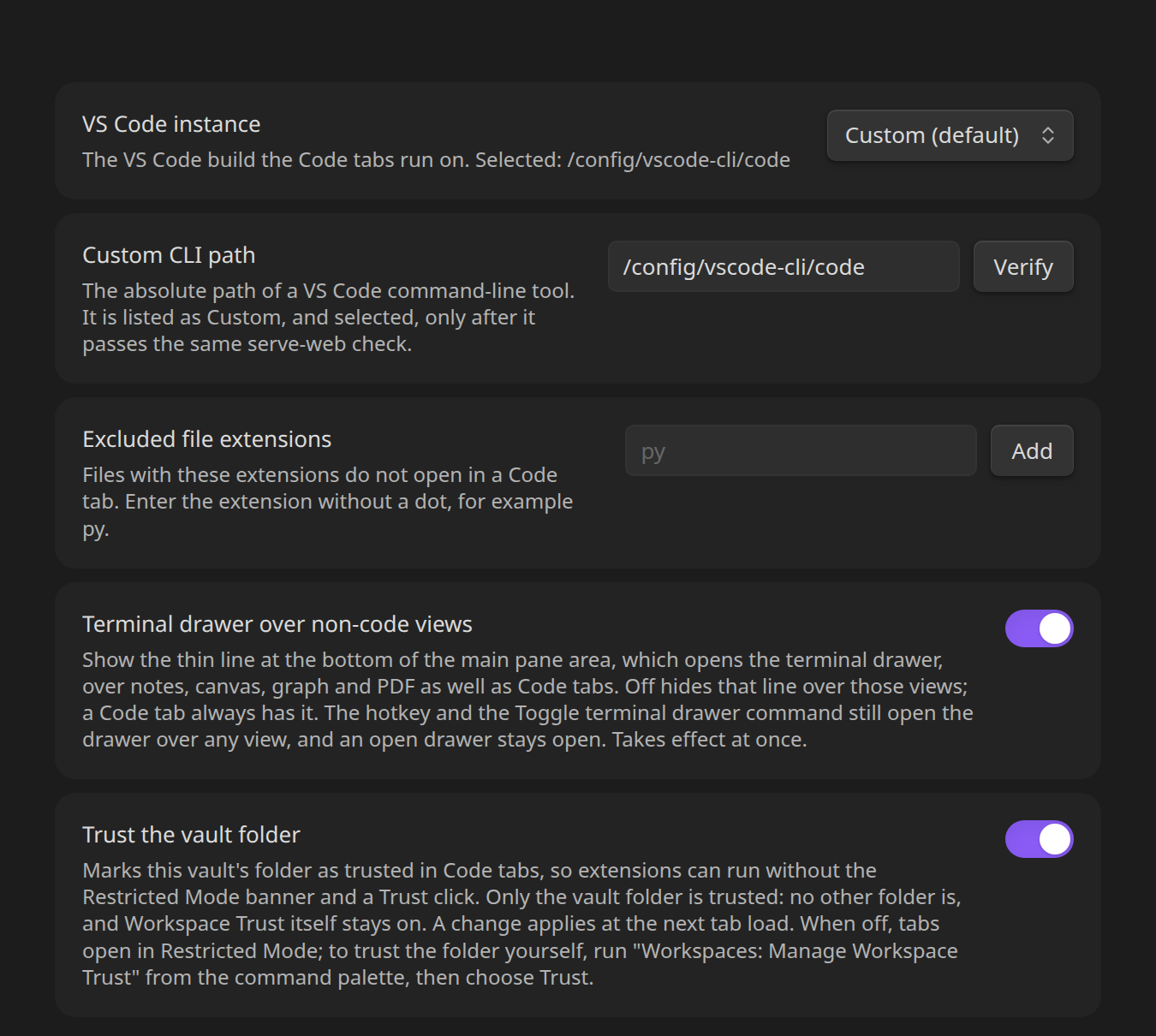
Pick which installed build to use (VS Code, Insiders, VSCodium, Antigravity), point at a custom CLI, exclude file extensions, switch the drawer over non-code views on or off, and see exactly which VS Code extensions the tab shares and why each is active or not.
Install
From the community store: Settings > Community plugins > Browse > "VS Code Workbench".
Or by hand: download main.js, manifest.json and styles.css from the latest release into <vault>/.obsidian/plugins/vscode-workbench/, then enable the plugin.
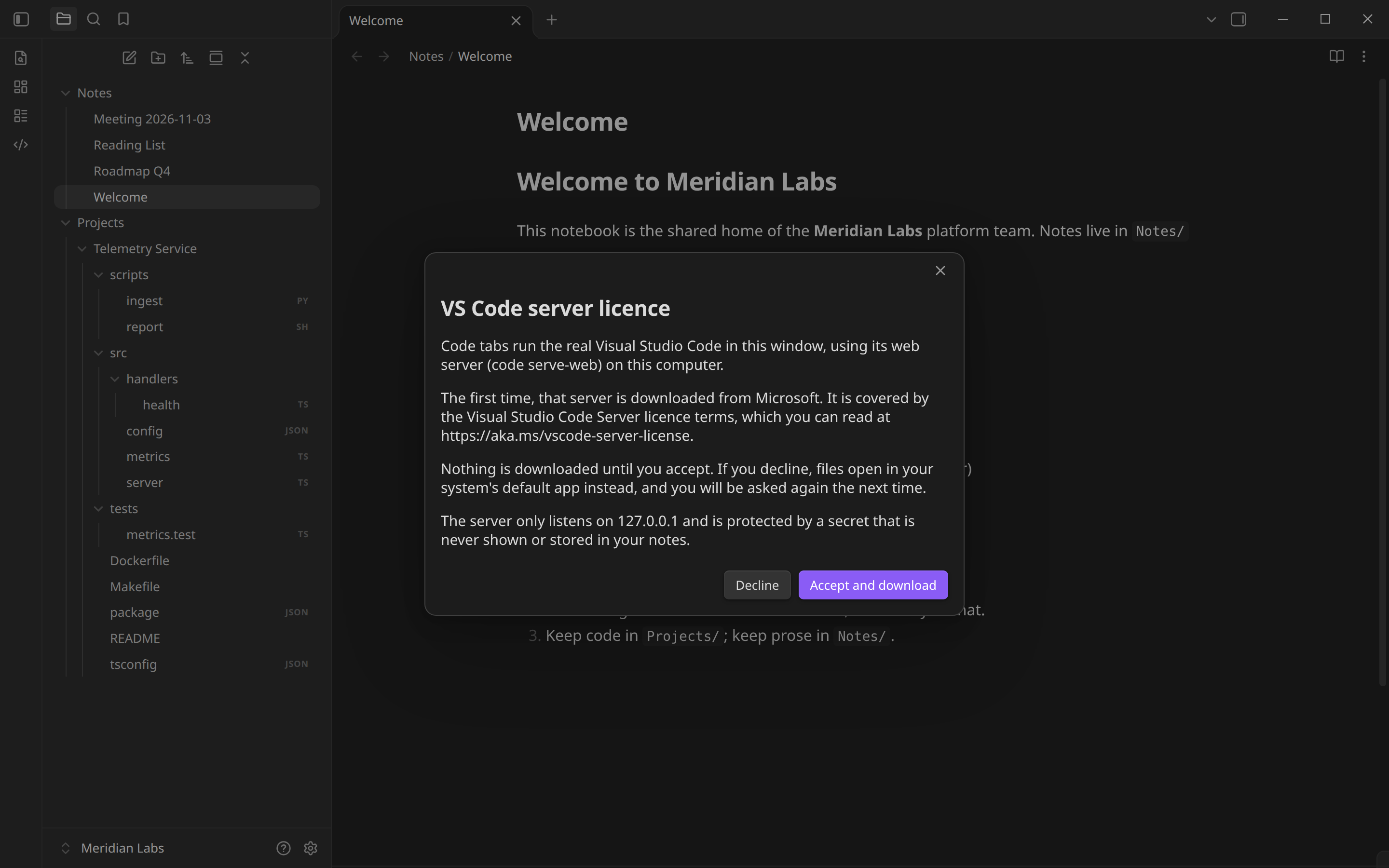
The first Code tab (or the first terminal drawer) asks you to accept the VS Code server licence before anything is downloaded:
How it works
Obsidian window
 ├─ Code tab        <webview> ── 127.0.0.1:<stable port>/?tkn… ─┐
 ├─ Terminal drawer <webview> (own browser profile) ────────────┤
 └─ Plugin (TypeScript, no native modules)                      ▼
      server manager ── spawns ──▶  `code serve-web`  (one per Obsidian session, loopback only)
      child registry + pidfile      ├─ token file, mode 0600, never on a command line
      mirror of desktop VS Code     ├─ per-plugin user-data dir (private, 0700)
      trust seed, chrome hider      └─ symlinked extensions from your VS Code build
A few of the decisions that make it behave:
- One local server, one token.
code serve-webis bound to127.0.0.1with a connection token passed through a mode-0600 file, never as an argument. Code tabs and the terminal drawer share the server but not the browser profile, so the drawer's layout can never leak into a tab. - Nothing is left behind. Every child process goes through a registry with a pidfile of process ids. The server stops with Obsidian, after 5 idle minutes (no visible Code tab, no unsaved buffer, no live shell), or when the plugin is disabled, and a server orphaned by a crash is swept at the next start. A shell under the server keeps it alive, found from the server's own process tree.
- Desktop VS Code is the source of truth, read-only. At each server start the plugin reads which profile your desktop VS Code uses for the vault, the lists of disabled extensions (read from a temporary copy of VS Code's SQLite state) and your settings, then shares exactly the enabled extensions through symlinks into the plugin's own folder. Another instance's extensions and settings are never written, renamed or deleted.
- Trusted without being unsafe. Workspace Trust stays on. The plugin writes VS Code's own trust record for the vault folder, and only that folder, so the tab opens trusted with no click, on a fallback port too.
security.workspace.trust.*keys are stripped from the copied settings. - A tab that is only an editor. VS Code has no setting that hides every part of its workbench, so the plugin writes the settings that exist and runs a small script in the page that calls VS Code's own close commands for the rest. Chords that would bring a hidden part back are switched off in an overlay block at the end of the tab's
keybindings.json; your copied keybindings above it stay byte for byte as they were. If a VS Code update renames a part, that part simply shows again; the tab still works. - Keys survive the embed. An embedded page swallows keys, so Obsidian's hotkeys do nothing inside it. A tiny script inside the page watches for exactly two chords (the ones Obsidian has for the terminal drawer and the quick switcher) and reports only the action's name back. It never sends the keys or any text typed. The chords follow Settings > Hotkeys.
- Renames carry unsaved work. Rename or move a file in Obsidian and the tab follows it. If the tab had unsaved edits, they are moved into the renamed file after you save, never over something another tool wrote in the meantime.
- No telemetry. The plugin adds none, and VS Code telemetry, extension auto-update, update checks and experiments are switched off. See Network use for the one download and the two requests that cannot be switched off.
Engineering
- About 14,000 lines of TypeScript in 78 modules and 3,500 tests across 118 files, including a real VS Code web server and headless Chrome in
npm run check:workbenchand checks that drive the plugin inside Obsidian in a container. - The community store's automated review reproduces the release
main.jsbyte for byte from the repository, finds no vulnerable dependencies and no obfuscation. - The design record (every unknown the build had to settle, with the measurement behind it) is in
docs/.
Network use
On first use the plugin downloads the VS Code server from Microsoft, after you accept its licence terms. The first Code tab you open shows the licence modal; nothing is downloaded or started until you accept, and declining (or pressing Escape) opens the file in your system's app and asks again next time. The server runs only while you use it: it stops when Obsidian quits (with unsaved Code buffers it first asks you to save them all or discard them, and asks again if something is still unsaved, such as a new file without a name; there is no Cancel on that prompt, because Obsidian closes the window after its quit tasks finish and a Cancel could not stop that, so it would only lose the edits; Escape saves), or after 5 minutes with no visible Code tab, no unsaved buffer and no live terminal shell (a shell under the server keeps it running whether the terminal drawer is shown or hidden, found from the server's own process tree; a shell you closed no longer counts, a hung one does until you close it), and a server left over from a crash is cleaned up at the next start (a pidfile in the plugin's .server folder lists only process ids, never the token). When a start fails, a notice names the reason and any Code tab that was still showing the stopped server's page is closed rather than left blank (a tab with the crash banner stays, so its Restart can try again). If the download fails, the plugin looks up update.code.visualstudio.com and opens a TCP connection to its port 443 (no request is sent) to tell an unreachable network from another failure, because serve-web itself does not say why. The server is pinned to the installed VS Code build's commit (--commit-id), so later starts do not ask Microsoft for a newer one. Apart from that download, the plugin talks to 127.0.0.1: the local serve-web server, bound to loopback with a connection token passed through a mode-0600 token file (never on the command line). The plugin adds no telemetry or analytics, and VS Code telemetry, extension auto-update and update checks, and experiments are switched off. Two kinds of request to Microsoft remain that cannot be switched off: on each load the workbench fetches two small static configuration files from main.vscode-cdn.net and sends one marketplace query for the single extension id github.copilot-chat (it does not send your installed extensions) (docs/spike-decision.md, "Outbound connections").
Without trust, VS Code opens a folder in Restricted Mode and the Python extensions stay inactive until you click Trust. VS Code stores that answer per origin, and the origin includes the server's port. The plugin keeps one loopback port per vault (stablePort in data.json) and tries it first at every server start, including the restart after the 5-minute idle stop, so the answer survives restarts (measured: same origin, no Restricted Mode after a restart, in docs/spike-extensions.md). If something else holds that port, the server starts on a free port for that start, the stored port is kept, and the Extensions section in settings says so. By default (setting "Trust the vault folder", trustVaultFolder in data.json, on) the plugin also writes VS Code's Workspace Trust record for the vault folder, and only that folder, into the Code tab's browser storage at every tab load before the workbench starts, so the tab opens trusted with no click, on a fallback port too. It does not clean up old records: the browser keeps one database per origin, so the record a server on another port left behind sits in that origin's own database, which the seed (it runs in the current server's origin) cannot reach, and it stays there. Such a record is inert (it only applies to that exact origin) and a later server on that port reseeds its own entry. The seed's script still drops entries for other loopback ports that it finds in the current origin's database, and never one for a port a running server holds or when the held-ports list is empty; in a real profile it finds none. Workspace Trust itself stays on, and a folder other than the vault opened on the same server stays untrusted. With the setting off nothing is written (a record already stored is left alone) and the Restricted Mode banner returns at the next tab load; trust the folder yourself with "Workspaces: Manage Workspace Trust", then Trust. If the seed does not take (VS Code changed how it stores the record), the tab still opens in Restricted Mode and the settings tab says so and names that command (docs/spike-extensions.md, Trust record).
The ribbon icon opens the active file when it is one that opens in a Code tab (see "Which files open"); for a note, canvas, base, PDF, image or any other file Obsidian opens itself, it opens the file named by spikeFile in the plugin's data.json (a vault-relative path, hand-edited), then the built-in spike file.
Which files open
Nothing is registered by hand. When the plugin starts, and again whenever a file is created or renamed (and when the window regains focus, at most every 30 seconds, for files made outside Obsidian), it walks the vault folder on disk and registers every file extension it finds against the Code tab, in small slices so the window stays responsive. It walks the disk rather than asking Obsidian's file index because, with "Detect all file extensions" off, Obsidian does not list a .py or .zig file until its extension is registered. The registered set is written to the developer console (VS Code Workbench: registered extensions (...)).
- Hidden: the contents of
.obsidian,.gitandnode_modulesare never scanned or opened. - Open as text: code files, dotfiles, and
svg,csv,txtandjson. - Never in a Code tab: Markdown, canvas and base files, and binaries (images, pdf, archives, audio, video, fonts, executables and the like). Obsidian's own views handle them, and their extensions are never passed to the registration call.
- Your exclude list (settings) is never registered.
- A symlink loop, a broken link or an unreadable folder is skipped with a console warning; the scan carries on. Links to folders are followed once.
- Size and binary guard: a file over 2 MB (2,097,152 bytes opens, one byte more is refused), or with a null byte in its first 8 KB, is refused with a notice and opened in your system's app. A file over the limit is never read; otherwise only the first 8 KB is.
- Other editors: if Code Files, VSCode Editor, Code Workbench or any other plugin already owns an extension, this plugin leaves that extension alone and shows a notice naming the owner (one notice per extension per session, listing the extensions that one owner keeps). It only reads the view registry and never changes another plugin's registration or settings. An extension Obsidian itself opens (
svgis shown by its image viewer) is left alone without a notice. To use Code tabs for a refused extension, turn the other plugin off and reload. - One tab per file: opening a file that already has a Code tab (from the explorer, quick switcher, a link, a split or another pane, even twice in quick succession) focuses that tab instead of adding one.
Extensionless files and dotfiles
Obsidian opens files by extension, so Makefile, Dockerfile, .env and .gitignore have nothing to register. As a best effort, a plain click on such a file's row in the file explorer is taken over and opens in a Code tab (a shift-, ctrl-, cmd- or alt-click is left to Obsidian, so multi-select and open-in-new-tab still work on those rows). If the plugin is set to the fallback mode ("extensionlessMode": "system-app" in data.json), or Obsidian cannot make the tab, the file opens in your system's app with a notice. The other failures are handled in the Code tab's own open path and never leave a blank tab (never as a blank tab, in either case): a declined licence opens the file in your system's app, and a server that cannot start or a file that is refused (binary, over 2 MB) shows a notice naming the reason and opens no tab. The limit: this only sees rows Obsidian draws. Obsidian never lists dotfiles, and with "Detect all file extensions" off it does not list extensionless files either, so for those there is no row to click and nothing to intercept (turn "Detect all file extensions" on to see extensionless files).
Working in a Code tab
A Code tab behaves like another Obsidian file view.
- Saving. Edits are saved by the chosen VS Code instance's own auto-save setting, copied at each server start (
files.autoSaveis written out asoffwhen the instance sets none, because the web workbench would otherwise default to saving after a delay). With auto-save off, an edit stays unsaved until Cmd/Ctrl+S. - Closing with unsaved edits. Closing a Code tab (the close button, Cmd+W, close all, close others, a tab in a background pane, a pinned tab) asks Save, Discard changes or Cancel, once per file. Save writes the file and closes; Discard closes and leaves the file on disk as it was; Cancel and Escape keep the tab open and focused. A clean tab closes with no prompt. With auto-save on, the tab waits a few seconds for the edit to reach disk before it asks. If the plugin cannot tell whether a tab has unsaved edits (the editor is still loading, or its page does not answer), it treats the tab as unsaved and asks. Navigating a Code tab to a different file from the explorer asks the same question; on Cancel the tab keeps its file and the new file opens in a new tab. The plugin reads the unsaved mark from the window title, which VS Code builds from the template the plugin writes into the tab's settings (it starts with "●" while the open editor has unsaved edits). Two things it cannot see: a vault
.vscode/settings.jsonwhosewindow.titlehas no${dirty}(a workspace setting beats the plugin's) makes every tab read clean, so keep${dirty}in it, or leavewindow.titleout; and with VS Code's tab strip hidden, an editor behind the tab's file is invisible to the title. When the plugin cannot rule that out (the page is not watched because the open-from-editor script could not be built or did not install, an untitled file, user settings or a file of another server is showing, or an opened editor with unsaved edits could not be put away), the tab never reads clean for the rest of that page load and closing it asks with the "other editor" wording. That also means, until the tab is reloaded: a renamed file is not reloaded under it, a save made after a rename is not counted, so its edits are not moved into the renamed file, a file deleted outside Obsidian does not close the tab, and the server is not stopped for being idle. Nothing clears this state before the next load, because no tab strip is left to show that the other editor has been saved or closed. - Rename and delete. Renaming or moving a file in Obsidian makes the same tab follow it to the new path (title, embedded file, saved layout), with no second tab and no reload of other tabs. If the tab has unsaved edits the editor is not reloaded under them; the move is applied once they are saved. Because the editor's buffer stays bound to the old path until then, saving writes the edits to the old path (which brings that file back); the plugin then moves that text into the renamed file and removes the old path (within about a second of the save, and otherwise when the tab is shown again, closed, or Obsidian quits), and the editor reloads onto the renamed file. If the renamed file was changed by something else in the meantime nothing is overwritten: a notice says the edits are in the old file. Discard moves nothing and leaves both paths as they are. Nothing is moved either when another file has taken the old path (one made there in Obsidian, one renamed onto it, one already there when the rename happened, or another tab opened on it): a notice says that saving from the tab writes to the old path, and the renamed file and the other file are left alone. The move only happens for a save the plugin saw the tab make: it looks at the tab (every second while a renamed file's edits are pending, and when the tab is saved, shown or closed, and at quit) and counts a save when the buffer goes from unsaved to saved while the old path's file changed. A file made at the old path outside Obsidian (a shell,
git checkout) is therefore never moved over the renamed file, even if the edits are later undone: a notice says anything saved from the tab is in the old path. The save is also only carried while the old path is still the file that save wrote (its size, modification time and inode are recorded when the save is seen): if anything writes the old path afterwards, whether a shell,git checkoutor a new file with the old name, nothing is moved and the same notice appears. If a save is made and the tab is closed before the plugin's look can see it, or the editor cannot be read at the look that would have seen it, the same notice appears and the edits stay in the old file. One gap remains: if something writes the old path and the edits are then undone, both within one second (the look interval), the plugin cannot tell that write from a save and would move it. A rename to a name a Code tab does not open (.md, a canvas, a base, a binary extension, an excluded extension) closes the tab through the unsaved-changes prompt. Deleting a file in Obsidian closes its tab at once, with no prompt, since there is nothing to save to. A file deleted outside Obsidian (agit checkout, another tool) closes a clean tab; a tab with unsaved edits stays open and VS Code shows its own deleted-file state. - Changes on disk. When a file changes on disk while it is open (a
git checkout, another tool), VS Code in the tab decides what happens; the plugin adds no prompt of its own, does not watch the file and never overwrites the editor's text. Checked against a real VS Code web server (npm run check:workbench, auto-save off): a tab with no unsaved edits reloads the new text silently (VS Code shows no reload prompt for that); a tab with unsaved edits keeps its text and the file on disk keeps the outside change; and saving that tab is refused by VS Code ("Failed to save: The content of the file is newer", with Compare and Overwrite buttons) and writes nothing until Overwrite is chosen. - Hidden chrome. A Code tab shows VS Code's editor and nothing else of the workbench: no Explorer or Open Editors, tab strip, breadcrumbs, activity bar, status bar, title bar, panel, side bar or secondary side bar. The activity bar, status bar, title bar, tab strip and breadcrumbs are hidden by workbench settings the plugin writes into its own folder at every server start (and lays over the browser profile's settings on every load, so a setting copied from your instance cannot bring them back); the side bar, secondary side bar and panel have no reliable setting, so a small script in the tab runs VS Code's own close commands for them whenever one appears (the
chrome: hiddenheader is indocs/spike-decision.md; the measurements are indocs/spike-chrome.md). The full workbench is not available: there is no setting, command or hotkey that brings it back. VS Code's popups (save conflicts, Workspace Trust, extension notifications) still show. A popup that takes the keyboard (Workspace Trust, which a new terminal can bring up) stops the close chords, so while one is up the script clicks the panel's own Hide Panel button instead; the popup stays until you answer it. Hiding is best effort and never stops a tab from opening: if a VS Code update renames a part so the script no longer finds it, that part shows again, as in 0.1.0; a settings file that is missing or corrupt is rewritten. - Keybindings in a Code tab. Chords that would bring a hidden part back are switched off inside the tab: Cmd/Ctrl+B (side bar), Cmd/Ctrl+J (panel), Cmd+K Z (Zen Mode), Cmd+W (close the editor, so Obsidian's own Cmd+W closes the tab instead), Cmd+K Cmd+Shift+\ (split the editor inside its group) and the secondary side bar chord. A keybinding copied from your VS Code that runs a command which shows a bar or panel is switched off too, on whatever chord you gave it; every other copied keybinding works. This is done by one block of rules the plugin adds at the END of the tab's own
keybindings.json(between two comment lines it recognises and replaces on the next load); your copied text above it is left byte for byte as it was, and the file in your VS Code's own folder is never written. The block also holds the chords the tab's script presses to put a bar away again: Ctrl+Alt+Shift+1 to +4, +6 and +7 (side bar, secondary side bar, panel, other editors, status bar, activity bar). Those are real VS Code chords in the tab: if you press one, you close that part, which stays closed. - Views that are gone from the tab. The views that live in the side bar, secondary side bar and panel go with them. A Code tab does not show Source Control, Run and Debug, Testing, Extensions, Problems, Output, Debug Console or VS Code's own integrated terminal panel, nor any view an extension adds to the side bar, secondary side bar or panel (a Git graph, a database browser, a chat panel). Trying to show one from the Command Palette or a keyboard shortcut puts the part away again at once, so there is no way to open it in a tab; use desktop VS Code for an extension that you work with through such a view. Extensions still run in the editor: squiggles, hovers, completions, formatting and the commands in Cmd+Shift+P all work. The terminal drawer (see "Terminal drawer") replaces VS Code's own terminal panel in the tab.
- Keys and other files in a Code tab. Cmd+B and Cmd+J do nothing in a tab. Cmd+W closes the Obsidian tab (and asks about unsaved edits as above). Cmd+Shift+P and Cmd+P open as overlays over the editor. A file opened from inside the editor (Go to Definition, a Cmd+P choice, a link) opens as a new Obsidian tab, in front, next to the current one, at the definition's line (the line is read from the editor's line numbers, so with
editor.lineNumbersoff in the settings copied into the tab it opens at the top of the file instead); the first tab keeps its cursor and scroll, and a file already open in another Code tab is focused at that line instead of being opened twice. A note, image or other file Obsidian opens itself opens the usual Obsidian way, and a file outside the vault gets a notice. VS Code's own popups (save conflicts, Workspace Trust, extension notifications) still appear. If a VS Code update changes the page so that a part can no longer be hidden, that part shows again and the tab still works. There is no setting to bring the full workbench back. - The iframe embed. The webview is the default and what everything above describes. The
embed: "iframe"switch indata.jsongets no page script: so no hotkey bridge and no script-based hiding (the script that closes the side bar, secondary side bar and panel does not run), and a tab in that mode can show parts of the workbench that the webview tab hides. The tab still opens. - Theme. The tab follows Obsidian's light or dark mode (the
theme-darkclass on the page, so custom themes map too) with VS Code's Dark Modern and Light Modern themes. When Obsidian's mode changes, open tabs switch in place, without reloading the file or losing the cursor.npm run check:workbenchloads a real workbench with the plugin's settings in each mode and measures the contrast of every syntax colour on the editor background: at least 4.5:1 in both (lowest 4.59 in light, 4.95 in dark, with the VS Code 1.144 themes).
Terminal drawer
The terminal is VS Code's own integrated terminal, shown in a drawer at the bottom of the Obsidian window on desktop. The plugin draws no terminal, tab list or kill button of its own; the terminal list, the + button, middle-click to close and profiles are VS Code's. It needs the VS Code server (the one Code tabs use, so the same licence prompt on first use) and it does not exist on mobile.
- Opening. A thin line runs along the bottom of the main pane area. It turns blue under the pointer; click it, or drag it up, and the drawer opens. Click it again to collapse. "Toggle terminal drawer" (default hotkey Ctrl+`, rebindable in Obsidian's hotkey settings) does the same from any view. The first open starts the server and shows "Starting VS Code server..."; if the licence has not been accepted it asks first, and a decline closes the drawer. A failed start keeps the drawer open with the reason and a Retry button.
- Terminals. A new terminal starts in the vault root. Closing a terminal is VS Code's own action and the plugin never asks first. Collapsing the drawer hides the page without unloading it, so the shells keep running. If Obsidian rebuilds its layout and the page reloads, the drawer says the terminals were lost when VS Code did not bring them back by itself.
- Layout. The drawer spans the main pane area only; the sidebars keep the full window height, and the main pane area is shortened by the drawer's height. Collapsing a sidebar or resizing the window re-flows the drawer. The drawer shows only VS Code's terminal panel: no editor, side bar, activity bar or status bar of VS Code.
- Non-code views. With "Terminal drawer over non-code views" off, the always-visible line is gone over notes, canvas, graph and PDF, and a Code tab keeps it. The hotkey and the command still open the drawer over any view, and an open drawer stays open. Turning it off or on takes effect at once.
- Size. Drag the top edge. The drawer follows the pointer between 0 and the window height minus 160 px; let go under 40 px (drag it to the bottom) and it closes, and dragging up from the bottom edge of the window opens it as you drag. A drawer that is left open is at least 120 px, and a restored height is held between 120 px and the window height minus 160 px. Clicking the X in VS Code's terminal panel closes the drawer too; opening it again brings the panel back. The height is saved per device in
data.jsonunderdrawer, keyed by a device id kept in Obsidian's local storage (not in the vault). Whether the drawer is open is never saved: it starts closed. - Browser profile. The terminal page has its own webview partition and browser profile, so its layout cannot leak into Code tabs.
- Hotkeys inside a Code tab. VS Code's page swallows keys, so Obsidian's own hotkeys do nothing while it has focus. The plugin runs a small script inside the page that watches for exactly two chords, the ones Obsidian has for "Toggle terminal drawer" (default Ctrl+
) and the quick switcher (switcher:open, default Cmd+O), and reports only the action's name back to the plugin. It never sends the keys or any text typed, and opens no connection. A bridged chord is consumed (no backtick typed, no VS Code Open File); every other key goes to VS Code untouched, and holding a key acts once. The chords follow Settings > Hotkeys within about a second, and the old chord goes back to VS Code. A chord is matched by the character the key types; when Alt/Option is held (on macOS Alt+O types "ø") or the layout makes the key dead, the key's US-layout position is used instead, for letters, digits and the backtick. Inside the terminal the close key is the same live hotkey, so a rebinding applies there too. The bridge works in the webview embed (the default). In the iframe embed mode a Code tab gets no page script and so no bridge: the hotkeys do nothing while the editor has focus there, and the strip and the command hotkey outside the editor are what is left. Opening the drawer this way moves keyboard focus into the terminal; hiding it returns focus to the view that had it. The bridge is switched by the recorded spike decision (hotkey_bridgeindocs/spike-decision.md,HOTKEY_BRIDGEinsrc/hotkey/decision.ts); withno` it is not installed and the edge and the hotkey outside the embed are what is left. - Cleanup. Quitting or disabling the plugin ends the terminal page, the server and every shell. The server is in the child registry, so the startup orphan sweep removes one left by a crash.
- What changed from 0.1.0. 0.1.0 drew its own terminal, with its own tab strip, a status bar count, a Shell setting and a helper program. All of that is gone, with no setting or command that brings it back. A
shellPathordraweropen state still in yourdata.jsonfrom 0.1.0 is ignored and left in the file. A helper file the old version wrote into the plugin's.serverfolder is never read or run, and you can delete it.
Settings
Open Settings, Community plugins, Workbench. Every time the tab opens it rescans, shows "Scanning…", then the list.
- VS Code instance. The scan reads
/Applicationsand~/Applicationsfor VS Code, VS Code Insiders, VSCodium, Antigravity and Antigravity IDE. A build is classified by its bundle identifier (Info.plist, elseproduct.json), never by its folder name, and is listed only if its command-line tool passesserve-web --help(exit 0, output mentionsserve-web, 5 seconds; run directly, never through a shell). The check starts no server, opens no port and downloads nothing. The default is the newest VS Code build (stable or Insiders, by version number); a build you pick is kept, and if it later disappears or fails its check the tab says why and uses the default until you pick again (the saved choice is not rewritten). Changing the instance while a server runs does not stop it, so unsaved buffers are safe: the change applies the next time the server starts. - Custom CLI path. An absolute path to a VS Code command-line tool. Verify runs the same check; a path that passes is listed as Custom.
- Excluded file extensions and the terminal drawer toggle. The exclude list is read by the extension scan (see "Which files open"); the toggle (read live by the drawer) decides whether the line at the bottom shows over notes and other non-code views. Extensions are entered without a dot; they are trimmed, lowercased and de-duplicated. An extension added to the list is not registered at the next scan; one that is already registered stays registered until Obsidian reloads.
- Restart server. Stops the server and starts a fresh one.
A hand-edited codeCliPath in data.json still overrides the instance chosen in the tab. A corrupt or partial data.json falls back to the defaults field by field.
Your VS Code settings
At each server start the plugin copies the settings.json and keybindings.json of the profile desktop VS Code uses for the vault (the Default profile's are the chosen instance's User/settings.json and User/keybindings.json; another profile's are in User/profiles/<id>/; a profile that uses Default's settings or keybindings gets Default's; see the profile paragraph below), from the instance's folder under ~/Library/Application Support (for example Code - Insiders), one way into the plugin's own user-data folder, replacing the previous copy, strips every security.workspace.trust.* key from the copied settings (Workspace Trust is never switched off by a copy; only top-level keys with that prefix go, and keybindings.json is copied byte for byte), and writes the workspace excludes on top: .git, .obsidian, Attachments, node_modules and _to_delete are excluded from files.watcherExclude and search.exclude, and win over the copied values. Comments and trailing commas in your settings.json are accepted; if it is invalid JSON, only the excludes are written and a notice says so. The VS Code server does not read those two files from its data folder, so the same copy is also written into the Code tab's own browser profile when the tab opens (once per server start; the excludes also go into the server's Machine settings, which it does read). Checked on a real server: a copied editor.fontSize, a copied keybinding and the excludes all take effect (npm run check:user-data). Edits made inside the embedded editor change the copy only and are replaced at the next start. The plugin never writes to, renames, deletes or changes the permissions of another instance's settings, extensions or app bundle, and it creates nothing in your vault outside its own plugin folder. The copy is private to you (mode 0600 in a 0700 folder) because settings can contain secrets.
Which VS Code profile desktop VS Code uses for the vault
At the first server start after Obsidian starts and at each Restart server (not at an idle restart, and never when settings opens; until the first start settings shows "Not read yet") the plugin reads, read-only, User/globalStorage/storage.json in the chosen instance's own user-data folder under ~/Library/Application Support (Code, Code - Insiders, VSCodium, Antigravity, Antigravity IDE) to find the profile desktop VS Code uses for the vault folder. The vault folder's own association wins, then the nearest parent folder's. The URIs are compared decoded and normalised, so spaces and non-ASCII characters in the vault path match. An association to Default, no association, a profile that was deleted or is not in the list, and a storage.json that is missing, empty or invalid all give Default; the Extensions section in settings shows the profile name, whether it came from the vault folder or a parent folder, and the reason for any fallback (with the vault URI that was tried). A profile with useDefaultFlags is shown as reading Default's settings, keybindings or extensions. Nothing is written, created or watched, and a failed read never stops the server from starting. For a custom CLI the user-data folder is the one its product.json names; if that is unknown, set userDataFolder in data.json (a folder name under Application Support, or an absolute path), otherwise settings says the profile could not be worked out. The profile's settings and keybindings are what the Code tab shows (they are copied as described under Your VS Code settings); a change of profile or of its settings in desktop VS Code reaches the tab at the next Restart server.
Microsoft-only extensions
Some extensions (for example Pylance, C/C++ and the Remote extensions) are licensed for Microsoft's own builds and may refuse to run in VSCodium or the Antigravity builds. The settings tab shows a one-line warning when the selected instance is not a Microsoft build. Nothing is done to work around the licence: choose VS Code or VS Code Insiders to use those extensions.
Requirements
Desktop Obsidian 1.13.0 or newer, a local vault, and an installed VS Code (code with the serve-web command).
Develop
npm install
npm run build      # type-check, then bundle to main.js
npm test           # vitest with a coverage report
npm run check:render     # the unsaved-changes prompts in headless Chrome, 4 window sizes, light and dark
npm run check:workbench  # real VS Code web server + headless Chrome: outside change to an open file, chrome hidden, colour contrast
check:workbench is not part of npm test. It needs the installed VS Code, Google Chrome and the VS Code server for the installed build's commit. Either point CLI_DATA_SRC at a --cli-data-dir whose serve-web/ folder already holds that commit (it is copied, never written to), or set ALLOW_DOWNLOAD=1 and serve-web downloads that server (about 600 MB) into a scratch folder. If neither fits it exits 2 before starting anything and names the commit it needs and the ones CLI_DATA_SRC holds. It exits 1 when a check fails and 2 when the check could not run (including a server that answers with an error, or a page that never paints).
The plugin folder goes in <vault>/.obsidian/plugins/vscode-workbench/ (main.js and manifest.json). Runtime files (token, server data) live under .server/ inside it and are git-ignored.