Vault Commander
 Andre Hessler461 downloads
A blue, dual-panel orthodox file manager for your vault — inspired by classic DOS file commanders. Browse, copy, move, rename and preview notes and attachments in two panels.
- Overview
- Scorecard
- Updates4
A blue, dual-panel orthodox file manager for Obsidian — inspired by the classic DOS file commanders of the late 80s/90s. Two panels side by side, full keyboard control, and the iconic blue screen with double-line borders.
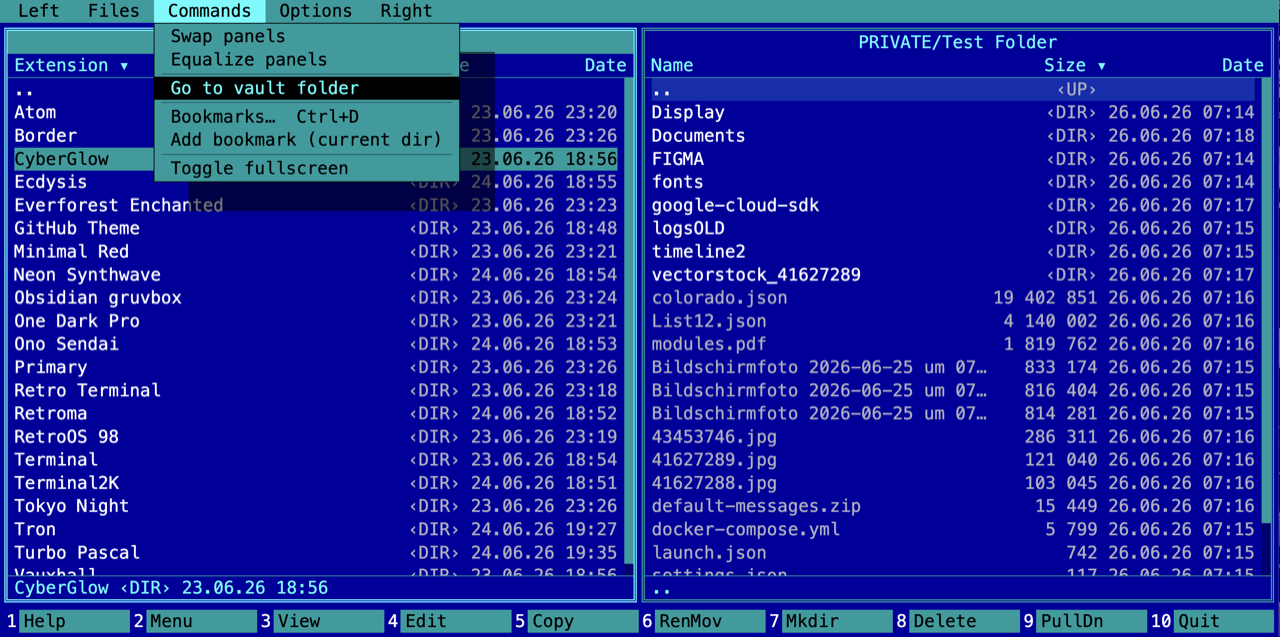
Vault Commander gives you a fast, keyboard-driven way to browse, copy, move, rename and preview the notes and attachments inside your vault — all through Obsidian's own vault API.
Scope: Vault Commander works entirely within your vault. It uses only Obsidian's vault API — it does not touch files outside the vault, run shell commands, or use Node filesystem access. Runs on desktop and mobile.
Features
- Two panels, active panel highlighted,
Tabto switch. - Panel views — each panel can be set (via the
Left/Rightpull-down menu) to Brief (the file list), Info (file/folder counts and an optionaldirinfofile for the other panel), Tree (a folder tree that drives the other panel) or Quick view (a live text/image preview of the file under the other panel's cursor). - Sorting — per panel, by Name / Extension / Time / Size / Unsorted (
Ctrl+F3…Ctrl+F7or theLeft/Rightmenu); the active column is marked with▾in the header. - Panel layouts — Full (Name / Size / Date) or Wide (names only, in multiple columns;
←→move between columns), per panel. - Quick filter — just start typing to jump to the matching entry; the same letter again jumps to the next match;
Escclears it. - Bookmarks (
Ctrl+D) — bookmark a folder and jump back any time (Enter= go,Ins= bookmark,Del= remove). - Two themes — Commander Blue and Navigator Gray, switchable in the
Optionsmenu (or in the plugin settings). - Overwrite prompts — copying / moving onto an existing file asks Overwrite / Overwrite all / Skip / Skip all / Rename / Cancel instead of silently overwriting; folders merge, prompting per conflicting file inside.
- Full keyboard control — arrows / PgUp / PgDn / Home / End,
Enterto open,Backspacefor parent. - Function keys F3–F8 for View / Edit / Copy / Move-Rename / Mkdir / Delete (with confirmations).
- F2 user menu and F9 pull-down menu (Borland-style). Turn off
Options → Hide menuto keep the menu bar permanently docked above the panels. - Built-in viewer (F3) for text, images (png/jpg/gif/webp/…) and rendered Markdown preview. Hovering over an image shows an eyedropper with the pixel colour as a hex value (e.g.
#3a421d). - Markdown / canvas open directly in Obsidian (
Enter= new tab,F4= new tab). - Folder sizes — mark a folder with
Spaceto compute and show its total content size. - Fullscreen — a configurable hotkey (default
Cmd/Ctrl+F12) opens the Commander fullscreen, brings it to front if already open;F10closes it.
Keyboard
| Key | Action |
|---|---|
| ↑ ↓ / PgUp PgDn / Home End | Move cursor |
Enter |
Enter folder / open file (.md → Obsidian tab) |
Backspace |
Parent folder (..) |
Tab |
Switch active panel |
Space / Insert |
Tag file/folder (folders get their size computed) |
F2 |
User menu · F9 Pull-down menu, opens on the active panel's side (Tab/Esc to close) |
F3 / F4 |
View / Edit |
F5 / F6 |
Copy / Move·Rename to the other panel |
F7 / F8 |
Make directory / Delete (confirmed) |
Ctrl+F3…Ctrl+F7 |
Sort active panel: Name / Extension / Time / Size / Unsorted |
F10 |
Close the Commander |
| Fullscreen hotkey | Open/bring-to-front fullscreen (default Cmd/Ctrl+F12, configurable) |
macOS note: function keys may be claimed by the system. The on-screen function-key bar at the bottom is always clickable.
Settings
- Show hidden (dot) files
- Confirm deletions / confirm copies
- Theme (Commander Blue / Navigator Gray)
- Fullscreen hotkey (record your own combo)
Installation
Community plugins — (once approved) search for “Vault Commander” in Settings → Community plugins → Browse.
Via BRAT — add this repo as a beta plugin.
Manually
- Download
manifest.json,main.jsandstyles.cssfrom the latest release. - Put them in
<your vault>/.obsidian/plugins/vault-commander/. - Reload Obsidian and enable the plugin under Settings → Community plugins.
Credits
Inspired by the orthodox file managers of the DOS era. “Norton Commander” is a trademark of its respective owners; this project is an independent, original implementation and is not affiliated with or endorsed by them.
License
MIT © Andre Hessler