
- Overview
- Scorecard
- Updates11
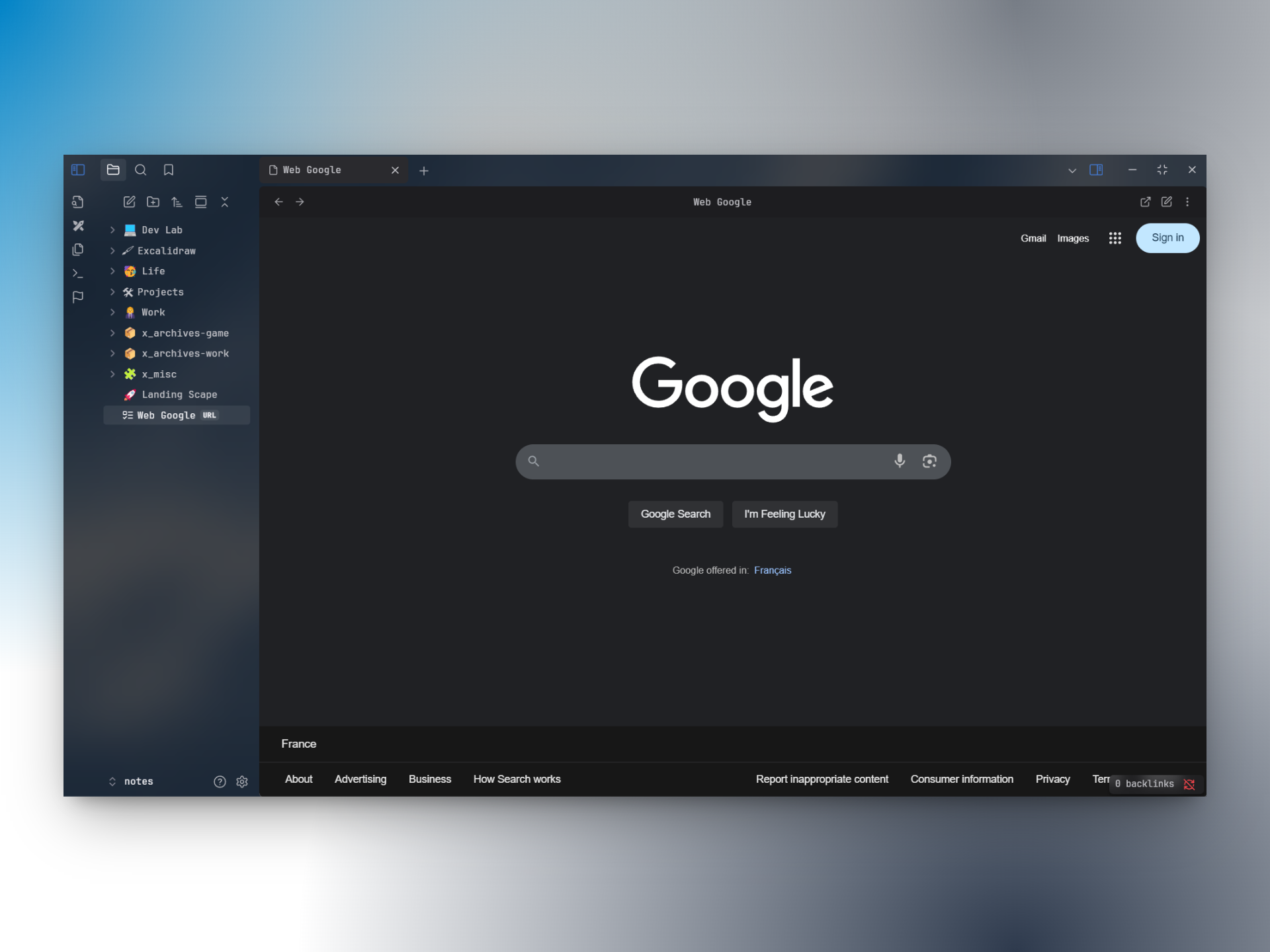
A lightweight and minimalist Obsidian plugin to view, open, and edit
.urlfiles directly in Obsidian’s native webview. Perfect for users who want to keep web documents or webapps accessible inside Obsidian, while standard links still open in your browser. If you simply want all links to open in a webview, use the Webview Core Plugin instead.
Installation
From Obsidian (easiest)
Install the plugin from the Community plugins section in the app settings.
From git
Clone the plugin in your .obsidian/plugins directory:
cd /path/to/your/vault/.obsidian/plugins
git clone https://github.com/Kieirra/obsidian-url-extension.git
From source
Download the latest release and unzip it in the .obsidian/plugins/obsidian-url-extension directory.
Usage
Create URL file
You can create a .url file in three ways:
- Ribbon icon (left bar)
- Command palette: “Create .url file”
- Folder context menu (right-click a folder) → "Create .url file"
Location rules:
- If a folder is selected in the file explorer: the file is created inside that folder.
- Else if a file is selected: the file is created next to that file (same folder).
- Else: the file is created in the parent folder of the active file; if none, at the vault root.
Newly created .url files open directly in edit mode.
You can write either a plain URL:
https://example.com
Or Windows format:
[InternetShortcut]
URL=https://example.com
View and Edit
- File context menu (right-click a
.urlfile) → "Edit URL" - Or open the
.urlfile and click the edit icon (top right) - Use the "Open in browser" button (top right) to launch the link in your default browser.
Note: When a .url file is created via the plugin, edit mode takes precedence over “Open in browser by default” for that first open.
Automatic URL normalization
If you type a URL without a scheme (e.g. www.google.com), the plugin automatically prepends https:// when opening the link (https://www.google.com). If you include a scheme (http://, https://, etc.), it is respected as-is.
Features
Configure in Settings > Community plugins > URL WebView Opener:
- Open in browser by default: Automatically opens the link in your default browser when you click a
.urlfile. - Fullscreen mode: Displays the webview in fullscreen for a more immersive experience, hiding the header bar. You can toggle the header bar back by clicking the chevron icon.
Publish a new version
- Build the plugin with
npm run build - Push a commit with the new version number as message with:
- The relevant changelog in
README.md - The new version number in
manifest.json - The updated
main.js(withnpm run build)
- The relevant changelog in
- Tag the commit with the version number
- Publish a new GitHub release with:
- The version number as title
- The changelog from
README.mdas description main.js,styles.cssandmanifest.jsonfrom as attachments- Set as the latest release checked
Changelog
| Version | Date | Notes |
|---|---|---|
1.4.1 |
2026-08-18 | Rename the plugin to comply with the community directory naming rules; popout window compatibility, respect the user's file deletion preference, and code scan cleanups |
1.4.0 |
2026-05-12 | Auto-fetch the page title and rename the file when saving a new URL |
1.3.1 |
2025-09-01 | Fix error when clicking on "Edit URL" that do not open the editor |
1.3.0 |
2025-09-01 | Add file context-menu action "Edit URL" and when "Open in browser by default" is enabled, automatically close the empty Obsidian tab after opening in the browser and fix the 'Failed to open' error |
1.2.2 |
2025-08-18 | Fix "Failed to open" when "Open in browser by default" is enable for new/empty url file |
1.2.1 |
2025-08-17 | Cancel on newly created .url deletes the empty file and closes the tab; Cancel on existing files simply exits edit mode |
1.2.0 |
2025-08-15 | Add ribbon and folder context-menu creation, open-newly-created in edit mode, and automatic https:// normalization |
1.1.3 |
2025-07-10 | Update manifest.json (minimal obsidian version supported) |
1.1.2 |
2025-06-11 | Removed title from settings to comply with plugin guidelines |
1.1.1 |
2025-06-11 | Fix issues to publish plugin |
1.1.0 |
2025-06-10 | Add fullscreen mode and navigation buttons |
1.0.0 |
2025-06-10 | Initial version |
License
This project is released under the MIT License.
Contributing
Bug reports and feature requests are welcome!