
- Overview
- Scorecard
- Updates6
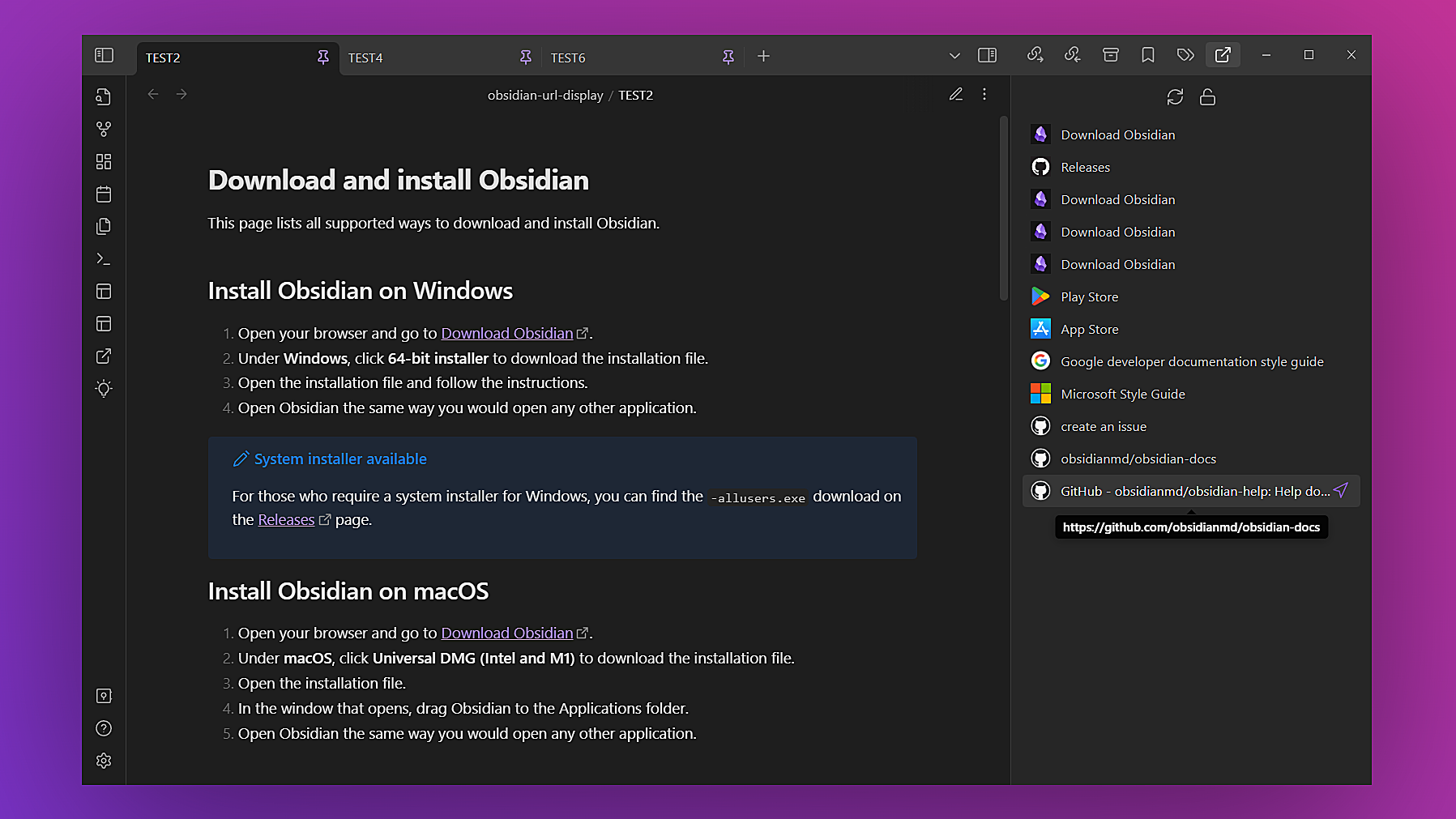
The plugin can extract and display external URLs from the active note in Obsidian.
Features
- Extract external URLs in the active note (including kanban) and show them in the pane.
- Customize the content displayed in the pane through plugin settings page, including deduplicate URLs, ignore file property, use alias, show favicon, show indicator icon, hover link preview...
- When switching between notes, the URL list is automatically refreshed to the current note; if the URL list is locked, it remains unchanged.
- Left-click to navigate to the location of the URL in the active note.
- Middle-click (or click the navigation icon for special case) to open the URL in a new browser tab.
- Right-click to copy URL or conduct a global search.
Installation
- Directly install from Obsidian's community plugins, or:
- Download the latest release. Extract and put 3 files (main.js, styles.css, manifest.json) to folder {{obsidian_vault}}/.obsidian/plugins/obsidian-url-display.
Usage
Open the pane
- Select on the plugin icon in the ribbon or open the command palette and select the command
URL Display: Open URL pane. - If you want to turn off the pane you need to right select on the plugin icon in the sidebar and select "Close".
Refresh URL list
- Select the Refresh icon on the toolbar in the pane or open the command palette and select the command
URL Display: Refresh URL list. - If you make changes to your notes, it is necessary to trigger a refresh of the URL list manually, or trigger a refresh by switching notes to ensure that the URL list is up to date.
Lock URL list
- Select the Lock icon on the toolbar in the pane.
- With Locked URL List enabled, you will not be able to select the Refresh icon and will only be able to locate URLs while the corresponding note is active.
- After enabling Locked URL List, if you find an error in locating URLs, or want to refresh the URL list, or change the plugin settings, please disable and re-enable Locked URL List under the corresponding notes.
Please note
- If you want to display the URL list as soon as possible, it is recommended that enable
Use aliasand disableShow favicon. - If enable
Deduplicate URLs, you can only navigate to the first occurrence of the URL. - URLs in inline codes and code blocks are not extracted and displayed.
- For navigating to the location of the URL in callout or table, it dosen't work in Live Preview, and it is not obvious enough in Reading View, but it is okay in Source Mode.
- Unable to locate URLs in properties.
Details
Supported URL formats
https://example.org
[Alias](https://example.org)
[](https://example.org)
About URL metadata
If you enable Show favicon or disable Use alias in the plugin settings, the plugin will use the free MicroLink API (https://api.microlink.io?url=) to request URL metadata (to get the website title or favicon), but there is a limitation: 50 requests/day. Don't worry, the plugin will cache the metadata to avoid repeated requests of same URLs. Note that it takes a certain amount of time to request URL metadata (depending on the number of URLs in the note).
About cache mode
If you want to show favicons faster, you can set cache mode to memory cache, but please note that it may affect the current performance. If you don't care about speed and there are many URLs, it is recommended to choose disk cache.
Todos
- Improve URL metadata retrieval.
- Improve URL locating and locking.
- Support other views.
- Add URL favorites.
- Add URLs to note footer as footlinks.
Thanks
Thanks to the following great plugins for reference and inspiration:
Contribution
If you see any errors or room for improvement on this plugin, feel free to open an issues or pull request on obsidian-url-display repository. Thank you in advance for contributing!
If this plugin adds value for you, I would appreciate if you could give this repository a star. 😊