Search...Search plugins and themes...
⌘K
Sign in
  • Get started
  • Download
  • Pricing
  • Enterprise
  • Account
  • Obsidian
  • Overview
  • Sync
  • Publish
  • Canvas
  • Mobile
  • Web Clipper
  • CLI
  • Learn
  • Help
  • Developers
  • Changelog
  • About
  • Roadmap
  • Blog
  • Resources
  • System status
  • License overview
  • Terms of service
  • Privacy policy
  • Security
  • Community
  • Plugins
  • Join the community
  • Discord
  • Forum / 中文论坛
  • Merch store
  • Brand guidelines
Follow us
DiscordTwitterBlueskyThreadsMastodonYouTubeGitHub
© 2026 Obsidian

Typing Assistant

jambo2018jambo201838k downloads

Support multiple shortcut menus to improve input efficiency.

Add to Obsidian
  • Overview
  • Scorecard
  • Updates18

Typing Assistant is a plugin that improves writing efficiency and provides a user experience similar to that of Notion

Demo 1
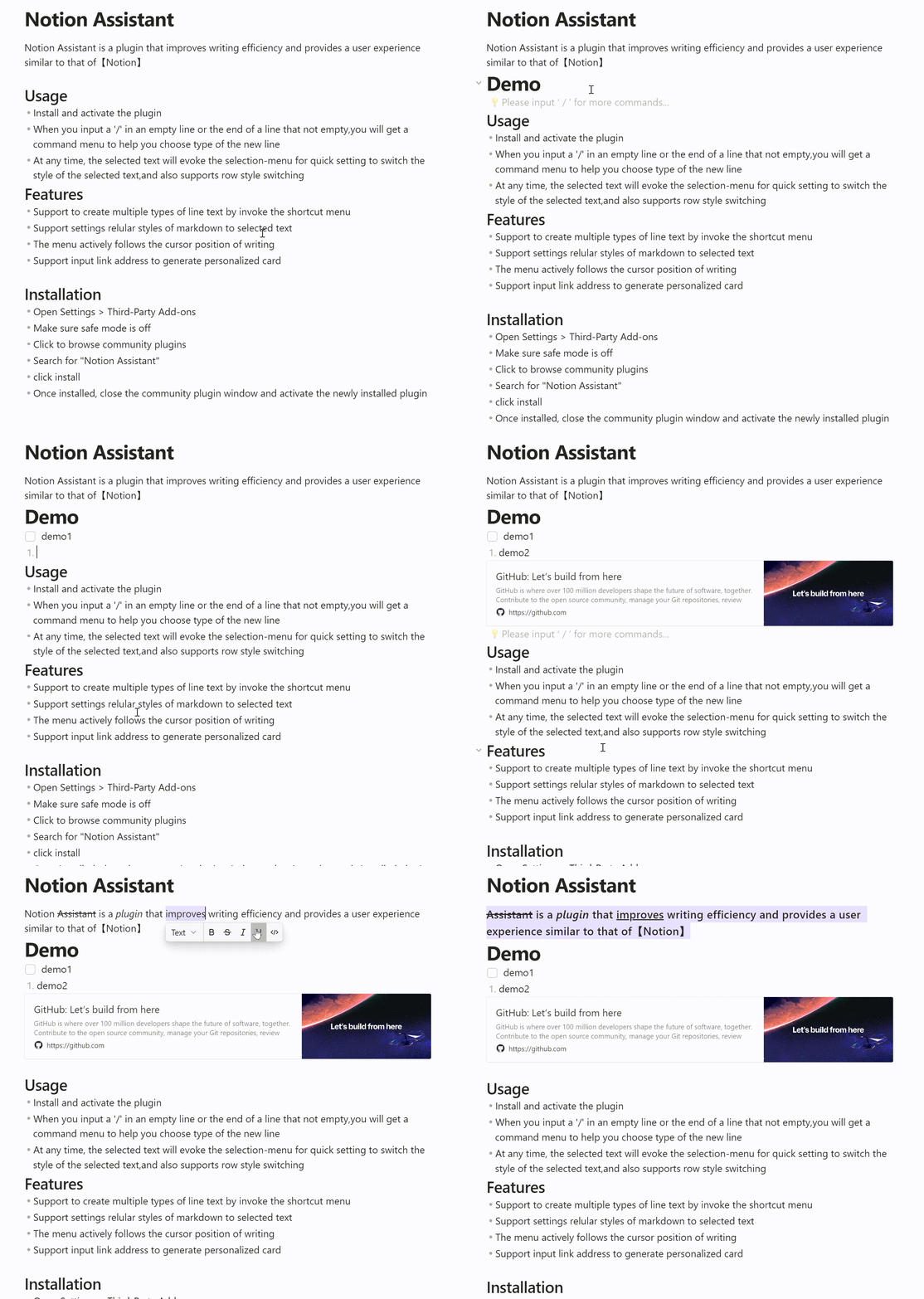
Typing Assistant Demo

Demo 2

https://github.com/alisahanyalcin/Typing-Assistant/assets/34830846/0994312e-ab97-45b1-b810-d1a9b62b9c40

Usage

  • Install and activate the plugin
  • When you input a '/' in an empty line or the end of a line that not empty, you will get a command menu to help you choose type of the new line
  • At any time, the selected text will evoke the selection-menu for quick setting to switch the style of the selected text,and also supports row style switching

Features

  • Support to create multiple types of line text by invoke the shortcut menu
  • Support settings regular styles of markdown to selected text
  • The menu actively follows the cursor position of writing
  • Support input link address to generate personalized card
  • Supports custom command combinations and drag-and-drop sorting
  • Support quick search of commands

Installation

  • Open Settings > Third-Party Add-ons
  • Make sure safe mode is off
  • Click to browse community plugins
  • Search for "Typing Assistant"
  • click install
  • Once installed, close the community plugin window and activate the newly installed plugin
75%
HealthGood
ReviewCaution
About
Improve writing speed with a slash-activated command menu that appears at the cursor and inserts multiple line types. Apply or switch markdown styles via a selection menu, generate link-based cards, create custom command sets with drag-and-drop ordering, and search commands quickly.
CommandsWritingMarkdown
Details
Current version
0.3.0
Last updated
4 months ago
Created
3 years ago
Updates
18 releases
Downloads
38k
Compatible with
Obsidian 0.15.0+
License
MIT
Report bugRequest featureReport plugin
Author
jambo2018jambo2018
github.com/Jambo2018
GitHubjambo2018
  1. Community
  2. Plugins
  3. Commands
  4. Typing Assistant

Related plugins

Importer

Import data from Notion, Evernote, Apple Notes, Microsoft OneNote, Google Keep, Bear, Roam, and HTML files.

Outliner

Work with your lists like in Workflowy or Roam Research.

Commander

Customize your workspace by adding commands everywhere, create macros and supercharge your mobile toolbar.

Various Complements

Complete words similar to auto-completion in an IDE.

Linter

Format and style your notes. Linter can be used to format YAML tags, aliases, arrays, and metadata; footnotes; headings; spacing; math blocks; regular Markdown contents like list, italics, and bold styles; and more with the use of custom rule options.

Text Generator

Generate text content using GPT-3 (OpenAI).

Smart Composer

AI chat with note context, smart writing assistance, and one-click edits for your vault.

LanguageTool Integration

advanced spell/grammar checks with the help of language-tool.

Fantasy Statblocks

Create, manage and view a Fantasy Bestiary with Dungeons and Dragons style statblocks.

Custom Frames

Turn web apps into panes using iframes with custom styling. Also comes with presets for Google Keep, Todoist and more.