Theme Quick Switch
 lyxtsinghua554 downloads
Quickly switch between light, dark, follow-system, and eye-care themes, with gentler PDF reading.
- Overview
- Scorecard
- Updates1
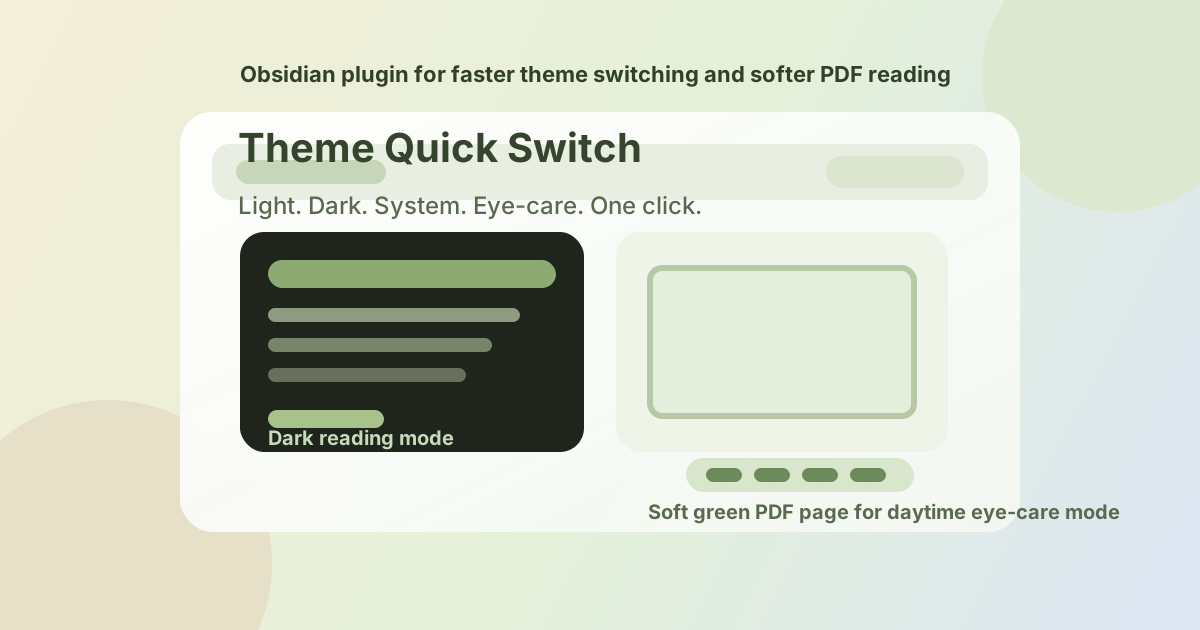
One-click theme switching and eye-care reading for Obsidian, with extra care for PDF reading.
What This Plugin Is For
This plugin exists to remove one of the most annoying parts of daily Obsidian use: diving into Settings every time you want to switch between light mode, dark mode, follow-system mode, and a softer reading mode.
It is especially useful if you:
- switch between day and night themes frequently
- want Obsidian to follow your operating system theme
- read long notes or long PDFs and find the default colors too harsh
- want a more comfortable "eye-care" reading look without changing themes manually all the time
- want PDF pages to feel softer in daytime reading instead of staying stark white
Why It Is Useful
This plugin gives you a fast, visible control surface directly inside Obsidian:
- a ribbon icon for instant light/dark toggling
- status bar buttons for
light,dark,system, andeye-care - an eye-care mode that softens the overall palette
- eye-care PDF styling so daytime PDF pages can look light green instead of bright white
In short: fewer clicks, less eye strain, faster switching, and a better PDF reading experience.
Features
1. One-click light/dark toggle
Click the ribbon icon to switch between light mode and dark mode without opening Settings.
2. Follow-system mode
Use the status bar to switch Obsidian back to system-follow mode whenever you want.
3. Eye-care mode
Turn on a softer reading palette for long reading sessions.
4. Eye-care PDF pages
When eye-care mode is on in light theme, the PDF page background becomes a soft green tone instead of pure white, making PDF reading feel much gentler.
5. Command palette support
The plugin also adds commands, so you can bind your own hotkeys if you want.
Included Commands
The plugin adds these commands:
亮色/暗色切换切换到亮色切换到暗色切换到跟随系统切换护眼模式
You can assign hotkeys from Obsidian's Hotkeys settings if you prefer keyboard-based switching.
UI Overview
After enabling the plugin, you will get:
- a
sun-moonribbon icon on the left sidebar - a status bar control group that shows:
浅for light mode深for dark mode系for follow-system mode护for eye-care mode
Installation
Method 1. Install with BRAT
This is the easiest way to let early users try the plugin before it appears in the official community plugin browser.
- Install the BRAT plugin.
- Open BRAT settings in Obsidian.
- Choose
Add beta plugin. - Enter this repository:
lyxTsinghua/obsidian-theme-quick-switch
- Confirm and install.
Method 2. Manual install
- Download or clone this repository.
- Copy the entire folder into your vault:
.obsidian/plugins/theme-quick-switch/
- Make sure these files exist in that folder:
manifest.json
main.js
styles.css
- Open Obsidian.
- Go to
Settings -> Community plugins. - Turn off
Restricted modeif it is enabled. - Find
Theme Quick Switchand enable it. - Reload Obsidian if needed.
Method 3. Install from source into a vault directly
If you are comfortable working with files:
- Open your vault folder.
- Open
.obsidian/plugins/. - Create a folder named
theme-quick-switch. - Copy
manifest.json,main.js, andstyles.cssinto that folder. - Reload Obsidian.
- Enable the plugin from
Community plugins.
How To Use
Quick switching
- click the ribbon icon to toggle light/dark instantly
- click
浅in the status bar for light mode - click
深for dark mode - click
系for follow-system mode - click
护to toggle eye-care mode
Best setup for most users
If you want Obsidian to mostly follow your OS but still keep a quick reading mode:
- use
系as your default - switch
护on when reading for a long time - click the ribbon icon when you want a manual light/dark override
PDF Behavior
This plugin is designed to improve PDF reading comfort:
- in normal dark mode, PDF pages are inverted for dark reading
- in eye-care + light mode, PDF pages are tinted to a soft green tone
- the PDF container is also softened so the page and surrounding area feel consistent
Important note about scanned PDFs
Some scanned or image-based PDFs may not react as nicely as text-based PDFs, because the PDF page is rendered as a canvas. In those cases, the result may still vary depending on the file itself.
Compatibility
- Obsidian
1.5.0or later - Desktop and mobile-compatible in manifest
- best experience on desktop because the status bar controls are most visible there
File Structure
theme-quick-switch/
├─ manifest.json
├─ main.js
├─ styles.css
├─ versions.json
└─ README.md
Development Notes
- author:
lyx - plugin id:
theme-quick-switch - current version:
0.1.0
Troubleshooting
The plugin does not appear in Obsidian
- confirm the folder name is exactly
theme-quick-switch - confirm
manifest.jsonis directly inside that folder - make sure
Restricted modeis turned off - reload Obsidian
Eye-care mode changes the app but not the PDF enough
- try a text-based PDF instead of a scanned PDF
- confirm no other CSS snippet is overriding the PDF page styles
- reload Obsidian after updating the plugin files
I only want follow-system mode
You can ignore the eye-care button and simply use 系 as your default control.
License
MIT