Search...Search plugins and themes...
⌘K
Sign in
  • Get started
  • Download
  • Pricing
  • Enterprise
  • Account
  • Obsidian
  • Overview
  • Sync
  • Publish
  • Canvas
  • Mobile
  • Web Clipper
  • CLI
  • Learn
  • Help
  • Developers
  • Changelog
  • About
  • Roadmap
  • Blog
  • Resources
  • System status
  • License overview
  • Terms of service
  • Privacy policy
  • Security
  • Community
  • Plugins
  • Themes
  • Discord
  • Forum / 中文论坛
  • Merch store
  • Brand guidelines
Follow us
DiscordTwitterBlueskyThreadsMastodonYouTubeGitHub
© 2026 Obsidian

Table Tools

yujiayujia72 downloads

Add row numbers beside any Markdown table, give it an editable caption and footnote stored in the note, and copy it as an image or Markdown.

Add to Obsidian
Table Tools screenshot
  • Overview
  • Scorecard
  • Updates2

Markdown tables in Obsidian have no row numbers, nowhere to put a caption, and no way to hand one to somebody else without reformatting it by hand. Table Tools adds all three, without touching the table's Markdown.
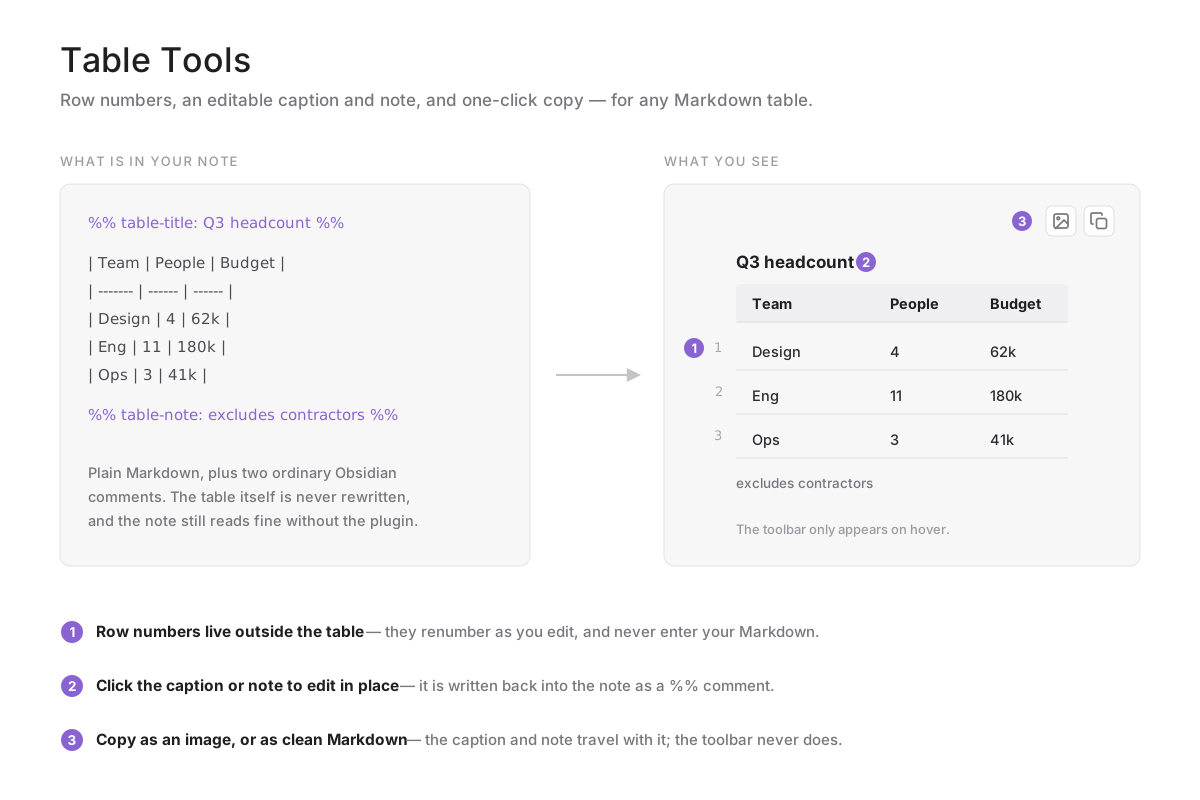
What Table Tools adds to a Markdown table

What it does

Row numbers in the gutter. Every body row is numbered in the margin beside the table. The numbers are drawn outside it, so they renumber themselves as you add and delete rows and never end up in your Markdown.

A caption above and a note below. Click either one to type; press Enter to save or Escape to discard. Both are stored in the note itself, as ordinary Obsidian comments:

%% table-title: Q3 headcount %%

| Team    | People | Budget |
| ------- | ------ | ------ |
| Design  | 4      | 62k    |

%% table-note: excludes contractors %%

The comment lines are hidden in Reading view and in Live Preview, and reappear in source mode or when your cursor is on them. Because they are plain comments, the note stays readable — and the table stays valid Markdown — with the plugin disabled or uninstalled.

Copy the table out. Hovering a table reveals two buttons in its top-right corner:

  • Copy as image renders the table, caption and note to a PNG on your clipboard, using your current theme. The toolbar and any empty placeholders are left out of the shot. If the clipboard is unavailable the PNG is saved into your vault instead.
  • Copy as Markdown puts a clean Markdown table on the clipboard, with the caption as a bold line above it and the note in italics below.

There is also a Process tables on this page command, for the rare table that a plugin or an embed renders after the page has settled.

Installing

From Obsidian: Settings → Community plugins → Browse, search for Table Tools, then Install and Enable.

Manually: download main.js, manifest.json and styles.css from the latest release into <your vault>/.obsidian/plugins/table-tools/, then enable the plugin in Settings.

Notes

  • The interface follows Obsidian's own language setting: Chinese when Obsidian is in Chinese, English otherwise.
  • Editing a caption or note rewrites that one comment line in the note. The table's own rows are never rewritten.
  • If a table cannot be matched back to a line in the note — which can happen inside an embed or a rendered code block — the caption and note are read-only there, and a notice says so rather than writing to the wrong place.

Building it yourself

npm install
npm run build     # bundles src/ into main.js

Releases are built by GitHub Actions from a version tag and published with build provenance, so the main.js in a release can be verified against this source.

License

MIT

HealthExcellent
ReviewPassed
About
Markdown tables in Obsidian have no row numbers, nowhere to put a caption, and no clean way to hand one to someone else. Table Tools adds all three without touching the table's Markdown. Row numbers are drawn in the gutter beside the table, so they renumber themselves as you add and delete rows and never enter your source. Click above or below a table to add a caption or a footnote. Both are stored in the note as ordinary Obsidian comments, hidden in Reading view and Live Preview. Your note stays readable, and the table stays valid Markdown, with the plugin disabled. Hovering a table reveals two buttons: copy it as a PNG rendered in your current theme, or as a clean Markdown table with the caption and footnote attached. The interface follows Obsidian's own language setting.
EditingFormatting
Details
Current version
1.2.1
Last updated
3 weeks ago
Created
3 weeks ago
Updates
2 releases
Downloads
72
Compatible with
Obsidian 1.2.0+
Platforms
Desktop, Mobile
License
MIT
Report bugRequest featureReport plugin
Author
yujiayujiarainajia716
GitHubrainajia716
  1. Community
  2. Plugins
  3. Editing
  4. Table Tools

Related plugins

Editing Toolbar

The Editing Toolbar is modified from cMenu, which provides more powerful customization settings and has many built-in editing commands to be a MS Word-like toolbar editing experience.

Sort and Permute lines

Sort and Permute lines in whole file or selection.

List Callouts

Create simple callouts in lists.

Symbols Prettifier

Prettify the symbols with actual symbols you commonly type, like arrows.

Trim Whitespace

Trim unnecessary whitespace.

Admonition

Admonition block-styled content.

Linter

Format and style your notes. Linter can be used to format YAML tags, aliases, arrays, and metadata; footnotes; headings; spacing; math blocks; regular Markdown contents like list, italics, and bold styles; and more with the use of custom rule options.

LanguageTool Integration

Advanced grammar and spell checking, powered by LanguageTool.

Meta Bind

Make your notes interactive with inline input fields, metadata displays, and buttons.

Thino

Quickly capture memos and display them in the sidebar with a heatmap. (Closed source)