Table Rollup
 theluckystrike10 downloads
Merges the Markdown tables under one heading in many notes into one sortable table, as a Bases view, with a link to each source note.
- Overview
- Scorecard
- Updates4
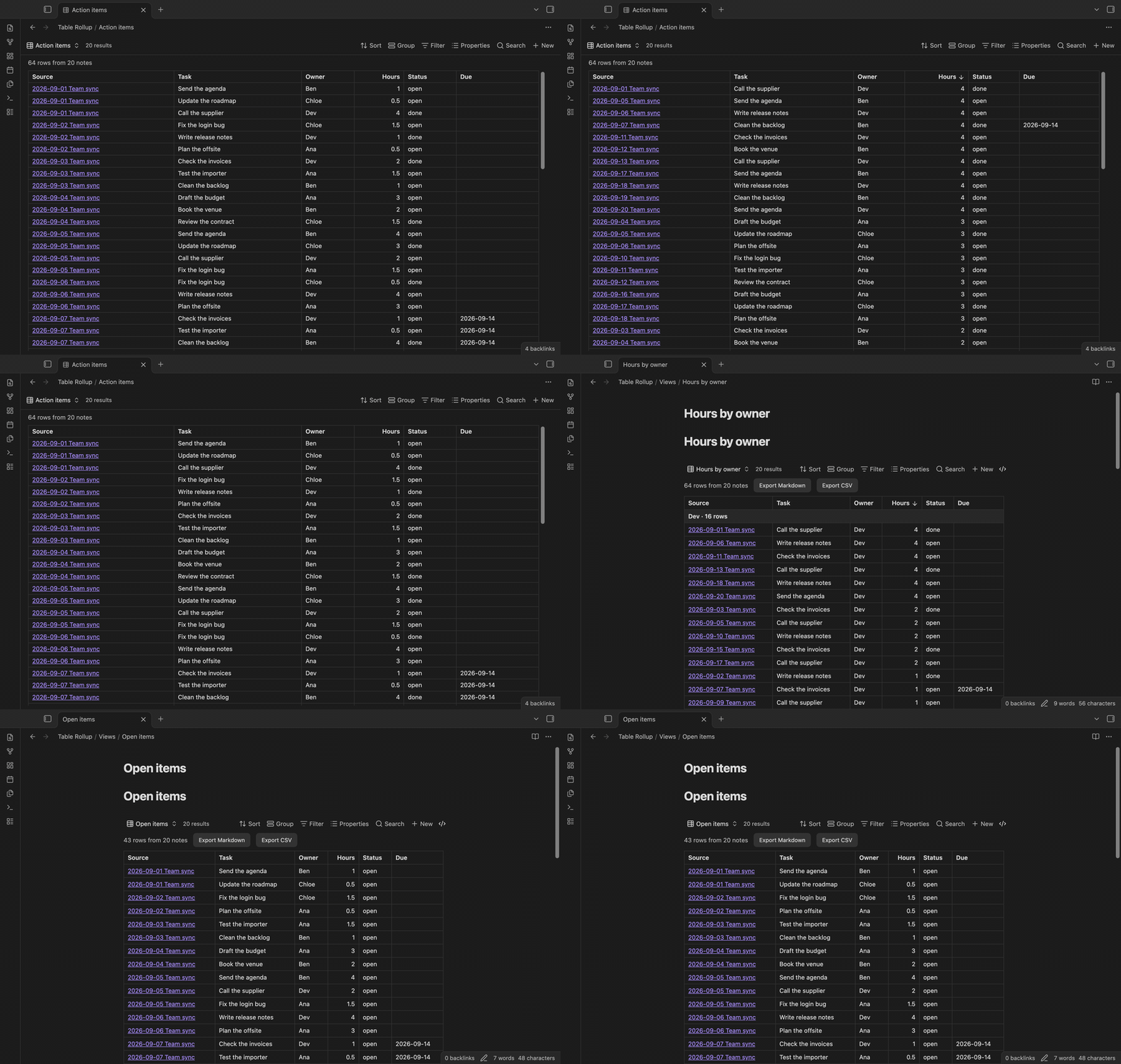
Table Rollup merges the Markdown tables from many notes into one table. You keep a small table under the same heading in each note, for example "Action items" in each meeting note or "Expenses" in each daily note. Table Rollup shows all those rows together, with a link to the note that each row came from. Your data stays in your notes.
Table Rollup is a view for the core Bases plugin. The base selects the notes, and Table Rollup draws one merged table from their tables. It uses only the public Bases API for plugins.
Features
One table from many notes
Each note in the base gives the rows of its table under the heading that you choose. The merged table matches the columns by name. Case, bold text and column order do not matter, so "Owner" in one note and "owner" in another note go into the same column. A column that only some notes have is added at the end. A Source column links to each note. Hover over the link to see a preview, or Ctrl-click (Cmd-click on macOS) to open the note in a new tab.
Sort by any column
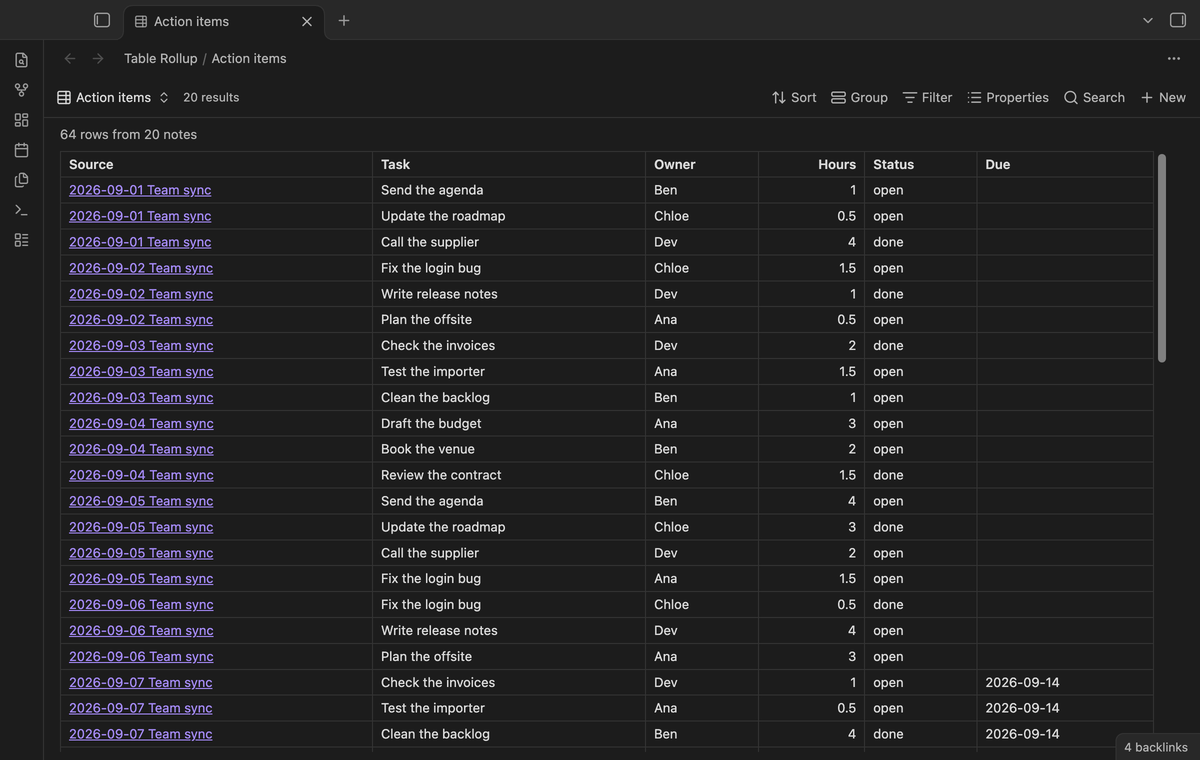
Click a column header to sort the rows. Click again to sort the other way, and a third time to go back to the note order. Numbers sort as numbers, and empty cells stay at the end.
Live update and embeds
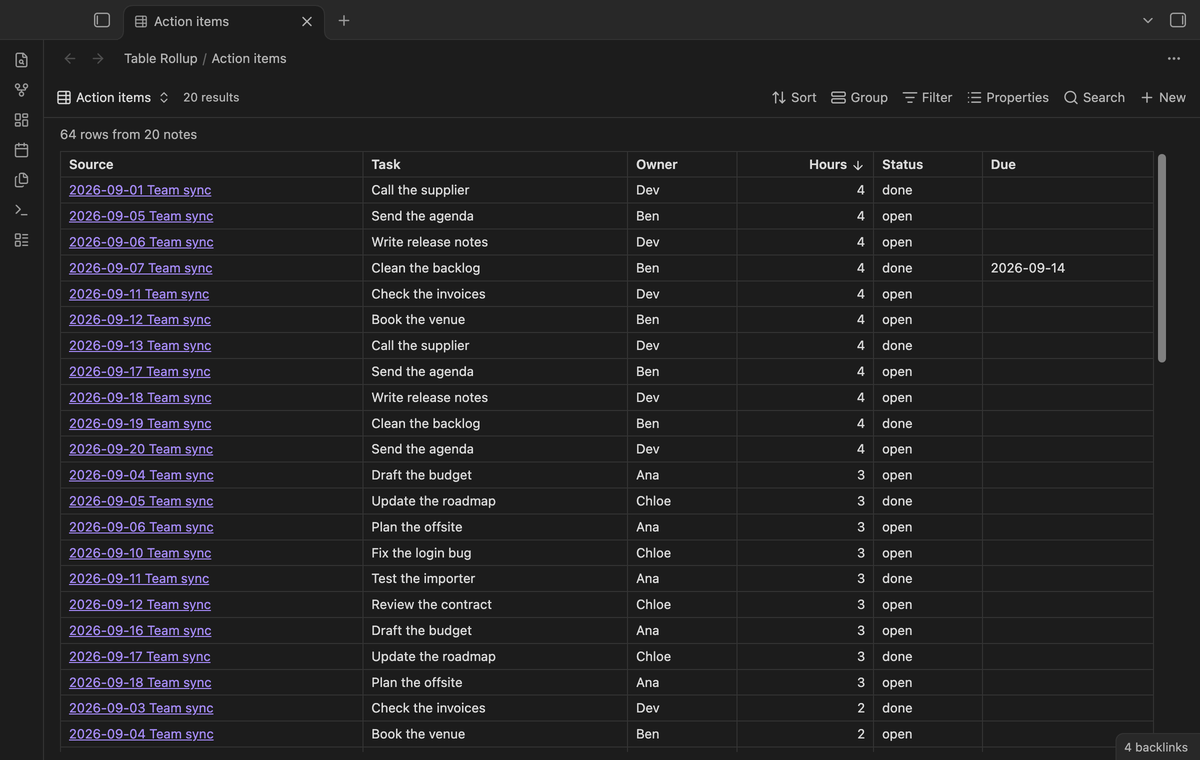
When you edit a source note, the merged table draws again after a short delay. You can embed the view in any note with ![[Your base.base#View name]], for example in a weekly review.
Summary rows and group subtotals (Pro)
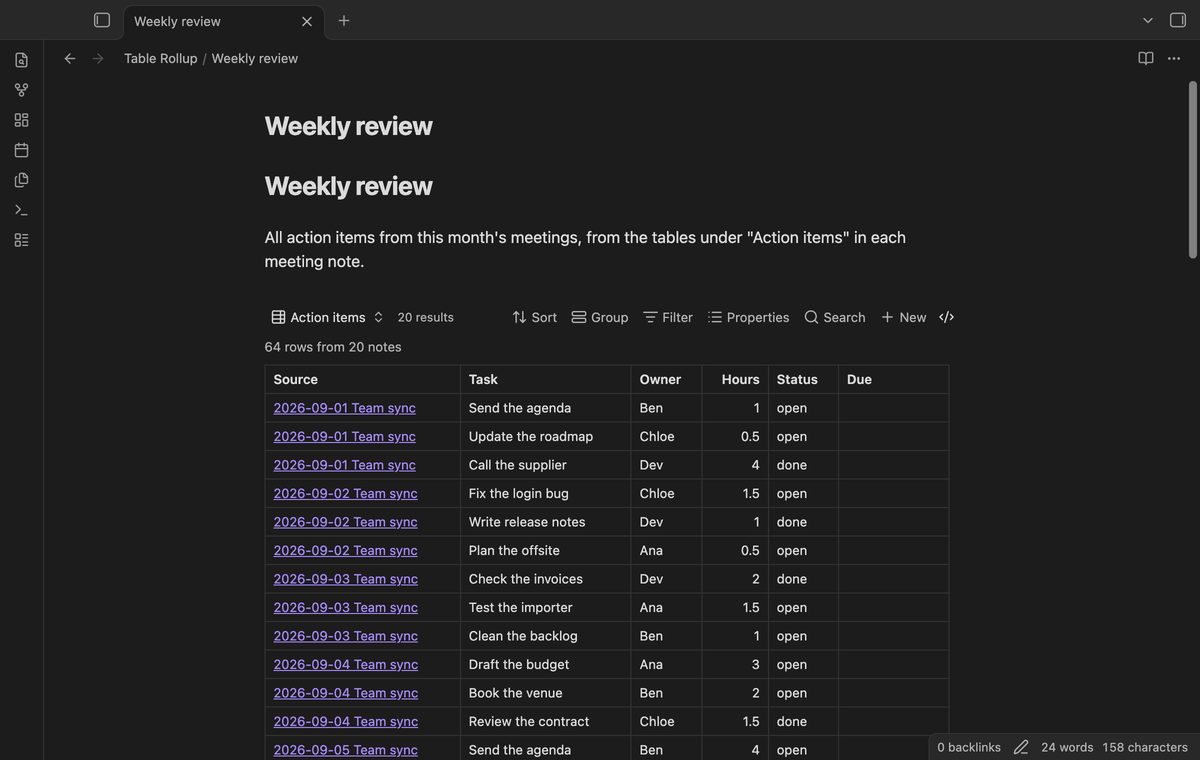
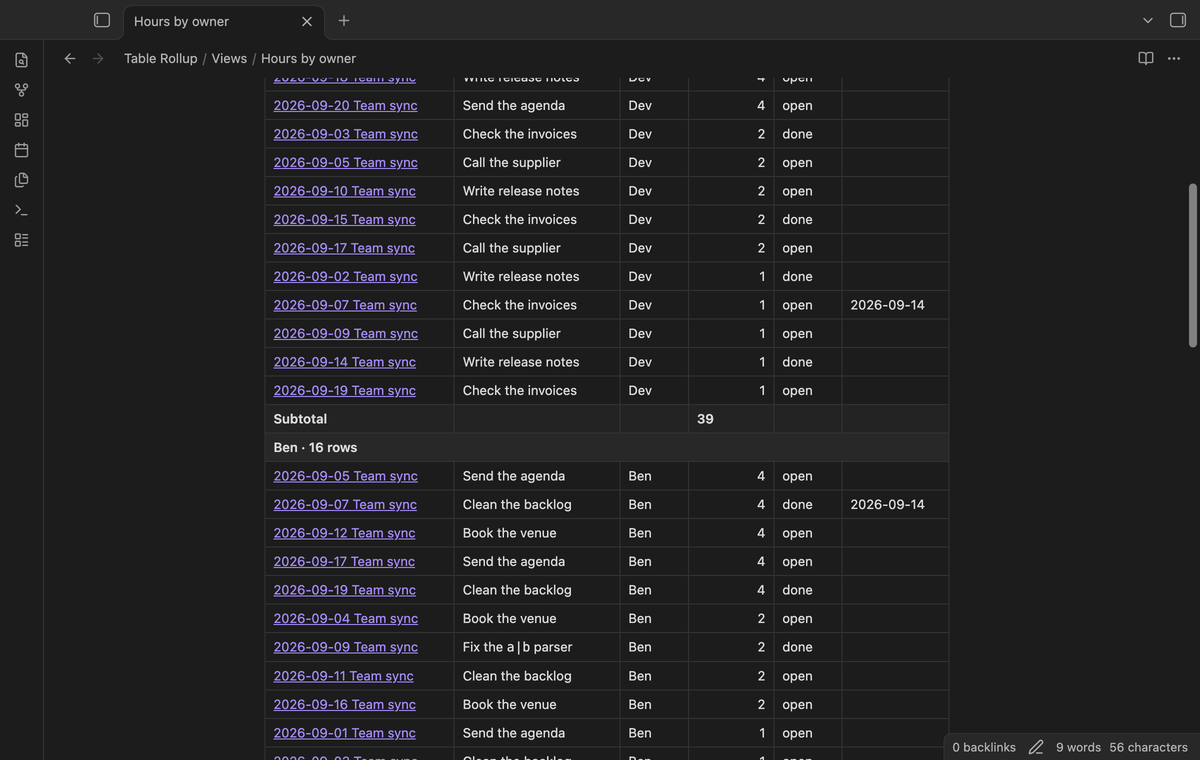
Add a summary row with the sum, average, count, smallest or largest value of each column. Sum, average, min and max apply only to columns where every filled cell is a number. Values such as "$1,200.50" and "12 %" count as numbers. Group the rows by any column, or by Source, to get a subtotal for each group.
Filter rows (Pro)
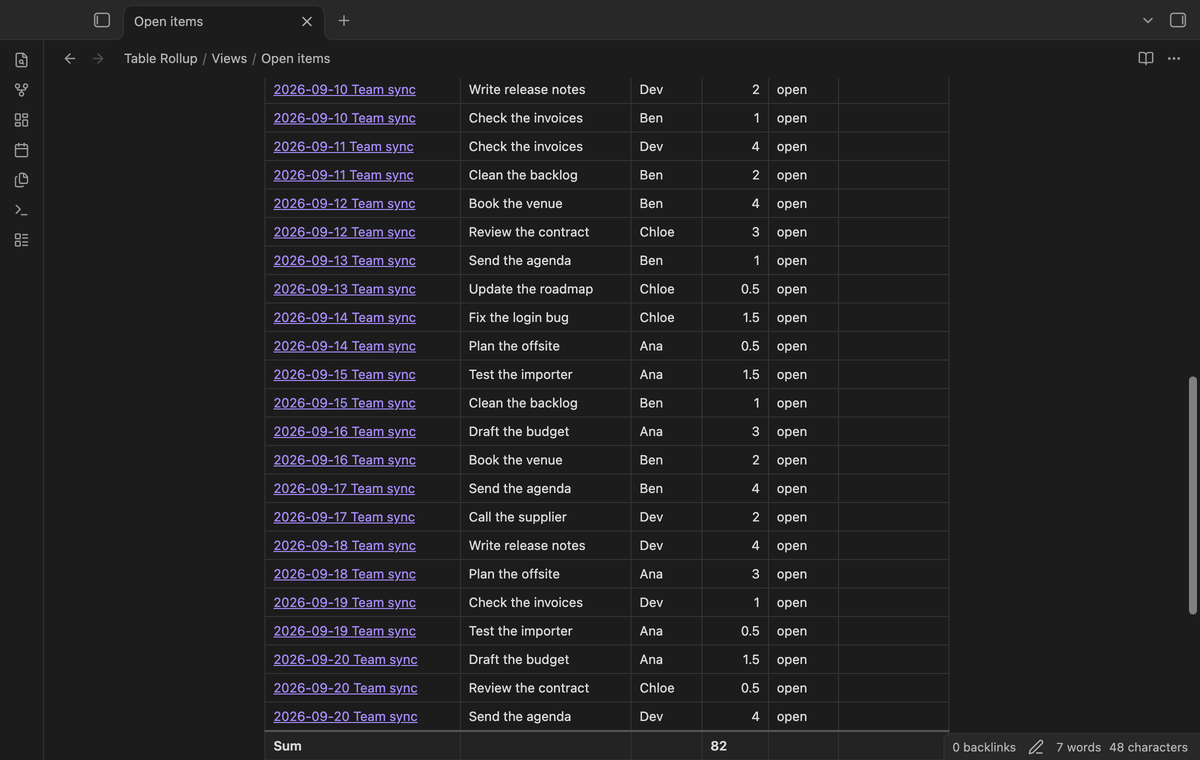
Keep only the rows where a column contains, equals or does not equal a value, or where a number is larger or smaller than a value. The summary row then adds up only the rows that are left.
Task list rollup (Pro)
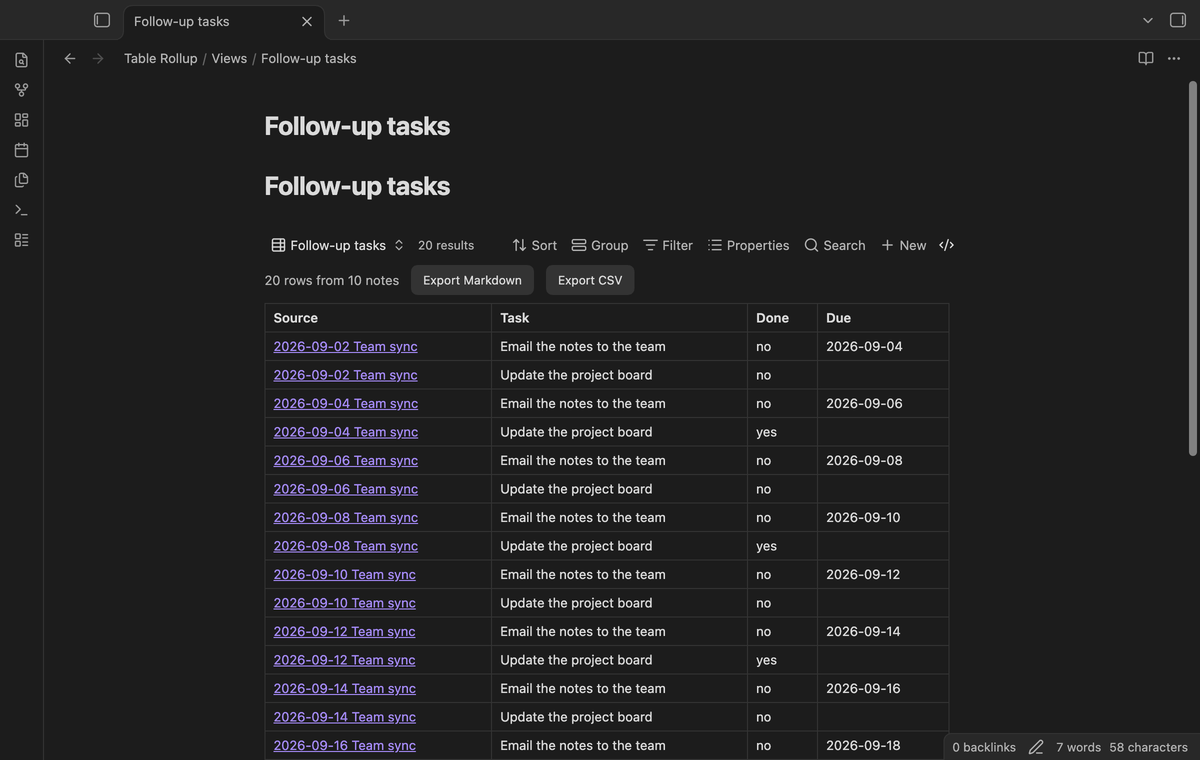
Set Read to Tasks to collect the task list items under a heading instead of a table. The merged table has the columns Task, Done and Due. Due comes from a date after the calendar emoji (U+1F4C5), the format that the Tasks plugin writes.
Export to a note or CSV (Pro)
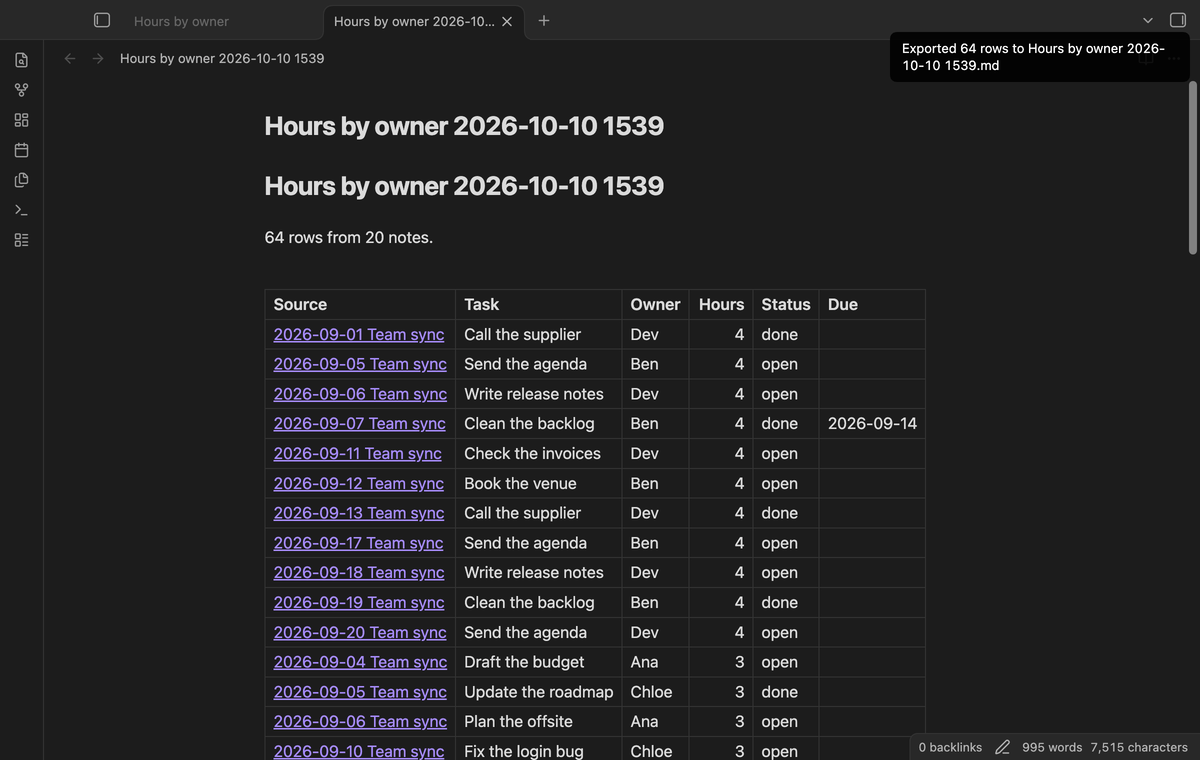
Export the merged table, with its filter and sort, to a new Markdown note or a CSV file. The Markdown table links each row back to its source note and ends with the summary row. Use the buttons above the table or the commands "Export the merged table as a Markdown note" and "Export the merged table as a CSV file".
Install
- Open "Settings → Community plugins" and turn off restricted mode.
- Select "Browse", search for "Table Rollup", then select "Install" and "Enable".
- Make sure that the core plugin "Bases" is on ("Settings → Core plugins").
To install by hand, copy main.js, manifest.json and styles.css from the latest release into <vault>/.obsidian/plugins/table-rollup/. Then enable the plugin. You need Obsidian 1.13.4 or later.
Usage
- Create a base, or open one. Set its filters so that it selects the notes with your tables, for example a folder or a tag.
- Select the view menu in the base toolbar and add a view of the type "Table rollup".
- Open the view options. In "Under heading", type the heading above your tables, for example
Action items.
Table Rollup uses the first table under that heading in each note, including tables in sub-sections. Leave "Under heading" empty to use the first table of each note. Tables in code blocks and in the front matter are ignored. Tables inside callouts and quotes are read.
The cells can hold links, tags, inline code, bold and italic text. A pipe inside inline code, inside a wikilink alias or written as \| stays in its cell.
Pro
The free version merges the tables under one heading from up to 50 notes that have rows, with column sort, the Source column, embeds and live update. When more notes have rows, the table says how many it left out.
Pro removes the 50-note limit and adds summary rows, group subtotals, row filters, export to Markdown or CSV, and the task list rollup. To get it:
- Sponsor theluckystrike on GitHub Sponsors with $5 a month, or $15 once. When you have paid $15 in total, Pro stays on.
- In Obsidian, open the settings of Table Rollup and select "Sign in with GitHub".
- The plugin copies a code and opens github.com/login/device. Paste the code there and approve.
The status line then shows your GitHub login and the tier. If you sponsor after you sign in, select Refresh. If a monthly sponsorship ends before you have paid $15 in total, Pro turns off at the next check, within 7 days. Your view options stay saved in the base file and work again when Pro is on.
Settings
The view options are in the base toolbar. They are saved with each view in the base file.
| Option | What it does |
|---|---|
| Read | Tables, or Tasks (Pro). |
| Under heading | The heading above the tables. Empty means any heading. |
| Which table | First, second, third or all tables under the heading. |
| Columns | Column names to show, in this order. Empty shows all columns. |
| Show source column | Shows or hides the Source column. |
| Summary row (Pro) | None, sum, average, count, min or max. |
| Group by column (Pro) | A column name, or Source. |
| Filter column, rule and value (Pro) | Keeps only the rows that match. |
The plugin settings tab has the Pro section (sign in with GitHub, status and Refresh) and one setting. "Live update delay" is the time in milliseconds to wait after an edit before the tables draw again, from 100 to 2000. The default is 300.
FAQ
Does Table Rollup change my notes?
No. It only reads notes. Export creates a new file and does not touch the sources.
How is this different from Dataview?
Dataview reads properties and inline fields, not Markdown tables. The request for tables as a data source has been open since 2021 (Dataview issue 555).
How is this different from SQLSeal and Block View?
SQLSeal can read a Markdown table, but you write one TABLE x = table(file:...) line for each file and then SQL to join them, and you edit the query for each new note. Block View lists matching blocks from many notes and can show only matching table rows, but it shows each table on its own, without merged columns, column sort or totals.
How fast is it?
In the end-to-end test with 500 notes and 2,000 rows, a full draw took 15 to 164 ms on an M3 Pro Mac. Table Rollup skips notes that have no table, and it keeps parsed tables until a note changes.
Payment, account and network
The core features are free and stay free. Pro features need a GitHub Sponsors sponsorship of theluckystrike: $5 a month or more, or $15 once. When you have paid $15 in total, Pro stays on. Your notes stay readable and editable with or without Pro.
GitHub handles the payment. Sponsor at https://github.com/sponsors/theluckystrike. You need no account for the free features. Pro needs the GitHub account that sponsors.
Until you select "Sign in with GitHub" in the settings, Table Rollup makes no network requests. Sign in uses the GitHub device flow. Table Rollup sends its public client ID and the scope read:user to https://github.com/login/device/code and shows you a code. While you enter the code at https://github.com/login/device, it asks https://github.com/login/oauth/access_token every few seconds whether sign in is done. The scope read:user is read-only access to your profile, which GitHub needs to show the sponsorship tier. It gives no access to repositories and no write access.
After sign in, Table Rollup sends one query to https://api.github.com/graphql: does the signed-in account sponsor theluckystrike, at which tier, and how much it has paid theluckystrike in total. It asks again at most once every 7 days, or when you select Refresh. It sends no note content, file names or other vault data, and it has no telemetry.
Pro keeps working for 14 days without a successful check. The GitHub token stays in the secret storage of Obsidian on this device. It is not written to data.json or other vault files, so it does not sync or reach a git repository. The local storage of this device keeps your GitHub login, the tier and the time of the last check. Sign out deletes the token. You can also revoke the access in your GitHub settings, under Applications.
Support
Report bugs and ask for features in the GitHub issues of this repository. Add your Obsidian version and a small sample note.