Table Fields
 Rosetta Zidian Guo592 downloads
Give table columns a type — checkbox, select, date, currency, percentage — with inline controls in Live Preview and Reading view. Stays a plain pipe table on disk.
- Overview
- Scorecard
- Updates1
Your Markdown tables, but you can actually click them — tick checkboxes, pick from dropdowns, and see dates and money formatted nicely — all inside your note.
English · 中文 — Engineering ›
Table Fields gives each column a meaning. Tell it "this column is a checkbox", "this one is a status dropdown", "this one is money" — and your plain table turns into something you can operate like a tiny spreadsheet. And here's the promise: underneath, it's still just a normal Markdown table. Turn the plugin off and your note is exactly as readable as before. No database, no hidden file, no lock-in.
Dropdown, date, money, and checkbox fields render in the note
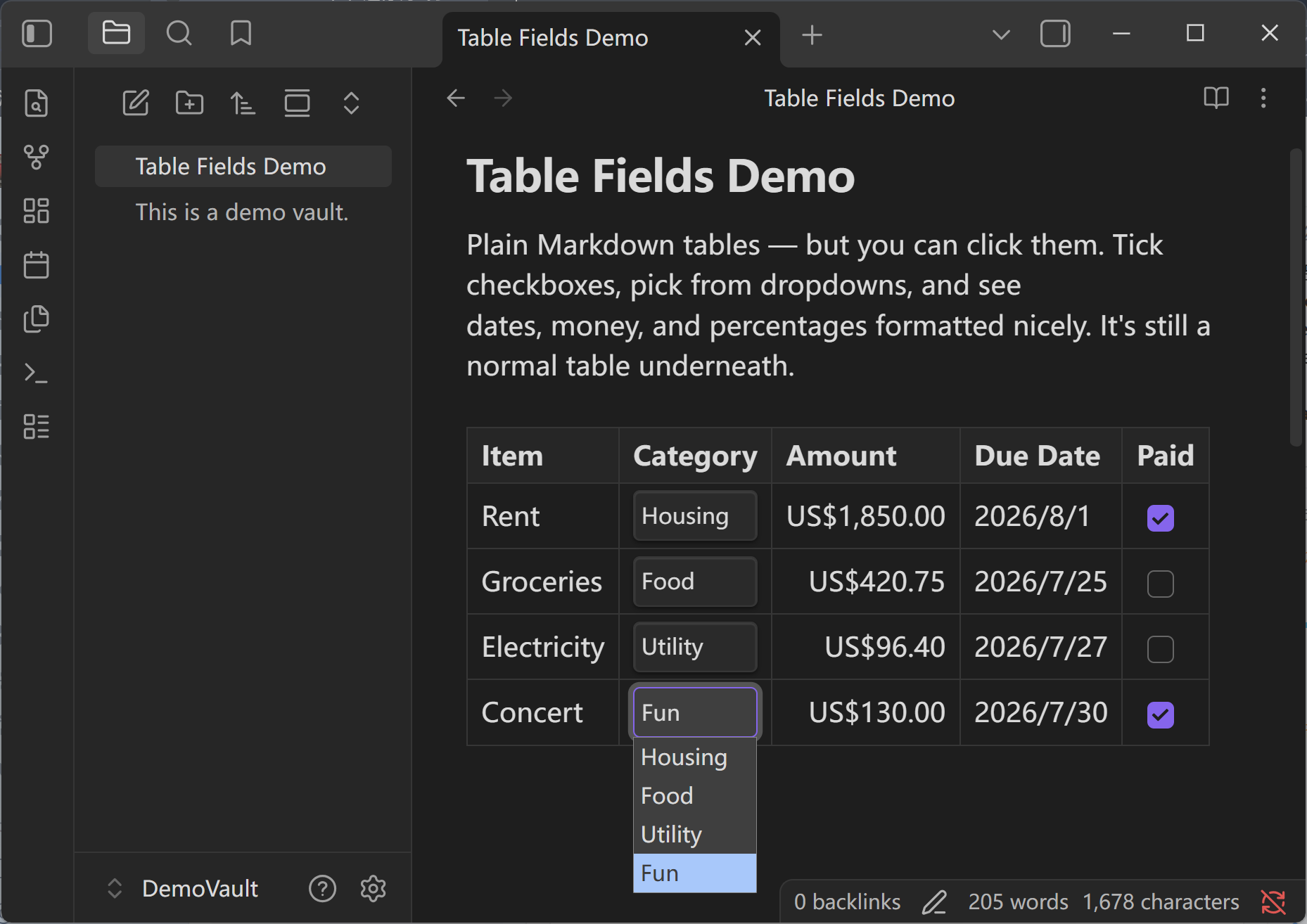
- ☑️ Checkboxes you can tick — click to mark something done, right in the table.
- 🔽 Dropdowns — pick a status or category from a fixed list, so values never drift.
- 💲 Money, %, and dates that look right — amounts line up with a currency symbol, dates read in your local format, percentages align neatly.
- 🖱️ Right-click a column to set what it is — no settings screen to hunt through.
- 👀 Works while you read and while you edit — the controls show up in both modes.
- 🧹 Nothing locked in — it's always a plain Markdown table on disk.
A tiny comment gives each column its field type
You write (or generate) a small note like this:
<!-- table-fields id="tasks" v="1"
cols:
  - {name: "Task",   type: "text"}
  - {name: "Status", type: "select", options: ["Todo","Doing","Done"]}
  - {name: "Due",    type: "date"}
  - {name: "Done",   type: "checkbox"}
-->
| Task           | Status | Due        | Done |
| -------------- | ------ | ---------- | ---- |
| Draft PRD      | Doing  | 2026-07-22 | [x]  |
| Review designs | Todo   | 2026-07-24 | [ ]  |
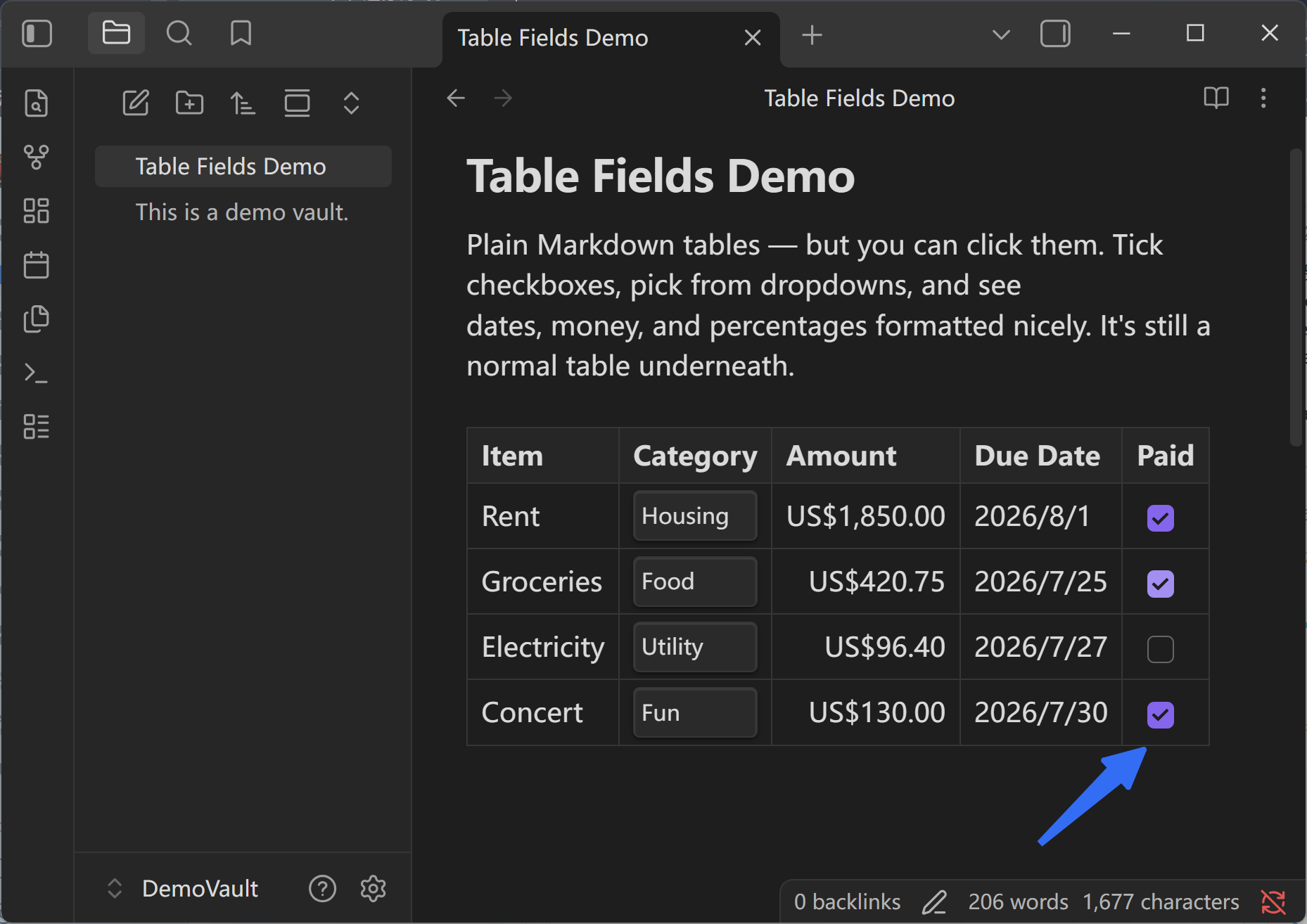
…and in your note it becomes a table where Status is a dropdown, Due shows a tidy date, and Done is a real checkbox you can click. Tick it, and the change is saved straight into the table.
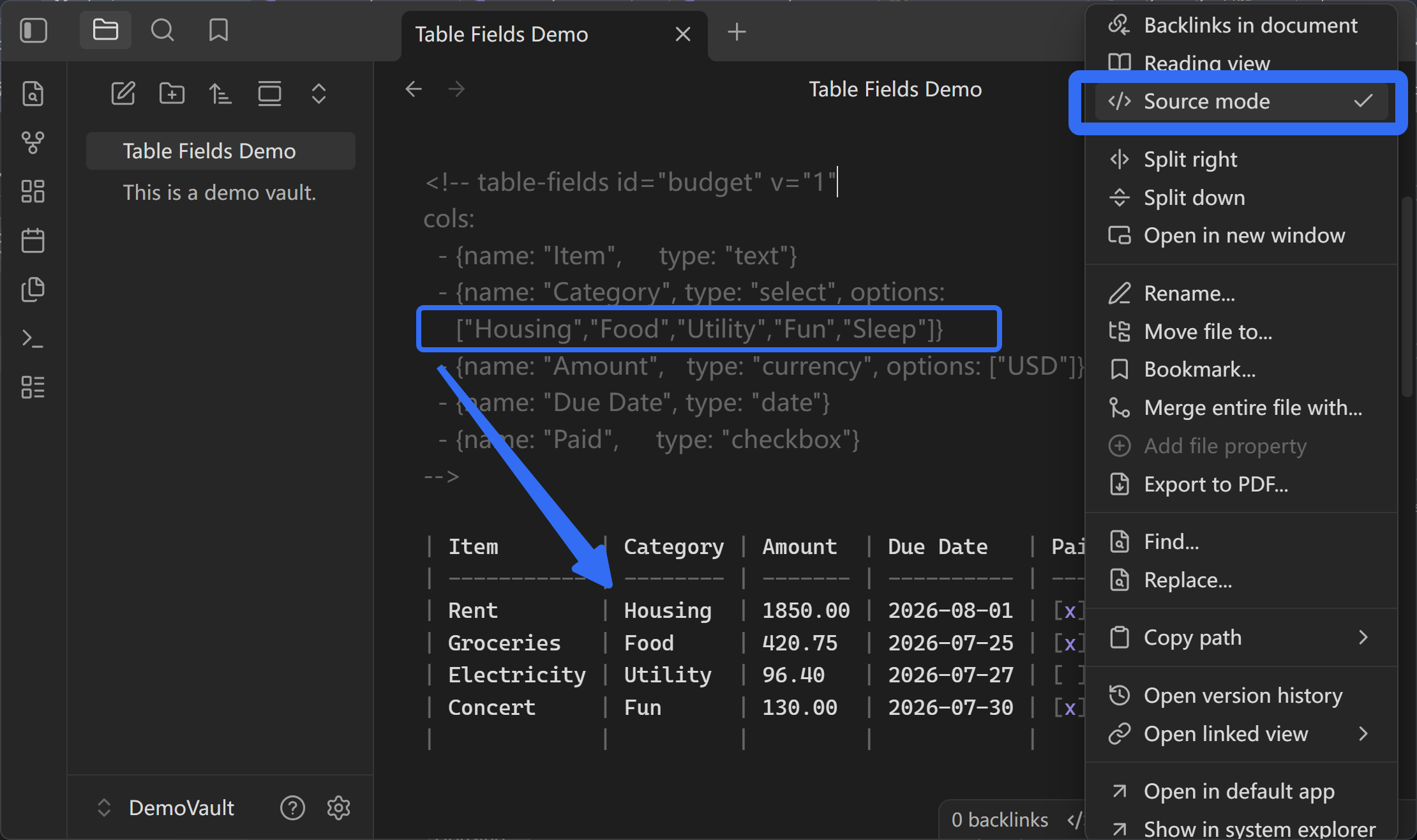
Dropdown choices are edited in Source mode
Switch the note to Source mode, find the type: "select" column, and edit its options list —
for example options: ["Low","Medium","High"]. When you switch back to Reading view or Live Preview,
the dropdown uses that list. Tip: if the new choices do not appear immediately, leave the note and
open it again to refresh the rendered dropdown.
Checkbox clicks write back to the Markdown table
Turning the plugin off leaves a readable Markdown table
- It's not a database. Tools like Obsidian Bases turn every row into a separate note. Table Fields keeps everything in one table in one note.
- It's not a separate spreadsheet. Other table tools store your data as a block of code you can no longer read. Table Fields never does that — it stays a plain table.
- Disable it anytime. Your note is still a clean, readable Markdown table. You never lose your data or your ability to read it in any other app.
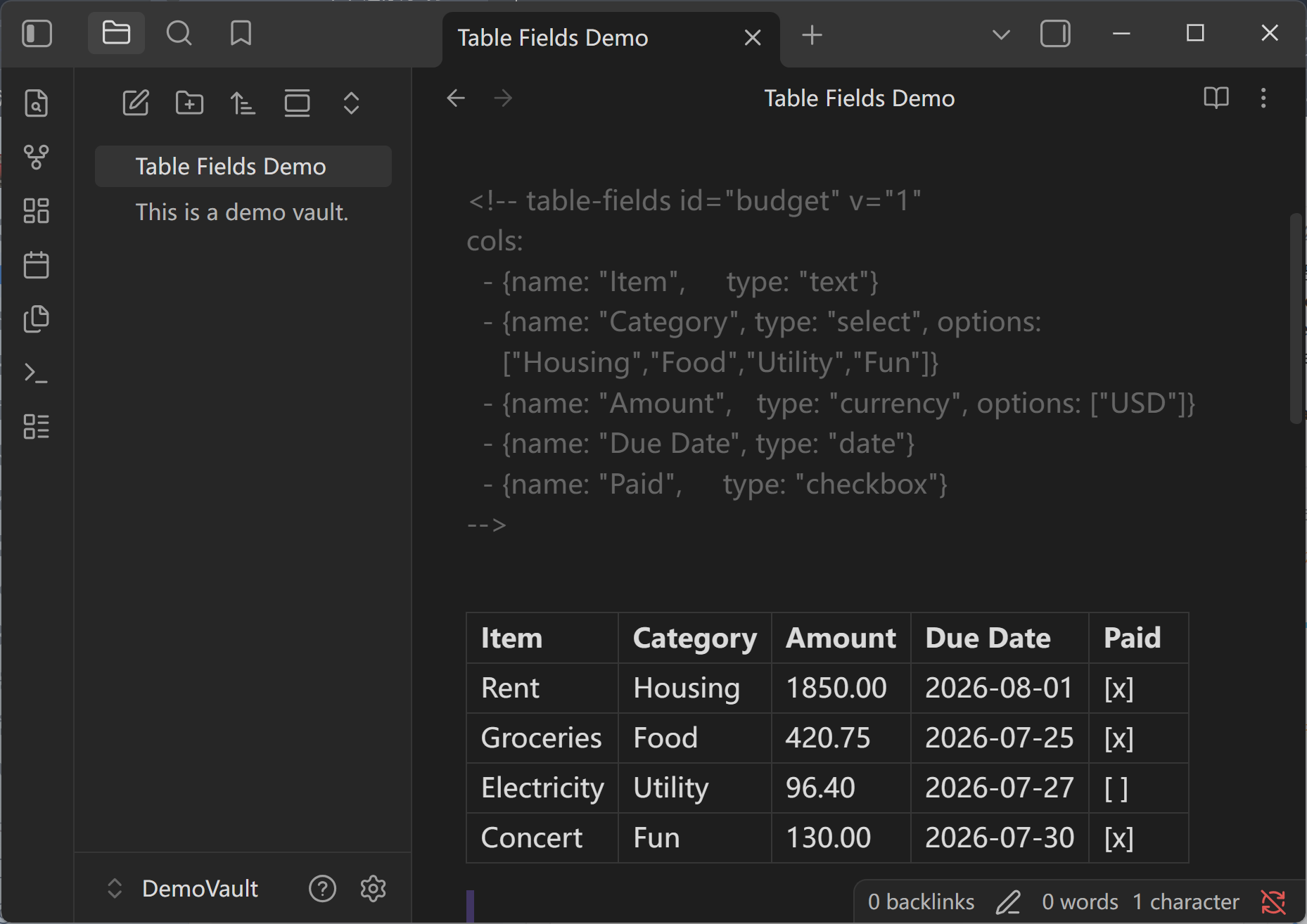
Mark any ordinary Markdown table to start
- Write a normal Markdown table.
- Put your cursor in it and run the command "Table Fields: Mark table under cursor as Table Fields" — it looks at your data and sets up the columns for you.
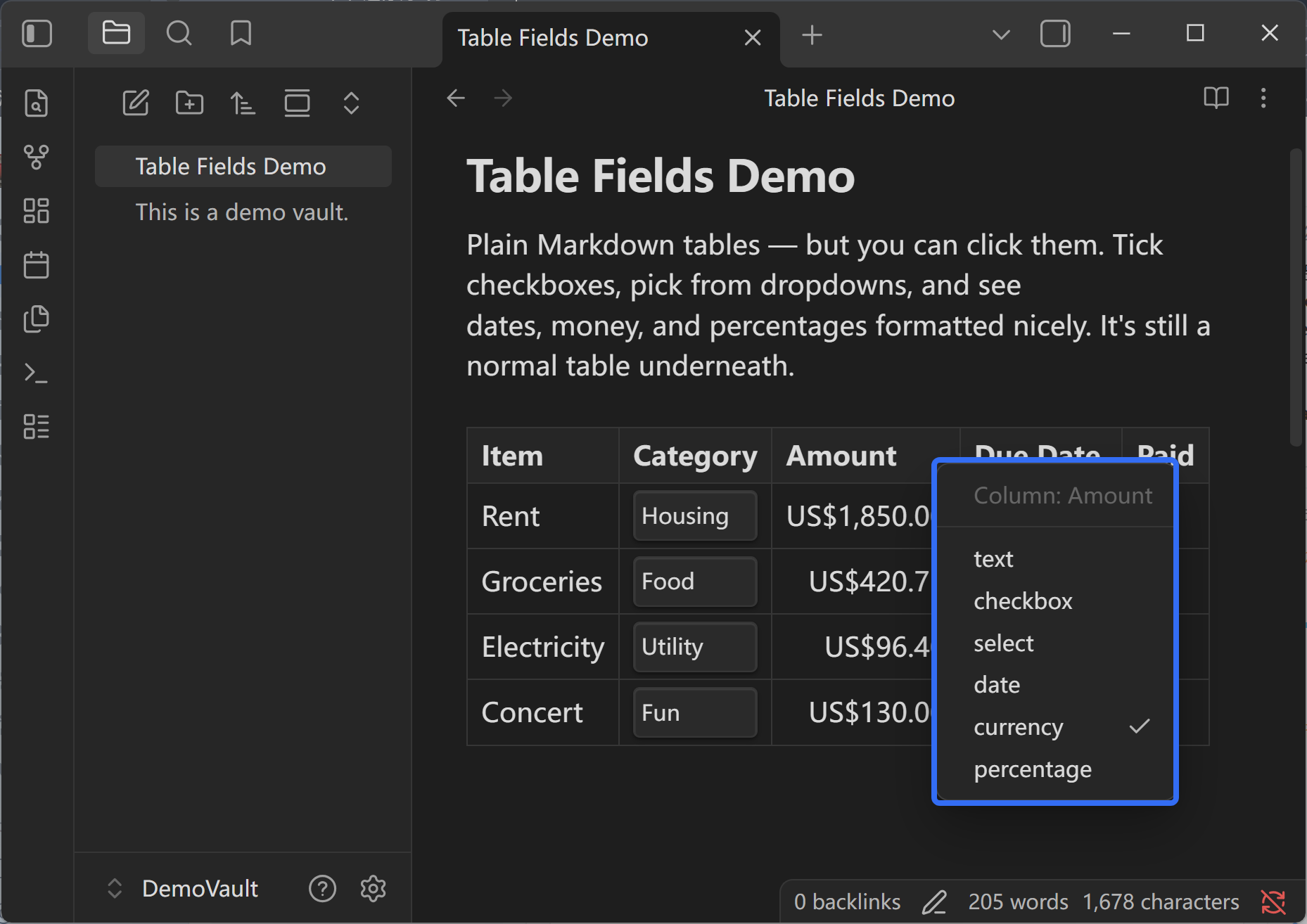
- Want to change a column? Right-click its header and pick the type (text, checkbox, dropdown, date, money, or percent).
That's it. Click your checkboxes and dropdowns; everything saves back into the note automatically.
Each field type keeps one kind of value tidy
- Checkbox columns — turn a column of
done / not doneinto clickable boxes. - Dropdown (select) columns — give a column a fixed set of choices (like Todo / Doing / Done) so everyone uses the same words.
- Money columns — type a plain number; it's shown with a currency symbol and lined up on the right.
- Percent columns — kept as simple
60%text, aligned for easy scanning. - Date columns — stored in a standard form, shown in your local date style.
- Right-click setup — change any column's type from the table itself, no config screen needed.
Let your AI read and edit your tables
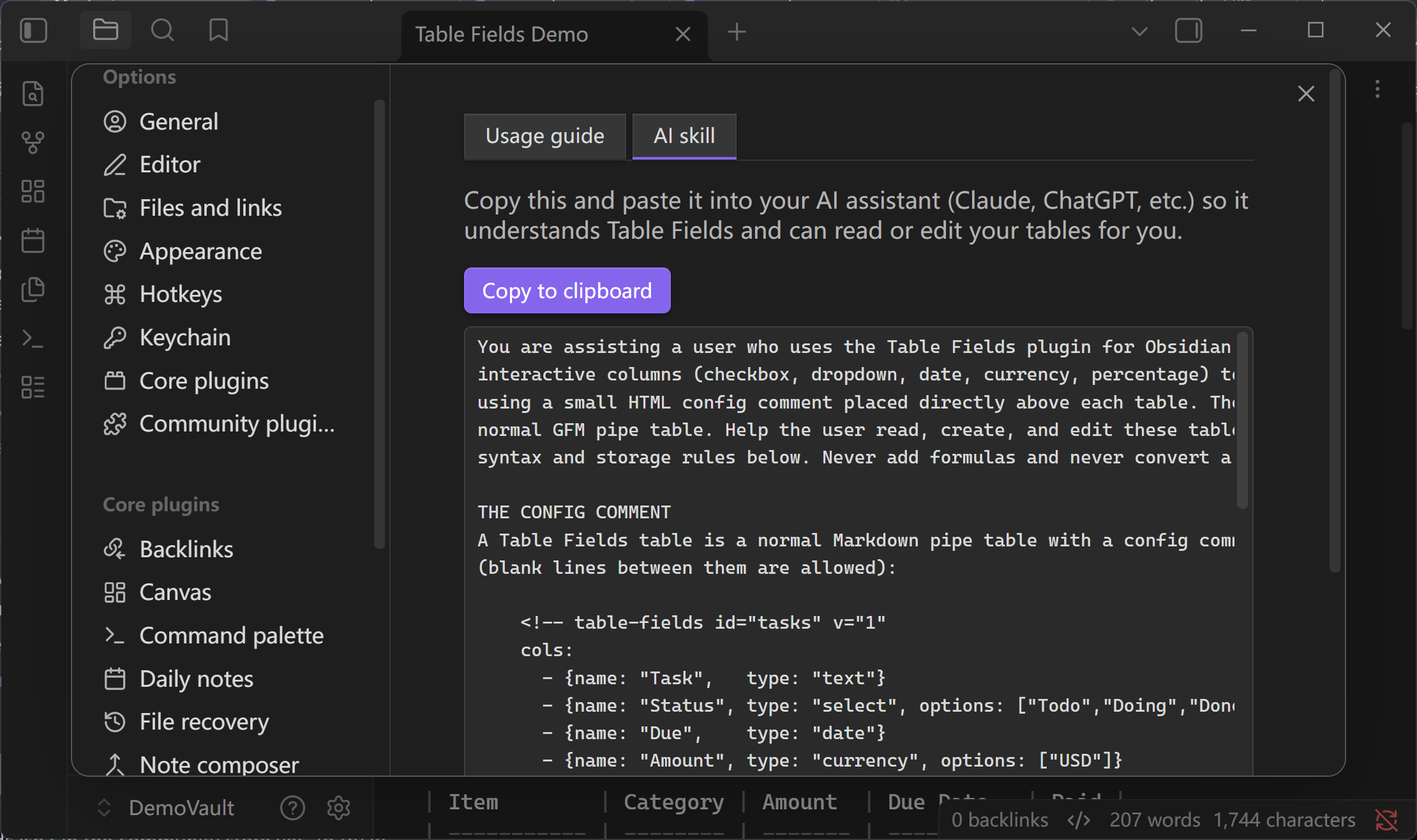
Table Fields ships a ready-made prompt for your AI. Open Settings → Table Fields → AI skill and hit Copy to clipboard, then paste it into Claude, ChatGPT, or any assistant — now it understands the Table Fields syntax and can read, create, and edit your tables for you.
Privacy & payment
Free, and fully local. Table Fields only reads and writes the tables in your own notes — nothing is sent off your device, there are no accounts or API keys, and the developer collects nothing. See PRIVACY.md for the full data-flow.
Curious how it works under the hood? See the Engineering README ›.