Stickyflow
Render SFL diagram code blocks as interactive diagrams you can pan, zoom and edit in place.
- Overview
- Scorecard
- Updates2

Stickyflow for Obsidian
An Obsidian community plugin for rendering diagrams in your notes.
Perfect for learning notes and visualizing concepts across all kinds of
domains: software engineering, mathematics, gaming taxonomies, and more.
Fenced ```sfl code blocks render as live, interactive diagrams inside
your notes, using stickyflow.js (SFL 1.4).
Why Stickyflow?
A diagram usually lives outside your notes: a separate whiteboard tab, a pasted screenshot, an embedded image that goes stale the moment the idea changes. An SFL diagram is just text, so it stays inside the note itself. It moves, renames, and version-controls with the note, and it never drifts out of sync with what you meant, since there's no separate copy to drift.
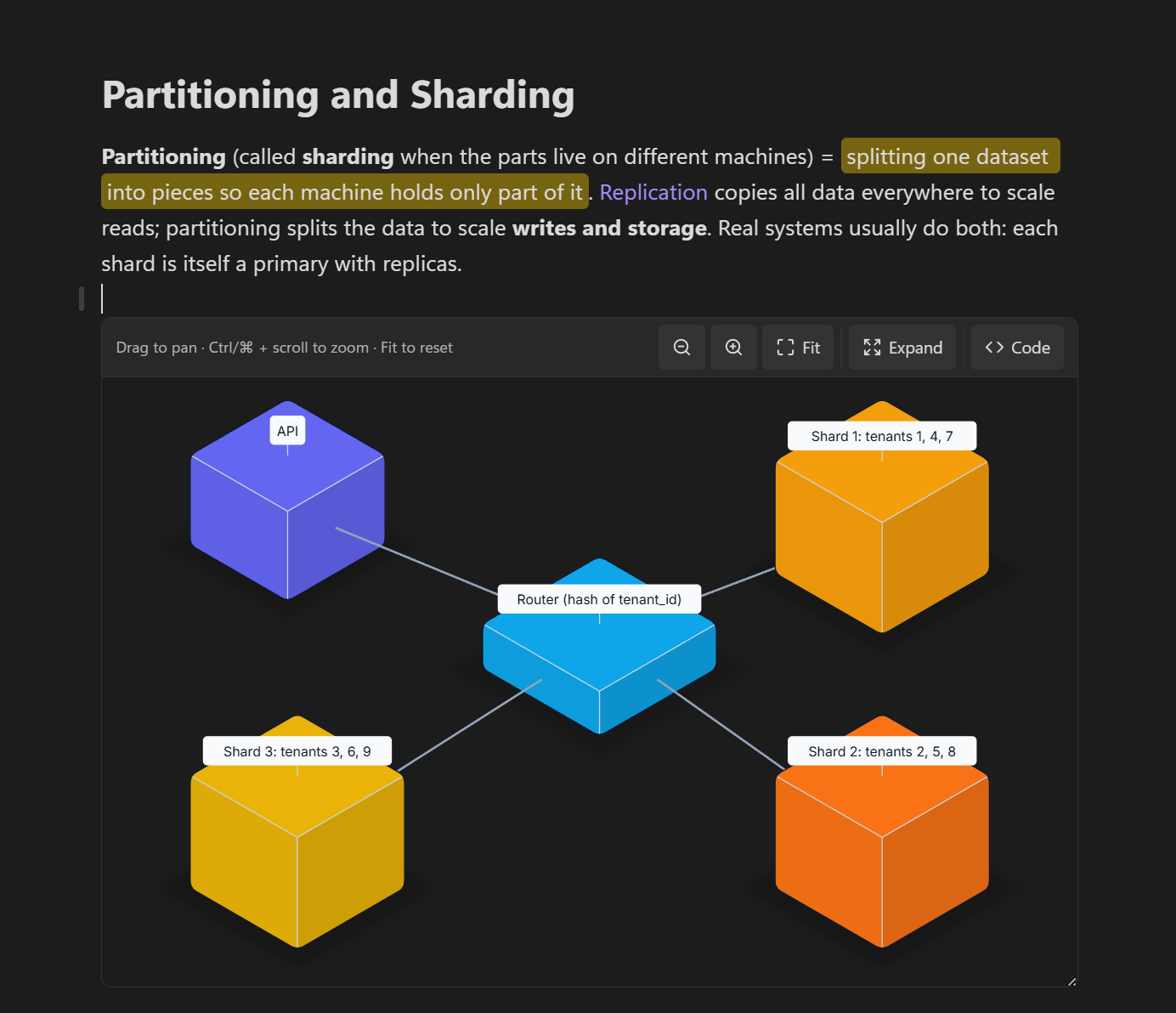
That fits how notes actually get used for thinking and learning: turning a new concept into a picture instead of a wall of prose, mapping out a system before writing about it, or keeping a precise diagram next to the explanation it belongs to. Software engineering architecture, mathematical structures, gaming taxonomies: anything you'd otherwise sketch on a whiteboard works just as well typed directly into the note.
Installation
From Community plugins
[!NOTE] Stickyflow is currently going through review for Obsidian's community plugin directory. Until it's listed, install it manually from the latest release.
- In Obsidian, open Settings → Community plugins. Turn off Restricted mode if this is your first community plugin.
- Select Browse, search for Stickyflow, then Install and Enable.
Manually
- Download
main.js,manifest.jsonandstyles.cssfrom the latest release, or build them yourself (see Build). - Copy those three files into your vault, in a folder named after the
plugin id,
stickyflow:mkdir -p "<vault>/.obsidian/plugins/stickyflow" cp manifest.json main.js styles.css "<vault>/.obsidian/plugins/stickyflow/" - In Obsidian, open Settings → Community plugins. Turn off Restricted mode if this is your first community plugin.
- Find Stickyflow under your installed plugins and enable it (may need a restart the first time a plugin is dropped in manually).
A note with a fenced ```sfl block should now render as an interactive
diagram.
On desktop, each block is a live viewer with a header bar of controls —
drag anywhere on the canvas to pan, wheel (or the − / + / Fit buttons) to
zoom, click a shape or link to select it (the header shows what's selected). With
the canvas focused (click it, or Tab to a shape) the keyboard drives the
camera too: + / - zoom, 0 fit, arrow keys pan (Shift = bigger step), Esc
clears the selection. The block has a resize: vertical handle on its bottom
edge; while you haven't panned or zoomed by hand, resizing refits the diagram
automatically (Fit re-arms that).
The header Code button flips the block between the diagram and its SFL source; a dot on the button marks unsaved edits parked in the Code view.
The header Expand button opens the diagram in a near-fullscreen modal for a closer look: the same pan, wheel-zoom and click-to-select as the block, plus its own zoom-out/zoom-in/Fit toolbar, but no Code view and no write-back. It's a snapshot of what's currently rendered, so further edits to the block aren't reflected until you reopen it.
- Editing mode (Live Preview): an editable textarea, with
Show previewsplitting in a live render of your draft above it — type and it updates as you go, nothing written to the note. Click a shape in the preview and the textarea scrolls to and selects that entity's lines.Save(orCtrl/⌘+Enter) commits the draft into the fenced block through the note's editor (one step on the undo stack, caret preserved across the re-render);Revertdrops it. An unparseable draft holds the last good render and shows the (wrapping) error above the footer;Savestays disabled until it parses. The preview starts collapsed. - Reading mode: the source is shown read-only.
Dragging shapes on the canvas still doesn't edit anything: gesture editing
(move/resize/text via stickyflow/interaction) is a later milestone.
The
stickyflow/viewertier itself only pans on ctrl/⌘ + drag (a plain drag is left for a host page to scroll); the plugin bridges plain-drag-to-pan on top of it (bindCanvasNavinsrc/main.ts) since inside a fixed-height block that's what a reader expects.
On mobile, and in export / print / PDF, it falls back to the static
tier (render(sfl) → svg) — the viewer needs a live, sized DOM, and drag-pan
would fight the note's touch-scroll on a phone.
Example workflow: working with an LLM
An SFL diagram is just text, so any LLM that can write into your vault can generate one directly into a note the same way it writes any other text: no export step, nothing specific to this plugin on the LLM's side.
Getting an LLM read/write access to your vault at all needs a one-time setup
this plugin has nothing to do with: install the Local REST
API community
plugin (Settings → Community plugins → Browse → search "Local REST API"),
copy the API key from its settings, and point your LLM client at the MCP
server it exposes (https://127.0.0.1:27124/mcp/, plain HTTP on 27123 to
skip the local cert) with that key as a bearer token. It's a standard MCP
server, so this works the same way for Claude (Claude Desktop, Claude Code),
Cursor, or any other MCP-compatible client: point the client's MCP config at
the URL, not something specific to one of them.
Once that's wired up:
- Ask the LLM to write a note about a topic and include a diagram: a
process, a system architecture, a taxonomy. It writes the SFL source
into a fenced
```sflcode block, the same as it would write any other markdown. - Open the note in Obsidian. This plugin renders the block immediately as a live, interactive diagram, no round-trip back to the LLM needed just to see it.
- From there it's yours: pan, zoom, click a shape to jump to its source
in the Code view, or edit the SFL directly and watch the live preview
update as you type.
Savewrites your changes back into the note. - The round trip closes the other way too: ask the LLM questions about the note, or ask it to change the diagram, and through the same MCP server it reads the note back and can answer from, or rewrite, the SFL source itself, not a picture of it, then this plugin renders whatever it wrote.
Build
npm install && npm run build
npm run build typechecks (tsc -noEmit) then bundles src/main.ts (+ the
stickyflow package from npm)
into a single main.js via esbuild.
To try local changes to stickyflow.js, build it and point the dependency at
your checkout with npm install ../stickyflow.js, but don't commit that:
releases must build from the published npm package.
Obsidian doesn't hot-reload plugins: after rebuilding, re-copy main.js into
the vault's plugin folder and run Developer: Reload app without saving
(Ctrl/Cmd+P) or restart.
Releasing
- Bump
versioninmanifest.jsonandpackage.json, and add the new version with itsminAppVersiontoversions.json. - Run
npm run buildand commit. - Create a GitHub release whose tag equals the version exactly, with no
vprefix, and attachmain.js,manifest.jsonandstyles.css:gh release create 1.0.0 main.js manifest.json styles.css.
🙌 Contributing
This plugin is small on purpose, which makes it a good place to start if you want to scratch your own itch. Two goals behind that:
- 🌱 Grow it. Canvas-gesture editing (dragging, resizing,
+ Entity/+ Link), richer mobile support, whatever's missing for your workflow: PRs are welcome. - 🛠️ Make it yours. Fork it and bend it toward your own notes: a custom
color scheme, a different default layout, a shortcut you keep reaching
for. It's a small enough codebase, one
src/main.tsplus thestickyflow.jsdependency, that a focused change doesn't require understanding the whole thing first.
See Build to get set up. Found a bug or have an idea? Open an issue, or send a PR: small and focused beats big and perfect. We will review, make comments if necessary, and merge if we are happy with the result. 🚀