Steward
 googlicius6k downloads
An AI-powered assistant that helps you with your notes: Fast search, flexible commands, and chat with LLMs.
- Overview
- Scorecard
- Updates43
Steward is an autonomous AI agent for Obsidian, powered by Large Language Models (LLMs). Equipped with tools and skills, it can search, manage your vault, and handle specialized tasks like creating Bases or Canvas files. Designed with simplicity and an immersive AI experience in mind, Steward lets you create your own commands, skills, and workflows to automate your boring and repetitive tasks.
Features
- Built-in search engine: A BM25-based search with relevant scoring and typo tolerance that is significantly faster than the native Obsidian search.
- Autonomous agent capacity: Tools, skills, subagents, and Model Context Protocol (MCP). Skills are compatible with the Agent Skills specification.
- Guardrails: Restrict which folders and files Steward can access with rules that block actions on sensitive paths.
- Interactive and adaptive chat UI: The chat interfaces made of the slash
/leveraging Obsidian's editor and reading view features, adaptable to your current themes. Most editor formats are supported natively: bold, italic, wikilinks, lists, and fenced code blocks, etc. - Privacy-focused: Most actions are executed in the front-end using Obsidian API, command syntaxes, artifacts, and local services to avoid exposing your data to LLMs (except for your queries and what you're explicitly provided).
- Responsiveness and transparency: Responds in real-time with streaming text generation, thinking, and even tool content. All messages are serialized to the corresponding note.
- Model flexibility: Use your favorite AI models, including OpenAI, Gemini, DeepSeek, Ollama, and OpenAI Compatible, etc.
- Model fallback: Automatically switches to alternative models when errors occur, ensuring robust command execution.
- User-defined commands: Create your own command workflows by combining multiple commands with specific LLM models and settings of your choice.
- Shell and terminal (desktop): Run shell sessions from Steward directly in the Obsidian editor.
Table of contents
- Features
- Standard (built-in) commands
- Skills
- Guardrails
- MCP
- Shell commands and terminal
- Widgets and visualizations
- User-defined commands
- Folder structure
- Installation
- Development
- Contributing
- License
Standard (built-in) commands
Steward can be used directly in the editor or by opening the chat interface.
Usage
- Click the "Open chat" icon to open the chat
- Type after the
/in the chat or the active editor to interact or type/ ?to see available commands - To add a new line in the command input, press
Shift+Enter(uses 2-space indentation) - To change the model, in the input, type
m:ormodel:and select from the dropdown. - To stop a running command, press
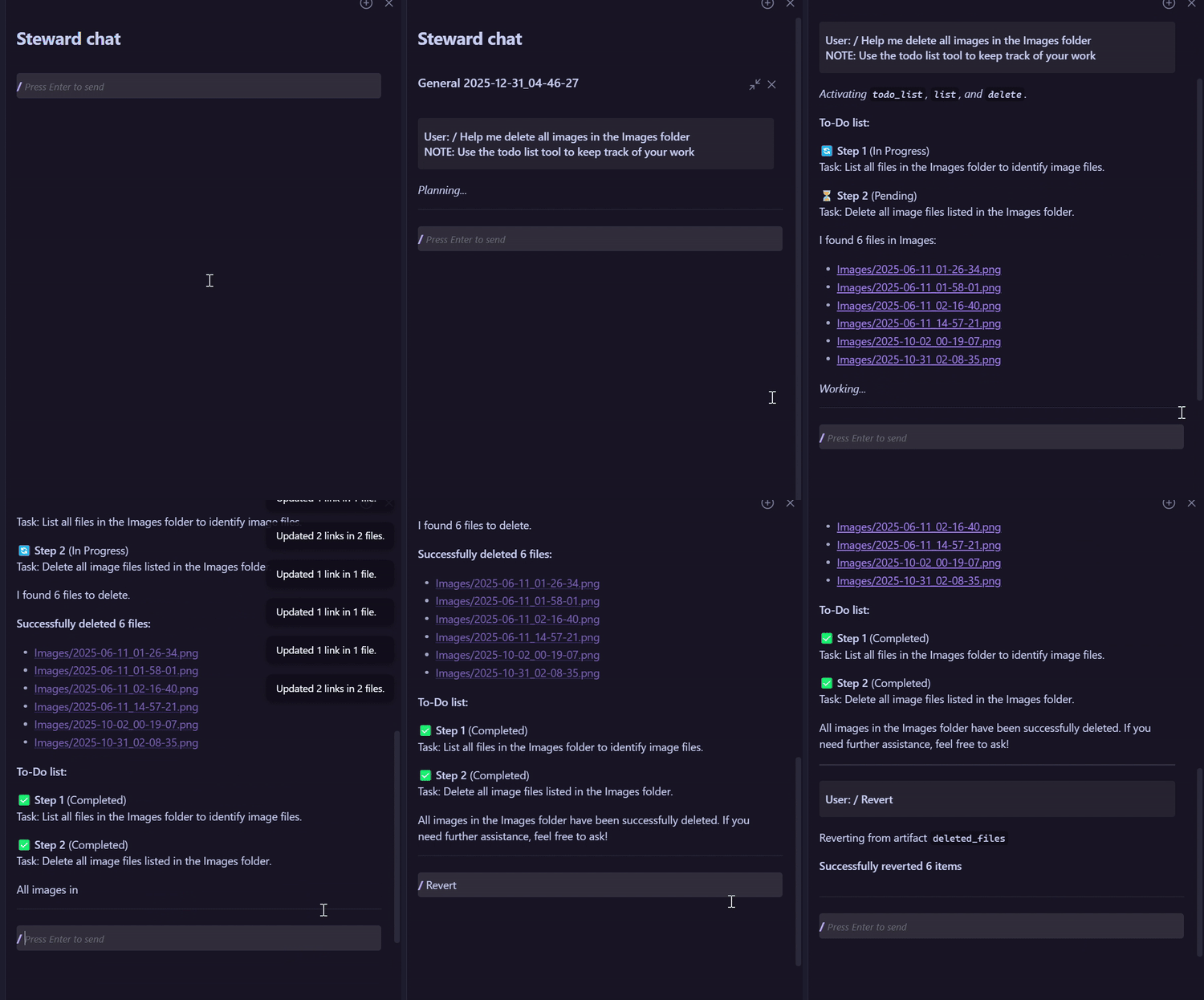
ESCkey or typeStopin the command input. - To revert changes, type
Undoin the command input.
Showcases
Update directly in the editor
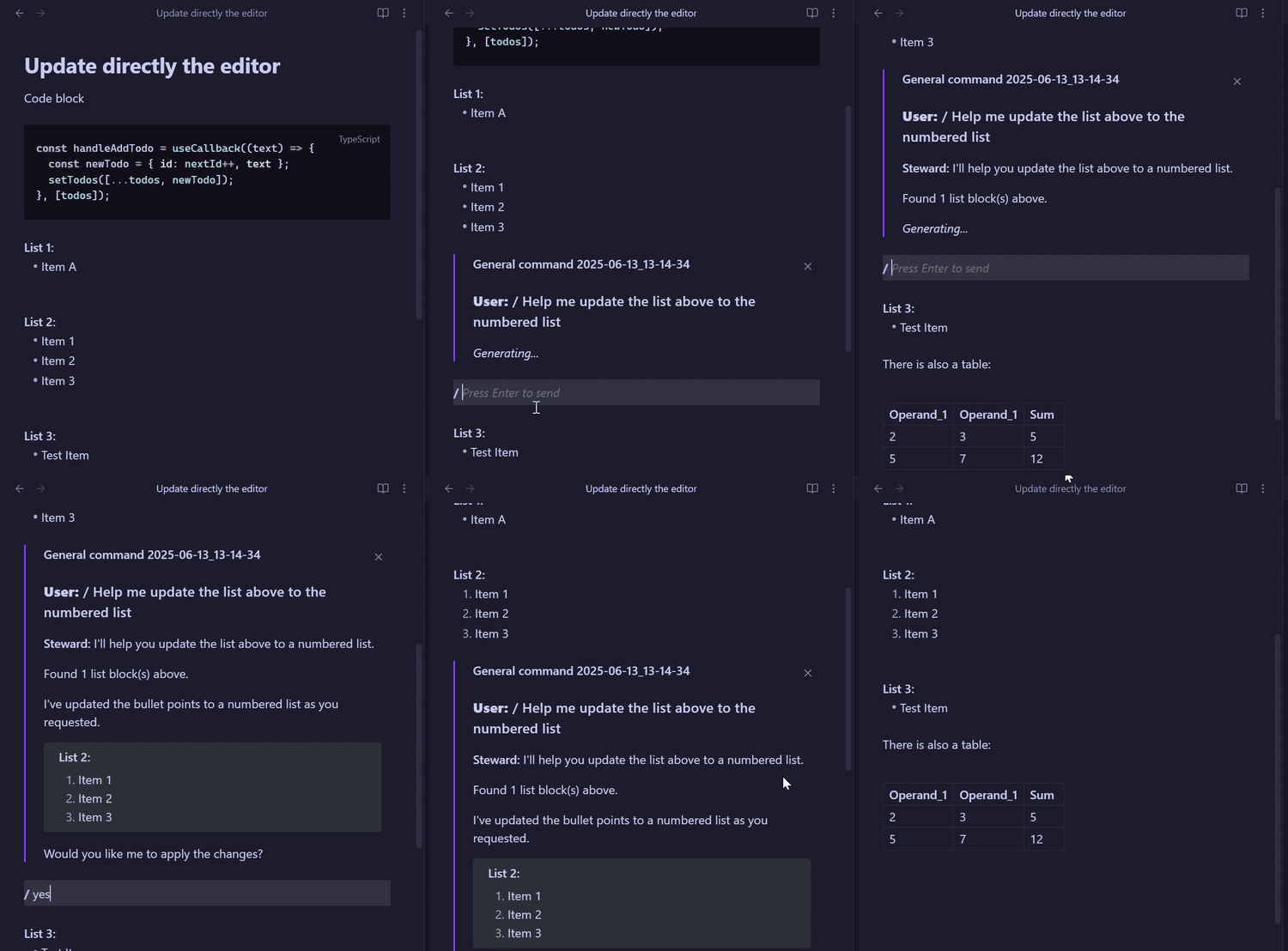
To-do list and revert changes
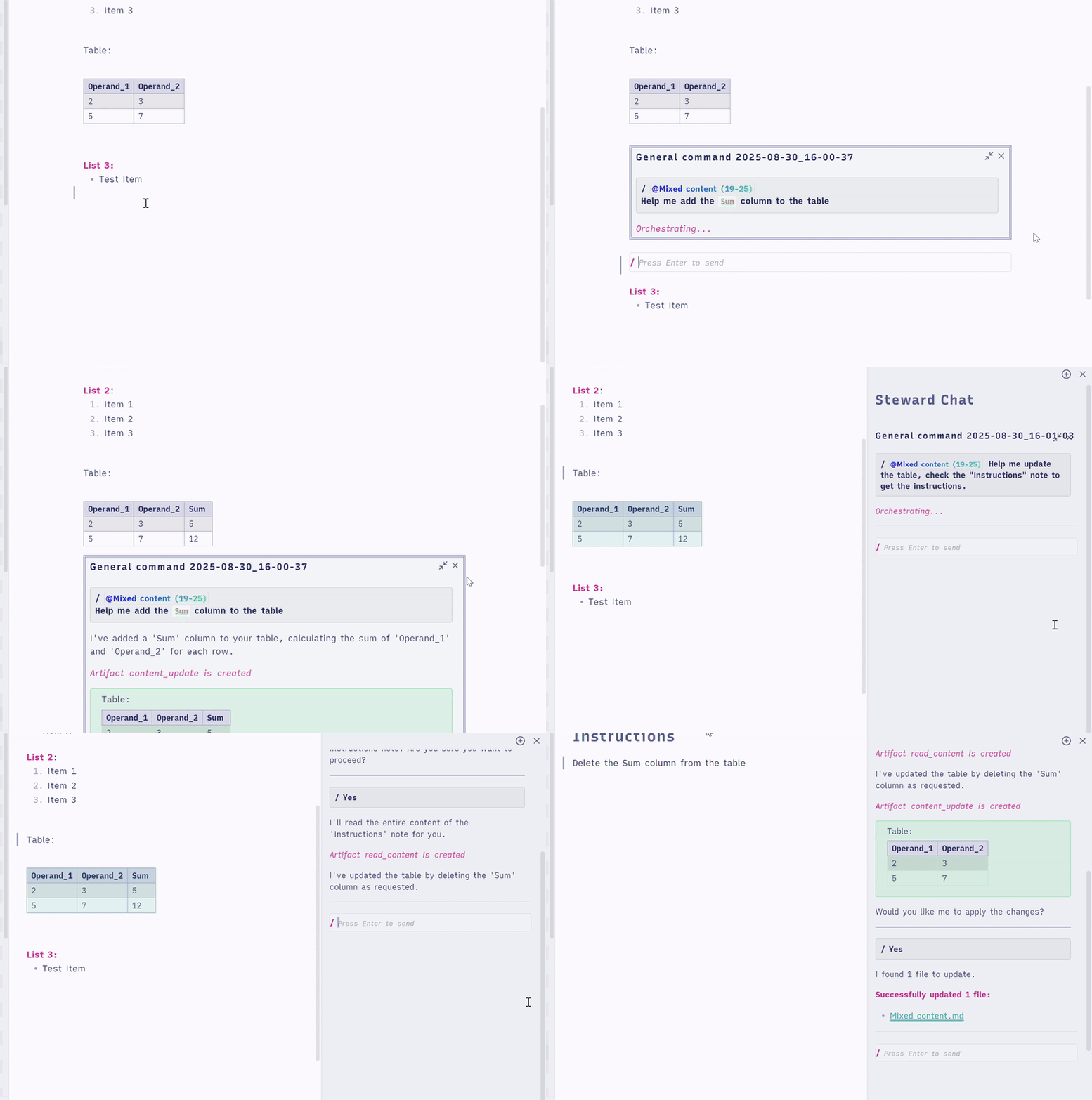
Update the selection
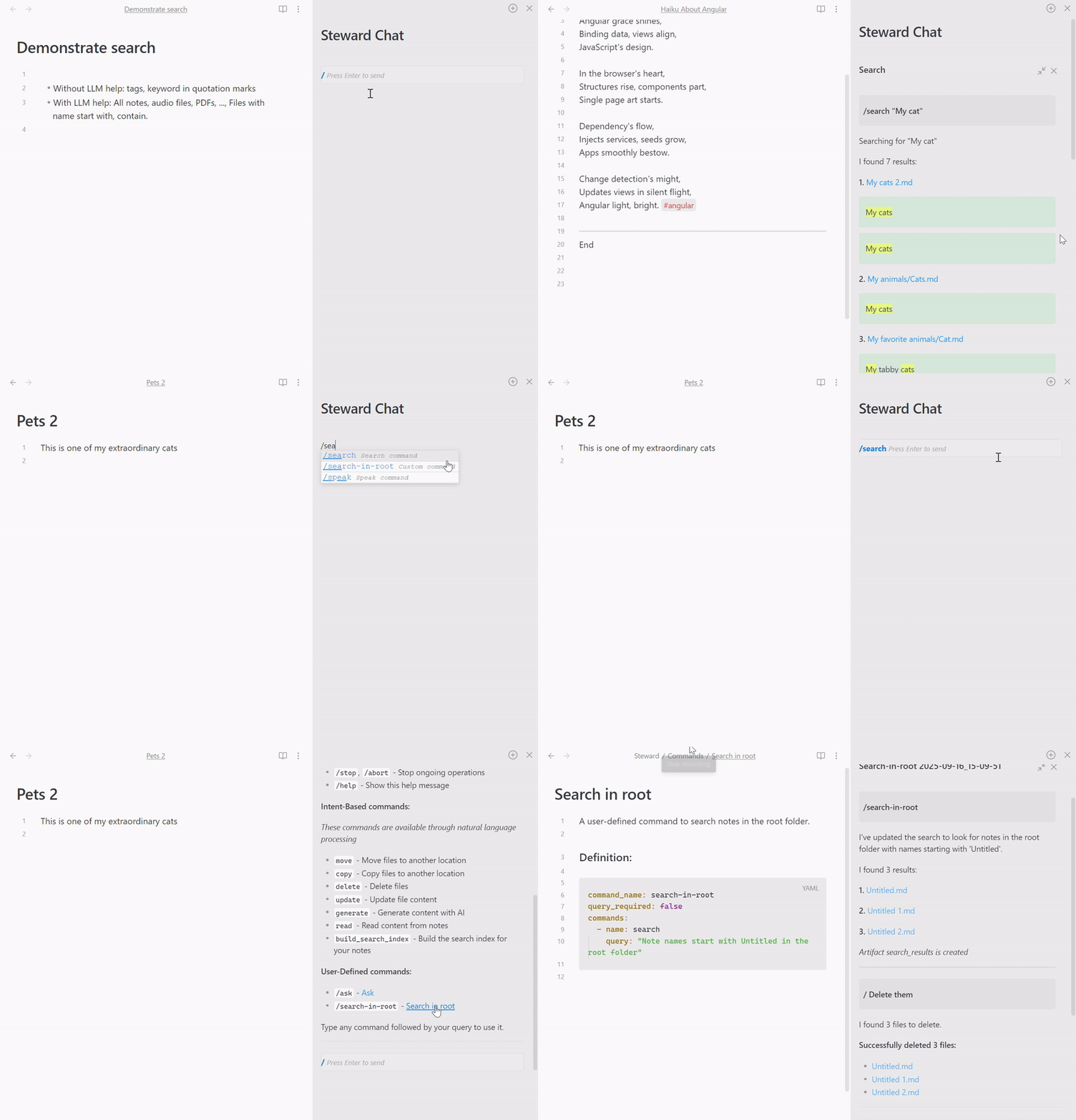
Search
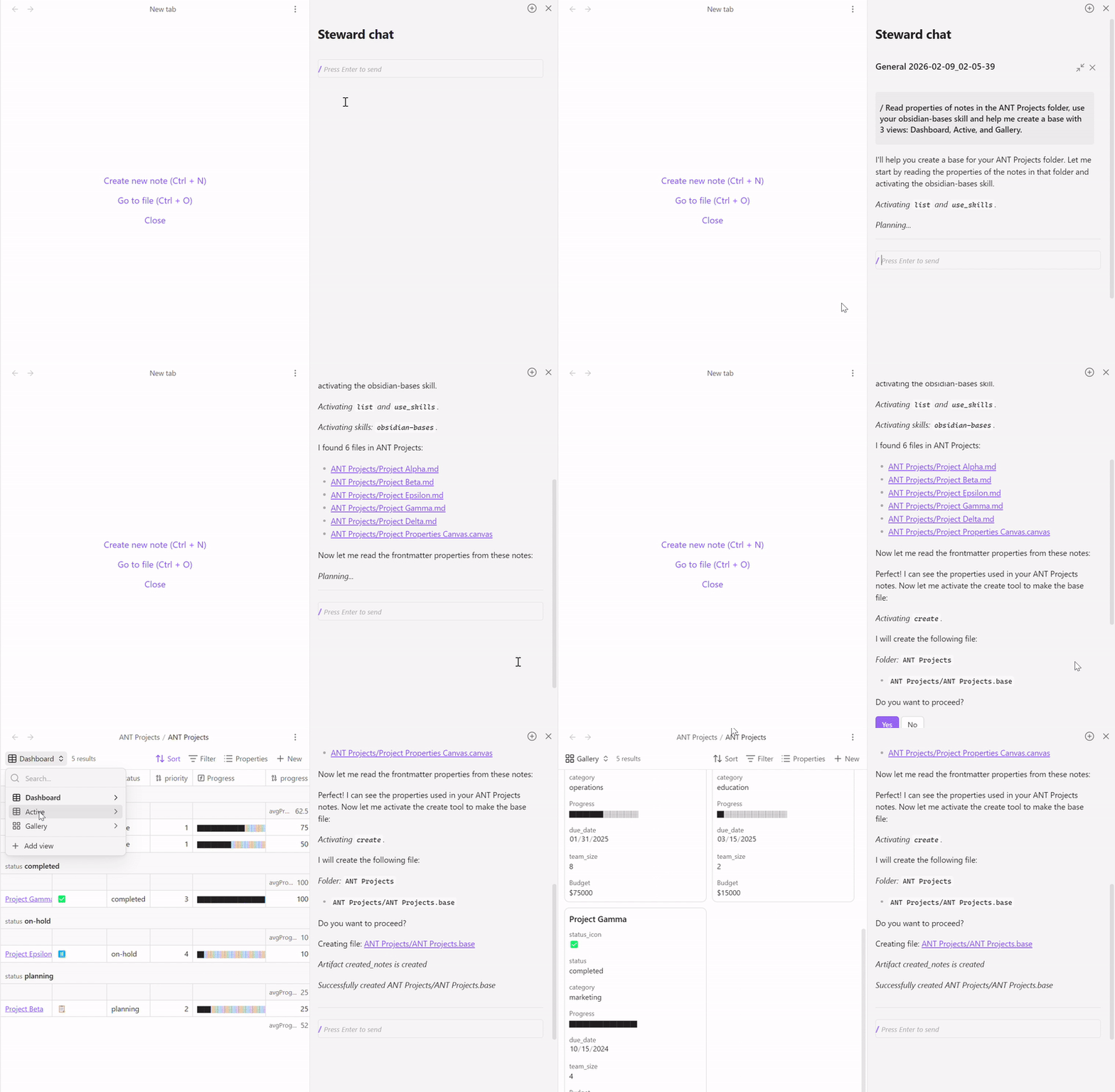
Skills
Skills give Steward domain-specific knowledge for specialized tasks. Each skill is a markdown file in the Steward/Skills folder with frontmatter (name, description) and body content that gets injected into the AI's context when activated.
Skills are activated automatically when the AI detects a relevant task, or you can ask explicitly:
/ Use the obsidian-bases skill to create a table view of my project notes.
Once activated, skills persist for the entire conversation and across app restarts.
You can find ready-to-use skills from the community, such as Obsidian Skills for Bases, Canvas, and Markdown. Download skill files and place them in your Steward/Skills folder to get started.
For more details, see the Skills wiki.
Guardrails
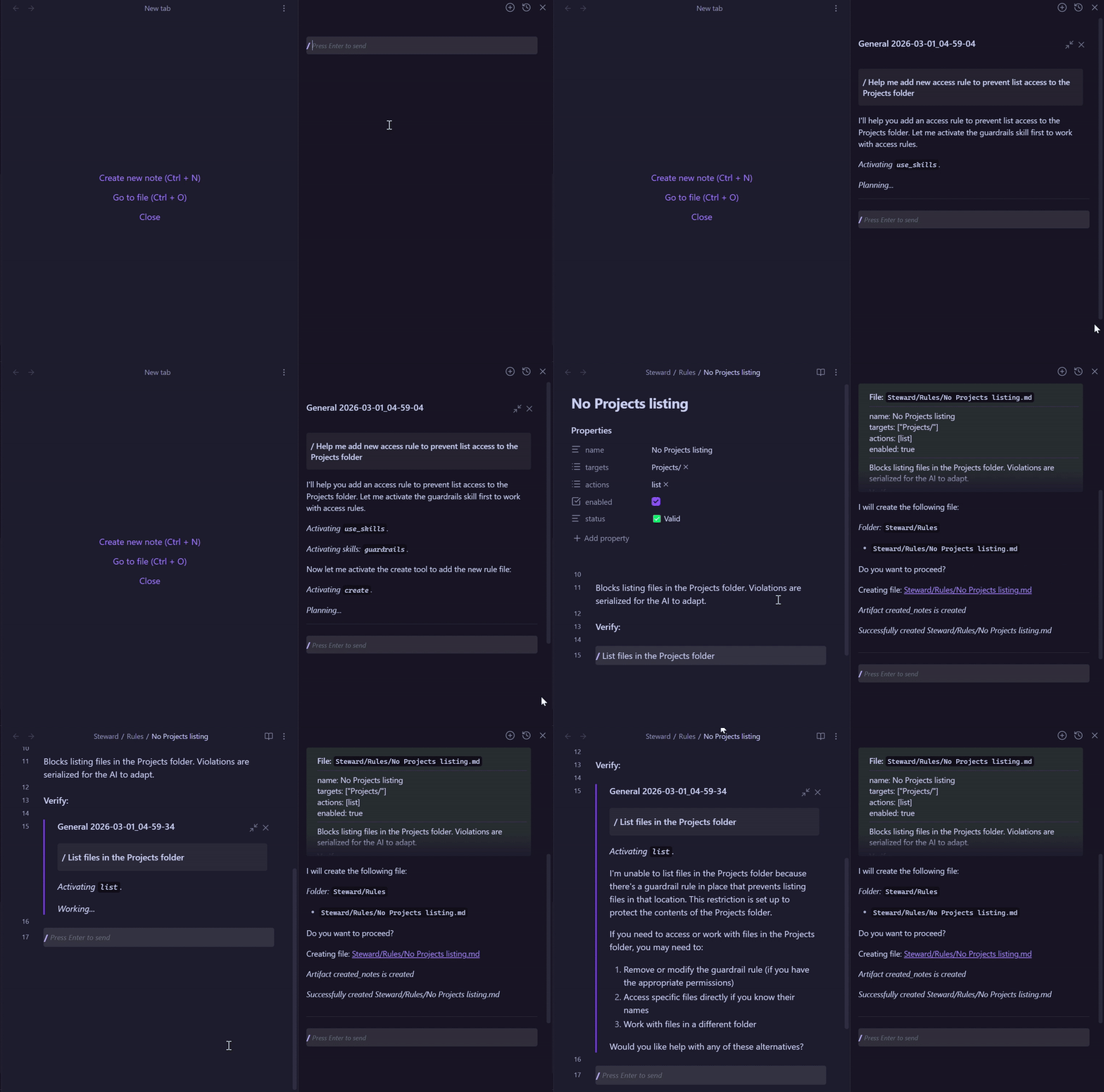
Guardrails let you restrict which folders and files the AI can access. Define safety rules to block read, list, create, edit, delete, and other actions on sensitive paths.
For more details, see the Guardrails wiki.
You can use the Guardrails skill to create and edit rules in natural language. Activate the skill and ask Steward to set up or modify rules for you.
MCP
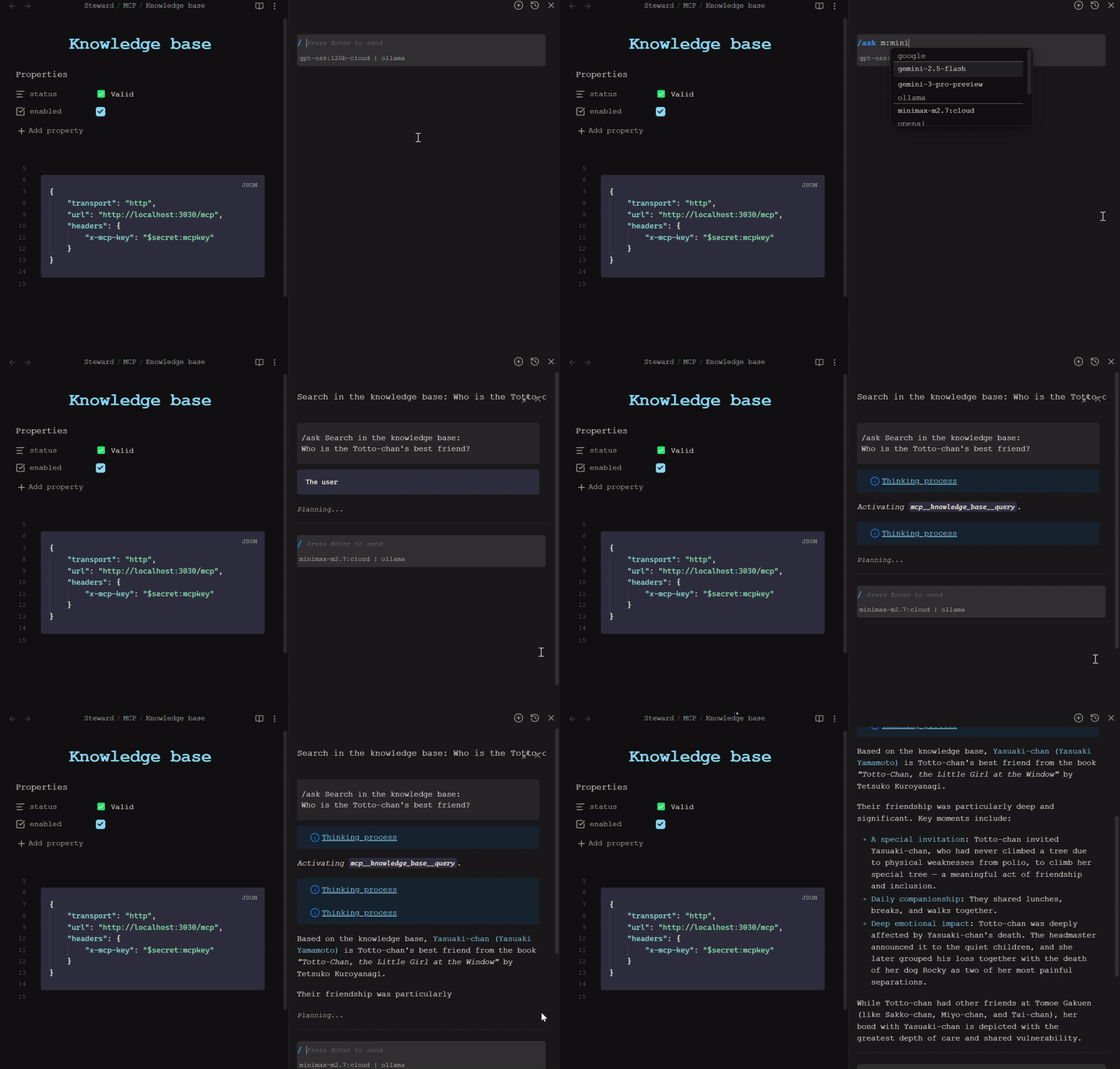
You can connect to remote Model Context Protocol servers. Define each server as a markdown note in the Steward/MCP folder with YAML frontmatter and a JSON configuration block (transport, url, optional headers). Use $secret:name placeholders in string values to pull credentials from Obsidian’s secret storage.
For the full format, examples, and troubleshooting, see the MCP wiki.
Shell commands and terminal
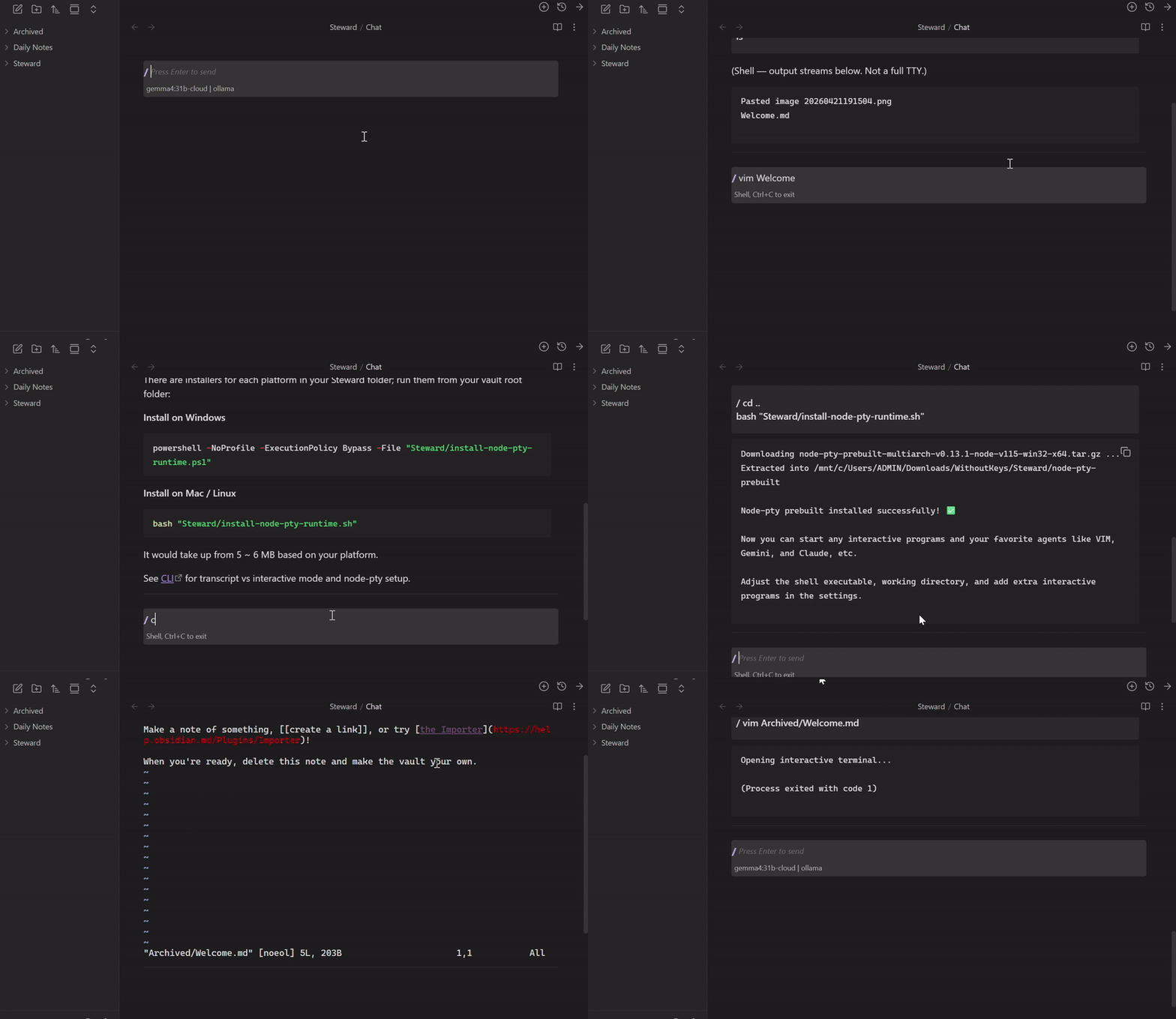
On desktop, you can start shell sessions from the chat or editor. Use /> to enter shell mode: most commands run in transcript mode, streamed directly in the conversation. Or programs such as vim use interactive mode—a real TTY via node-pty when the native bundle is installed (for example />vim).
Native binaries need to be installed in order to use interactive mode.
For modes, installers, built-in interactive programs, and settings, see the Shell command & Terminal wiki.
Widgets and visualizations
Steward can render inline HTML and SVG widgets directly in the conversation-animations, interactive demos, diagrams, and even simple games. Ask in natural language and the agent uses the built-in widget tool to create and display them in a sandboxed iframe inside your chat note.
HTML project widgets are stored under Steward/Widgets/{widgetId}/ as multi-file projects (index.html, style.css, main.js, Widget.md, etc.). They persist across conversations, hot-reload when you edit project files, and can reference vault assets (images, audio) bundled at render time. Stateful widgets (counters, quizzes, games) save runtime state via state.json; interactive widgets support turn-based play with AI actors.
SVG widgets are self-contained vector graphics rendered inline without a project folder.
Example prompts:
/ Make a tic-tac-toe game I can play against you.
/ Visualize this note as an SVG diagram.
Built-in skills stateful-widget and interactive-widget guide the agent when building interactive or turn-based widgets. For rendering, state, assets, and troubleshooting, see the Widgets and visualizations wiki.
User-defined commands
User-defined commands are the combination of skills, agents, automation, and workflows that are defined in the same md file.
You can create your own User-Defined Commands to automate workflows and combine multiple built-in or other User-Defined commands into a single, reusable command. Commands are defined as YAML blocks in markdown files inside the Steward/Commands folder, and they're available with autocomplete just like built-in commands.
For the full guide on creating and using User-Defined Commands, see the User-defined commands wiki.
Showcases
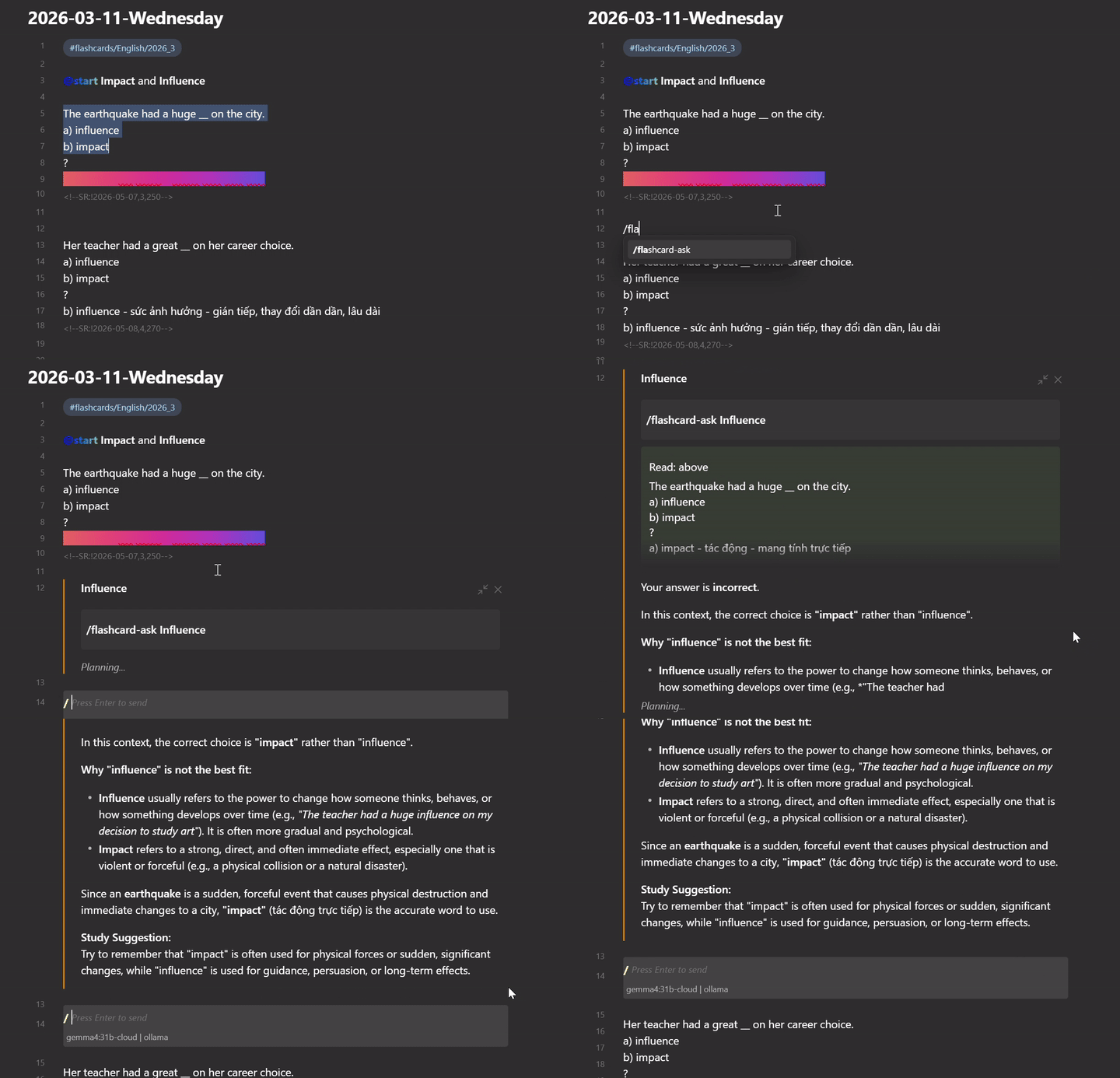
Flashcard assist Flashcard ask
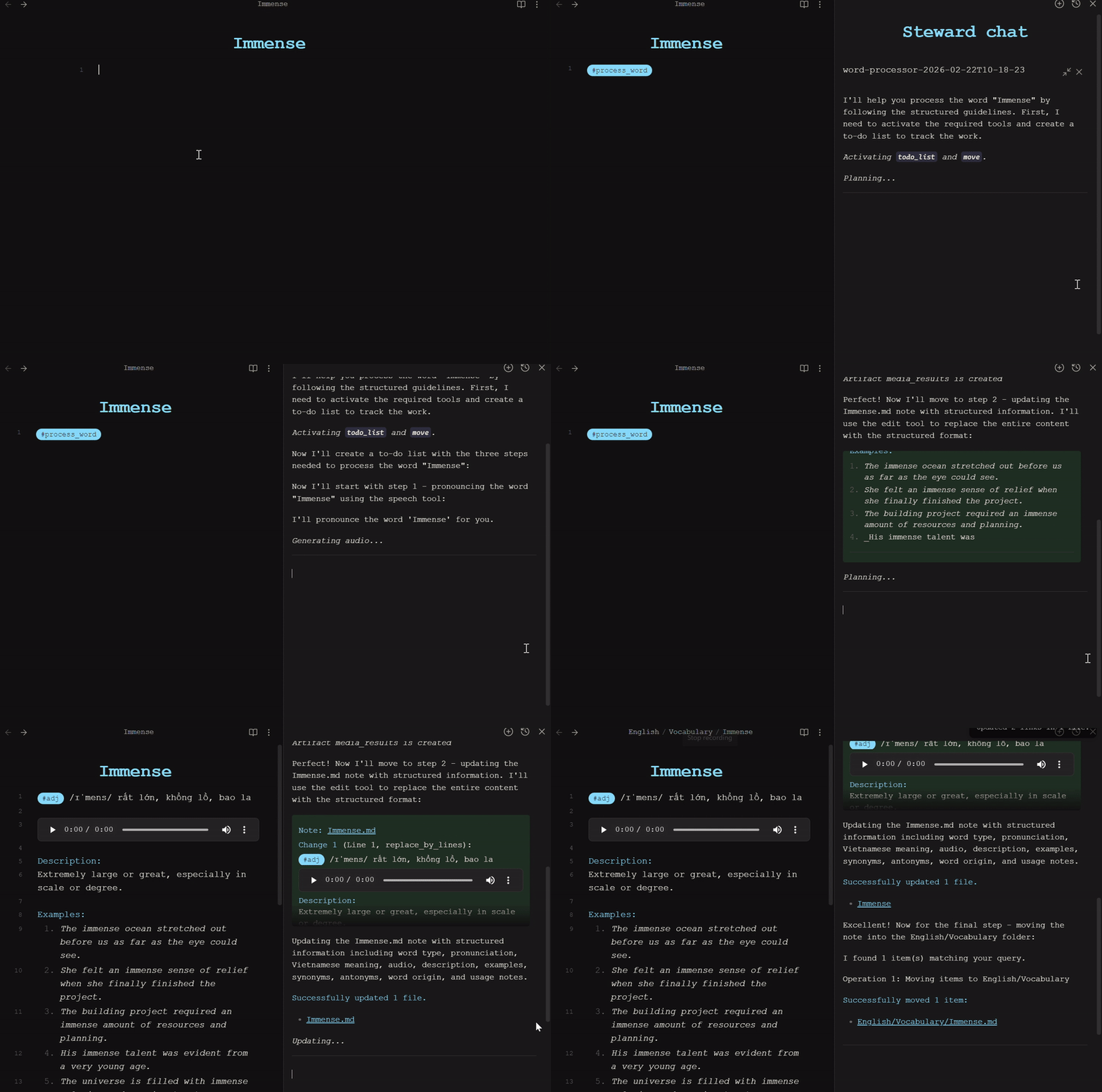
Automated command Word processor
Community user-defined commands
The community-UDCs folder contains user-defined commands contributed by the community:
- Ask - Ask questions without making changes to your vault
- Plan - Plan and outline tasks before execution
- Clean up - Clean up your vault by removing unwanted notes
- Word processor - Process and format text in your notes
- Git sync setup - SOPS + Git clean/smudge filters; scaffolds
Steward/Commands/Git commands.mdwith shell-only git lines
Folder structure
Steward creates the following folder structure in your vault:
Steward/
├── Commands/       # Stores user-defined command definitions
├── Conversations/  # Archives past conversations
├── MCP/            # MCP server definitions (one markdown note per server)
├── Memory/         # Persistent memory (e.g. tool instructions) for agents
├── Docs/           # Fetched documents from this repo
├── Release notes/  # Release notes of Steward
├── Rules/          # Guardrails rules (one file per rule)
├── Skills/         # Agent skills for domain-specific knowledge
├── Widgets/        # HTML widget projects (index.html, main.js, Widget.md, state.json)
├── Artifacts/      # Saved artifacts (.art notes; open in reading view)
├── Trash/          # Stores deleted files
├── install-node-pty-runtime.sh   # Downloads node-pty prebuilt (macOS, Linux, Git Bash)
├── install-node-pty-runtime.ps1  # Downloads node-pty prebuilt (Windows PowerShell)
├── Sub Agents.md                 # Specialized sub-agent definitions for spawn_subagent
└── Chat.md                       # Current active conversation
Installation
From Obsidian Community Plugins
- Download the plugin from the Obsidian Community Plugins browser
- Enable the plugin in your Obsidian settings
- Configure your API keys in the plugin settings
Manual installation
- Download the latest release from the releases page
- Extract the zip file into your Obsidian vault's
.obsidian/pluginsfolder - Enable the plugin in your Obsidian settings
- Configure your API keys in the plugin settings
Development
This plugin uses TypeScript and follows the Obsidian plugin architecture.
Building
- Clone this repository
- Run
npm installto install dependencies - Run
npm run buildto build the production version
Contributing
Contributions to Steward are welcome! Here's how you can contribute:
Code contributions
- Fork the repository
- Create a feature branch (
git checkout -b feature/amazing-feature) - Commit your changes (
git commit -m 'Add some amazing feature') - Push to the branch (
git push origin feature/amazing-feature) - Open a Pull Request
User-defined commands
You can contribute your User-Defined Commands (UDCs) to help the community:
- Create your UDC following the User-defined commands wiki
- Test your UDC thoroughly to ensure it works as expected
- Add your UDC to the
community-UDCsfolder with a descriptive name - Include clear documentation in your UDC file explaining:
- What the command does
- How to use it
- Any prerequisites or dependencies
- Example usage scenarios
License
MIT