Startpage
 kuzzh17k downloads
Automatically opens a customized homepage upon startup, displaying pinned and recent notes.
- Overview
- Scorecard
- Updates24
English | 中文
A modern startup homepage plugin for Obsidian that provides a beautiful dashboard interface, displaying vault statistics, pinned notes, and recently modified notes. Automatically displays a personalized homepage when starting Obsidian or opening new tabs, giving you quick access to important content.
Features
Smart Homepage
- Automatic Startup Homepage: Automatically replaces new tabs with the start page when enabled
- Two Interface Styles: Compact command-bar layout (default) or the classic logo header with stat cards and floating actions, switchable in settings
- Dashboard Statistics: Real-time display of vault statistics (total notes, today's edits, total storage space)
- Quick Search: Built-in search box with keyboard shortcuts - just start typing to search your notes
- Toolbar Integration: Adds a homepage icon to the left toolbar for quick access anytime
- Command Palette: Access start page via commands ("Open start page" and "Open start page in new tab")
Note Management
- Pinned Notes: Set important notes to be displayed at the top of the homepage for quick access
- Recent Notes: Display recently accessed and modified notes, intelligently sorted by both modification time and access time
- Smart Search Modal: Full-featured search with fuzzy matching and case-sensitive option
- Dynamic Count: Customizable number of recent notes to display (5-50 notes, adjustable directly on the homepage)
- Context Menu: Add/remove pinned notes via right-click or long-press on note items, and via the file explorer context menu
- Import from Bookmarks: Easily import pinned notes from Obsidian's built-in bookmarks feature
- Reorder Pinned Notes: Move pinned notes up or down in the settings to customize the display order
- Configurable New Note: Create notes from the homepage with a customizable title template (date/time placeholders) and a target folder
User Experience
- Smart Time Display: Automatically shows relative time (minutes ago, hours ago, days ago) for recent notes
- Multi-language Support: Automatically uses Obsidian's language setting (supports Chinese and English)
- Real-time Refresh: Automatically refreshes homepage content when files are modified, created, deleted, or renamed
- Timed Updates: Notes modified within 24 hours trigger periodic time display refresh (every minute)
- Right-click Menu: Supports right-click refresh functionality on the start page
- Theme Adaptation: No hard-coded colors — the page inherits Obsidian's light/dark theme and accent color
- Scroll Position Memory: Remembers and restores your scroll position when returning to the start page
- Keyboard Navigation: Type any character while on the start page to instantly open search modal
Installation
Install from Obsidian Community Plugins
- Open Obsidian Settings
- Go to the "Community plugins" tab
- Turn off "Safe mode"
- Click the "Browse" button
- Search for "StartPage"
- Click install and enable the plugin
Manual Installation
- Download the latest version from the Releases page on GitHub.
- Create a
.obsidian/plugins/obsidian-startpage/folder in your Obsidian vault. - Copy the downloaded
main.js,styles.css, andmanifest.jsonfiles to this folder. - Restart Obsidian.
- Enable the "Startpage" plugin in Settings → Community plugins.
Screenshots
Compact (default)
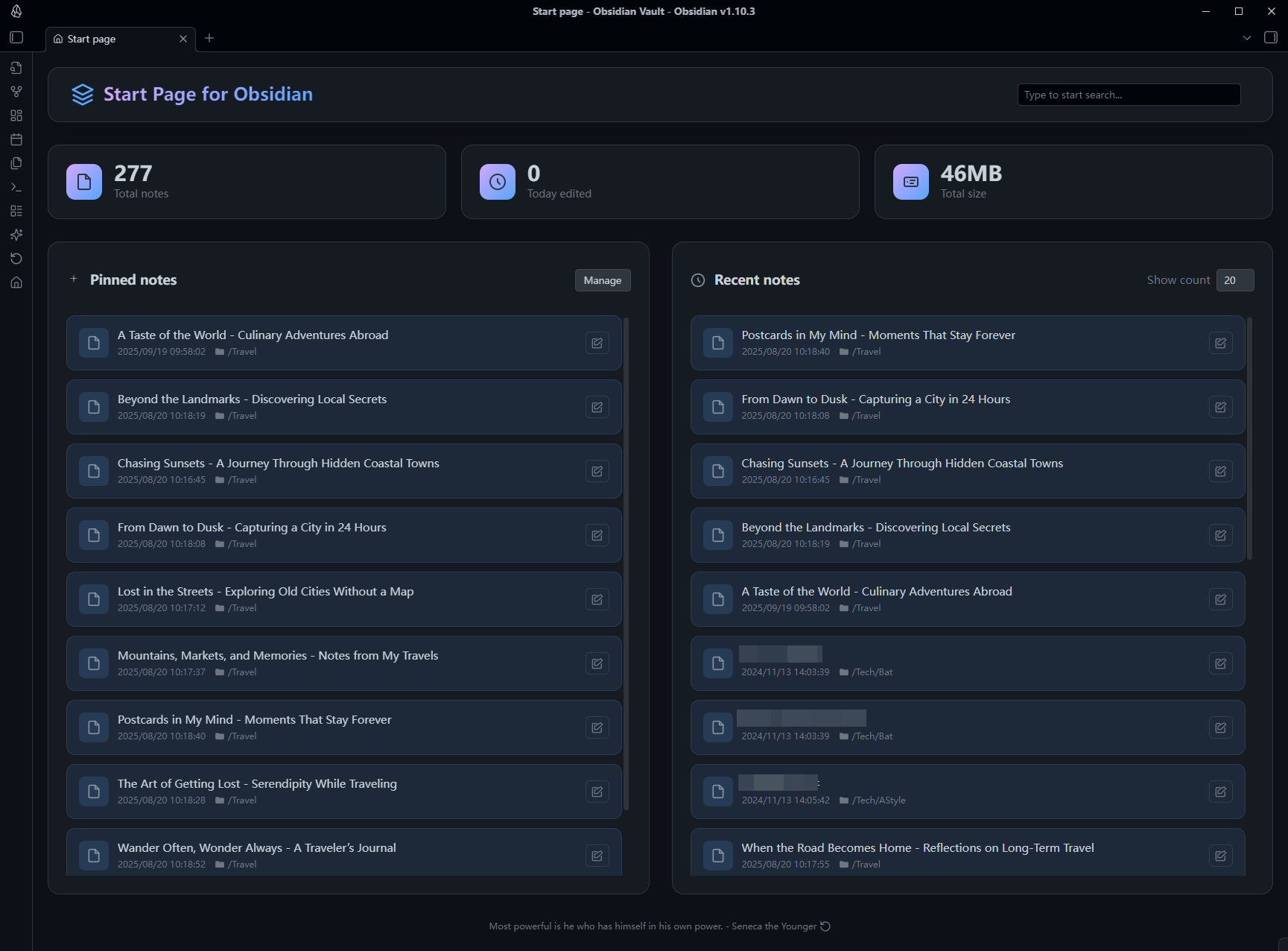
Desktop (dark theme)
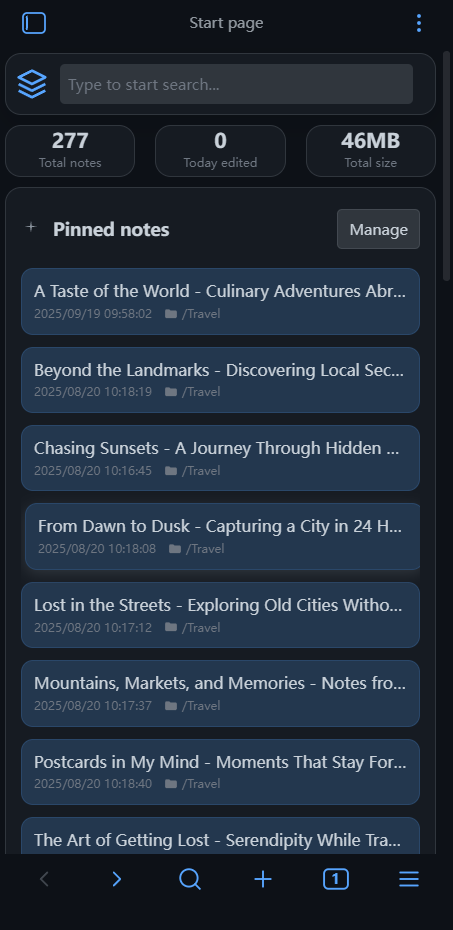
Mobile (dark theme)
Classic
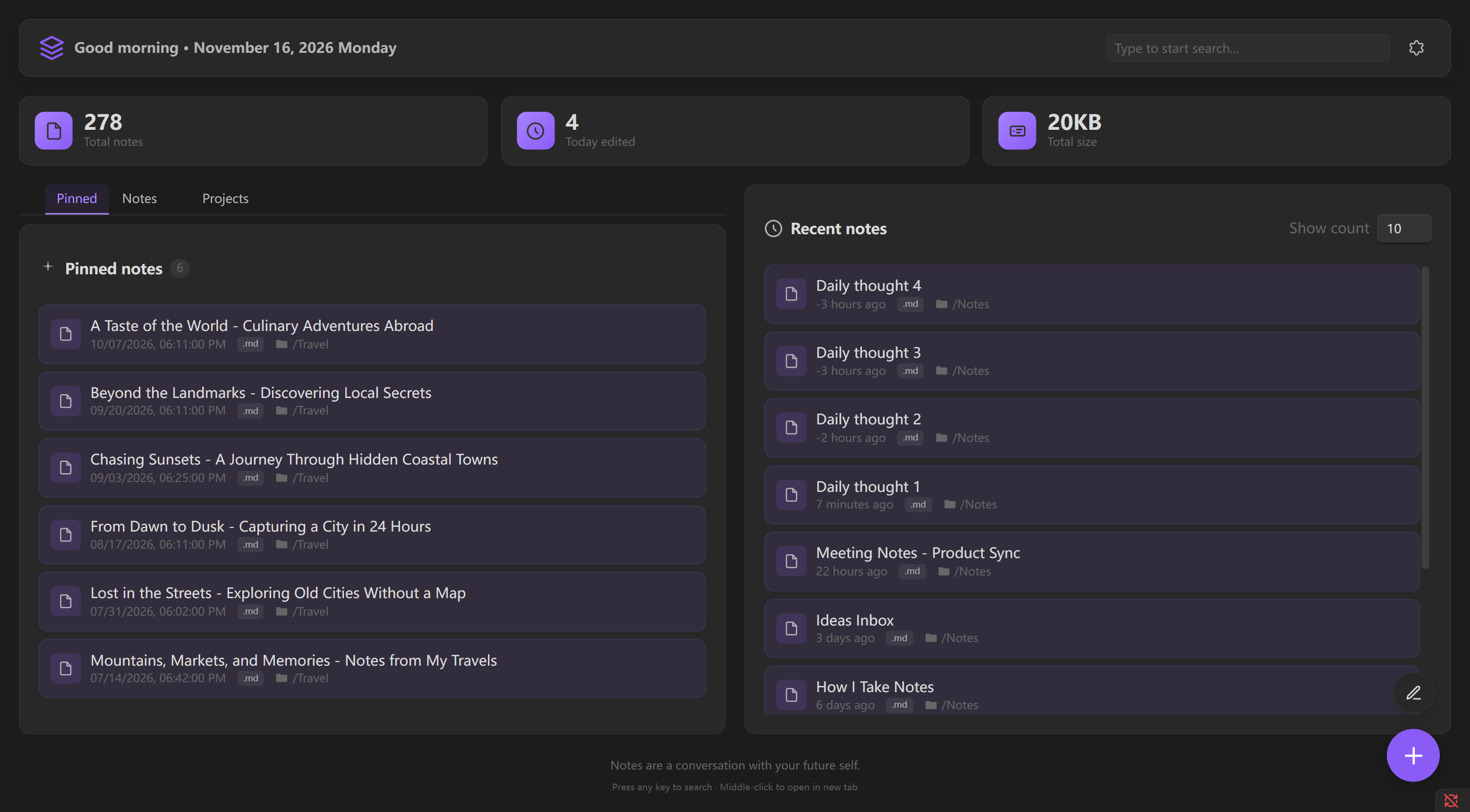
Desktop (dark theme)
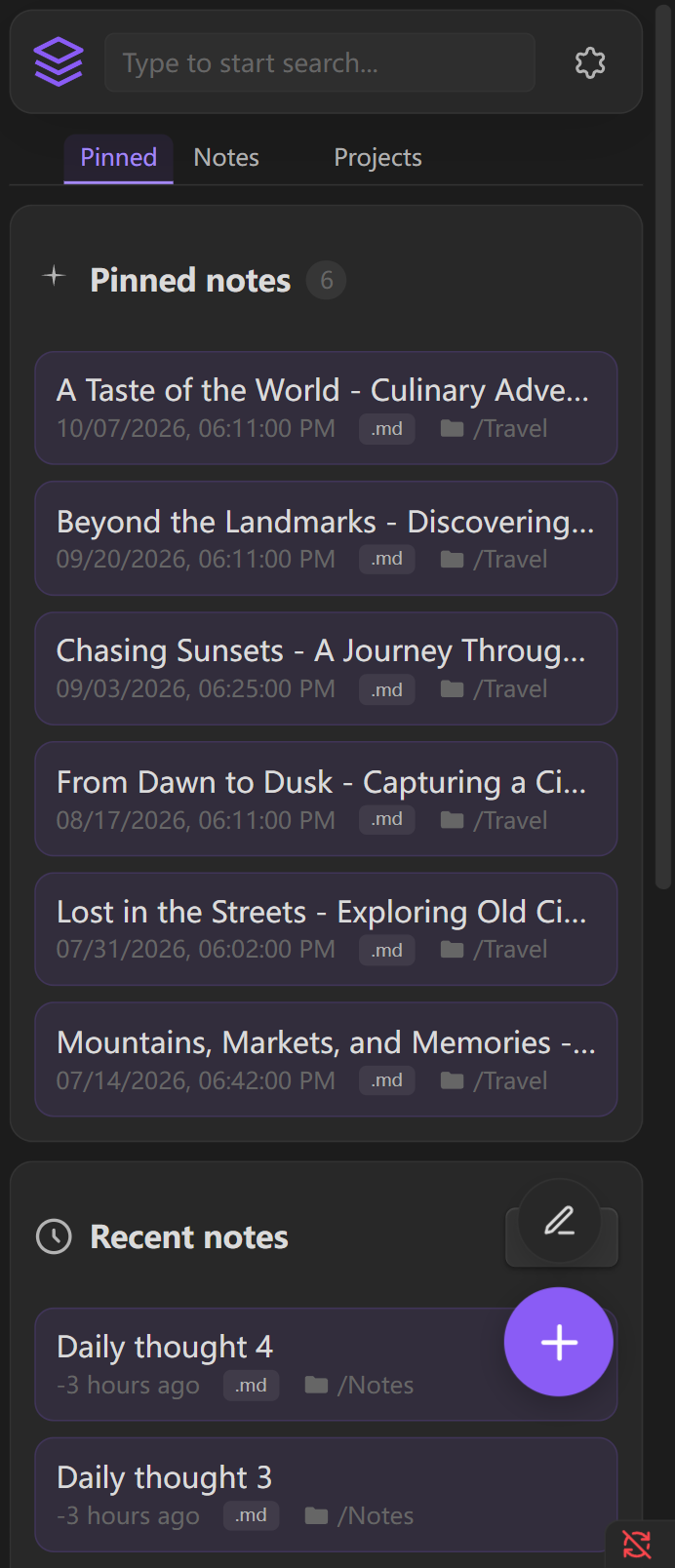
Mobile (dark theme)
Usage
Basic Usage
- Open Start Page: After installing and enabling the plugin, you can open the start page by:
- Clicking the homepage icon in the left toolbar.
- If "Replace new tab" is enabled, it will automatically display when opening new tabs.
- View Statistics: The chips row shows vault statistics (total notes, today's edits, total storage space) next to the edit-activity heatmap. Click the total-notes figure to open search, or today's-edits figure to list today's notes.
- Quick Create: Click the "New note" chip to create a note using your configured title template and folder. On mobile the same actions live behind the floating + button.
- Access Notes: Click on pinned notes or recent notes to directly open the corresponding notes.
- Context Menu: Right-click (or long-press on mobile) any pinned or recent note for pin/unpin, open in new tab, and show in file explorer; file explorer right-click still adds/removes pinned notes.
- Quick Capture: Click the "Quick capture to today's daily note" chip to append a timestamped line to today's daily note; "Open today's daily note" jumps to it. Both are in the + menu on mobile.
Setting Pinned Notes
- Open Obsidian Settings.
- Find the "StartPage" settings tab.
- Click the "Select notes" button.
- Enter note names in the popup search box for fuzzy search.
- Select the notes to pin; they will be displayed in the "Pinned notes" section on the homepage.
- Alternatively, right-click any file in the file explorer and select "Add to pinned notes".
- You can also import all your bookmarked notes by clicking "Import bookmarks" in the settings.
- Click the gear icon in the start page command bar to jump to the plugin settings page.
- Reorder pinned notes by dragging them into place on the homepage, or with the up/down arrow buttons in the settings.
Custom Settings
General Settings
- Include All Files: Choose to show all file types or only markdown files in recent notes
- Show Recently Accessed Notes: Rank recent notes by access time as well as modification time
- Show Tabs Section: Toggle the pinned/folder tab card
- Show Daily Note Capture Button: Toggle the quick-capture action
- Show Recent Notes Section: Toggle the recent notes card
- Recent Notes Count: Adjust the display count (5-50 notes) directly on the homepage or in settings
- Check for Updates: Look up new releases on GitHub and show a badge on the start page
Appearance Settings
- Interface style: Compact command bar (default) or classic logo header with stat cards and floating actions
- Title Navigation Bar: Choose to show, hide, or use default behavior (hidden on desktop, shown on mobile)
- Show Greeting: Show a time-of-day greeting with today's date instead of the default title
- Show stat. bar: Toggle the statistics text in the chips row
- Content layout: Side by side (tabs left or tabs right) or stacked full width
- List density: Comfortable or compact; compact hides previews and metadata to fit more notes
- Show activity heatmap: Toggle the 16-week edit heatmap in the header
New Tab Settings
- Replace New Tab: Automatically display the start page when opening new tabs
New Note Settings
- Title Template: Template for the new note title, supporting date/time placeholders (see New Note Creation)
- Target Folder: Folder where new notes are created (leave empty for the vault root; missing folders are created automatically)
- Conflict Behavior: When the generated title already exists, either create a numbered copy or open the existing note
Footer Settings
- Custom Footer Text: Enable and set custom footer text for the start page
- Random Footer Text: Use randomly generated quotes/text (automatically fetched daily)
- Refresh Footer: Click the refresh icon to get a new random quote
Pinned Notes Management
- Select Notes: Add notes via fuzzy search modal
- Import from Bookmarks: Import all bookmarked files to pinned notes
- Reorder: Move notes up or down to customize display order
- Remove: Remove notes from pinned list
Note: All setting changes take effect immediately on the homepage.
Development
Requirements
- Node.js 16.0 or higher
- Obsidian 1.8.7 or higher
Local Development Setup
- Clone the Repository:
git clone https://github.com/kuzzh/obsidian-startpage.git cd obsidian-startpage - Install Dependencies:
npm install - Set up the Obsidian Plugin Directory:
- Rename the
env-example.jsonfile toenv.json. - Open
env.jsonand modify theOBSIDIAN_PLUGIN_DIRvalue to the absolute path of your Obsidian vault's plugin directory. For example:{ "OBSIDIAN_PLUGIN_DIR": "D:\\Documents\\Obsidian\\.obsidian\\plugins\\obsidian-startpage" } - This step ensures that the build artifacts are automatically synced to your vault for testing.
- Rename the
- Start the Development Server:
This command will watch for file changes, rebuild the plugin, and sync it to the directory specified innpm run devenv.json. - Enable the Plugin in Obsidian:
- Open Obsidian's settings.
- Go to "Community plugins".
- Make sure "Safe mode" is off.
- Find "Startpage" in the list of installed plugins and enable it.
Build
To create a production build, run the following command:
npm run build
Feature Details
Dashboard Statistics
- Total Notes: Displays the count of all Markdown files in the vault
- Today's Edits: Statistics of notes modified today (since midnight)
- Total Storage: Shows the total size of all files (respects "Include All Files" setting; automatically formatted as B/KB/MB/GB)
- Real-time Updates: Statistics data updates automatically with file changes
- Interactive: Click the total-notes figure to open the search modal, or today's-edits figure to list today's notes
- Activity Heatmap: Optional 16-week edit heatmap next to the statistics text
- Toggle Visibility: Statistics and heatmap can each be hidden in the settings
Note Display
- Pinned Notes Section:
- Displays user-manually set important notes in customizable order
- Supports unlimited pinned notes
- Gear icon in the command bar jumps straight to the plugin settings page
- Right-click on any pinned note to remove it from pinned list
- Drag and drop pinned notes to reorder them
- Shows file icon, title, folder path, and modification time
- Click to open the note in the current tab or reveal if already open
- Recent Notes Section:
- Displays recently accessed and modified notes with intelligent sorting
- Combines modification time and access time (recently opened files rank higher)
- Supports dynamic adjustment of display count (5-50 notes) directly on the page
- Smart time display (relative time like "5 minutes ago" for recent notes)
- Shows file type icon, title, folder path, and modification time
- Respects "Include All Files" setting (all file types vs. markdown only)
New Note Creation
The "New note" chip (desktop) or the floating + button (mobile) creates a note using your configured title template, target folder, and conflict behavior. If the resulting note is already open in a tab, that tab is activated instead of opening a second one.
Title template placeholders
| Placeholder | Description | Example |
|---|---|---|
{{date}} |
Current date, formatted as YYYY-MM-DD |
2026-09-10 |
{{date:FORMAT}} |
Current date with a custom moment.js format | {{date:YYYYMMDD}} → 20260910 |
{{time}} |
Current time, formatted as HHmmss |
143005 |
{{time:FORMAT}} |
Current time with a custom moment.js format | {{time:HH-mm-ss}} → 14-30-05 |
{{datetime:FORMAT}} |
Date and time with a custom moment.js format | {{datetime:YYYY-MM-DD_HHmm}} → 2026-09-10_1430 |
Characters that are illegal in file names (/ \ : * ? " < > |) are automatically replaced with -, so using HH:mm:ss or YYYY/MM/DD in a format is safe. Any text outside {{...}} is used literally.
The settings page shows a live preview of the generated title as you edit the template.
Smart Refresh Mechanism
- File Monitoring: Automatically monitors file modification, creation, deletion, and rename events
- Timed Refresh: Notes modified within 24 hours trigger periodic time display updates (every minute)
- Manual Refresh: Right-click anywhere on the start page and select "Refresh"
- Performance Optimization: Intelligently determines whether refresh is needed to avoid unnecessary performance consumption
- Scroll Position: Automatically saves and restores scroll position when navigating away and back
Multi-language Support
- Automatic Language Detection: Automatically uses Obsidian's interface language setting
- Bilingual Interface: Complete support for Chinese and English interfaces
- Localized Display: Time format, number format, and all UI text are fully localized
- Extensibility: Architecture supports easy addition of more languages
Interface Features
Interface Styles
- Compact: Card-based layout with a tabbed note card and grouped recent notes; actions live in the command-bar chips.
- Classic: Logo header, stat cards (hidden on mobile), flat note rows and floating new-note/capture buttons.
- Theme-derived Colors: Every color comes from Obsidian's theme variables and accent color — the plugin ships no palette of its own.
- Responsive Design: Desktop shows the full command bar and chips; mobile collapses the actions into a floating + button and hides the keyboard hints.
Interactive Experience
- Hover Effects: Rich mouse hover animation effects on note items and buttons
- Click Feedback: Clear click feedback and state changes
- Keyboard Support: Type any character to instantly open search; complete keyboard navigation in search modal
- Smart Search: Click the search bar or the total-notes figure to open the full-featured search modal with fuzzy matching
- Create Notes: Press Enter in empty search results to create a new note with the search query as title
- Quick Create Button: The "New note" chip (desktop) or floating + button (mobile) creates a note using your title template and target folder settings, and activates the tab if the note is already open
- Accessibility: Follows accessibility design principles with proper ARIA labels
Technical Features
- TypeScript Development: Uses TypeScript to ensure code quality and type safety
- Modular Architecture: Clear separation between core logic, views, and utilities
- Performance Optimization: Efficient file monitoring and debounced scroll position saving
- Memory Management: Automatic cleanup of timers and event listeners to avoid memory leaks
- Settings Backup: Automatic daily backup of settings to prevent data loss
- Event System: Proper event registration and cleanup using Obsidian's event system
- Mobile Support: Fully functional on both desktop and mobile platforms
Contributing
Contributions are welcome! Please feel free to submit Issues and Pull Requests.
Development Guide
- Fork this repository.
- Create a feature branch (
git checkout -b feature/AmazingFeature). - Commit your changes (
git commit -m 'Add some AmazingFeature'). - Push to the branch (
git push origin feature/AmazingFeature). - Open a Pull Request.
License
This project is licensed under the MIT License. See the LICENSE file for details.
Acknowledgments
- Thanks to the Obsidian team for providing excellent plugin APIs and development framework.
- Thanks to all contributors and users for their feedback and support.