Standard Manuscript Format Export
 Beth Dean194 downloads
Export a story to Shunn's standard manuscript format as a .docx or .rtf, ready to submit.
- Overview
- Scorecard
- Updates7
An Obsidian plugin that exports a story to Shunn's Standard Manuscript Format as a .docx or .rtf, ready to submit.
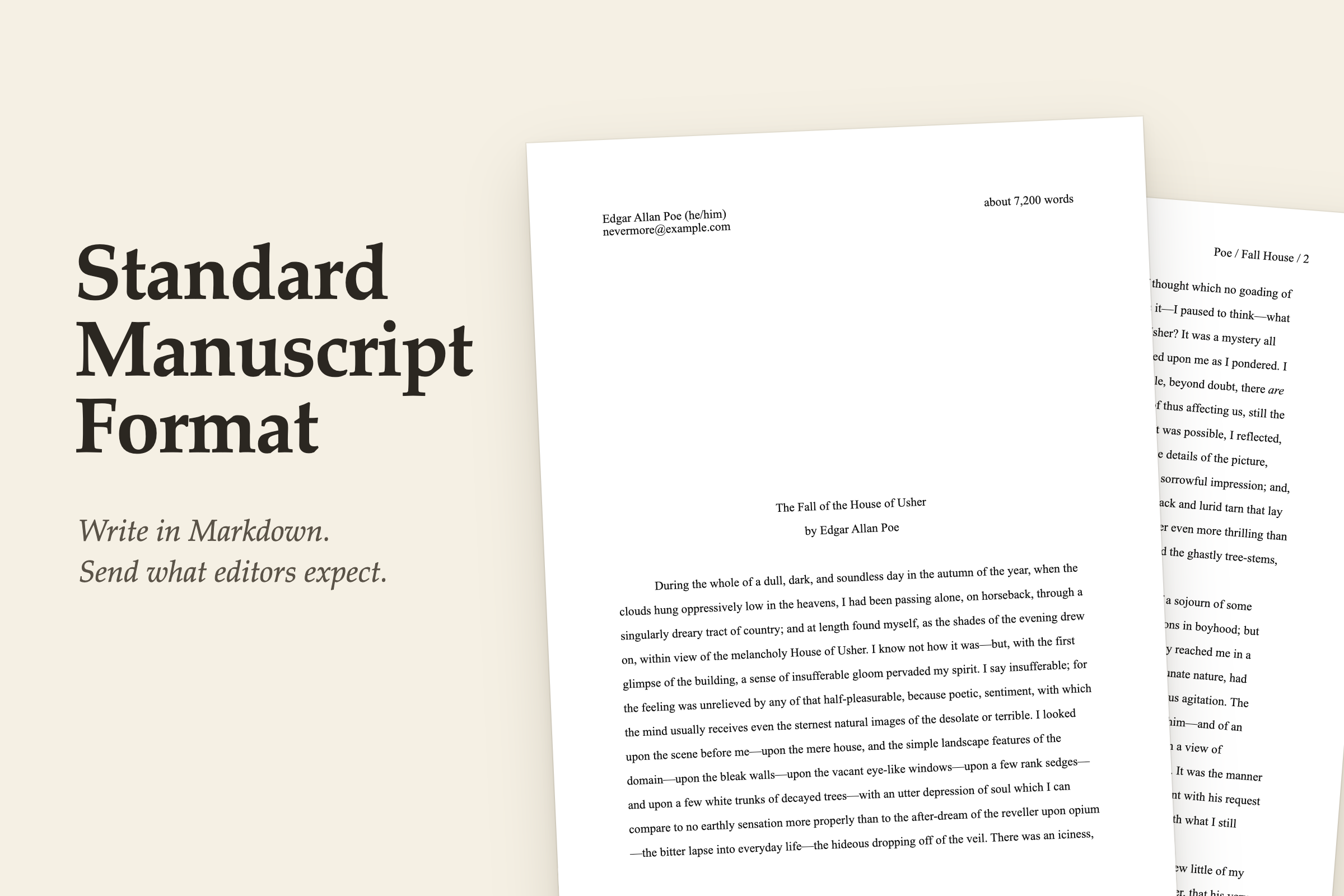
Write in markdown. Get back a manuscript that looks like every editor expects one to look.
Free, runs on your phone as well as at your desk, and never connects to the internet at all.
- Two formats, because markets disagree about which they accept.
- Shunn modern format, with a running head on every page but the first.
- Typographic cleanup — curly quotes, em dashes, ellipses, and wrong-way quotes fixed.
- Word count of the story only, so front matter never inflates it.
- Blind submission, in the two configurations markets require.
- Content warnings from the story's own properties, where the market wants them.
- Export profiles, so a market with unusual requirements is one choice at export time.
Install
From Obsidian: Settings → Community plugins → Browse, search for Standard Manuscript Format Export, install, and enable it. Its directory listing is here.
Manually: download main.js and manifest.json from the latest release into <your vault>/.obsidian/plugins/standard-manuscript-format/, then enable the plugin in Settings → Community plugins.
Requires Obsidian 1.13 or later. That's where Obsidian's declarative settings API arrives, which is what makes every setting here findable from settings search.
Works on desktop and mobile. It's pure JavaScript with no desktop-only dependencies, so a manuscript can be exported from a phone.

Quick start
Set your name. Open Settings → Standard Manuscript Format Export → Author identity and fill in at least your name. The contact block needs it, and export will refuse without it. The row shows the name it will print, so a wrong guess is caught here rather than by an editor.
Start a story. Click the feather icon in the left sidebar, or run New story from the command palette, or right-click a folder in the file list. You get a note with its properties ready and the cursor in the body. It asks nothing.
Write. Type *** on its own line wherever you want a scene break.
Export. Run Export to standard manuscript format from the command palette, or right-click the note. The manuscript is written to your Manuscripts folder.

That's the whole loop. A story with no properties at all exports fine, and an old note from years ago needs nothing done to it.
Your story stays yours
This plugin never connects to the internet. It sends nothing and it fetches nothing. Not for updates, not for telemetry, not for anything. There is no fetch, no XMLHttpRequest, no WebSocket and no analytics anywhere in the shipped bundle.
Everything happens on your own device. No round trip to a server, no account, no subscription, no LLM in the loop. Your manuscripts are written as ordinary files alongside your notes, and your stories stay ordinary markdown. If this plugin disappeared tomorrow, you'd lose a menu command and nothing else.
It also never touches your clipboard, executes no code of its own or yours, and writes nothing outside the output folder you choose.
It changes your punctuation, never your words. Quotes get curled, -- becomes an em dash, ... becomes an ellipsis. Nothing else in your prose is altered, nothing is rewritten, and anything that looks questionable is mentioned to you rather than corrected.
What it does
Two formats, because markets disagree. .docx and .rtf, the same manuscript either way. Some markets won't take .doc; others won't take .docx; every market surveyed takes RTF, so it's the safe answer when guidelines are vague or an uploader is fussy. Export one or both.
Shunn modern format. Your contact block upper-left and the word count upper-right, title and byline centered halfway down the first page. The story begins on the first page, under the byline. Identified cover page keeps your details on a separate cover page instead.
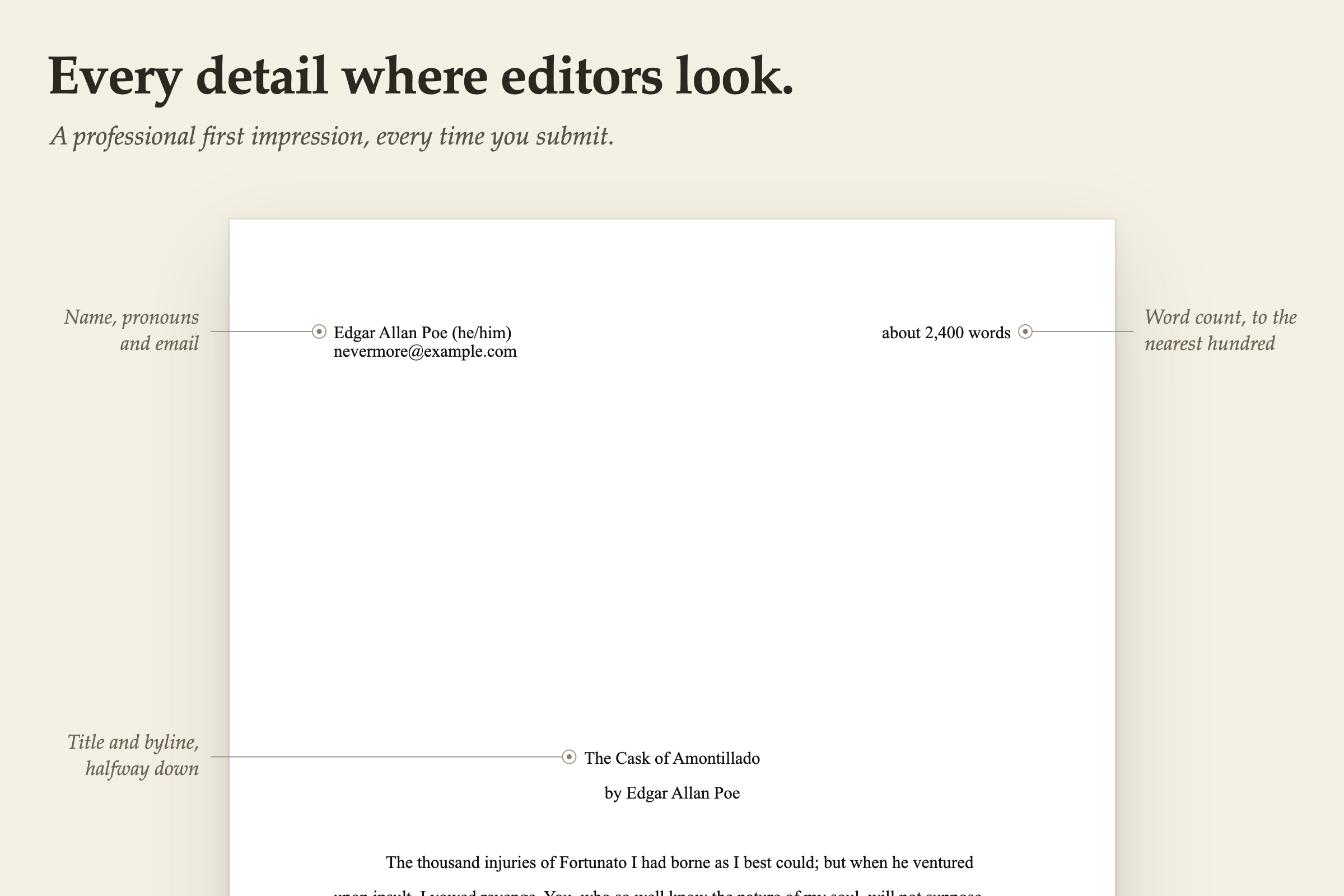
Running head on every page but the first: Surname / Short title / page. Set a surname, or leave it blank if your last name is a single word. Settings shows what will print, so you can check it before an editor sees it a dozen times.
Manuscript layout. 12pt Times New Roman, 1" margins, double-spaced, 0.5" first-line indent, centered # for scene breaks, centered scene labels, and a centered END after the last line.
Typographic cleanup. Straight quotes become curly, -- becomes an em dash, ... becomes an ellipsis. Quotes that are already curly get re-derived from context, so a wrong-way quote — the usual souvenir of pasting between editors — gets fixed rather than passed through.
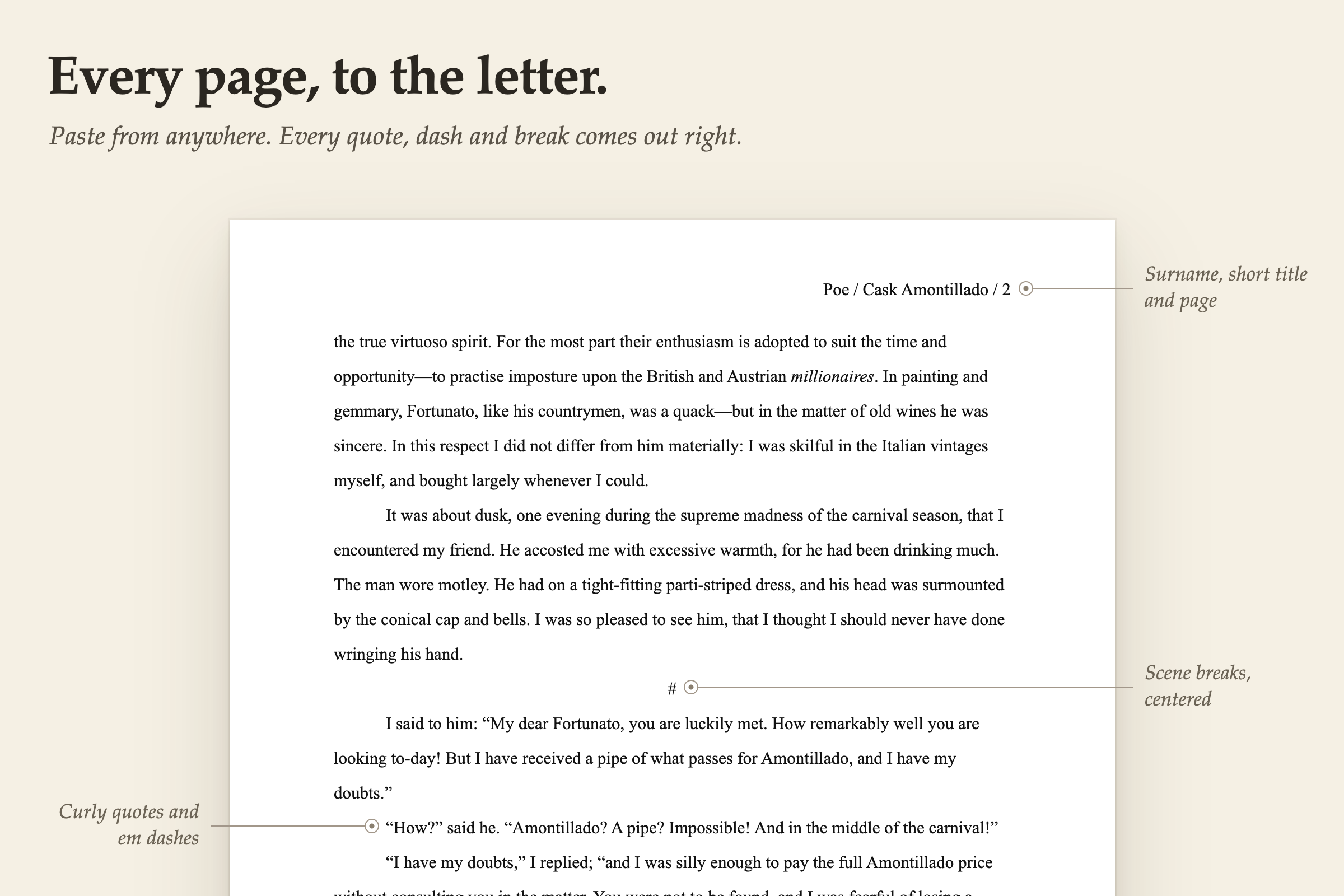
A missing quote mark won't ruin everything after it. Forget a closing quotation mark and most editors turn every quote that follows the wrong way round, so one slip can leave a whole story looking broken. Not here: the mistake stays where you made it and the rest of your dialogue is still correct.
The export works either way. Afterwards it tells you which paragraphs look like they're missing a closing quote, so you can go and check them. Dialogue that runs over several paragraphs, opening each one and closing only the last, is normal and never flagged. Nothing is fixed for you, and you can switch the warning off.
Word count of the story only, not the title, your contact block or content warnings.
Obsidian's own syntax is cleaned up. Wikilinks and markdown links print as their text, embeds and block IDs are dropped, and %%comments%%, highlights and strikethrough are stripped or unwrapped.
No bold by default, because the format has none. **bold** arrives as plain text — the words survive, the emphasis doesn't — and ***both*** keeps its italics. Emphasis in a manuscript is italic, or underline for the markets still on the typewriter convention, and both are already here. Editors do occasionally ask for bold kept, so it's a setting rather than a rule.
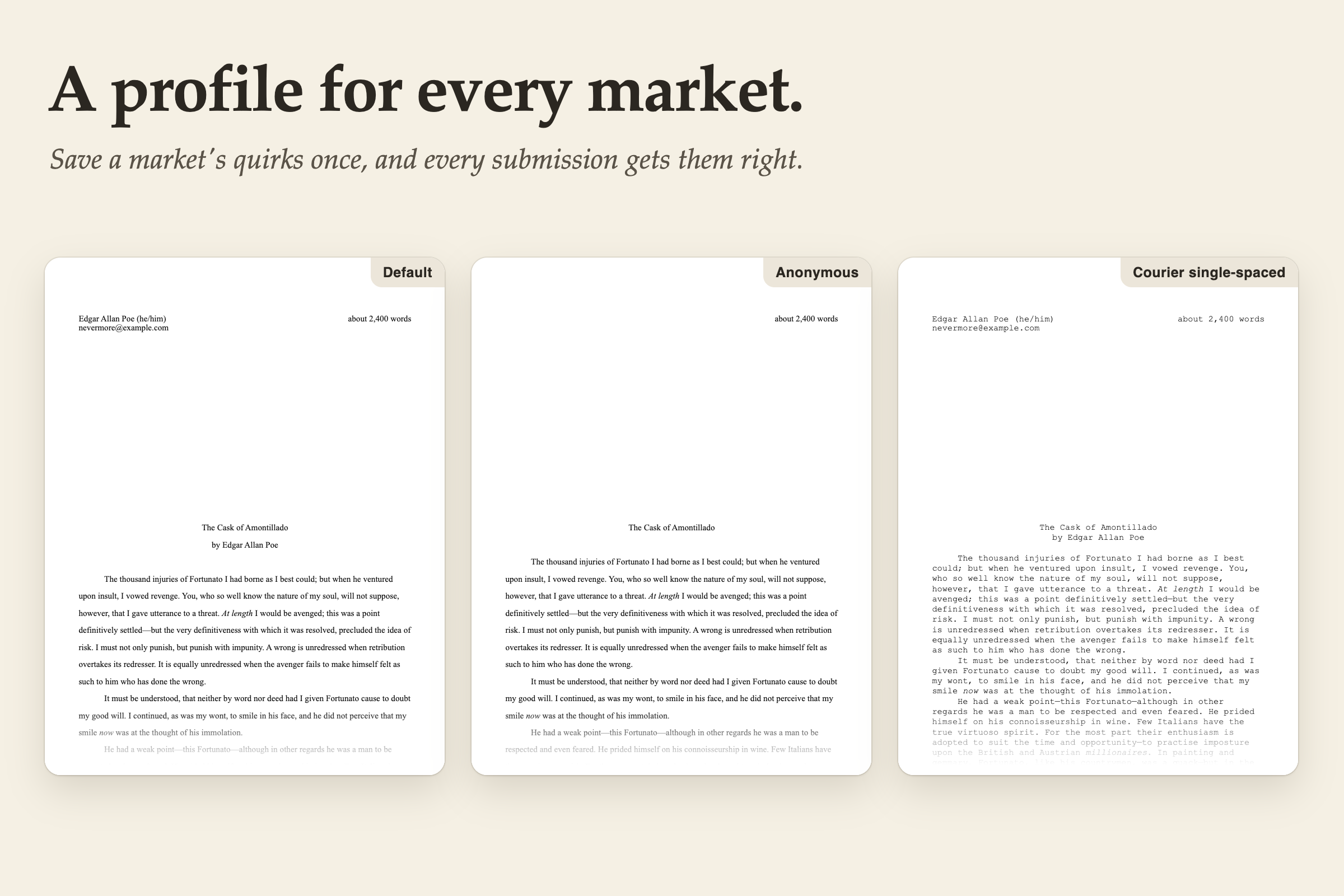
Blind submission, in the two configurations markets require. Anonymous throughout removes your name from the contact block, the byline and the running head. Identified cover page puts your details on a cover page of their own and removes your name from every page after it. Both also strip the author name that gets embedded invisibly inside a .docx, which survives every precaution taken on the visible page.
Export profiles. Save a market's or an editor's particular requirements, then pick them at the moment of export. Markets have quirks, you submit to the same ones repeatedly, and this means not adjusting the same six settings every time. Export with… always offers your normal settings first and never remembers your last choice, so a profile can't stay switched on by accident. A profile saves only what you actually changed, so a setting you adjust later still reaches a profiled export.
Writing for the exporter
Paragraphs
A blank line starts a new paragraph. A single Return is a line break inside it, as Obsidian shows it, so verse keeps its lines.
Scene breaks
Type *** on a line of its own. It exports as the centered # that a manuscript wants.
A bare # works too, and is what most writers reach for — but Obsidian reads it as an empty heading, so it renders as a blank H1 and turns up in the Outline pane and in [[note# autocomplete. --- and ___ work as well, though --- sitting directly under a paragraph turns that paragraph into a heading. *** is the one with no side effects.
Scene labels
If your story has multiple timelines, several point-of-view characters, or a prologue and epilogue, you may want to label its scenes. Write each label as an H2 (## 1987, ## Now) and it exports centered on its own line, in the same plain 12-point type. A scene label is its own break, so it needs no *** before it. The title is the note's H1 (or a heading that repeats the note's name); every other heading is treated as a scene label, so a note with no H1 can start with one.
Standard manuscript format has no rule for scene labels. Centered plain text is the convention, and it is what other manuscript tools print. A bonus of using real headings: Obsidian's Outline pane becomes a map of your scenes.
Title and content warnings
Stories can have two optional properties: a title, and content warnings.
New story gives you a note with both already set up. To add them to a story you've already written, run Add title and content warnings from the command palette, the note's ⋯ menu, or by right-clicking the note. Either way, nothing is filled in for you.
Obsidian shows them as fields at the top of the note: you type the title into a box, and add each content warning by clicking a plus. Behind those fields it stores this, though you won't normally see it or type it:
---
Title:
Content warnings:
  - body horror
  - animal death
---
The names are matched loosely, so Content warnings, contentWarnings, content_notes and cw all work.
Leave Title empty and the title comes from the note: the first heading if there is one, otherwise the filename, so renaming the note renames the manuscript. Fill it in and it wins. It's there because Obsidian forbids : / \ * " < > | ? in filenames, and plenty of titles need them — Who Goes There? can never be a filename, and neither can anything with a subtitle.
Content warnings print under the byline, set apart before the first line, where a slush reader meets them before the story. With an identified cover page you choose whether they go on the cover, with the story, or both. A comma-separated line or an inline array works just as well as a list. Settings control the label and whether they print at all. You write the warnings on each story.
If the running head is wrong for one story
The running head takes two keywords from the title, in the title's own case, ignoring any subtitle and any leading the, a or of. That's right nearly always.
When it isn't, add a Short title property to that story and it wins. Nothing puts this property there for you and nothing mentions it: it's the escape hatch for the rare story that needs it, not a field to fill in.
Settings
Author identity is one row that opens a page of its own: legal name, pen name, pronouns, address, email, phone, and a membership line. Address, email and phone each have a toggle, because markets differ on which they want. Blind submission is here too, beside the settings it overrides, and switching it to anonymous hides those toggles, since nothing they control gets printed. You set this once and it stays out of the way.
Manuscript options cover font (Times, Courier, or a custom face for a market that asks for one), size, line spacing, emphasis (italics, underline for markets still on the typewriter convention, or literal underscores for one that asks to see them), strip-bold, word-count rounding (which prints about 3,400 words rather than 3,442 words), the end marker, the content-warning label, and whether unclosed quotes get mentioned.
Folders — where the manuscript is written, and where new stories go. Both pick from the folders in your vault rather than asking you to type a path, so a misspelling can't quietly create a second folder.

Every setting is findable from Obsidian's settings search.
Troubleshooting
My RTF has no running head in Pages. It never will. macOS's RTF reader has no representation for page headers at all, so an RTF looks header-less there even when it's correct. Check RTF in Word, which is what the markets requesting RTF will open it in.
My RTF shows the running head on the first page in Google Docs. Google's RTF importer flattens headers to the whole document. The same story exported as .docx is correct in Google Docs, so this is the importer rather than the manuscript. Again: check RTF in Word.
My bold went missing. Deliberate — standard manuscript format has no bold, so the words survive and the emphasis doesn't. If an editor has asked you to keep it, turn off strip-bold in settings.
The running head shows the wrong part of my name. Left blank, it takes the last word of your name, which is wrong for any surname of more than one word. Set the surname explicitly in Author identity.
Where did my manuscript go? The output folder in settings, Manuscripts by default. Exports live in your vault, one file per story, and re-exporting replaces the file rather than piling up copies. A compressed manuscript is about the size of the note it came from, so a folder of them costs roughly what your stories already cost. Drag them out if you'd rather they lived elsewhere.
Export says it needs a name. The contact block can't be built without one. Settings → Author identity.
What this doesn't do
Shared editing or comments. Obsidian is single-user by design, and link-and-drop-in feedback isn't something a plugin can add to it. If you need a co-writer in the document with you, use another tool.
Multi-note stories. A story is one note. Assembling a manuscript from a folder of scene notes is a novel-writing shape, and it imposes structure on a short story that didn't ask for it.
A list of markets. Deliberately absent. Guidelines go stale, and a plugin that quietly formats to an out-of-date one is worse than a plugin that never claimed to know. Read the guidelines, then set the settings.
If you want any of these, or something else, open an issue. What gets built next is decided by what people ask for.
Development
npm install
npm run dev     # watch build
npm test        # unit tests
npm run lint    # official Obsidian plugin guidelines
npm run build   # typecheck and production bundle
Render a story without going through Obsidian — the output extension picks the emitter:
npm run sample -- path/to/story.md out.docx
npm run sample -- path/to/story.md out.rtf
The core (src/markdown.ts, src/typography.ts, src/manuscript.ts, src/docx.ts, src/rtf.ts) has no Obsidian imports, so it stays testable in plain Node and reusable by other tools. manuscript.ts holds what both emitters agree on — the contact block, the word count, the running head — so the two renderings can't drift apart.
License
MIT