Single HTML Export
 dukhaelee364 downloads
Export a note as one self-contained HTML file that works offline. Preview it, then share or save.
- Overview
- Scorecard
- Updates11
Export any note as a single, self-contained HTML file — no internet, no asset folder, no external dependencies. Open it anywhere, share it with anyone.
Works on desktop and mobile, including a native share sheet on iOS.
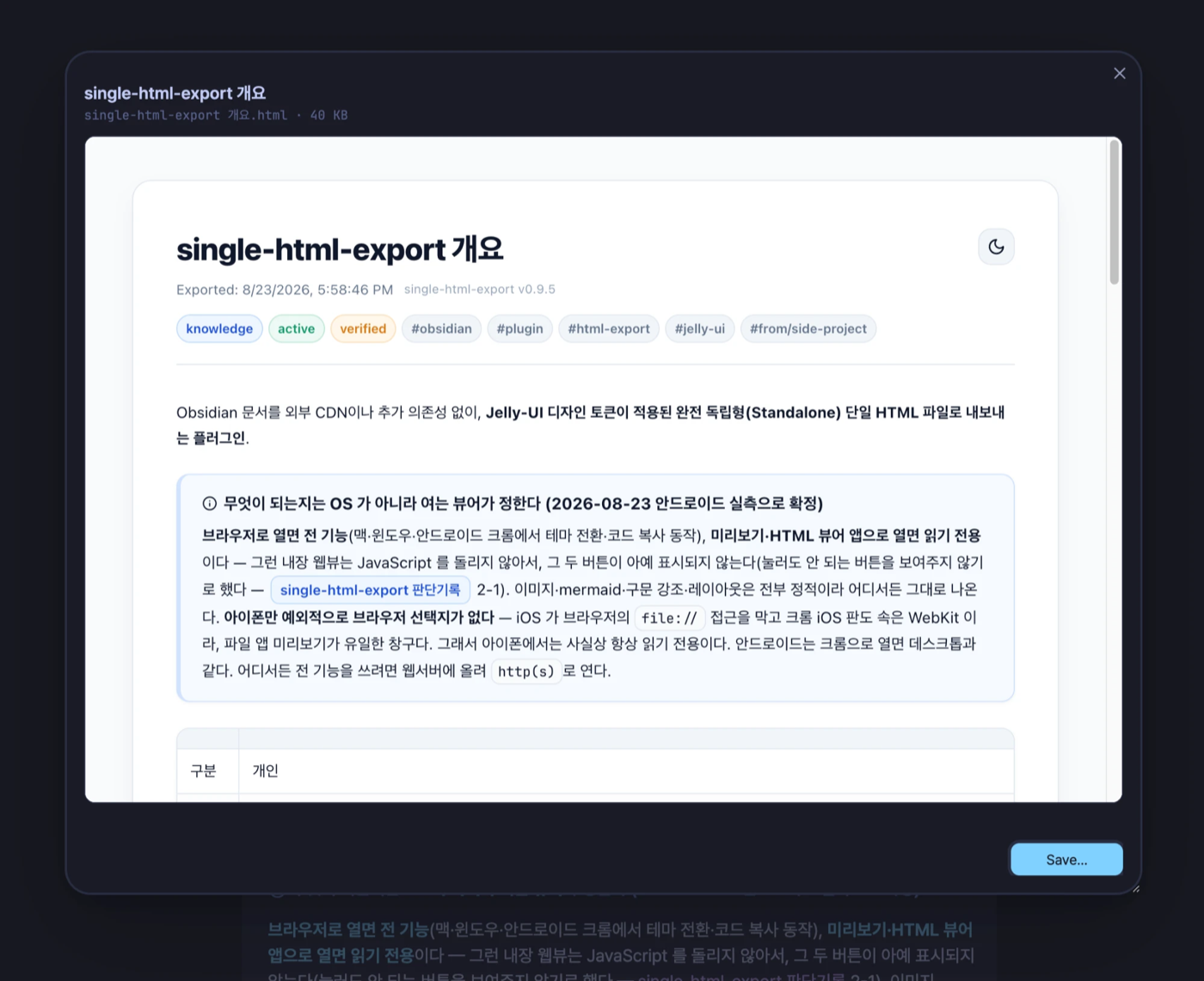
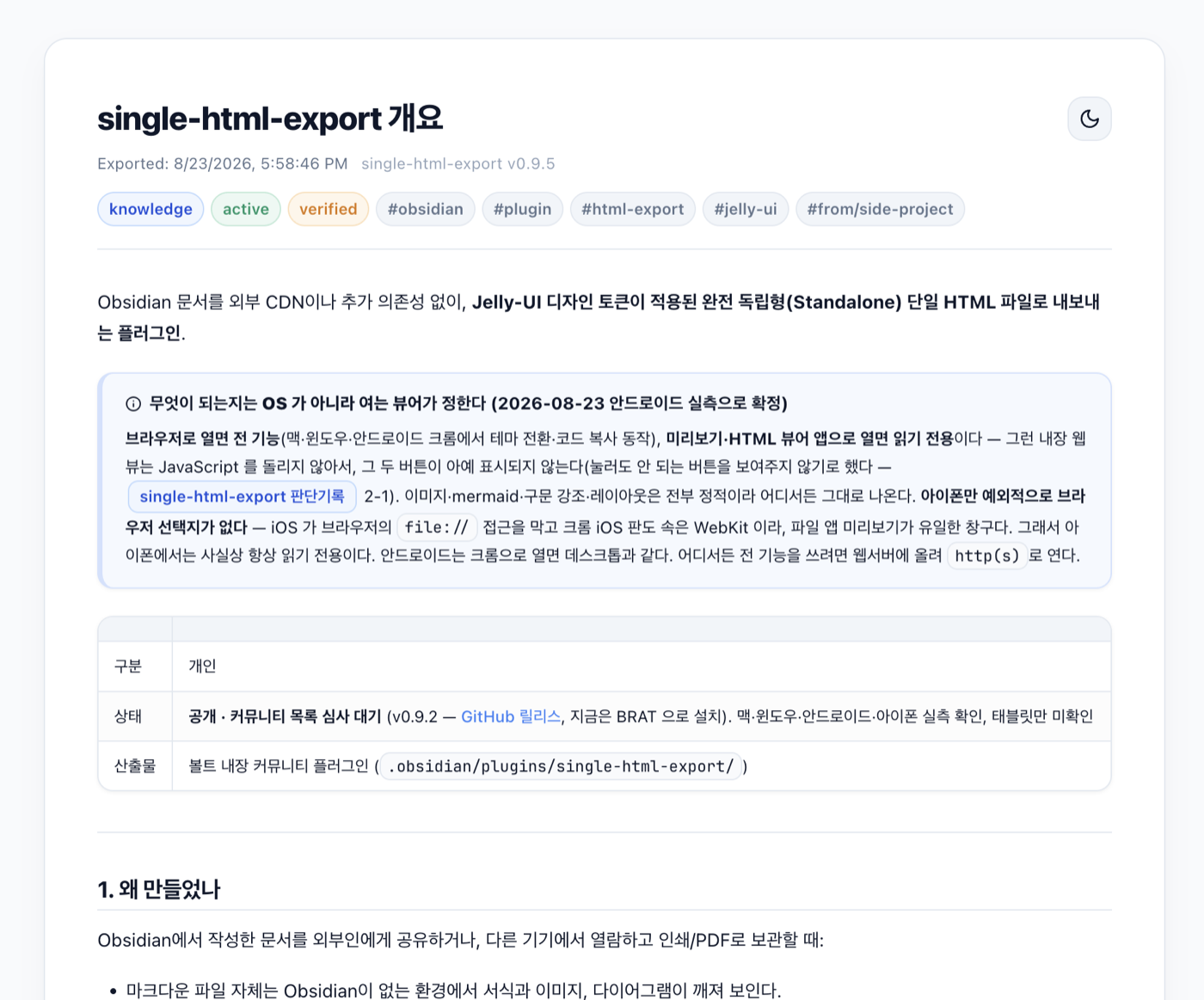
| Preview before anything is written | The exported file, opened in a browser |
|---|---|
 |
 |
Features
- Everything in one file — images are embedded as data URIs, Mermaid diagrams are pre-rendered to static SVG, syntax highlighting is bundled as CSS. The file opens offline, forever.
- Preview before you export — running the command opens a preview popup first. Nothing is written to disk until you choose an action; close the popup and nothing is left behind.
- Light / dark theme toggle built into the exported page.
- One-click code copy buttons on every code block.
- Obsidian syntax support — callouts, wikilinks, task lists, highlights, tables, and frontmatter (rendered as a metadata chip bar).
- Your CSS snippets come along — but only the ones that apply. If a note's look comes from a snippet (a card layout, a badge, a styled table), that CSS is bundled too. A snippet is included only when its selectors actually match the rendered note, so notes that use none stay exactly as small as before. Put
html-export-css: falsein a note's frontmatter to opt out, orhtml-export-css: [my-snippet]to force one in. - Print-friendly — printing an exported page always uses the light palette.
- Bilingual UI — follows your Obsidian language setting (English / Korean).
Usage
- Open a note, then run Export to single HTML from:
- the command palette,
- the file explorer / tab context menu, or
- the editor context menu.
- Check the preview in the popup.
- Pick an action. The buttons shown depend on what your device supports:
| Platform | Actions |
|---|---|
| Windows / macOS / Linux | Save… — choose a location, then Show in folder |
| iOS / iPadOS | Share — hands the file to the native share sheet (AirDrop, Messages, Files, …) |
| Android | Save to shared folder — writes to Download/Obsidian HTML/ and copies the path, so you can open and share it from your file manager |
Additional commands
| Command | Description |
|---|---|
| Diagnose export options | Shows which export capabilities this device provides |
| Clean up exported HTML in the vault | Moves HTML files created by older versions of this plugin into the vault trash |
Why the exported controls sometimes don't appear
Some viewers — the iOS Files preview, simple HTML viewer apps — don't run JavaScript. In those viewers the exported page is fully readable, but the theme toggle and copy buttons are hidden on purpose, so you never see a button that does nothing. Open the same file in a regular browser and everything works.
Limitations
- On Android, the Obsidian app does not expose a native share sheet to plugins, so the plugin saves to a shared folder instead.
- Fonts are not embedded (embedding CJK fonts would add 1–2 MB per file). The page uses Pretendard if installed, otherwise your system fonts.
- Internal wikilinks are kept as styled text — they have nowhere to point outside your vault.
What the plugin touches
The community directory scan flags the capabilities below. Here is what each one is for.
| Capability | Why |
|---|---|
| Filesystem outside the vault | Only on desktop, and only after you pick a location in the save dialog — the file you asked for is written with Node's fs. Obsidian has no API for writing outside the vault. On Android the same role is played by the Capacitor Filesystem bridge, writing to Download/Obsidian HTML/. |
| Clipboard | Write only, never read. The saved path is copied so you can paste it into a file manager, and the diagnostics command copies its report. |
| Local storage | The plugin stores nothing. It reads the app's own language setting as a fallback when the locale isn't otherwise available. The exported page uses localStorage for its own theme toggle, but that runs in the exported file — not inside Obsidian. |
| Reading your CSS snippets | Read only, at export time, from <vault>/.obsidian/snippets/. Only snippets you have enabled are considered, and only the ones whose selectors match the note being exported are copied into that file. @import rules and non-data: url() references are stripped so the result stays self-contained. Nothing is written back, and no other part of your config is read. |
Nothing is sent anywhere: the plugin makes no network requests, and an exported file has no external references.
Installation
From the community plugin directory (once approved): Settings → Community plugins → Browse → search "Single HTML Export".
With BRAT: add DDEOK/Obsidian-Single-HTML-Export in BRAT.
Manually: download main.js, manifest.json, and styles.css from the latest release into <vault>/.obsidian/plugins/single-html-export/.
Development
The plugin is a single plain-JavaScript file — no build step. Clone the repo, edit main.js, then copy main.js, manifest.json, and styles.css into <vault>/.obsidian/plugins/single-html-export/ and reload the plugin.
Two platform notes for contributors:
- Desktop-only features (save dialog, "Show in folder") are gated behind
Platform.isDesktopApp. - Android file access uses the Capacitor
Filesystembridge exposed by the Obsidian mobile app, feature-detected at runtime. When it's absent the plugin degrades to preview-only.
Acknowledgements
This plugin bundles or references the following third-party work. The same notices are embedded in every exported HTML file.
- Lucide (ISC) — inline SVG icons. © Lucide Icons and Contributors; Feather-derived icons © Cole Bemis (MIT).
- jelly-ui (MIT) — the design token and component vocabulary the exported page follows.
- Pretendard (SIL OFL 1.1) — referenced by name via
local(), not embedded.
Syntax highlighting reuses the Prism token classes Obsidian emits, and Mermaid diagrams are rendered by Obsidian's own engine — neither library is bundled.