Side-by-Side Diff
 Nico Blum743 downloads
Compare, review, and selectively merge two text files in a side-by-side view.
- Overview
- Scorecard
- Updates8

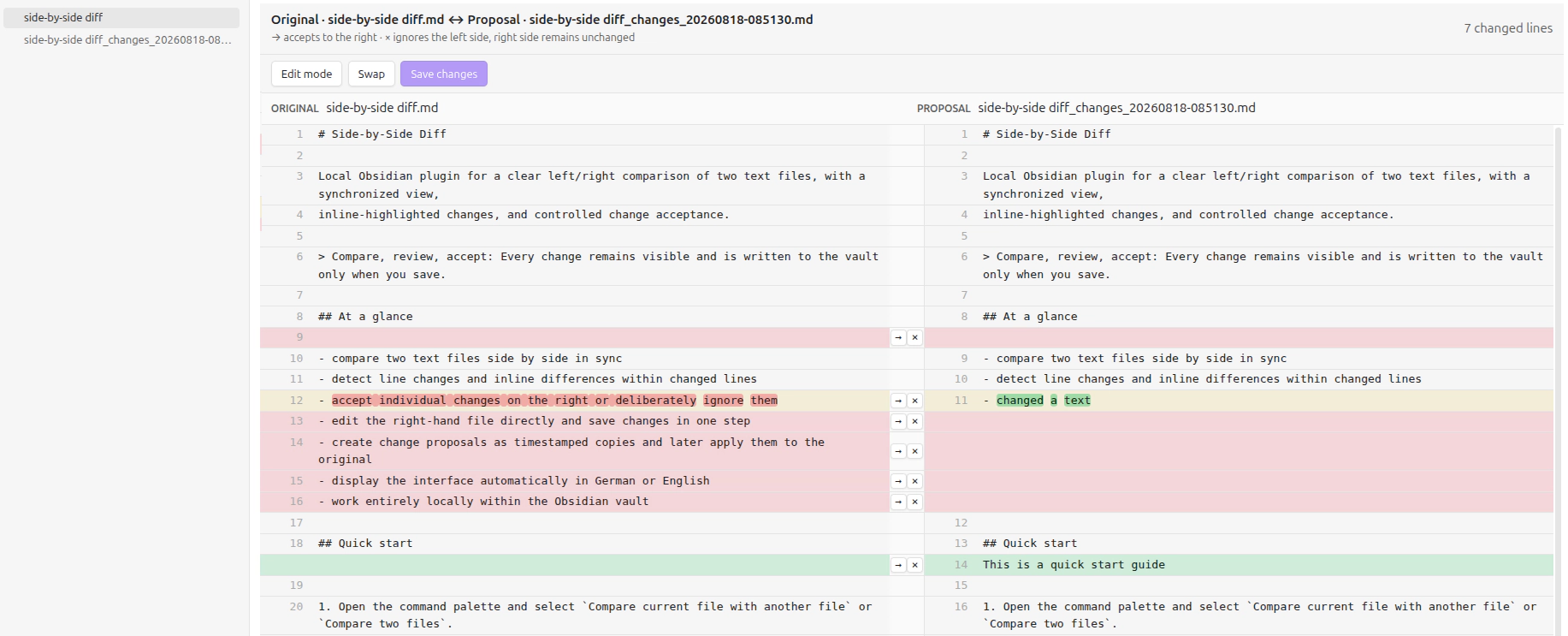
Compare two text files in a side-by-side file diff viewer. Review line changes with inline highlighting and selectively accept or reject edits; changes are written only when explicitly saved.
Compare, review, accept: Every change remains visible and is written to the vault only when you save.
Contents
- At a glance
- Quick start
- Three workflows
- Edit and save
- Installation
- Feedback and support
- Privacy and permissions
- Releases
- Documentation
- Development
- Tests
At a glance
- compare two text files side by side in sync
- select two files in the file explorer and choose
Compare filesto open the comparison directly - detect line changes and inline differences within changed lines
- navigate between changes with
Next change/Previous change,Alt+ArrowDown/Alt+ArrowUp, and automatic scrolling - automatically continue with the next open change after accepting or ignoring one (configurable, enabled by default)
- accept individual changes on the right or deliberately ignore them
- group contiguous changed lines, or lines separated only by blank lines, into one block, with
Accept all/Ignore allfor larger blocks - undo the last accept or ignore action with the
Undobutton orCtrl/Cmd+Z, until it is saved - remember the last five right-hand files and show them first in the right-file selector
- edit the right-hand file directly and save changes in one step
- create change proposals as timestamped copies and later apply them to the original
- display the interface automatically in German or English
- work entirely locally within the Obsidian vault
Quick start
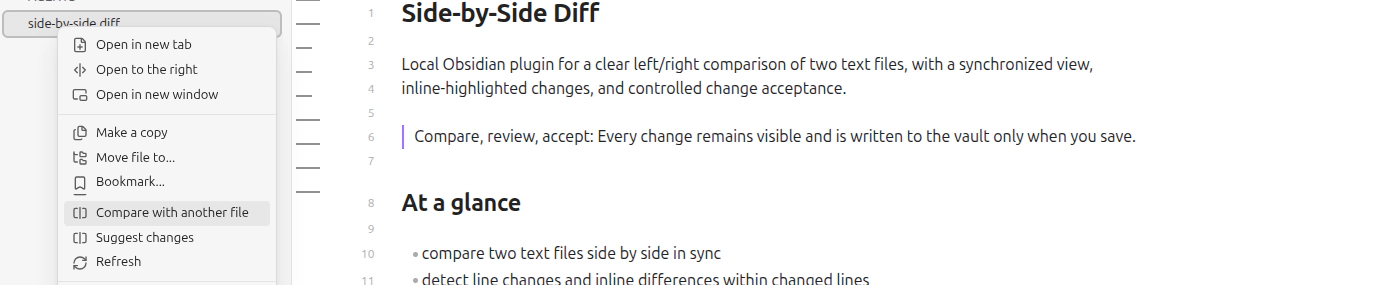
The comparison icon in the left ribbon and Compare with another file in the active document's menu lead to the
same view as the command palette:

Selecting two files in the file explorer and choosing Compare files from the context menu opens the comparison
directly with both files:
- Open the command palette and select
Compare current file with another fileorCompare two files. - Select the second file if it has not been chosen yet.
- Review the synchronized view. Use
→to stage a change as a proposal, or×to ignore the left-hand diff. - Navigate between changes with the toolbar or
Alt+ArrowDown/Alt+ArrowUp; accept or ignore the highlighted change withAlt+ArrowRight/Alt+ArrowLeft. - Save all staged changes with
Save changesorCtrl/Cmd + S.
Three workflows
Compare
The left and right files are displayed in sync. Line changes and differences within a line are highlighted. Use
Swap to switch the files and their direction. If changes are pending, the plugin asks whether to save or discard
them first.
Contiguous changed lines, as well as changes separated only by blank lines, are grouped into one block; a block with more than three changed lines
gets Accept all / Ignore all controls to resolve it in one step. Undo (button or Ctrl/Cmd+Z) reverts the last
accept or ignore action, single row or whole block, until it is saved.
Suggest changes
Suggest changes creates a copy next to the active document with a suffix and timestamp, for example
Document_changes_20260817-143000.md. If a matching copy already exists, the latest one is opened. The original
appears on the left and the editable proposal copy on the right.
Accept changes
Accept changes appears in the document menu only when a matching change copy exists. The view is reversed so that
the copy appears on the left and the original on the right. Use → to selectively apply reviewed proposals to the
original. After all proposals are accepted and saved, the plugin asks whether the suffix copy should be moved to the
trash; canceling keeps the copy available.
Edit and save
In normal diff mode, use Edit mode to make the right-hand side editable. The left-hand file remains read-only. If
comparison changes are pending, the plugin asks whether to save or discard them before entering edit mode. Multi-line
selection, deletion, Backspace, and Enter for new lines are supported.
Changes are never written automatically while typing or clicking a diff action. The file is updated only after using
Save changes or Ctrl/Cmd + S. Before saving, the plugin checks for external file changes and cancels instead of
overwriting newer content. Closing a view with unsaved changes opens a confirmation dialog.
Installation
The plugin requires Obsidian 1.6.6 or later.
Use the Add to Obsidian button above to open the Side-by-Side Diff community plugin page. To install the plugin,
search for Side-by-Side Diff under Settings → Community plugins → Browse in Obsidian.
For a manual installation, copy the plugin folder to .obsidian/plugins/side-by-side-diff/, then open
Settings → Community plugins and enable Side-by-Side Diff. The release folder must contain the generated
main.js, manifest.json, styles.css, and locales/ directory.
The plugin is currently marked as desktop-only because mobile support has not been tested yet.
Set the interface language under Settings → Side-by-Side Diff → Language to Automatic, Deutsch, or English.
In automatic mode, the Obsidian language is used when supported; unsupported languages fall back to English.
The About section at the top links to the developer website, the GitHub repository for stars, and the issue page for
feedback.
Feedback and support
- Report a bug or request a feature
- View the latest release
- Read the changelog
- Visit the developer website
If Side-by-Side Diff is useful to you, a GitHub star is much appreciated.
Privacy and permissions
Side-by-Side Diff runs entirely inside the current Obsidian vault.
- It makes no network requests and uses no telemetry, analytics, ads, or external services.
- It does not require an account or payment.
- It enumerates vault file metadata (paths and names) to populate the file selectors and context actions.
- It reads and writes file contents only after an explicit user action, plus its own plugin settings.
- It does not access files outside the vault.
The source repository contains TypeScript; main.js is generated locally and attached to releases.
Releases
Release tags must exactly match the version in manifest.json and use the x.y.z format. Pushing such a tag
automatically creates a GitHub release with generated notes and uploads main.js, manifest.json, and styles.css.
The release workflow also creates GitHub artifact attestations for these three assets.
Documentation
- Features and requirements – authoritative overview of the current scope and requirements
- Concept: Review status display – concept for clearer accepted, ignored, and open change states
- Contributing – development workflow, tests, and change checklist
Development
Install the local development dependencies once, then use the following commands from this directory:
npm install
npm run dev       # development bundle with inline source maps
npm run build     # strict typecheck and production bundle
npm run validate:manifest
npm run lint      # strict ESLint checks
npm test          # TypeScript unit tests
TypeScript source lives in src/; main.js is the generated Obsidian entry point and is ignored by Git. Rebuild it
before installing the plugin in a vault.
Tests
The deterministic diff, synchronization rules, and translation tables are tested in TypeScript:
npm test
Run the command from this plugin directory. See CONTRIBUTING.md for additional development guidance.