Select to Note
 TYzzt295 downloads
Clip selected browser content into your active note through a local companion extension.
- Overview
- Scorecard
- Updates8
English
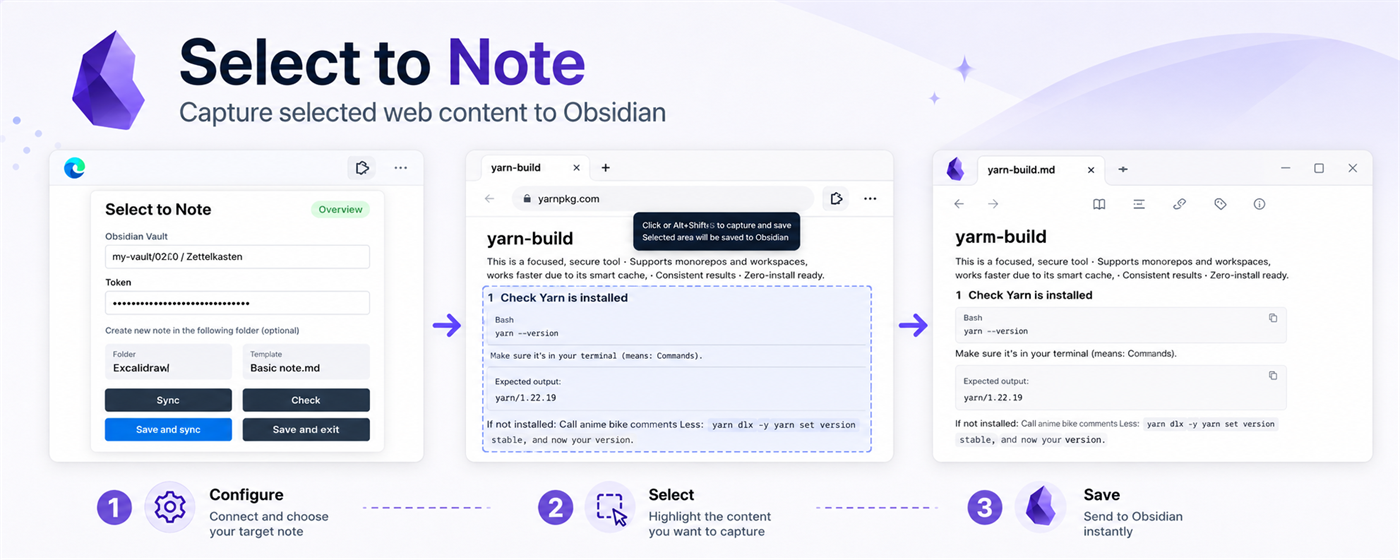
Select to Note clips selected browser content into Obsidian through a local companion workflow.
- The browser extension works in Chrome and Microsoft Edge. Press
Ctrl+Shift+X, click a page element, or holdShiftand drag a rectangle. - The Obsidian plugin listens on
127.0.0.1:27124, verifies a shared token, and appends captured Markdown to the active note. If no Markdown note is active, it asks where to save the clipping. - Translation is optional. You can use the browser built-in translator when available, or configure Baidu, Azure, Google Cloud, or an OpenAI-compatible LLM endpoint.
Select to Note is built for users who repeatedly collect small, high-signal web snippets into active Obsidian notes. It is not a full-page archiver; the product focus is fast selection, clean Markdown, local-first capture, and low setup friction.
Install
Obsidian Plugin
Install Select to Note from the Obsidian community plugin browser:
Browser Extension
Chrome:
- Download the browser extension ZIP from the latest GitHub release:
- Unzip
select-to-note-browser-extension.zip. - Open
chrome://extensions. - Enable Developer mode.
- Choose Load unpacked and select the unzipped folder.
Microsoft Edge:
- Install the extension from Microsoft Edge Add-ons:
The default token is shared by both sides, so a fresh install works without pairing. If you generate a new token in Obsidian, open the browser extension Settings page and paste the same token there.
The default shortcut is Ctrl+Shift+X. Chrome manages extension shortcuts at chrome://extensions/shortcuts; Edge uses edge://extensions/shortcuts.
Usage
- Install and enable the Select to Note Obsidian plugin.
- Install the browser extension.
- Open the extension popup and choose Check connection.
- Click Start selection, or press
Ctrl+Shift+X. - Click a highlighted element, or hold
Shiftand drag a rectangle. - Choose Send to Obsidian. The selected content is appended to the active Markdown note with source URL and capture time.
If no Markdown note is active, Obsidian shows a target picker. You can create a new clipping in Clippings/ or append to an existing Markdown file.
Advanced Settings
The browser extension Settings page contains the local Obsidian endpoint and shared token. Most users can keep the defaults. Change them only if the Obsidian plugin uses a different endpoint or you generated a new token.
Translation is optional. The default engine is Auto local first, which tries the browser built-in Translator API when available. Baidu, Microsoft Azure Translator, Google Cloud Translation, and OpenAI-compatible LLM engines require your own API credentials. LLM base URLs can point to https://api.openai.com/v1 or a compatible custom HTTPS domain. When translation is enabled, translation actions appear under More after selecting page content.
If the popup shows Offline, open Obsidian, enable the Select to Note plugin, and check again. If it shows Token mismatch, paste the Obsidian plugin token into the browser extension Settings page.
Build
npm install
npm run typecheck
npm test
npm run package:obsidian
npm run package:browser
The Obsidian release command writes main.js, manifest.json, and styles.css into dist/obsidian-release/. The browser package command writes dist/select-to-note-browser-extension.zip.
Project Layout
chrome-extension/   Browser extension source
obsidian-plugin/    Obsidian companion plugin source
tests/              Unit tests for shared behavior
docs/               Privacy policy and lightweight public docs
Privacy and Network Use
The Obsidian plugin starts a local HTTP receiver bound to 127.0.0.1 while enabled. It accepts authenticated requests from the companion Chrome or Microsoft Edge extension and writes the received Markdown into the selected vault target.
Select to Note does not include telemetry, analytics, advertising, account login, or any remote service. The plugin does not upload note content or browser selections anywhere. The shared token is stored locally in Obsidian plugin data and browser extension storage.
If translation is enabled, selected text is sent only to the translation engine you choose. Built-in translation stays in the browser when supported by the browser. Cloud engines send the selected text to the configured provider, such as Baidu, Azure, Google Cloud, or your OpenAI-compatible LLM endpoint. Translation is off by default.
Privacy policy:
中文
Select to Note 可以把浏览器中选中的网页内容剪藏到 Obsidian。本项目由两部分组成:浏览器扩展和 Obsidian 社区插件。
- 浏览器扩展支持 Chrome 和 Microsoft Edge。按
Ctrl+Shift+X后,可以点击网页元素,也可以按住Shift拖拽矩形框选。 - Obsidian 插件在本机
127.0.0.1:27124启动接收端,校验共享 token 后,把 Markdown 追加到当前活动笔记末尾。没有活动 Markdown 笔记时,会弹窗让你选择或新建目标文件。 - 翻译是可选功能。可优先尝试浏览器内置翻译,也可以配置百度、Azure、Google Cloud 或 OpenAI-compatible LLM。
Select to Note 面向高频把网页片段整理进当前 Obsidian 笔记的用户。它不是完整网页归档器,核心价值是快速选择、干净 Markdown、本地优先和低配置成本。
安装
Obsidian 插件
在 Obsidian 社区插件市场安装 Select to Note:
浏览器扩展
Chrome:
- 从最新 GitHub Release 下载浏览器扩展 ZIP:
- 解压
select-to-note-browser-extension.zip。 - 打开
chrome://extensions。 - 开启 开发者模式。
- 点击 加载已解压的扩展程序,选择解压后的文件夹。
Microsoft Edge:
- 从 Microsoft Edge Add-ons 安装扩展:
默认 token 已经在浏览器扩展和 Obsidian 插件里配好,首次安装可以直接使用。如果你在 Obsidian 插件设置中生成了新 token,请打开浏览器扩展 Settings 页面,把同一个 token 填进去。
默认快捷键是 Ctrl+Shift+X。Chrome 的快捷键管理地址是 chrome://extensions/shortcuts,Edge 是 edge://extensions/shortcuts。
使用
- 安装并启用 Select to Note Obsidian 插件。
- 安装浏览器扩展。
- 打开浏览器扩展 popup,点击 Check connection。
- 点击 Start selection,或按
Ctrl+Shift+X。 - 点击高亮元素,或按住
Shift拖拽矩形框选。 - 点击 Send to Obsidian。内容会以 Markdown 形式追加到活动笔记末尾,并保留来源 URL 和捕获时间。
如果当前没有活动 Markdown 笔记,Obsidian 会弹出目标选择器。你可以新建到 Clippings/,也可以追加到已有 Markdown 文件。
高级设置
浏览器扩展 Settings 页面包含本地 Obsidian endpoint 和共享 token。大多数用户保留默认值即可。只有当 Obsidian 插件使用了不同 endpoint,或你生成了新 token,才需要修改。
翻译是可选高级功能。默认引擎是 Auto local first,会优先尝试浏览器内置 Translator API。百度、Microsoft Azure Translator、Google Cloud Translation、OpenAI-compatible LLM 都需要你自己的 API 凭据。LLM base URL 可以使用 https://api.openai.com/v1,也可以使用兼容 /chat/completions 的自定义 HTTPS 域名。启用后,选择网页内容时,翻译动作会出现在 More 里。
如果 popup 显示 Offline,请打开 Obsidian,启用 Select to Note 插件后重新检查。如果显示 Token mismatch,请把 Obsidian 插件里的 token 粘贴到浏览器扩展 Settings 页面。
构建
npm install
npm run typecheck
npm test
npm run package:obsidian
npm run package:browser
Obsidian 打包产物位于 dist/obsidian-release/,浏览器扩展 ZIP 位于 dist/select-to-note-browser-extension.zip。
隐私和网络
Obsidian 插件只监听本机 127.0.0.1,浏览器扩展通过共享 token 发送剪藏内容。Select to Note 不包含遥测、分析、广告、账号登录或远程服务,不会上传你的笔记内容或浏览器选区。
如果开启翻译,选中文本只会发送到你选择的翻译引擎。浏览器内置翻译由浏览器能力决定;云翻译会把选中文本发送到对应服务商,例如百度、Azure、Google Cloud 或你配置的 OpenAI-compatible LLM endpoint。翻译默认关闭。