Secret Parcel
 theluckystrike4 downloads
Move selected keychain secrets to another device in one passphrase-encrypted file.
- Overview
- Scorecard
- Updates2
Move selected keychain secrets to another device in one passphrase-encrypted file. Secret Parcel is for a vault that has secret IDs on one device and needs the same credentials on a second device. It lists IDs, encrypts selected values, and gives you an import preview before it changes the target keychain. Export, import, conflict selection and write verification are free.
You need Obsidian 1.11.4 or later. A parcel is a vault file, so your existing sync or file transfer can carry it. Use a long, unique passphrase. Keep that passphrase separate from the parcel file. Delete the parcel after import if you do not need a retained copy.
Features
Secret ID checklist
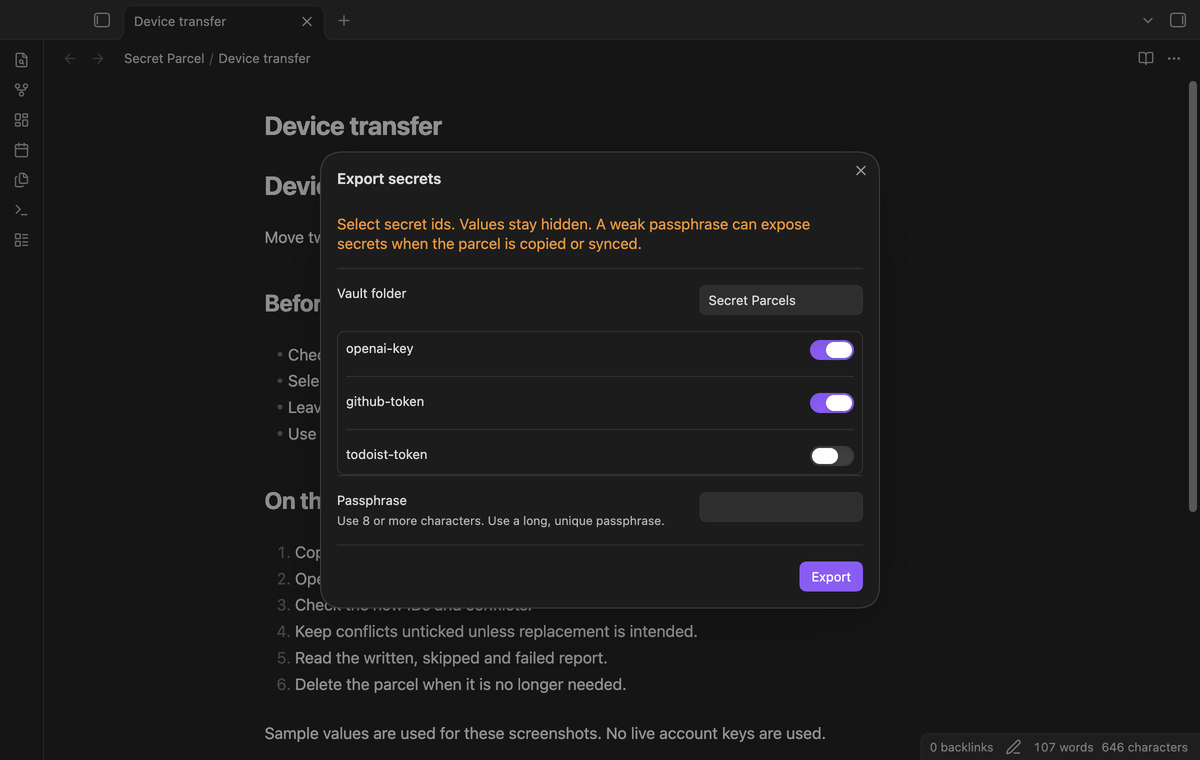
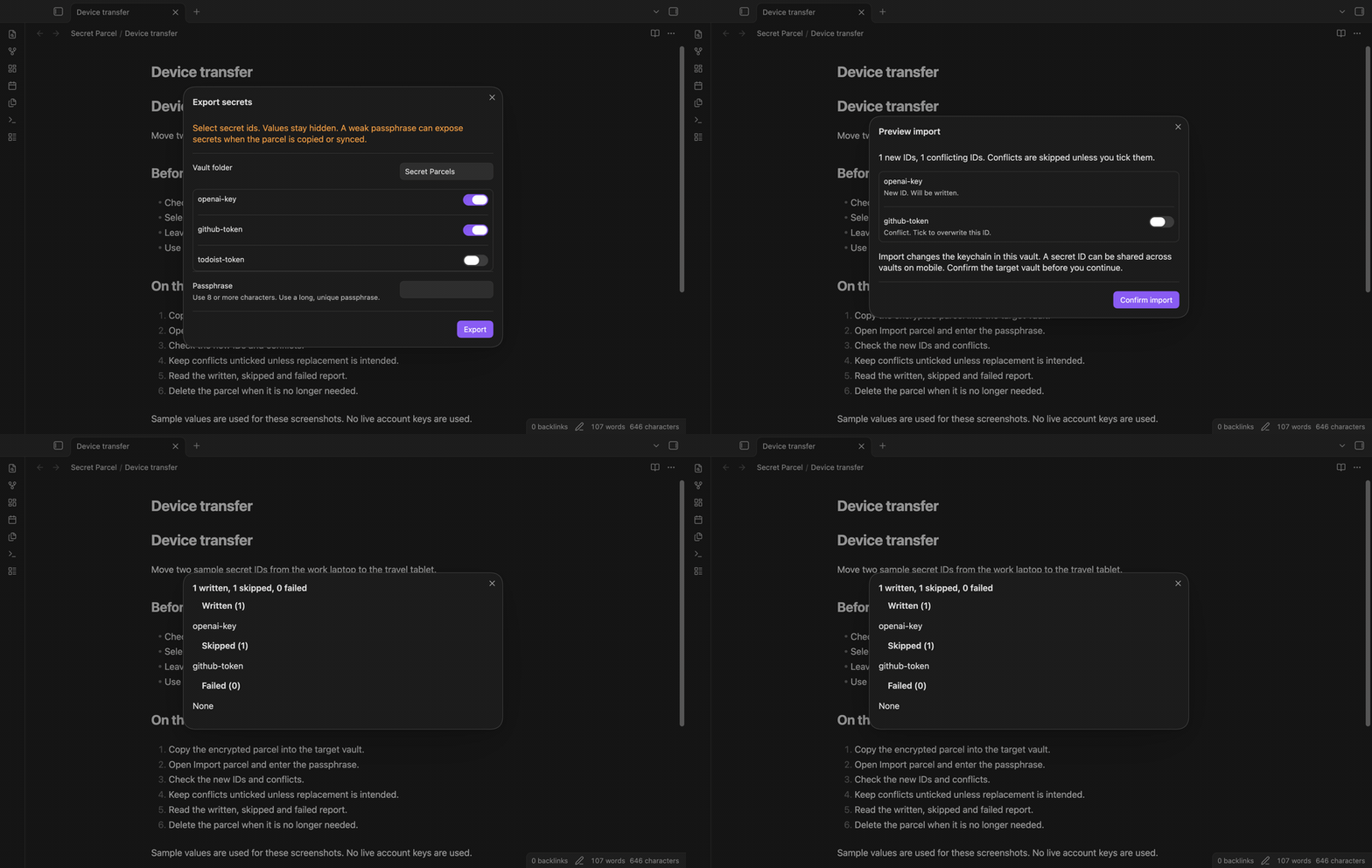
Run Export secrets to see the keychain IDs in a checklist. Values stay hidden. The Export button stays disabled until you select an ID. An empty keychain gives the notice “The keychain has no secrets.” The plugin reads values for the selected IDs when you export, rather than reading values to build the list.
Encrypted vault export
Choose a vault folder and enter a passphrase with eight or more characters. The default folder is Secret Parcels. The file name has the form secrets-YYYY-MM-DD-HHmm.secretparcel.json. A second export in the same minute gets a numbered suffix. The plugin does not replace an existing parcel.
Encryption uses Web Crypto: PBKDF2 with SHA-256, 310,000 iterations, a random 16-byte salt, and AES-GCM with a 256-bit key and a random 12-byte IV. The outer JSON has v, kdf, salt, iv and ct. Secret IDs and values are inside the encrypted payload. Parcel IDs, values and passphrases stay on the device; the transfer features make no network request. The plugin writes encrypted parcel JSON to the vault; it does not write plaintext secret values to notes or plugin settings.
Import preview and conflict choices
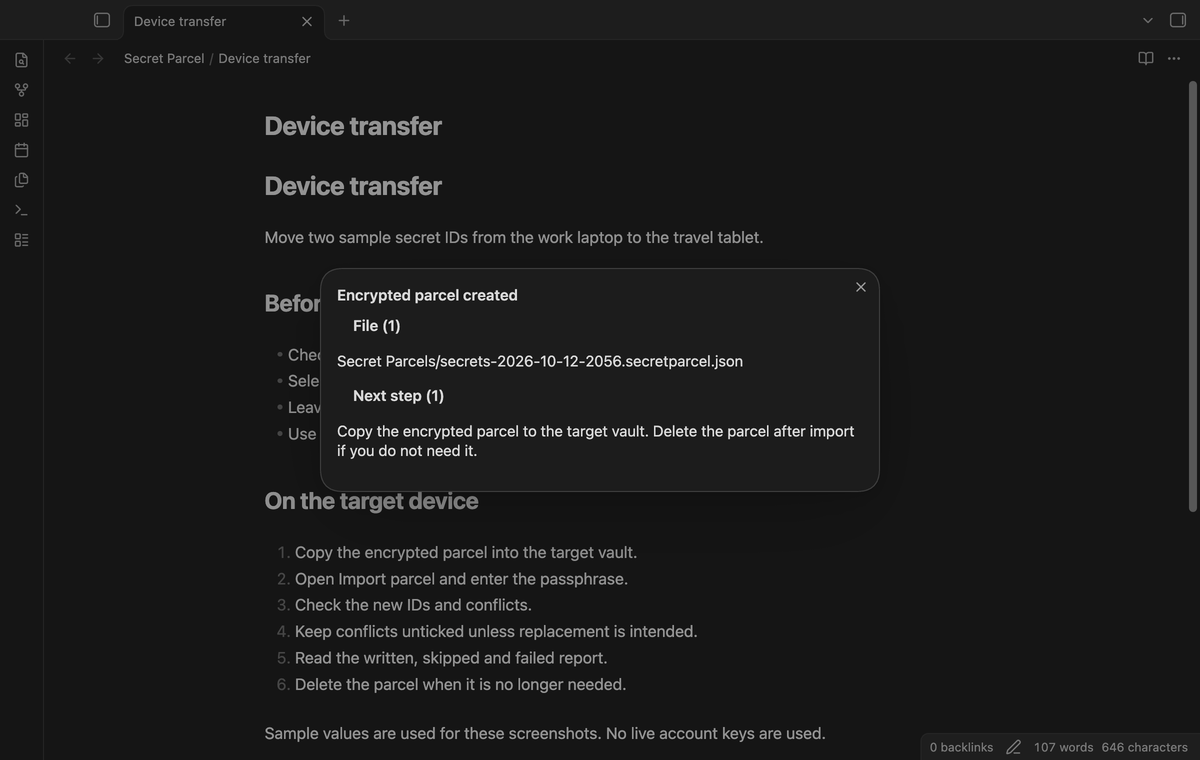
Run Import parcel, choose a parcel from the vault, and enter its passphrase. The plugin decrypts and validates the complete payload before it opens the preview. New IDs appear beside conflicting IDs. A conflict starts unticked. Tick a conflict only when you intend to replace that value. Confirm import to write new IDs and selected replacements.
Read-back result report
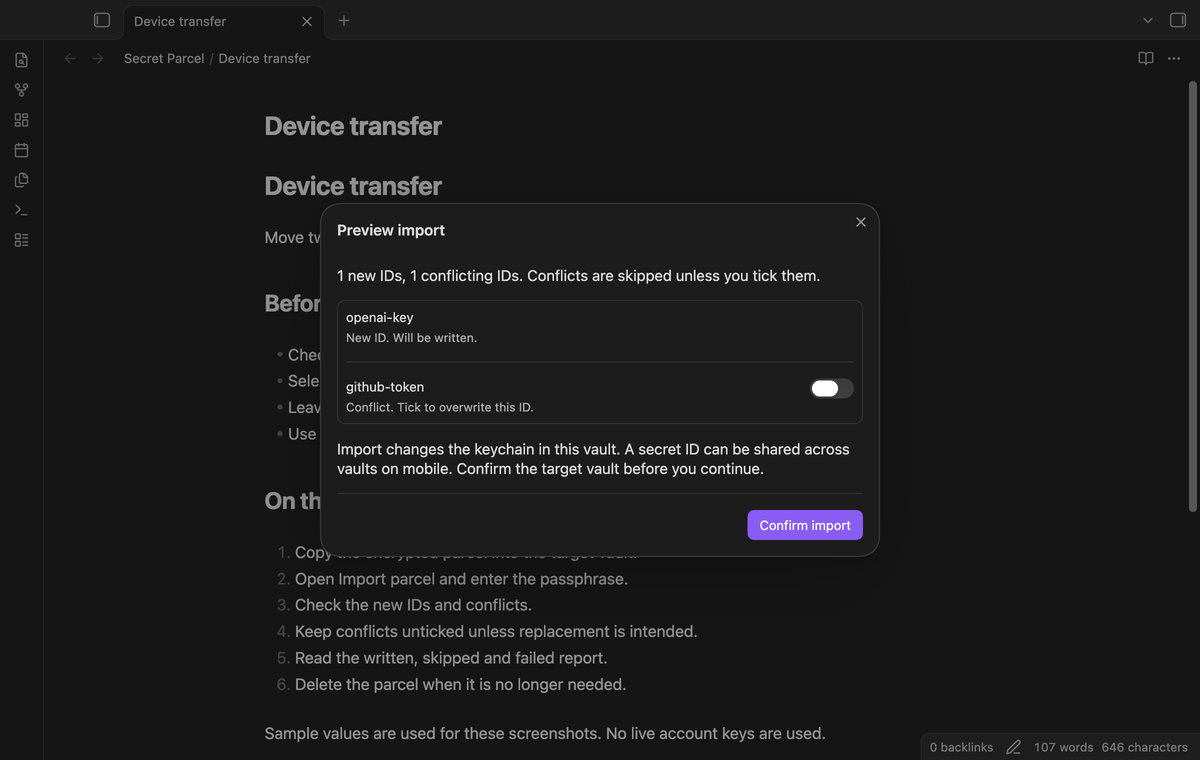
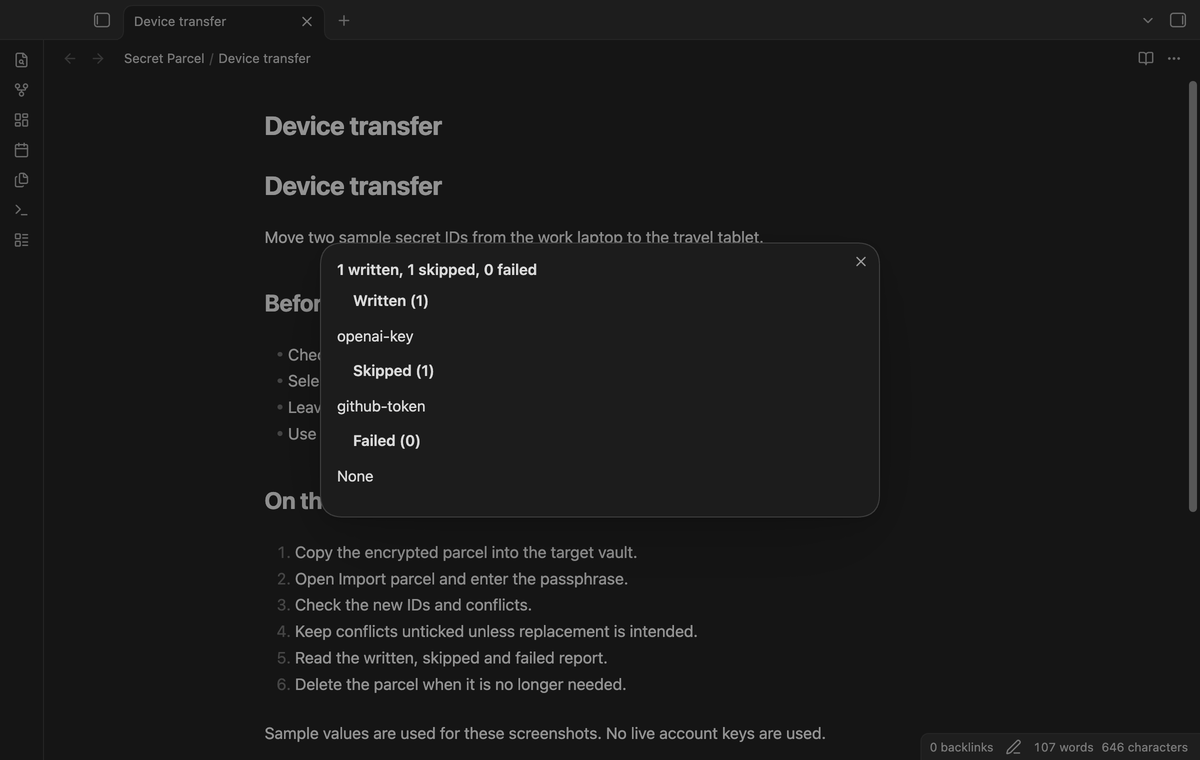
After a write, the plugin reads the value back and compares it with the imported value. The report lists written, skipped and failed IDs. A failed write does not stop later entries from being attempted. Check failed IDs before you remove the source parcel. The report shows IDs and counts without secret values. Conflicts are checked again at the write step, so an ID added after preview is skipped unless its overwrite was selected.
Saved export profiles (Pro)
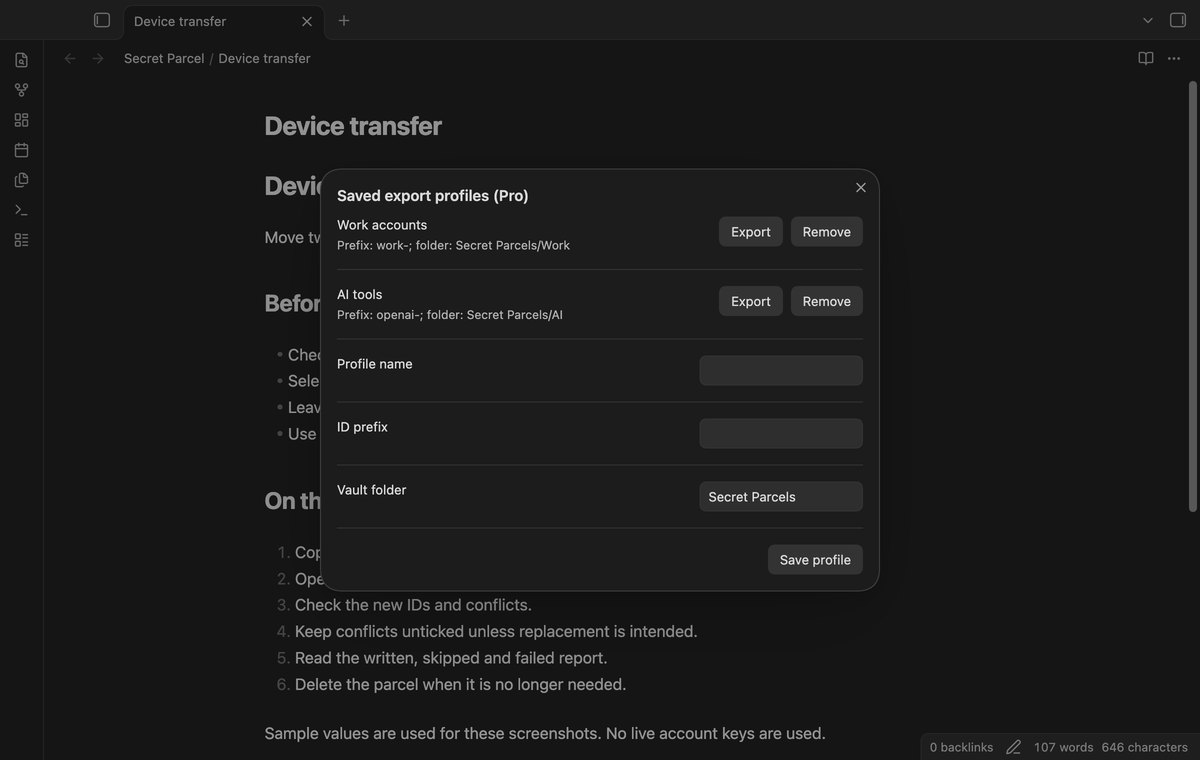
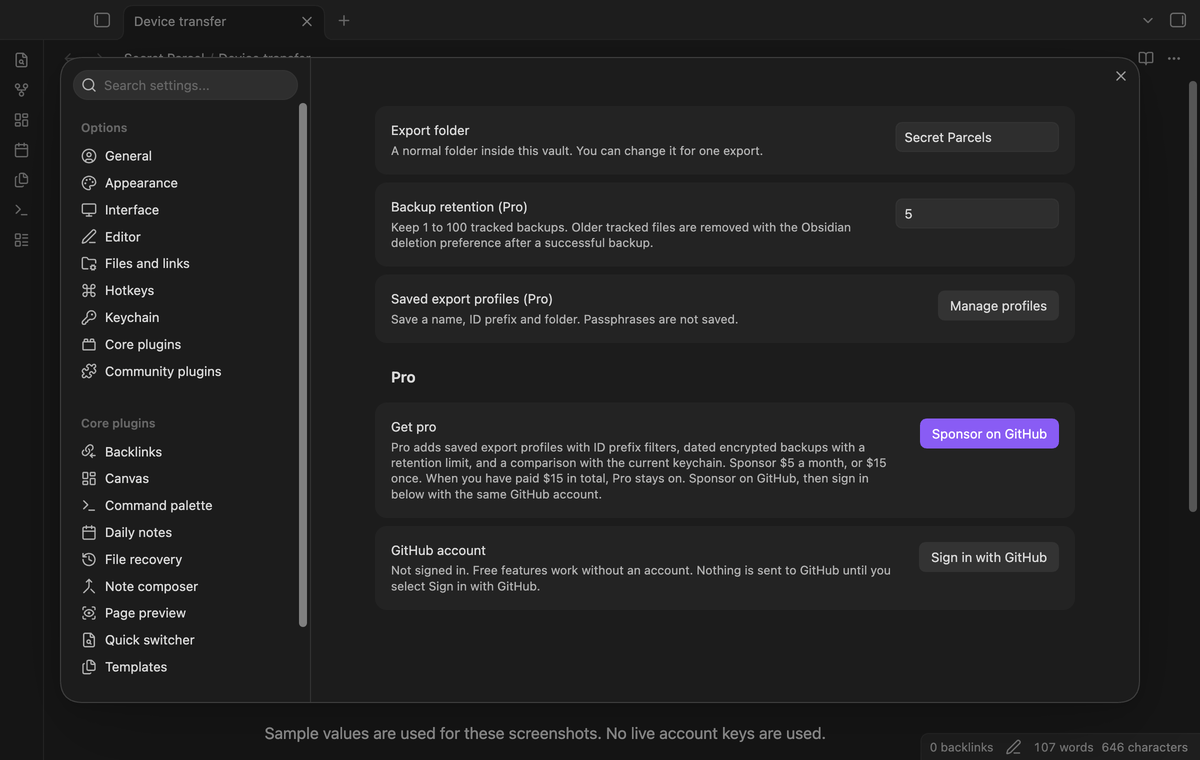
Save a profile name, an ID prefix and an export folder. A profile helps you repeat a selection such as work- or openai-. The prefix narrows the visible checklist; it does not select IDs for you. Profiles store no passphrase and no secret values. You can remove a profile from the manager. The limit is 50 profiles.
Dated encrypted backups (Pro)
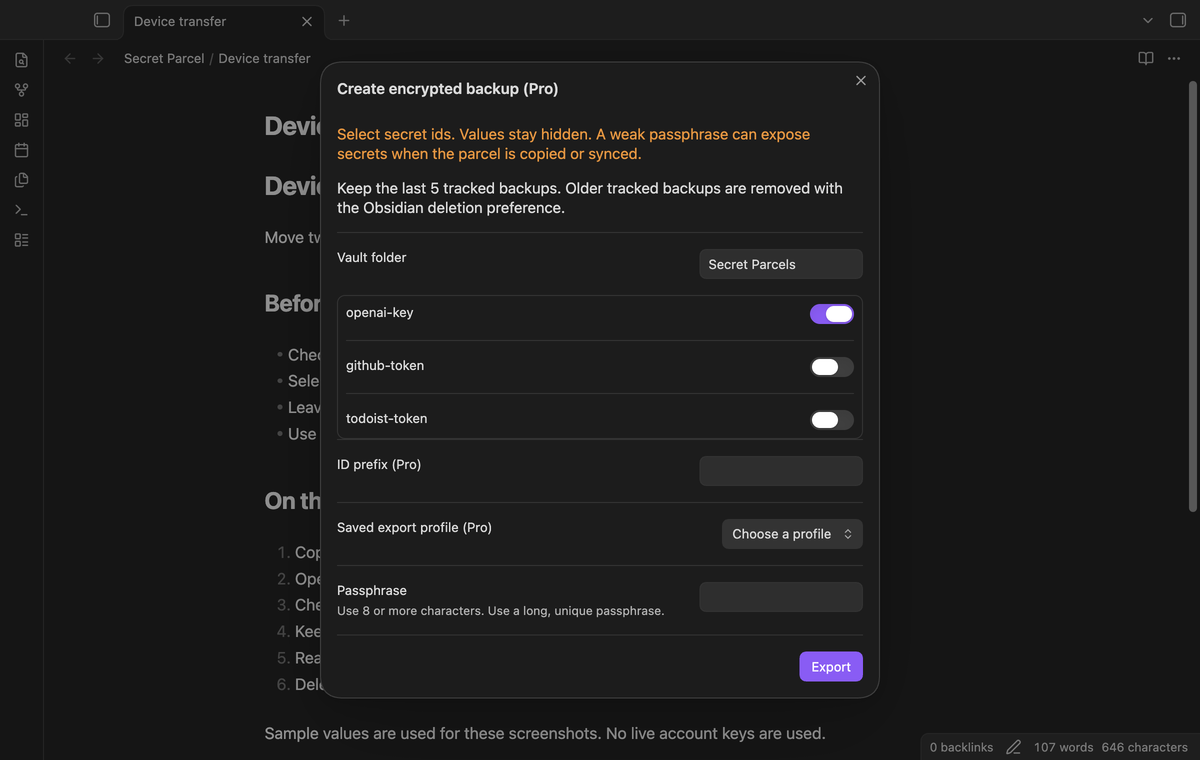
Run Create encrypted backup to select IDs and create a dated backup- parcel. Backups are manual. Enter a passphrase for each run. Set a retention limit from 1 to 100. After a new backup is written, older tracked backup files are removed with Obsidian's deletion preference. If a removal fails, the new backup stays, the old path stays tracked, and the next backup tries the removal again. Ordinary exports and untracked parcel files are outside this cleanup. A moved or renamed backup is no longer found at its tracked path.
Keychain comparison (Pro)
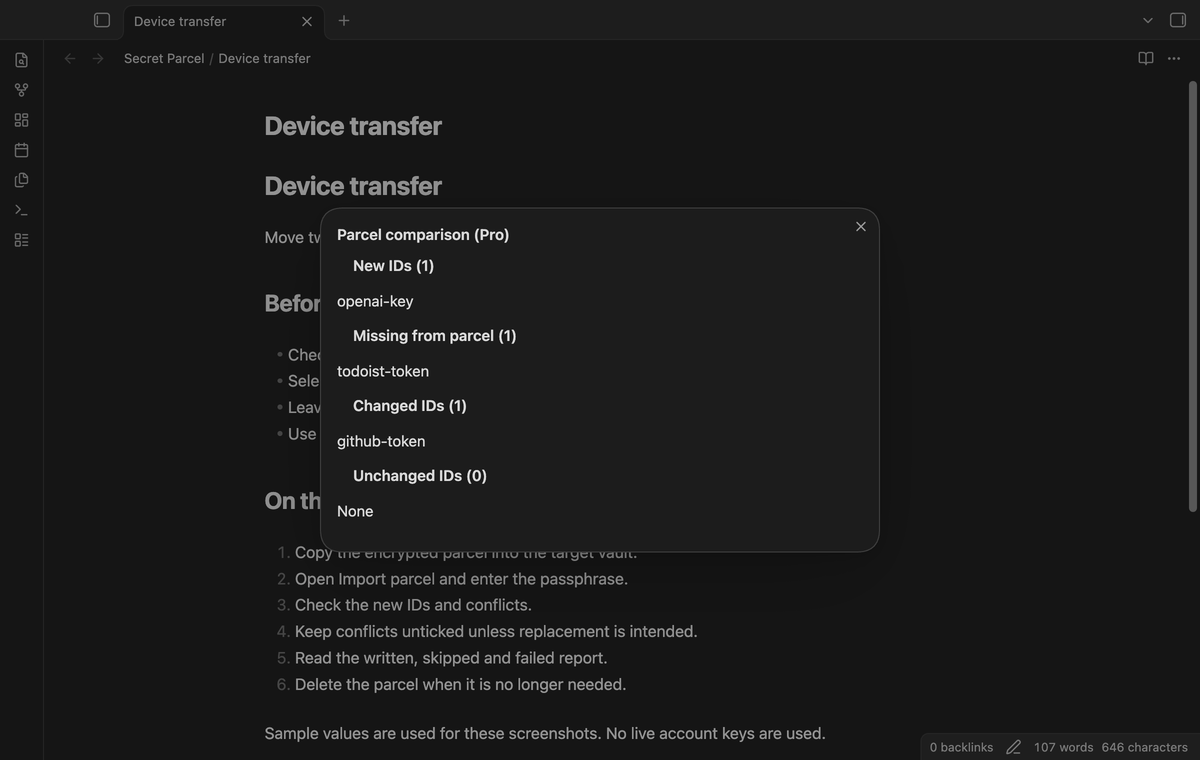
Choose Compare parcel and decrypt a file to see new IDs, IDs missing from the parcel, changed IDs and unchanged IDs. Changed and unchanged results come from SHA-256 hashes of the values. The comparison does not write secrets. Missing means that an ID exists in the current keychain but is absent from this parcel, which can be expected after a partial export.
Install
Use the Community plugins page to install Secret Parcel when its listing is available. For a manual install, put main.js, manifest.json and styles.css in .obsidian/plugins/secret-parcel within the target vault. Reload Obsidian and enable the plugin. Use the same procedure on the second device. The source keychain is not cleared by export.
Usage
Check which vault is open on the source device. Select the required IDs and make an export. Copy the encrypted file to the target vault with your chosen transfer method. On the target device, open the import command and check the preview. Keep conflicts unticked unless the source value must replace the target value. After confirmation, check the report and test the consuming plugin with its usual command.
Secret IDs can be shared across vaults on mobile in some configurations. Check the target vault before import. The checklist can include the GitHub sign-in token ID for this plugin or another plugin. Leave such an ID unselected when you do not intend to transfer that token.
Settings
Export folder sets the starting folder for exports. The export modal lets you change it for one run. Hidden folders and relative path segments are refused. Backup retention sets the number of tracked Pro backups to keep. Manage profiles opens the Pro profile manager. The Pro account rows provide sign in, refresh and sign out. Settings keep folder names, profile prefixes, profile names and tracked backup paths locally in the vault's plugin data.
FAQ
Why did the file fail to decrypt? A wrong passphrase or failed authentication gives “Wrong passphrase or damaged file.” No secrets are written at that stage. There is no passphrase recovery.
What inputs are refused? Payloads are limited to 500 entries, IDs of 1 to 128 lowercase letters, digits or dashes, and 64 KB of UTF-8 bytes per value. Duplicate IDs and non-text values are refused. The file limit is 48 MB. Validation reports the first invalid entry before import writes begin.
What was not tested? Linux, physical Android and iOS devices, cross-vault mobile keychain sharing, cloud sync providers, and a paid GitHub checkout were not tested. The cryptography has not had an independent audit. Tests use sample secrets and simulated sponsorship responses. A parcel is encrypted, but a weak passphrase still exposes it to guessing by someone who has the file.
Payment, account and network
The core features are free. Pro features need a GitHub Sponsors sponsorship of theluckystrike: $5 a month or more, or $15 once. A total payment of $15 meets the payment requirement for Pro without further payment. Sign-in and the checks below still apply. Your notes stay readable and editable with or without Pro.
GitHub handles the payment. Sponsor at https://github.com/sponsors/theluckystrike. You need no account for the free features. Pro needs the GitHub account that sponsors.
Until you select "Sign in with GitHub" in the settings, Secret Parcel makes no network requests. Sign in uses the GitHub device flow. Secret Parcel sends its public client ID and the scope read:user to https://github.com/login/device/code and shows you a code. While you enter the code at https://github.com/login/device, it asks https://github.com/login/oauth/access_token every few seconds to check the sign-in status. The scope permits profile reads only. GitHub needs this access to show the sponsorship tier. It grants no repository scope and no write access.
After sign in, Secret Parcel sends one query to https://api.github.com/graphql. It checks if the signed-in account sponsors theluckystrike. It asks for the tier and the total payment to theluckystrike. The plugin reuses a successful check for 7 days. Failed checks can retry after 6 hours. Select Refresh to request an earlier check. It sends no note content, file names or other vault data, and it has no telemetry.
After a successful check, Pro can work offline for up to 14 days. Sign out or a negative sponsorship answer turns Pro off. The plugin stores the GitHub token through the secret storage API of Obsidian. It does not put the token in its saved settings or its local sponsorship data. The local storage of this device keeps your GitHub login, the tier and the time of the last check. Sign out clears the token. You can also revoke the access in your GitHub settings, under Applications.
Support
Use the repository at https://github.com/theluckystrike/secret-parcel for support after publication. Give the Obsidian version, the command, and the written, skipped and failed counts. Do not post a passphrase, secret value, GitHub token or parcel file. The publisher of Secret Parcel is theluckystrike at notemods.com and uses the MIT license.