Seam
 William A. Costa21 downloads
Tag-driven note organization with automatic archiving and a Universal Palette.
- Overview
- Scorecard
- Updates5
English · Português
Capture thoughts, tag naturally, and let Seam organize your vault quietly in the background.
Seam is a lightweight Obsidian plugin that organizes notes through tags. Inspired by the Zettelkasten method and apps like Apple Notes and Bear, it uses a simple workflow built around Fleeting, Permanent, and Archive. Add #permanent or #archive to move a note, and use the Universal Palette to search your vault. Spend less time managing files and more time writing.
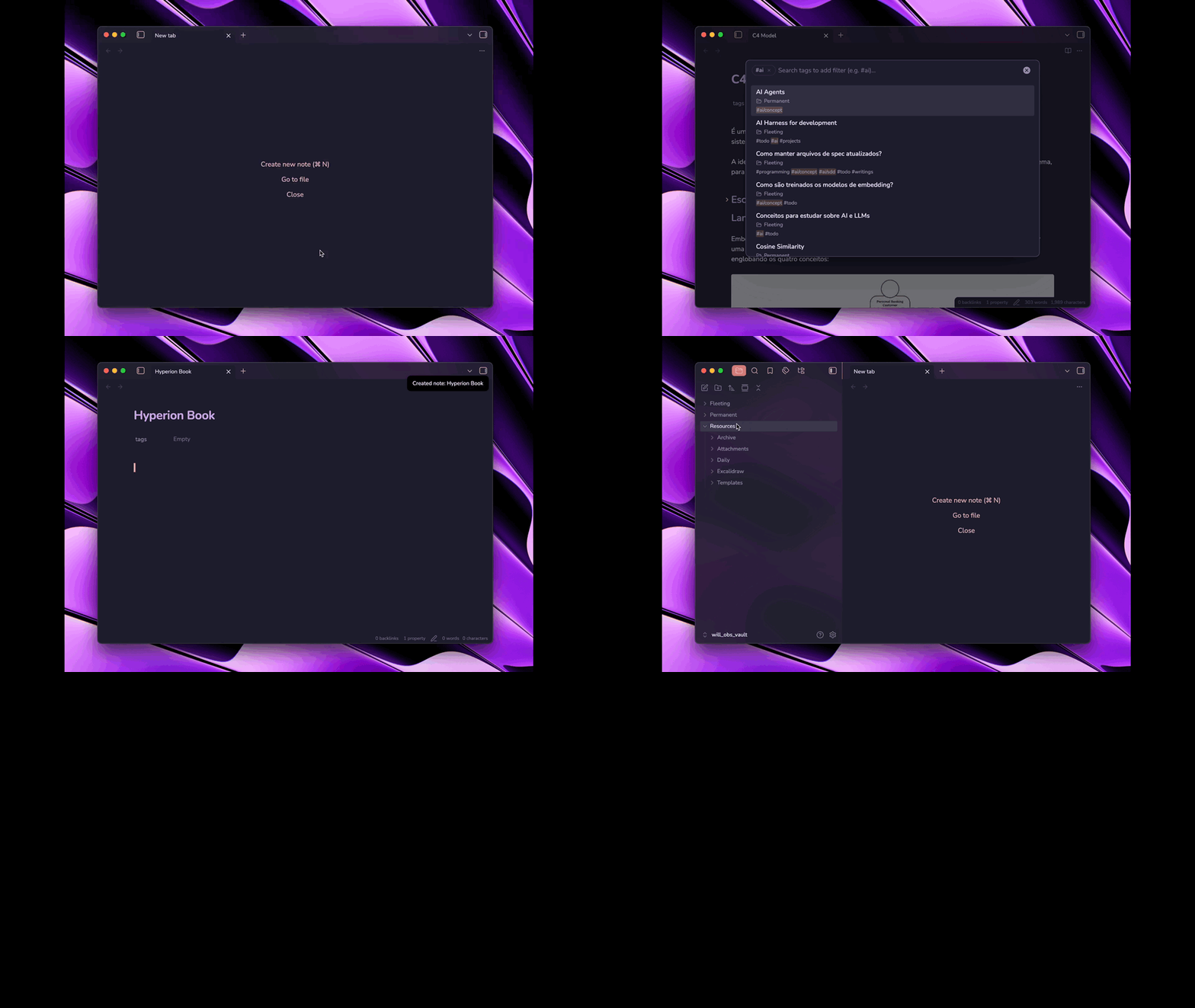
Why Seam?
Seam keeps organization simple and stays out of your way:
| Traditional Workflow | With Seam |
|---|---|
| ❌ Move files between folders by hand | ✅ Add #permanent to file a note automatically |
| ❌ Leave completed notes mixed with active work | ✅ Add #archive to move them out of the way |
| ❌ Switch between different search tools | ✅ Search notes, content, tags, and commands in one palette |
| ❌ Maintain a deep folder hierarchy | ✅ Use a simple workflow guided by tags |
| ❌ Depend on desktop-only features | ✅ Use Seam on desktop and mobile |
How Seam Fits into Your Workflow
1. Capture Without Friction (Fleeting Notes)
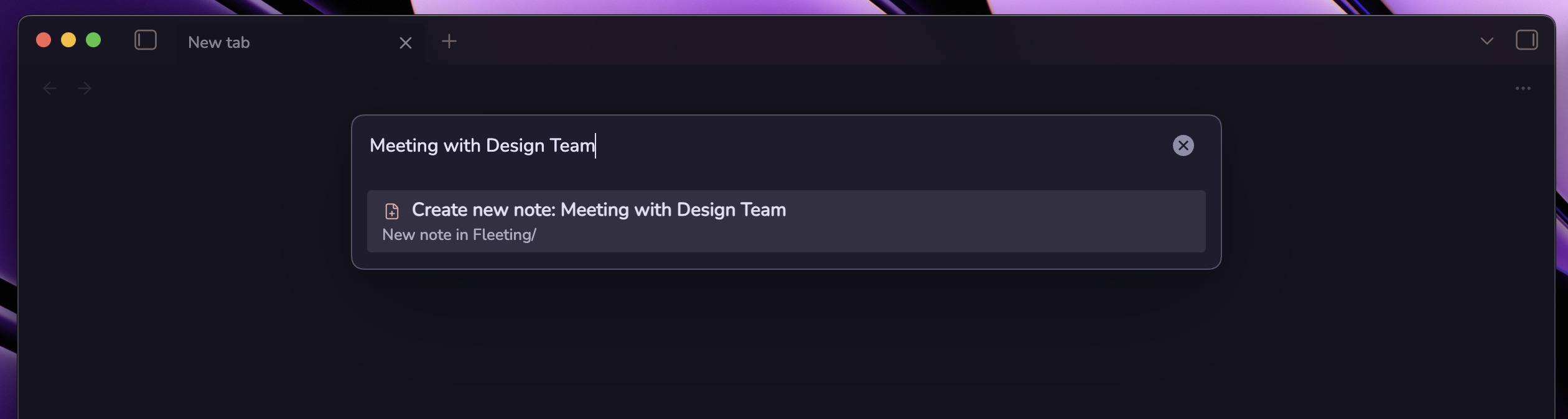
Open the Universal Palette from the command palette or with your chosen shortcut, then type a note title. If the note does not exist, press Enter to create it in Fleeting/. You can also use a template for your preferred properties and headings.
Universal Palette → "Meeting with Design Team" → [Create new note]
2. File Permanent Notes (#permanent)
When a note is ready to keep, add #permanent in the note body or properties.
Seam will:
- Move the note to your
Permanent/folder. - Remove the
#permanentaction tag. - Remove any additional tags or properties you chose in settings.
3. Archive Completed Work (#archive)
When a project, task, or meeting note is complete, add #archive.
- The note moves to your
Archive/folder. - Seam removes the
#archiveaction tag. - Seam can add
#archivedso the note remains easy to find.
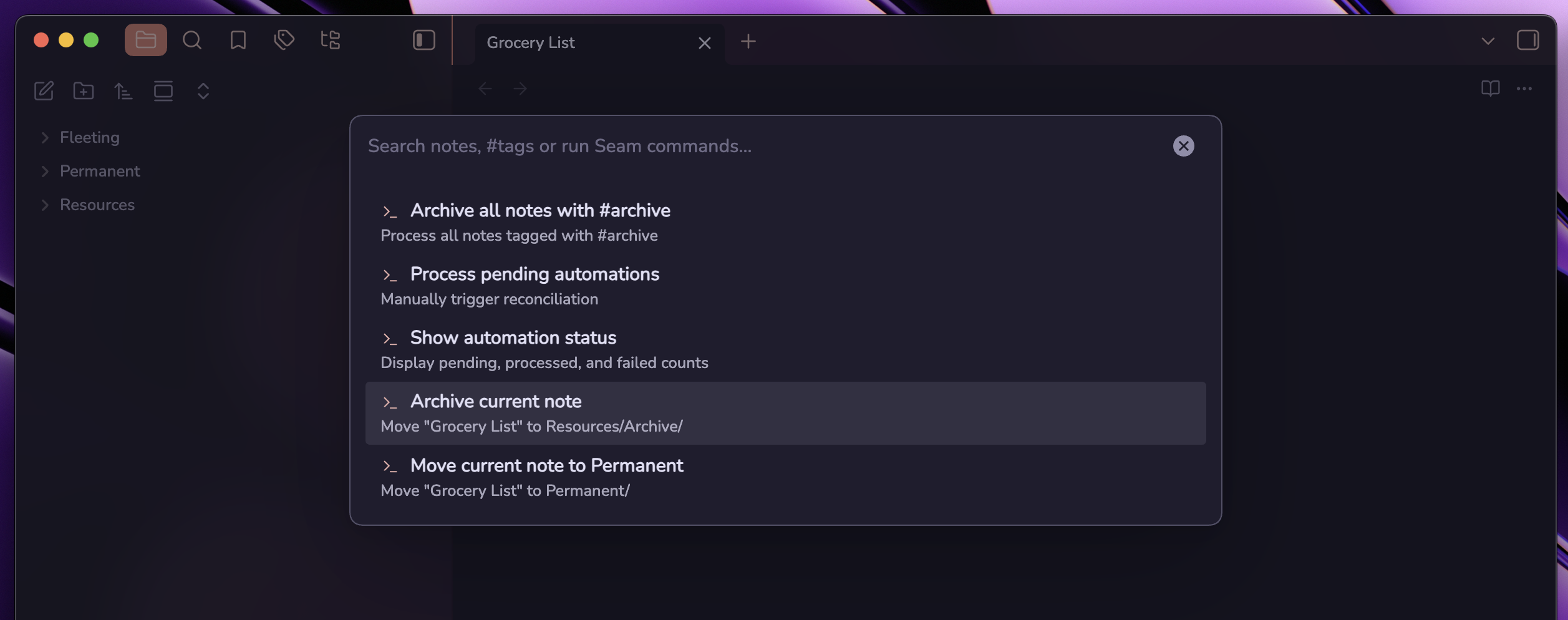
4. Search and Filter with Live Tag Chips
Open the Universal Palette:
- Search notes and content: Find matches in titles, paths, and note text.
- Filter by tag: Type
#to browse tags, then pressEnterto add one. - Combine filters: Add multiple tag chips and remove them with
Backspaceor×. - Open in a new tab: Press
Cmd + Enteron macOS orCtrl + Enteron Windows and Linux.
Key Features
Hands-Off Tag Routing
Seam reads action tags from the note body or properties. It creates destination folders when needed, avoids overwriting files, and removes action tags only after a successful move. If a note has both #permanent and #archive, Seam leaves it in place.
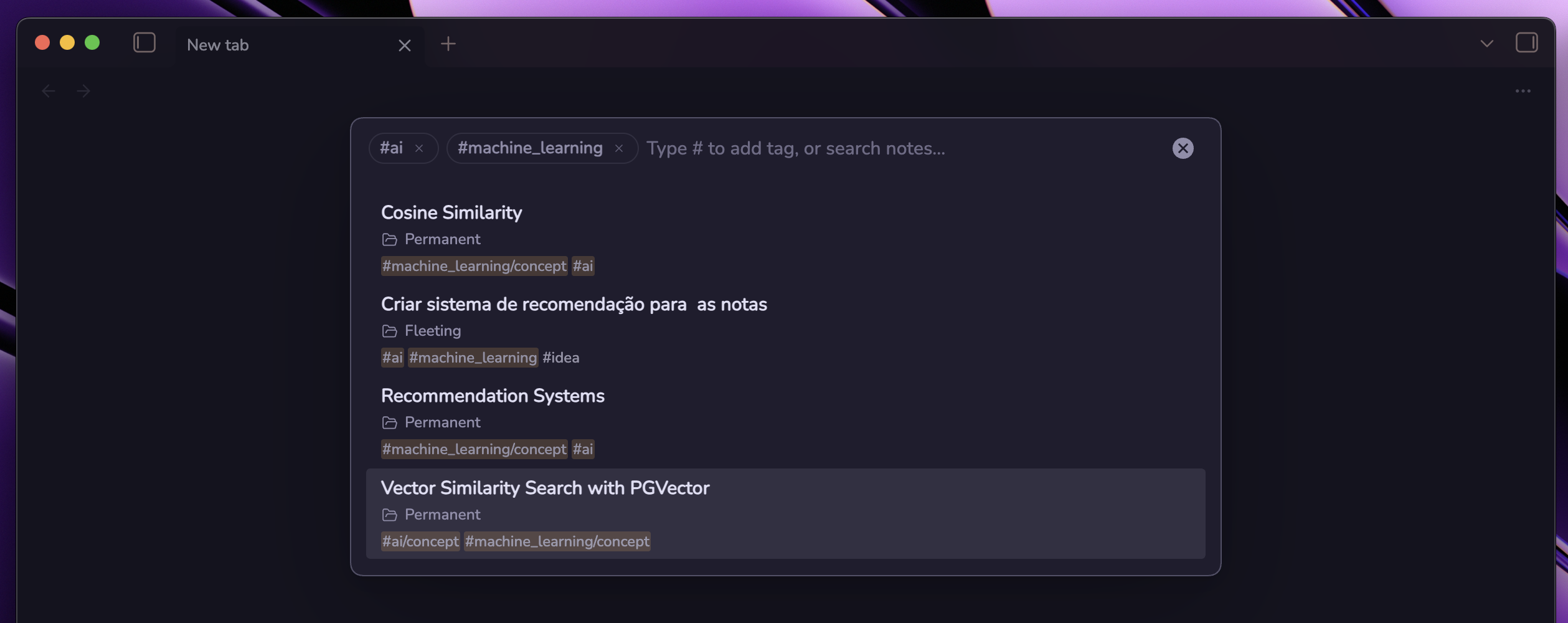
Universal Palette
Search and act from one place:
- Find notes by title, path, tag, or content.
- Preview matching text before opening a note.
- Create a fleeting note when no result matches.
- Type
>to run Seam commands.
Automatic Cleanup on Move
Choose which temporary tags and note properties Seam removes after a successful move. For example, you can clear #todo, #review, or a status property.
Fleeting Note Templates
Choose a template note, such as Templates/Fleeting Note. New notes created from the palette will start with its content and properties.
First-Class Mobile Support
Seam uses Obsidian's public APIs and no desktop-only code. It works on desktop, iPhone, iPad, and Android.
Settings
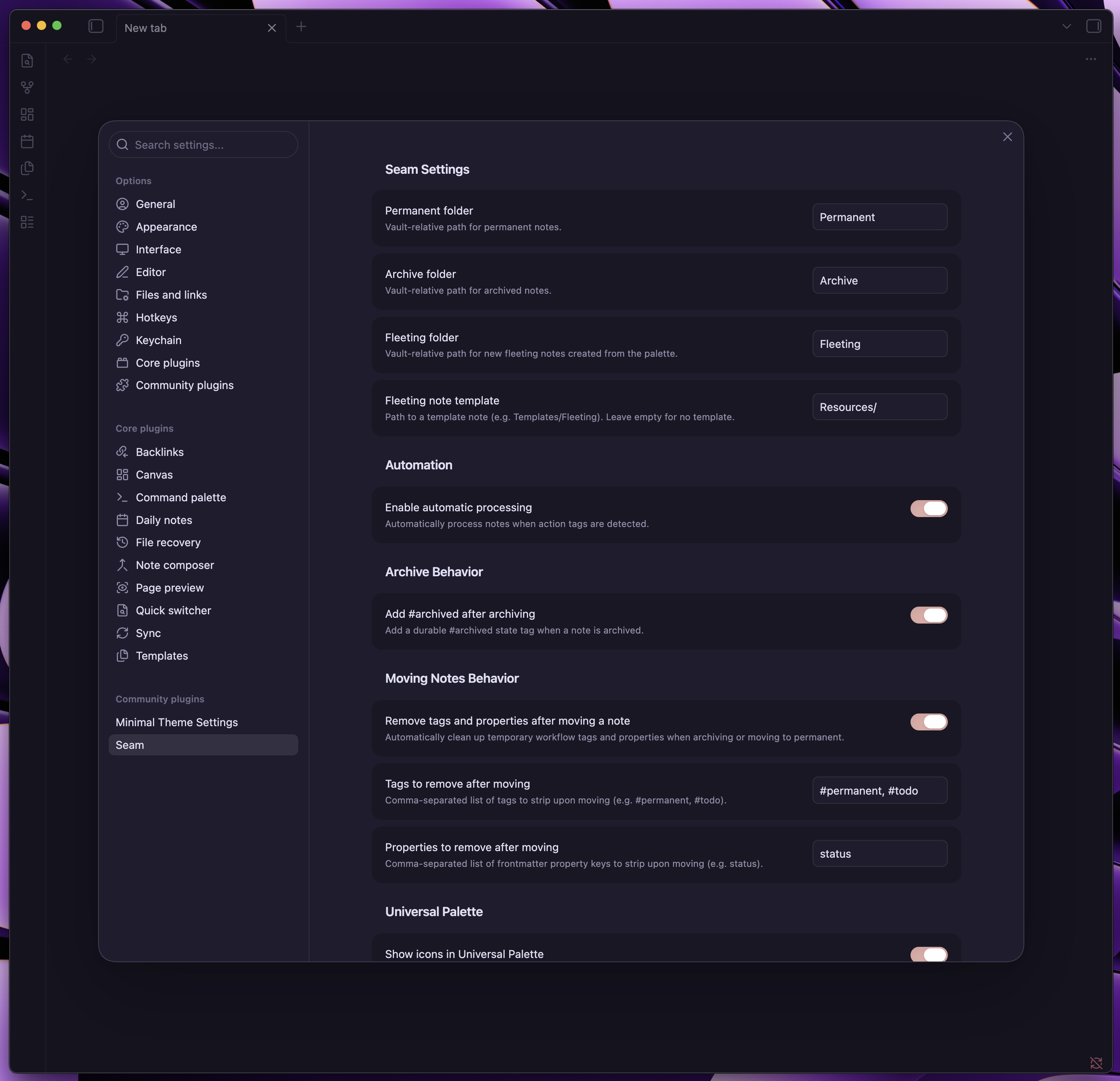
Customize Seam under Settings → Community Plugins → Seam:
- Folders: Set your preferred paths for
Fleeting/,Permanent/, andArchive/folders. - Fleeting template: Choose a template for notes created from the palette.
- Automation: Turn automatic processing on or off and choose when it runs.
- Archive behavior: Choose whether archived notes receive the
#archivedtag. - Move cleanup: Choose which temporary tags and properties to remove after a move.
- Universal Palette: Assign a keyboard shortcut and show or hide icons.
- Advanced: Set how often Seam checks for notes it may have missed.
Installation
From Obsidian Community Plugins
- Open Settings → Community plugins in Obsidian.
- Turn off Restricted mode if needed.
- Click Browse and search for Seam.
- Click Install, then Enable.
Manual Installation
- Download the latest release (
main.js,manifest.json,styles.css) from the Releases page. - Create a folder named
obsidian-seaminside your vault's plugin directory:<vault>/.obsidian/plugins/obsidian-seam/. - Copy the downloaded files into that folder.
- Reload Obsidian and enable Seam under Settings → Community plugins.
Keyboard Shortcuts & Commands
| Command | Shortcut / Action | Description |
|---|---|---|
| Open Universal Palette | Assigned shortcut or command palette | Search notes, tags, content, and commands |
| Open in new tab | Cmd + Enter / Ctrl + Enter |
Open the selected note in a new tab |
| Filter by tag | #<tag> |
Filter notes with interactive tag chips |
| Command mode | > |
Browse and run Seam commands |
| Archive current note | Command palette | Archive the open Markdown note |
| Move to Permanent | Command palette | Move the open Markdown note to Permanent/ |
| Archive all notes | Command palette | Process every note tagged with #archive |
Languages
Seam follows Obsidian's language setting. It currently supports:
- English (US)
- Portuguese (BR)
Other languages use English by default.
Contributing Translations
Want to use Seam in another language? Contributions are welcome:
- Create a new locale file in
src/i18n/locales/<locale-code>.ts(e.g.,es.ts,fr.ts,de.ts) implementing theTranslationstype. - Register the new locale in
src/i18n/index.ts. - Open a Pull Request on GitHub.
Support the Project
Seam is free and open source. If it saves you time, consider supporting its development:
Pix

Development
For developer instructions, Spec-Driven Development (SDD) guidelines, and release procedures, see README.dev.md.
License
This project is licensed under the GNU General Public License v3.0.
Built with
Seam was built with the help of AI agents. Each iteration was guided and documented with plain-text specifications written by me.
Crafted with care by William A. Costa (@WillACosta).