Sealed Note
 kaka11 downloads
Encrypt selected notes and inline blocks with Obsidian's native editor. Password, TOTP, or recovery key unlock - no keyring file, no sidecar: each note's own body holds the ciphertext.
- Overview
- Scorecard
- Updates7
English | 简体中文
An Obsidian plugin that encrypts only the notes and fragments you choose — not your whole vault. Losing your password never means permanently losing your data: a recovery key resets the password and rewraps the same data key without touching a single byte of your notes.
Screenshots
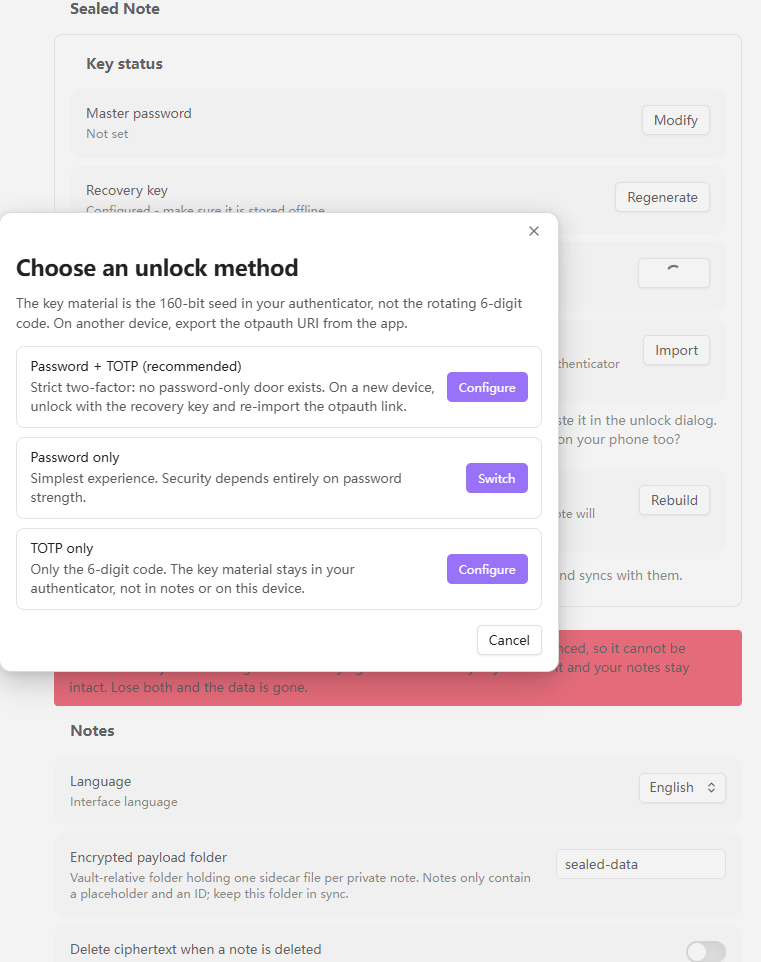
Settings page with the unlock-method picker.
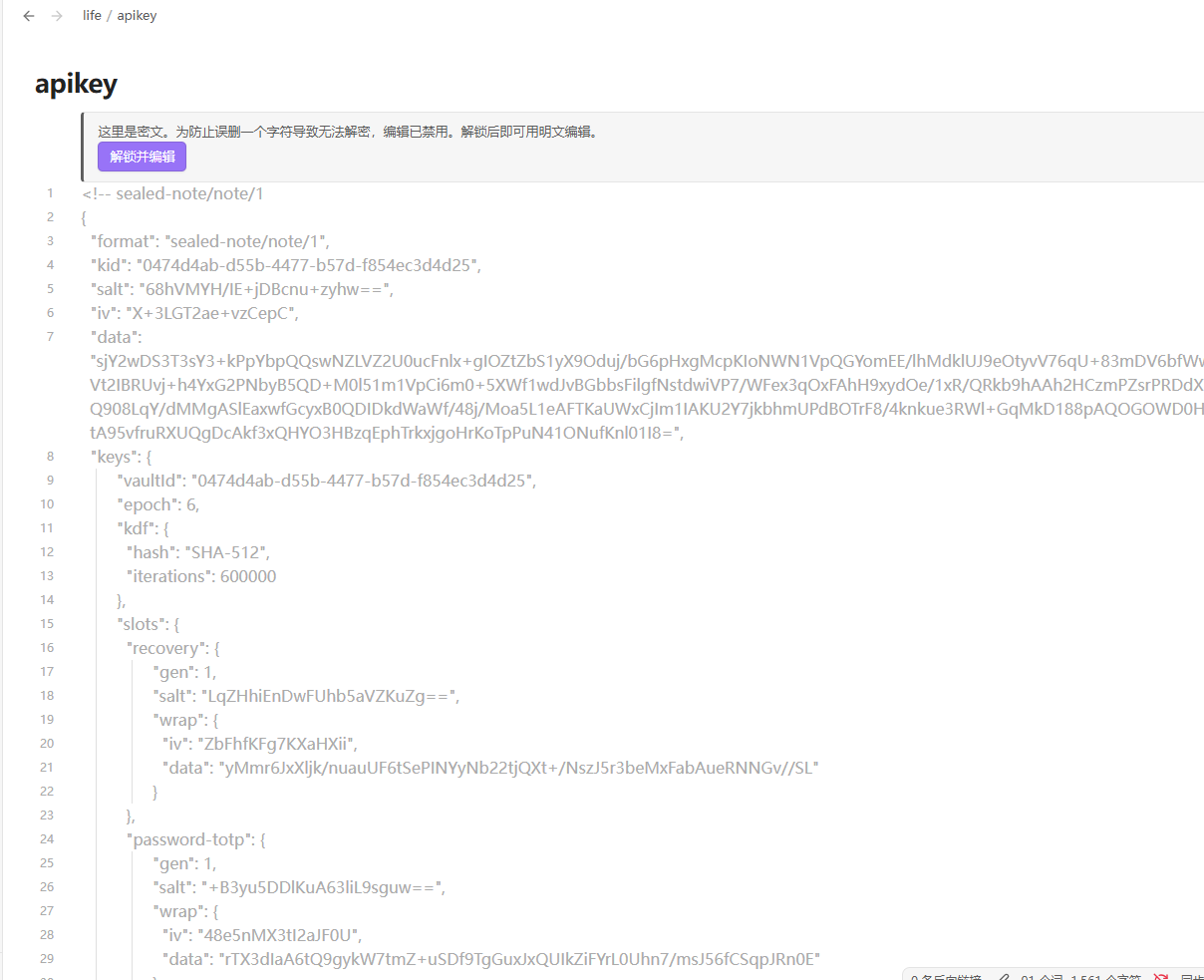
A locked note opened in the native editor: the body is the ciphertext envelope, and the banner on top refuses accidental edits until you press Unlock and edit.
Features
- Only what you mark is encrypted — whole notes, inline blocks, and inline
sn1.…fragments. The rest of the vault stays plain and searchable. - Password can be reset, never recovered — anyone claiming to recover your password either deceives you or kept a backdoor. Here the recovery key rewraps the same data key; note content is never re-encrypted.
- No keyring file, no sidecar — the wrapped key lives in the
keysfield of every locked note's own body, so it syncs with your notes and any one note can unlock the whole vault. There is nosealed-data/folder and no annotation to maintain. - Lock any note in place — right-click any Markdown note → Lock this document in place. The filename stays exactly as it is; only the body becomes ciphertext. No custom view, no renamed copy.
- Locked notes are marked in the file explorer — a 🔒 prefix on every private note, so you can tell at a glance which files need a password. Turn this private note into a normal note removes the mark and the protection in one step.
- Native Markdown editing — a locked note opens in the normal editor showing its ciphertext. Unlock writes plaintext in place into the note's own body: source mode, live preview, immersive mode and every editor command work as usual. There is never a second plaintext file on disk.
- Ciphertext cannot be damaged by accident — while the buffer holds an envelope, typing, pasting, dropping and undo are refused at the editor level (content-based, any filename), and a banner at the top offers Unlock and edit. One stray keystroke can never corrupt a note into undecryptability.
- Three unlock modes, switchable any time — password only, TOTP only, or password + TOTP as strict two-factor (no password-only door exists in that mode). The recovery key is always the last-resort channel.
- Automatic locking — a three-tier policy (blur / close note / per-session) decides when an unlocked note re-encrypts and drops its key, defaulting to the strictest: lock on any focus loss.
- Offline emergency decrypt — a single self-contained
tools/decrypt.htmlthat needs no network, for verifying backups or decrypting on a machine without Obsidian. - Desktop & mobile — depends only on Web Crypto, no Node API.
📖 Crypto principles, glossary and architecture: docs/CRYPTO.md · TOTP internals: docs/TOTP-PRINCIPLE.md
Installation
npm install
npm run build
npm run deploy -- "<your-vault>"
Restart Obsidian and enable Sealed Note under Settings → Third-party plugins.
First run
- Click the 🔒 ribbon icon, or run "New private note" from the command palette.
- Pick an unlock method: password only / TOTP only / password + TOTP (all independent, changeable later).
- Set the master password and/or scan the TOTP QR code.
- Save the recovery key — copy, download or print it, then tick the confirmation.
- The key is written when you create your first note.
TOTP-only works from day one — no master password needed. The recovery key is always generated as the final fallback.
Usage
Private notes (whole-note encryption)
- Create a note via the ribbon icon or the command palette, or right-click any existing Markdown note → Lock this document in place. New notes get
.sealed.mdfrom the wizard; notes locked in place keep their original filename. The key is verified before anything changes; cancel creates nothing.- Renaming and moving are safe — the ciphertext is inside the file itself, so nothing can be separated from it. Locked notes are recognised by their envelope content and a small local index, not by their filename; renaming does not change the name you chose.
- Opening a locked note shows the ciphertext in the native editor. Reading view shows a locked card (🔒 This note is encrypted) instead of a blank page. Double-click the card or choose Unlock and edit from the file menu; the credential prompt happens only when you choose to unlock.
- Unlock replaces the body with bare plaintext: no ID comment, no annotation, nothing to maintain. Source mode, live preview, immersive mode and every editor command work as usual.
- When it locks is decided by the lock policy (table below). Locking encrypts the latest content and replaces the very same body with the envelope, then drops the key from memory. Obsidian's own autosave handles the plaintext while you edit; there is no second file to sync.
- Opening a locked note never pops a dialog or steals any pane — the credential prompt happens only when you choose to unlock.
- Inline encrypted blocks in normal notes are independent of whole-note locking — you can edit the whole document without decrypting. Plaintext blocks are sealed when you leave the note; sealed blocks unlock only when you click them. Both share the same lock-policy timing above.
Lock policy (three tiers, strictest by default)
Settings → Sealed Note → When an unlocked note re-locks:
| Tier | Switch window (browser / other app) | Switch note / tab / settings | Close this note's tab | Quit Obsidian |
|---|---|---|---|---|
| On any focus loss (default, most secure) | 🔒 lock | 🔒 lock | 🔒 lock | 🔒 lock |
| When the note's tab is closed | — | — (plaintext stays in the body, coming back continues without a prompt) | 🔒 lock | 🔒 lock |
| Once per Obsidian session | — | — | — | 🔒 lock |
- "Switch window" means Obsidian loses focus (Alt+Tab, switching apps).
- The cost of "don't lock when switching": at the middle tier, notes whose tab is still open keep plaintext in the
.sealed.mdbody (indexed/synced) until you close that tab, lock manually, or quit Obsidian.
🔒 One file, no sidecar, no annotation. A locked
.sealed.mdbody is the encrypted envelope itself (an HTML comment wrapping JSON, rendered as a locked card in reading view). Unlocking swaps it for bare plaintext; locking swaps it back. There is nosealed-data/directory, no.sealedpayloadfile, nosealed-note:refcomment, and nothing you must avoid deleting.⚠️ The one window: while unlocked, plaintext lives in the note body and is indexed and synced. That is the honest boundary of application-layer in-place editing. Unlock only when editing; the configured policy (default: lock on focus loss) re-seals it for you. If Obsidian crashes while unlocked, the plaintext body is left untouched — nothing is silently wiped, and the next lock seals it with the real key.
Sync locked notes as you would any note. One file is the whole note, so there is nothing extra to remember to sync.
Deleting a note deletes its ciphertext with it, since they are the same file. Ordinary file backup / version history is the recovery path, exactly as for any other note.
Inline encrypted blocks
Just type plaintext in a fenced block in a normal note:
```encrypted_txt
my secret text
```
- Sealed automatically when you leave (switch note/tab, window blur, open settings, switch to reading view, or close the tab) — the same timing as a private note's lock policy. Once unlocked in this session, sealing is silent; the block is rewritten to
sn1.…ciphertext in place. If the key is gone, you are asked once. - Nothing is deleted on cancel. The block stays plaintext, the status bar keeps a
⚠warning, and the next visit asks again. Obsidian cannot veto a view switch, so the warning is the honest fallback. - Reading view shows
🔓 Not encrypted yetwith an Encrypt this block button — click it to seal on demand. Already-sealed blocks show🔒 Encrypted content; click to decrypt (on screen only, file untouched). - Aliases:
txt_encrypted,sealed. You can also select text → right-click → Encrypt selection to seal immediately without waiting for a leave point.
Inline ciphertext
Select text → right-click → Encrypt selection → becomes `sn1.xxx`, shown as 🔒 in reading mode.
Ctrl-click copies it straight to the clipboard without displaying it.
Context menus
| Where | Menu items |
|---|---|
| Source-mode editor (any note) | Decrypt document / Encrypt selection / Decrypt selection / Decrypt selection to clipboard. While the body is ciphertext the editor is read-only by design. |
| File tree → folder | New private note (created in that folder, like native "New note") |
| File tree (locked note) | Unlock and edit / Lock / Turn into a normal note; Decrypt document makes a plaintext copy |
| File tree (plain Markdown note) | Lock this document in place; Decrypt document decrypts all blocks in place |
| Reading-mode block / pill | Click → unlock dialog per configured method → show original |
Unlock methods
Pick one mode at setup (changeable later). The recovery key is always listed as a fallback, and the dialog only shows the channels that actually exist in the current mode:
| Mode | You enter | New device / after restart | Notes |
|---|---|---|---|
| Password only | Your password (never stored, only used in derivation) | Works immediately | Simplest |
| TOTP only | The 6-digit code from your authenticator | Authenticator travels with you; the device seed is stored encrypted locally (not synced), so no re-scan needed | New computer: enter with the recovery key → Settings → "Restore local seed cache", paste the otpauth link |
| Password + TOTP | Password + 6-digit code (both required) | Strict two-factor: no password-only channel exists, no bypass tab in the dialog. Seed restores automatically after restart | New device: recovery key → restore seed from the otpauth link |
| Recovery key | 52 chars (auto-inserts -, case/space insensitive) |
Always available | The last offline door; if you misplace it, regenerate a copy in Settings while you still have the password |
Rate-limited, never slower over time: 5 free attempts, then exponential backoff 1s → 2s → 4s → … capped at 60s; any success resets immediately. Empty submits don't count or consume attempts. The counter lives in the key copy, so it survives device changes.
Honest note on "password + TOTP": it is strict two-factor — setup no longer creates a standalone password slot, and the dialog has no password-only tab, only password + code or the recovery key. Vaults from early versions still carry that single-password channel: the settings page shows a "strict two-factor" section with a "close the password-only door" button (it also refreshes key copies in all notes; no re-scan needed).
TOTP QR codes are generated locally (never networked) for Authy / Google Authenticator / 1Password.
The key material is the 160-bit seed in your authenticator, not the 6-digit code. The code only proves you hold the authenticator; the seed is never written to disk, notes or the network. It is stored encrypted by a device key (not synced), so the same device only needs the 6-digit code after a restart — no re-scan. Only a new device needs the otpauth link once. Two phones scanning the same QR get the same seed, so they show the same code.
📖 See docs/TOTP-PRINCIPLE.md §11 for where the seed lives and multi-device consistency.
What each unlock error means
Every rejected credential shows one generic message in every mode. Naming the failing factor would turn the dialog into an oracle: an attacker at your machine could confirm one credential and then focus on breaking the other — which is exactly what two-factor mode exists to prevent. The internal cause is still written to the console log for debugging.
| You see | What it means | What to do |
|---|---|---|
| "Credential rejected…" | One or more of what you typed is wrong, or this device's seed/binding changed | Check your typing; if it keeps failing, unlock once with the recovery key, then re-bind the dynamic password / reset the password in Settings |
| "Enter a 6-digit code" (or a missing field) | The field is empty | Fill it in — empty submits don't consume attempts |
| "No usable TOTP seed on this device" | New computer, or local app data cleared | Unlock with the recovery key → Settings → "Restore local seed cache", paste the otpauth link (same seed, phone untouched); the dialog stays open so you can do it in place |
| "Too many attempts, locked for …" | The rate-limit guard after repeated rejections | Wait it out, or unlock with the recovery key (a different tab still works once the guard allows) |
Don't confuse three notices: in the dialog = can't get into the keyring; top-right "can't decrypt this note…" = in the keyring but this note's ciphertext won't open (recover from backup/file history); top-right raw error text = disk write failure (this path is fixed; it shouldn't appear again).
What happens when you change the password
Note content is not re-encrypted. Data is AES-256-GCM ciphertext and the data key didn't change; the data field is untouched byte for byte.
Update the keys field of every encrypted note
  → only those JSON lines change, data/salt/iv are copied verbatim
  → PBKDF2 runs once
  → only encrypted notes are touched, no plain Markdown
  → resumable; already-updated notes are skipped
Offline decryption tool
tools/decrypt.html is a single file, dependency-free, no network. The plugin never uses it.
- Open it in a browser (double-click).
- Paste a whole
.sealed.mdnote. - Enter the master password or the recovery key.
The key is inside the note itself, so usually no extra file is needed. Use it to verify a backup still opens, or to decrypt on a machine without Obsidian.
A compatibility test runs the actual HTML to make sure it produces the same result as the plugin.
Security: only use the copy in your own repo. A version someone sent you may have been tampered with.
Security boundary
What it protects against
- Cloud sync leakage (Nutstore / iCloud / Git only ever see ciphertext)
- A computer with Obsidian locked
- Someone with the vault + password but not your phone (with TOTP: combined or TOTP-only are strict channels — a lone password gets you nowhere)
- Offline brute force slowed by 600,000 PBKDF2 iterations
What it does not protect against (important)
- While unlocked: plaintext is in memory and the render layer — readable via screenshot, screen recording, clipboard, or a malicious plugin
- File names, sizes, counts, modification times
- Keyloggers, a compromised OS
- Weak password + the note → offline brute force (strength hint exists, not enforced)
- Recovery key photographed into your photo library = taping the key to your door
File names and indexing
.sealed.md file names are plaintext and enter Obsidian's index. A locked body is the encrypted envelope, wrapped in an HTML comment so reading view shows nothing; unlocked, the same body holds plaintext. Use neutral names in sensitive setups.
If a note gets damaged
There is no annotation or sidecar to lose: the ciphertext is the note. Recovery is ordinary file recovery:
- Version control (best): Git or a history-capable sync tool restores the
.sealed.mdto a good version — lossless and automatic. - Recovery key: if the envelope's key copy is intact but the credential is forgotten, use the recovery key through the normal unlock flow. If an external editor replaced the envelope with text, the plugin encrypts that text on next unlock and backs up the old bytes first.
- If the file itself is gone, only file history can bring it back — exactly like any other note.
Backup
- Recovery key → print it, store it somewhere physically safe, not on the same sync drive as the vault.
- The vault itself → your existing sync/backup scheme (notes carry their key; sync is backup).
- The plugin's
backups/keeps the last 5 ciphertext generations.
Before uninstalling: decrypt all notes first. After uninstall .sealed.md can't be opened by the plugin — tools/decrypt.html can rescue them.
Compatibility
Obsidian 1.5.0+, desktop and mobile (Web Crypto only, no Node API). Works with Obsidian Sync, Remotely Save, Git and similar sync schemes.
License
MIT