Scoped Search
 ragetrip2k downloads
Scoped Search is a robust search modal/tab that only searches within the folders you choose. Includes enhanced folder picker by List or Tree, and configurable extensions.
- Overview
- Scorecard
- Updates4
A dedicated search modal/tab that only searches within the folders you choose. Supports filename search for non-Markdown files (e.g., MP3, WAV, FLAC, PDFs, images). Includes an enhanced folder picker with List (unlimited) and Tree (collapsed by default), and preview pane that's expanable for quick review across multiple results.
✨ Features
- Multiple folders with a native-feeling Browse... picker (List & Tree)
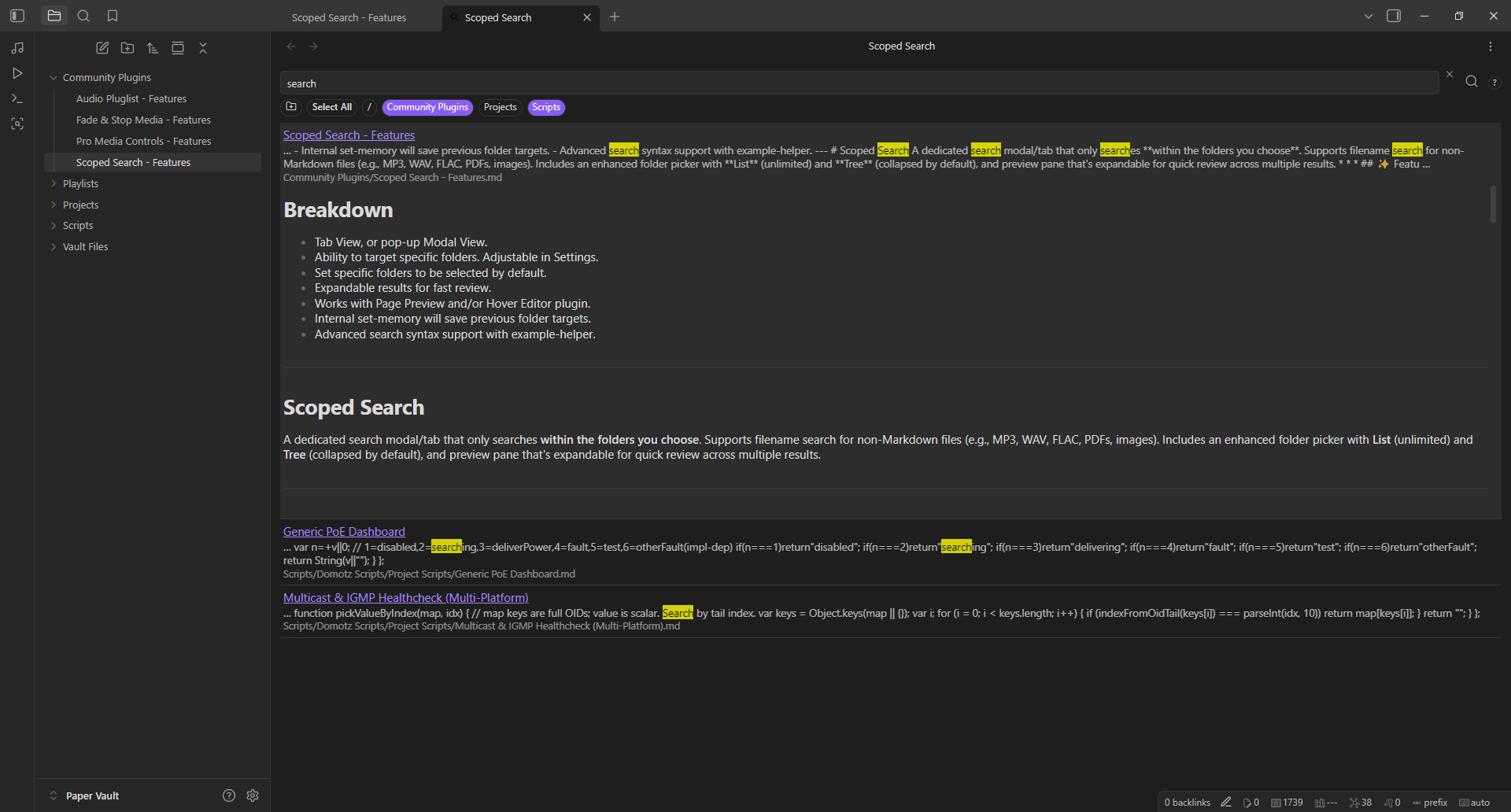
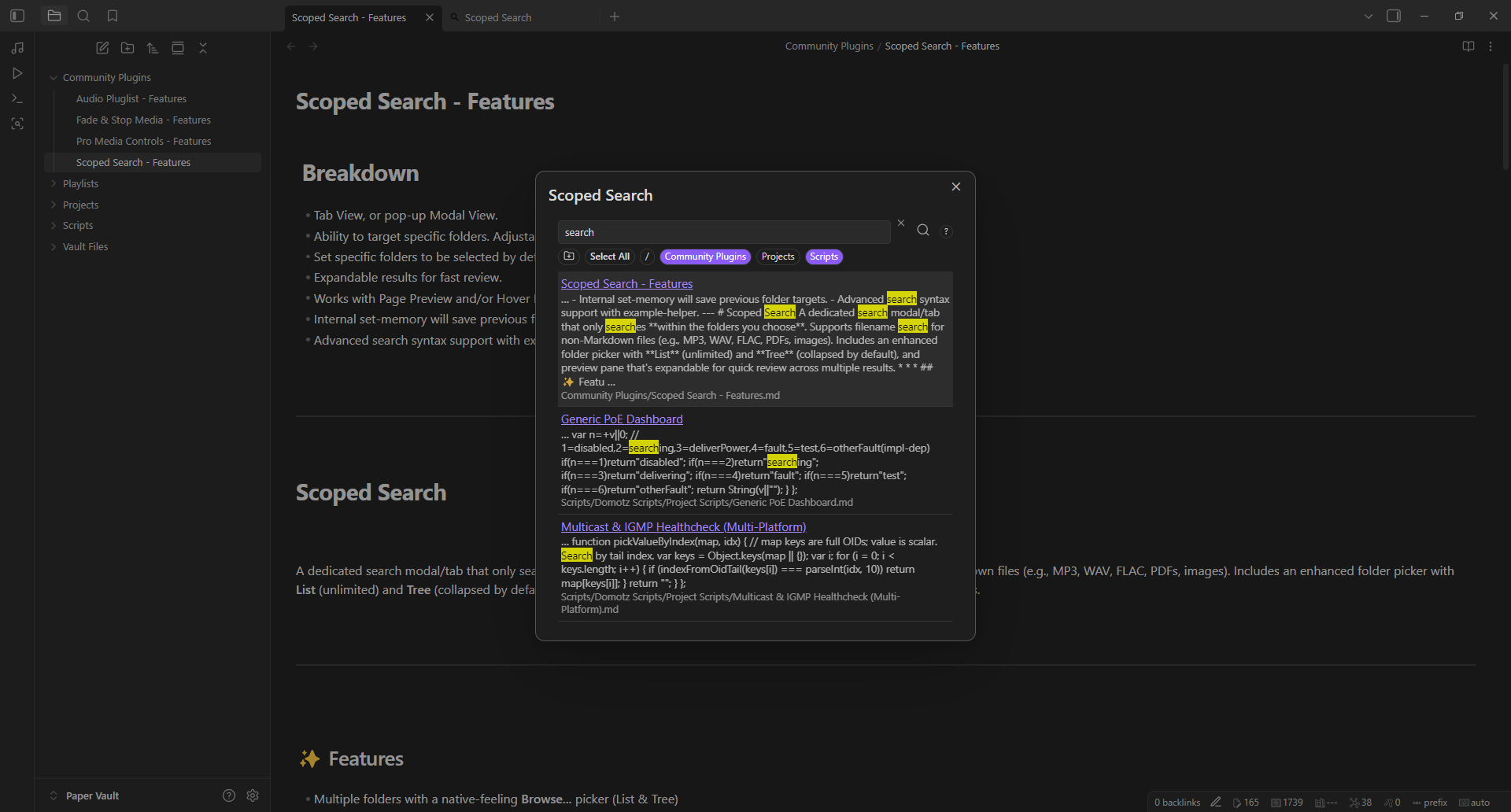
- Modal or Tab UI (dock it while you work)
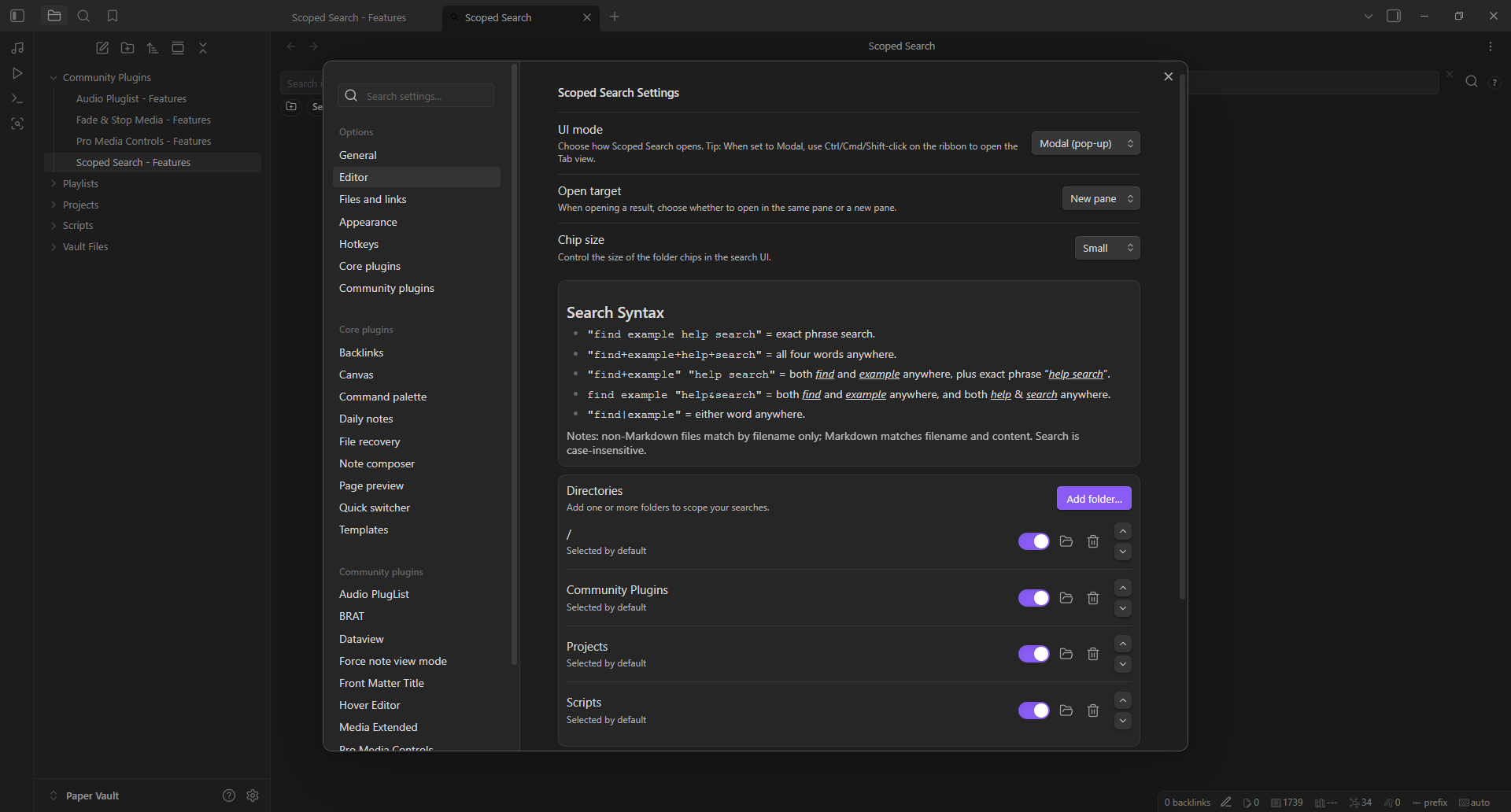
- Select All chip and per-folder Selected by default
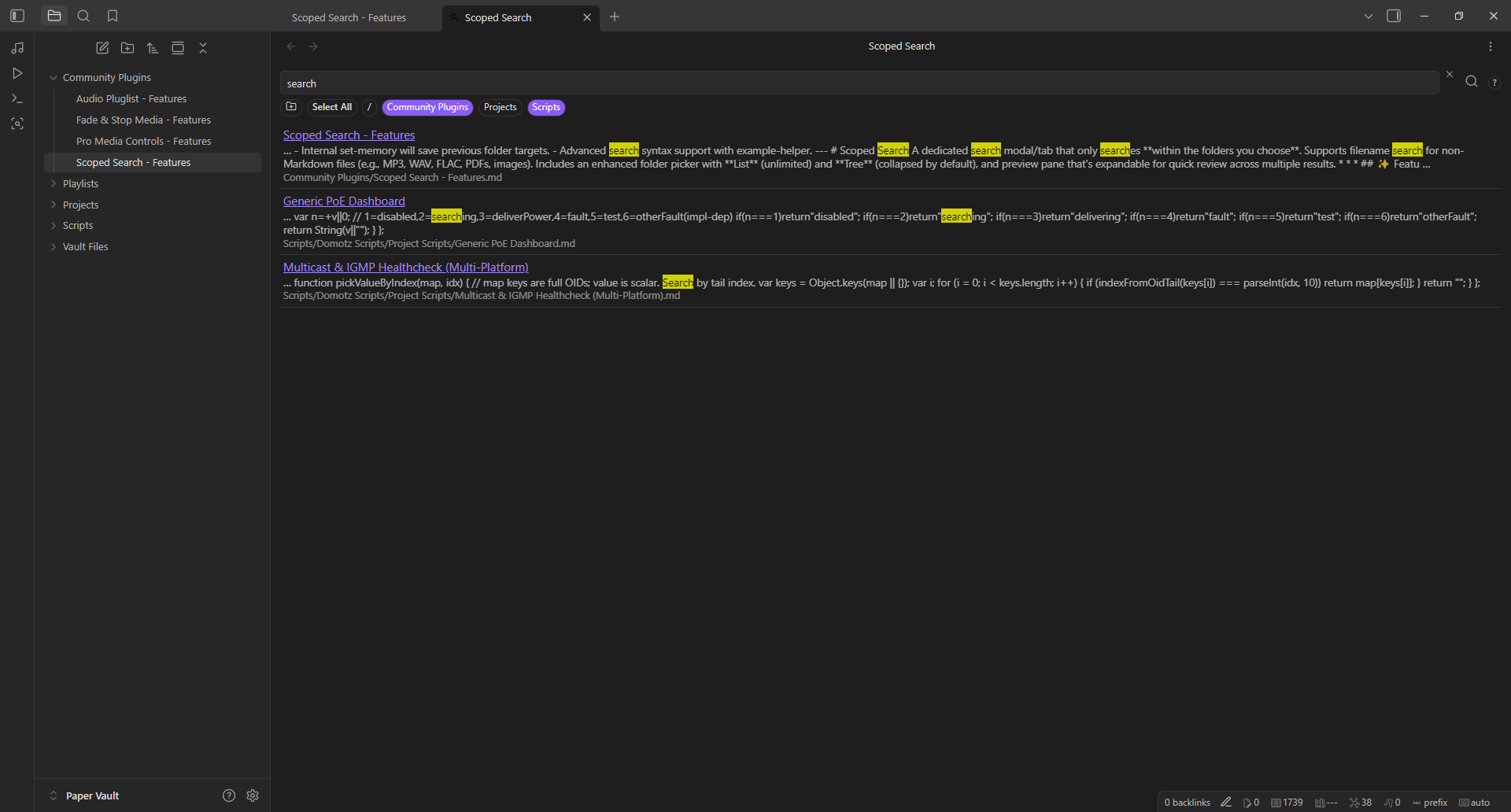
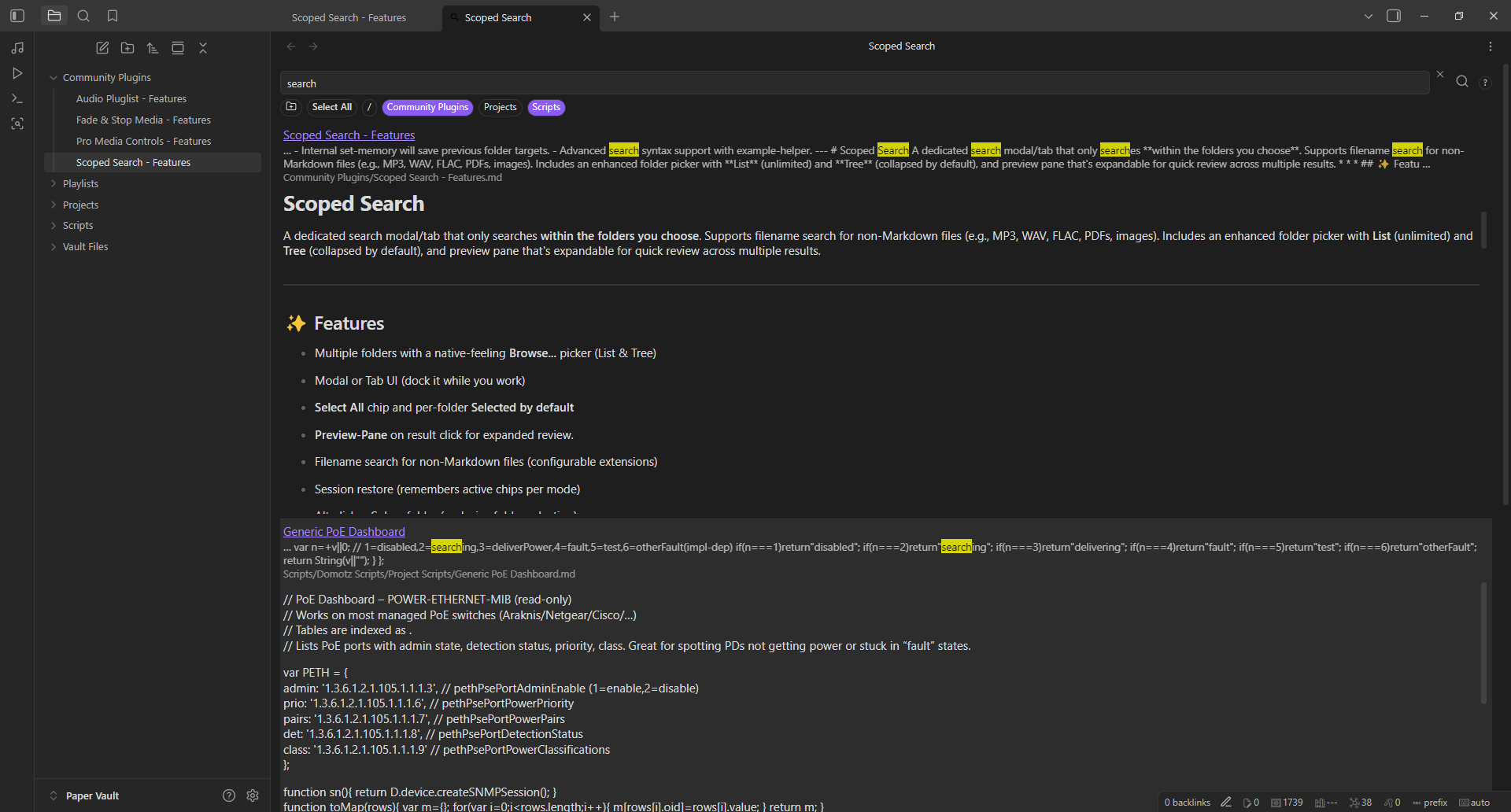
- Preview-Pane on result click for expanded review.
- Auto-scroll to target hit on expanded window results.
- Filename search for non-Markdown files (configurable extensions)
- Session restore (remembers active chips per mode)
- Alt-click = Solo a folder (exclusive folder selection)
- Keyboard nav: Up/Down to select, Enter to open, Esc closes modal
- Open target: same pane or new pane
- Result context menu: Open, Open in new pane, Copy path
- Chip size control: Small, Medium, Large
- Advanced Search Syntax helper: tooltip "?" and Settings card with examples
- Unordered groups with "+" or "&" inside quotes: "missing+folder"
- Exact phrase with quotes: "cisco switch"
- Reorder directories with stacked up/down buttons
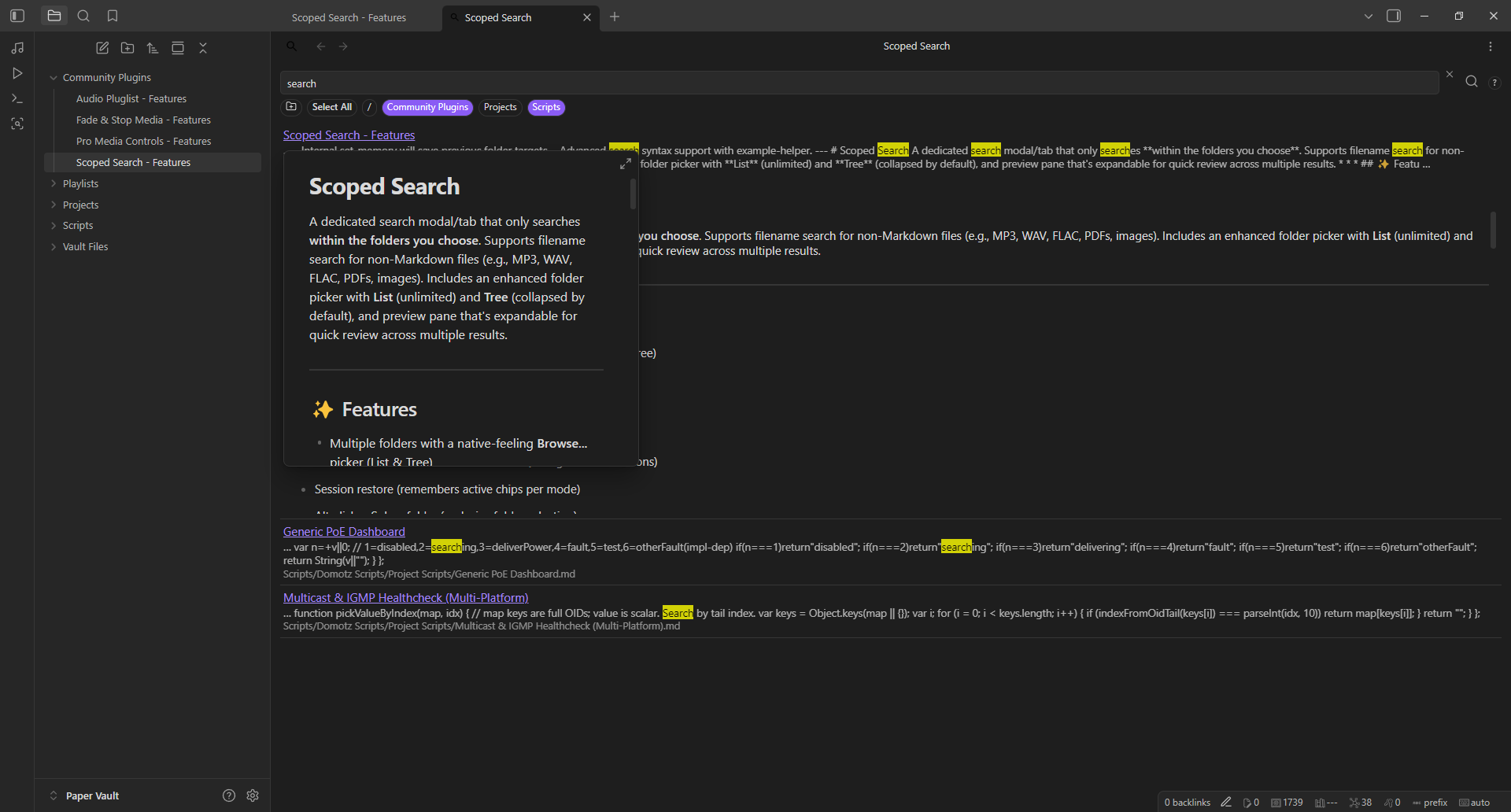
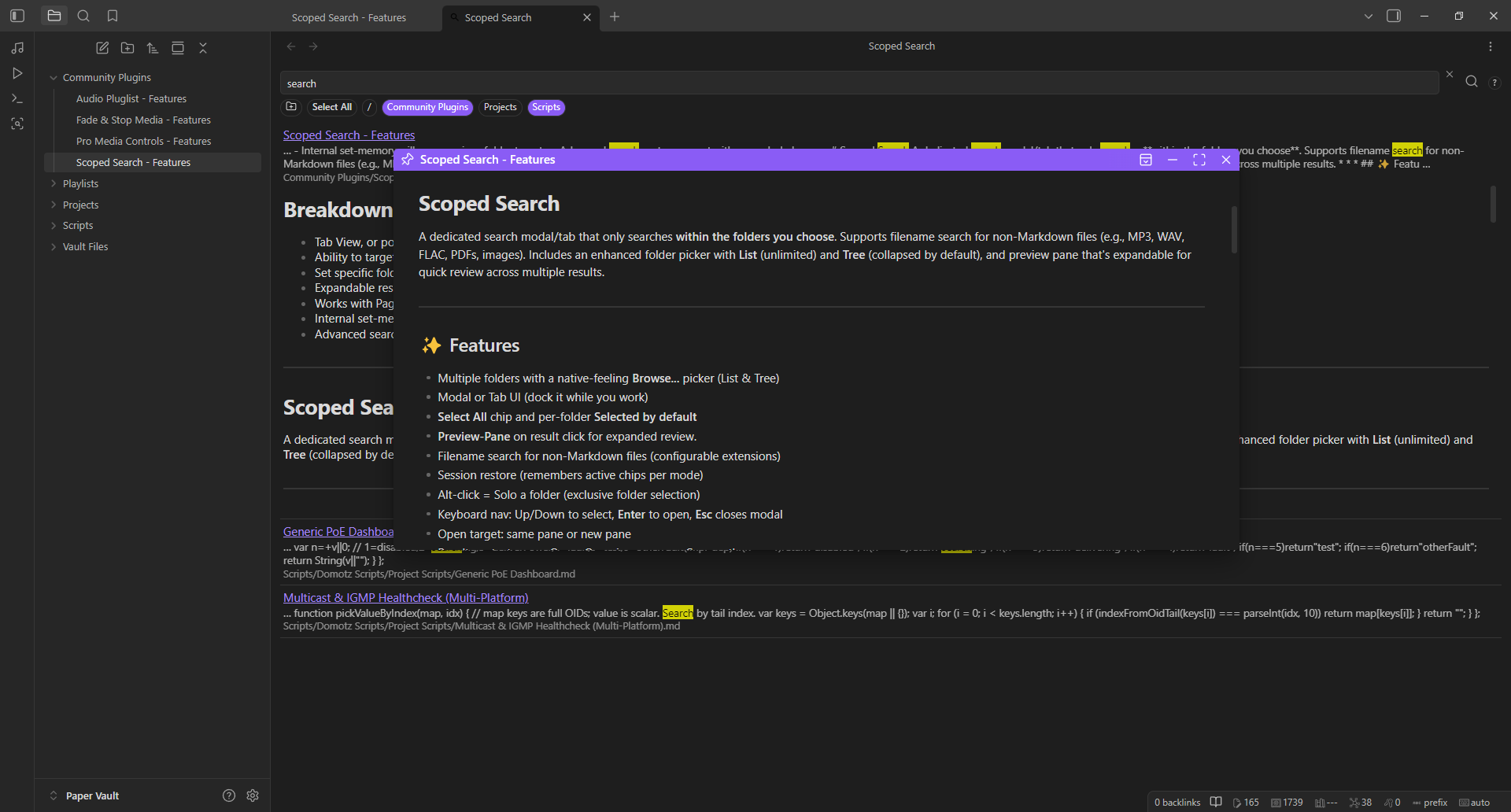
- Ctrl+hover for page "preview" or "Hover Editor" (supported)
Version: 2.1.1 · Obsidian: 1.5.0+ · Platforms: Desktop, MAC, iOS, and Android
📸 PREVIEW | Easily add target folders and toggle which ones are selected by default when search is opened
| Settings |
|---|
 |
📸 PREVIEW | Open as Tab, or optional Pop-Up modal for a cleaner look - Select single, multiple or all target folders during search
| Tab View | Modal (pop-up) View |
|---|---|
 |
 |
📸 PREVIEW | Scrollable Preview-Pane for expanded review of results
| Preview-Pane Closed | Preview-Pane Open (on click) |
|---|---|
 |
 |
📸 PREVIEW | Works with Page Preview and/or Hover Editor
| Page Preview Support | Hover Editor Support |
|---|---|
 |
 |
📦 Install Methods:
- Release ZIP
- Download
scoped-search-2.1.1-release.zipfrom Releases. - Unzip to
.obsidian/plugins/scoped-search/(or create new folder in.obsidian/pluginsnamed "scoped-search") so it contains the unzippedmanifest.json,main.js,styles.css. - Reload Obsidian and enable "Scoped Search".
- BRAT
- Select "Add beta plugin".
- Enter "https://github.com/ragetrip/scoped-search".
- Expand the "Select a version" drop down, and select "Latest version".
- Select "Add plugin", then enable "Scoped Search".
- Community Plugins (once available)
- Search "Scoped Search".
- Select "Install".
- Select "Enable".
🚀 Usage
- Set up folders in Settings -> Scoped Search or from UI via the "Folder" icon.
- Use the ribbon icon or the Open Scoped Search command.
- Toggle chips to include/exclude - Alt-click a chip to solo it.
- Hover the "?" next to the search bar for quick advanced Search Syntax help.
- Right-click a result for more actions.
- Ctrl-click the ribbon icon while in Modal mode to also open Tab View.
- Click result header to open (via your selected menu method) or click body of result to expand it.
⚙️ Settings
- UI mode: Modal (pop-up) or Tab (docked view)
- Open target: Open in same pane or new pane
- Chip size: Small, Medium, Large
- Advanced Search Syntax: At-a-glance examples in Settings and from the "?" tooltip
- Directories: Add/replace/remove - toggle Selected by default - reorder with up/down buttons
- File Types: Include non-Markdown filenames - set allowed extensions
☕ Support
If this plugin helps you, consider supporting: https://buymeacoffee.com/ragetrip
See more of my work: GitHub @ragetrip.
HealthExcellent
ReviewSatisfactory
About
Search only selected folders from a dedicated modal or dockable tab and pick targets with a List or collapsed Tree folder picker. Preview results in an expandable pane, search filenames for non‑Markdown files, use advanced search syntax, and restore folder selections between sessions.Details
Current version
2.1.1
Last updated
10 months ago
Created
Last year
Updates
4 releases
Downloads
2k
Compatible with
Obsidian 1.5.0+
Platforms
Desktop, Mobile
License
MIT
Sponsor