RSVP Reader
 Kevin Lin58 downloads
Read notes fast with RSVP: words flash one at a time at a fixed point, with an optional voice narrator synced to the words.
- Overview
- Scorecard
- Updates9
RSVP speed reading for Obsidian, with an optional voice narrator synced to the words. Works on desktop and mobile.
RSVP Reader shows one word at a time at a fixed point on screen, with a single letter highlighted as your eye's anchor. Your eyes stop moving, so you read faster. Turn on narration and a voice reads along, kept in sync with the flashed words, so you get both channels at once.
Screenshots
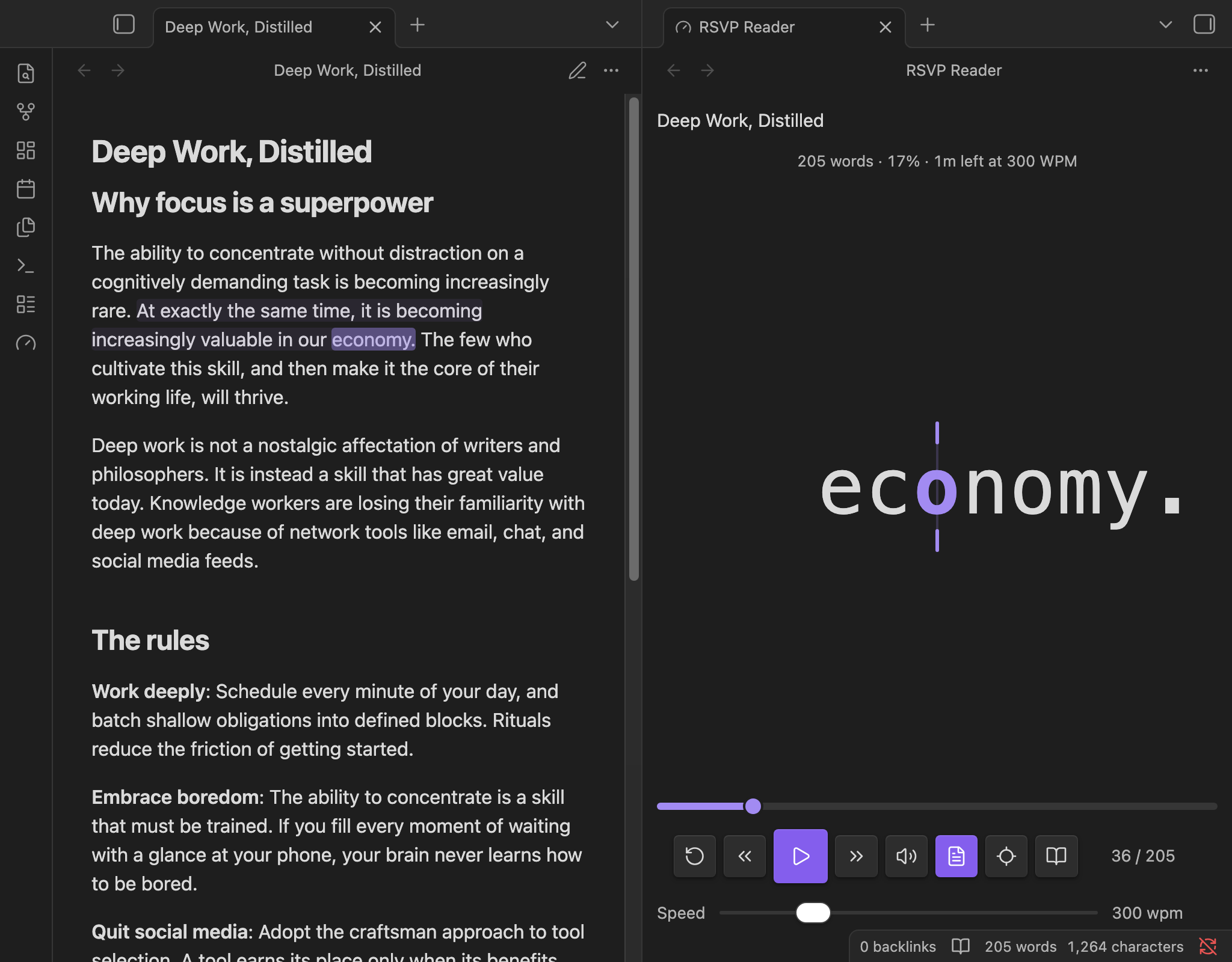
Desktop: the note follows along beside the reader, with the current sentence tinted and the current word marked in sync with the flashed word.
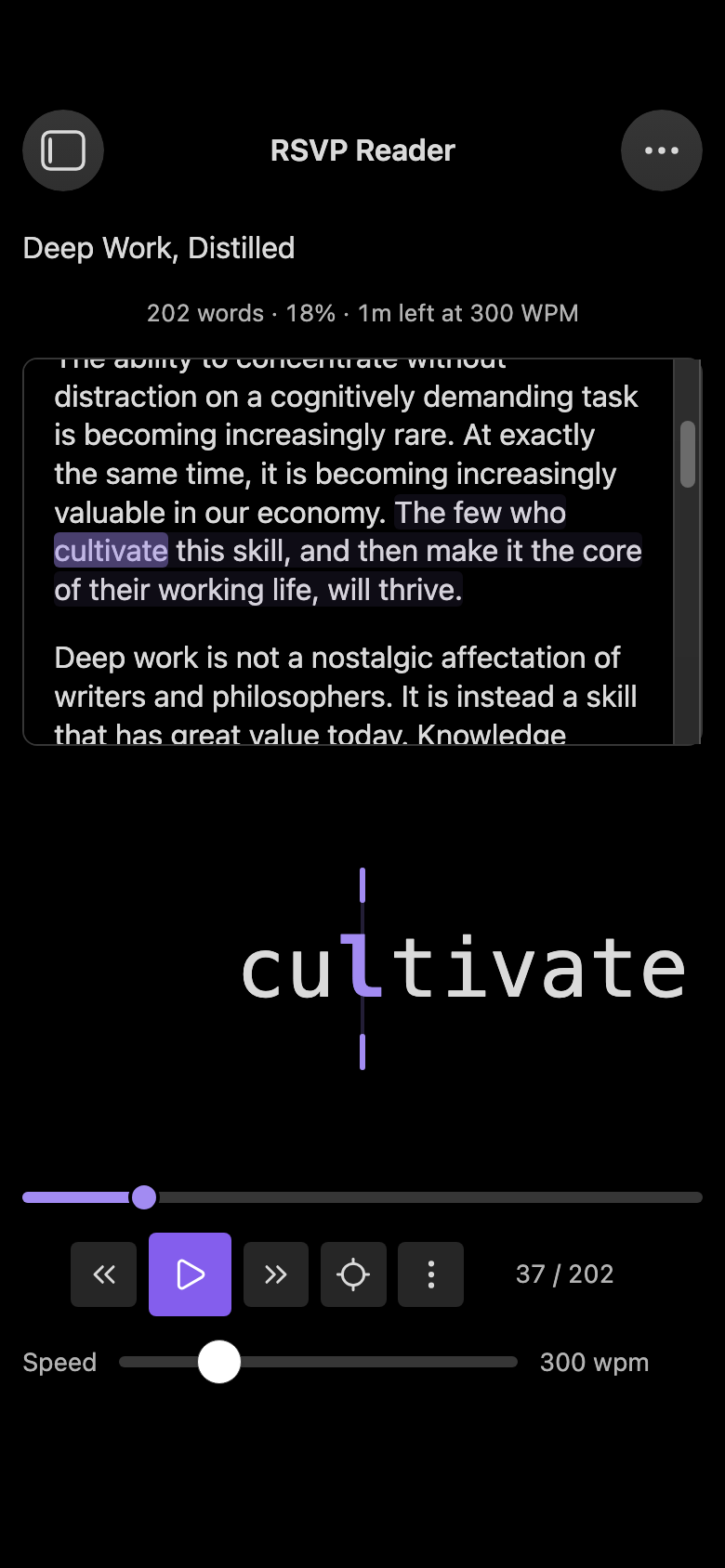
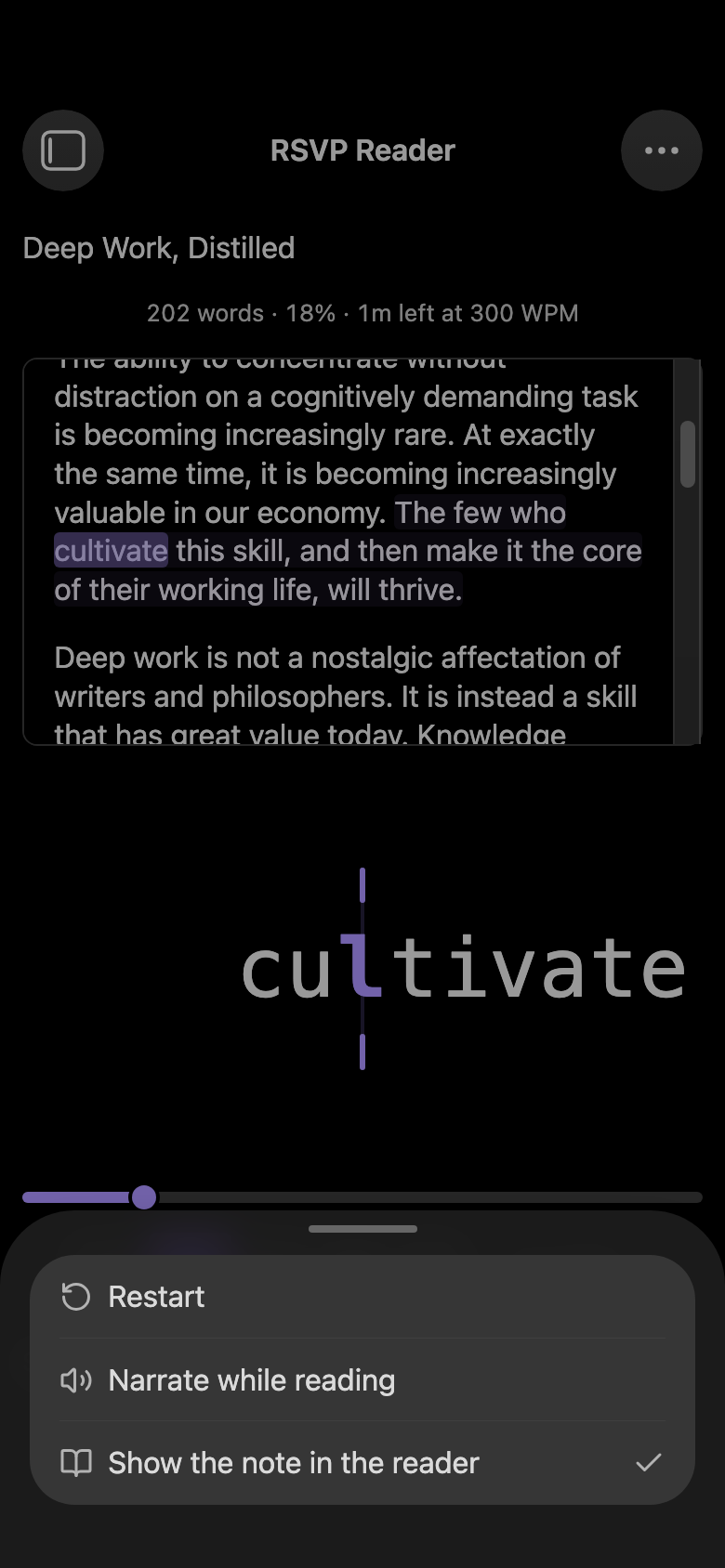
Phone: Obsidian cannot split the screen on phones, so the reader splits itself, with the note on top and the word below, plus compact one-thumb controls. The secondary actions live in a More menu.
Features
- RSVP display with a Spritz-style optimal recognition point (the highlighted anchor letter stays in a fixed column for every word).
- Synced narration with free system voices or natural Unreal Speech voices (the engine used by Readwise Reader, with your own API key). Cloud narration uses provider-supplied word timestamps for exact RSVP sync. Generated MP3 audio uses a byte-bounded memory cache plus device-local IndexedDB, so matching text, voice, pitch, and bitrate can replay across Obsidian restarts without another synthesis request.
- Follow along in the note: toggle the file button and your note scrolls with the reading, the current sentence colored and kept vertically centered. Works in editing/Live Preview and in Reading view (via the CSS Custom Highlight API). It is a non-destructive overlay: your own
==highlights==and content are untouched. - Locate: one tap jumps the note to exactly where you are and flashes the current word for a few seconds. By default the same flash also fires whenever you pause, so stopping always answers "where was I?".
- Note inside the reader: an optional split within the reader pane, the note's text on top and the flashed word below. The current word carries a solid marker that moves as you read, with the sentence tinted around it. Drawn as the reader's own overlay, so it renders on every platform and iOS version. On by default on phones, where Obsidian cannot split the screen into two panes.
- Hold to read: press and hold the word area to read while held; release to pause exactly where you landed. Tap to toggle play/pause.
- Seekable progress bar: click or drag to scrub anywhere in the note.
- Automatic reading checkpoints: each note remembers its position and resumes there after closing the pane, reloading the plugin, or switching devices through synced plugin settings. Restart clears the checkpoint; finishing clears it as completed.
- Book statistics: see total words, progress, remaining time at the current WPM, and the estimated 128 kbps narration size before generating the whole book.
- Reads your notes: the whole note, or just the current selection. Markdown, frontmatter, and code blocks are handled sensibly.
- Punctuation-aware pacing: longer words and clause, sentence, and paragraph endings get a little more time, so it does not feel robotic.
- Live speed control from 100 to 1000 words per minute, with full 5x playback at 1000 WPM for timestamped Unreal audio and a speed bar you can hide.
- Keyboard driven: play, pause, step by word or sentence, and change speed without touching the mouse.
- Theme-aware: follows your active Obsidian theme, light or dark.
- Cross-platform: one plugin for Obsidian on macOS, Windows, Linux, iPhone, and iPad. No Intel Mac or platform restriction.
Install
RSVP Reader requires Obsidian 1.11.4 or newer and is not yet in the community plugin directory. Until then:
Manual install
- Download
main.js,manifest.json, andstyles.cssfrom the latest release. - Put them in
<your vault>/.obsidian/plugins/rsvp-reader/. - In Obsidian, open Settings → Community plugins, turn off Restricted Mode if needed, and enable RSVP Reader.
Via BRAT (for beta testers): add kevinsslin/obsidian-rsvp-reader in the BRAT plugin.
Usage
Open a note, then start reading in any of these ways:
- Click the gauge icon in the left ribbon.
- Run RSVP Reader: read current note from the command palette.
- Select text and run RSVP Reader: read selection.
The reader opens in its own pane. Click the word (or press space) to play and pause.
Controls
| Control | Action |
|---|---|
| Play / pause button, or space | Start or pause reading |
| Tap the word | Toggle play / pause |
| Press and hold the word | Read while held, pause on release |
| Restart button | Jump back to the first word and clear the note's checkpoint |
| ← / → | Step one word back or forward |
| Shift + ← / →, or the sentence buttons | Jump to the previous or next sentence |
| ↑ / ↓ | Increase or decrease speed by 10 wpm |
| Voice button | Toggle narration on or off |
| File button | Toggle Follow in note (auto-scroll + sentence highlight) |
| Locate button | Jump to your place in the note and flash the current word for a few seconds |
| Book button | Toggle the note-inside-the-reader split (see below) |
| Progress bar | Click or drag to scrub |
| Speed bar | Set words per minute |
On phones the row shows only the transport (previous / play / next), Locate, and a More menu holding Restart, narration, Follow in note, and the reader split.
Settings
Reading speed, word size, automatic checkpoint resume, and whether the speed bar shows. Follow along in the note (auto-scroll and sentence highlight), locate-on-pause, and when to show the note inside the reader (automatic on phones, always, or never). Whether to skip code blocks and frontmatter. Narration on or off, provider, voice, pitch, volume, device-local cache size, exact cache usage, and a clear-cache control. Choose System voice for free narration (on-device voices work offline), or Unreal Speech for natural voices using your own API key (its free tier includes 250K characters). Advanced pacing controls include a reset button. Changes apply to an open reader immediately.
How narration stays in sync
The selected narration provider owns the clock:
- System voice uses the browser Web Speech API. When the engine reports word-boundary events, the display snaps to them. On-device voices provide the most reliable fine sync; sentence ends remain the fallback.
- Unreal Speech returns an MP3 plus a start time for every spoken word. RSVP Reader follows those timestamps against the audio element's current playback time, giving exact word sync independent of Web Speech boundary support. It briefly buffers two multi-sentence chunks before starting, then maintains a bounded two-chunk lookahead so high-WPM playback does not outrun the network. It never downloads the whole note up front. Completed chunks persist in a bounded device-local cache and use least-recently-used eviction.
- Never ahead, never cut off: the display can pace words within the sentence being spoken but parks at its end until the voice finishes it, and only the voice can finish the run, so narration is never cancelled mid-sentence.
- Pause without re-synthesis: pausing preserves the active audio session. Resume continues the same audio rather than generating and charging for the same text again.
Follow in note highlights the current sentence in your note and keeps it centered. In editing/Live Preview it uses an editor decoration; in Reading view it locates the sentence text in the rendered page and colors it with the CSS Custom Highlight API. Both are overlays: nothing is written into your note, and your own ==highlights== keep their normal color (the follow tint is deliberately different).
Notes:
- On iOS, audio must start from a tap or key press. Start narration with the play button or the Voice toggle in the reader, not only from settings.
- Prefer system voices marked on-device for the tightest Web Speech sync. Unreal Speech voices always use their returned word timestamps.
- Speed changes take effect for the voice on the next play.
Persistent narration cache
Unreal Speech cache entries are keyed by provider version, bitrate, voice, pitch, and a SHA-256 hash of the chunk text. WPM and volume are deliberately excluded, so changing playback speed or volume reuses the same paid audio. Recent chunks also use a byte-bounded session cache (64 MB on desktop, 32 MB on mobile). The persistent device-local limit defaults to 1 GB on desktop and 500 MB on mobile. Settings offers Off, 250 MB, 500 MB, 1 GB, and 2 GB; old entries are removed least-recently-used first using compact metadata rather than loading the MP3 collection into memory. Turning the cache off or pressing Clear cache clears both cache layers, and narration requests started before the clear cannot repopulate persistent storage afterward.
Privacy
RSVP Reader reads only the note you point it at. With System voice, text goes to your device's speech engine; on-device voices never leave your machine, while system voices labelled “network” may be sent by the OS to its voice service. With Unreal Speech, bounded text chunks are sent directly to Unreal Speech using the API key you supplied, and the returned audio and word timings are downloaded for playback. Obsidian stores that key in SecretStorage, and RSVP Reader never writes it into normal plugin data. Generated MP3 audio and timings are stored in device-local IndexedDB, not inside the vault, Git, or Obsidian Sync. Per-note checkpoints are small plugin-data records (path, progress, source offset, and nearby token anchors), so they may follow the vault when plugin settings are synced. Reading without narration remains fully offline.
Development
Requirements: Node 18 or newer.
npm install
npm test          # unit + integration tests (vitest)
npm run typecheck # tsc, no emit
npm run lint      # eslint
npm run build     # typecheck + production bundle -> main.js
npm run check     # all of the above
npm run dev       # esbuild watch
npm run build:demo # bundle the standalone browser demo
Architecture. The reading engine is deliberately free of any obsidian import so it can be unit-tested in isolation and reused (the browser demo runs the same code):
src/core: tokenizer (markdown to words), ORP pivot, and the WPM scheduler.src/tts: theTtsProviderinterface, the free Web Speech provider, the Unreal Speech adapter, and a reusable timestamped-audio engine. Network and audio dependencies are injectable for tests.src/reader: the playback controller. It owns an injectable clock, uses an estimated timeline for silent and best-effort speech, and lets timestamped providers drive every displayed word.src/main.ts,src/settings.ts,src/ui: the thin Obsidian layer (view, commands, settings).demo/: a standalone browser demo built from the same engine.
See docs/manual-qa.md for the in-Obsidian test checklist.
Credits
RSVP (rapid serial visual presentation) and the optimal-recognition-point anchor are long-standing reading techniques, popularized by Spritz. RSVP Reader is an independent, open-source implementation for Obsidian.