Routine Timeline
 Arsalan Amin373 downloads
Plan tasks and routines with Table, Board, Timeline and Calendar views, saved view tabs, repeating tasks, notes, and read-only Google Calendar events.
- Overview
- Scorecard
- Updates23
A Notion-style task and routine planner for Obsidian. One set of tasks, four layouts (Table, Board, Timeline, Calendar), saved views in a tab bar, repeating tasks you can tick off day by day, a Google Calendar feed, and an inline block you can drop into any note.
⬇ Download the latest release · Install · Views · Repeating tasks
Status: early release (v0.16.0). Every layout, zoom, editor and menu is covered by a headless DOM test, but it has not been fully tested inside Obsidian yet. Please open an issue if something misbehaves, especially dragging inside a note in Live Preview.
What it looks like
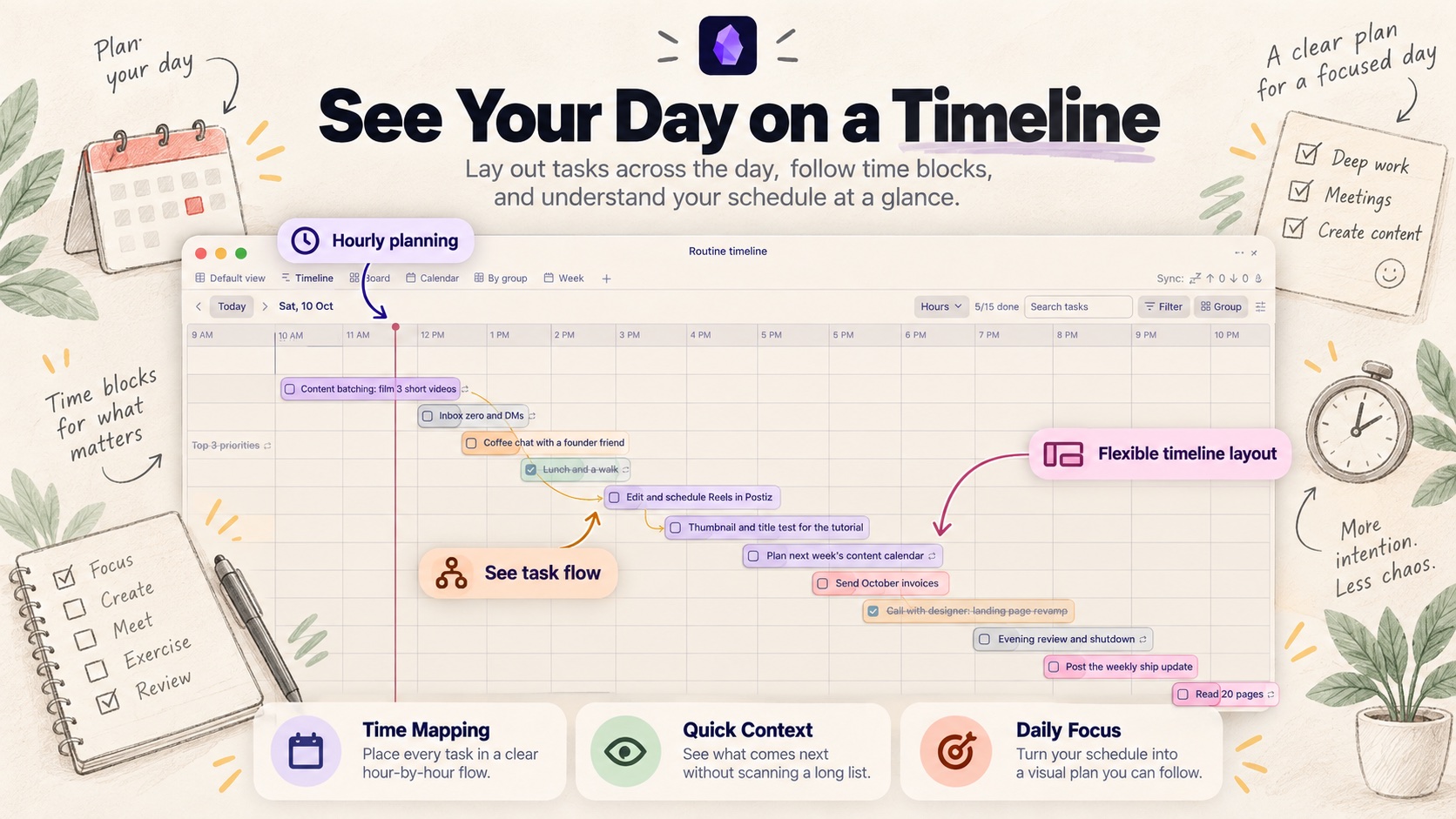
Timeline: lay tasks out hour by hour, with dependency arrows and a live "now" line |
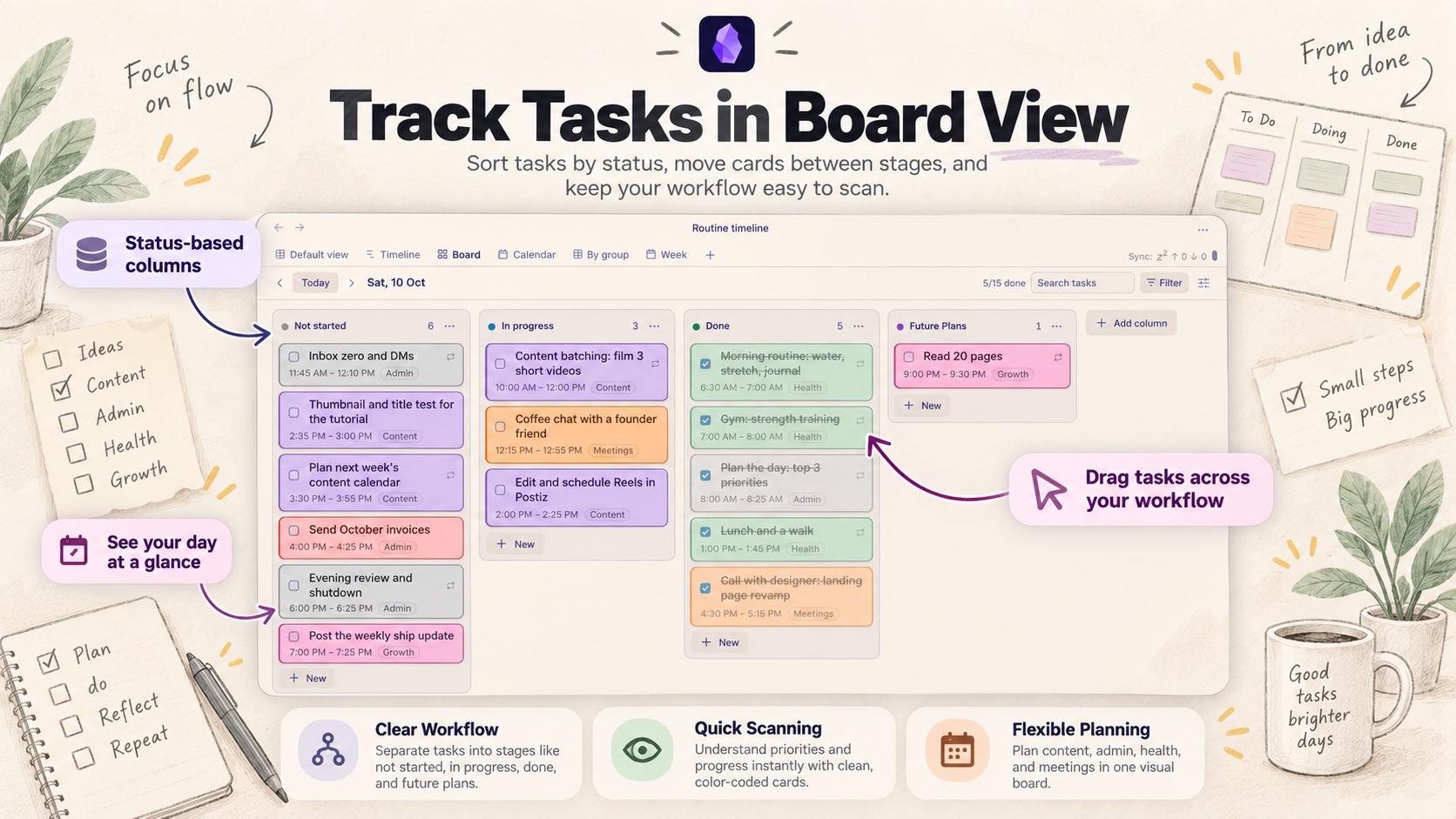 Board: status columns, drag cards between stages |
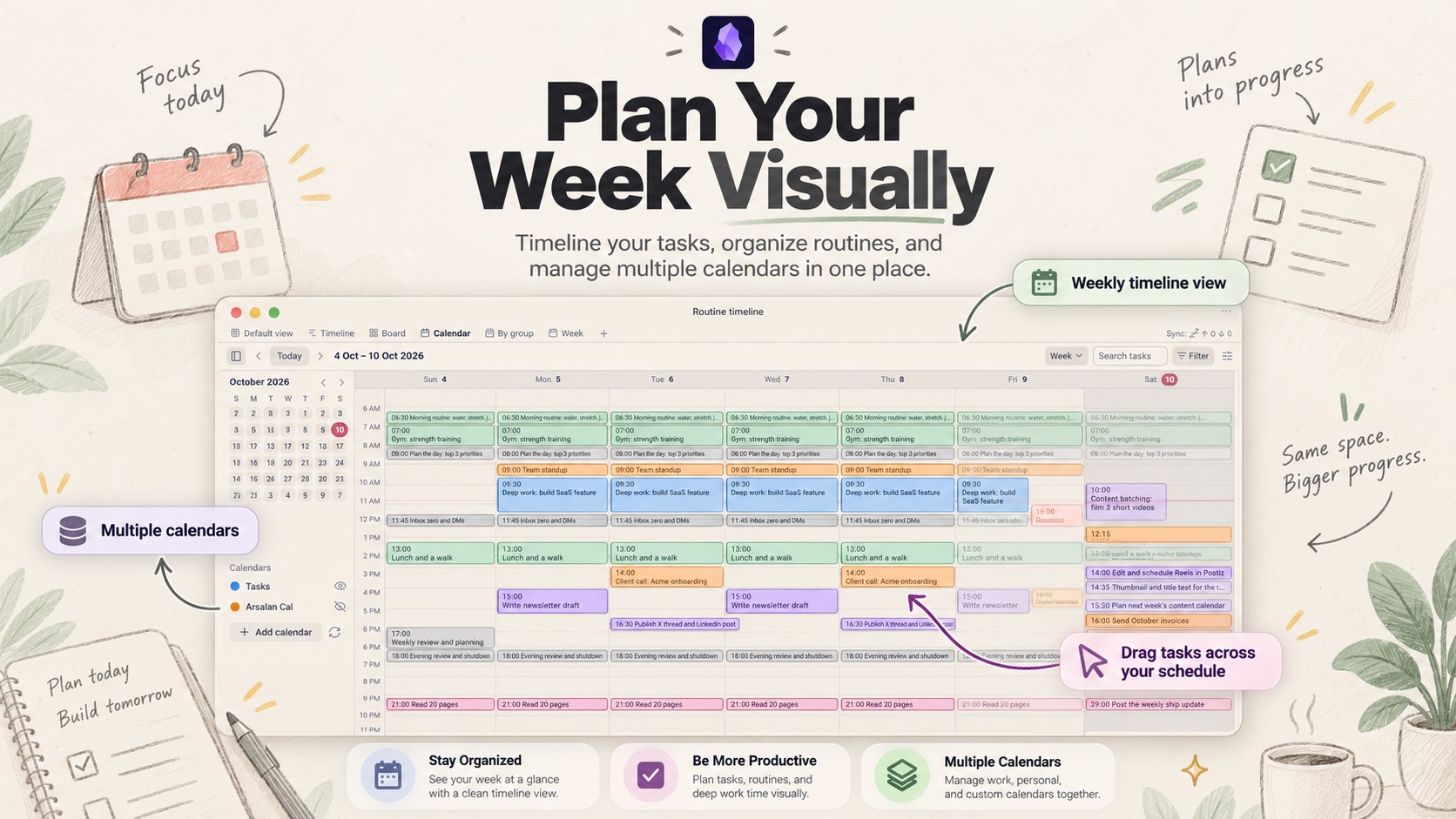 Calendar: day, week and month grids with several calendars |
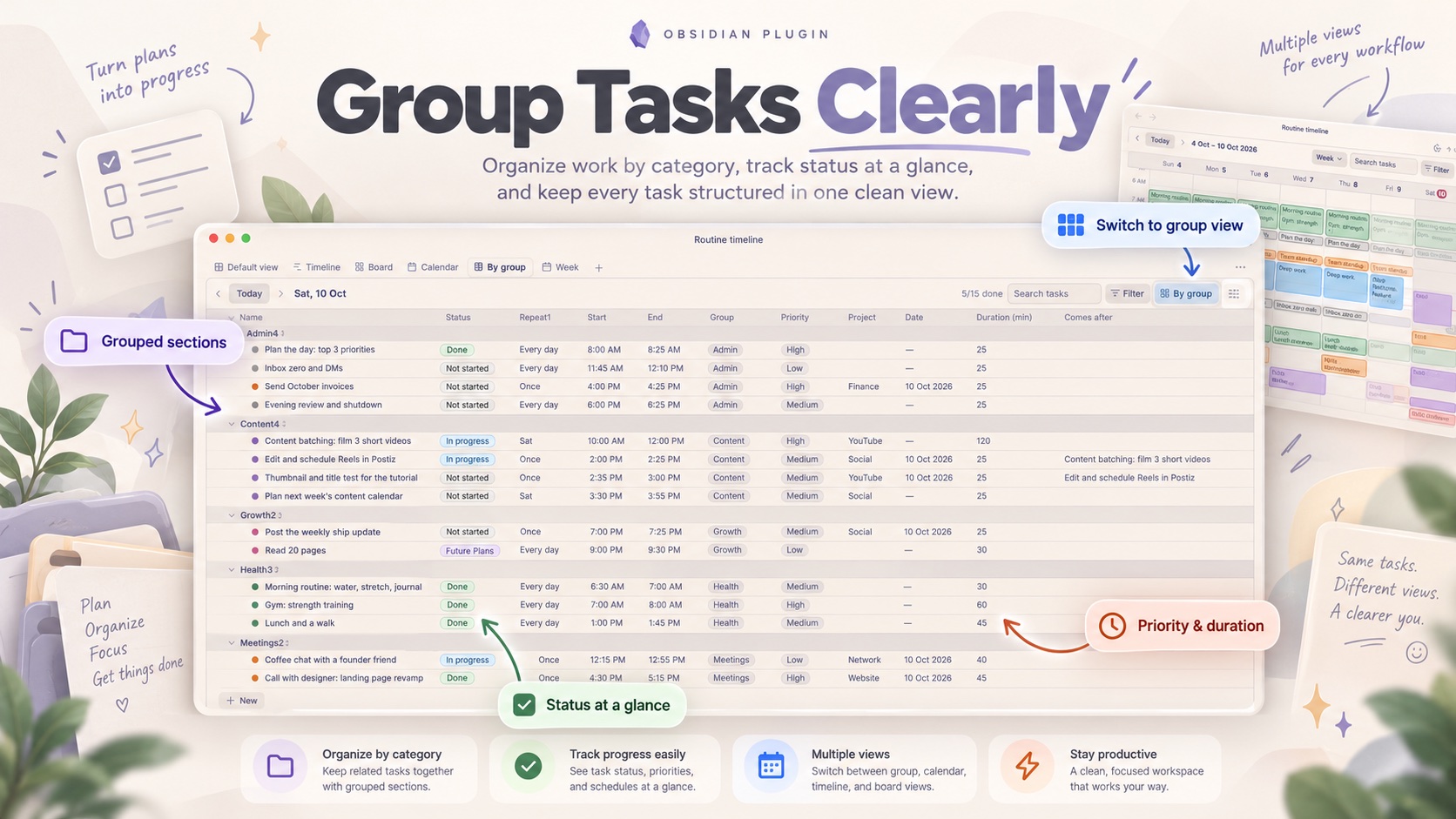 Table: group by category, with status, priority and duration |
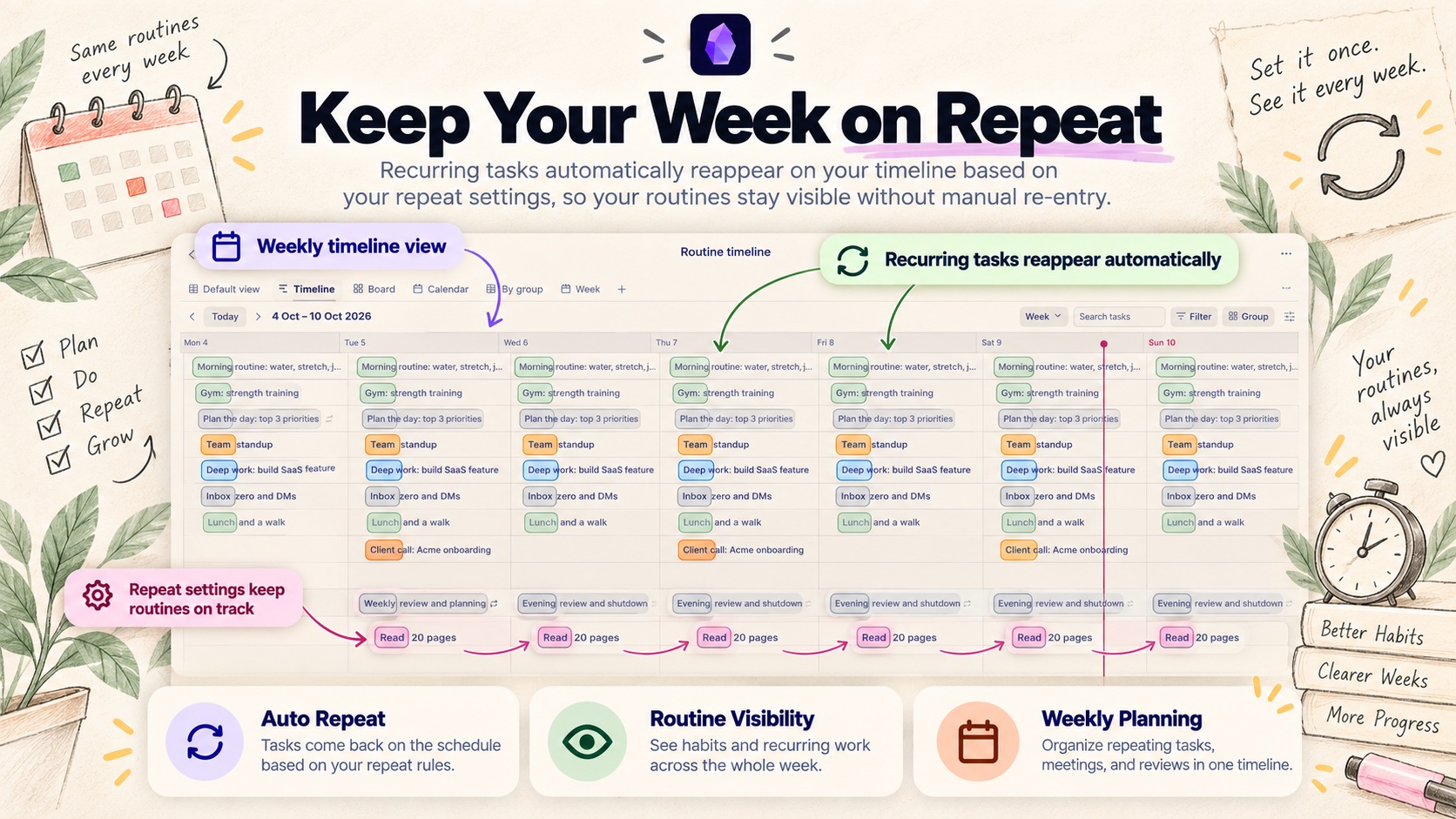 Week timeline: repeating routines reappear on the days they repeat |
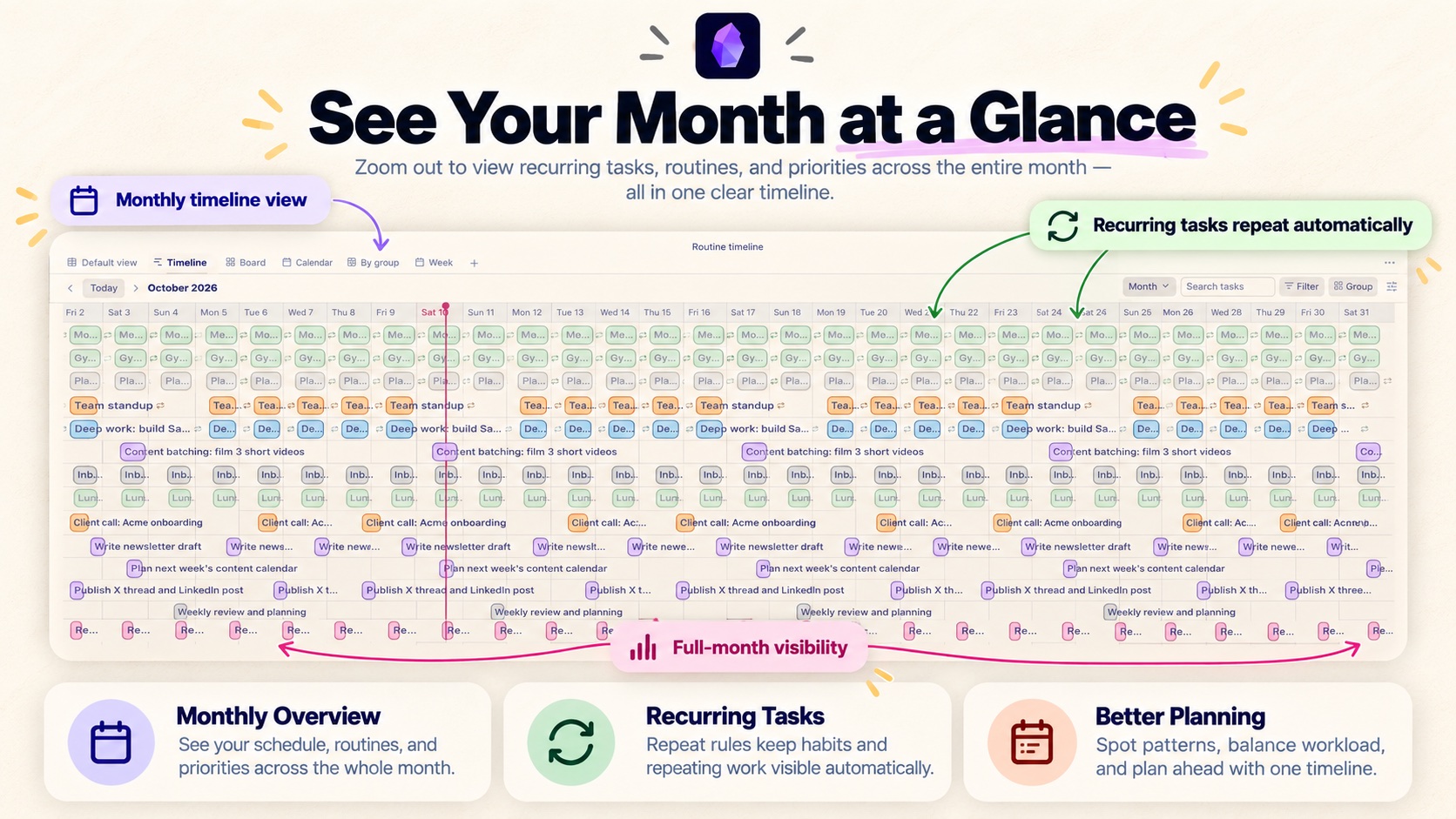 Month timeline: see the whole month at a glance |
Install
From a release (easiest)
- Open the latest release and download
routine-timeline-<version>.zip, then unzip it into<your vault>/.obsidian/plugins/(it creates theroutine-timelinefolder). Or downloadmain.js,manifest.jsonandstyles.cssyourself and put the three files in<your vault>/.obsidian/plugins/routine-timeline/ - In Obsidian, go to Settings → Community plugins and enable Routine Timeline
- Open it from the ribbon icon, or run the command Open timeline view
With BRAT (auto-updates)
Install the BRAT community plugin, choose Add beta plugin, and enter arslandevs/routine-timeline. BRAT installs the latest release and keeps it updated.
Requires Obsidian 1.4.0 or newer (a recent version is recommended for the contrast styling). Works on desktop and mobile, with a few desktop-only drag interactions noted below.
Views
Tab bar
Saved views sit in a tab bar at the top, like Notion: Default view | Calendar | Board | +. The tab bar also shows inside an embedded note block, where clicking a tab copies that view's settings into the block.
- Click a tab to switch. Click the active tab for its menu: Rename, Display as (Table, Board, Timeline, Calendar), Edit view, Duplicate view, Delete view
- + adds a Table, Board, Timeline or Calendar view
- Double-click a tab to rename it, or right-click for the menu
- Drag a tab left or right to reorder
- Each view keeps its own layout, zoom, filters and grouping. There is always at least one view
Table
Edit it like a spreadsheet.
- New adds a row instantly, like a fresh Notion page, and puts its name straight into editing. No popup
- Click a cell to select it, then type to replace its value. Enter or double-click edits the current value, Enter saves, Esc cancels, and the arrow keys move between cells
- Status is a colored chip. Click it to change the status
- OPEN: hover a row's name and click OPEN to open the task in a side panel with every field plus a Notes box. Click anywhere outside the panel to close it. Valid edits are saved automatically
- Select rows with the checkbox (hover a row to see it, or use the header box for all). A floating bar shows N selected, a trash icon and a ⋯ menu: Mark as any status, Edit group & color, Duplicate, Delete. Right-click a row for the same menu. Deleting asks you to confirm and removes any arrows pointing at the deleted tasks
- Click a column header for its settings, Notion-style: rename it inline, Change type (your own properties only), Sort old→new or new→old, Filter by text, Group by this (Group and Status columns), Freeze, Hide, Wrap content, Insert left/right, Duplicate property and Delete property
- Drag a column header to move that column. A blue line shows where it will land. Name always stays first
- The + at the end of the header row adds a new property: text, number, checkbox, select or date
Board
- Always shows the status columns Not started, In progress and Done, even when a column is empty, and each column has its own + New button
- Click a column title to rename it (Enter saves, Esc cancels). The ⋯ menu renames, recolors or deletes a column, and Add column creates more. The Done column can be renamed but not deleted
- Drag a card to another column, or pick the Status in the task editor. Ticking a card's checkbox moves it to Done
- Status is tracked per day, so a repeating task can be Done today and Not started tomorrow
- Each status has its own color (Not started gray, In progress blue, Done green). The color also shows on the table's status chip
Timeline
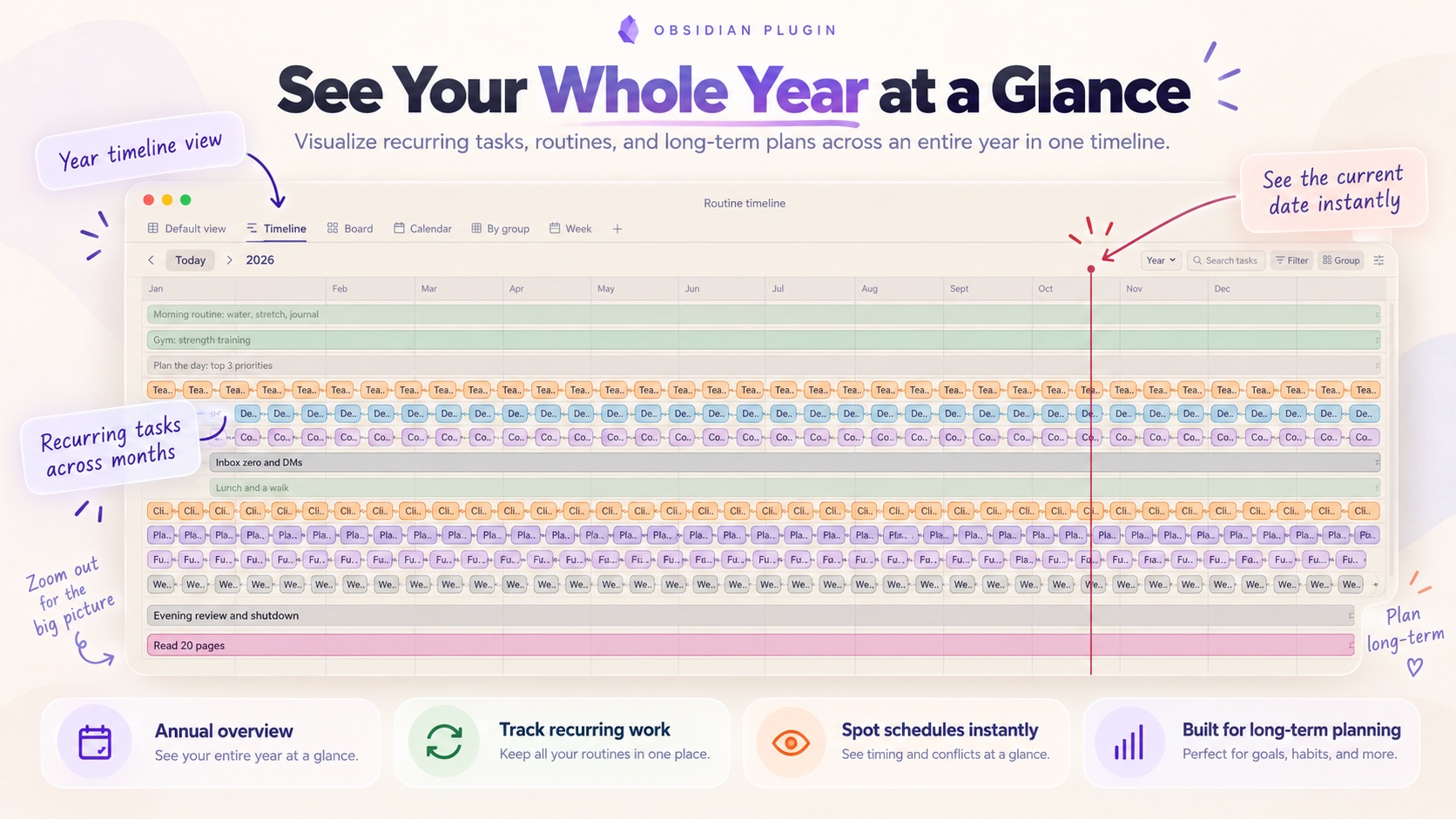
Zoom out from hours to a whole month or year:
- Hour axis across the top, one row per task, and a + New row at the bottom
- Hover any empty spot of the grid and a dashed 25-minute block appears at the start of that hour (for example
+ 4:00 PM). Click it to add a task there - Zoom dropdown: Hours, Day, Week, Bi-week, Month, Quarter, Year, 5 Years. Day fits all 24 hours without scrolling, Hours zooms in
- Week and larger show one column per day. A repeating task appears only on the days it repeats: at its start time inside the day column in Week and Bi-week, and as a mark per day (consecutive days merge) in Month and larger. Titles start inside the bar and run on past it (never into the next occurrence). Hover an empty spot to add a task on that day (at that hour in Week and Bi-week). Drag a bar to move it: to another day and time in Week and Bi-week, to another day in Month and larger. A repeating task can only change its time of day, and only in Week and Bi-week. Click a bar to edit it
- Short tasks keep their name visible: when a title does not fit inside its bar, it starts inside the bar and runs on past its right edge (like Notion) instead of being cut off
- Move and resize: drag a bar to move it, drag either edge to change the start or end. Snaps to 15 minutes
- Dependency arrows: drag from the small dot at the end of a bar onto another bar. If a task starts before the one it follows ends, the arrow turns red and dashed. Tap an arrow, then its ✕, to remove it
- A red current-time line with a dot, updated every minute on today's view
- Keep scrolling in time: the timeline always shows the period before and after the current one beside it (yesterday and tomorrow in Hours and Day, the neighbouring weeks, months, quarters or years in the larger zooms). Scroll sideways past the edge and it carries on into the past or the future. In Hours and Day, neighbouring days show only the tasks that occur on them, and the day shading marks which one is selected
- Previous / Today / next steps by the current zoom (a day, a week, a month, and so on)
Calendar
- Day, Week and Month grids (dropdown next to the date). Tasks appear on every day they occur, including repeats
- Click an empty day or hour to add a task there. Click a chip to edit it
- The Week view scrolls sideways and up and down, with the time column and day headers staying put
- The current time shows as a thin line across the week, a bolder line on today, and a time label in the margin
- A collapsible left sidebar has a mini month calendar, a list of calendars with show/hide eyes, and Add calendar
Google Calendar and other calendars
Read-only, through iCal feeds, so it needs no sign-in and works on mobile.
- In Google Calendar open Settings → your calendar → Secret address in iCal format and copy it
- In Obsidian, use Add calendar in the Calendar sidebar (or Settings → Routine Timeline)
Events appear next to your tasks as solid colored cards, including repeating and all-day events, and refresh every 30 minutes. Click an event for its details. See Privacy below.
Tasks
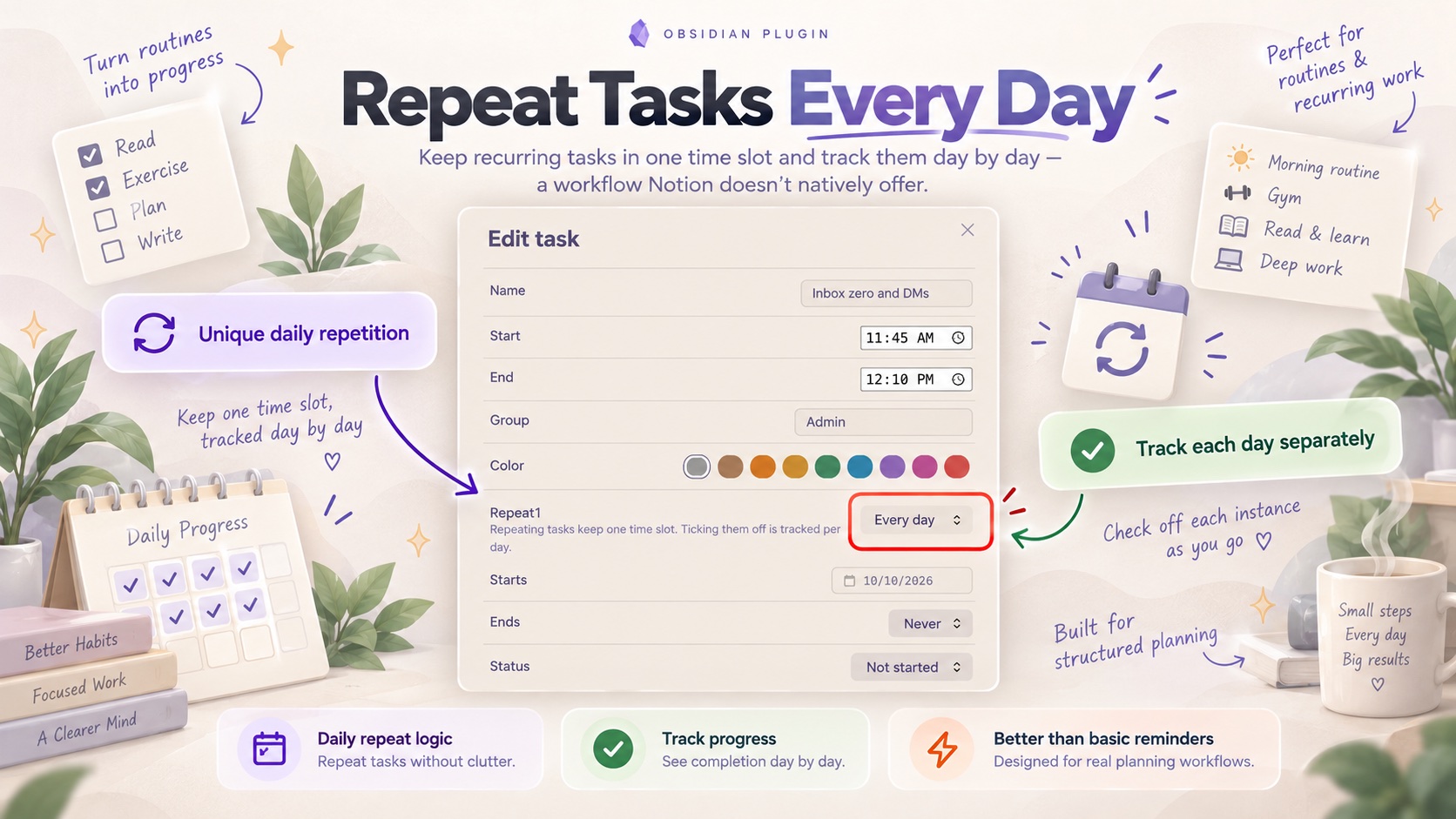
- Repeat: Does not repeat, Every day or On specific days of the week (for example only Tue and Thu). Choose when it starts and how long it lasts: never ends, after a number of times (for example 10) or on a date
- A done checkbox and the status are tracked separately for each day
- New tasks start at the time you pick and default to 25 minutes. Changing the start moves the end with it until you set the end yourself
- Notes are plain text, saved with the task, and available in the editor and the side panel
- Opens with five example routine tasks you can edit or delete
Properties
Click a column header in the Table layout for its settings (see above). From View settings (the sliders icon) → Properties you can also just Add property, for when Table isn't the active layout.
- System properties (Name, Status, Date, Start, End, Duration (min), Group, Repeat, Comes after) can be renamed, hidden, frozen and sorted, but not deleted or retyped. Name is always first
- Properties you add can be renamed, retyped, sorted, filtered, frozen, hidden, duplicated, reordered (drag the header) and deleted. Set their values in the task editor. They show as table columns
- Names apply to the table headers, the task editor and the group menu in every view
Groups and filters
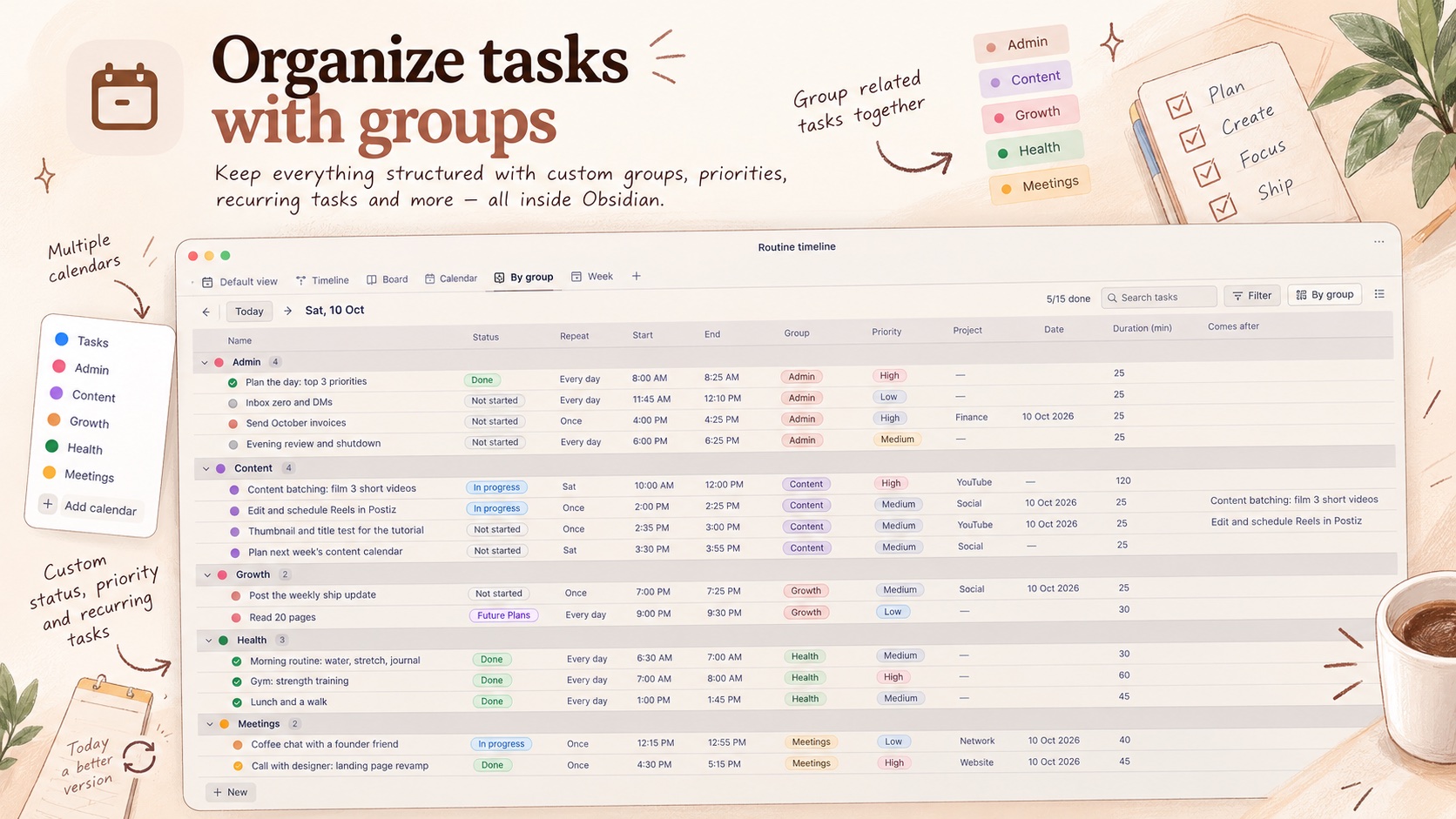
A search box, a Filter menu (hide completed, pick groups) and a Group menu (none, by group, by status). Group headers collapse when clicked. The Group menu does not apply to the Board layout, which always groups by status.
Embed in a note
Run the command Insert timeline into note, or type a code block with the language routine-timeline:
```routine-timeline
height: 420
group: group
hideDone: true
filter: Work, Health
```
All lines are optional:
| Option | Meaning |
|---|---|
height |
Height of the embedded block in pixels |
layout |
timeline (default), table, board or calendar |
zoom |
For the timeline: hours, day (default), week, biweek, month, quarter, year or 5years |
calendar |
For layout: calendar: day, week or month (default) |
group |
Group rows by group or status |
hideDone |
true hides completed tasks |
filter |
Comma-separated group names to show |
view |
Use the settings of a saved view by name, for example view: Timeline |
Mobile
- Tap a timeline bar once to select it. Its edges and connector dot appear, then drag
- Tap a selected bar again to open the editor, where you can type exact times
- Normal scrolling still works because dragging only starts from the bar's grip, edges or connector dot
- Dragging tabs, table columns and board cards uses the browser's drag events, so it works on desktop but not by touch. On mobile, reorder properties with the arrows in View settings, and change a task's status in the editor
Look
Lines, headers and side panels are drawn a few shades darker than the page, and task bars, cards and calendar chips take a stronger version of their color with a visible edge, so they stand out on beige and other low-contrast themes. This uses color-mix; older Obsidian versions fall back to the theme's own border colors.
Data
Tasks, views, statuses, properties and calendar feed addresses are stored in the plugin's own data (.obsidian/plugins/routine-timeline/data.json), not in your notes. Moving a repeating task changes its time for every day it repeats.
Network use and privacy
- The plugin makes no network requests unless you add a calendar. It then fetches only the iCal address you pasted (for example your Google Calendar secret address), every 30 minutes and when you press refresh
- No telemetry, analytics, ads, accounts or payments. No data is sent anywhere else
- Events are kept in memory only. Your tasks, views and calendar addresses are stored locally in this plugin's
data.json - The secret iCal address of a calendar lets anyone who has it read that calendar. Treat
data.jsonlike a password file: do not commit or share it
Limitations
- Calendar events are read-only and come from iCal feeds. Google refreshes those feeds every few hours, so a brand-new event can take a while to appear. Signing in with Google (OAuth) for live updates and creating events is not built yet; see
docs/dev-plan-views-and-calendar.md - Calendar events show in the Calendar layout only, not in the Timeline
- Repeats are every day or chosen weekdays, with an optional start, count or end date. There is no monthly repeat or per-day exception yet
- In the Calendar week view a short block is stretched to a readable minimum, but it always starts at the task's start time
- In the Week and larger timeline zooms you can move bars and add tasks, but not resize them, and dependency arrows are only drawn in Hours and Day
- No ← → buttons for bars outside the visible area (the current-time line, dragging and resizing cover most of that)
- Inline embedding in Live Preview is the least tested part