Revisit
 Alan Victor15 downloads
Spaced repetition flashcards with FSRS. Pick your time and review.
- Overview
- Scorecard
- Updates4
Flashcards that become a habit: pick your time, review, done.
Revisit is a spaced repetition plugin for Obsidian built around one small daily session. It is for people who want to remember what they read and write in their vault, and who have tried flashcards before and watched the pile of due cards grow until they stopped. There is no deck to set up, no backlog to fear and no syntax to learn.
Why Revisit
1. One question, then you are in. Every session starts with How much time today? (2, 5 or 10 minutes, keys 1 to 3). The session ends by itself when the time is up. Small, fixed sessions are easy to repeat every day, and repeating is what matters: in a study of 96 people doing a daily behaviour, habit strength rose with repetition, and missing a single day did not significantly hurt it (Lally et al., 2010). The same study found the time to form a habit varied a lot, from 18 to 254 days, so the point is to make the daily step cheap, not to promise a number.
2. No debt. There is no overdue counter and no queue that grows while you are away. After a missed day you see the cards that are due, for the time you chose, and the rest simply waits. When the time is up, Keep going? offers 2, 5 or 10 more minutes. It is your choice, never a demand.
3. Cards take seconds to make. Select text, run New card, type the question, press Ctrl+Enter. A short selection with an empty front becomes a cloze on its own. There is no deck to choose: cards are grouped by the top-level folder of the note.
4. Your notes stay clean. Revisit writes nothing to the note a card came from. Cards are plain markdown in their own folder (Revisit/ by default), readable without the plugin. Scheduling lives in state.json and the review log in review-log.jsonl.
5. A modern scheduler, without tuning. Revisit uses FSRS with one setting: desired retention (default 90%). At most 10 new cards enter per day.
How it compares
Checked in November 2026 against each project's README. These are good plugins; they solve different problems.
| Revisit | Spaced Repetition | Obsidian_to_Anki | Flashcards (v2) | |
|---|---|---|---|---|
| Create a card | Select text, New card, type the question |
Write inline syntax in a note (Question::Answer, multi-line ?) under a #flashcards tag |
Write notes in markdown, then send them to Anki | Write Question::Answer in a note, then run an update command |
| Marks your note | No | Yes: scheduling is kept as an HTML comment next to the card | Yes: writes an ID, in an HTML comment by default | Yes: adds a ^q-xxxx anchor and a flashcards property |
| Algorithm | FSRS | FSRS or SM-2 | Anki's | Anki's |
| Session by time | Yes: 2, 5 or 10 min | Not in README | Not in README | Not in README |
| Needs Anki | No | No | Yes, with AnkiConnect | Yes, with AnkiConnect |
Where the others are stronger:
- Anki users. If you already live in Anki, or want its mobile apps, add-ons and sync, use Obsidian_to_Anki or Flashcards. Revisit does not talk to Anki.
- Cards inside notes. If you like writing
Question::Answernext to your prose, or want whole-note review, Spaced Repetition is built for that. Revisit keeps cards out of your notes on purpose. - Mobile. Revisit is desktop only for now.
Revisit is not for you if you need Anki sync, inline card syntax, or review on your phone today. It is for you if you would rather open one small session each day and be done.
Quick start
- Select a sentence in any note and run
New card(command palette, right-click, or the Done screen). Type the question. PressCtrl+Enter. - Open Revisit from the ribbon icon, the status bar or the
Reviewcommand. Choose 2, 5 or 10 minutes. - Flip with Space, grade with 1 to 4. When the time is up, you are done.
How it works
- Start. Answer one question: How much time today? (2, 5 or 10 min, keys 1 to 3).
- Decks. Your decks appear as folders. All decks (Enter) reviews everything mixed; any other folder opens to show its cards, how each is going and when it comes back, with a Start button for that deck alone. Esc goes back.
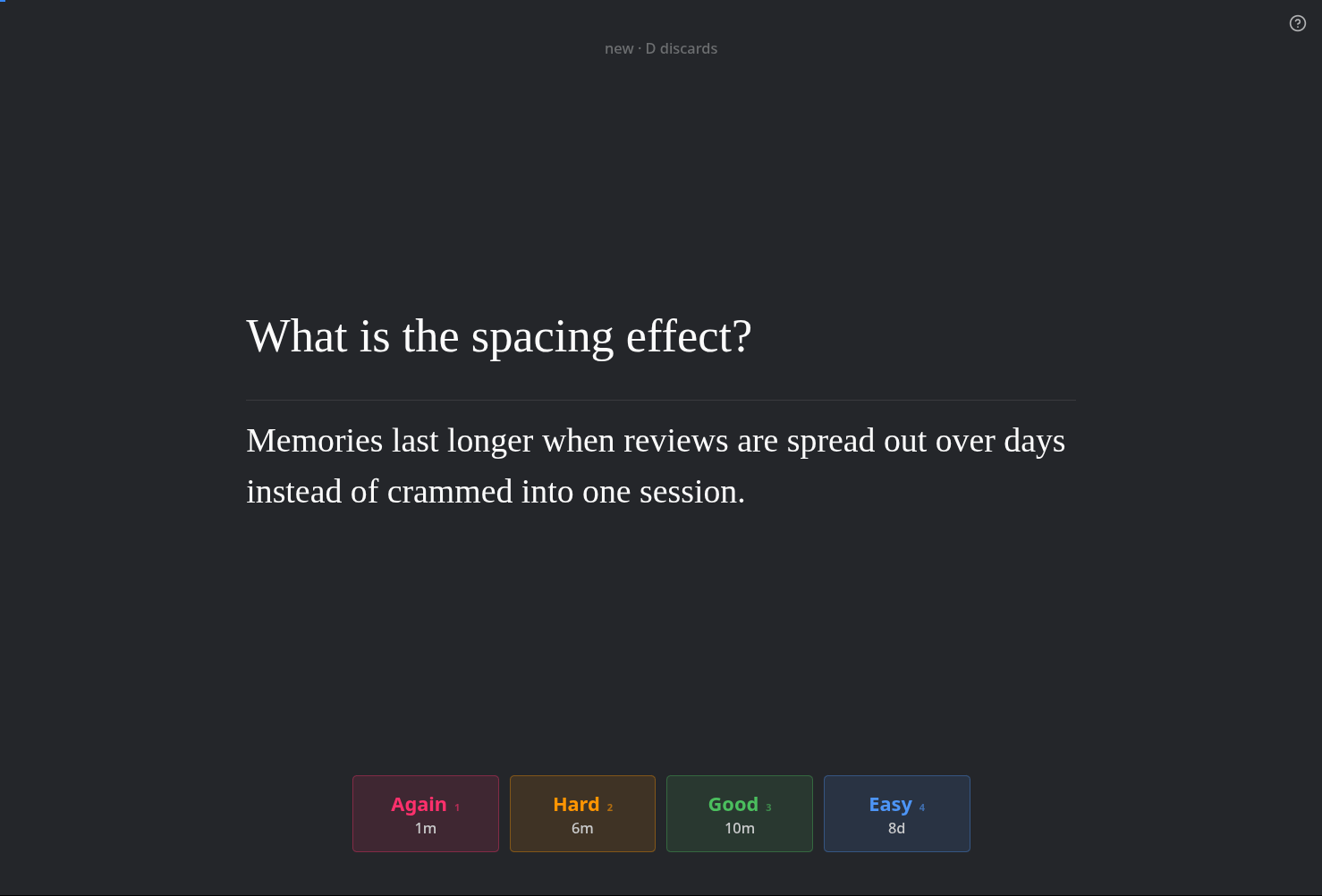
- Review. One card at a time. Space or a click flips it, and flips it back. Grade with Again, Hard, Good or Easy (keys 1 to 4); each button shows its colour and the next interval. The session ends by itself when the time is up.
- Done. A calm screen: Done. N cards. or All caught up., and when the next card comes back. If cards from today were left, Keep going? offers 2, 5 or 10 more minutes. If not, Ahead of schedule? offers new cards past the daily limit, then cards before their day.
New cardandDeckslinks sit here too.
There is no overdue counter.
Creating cards
Select the text, run New card, write the question, press Ctrl+Enter. That is the whole rule.
New card (command, the editor context menu or the Done screen) opens two fields, Front and Back. A selection in the editor goes to Back. With the front left empty and a short selection (up to 8 words), the card is saved as a cloze of the sentence around it. Ctrl+Enter saves, Esc cancels.
There is no deck to pick. Cards are grouped by the top-level folder of the note you were in (a note at the vault root groups by its own name; with no note open, cards go to Inbox). Each group is a deck: review it alone, or pick All decks to mix them.
Keyboard shortcuts
| Key | Action |
|---|---|
| 1, 2, 3 | Choose 2, 5 or 10 minutes (Start and Keep going) |
| Space | Flip the card, and flip it back |
| 1, 2, 3, 4 | Again, Hard, Good, Easy |
| E | Edit the card |
| O | Open the source note |
| D D | Delete the card (press twice) |
| Ctrl/Cmd+Z | Undo the last grade |
| ? | List every key |
| Ctrl/Cmd+Enter | Save a new card |
| Esc | Cancel a new card |
Card format
Cards are plain markdown in the cards folder, one file per deck, blocks separated by ---:
Front: What does `kubectl rollout undo` do?
Back: Rolls a deployment back to its previous revision.
Type: Question
Topic: Kubernetes > Workloads
Source: [[CKA study plan]] ^lk7q2a
==highlights== in the front of a Type: Cloze card make one card per highlight. The schedule lives in state.json and every grade in review-log.jsonl, in the same folder. Files from earlier versions (including cards of the old Reference and Problem types) are read as they are and kept untouched.
Settings
- Cards folder. Where the card files,
state.jsonandreview-log.jsonllive. DefaultRevisit. - Desired retention. 70 to 95%, default 90%. Higher means more reviews.
Install
Revisit is on its way to the Community plugins list. Until it appears there, install it manually: download main.js, manifest.json and styles.css from the latest release into <vault>/.obsidian/plugins/revisit/, then enable Revisit under Settings → Community plugins.
FAQ
Where is my data? In your vault, in the cards folder. Revisit makes no network requests and has no telemetry.
Can I edit cards by hand? Yes. They are markdown files. Press E in a review to edit one there.
Does it work on mobile? Yes. On a phone the ? becomes a ⋯ menu (edit, open source note, delete, undo), buttons are larger and you tap to flip.
Two devices? Yes, with Syncthing or any file sync. Each device writes only its own files, devices/<id>/state.json and devices/<id>/review-log.jsonl inside the cards folder, and Revisit merges them when reading (the latest review of each card wins; logs are joined by time). Files from older versions in the folder root are still read and never touched. *.sync-conflict-* files are ignored. Reviewing on two devices is safe. One limit: creating or editing cards in the same deck file on both devices before they sync can still make Syncthing create a conflict in that file.
Can I move over from another plugin? There is no importer. Cards are plain markdown with a simple format (above), so you can write them into the cards folder yourself. Revisit does not read the scheduling data of other plugins.
Support
License
0-BSD. See LICENSE.