RemNote JSON Import
 theluckystrike1 downloads
Import RemNote JSON notes with parent links and references.
- Overview
- Scorecard
- Updates1
Move supported RemNote JSON records into Markdown notes with source IDs,
parent links and references. Select a local rem.json file, review the
preview, then create notes in a new vault folder. The free import needs no
account. It writes a report so you can inspect content that needs repair.
This release supports a defined subset of the JSON format. It does not rebuild the RemNote study system. Keep your original export, attachment folder and source knowledge base until you have checked the result.
Features
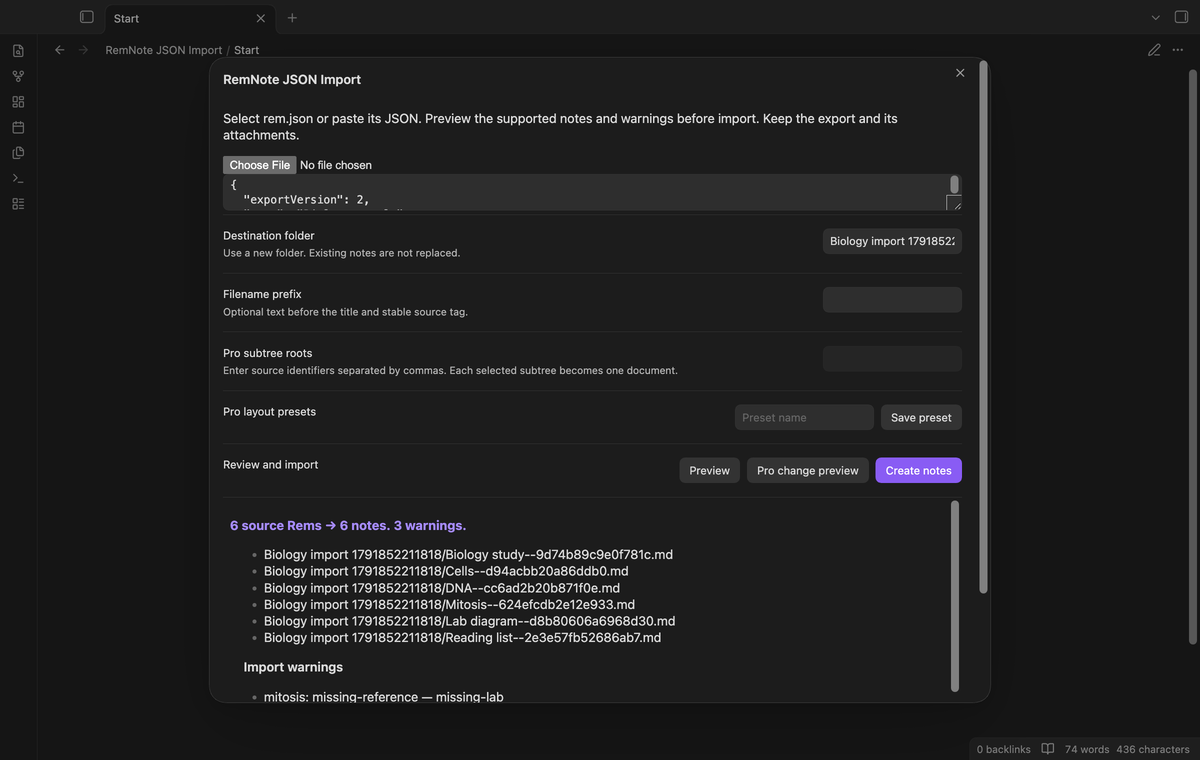
Preview the export
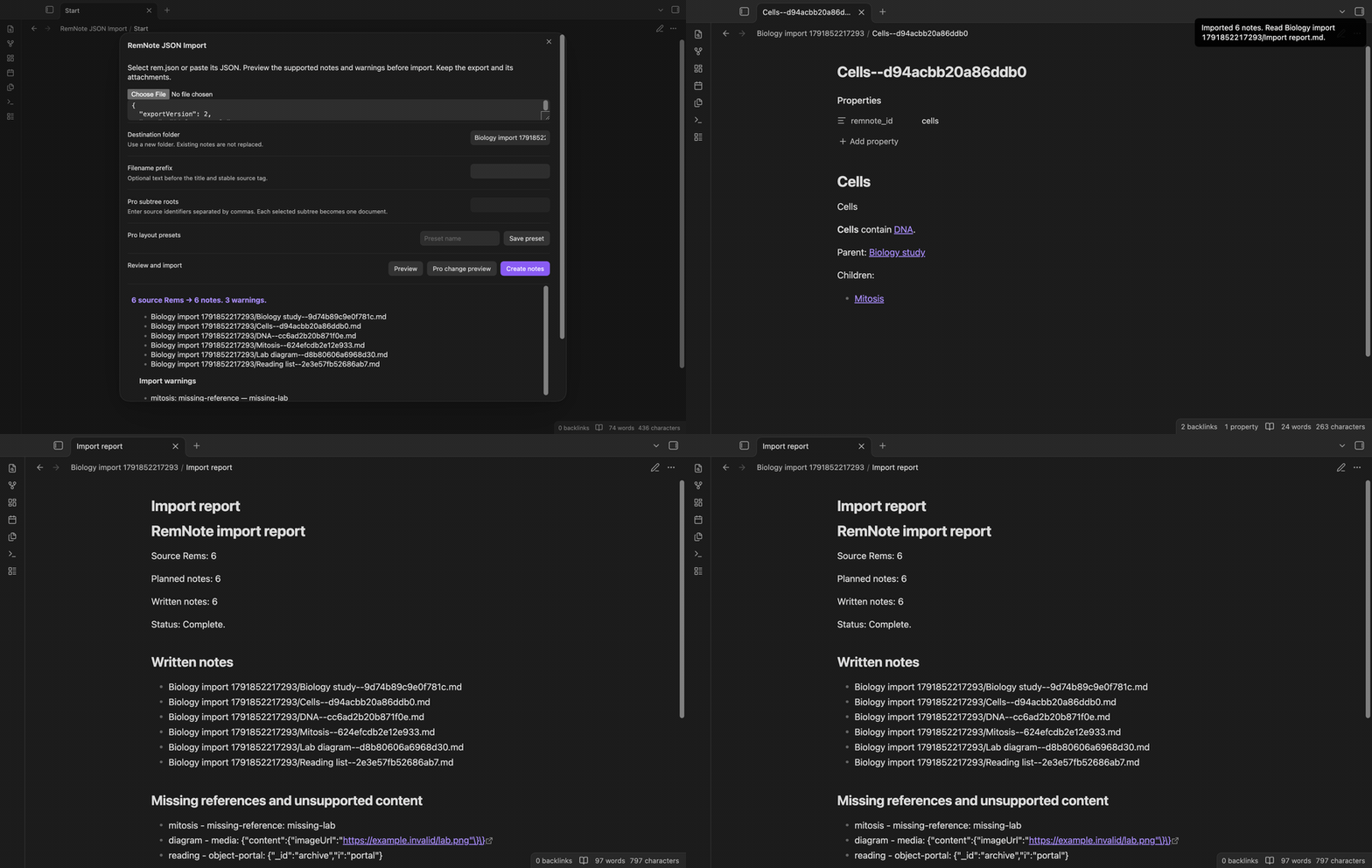
The import window shows the source Rem count, planned note count, output paths and warning count. It also shows the Markdown for the first note. A missing reference, image placeholder or unknown fragment appears in the warnings before you select Create notes. The path list shows the first eight planned notes; the report lists the paths written during import.
Keep parent and reference links
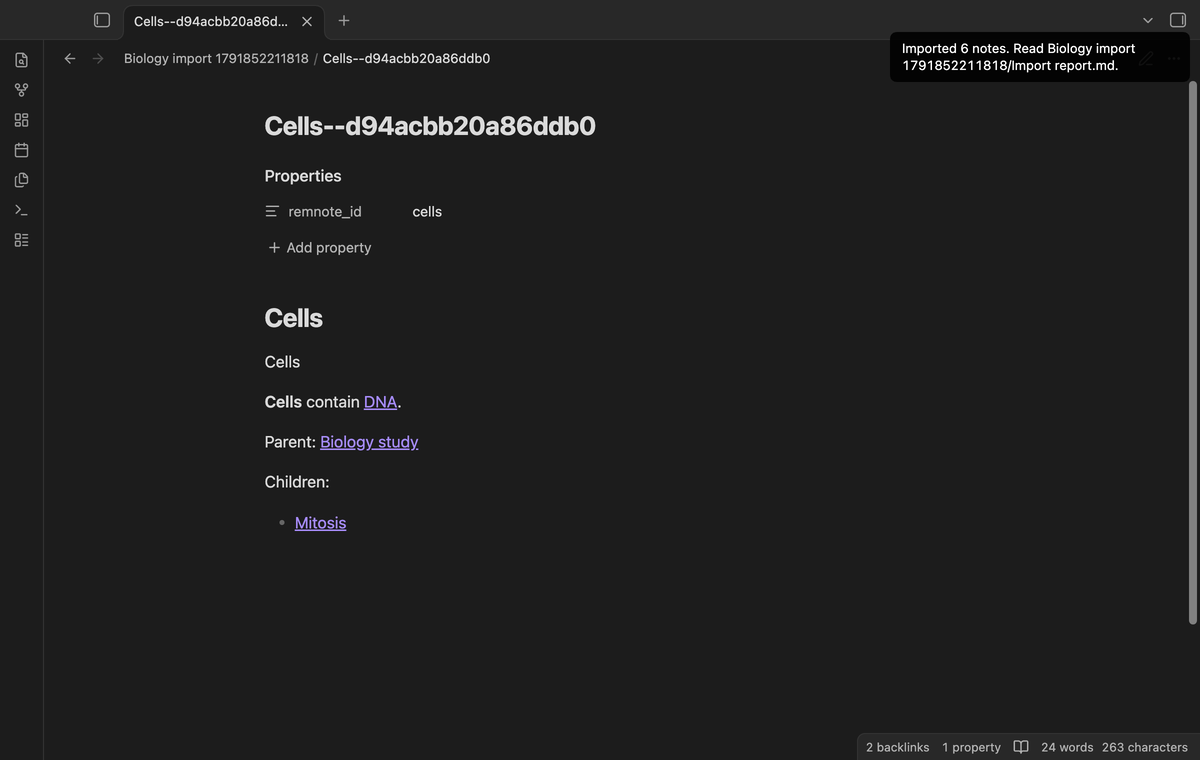
The free layout makes one note per Rem. The note has a remnote_id property
and a filename with a title and stable source tag. Notes with the same
title receive different tags. Supported references become vault links.
Parent and child links give you a way to follow the source structure.
Text fragments with supported bold or italic flags become Markdown
emphasis. Key and value content appear in separate paragraphs.
Read the import report
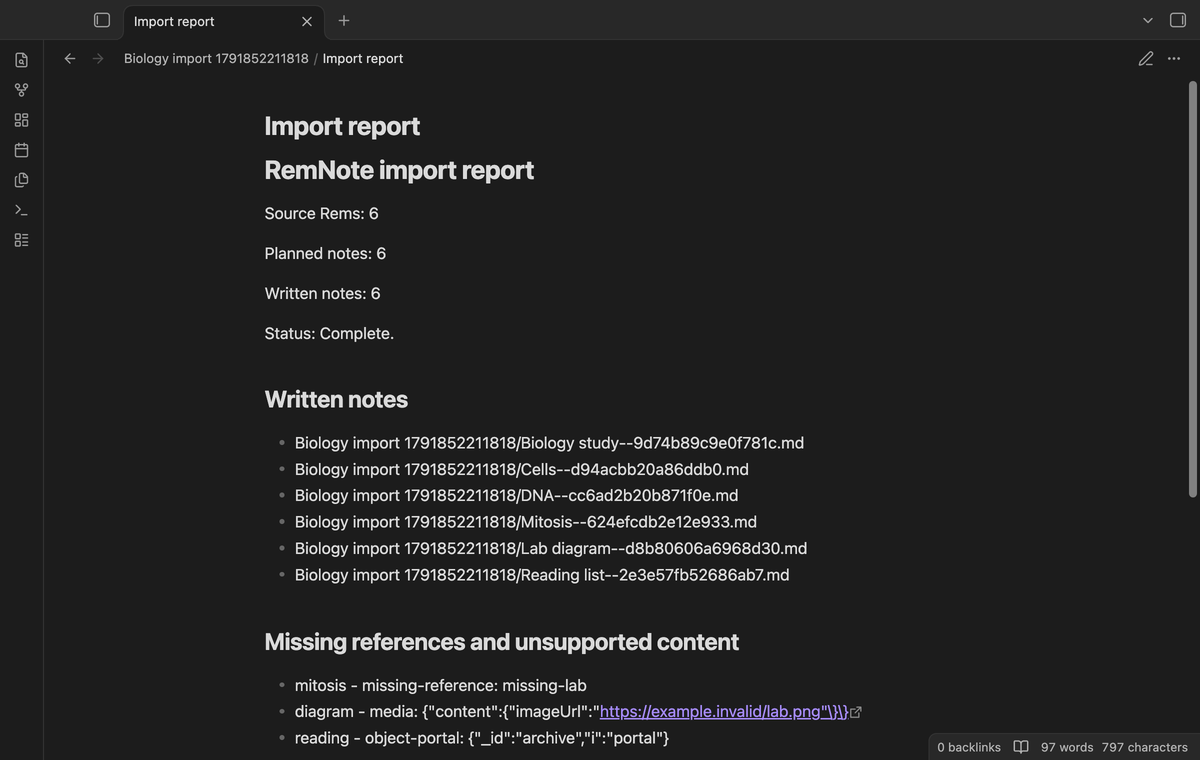
The report records the source count, planned count and written count. It lists missing references and unsupported content by source ID. Images and local file placeholders produce markers instead of downloaded files. A write failure stops the import and attempts to write a report of the partial result. If the report cannot be written, a notice tells you. Written notes remain in the destination so you can inspect them.
Save layout presets (Pro)
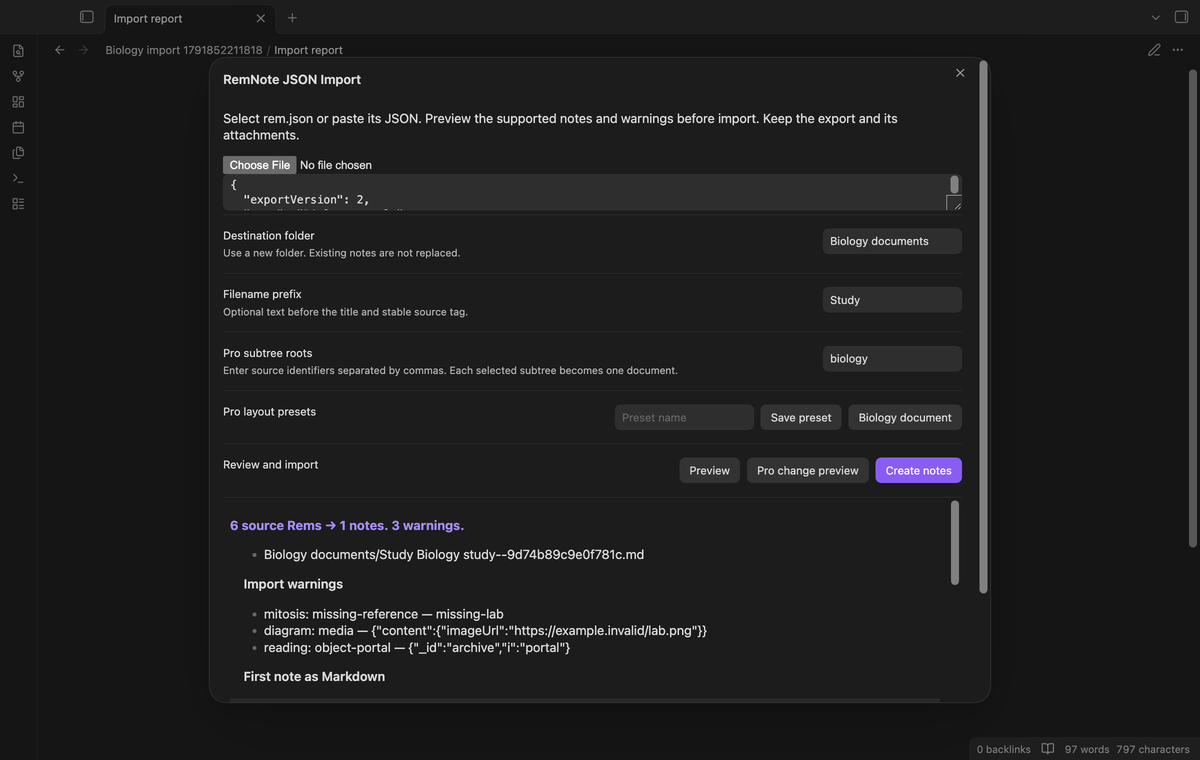
Save up to ten named presets for the destination folder, filename prefix and selected subtree roots. Reuse a name to replace its preset. A saved name appears as a button when you next open the import window. Select the button to apply the preset. A preset can point at an existing folder, but the import still requires a new destination. Change that field before creating another set of notes.
Compare source changes (Pro)
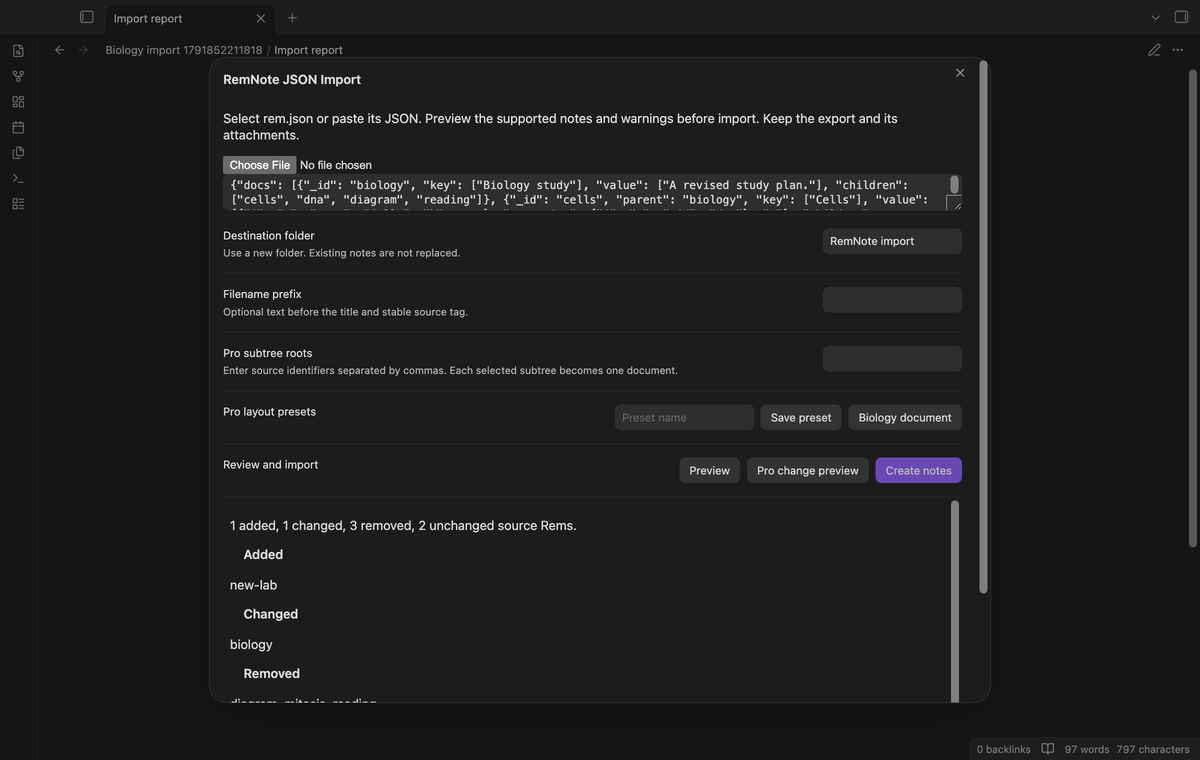
Compare a later JSON export with the snapshot from the last complete import. The preview lists added, changed, removed and unchanged source IDs. It compares source records, including metadata. It does not compare edits that you made to imported Markdown. Changing JSON object key order does not mark a record as changed. This preview writes no notes.
Group selected subtrees (Pro)
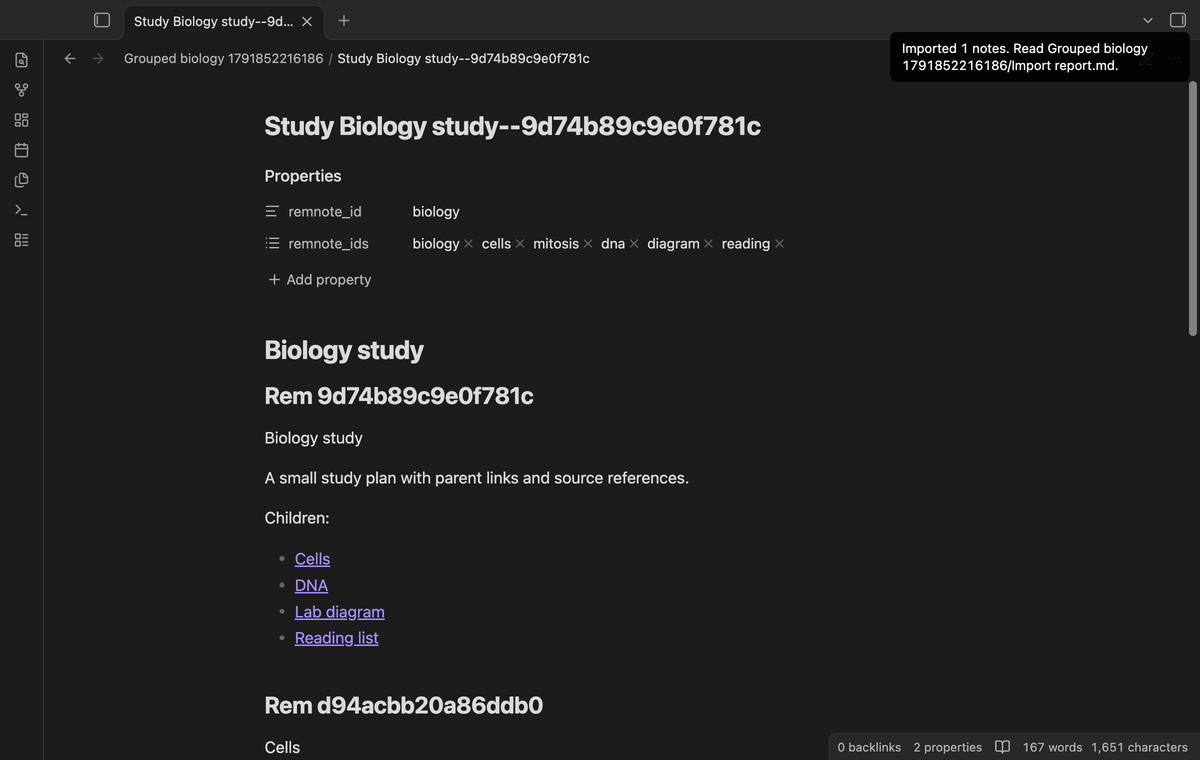
Enter comma-separated source IDs to make one document for each selected subtree. The document has a section for each included Rem and keeps its source IDs in a property list. References to grouped Rems use section links. Rems outside the selected subtrees keep separate notes. Overlapping roots are rejected so the same source record is not assigned to two documents. Parent cycles are rejected before import.
Install
Use the files supplied for this version. Put main.js, manifest.json
and styles.css in .obsidian/plugins/remnote-json-import inside a test
vault. Enable community plugins, then enable RemNote JSON Import. The
minimum supported public desktop version is 1.13.4. This repository is a
build for review; it does not establish a community directory listing.
Start with a copy of your vault and a small export. The sample JSON in
docs/sample-notes contains a parent, children, a reference and examples
of unsupported content. Use it to inspect the output before migration.
Usage
Export JSON from RemNote and select rem.json, rather than a card schedule
or metadata file. Open the command palette and run Import a JSON
export. Select the file with the file input, or paste its JSON into the
text box. The file picker grants access to that selected local file; the
importer does not scan your export directory.
Set a new destination folder. Nested vault folders are accepted, but dot segments, hidden folder segments and reserved path characters are rejected. An optional filename prefix helps distinguish a set of imported notes. Select Preview, read the counts and warnings, then select Create notes. The button stays disabled for an existing destination.
Read Import report.md in the output folder. Follow a parent link and a
reference link to check the structure. Search for unsupported markers
before you rely on the imported content. For another export, use another
folder. There is no update in place or automatic merge with edited notes.
Settings
Default import folder sets the starting destination in a new import window. It does not move existing notes. Layout presets and the snapshot are stored in this vault's plugin data. The snapshot contains source records and can contain source text and media addresses. Protect that file as you protect the source export. Clear snapshot removes the comparison baseline; it leaves imported notes and presets in place.
The GitHub account rows provide the shared Sponsors sign-in flow. Select Refresh after sponsoring. Sign out turns off the Pro actions. The free import remains available. A grouped preview requires an active Pro state when you create the document notes.
FAQ
Which schema is supported? The root object needs a docs array.
Each record needs a unique string _id. key and value accept text or
arrays. parent is a source ID; children and references are lists of
source IDs. The schema and emphasis fields are specified in BRIEF.md.
A reference object uses i: "q" with _id. Unknown fragments become
markers and report entries. Synchronization fields are not note properties.
What are the limits? Input is limited to 20 MiB and 25,000 Rems. JSON nesting above one hundred levels is rejected. Rich-text nesting beyond twenty levels produces an unsupported marker. Duplicate source IDs, malformed relation lists and parent cycles are rejected. Split larger exports into smaller source selections.
What is not tested? The fixture data is synthetic. Migration of a private production knowledge base, Linux or Windows desktop runs, mobile devices, portal reconstruction, cloze study behavior, media copying and a live paid GitHub sponsorship are not tested. The automated Pro checks use a simulated Sponsors answer. The desktop tests exercise the earliest supported version and latest public version available to the test launcher.
Payment, account and network
The core features are free. Pro features need a GitHub Sponsors sponsorship of theluckystrike: $5 a month or more, or $15 once. A total payment of $15 meets the payment requirement for Pro without further payment. Sign-in and the checks below still apply. Your notes stay readable and editable with or without Pro.
GitHub handles the payment. Sponsor at https://github.com/sponsors/theluckystrike. You need no account for the free features. Pro needs the GitHub account that sponsors.
Until you select "Sign in with GitHub" in the settings, RemNote JSON Import makes no network requests. Sign in uses the GitHub device flow. RemNote JSON Import sends its public client ID and the scope read:user to https://github.com/login/device/code and shows you a code. While you enter the code at https://github.com/login/device, it asks https://github.com/login/oauth/access_token every few seconds to check the sign-in status. The scope permits profile reads only. GitHub needs this access to show the sponsorship tier. It grants no repository scope and no write access.
After sign in, RemNote JSON Import sends one query to https://api.github.com/graphql. It checks if the signed-in account sponsors theluckystrike. It asks for the tier and the total payment to theluckystrike. The plugin reuses a successful check for 7 days. Failed checks can retry after 6 hours. Select Refresh to request an earlier check. It sends no note content, file names or other vault data, and it has no telemetry.
After a successful check, Pro can work offline for up to 14 days. Sign out or a negative sponsorship answer turns Pro off. The plugin stores the GitHub token through the secret storage API of Obsidian. It does not put the token in its saved settings or its local sponsorship data. The local storage of this device keeps your GitHub login, the tier and the time of the last check. Sign out clears the token. You can also revoke the access in your GitHub settings, under Applications.
Support
Read the report before investigating a missing note or link. Keep the source ID, warning type and a small example that reproduces the problem. Remove private text and account data from that example before sharing it. The publisher is theluckystrike at notemods.com. The code uses the MIT license. RemNote is the source application name; this importer is an independent project.