Real Highlights
 danielgottbehuet11 downloads
Turn ==highlights== into realistic highlighter pen strokes with organic edges, slanted tips and ink texture. Supports highlight colors.
- Overview
- Scorecard
- Updates4
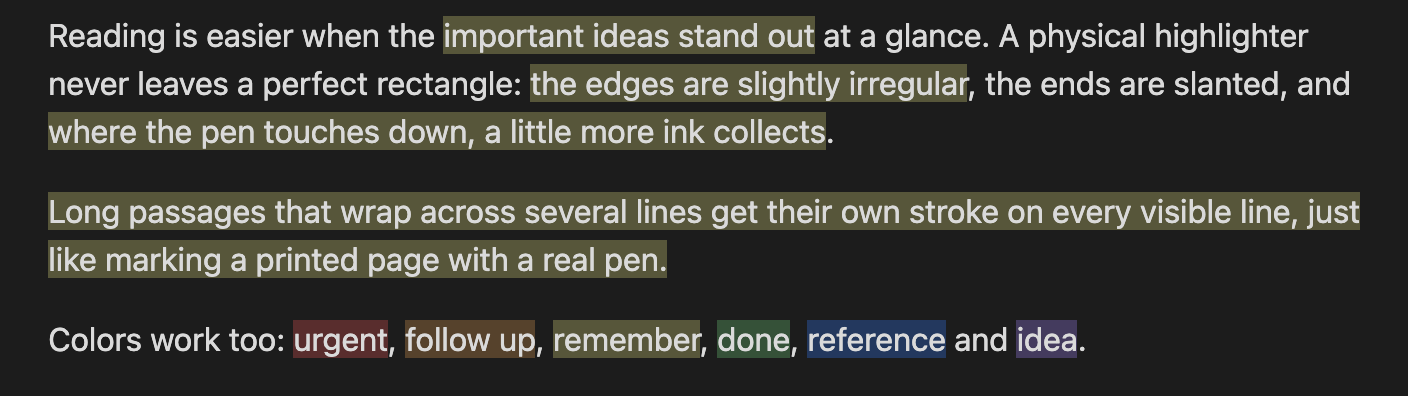
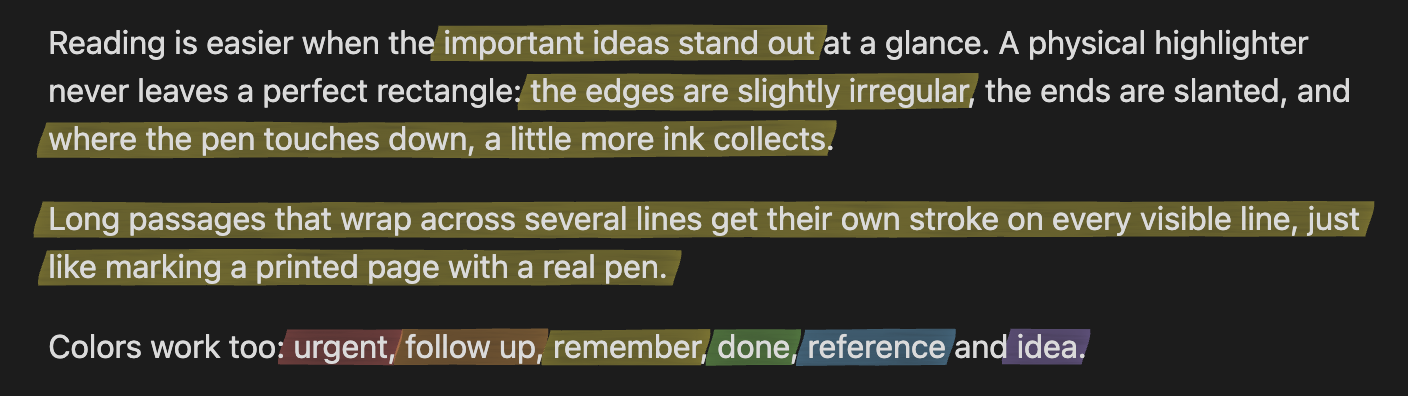
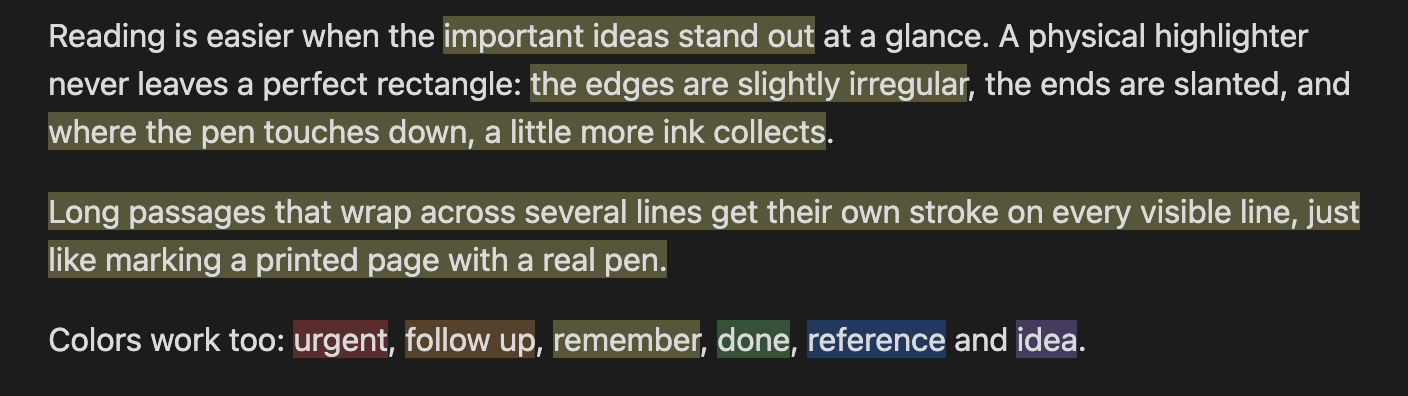
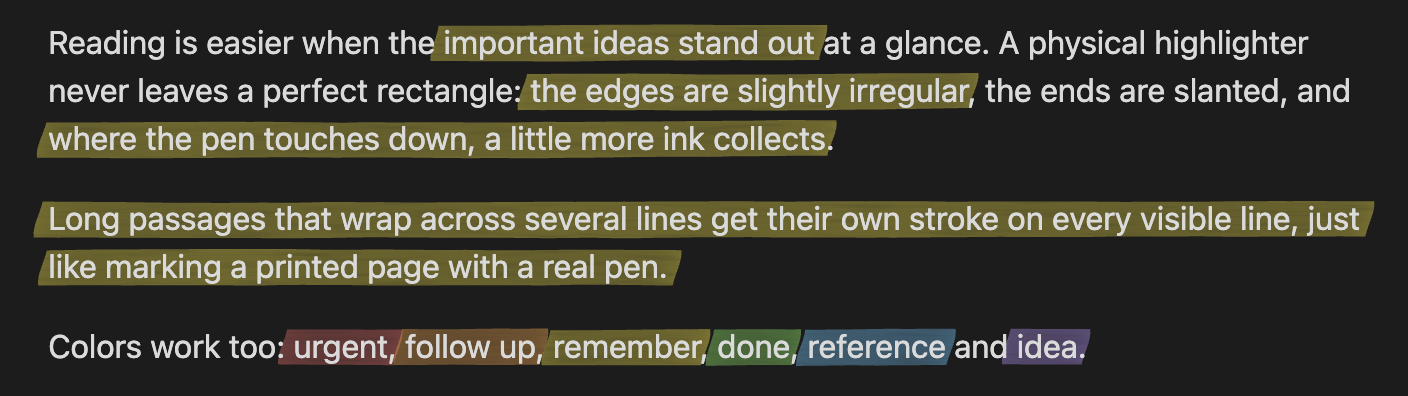
Turn your Obsidian ==highlights== into realistic highlighter pen strokes – with organic edges, slanted chisel tips, ink texture and a little extra ink where the pen touches down.
| Obsidian default | Real Highlights |
|---|---|
 |
 |
 |
 |
Features
- Works with the highlights you already have. Uses Obsidian's native
==highlight==syntax. Your notes are never changed – disable the plugin and you get the regular highlights back. - Looks like a real pen. Slightly irregular edges, slanted ends from the chisel tip, subtle fiber texture, ink pooling at the start and end, a small overshoot past the text.
- Every highlight is unique – and stays the same. Strokes are generated procedurally from the highlighted text, so each one looks a little different, but the same highlight always looks identical when you reopen the note. No images are stored.
- One stroke per line. Highlights that wrap across several lines get a separate stroke on every visible line, and adapt when you resize the window.
- Highlight colors. Supports Obsidian's colored highlights (
==🔴text==,==🟠text==,==🟡text==,==🟢text==,==🔵text==,==🟣text==) with a highlighter-style pen color for each. - Reading view and Live Preview. Strokes are drawn behind the text; cursor, selection and line heights are untouched. Source mode stays unchanged.
- Light and dark mode. Ink-like blending on light themes, readable strokes on dark themes.
- Five presets: Classic, Pastel, Dry Marker, Quick Stroke and Heavy Ink.
- English and German interface, following Obsidian's language.
Usage
Highlight text the way you always do:
This is ==important==.
This is ==🔵a blue highlight==.
Commands (assign hotkeys under Settings → Hotkeys):
- Toggle highlight – adds or removes
==around the selection. Also available in the editor context menu. - Toggle realistic highlights – switches between realistic strokes and Obsidian's default highlights.
Settings
- Reading view / Live Preview on or off
- Preset
- Default color, plus one pen color for each highlight color
- Opacity, stroke height, edge roughness, fiber texture and ink intensity
- Blend mode for light mode; blend mode and opacity for dark mode
The settings page includes a live preview.
Installation
From Community plugins (recommended): Settings → Community plugins → Browse, search for “Real Highlights”, install and enable – or open it directly in Obsidian.
Manually: download main.js, manifest.json and styles.css from the latest release, put them into <your vault>/.obsidian/plugins/real-highlights/, then enable Real Highlights under Settings → Community plugins.
Compatibility
- Requires Obsidian 1.13.0 or newer (settings use Obsidian's declarative settings API, so they show up in the settings search).
- Tested on desktop (macOS) with Obsidian 1.15.1. Mobile has not been tested yet.
- Colored highlights need an Obsidian version that supports them (1.15.1 does, 1.13.7 doesn't). With older versions the color emoji is still detected, but stays visible in Live Preview.
Known limitations
- Live Preview relies on how Obsidian marks highlights in the editor. If a future Obsidian version changes that, you'll simply see the default highlights until the plugin is updated.
- Text that looks different in Reading view and Live Preview (for example links with an alias) can get a slightly different stroke in each view.
- Inline code inside a highlight keeps its own background on top of the stroke.
How it works
Each stroke is an SVG generated by a small, deterministic rendering engine: seeded noise for the edges and the slight up-and-down movement of the pen, a pressure model for ink intensity, procedural fibers and paper grain. The seed comes from the highlighted text, the geometry from its actual rendered size. Developer documentation (in German) is in docs/development.md.
Support
If Real Highlights makes your notes a little nicer, you can support its development:
License
MIT © Daniel Gottbehüt