
- Overview
- Scorecard
- Updates53
[!WARNING]
Readwise Mirror 2.x is a major rewrite of the plugin which will break internal links if you update right away. This is due to changes how the filenames for notes created by this plugin are generated and handled. The documentation contains a step-by-step guide how you can prepare an existing Readwise library for an upgrade to 2.x.x by adding theuritracking property to the frontmatter of your notes before upgrading. This will ensure links to notes synced from your Readwise library can be updated by Obsidian after the upgrade. You can find the guide in this section.
Readwise Mirror is an unoffical open source plugin for the powerful note-taking and knowledge-base application Obsidian. This plugin allows a user to "mirror" their entire Readwise library by automatically downloading all highlights/notes and syncing changes directly into an Obsidian vault.
Its advanced features allow you to keep internal links to your Readwise notes intact across syncs, protect or update frontmatter properties in your notes, and define custom filenames based on each Readwise item's properties.
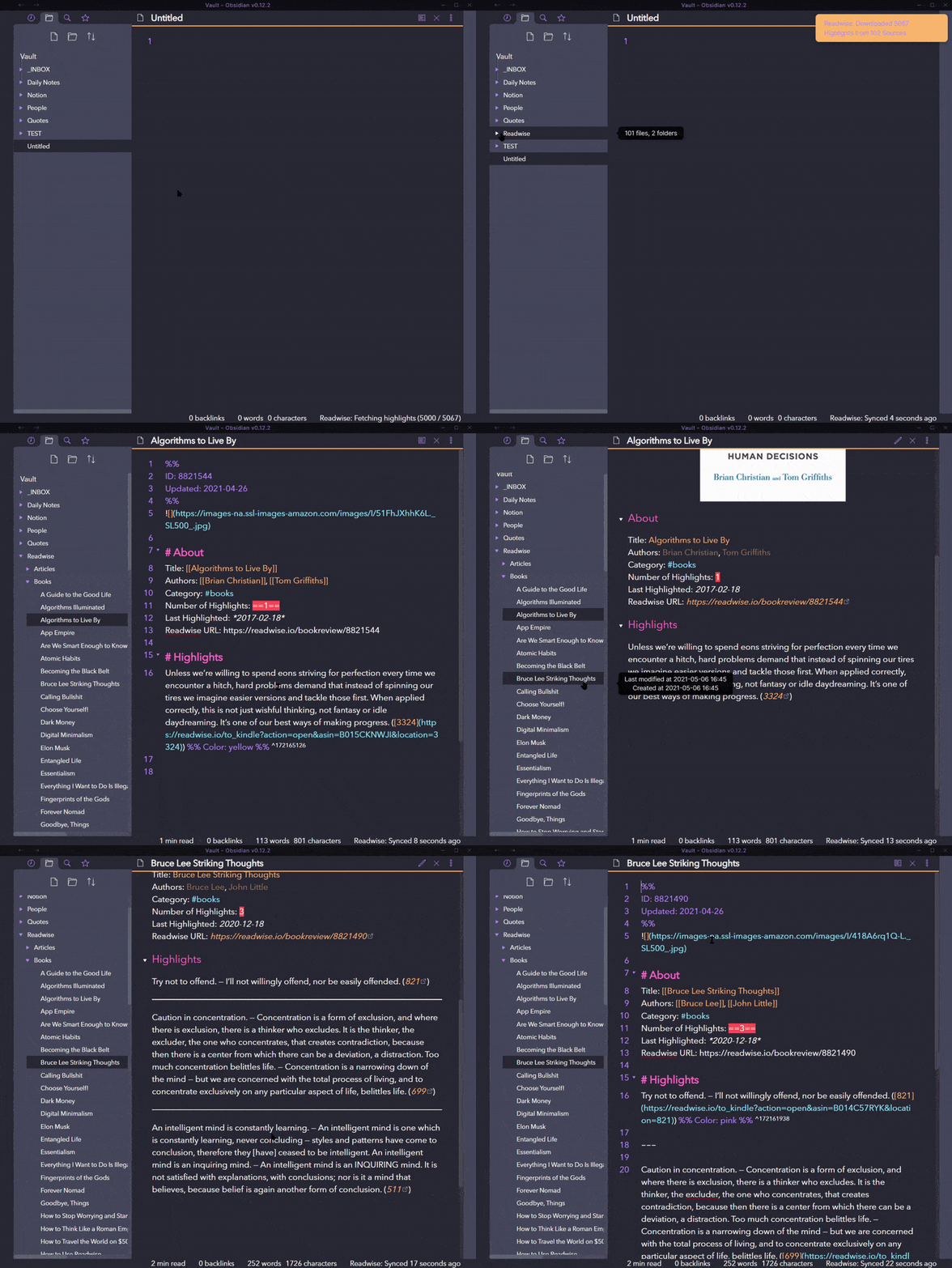
The format of the output is similar to the Markdown export available directly from Readwise (which groups all highlights together in one file per book/article/etc), except that it is integrated directly into Obsidian and provides beneficial Obsidian formatting enhancements, such as automatically creating [[Links]] for Book Titles and Author Names (supports multiple authors) and block level link references (using highlight ID), as well as custom filenames and advanced frontmatter management.
The first time this plugin is ran, it will do a full sync, downloading all content from Readwise. Every subsequent sync will only check for sources with new changes made after the last sync attempt; if any are found, it will automatically regenerate the note with the most current data.
Commands
Sync new highlights: Download all new highlights since previous updateTest Readwise API key: Ensure the Access Token worksDelete Readwise library: Remove the Readwise library file folder from the Obsidian vaultDownload entire Readwise library (force): Forces a full download of all content from ReadwiseAdjust Filenames to current settings: Clean up filenames of existing notes in your Readwise library folder based on current filename settings (whitespace removal and slugify only for the time being)Update all readwise note frontmatter: Scan all notes in your Readwise library folder and update their frontmatter according to your current frontmatter template and protection settings, without changing note content or filename. Useful after changing your frontmatter template or protection settings. Available only if file tracking and frontmatter are enabled.Update current note: Update the currently opened Readwise note using its tracking property. Available only for notes in the Readwise Library folder when file tracking is enabled. Pro tip: Use this to quickly test template or filename changes before rebuilding your entire Readwise library.
Settings
The plugin can be configured via numerous settings and has different, advanced features that will allow for better integration of your Readwise highlights into your Obsidian vault. Please make sure you read the documentation pages in the Wiki:
- Installation & Setup: How to install the Readwise Mirror plugin, authenticating your Readwise account, and performing your first sync.
- Guide: File Tracking & Naming: Learn how to configure filenames and prevent broken links.
- Guide: Templating: Format your notes exactly how you want them.
- Guide: Frontmatter Management: Advanced features for a better experience in Obsidian.
General Settings
General settings of the plugin:
- Debug mode: Will generate lots of debug messages, usually not needed.
- Authentication: The plugin provides OAuth-based authentication with Readwise. After installing, visit the plugin settings and use the "Authenticate with Readwise" button to set up the connection.
- Library folder name: Specify the folder where the Readwise library will be stored (defaults to
Readwise). - Filter by tags: Filter Readwise items by tag.
- Auto sync on startup: Automatically sync new highlights when Obsidian starts.
- Sync log: Enable writing sync results to a file.
- Log filename: Specify the name of the log file (defaults to
Sync.md).
File tracking and naming
Settings related to tracking notes across syncs, renames, and settings related to the way it generates the filenames used during sync:
- File tracking: Track the notes created from your readwise items using their unique readwise URL. This allows the plugin to maintain consistency across syncs, including for cases where the metadata of a Readwise item is changed in Readwise itself.[^2]
- Filenames: Define settings related to how the plugin generates filenames of the notes it creates.
- Custom filename template: Define filenames using variables like
{{title}},{{author}},{{book_id}}and others. - Colon replacement: Specify a character to replace colons in filenames.
- Custom filename template: Define filenames using variables like
- Slugify filenames: Convert filenames into a URL-friendly format by replacing spaces and special characters.
Template Settings
The plugin supports three types of templates for formatting content which can be defined individually.
- Frontmatter Template: Defines the template for frontmatter (also called "properties") and how frontmatter is updated and protected across syncs.
- Header Template: Defines the structure and metadata display of the header of the documents.
- Highlight Template: Defines the format of the individual highlights and the way highlights with and without notes are synced into your Obsidian library.
Usage
After installing, visit the plugin configuration page (General) to authenticate with Readwise, and adjust the settings as you see fit.
Then run any of the commands or click the Readwise toolbar to sync for the first time.
[!IMPORTANT] It is highly recommended that you enable at least File tracking. This will ensure future configuration changes, including to the file name template, colon replacement character, or metadata changes made on Readwise (title, author) will not create duplicates in your Obsidian library.
How does this work?
TL;DR
- Download obsidian-readwise to import new highlights to your library with full control over the ability to modify and format your notes
- Download this plugin if you want to mirror your entire Readwise Library into Obsidian and sync modifications to previous highlights
One-way mirror sync vs append-based sync
Any changes made to content in Readwise will be automatically updated during the next sync. It's important to note that this is a read only/one way sync, meaning that any new highlights detected from Readwise will cause the note file to automatically regenerate with the new content. This was a deliberate design decision to ensure that Readwise is the ultimate source of truth for data; any changes to currently existing highlights in Readwise are always reflected rather than getting out of sync. The notable exception is frontmatter ("Properties") which can be protected if you allow the plugin to track notes with their unique Readwise URL. See below for other options. While another possible solution is to append new highlights to existing content notes instead, it is not feasible to modify existing highlights; this is how Readwise's integration with other services such as Notion & Roam work:
If I edit or format an existing highlight in Readwise, or make a new note or tag to an existing highlight, will that change be updated in Notion? Not at the moment. Any edits, formatting, notes, or tags you had in Readwise before your first sync with Notion will appear in Notion, but new updates to existing highlights will not be reflected in already synced highlights.
The obsidian-readwise plugin for append-based syncing
In addition to this plugin, there is also another Readwise community plugin for Obsidian named obsidian-readwise, which can be found at: https://github.com/renehernandez/obsidian-readwise. Both plugins exist for different use cases, so please read below to determine which best suits your needs.
Which one to use?
Because of the way the mirror sync works in this plugin, users lose the ability to modify their notes as the plugin is responsible for managing all note files in the Readwise library. If a user needs full control over their library or the ability to modify notes and highlights directly in Obsidian, obsidian-readwise would be the better choice.
Performance
If the update is so large that a Readwise API limit is reached, this plugin has a rate limiting throttling solution in place to continue automatically continue downloading the entire library as soon as the limit expires.
As a reference for performance, syncing my library of 5,067 Highlights across 92 books and 9 articles took approximately 20 seconds.
Manual Installation
Please consult Installation & Setup for instructions on how to manually install the plugin.
Advanced features
The plugin uses three template types (Nunjucks) with defined variables per template. It provides filters for Readwise-specific features (e.g., Q&A, multiple authors), controls for filename generation, tracking for title changes, and options to sync or protect selected properties. See the Templating, Frontmatter Management, and File Tracking & Naming guides.
You also might want to check out some of the advanced Recipes to make the best use of the plugin.
Special Considerations
Remote Duplicates
Readwise can contain multiple items sharing the same title but with different IDs. The plugin handles these cases by:
- Using the plain filename (e.g.
My Duplicate Book.md) for the first encountered item - Adding a short hash of the Readwise ID to subsequent files (e.g.
My Duplicate Book <HASH>.md)
Upgrading from 1.x.x to 2.x.x
[!WARNING] If you update to 2.x.x without following these steps, you will likely end up with duplicate notes for the same Readwise item or, if you delete the whole Readwise folder in your Obsidian vault first, will likely lose any existing internal links to notes created by the plugin.
If you plan to upgrade the plugin from v1.x.x to v2.x.x, and want to make sure any internal links in your Obsidian vault to notes created by the plugin remain intact, then you should ensure all your notes have the file tracking property in their frontmatter before the upgrade.
Make sure you have a backup of your Obsidian vault (or at least your Readwise mirror folder with the notes created by this plugin).
In the plugin settings in v1.x.x, add the
uritracking property (or whatever property key you plan to use for file tracking) to the Frontmatter template. You can replace (recommended) the frontmatter template with the following, and enable Frontmatter[^1]:--- uri: {{ highlights_url }} ---Run a full sync to establish proper tracking properties (this will overwrite your local changes based on the current settings for the colon, but it will preserve the filenames of your existing files according to the way v1.4.11 of the plugin creates these. In consequence, all internal links will remain valid).
Upgrade the plugin to
2.x.xand enable file tracking (this will ensure the tracking property will always be added to newly created or updated notes).Rebuild the frontmatter templates and adjust the filename settings to your liking (you can also reset the templates to their default: simply delete the whole template value).
Run a full sync to rebuild all the notes according to the new settings and enjoy the new features of Readwise mirror 2.x.x.
Your subsequent syncs will then use the uri property to track unique files and ensure links to items in your Readwise library will be updated, even if the note filenames change with the new version of the plugin.
[!TIP] If you are unsure what the plugin will do to your Obsidian Obsidian vault after the upgrade, we would recommend that you create a copy of the Obsidian vault and run a test upgrade according to the steps described above.
[^1]: You might want to ensure that properties like author are omitted from the template as these have a tendency to break frontmatter. Alternatively, you can run a plugin like "Linter" to check and fix all your Readwise notes before upgrading, or you simply remove all properties except uri from your template and rebuild it after a successful upgrade.
[^2]: There are different cases where this can happen. For example, you can manually change Metadata of Reader and Readwise items. Without tracking, this would create a new file during the next sync. With tracking, we can rename the file based on the new metadata, and also based on whatever you chose as custom filename template.