Questlog
 ghertel18 downloads
Focus on one task at a time, measure the time you invest, keep a done list, and reflect weekly. Quests, tasks and time logs are plain Markdown.
- Overview
- Scorecard
- Updates2
Focus on one task at a time, measure where your time actually goes, keep a done list, and reflect every week — with all data stored as plain Markdown in your vault.
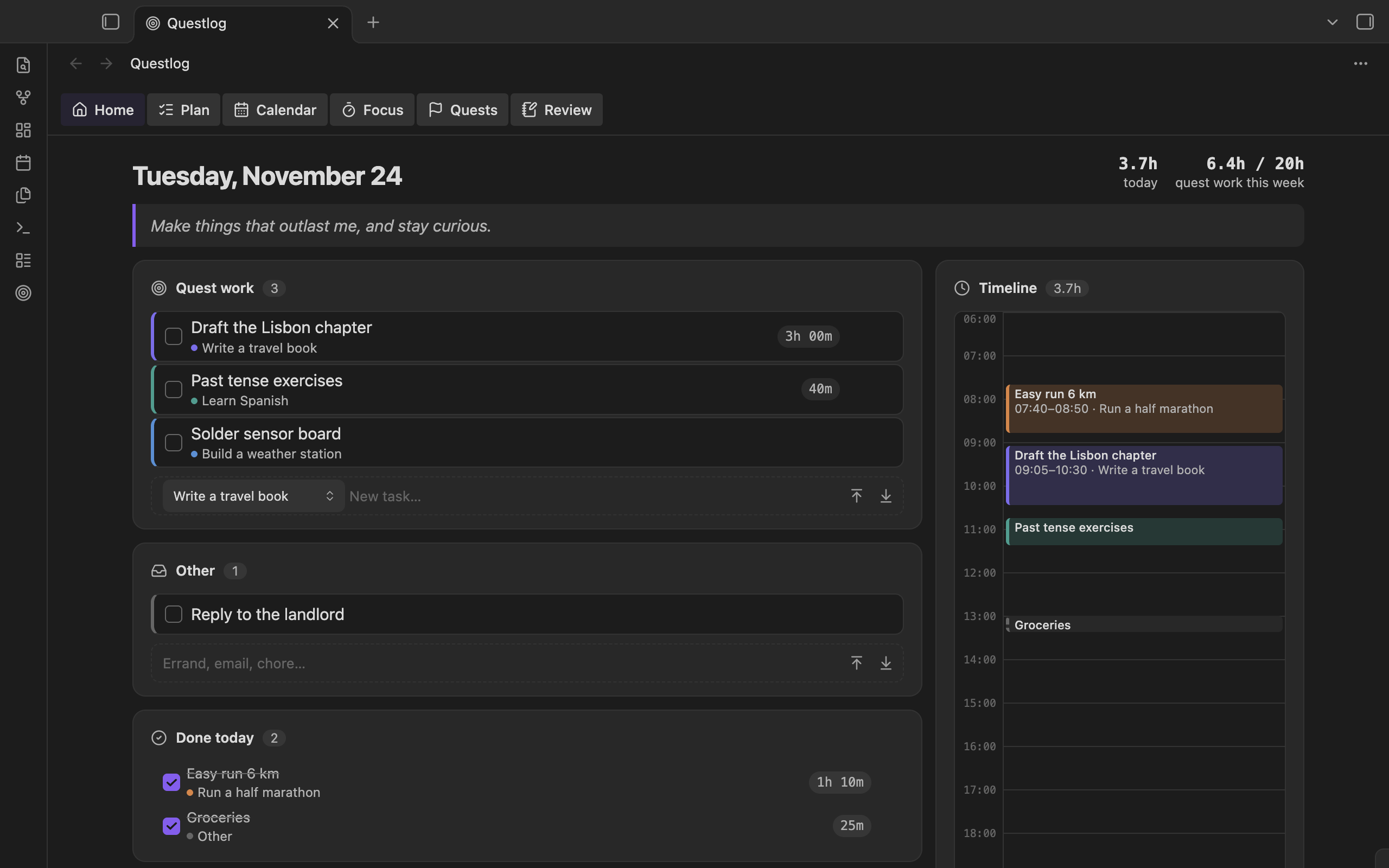
Questlog is built around six principles:
- Only one task visible. The Focus tab shows exactly one task: the one you are working on, or the next one in today's plan.
- Measure time. A timer records how long you spend on each task. Every session lands in your calendar automatically.
- A done list, not a to-do list. Home and Review show what you finished, not only what is left.
- Ritualised reflection. A weekly review with charts and a few questions, saved as a note.
- Input over output. A weekly hour target for quest work overall and per quest. Plan, Quests and Review compare the hours you invested against it.
- Vertical coherence. Your personal vision sits on top of Home, and every quest has a why.
Questlog is standalone: it only writes into its own folder and never touches your daily notes or other plugins' files.
Installation
In Obsidian, open Settings → Community plugins → Browse, search for Questlog, then install and enable it. Requires Obsidian 1.7.2 or later; works on desktop and mobile.
Manual installation: download main.js, manifest.json and styles.css from the latest release into <vault>/.obsidian/plugins/questlog/ and enable the plugin.
Getting started
- Run Questlog: Open from the command palette, or click the target icon in the ribbon.
- Create a quest in the Quests tab and give it a why and a weekly hour target.
- Add a few tasks to today in Home or Plan.
- Open Focus and press Start.
Privacy
Questlog works offline. It makes no network requests, collects no data, and only writes to its own folder and its plugin settings.
Tabs
| Tab | What it does |
|---|---|
| Home | Today, quests first: one card per active quest with its stage, this week's hours, the week dots and the next step (tap the card for the rest of today's tasks), one add field, Other folded below, the done list, the backlog, and a timeline of today on wider panes. |
| Plan | A week board: backlog plus one column per day. Drag tasks between columns or use the task menu (Move to, which also works on touch). Unfinished tasks of past days carry over to today by themselves. The backlog has a search field and one chip per quest; both only hide rows. On a wide pane narrower than the full week, the backlog folds into a rail on the left that opens as an overlay. |
| Calendar | A Week view filled from your timer sessions, or a Day view: one day with a strip of the week's seven days and the day's sessions as a list next to (or under) the grid. The switch is remembered; until you pick one, narrow panes show the day and wider panes the week. Click an empty slot to add time, click a block or a list row to edit it. |
| Focus | One task, a large clock with an optional time box (25 / 50 / 90 min), a session note, and the next tasks of the day. |
| Quests | Quest cards with weekly progress, the current stage and a row of week dots; open one for its stage path or its story. Create, pause, finish and reorder quests. |
| Review | The week in numbers: quest work vs. Other, hours per quest against target, a per-day chart, an 8-week trend, the done list, and the weekly questions. Switch to Month, Quarter or Year for the same frame over a longer range, each with its own questions (see below). |
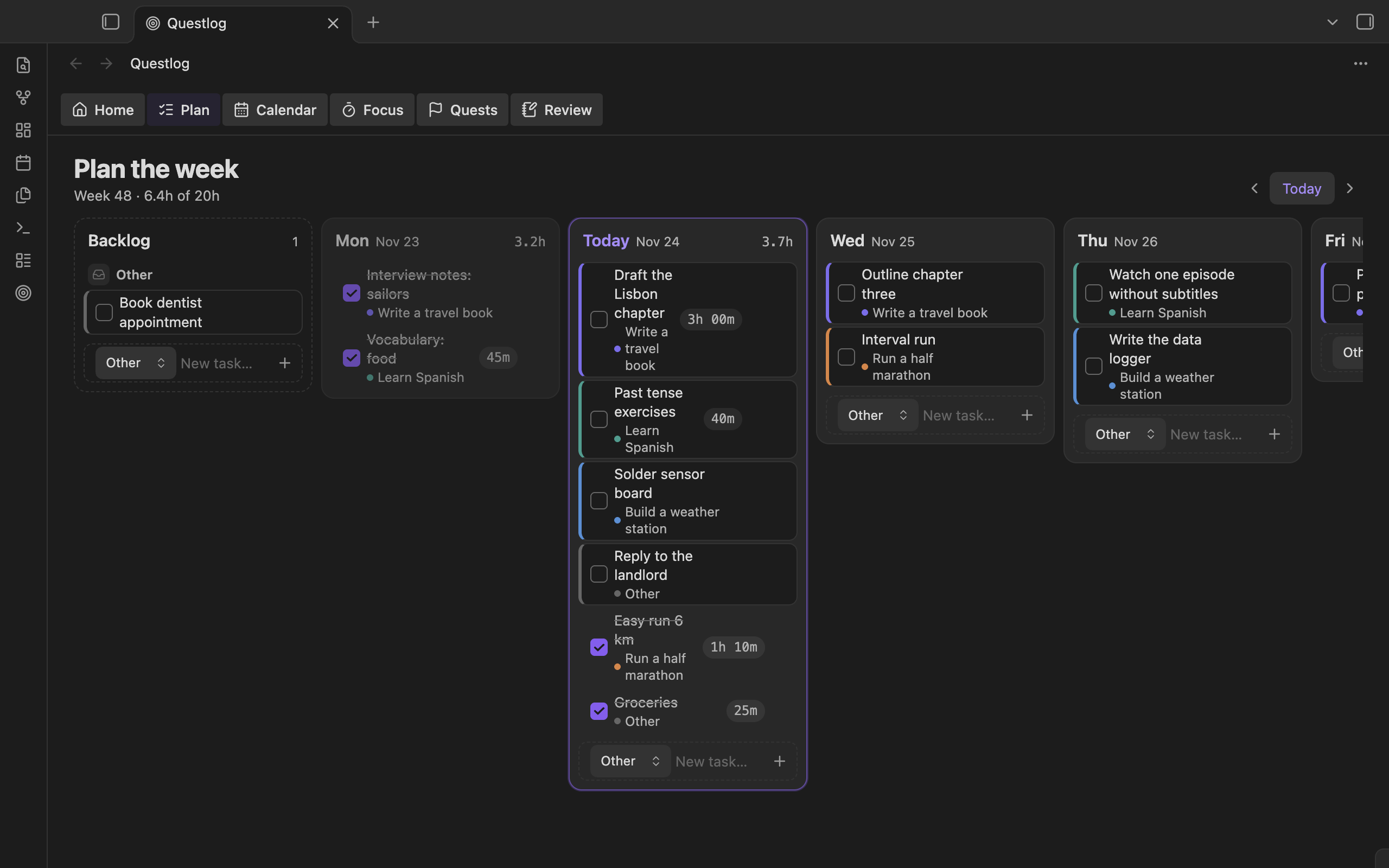
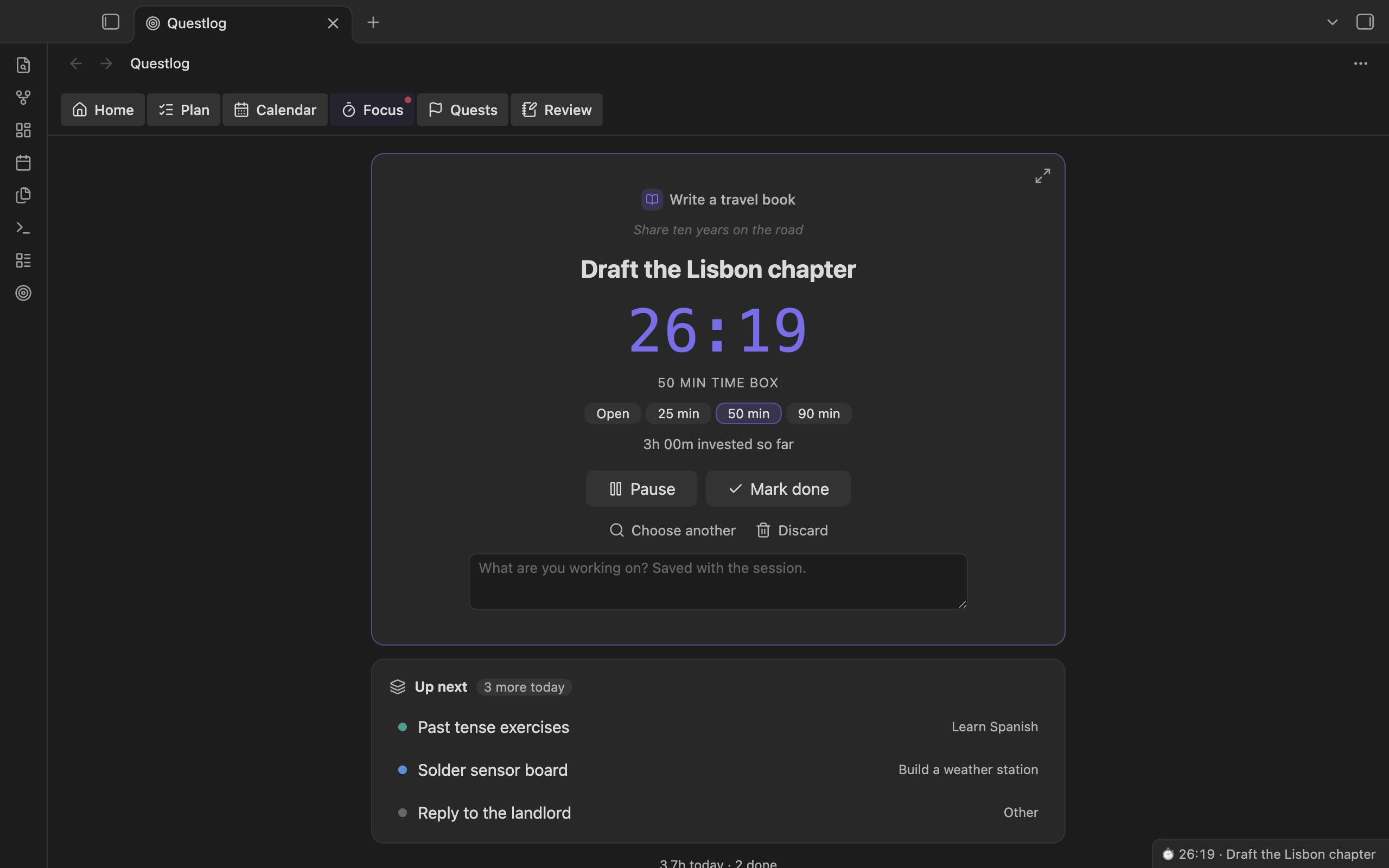
The layout adapts to the pane: a wide main tab, a narrow sidebar, or a phone. All controls are visible without hovering.
On a phone
- A bar at the bottom of the view holds Start, Continue and Add, in thumb reach. It hides while a timer runs (the Focus tab has the controls then), on the Focus tab, and while the keyboard is open.
- Add and Start open the Start box. A quest button under the field picks the quest, so you need not type
#quest. A new task lands on today. - Every control is at least 44 px and text fields use 16 px text, so iOS does not zoom in.
- For one tap from anywhere, add Questlog: Start box, Questlog: Continue last work or Questlog: Add a task to the mobile toolbar (on the phone: Settings → Toolbar).
Rituals
Four short routines live on Home. At most one of them is offered at a time, as a single line under the vision with a button and Not now. Nothing opens by itself, every step can be skipped, and a missed day or week is never counted against you.
| Ritual | Offered | What it does |
|---|---|---|
| Start the day | Mornings, until the day is started | Pick the one thing that matters today from today's tasks (or one suggestion per quest with nothing planned), optionally add more, then start the timer on it or just finish. |
| Close the day | From 16:00 on a day with logged time; the next morning when yesterday has untracked gaps | Fill or wave off the gaps between sessions, look at what you finished, write one sentence about the day, and decide where open tasks go (tomorrow, another day, the backlog, or leave them). |
| Plan the week | Once this week's review is answered, or on Monday | Hours per quest for this or next week (prefilled from last time), a look at each quest's current stage, and a day for the tasks of the current stages. |
| Quest check-in | When an active quest has had no time for a few full weeks (setting, default 3) | Keep, pause, shrink the weekly hours, or finish the quest, with an optional note. |
Each ritual is also a command, so you can open it at any time. Not now hides the line for the rest of the day (for the week planning: the week).
Commands
- Open and Open , one for each tab
- Start box: type to find a task or add one (
#questpicks the quest), then start it or just add it - Start timer on a task…: the same box
- Continue last work: starts the timer again on what you worked on last
- Start or stop the focus timer
- Complete the running task
- Add a task
- Toggle zen mode
- Start the day, Close the day, Plan the week, Quest check-in
No command has a default hotkey; assign your own under Settings → Hotkeys.
The status bar shows the running timer; click it to open Focus.
Data format
Everything lives in one folder (default Questlog/, configurable):
Questlog/
  Vision.md
  Quests/Write the book.md
  Other.md
  Days/2026-11-20.md
  Reviews/2026-W47.md
  Reviews/2026-11.md
  Reviews/2026-Q4.md
  Reviews/2026.md
Vision — Vision.md holds your vision as plain text; Home shows it on top. When you change it from Questlog, the old text moves under ## Earlier with the day it was valid until.
Write and teach about what I care about, and stay healthy doing it.

## Earlier
### until 2026-11-01
Finish the book this year.
Quest — frontmatter plus a task list. The task syntax is compatible with the Tasks plugin.
---
type: quest
status: active        # active | paused | done
why: Share what I learned in ten years of teaching
weekly_hours: 5
color: "#7c6cf0"
icon: book-open
---

## Tasks
- [ ] Outline chapters 🆔 k3j9x2
- [x] Research ✅ 2026-11-19 🆔 p0a8mf
Stages — a quest can be split into stages: ### headings under ## Stages, each with its tasks. 🛫 is the day a stage started, 📅 an optional target date, ✅ the day it was reached. The first stage without ✅ is the current one; new tasks go there. Tasks under ## Tasks are loose tasks. Notes without a Stages section work as before.
## Stages
### Research 🛫 2026-10-01 ✅ 2026-10-28
- [x] Read three guides ✅ 2026-10-12 🆔 r1b2c3
### Drafting 🛫 2026-10-29 📅 2026-12-20
- [ ] Write chapter one 🆔 d4e5f6

## Tasks
- [ ] Choose a title 🆔 t7g8h9
On the quest page, the Path shows the stages as a line of nodes, the current stage open with its tasks, and the others folded. With a target date, a quiet line says how many days are left and, after a week with at least two done tasks, whether the recent pace fits. The Story reads the quest back week by week: stages started and reached, tasks done, session notes and the review answers that mention the quest. It is built from the notes and stores nothing.
Other — Other.md is the inbox for everything that is not quest work. Same task format, no frontmatter needed. Time spent on it counts as Other, not as quest work.
Day — the tasks planned for the day (by id) and the timer sessions, each with an optional note.
---
type: questlog-day
date: 2026-11-20
plan: [k3j9x2]
---

## Sessions
- 09:15–10:05 Outline chapters · [[Write the book]] 🆔 k3j9x2 — first draft of part one
The rituals add a few optional fields: day_started and day_closed (clock times), one_thing (the id of the task picked in the morning), and a ## Closing line section with the sentence from closing the day. The quest's story shows that sentence on days you worked on the quest.
---
type: questlog-day
date: 2026-11-20
plan: [k3j9x2]
day_started: "08:40"
one_thing: k3j9x2
day_closed: "17:55"
---

## Closing line
Part one has a shape now.
A task belongs to the latest day it was planned for. If that day is in the past and the task is still open, it shows up today; otherwise it sits in the backlog.
Review — the weekly answers, plus summary fields (hours_total, hours_quests, hours_other, tasks_done, hours_<quest>) in the frontmatter, so you can query them with Dataview. Planning the week adds plan_hours, the hours you set per quest for that week; the quest cards on Home and the week dots measure that week against it and fall back to weekly_hours without it.
plan_hours:
  Write the book: 6
  Spanish B2: 3
Longer reviews — month, quarter and year use the same frame as the week (hours, quest share, hours per quest against what you planned, a trend, the done tasks) and save their answers to Reviews/2026-11.md, Reviews/2026-Q4.md or Reviews/2026.md, with period: month | quarter | year and the same summary fields. Nothing opens by itself; you pick the period in the Review tab.
- Month lists the stages reached that month and shows last month's hours next to each quest. Its questions can be changed under Settings → Monthly questions, like the weekly ones.
- Quarter adds a vision check and a decision per quest: keep, pause or resume, finish, and the weekly hours. Apply changes writes them to the quest notes; the reflection is saved separately.
- Year shows each quest's year in one line with a link to its story, the biggest shifts between quarters, and your weekly answers to one question, grouped by month.
Check-ins — a quest check-in appends one line to a ## Check-ins section of the quest note and sets checked_in in its frontmatter. Pause and finish change status, shrink changes weekly_hours.
## Check-ins
- 2026-11-20 keep: still matters, the summer was full
You can edit any of these files by hand. Questlog picks up the changes immediately.
Upgrading from 1.0
2.0 reads every 1.0 note as it is; nothing is converted. On the first start, the vision from the plugin settings moves into Vision.md. Notes only change when you act (add a task, log time, answer a review, and so on). Quest notes saved with Windows line endings (CRLF) are now read correctly, so tasks that 1.0 did not show can appear.
Going back to 1.0 works: tasks, sessions and reviews stay visible and nothing is rewritten on open. 1.0 does not know Vision.md, the stages, the day and week fields from the rituals, or the month, quarter and year reviews; it ignores them and leaves them in place.
Language
The interface is in English and German and follows Obsidian's language setting. Headings written in either language are recognised.
Development
npm install
npm run dev            # watch build
npm run check          # type check, Obsidian lint rules, unit tests
npm run build          # type check + production bundle
VAULT=/path/to/vault npm run install:vault
npm run smoke          # macOS: runs the built plugin in a separate Obsidian (see below)
Smoke test
npm run smoke builds the plugin, generates a demo vault (three quests, six weeks of sessions, no real content) and starts its own Obsidian with a separate profile and debugging port, in a new folder in the system's temp directory. It drives the app over the Chrome DevTools Protocol, runs the steps in scripts/smoke/steps.mjs (six tabs, timer, Start box, continue, play buttons, start earlier, modals, Plan board fit and backlog search, calendar day view, capture bar, phone fit at 420 and 320 px) at three sizes in English and German, and writes report.txt and screenshots to .smoke/out/<run>/ (git-ignored). The exit code is non-zero if a step fails. It does not touch your vault or your Obsidian profile, and it stops only the process it started. Your own Obsidian may keep running.
Options: -- --keep keeps the demo vault and profile, -- --only <text> runs matching steps, -- --lang en|de, -- --no-build, -- --fail-test adds a step that fails on purpose. Environment: OBSIDIAN_BIN (default /Applications/Obsidian.app/Contents/MacOS/Obsidian), SMOKE_PORT, SMOKE_DIR (parent of the work folder, must be inside the temp directory), SMOKE_SCALE (screenshot pixel ratio, default 1). The demo vault alone: node scripts/smoke/demo-vault.mjs <empty-folder>. To add a step, append an object to steps in scripts/smoke/steps.mjs; the comment at the top of that file explains the helpers. Phone size uses Obsidian's internal mobile emulation and is only a precheck. CI does not run the smoke test.
To release, run npm version patch|minor|major, then git push --follow-tags. GitHub Actions creates a draft release with main.js, manifest.json and styles.css; add notes and publish it.
Credits
Inspired by Niklas Steenfatt's Quest app. Questlog is an independent project and not affiliated with it.
License
MIT