Pseudocode Suite
 Joy Shen21 downloads
Write algorithms in CLRS textbook style. Type or paste pseudocode into a visual builder and get numbered, typeset blocks.
- Overview
- Scorecard
- Updates5
Write algorithms the way Introduction to Algorithms (CLRS) prints them, without fighting LaTeX.
- Renders
```pseudocode blocks (an algorithmicx-style LaTeX subset) in CLRS typography: bold keywords, numbered lines, small-caps procedure names and constants, aligned//comments, Computer Modern fonts. - Builds them visually. Type
if x > 0,for i = 1 to norelseand the line becomes the block you meant. Paste pseudocode from anywhere (Python, C, CLRS with line numbers, LaTeX) and it is parsed into rows. A live preview shows the result. - Edits any existing block in place, including blocks inside callouts, quotes and Canvas cards.
- Converts a selection or a code block (Python, C, Java, Pascal, Chinese pseudocode…) into a pseudocode block, and copies any block as LaTeX for a paper (
algorithm+algpseudocode).
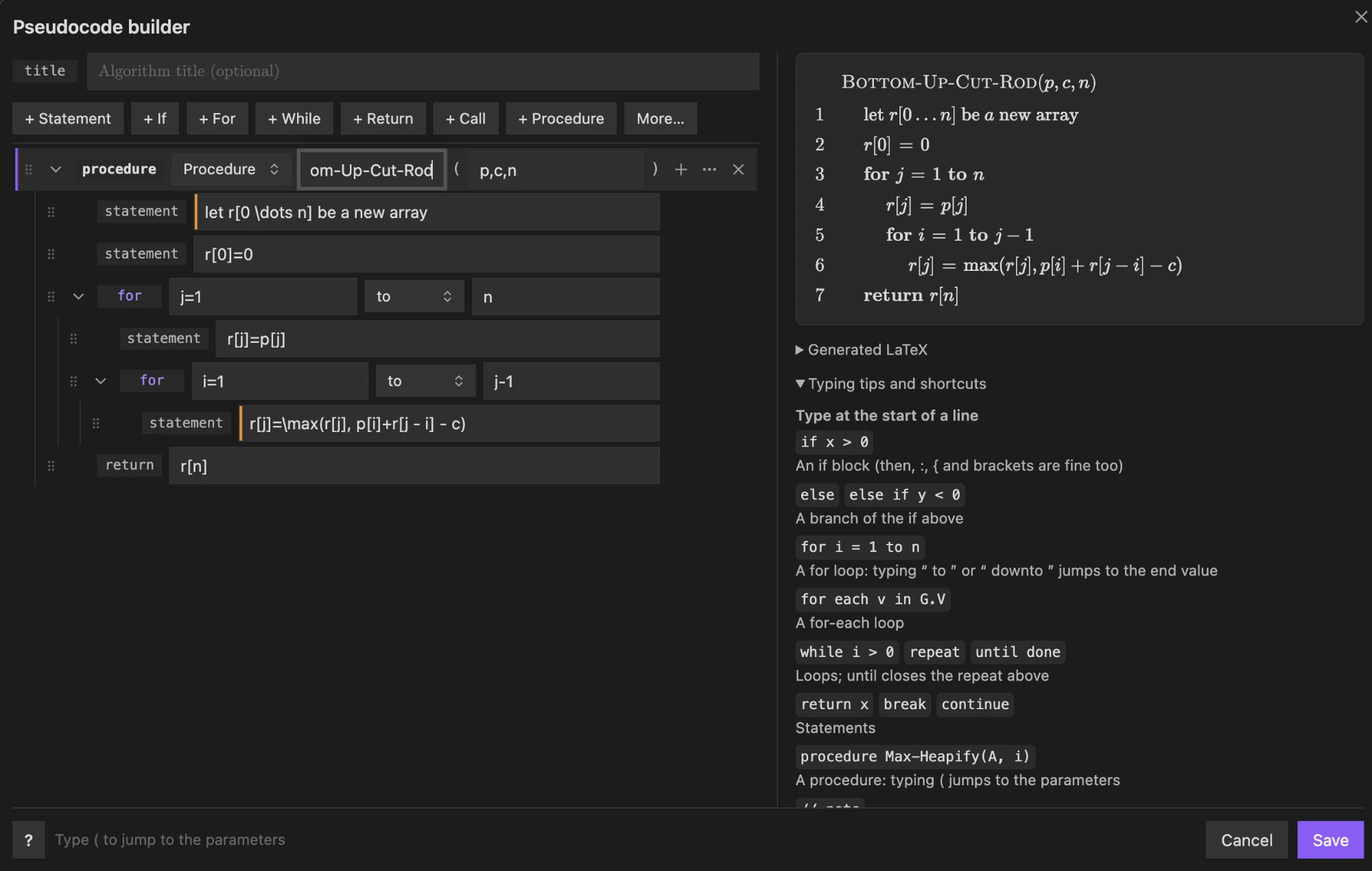
Getting started
- Open a note and run Insert pseudocode block from the command palette, or click the ribbon icon. The builder opens.
- Give the algorithm a title (optional) and press Enter.
- Type the first line, for example
procedure Insertion-Sort(A, n), and keep going. Each Enter starts a new line; the preview on the right updates as you type. - Press Ctrl/Cmd+Enter or click Save. The block is inserted at the cursor.
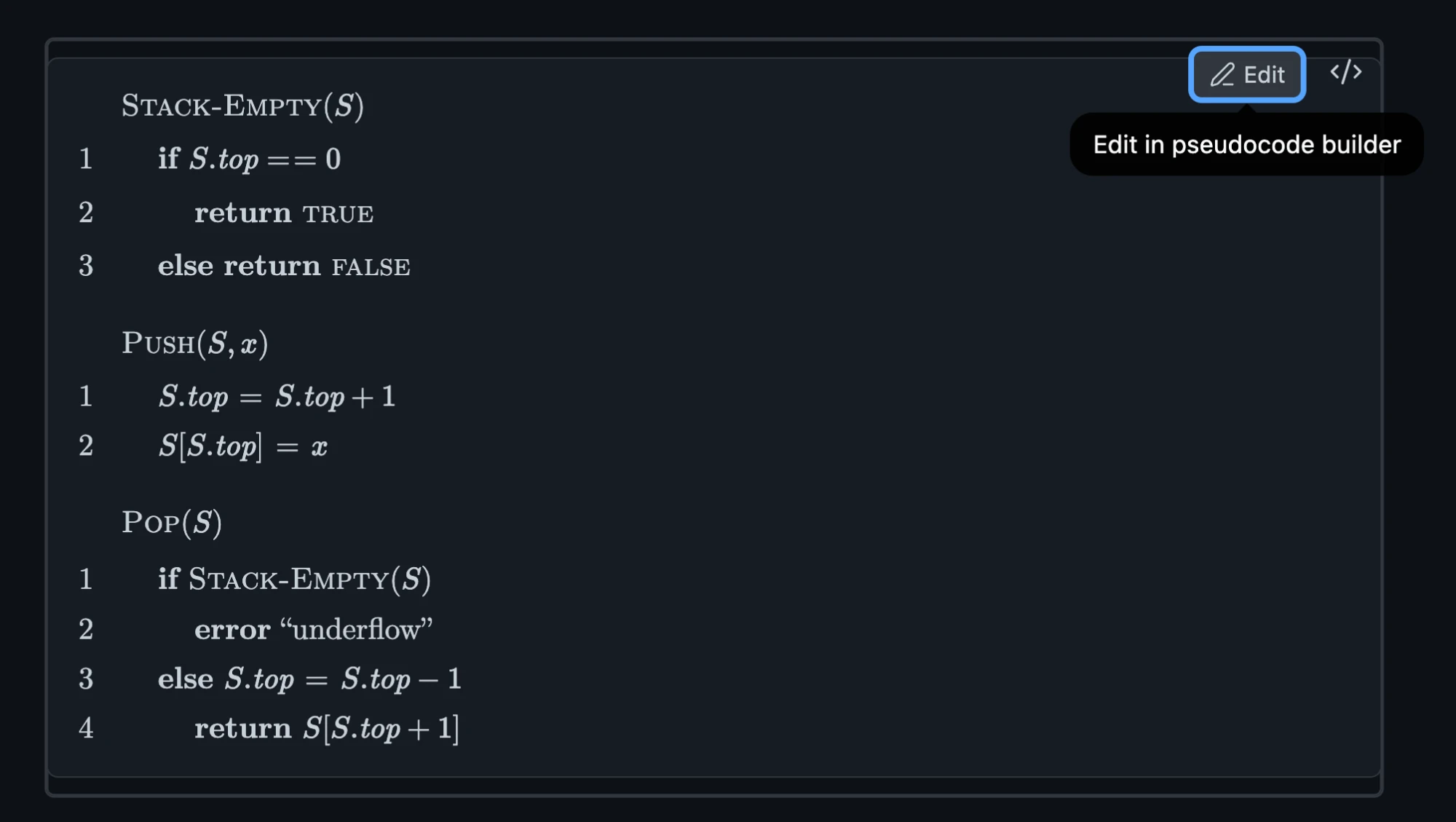
To change a block later, hover over it in reading view or Live Preview and click Edit. In the source editor, put the cursor inside the block and run Edit pseudocode block under cursor, or use the right-click menu.
To turn existing code into pseudocode, select it (or put the cursor in a code block) and run Convert selection or code block to pseudocode; the builder opens with it parsed, and Save replaces it with a ```pseudo block. The copy icon next to **Edit** (or **Copy pseudocode block as LaTeX**) puts standard LaTeX on the clipboard, with the \usepackage lines it needs in a comment on top.
The builder has a Typing tips and shortcuts panel under the preview, and the line at the bottom of the builder always says what the keyboard does in the field you are in.
Building by typing
You never have to reach for the toolbar. Type at the start of a line:
| Type | You get |
|---|---|
if x > 0 |
An if block. then, :, { and brackets around the condition are removed. |
else, else x = 0 |
An else branch on the if above (with its first statement). |
else if y < 0 (also elseif, elif) |
Another branch on the if above. |
for i = 1 to n |
A for loop. Typing to or downto moves you to the end value. |
for each v in G.V (also for v ∈ S) |
A for-each loop. |
while i > 0 |
A while loop. |
repeat … until done |
A repeat loop; the until line closes it. |
loop |
An endless loop (leave it with break or return). |
switch x, then case 1: / default: (also match, case _:) |
A switch; typing case on a line inside a case starts the next case. |
parallel for i = 1 to n; spawn, sync |
CLRS multithreaded pseudocode (spawn and sync are bold). |
for (int i = 0; i < n; i++), for i in range(1, n + 1) |
A counting loop with CLRS bounds (i = 0 to n - 1, i = 1 to n). |
return x, print x, break, continue |
The matching statement. |
procedure Max-Heapify(A, i) (also function, def, algorithm) |
A procedure; typing ( moves you to the parameters. |
Input: …, Output: … (also Require:, Ensure:) |
Require / Ensure lines. |
// note |
A comment line, numbered like in CLRS. |
x = 0 // note |
A trailing comment: typing // moves the rest into the comment field. |
end, end if, } |
Leaves the current block. |
如果 x > 0 则, 否则, 否则如果, 当 i > 0 时, 对于 i = 1 到 n, 对每个 v ∈ V, 重复 … 直到, 返回, 过程, 输入:, 输出: |
Chinese keywords work the same way. |
Conversions only happen when you type the keyword, so editing old text that happens to start with for changes nothing. They wait while an input method is composing. Ctrl/Cmd+Z undoes just the conversion and keeps your text.
Keys
| Key | Action |
|---|---|
| Enter | New line. On a block head: the first line inside it. On an empty last line: leave the block. |
| Shift+Enter | New line after the current one, even on a block head. |
| Backspace | On an empty line: delete it. At the start of a block head: turn it back into a plain line (its contents stay). |
| Tab / Shift+Tab | Indent into the block above / outdent (also Ctrl/Cmd+] / [). |
| ↑ / ↓ | Previous / next field. |
| Alt/⌥+↑ / ↓ | Move the line. |
| Ctrl/Cmd+/ | Show the comment field (or remove an empty one). |
| Ctrl/Cmd+Shift+D / K | Duplicate / delete the line. |
| Ctrl/Cmd+Z, Ctrl/Cmd+Shift+Z | Undo, redo. |
| Ctrl/Cmd+Enter | Save and close. |
| Esc | Close (asks first if there are unsaved changes). |
On phones and tablets the toolbar has ⇤ / ⇥ buttons in place of Tab / Shift+Tab.
With the mouse: the toolbar adds any statement type, each row has +, ⋯ (more actions) and ✕ buttons, rows can be dragged by their ⠿ handle, and block rows can be collapsed.
Pasting
Paste several lines into any line, or into the title, and they become rows:
- Code and indented pseudocode: Python (
def,elif,range(),//, docstrings,match), C / Java / JavaScript ({ }in any brace style,;, anifwithout braces owning one statement,for (;;),do … while,switch), Pascal (begin/end) orend if/end whilestyle. Types in declarations and parameters (int x = 0,def f(a: int) -> int) are dropped; one-lineif x: return yis split. Markdown code fences around the text are ignored. - Chinese pseudocode (
如果/否则/当/对于/返回…). - CLRS text with line numbers: the numbers are dropped,
INSERTION-SORT(A)becomes the procedure header (named Insertion-Sort; acronyms such as BFS stay upper case), and←,≠,≤,≥are converted. - LaTeX (
\State,\If{…}, …) is read like a saved block.
Text with neither indentation nor end markers (for example copied from a PDF) comes in flat; fix the levels with Tab.
Writing expressions
Builder fields are typeset as math automatically; no $…$ needed.
| Write | Shown as |
|---|---|
x = 1 (also :=, <-, ←) |
Assignment x = 1 |
x == 0; a single = in a condition |
The narrow CLRS == |
<=, >=, != |
≤, ≥, ≠ |
and, or, not (also &&, ||) |
Upright words, as in CLRS |
NIL, TRUE, FALSE (any all-caps word) |
Small caps |
Merge-Sort(A, p, r) |
A call: capitalized name before (, set in small caps |
key, heap-size |
Multi-letter names in italic |
max(a, b), lg n, x mod y |
Upright operators |
A[1..n] |
The CLRS range dots |
floor(n/2), ceil(x), sqrt(n), abs(x) |
⌊n/2⌋, ⌈x⌉, √n, |x| |
inf, infinity, ∞ |
∞ |
None, null, nil |
NIL |
n**2, !done |
n², not done |
i % 2, S ∪ {u}, heap_size, a & b, cost $5 |
Exactly these characters (heap_size is one italic name) |
error "heap underflow" |
error “heap underflow” |
exchange A[i] with A[j] |
A phrase: words upright, spaces kept |
One-letter functions such as T(n) and method calls such as S.empty() stay math. A field that contains \ or $ is kept exactly as written.
Writing blocks by hand
The builder saves ordinary text, so you can also write or edit blocks directly:
```pseudo
\begin{algorithm}
\caption{Insertion sort}
\begin{algorithmic}
  \Procedure{Insertion-Sort}{$A, n$}
    \For{$j = 2$ \To $n$}
      \State $\mathit{key} = A[j]$
      \State \Comment{Insert $A[j]$ into the sorted subarray $A[1 \twodots j - 1]$.}
      \State $i = j - 1$
      \While{$i > 0$ and $A[i] > \mathit{key}$}
        \State $A[i + 1] = A[i]$
        \State $i = i - 1$
      \EndWhile
      \State $A[i + 1] = \mathit{key}$
    \EndFor
  \EndProcedure
\end{algorithmic}
\end{algorithm}
```
Supported commands:
- Structure:
\begin{algorithm},\caption,\begin{algorithmic} - Procedures:
\Procedure/\EndProcedure,\Function/\EndFunction - Branches:
\If,\ElsIf(or\Elif),\Else,\EndIf - Loops:
\For(withto,downto,\Toor\DownTo),\ForAll/\ForEach,\EndFor,\ParFor,\While/\EndWhile,\Repeat/\Until,\Loop/\EndLoop - Switch:
\Switch/\EndSwitch,\Case{…}/\Default(\EndCaseoptional) - Statements:
\State,\Statex(an unnumbered line),\Return,\Print,\Break,\Continue,\Require,\Ensure,\Input,\Output - Inline:
\Call{Name}{$args$},\Comment{…},\textsc{nil},\twodots,\gets,\le,\ge,\ne,\mathit,\texttt,\ref{…}, … - Line options:
\label{name}after a line,% highlightat the end of a line,\setcounter{ALG@line}{k},\begin{algorithmic}[1]/[0](see below)
An \End… that does not match the open block (a stray \EndWhile inside an if) is ignored instead of closing the wrong block.
Rules of thumb: math goes inside $…$ (text outside it stays text); write calls as \Call{…}{…} outside math (\State $x \gets$ \Call{Extract-Min}{$Q$}); write and / or between math runs (\If{$a < 0$ and $b > 0$}). Commands the plugin does not know are kept as raw lines.
Block options
Set these in the builder (the Line numbers and Start at fields, and Highlight line / Label for \ref… in a row's ⋯ menu) or by hand:
| Write | Effect |
|---|---|
\begin{algorithmic}[1] / [0] |
Line numbers always shown / hidden for this block, whatever the setting says. |
\setcounter{ALG@line}{4} |
Numbering continues from 5 (first line) or jumps (between lines). |
\State … \label{init} and line \ref{init} |
\ref shows the number of the labelled line, also across procedures. |
\State … % highlight |
The line gets a highlighted background. |
How it looks
The typography follows CLRS, 3rd edition (the clrscode3e package):
- Keywords are bold (if, elseif, while, for, to, return); there is no then or do. In for each, only for is bold.
- Statements are numbered; procedure headers are not, and every procedure starts again at 1. Comment lines get a number too.
- The first plain statement of an else branch sits on the else line (
else A[k] = R[j]). - Procedure names and constants (NIL, TRUE) use real small-caps glyphs; variables are italic; comments start with a bold
//and line up in their own column. - Blocks use embedded Computer Modern fonts, so they look the same under any theme and in PDF export.
Settings
- Show line numbers
- Indent width: per nesting level, for example
1.2emor16px - Comment prefix: shown before comments (default
//) - Show typing tips in the builder: open the tips panel when the builder starts
Rendered blocks redraw as soon as a setting changes.
Compatibility
- Desktop and mobile. Blocks on Canvas cards render and can be edited with Edit.
- Only one plugin can render
```pseudoblocks. If another plugin (such as Pseudocode) already does, Pseudocode Suite shows a notice; turn the other plugin off and reload. Blocks written for that plugin keep working, and its settings are migrated automatically.
Known limitations
- LaTeX commands outside the supported subset are shown as raw lines.
algorithm2esyntax (\KwIn,\eIf,\;) is not supported. - Pasted text without indentation or end markers cannot be nested automatically.
- Paste conversion is a best effort: C
forloops with other steps than++/--keep their header as written, Python'swhile … elsebecomes a comment, andgoto/ labels stay plain statements. - TeX typed into a field (
\cup) is kept as written; it is not turned back into∪.
Development
The plugin is plain JavaScript with no dependencies. src/ holds the sources; build.py joins them into main.js and writes styles.css with the fonts embedded.
python3 build.py              # build main.js and styles.css
node tests/test-core.js       # parser, serializer, typed lines, paste
node tests/test-render.js     # numbering, else merge, comments, typography
node tests/test-builder.js    # builder keys, typing shortcuts, paste, hints
node tests/test-main.js       # locating blocks in notes, settings
python3 tools/make-fonts.py   # only when changing fonts (needs fonttools, brotli)
test-core.js also round-trips every ```pseudo block it finds in your vaults (and in the folders listed in PS_VAULTS). Implementation notes are in DEVELOPMENT.md.
License
MIT. The embedded fonts are subsets of CMU Serif (SIL Open Font License 1.1) and LM Roman Caps (GUST Font License); see fonts/LICENSE.md.