
- Overview
- Scorecard
- Updates1
Floating AI prompt chips for Obsidian — pin prompts to your desktop, select text, and get AI responses in a floating window.
Features
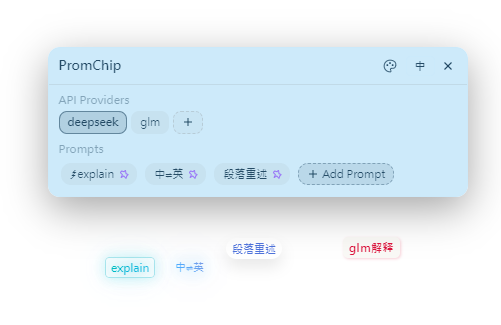
- Floating Ball — A draggable floating ball on your desktop; click to open the AI prompt settings panel
- Pinned Prompt Buttons — Pin individual prompt chips anywhere on screen; each chip is independently draggable
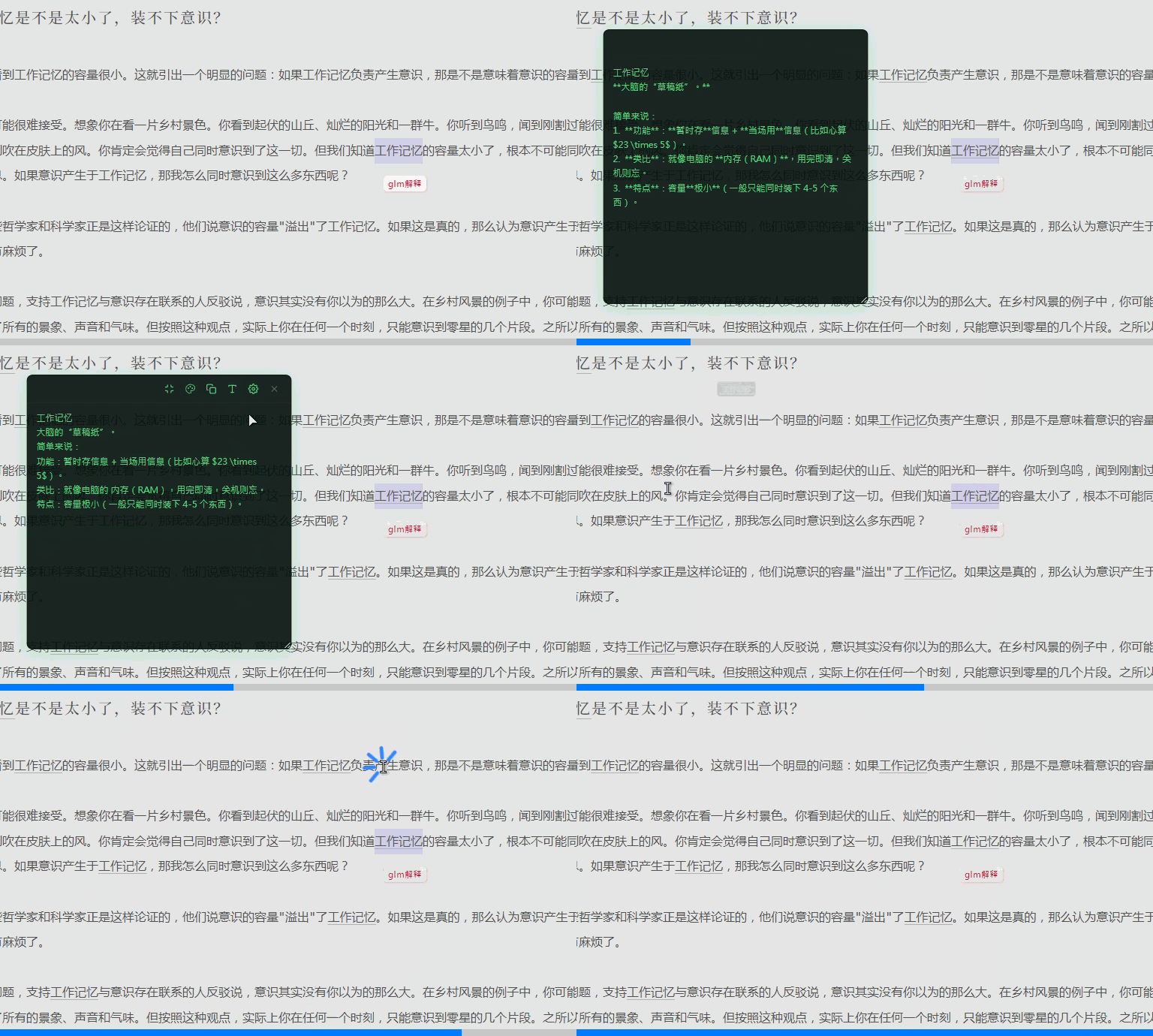
- AI Response Window — Select text in the editor, click a prompt chip, and get a streaming AI response in a floating window
- Multiple API Providers — Configure multiple API endpoints (OpenAI-compatible) and switch between them
- Streaming Responses — Real-time streaming output with markdown rendering
- Color Schemes — 24+ built-in color schemes for AI response windows (vintage, urgent, cyber, seasonal, mood styles)
- Collapsible Window — Collapse the AI window to a mini bar; hover or click to expand
- Pin Window — Pin the AI window to prevent accidental closure
- Edit & Discard — Double-click to edit AI response text; long-press or middle-click close button to discard
- CM6 Annotations — Gray underline markers on text that has AI annotations; hover to view
- i18n — Switch between Chinese and English in the settings panel
- Mobile Support — Touch-friendly interaction with proper gesture handling
Installation
From GitHub
- Download
main.jsandmanifest.jsonfrom the latest release - Create a folder named
promchipin your vault's.obsidian/plugins/directory - Place the downloaded files inside that folder
- Enable the plugin in Obsidian Settings → Community Plugins
From Obsidian Community Plugins (pending review)
- Open Settings → Community Plugins
- Search for "promChip"
- Click Install, then Enable
Usage
- After enabling the plugin, a floating ball appears on screen
- Click the floating ball to open the settings panel
- Add an API provider (base URL and API key)
- Add prompt chips — use
{{selection}}as a placeholder for selected text - Select text in the editor, then click a prompt chip to send the request
- The AI response appears in a floating window with your chosen color scheme
- Drag prompt chips anywhere on screen for quick access
Prompt Chips
- Pin prompt chips to the desktop for one-click access
- Each chip is draggable and can be positioned independently
- Right-click a chip to edit, pin/unpin, or delete
- Scroll wheel on a chip adjusts opacity (Ctrl) or scale (Alt)
AI Response Window
- Click outside the window to close (unless pinned)
- Collapse to a mini bar via the collapse button
- Switch color schemes via the palette button
- Copy response content via the copy button
- Clear markdown formatting via the format button
- Double-click to edit the response text
- Long-press or middle-click the close button to discard the response
Changelog
v1.0.0 (2025-07-29)
- Initial Release — Floating ball, pinned prompt chips, AI streaming responses, color schemes, collapsible window, CM6 annotations, i18n, mobile support
License
MIT
HealthExcellent
ReviewSatisfactory
About
Pin AI prompt chips to your desktop via a draggable floating ball and place independently movable prompt buttons. Select editor text and click a chip to stream markdown-rendered AI responses in a collapsible, pinnable floating window; switch between OpenAI-compatible providers and pick from 24+ color schemes. Edit or discard responses, view CM6 annotation markers, and use touch-friendly gestures on mobile.Details
Current version
1.0.0
Last updated
2 months ago
Created
2 months ago
Updates
1 release
Downloads
35
Compatible with
Obsidian 0.15.0+
Platforms
Desktop, Mobile
License
MIT
Author