Poke Gateway
 Matt151 downloads
Connects this vault to Poke over a secure outbound WebSocket.
- Overview
- Scorecard
- Updates7
Connect your Obsidian vault to Poke so Poke can search, read, and, if you allow it, write markdown notes.
The plugin makes an outbound WebSocket connection to the hosted Poke gateway:
wss://obsidian.matt-nz.com/obsidian/sync
No inbound ports, tunnels, local web servers, or router changes are required.
This repository contains only the Obsidian plugin source and release assets. The hosted gateway service is maintained separately from the community plugin review package.
Setup For Users
You do not need to host a server, run a tunnel, create a gateway, or make a Cloudflare account.
Install From Obsidian
- In Obsidian, open
Settings -> Community plugins. - If community plugins are not enabled yet, turn them on first.
- Select
Browse. - Search for
Poke Gateway. - Select
Poke Gateway, then install and enable it.
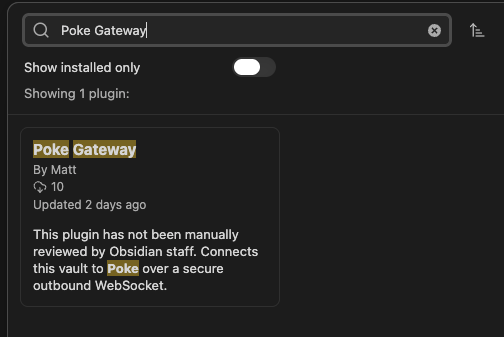
After enabling the plugin:
- Open
Settings -> Poke Gateway. - Copy the generated
Connection token. - Add the Poke Gateway Recipe in Poke:
https://poke.com/r/uy--WqwhZ9P. - When Poke asks for the
Poke Obsidiankey, paste the Obsidian connection token. - Confirm the Gateway URL in Obsidian is:
wss://obsidian.matt-nz.com/obsidian/sync
- Wait for the plugin status to show
Connected.
After that, ask Poke to list, search, or read notes from your vault.
Manual Install Fallback
If the plugin does not appear in Obsidian's community plugin browser, install it manually from the GitHub release:
- Download the latest release files from
https://github.com/MRL-00/poke-obsidian/releases:
manifest.json
main.js
styles.css
- In your vault, create this folder:
.obsidian/plugins/poke-gateway
- Move the three downloaded files into that folder.
- Restart Obsidian or reload plugins.
- In Obsidian, open
Settings -> Community pluginsand enablePoke Gateway. - Follow the setup steps above from
Settings -> Poke Gateway.
By default, new installs limit Poke to markdown files in the Poke folder. To use a different folder, set Vault access folder in the plugin settings; leave it blank only if you want to allow all markdown files in the vault. List, search, read, and write requests are limited to the configured folder.
Write access is off by default. Turn on Allow writes only if you want Poke to create or overwrite markdown files in the vault.
What Poke Can Do
The connected gateway supports:
list_filesread_filesearch_vaultwrite_file
Only markdown files are supported. Write requests are rejected unless Allow writes is enabled in Obsidian.
The plugin does not read from or write to the system clipboard. The settings screen can reveal and select the connection token so you can copy it yourself.
Verifying Release Assets
Release assets are built and attested by GitHub Actions. After downloading a release asset, you can verify its provenance with the GitHub CLI:
gh attestation verify manifest.json -R MRL-00/poke-obsidian
gh attestation verify main.js -R MRL-00/poke-obsidian
gh attestation verify styles.css -R MRL-00/poke-obsidian
Install Manually
Copy these files into an Obsidian vault plugin folder:
manifest.json
main.js
styles.css
For example:
mkdir -p "/path/to/Vault/.obsidian/plugins/poke-gateway"
cp manifest.json main.js styles.css "/path/to/Vault/.obsidian/plugins/poke-gateway/"
Then enable Poke Gateway in Obsidian community plugin settings.
Build
pnpm install
pnpm build
main.ts is the TypeScript source. main.js is the compiled plugin entrypoint that Obsidian loads, so it is committed for manual installs and plugin-manager workflows.
Maintainer Setup
Only the Recipe owner needs this section.
Create one Poke MCP integration template:
Name: Poke Obsidian
Server URL: https://obsidian.matt-nz.com/mcp
Authentication: API key required
When creating the template, Poke may ask for an API key to test the connection. Use your own current Obsidian Connection token for that test. Poke says this value is used only for connection testing and is not stored on the template.
Then create a Poke Recipe that uses that integration.
Recipe context should say:
Tell the user to open Obsidian Settings -> Community plugins.
Tell them to enable community plugins first if they have not already done so.
Tell them to browse community plugins, search for Poke Gateway, then install and enable it.
If Poke Gateway does not appear in the community plugin browser, tell them to install it manually from the latest GitHub release at https://github.com/MRL-00/poke-obsidian/releases by downloading manifest.json, main.js, and styles.css.
For manual installs, tell them to create .obsidian/plugins/poke-gateway inside their vault, move those three files into that folder, restart Obsidian or reload plugins, then enable Poke Gateway from Settings -> Community plugins.
Tell them to open Settings -> Poke Gateway and copy the generated Connection token.
Tell them to paste that Connection token into the Poke Obsidian Add Key field.
Then call obsidian_status before reading, searching, or writing vault files.
Do not ask users to invent a token, copy one from GitHub, or use the maintainer API key.
Do not send users to the gateway folder in the GitHub repository; the plugin release files are at the repository releases page.
Write access is off by default; only use writes after the user enables Allow writes.
Each user uses their own per-vault Obsidian connection token as the Poke integration key.