Plane Sync
 Abdullah W.68 downloads
Write notes in project folders and publish them as Plane project pages.
- Overview
- Scorecard
- Updates8
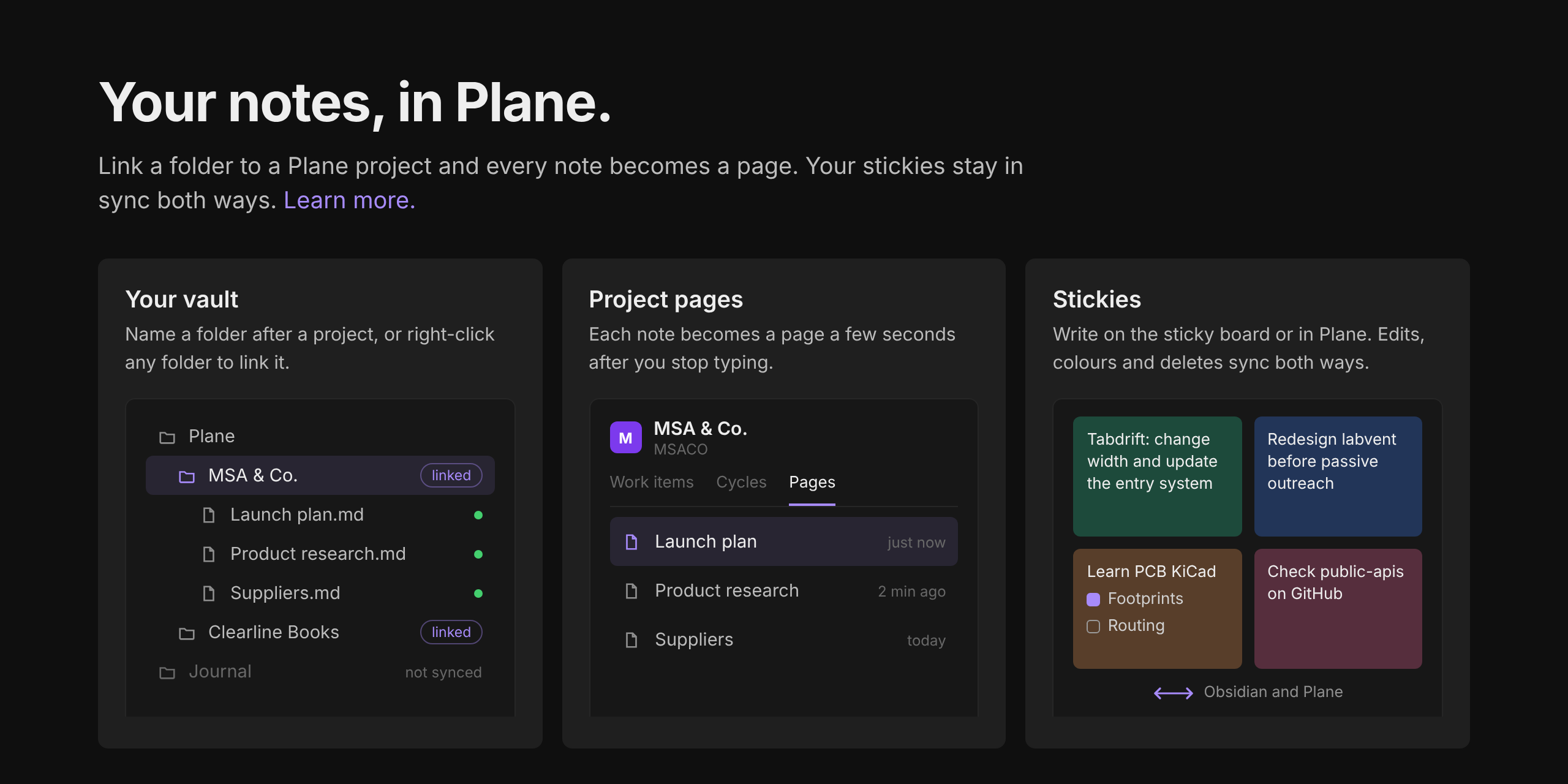
Write in Obsidian, work in Plane. Link a folder to a Plane project and every note in it becomes a page. Your Plane stickies stay in sync with Obsidian both ways, and your work items show up as notes on a kanban board.
Plane/
  Clearline Books/        -> Plane project "Clearline Books"
    Architecture.md       -> page "Architecture"
    Onboarding flow.md    -> page "Onboarding flow"
  HOLD/                   -> project with identifier HOLD
    Retention rules.md
Requires Obsidian 1.13.2 or later (1.14 for the work item board). Works on desktop and mobile.
Install
Manually
- Download
main.js,manifest.jsonandstyles.cssfrom the latest release. - Put them in
<your vault>/.obsidian/plugins/plane-sync/. - Reload Obsidian and enable Plane Sync under Settings > Community plugins.
Set up
Open Settings > Plane Sync:
- Personal access token: create one in Plane under Profile settings > Personal access tokens, then add it here. It's stored in Obsidian's secret storage, not in the plugin's data file.
- Workspace: your workspace slug. Pasting any Plane link from that workspace also works.
- Self-hosted Plane: turn on and fill in Instance URL if you're not on app.plane.so.
- Click Check connection.
Link folders to projects
Use whichever feels natural:
- Name it. Create
Plane/<Project name>orPlane/<IDENTIFIER>. The first note you save there links the folder automatically. - Command palette: "Create folder for a project" lists your projects and makes the folder for you.
- Right-click any folder in the file explorer and choose "Link to Plane project…". Subfolders inherit the link.
- Settings: "Linked folders" shows every link. Click a row to change its project.
Day to day
- Write. With Sync on save on, a note is pushed a few seconds after you stop typing. The status bar shows
Plane: syncing 1, thenPlane: synced. - The first push adds
plane_pageandplane_projectto the note's properties. That's how the note remembers its page, so renames and moves keep working. - Renaming a note renames the page.
- Moving a note to a folder linked to another project creates a page there and archives the old one, since Plane can't move pages between projects.
- Deleting a note archives its page. You can change this in settings.
- Click the status bar item to push everything. If it says
Plane: error, click it to see why.
Commands: push current note, push all linked folders, open or copy the Plane link, and stop syncing the current note (sets plane_sync: false).
Stickies
Your Plane stickies and a folder of notes stay in sync, both ways.
- Open the board with the sticky note icon in the left ribbon, or the command Open sticky board. It shows each sticky as a coloured card you can type in, recolour and delete.
- Each sticky is also a note in
Plane/Stickies(change the folder in settings). Stickies made on the board, or notes with aplane_colorproperty in that folder, sync. Other notes there, like index notes from other plugins, are ignored. - Edits in Obsidian reach Plane a couple of seconds after you stop typing. Edits made in Plane arrive every 2 minutes, when you switch back to Obsidian, or straight away with Sync stickies now.
- Colours match Plane's eight sticky colours. Deleting a sticky on either side deletes it on the other.
- If a sticky changed in both places since the last sync, the newer version wins and the other is saved in
Plane/Stickies/Conflicts/as a plain note, so nothing is lost. - If a sync run looks wrong (several conflicts at once, or lots of new stickies in a minute), sticky sync pauses itself and tells you why. Clean up duplicate stickies finds and removes leftover copies after showing you the list.
- Plane only shows each person their own stickies, so you'll see the stickies of the account your token belongs to.
Work items and the board
Work items from your linked projects come into the vault as notes, with a kanban board per project. This is off by default. Turn on Sync work items in settings.
Plane Work Items/
  Clearline Books/
    Board.base                        -> kanban board, columns are the project's states
    CLB-12 Fix invoice import.md      -> work item CLB-12
    CLB-15 Add vendor matching.md
- Work items are synced for every project that has a linked folder. Link a folder first (see above).
- Each note holds the description as its text and the rest in properties:
plane_state,plane_priority,plane_assignees,plane_labels,plane_target_date,plane_keyandplane_url. Open the work item in Plane fromplane_url. - Open work item board (command, or the button in settings) opens the project's
Board.base. It's an Obsidian Bases kanban view grouped byplane_state, so it needs Obsidian 1.14 or later. Cards look like Plane's: the title, a priority icon, the key, the due date (red when overdue), labels and assignees, with the card edge and column icons coloured by state. The columns follow the project's states in Plane's order. The plugin refreshes the file as long as you haven't edited it, so existing boards pick up the new look on the next sync. - Changes made in Plane arrive every 5 minutes (adjustable), when you switch back to Obsidian, or straight away with Sync work items now.
- Send changes to Plane (off by default) lets two things go back to Plane:
- Moving a card, or changing
plane_statein a note's properties, changes the work item's state. The name doesn't have to match Plane's capitalisation. With the setting off, the card is put back. - A new note directly in a project's folder becomes a new work item, named after the note. If the note has
plane_stateorplane_priority, those are used, otherwise Plane's defaults. Its text becomes the description. Notes called "Untitled" wait until you rename them, and notes withplane_sync: falsestay local. At most 10 are created a minute, and the rest go on the next sync.
- Moving a card, or changing
- Everything else (titles, descriptions, assignees of existing work items) is read-only in Obsidian.
- If you edit a note's text and the description then changes in Plane, the note is refreshed and your version is saved in
Plane Work Items/Conflicts/. - If the state changed in Plane while you were moving the card, Plane wins.
- Archived and draft work items are skipped. A note stays in your vault if its work item is archived or deleted in Plane.
- A project can have up to 1000 work items synced.
What converts
| Obsidian | Plane |
|---|---|
Headings, bold, italic, strikethrough, code, code blocks, quotes, tables, --- |
Native equivalents |
- [ ] and - [x] |
Plane checklist |
> [!warning] Title callouts |
Plane callout block with a matching emoji and colour |
[[Other note]] |
Link to that note's Plane page once it's synced, otherwise plain text |
==highlight== |
Bold |
%% comments %% and frontmatter |
Dropped |
| Raw HTML | Shown as text, never injected |
![[image.png]] (local files) |
Placeholder text, see limitations |
Limitations
- Pages sync one way, Obsidian to Plane. (Stickies sync both ways. Work items come from Plane, and only state changes and new work items go back.) Edits made to a page in Plane are overwritten the next time that note is pushed. Treat Obsidian as the source of truth, or lock a page in Plane to freeze it (the plugin tells you when a page is locked).
- Local images and attachments aren't uploaded yet. Remote image links (
) work. - Subfolders map to the same project, but pages are flat in Plane.
- Plane allows 60 API requests a minute. The plugin queues and spaces requests, so a first sync of a big folder takes about a second per note.
Privacy and network use
- The plugin only talks to the Plane API:
api.plane.so, or your own instance URL if you're self-hosted. - It sends the title and content of notes inside linked folders, and the content of your sticky notes. If you turn on work items, it reads your linked projects' work items from Plane and, only with Send changes to Plane on, sends a work item's new state and creates work items from new notes in a project's folder. Nothing else from your vault is read or sent.
- No analytics, telemetry or third-party services.
- Your token stays in Obsidian's secret storage.
Development
npm install
npm run dev           # rebuilds main.js on every save
npm run check         # format check, Biome, Obsidian's review lint, type check, tests
npm run build         # production build
npm run format        # dprint: 4 spaces, braces on the next line
To try changes in a vault, link the project folder into <vault>/.obsidian/plugins/plane-sync and install the Hot Reload plugin.