
- Overview
- Scorecard
- Updates7
Pinbox is an Obsidian plugin designed to instantly capture content like text snippets and URLs from your mobile device directly into pre-configured notes within your vault. It streamlines your workflow by reducing the friction of saving information on the go.
Features
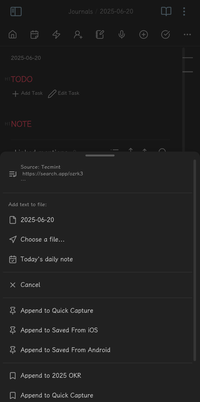
- Pin Notes for Quick Share on Mobile: Designate specific notes as "pinned" targets for quick saving in the Obsidian share menu on Android/iOS to append text or links to your pinned notes instantly.
- Obsidian Bookmarks Integration: Include your Obsidian bookmarked notes (file bookmarks only) in the share menu for even broader quick-capture capabilities.
- Global Custom Format: Define a default template for how shared content (the
{{content}}placeholder) is appended. Supports{{timestamp}},{{date}}, and{{time}}. - Per-Note Custom Format: Override the global default and set a unique append format for each individual pinned note.
- Path Auto-Update: Pinned note paths are automatically updated if you rename or move the file within Obsidian.
Screenshots
| Screenshot 1 | Screenshot 2 | Screenshot 3 |
|---|---|---|
 |
 |
 |
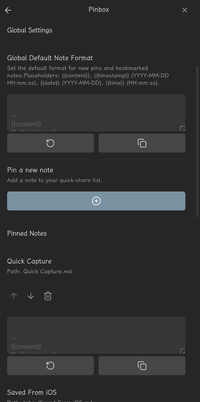
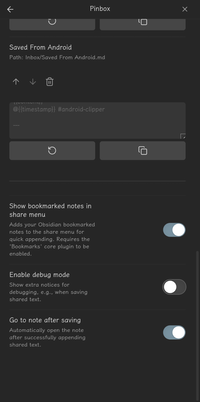
Settings Overview
The Pinbox settings tab allows you to:
- Configure Global Default Note Format: Set the universal template for appending content. Includes a text area for the format string, and buttons to reset to default or copy the format.
- Pin a new note: Opens a modal to search and add notes to your quick-share list.
- Manage Pinned Notes:
- View your list of pinned notes.
- For each pinned note:
- See its name and path.
- Reorder it in the list using up/down arrows.
- Edit its individual custom append format (with reset and copy options).
- Unpin the note using the trash icon.
- Toggle Obsidian Bookmark Integration: Enable or disable "Show bookmarked notes in share menu".
- Toggle Debug Mode: If enabled, shows extra notices for troubleshooting, e.g., when saving shared text.
- Toggle Go to Note After Saving: If enabled, automatically opens the target note in Obsidian after successfully appending shared text.
Installation
From Obsidian Community Plugins (Recommended)
- Open Obsidian and go to
Settings. - Navigate to
Community plugins. - Ensure "Restricted mode" is off.
- Click
Browseto open the community plugins browser. - Search for "Pinbox".
- Click
Installon the Pinbox plugin. - Once installed, click
Enable.
Using BRAT (Beta Reviewer's Auto-update Tool)
If you want to test beta versions of the plugin before they are officially released:
- Install and enable the "Beta Reviewer's Auto-update Tool" (BRAT) community plugin in Obsidian.
- Open BRAT settings.
- Under "Add Beta Plugin", click "Add Beta Plugin".
- Enter the GitHub repository URL for Pinbox:
kuoe0/obsidian-pinbox. - Click "Add Plugin".
- Once added, go to
Settings>Community plugins, find "Pinbox" in the list, and enable it.
Manual Installation
- Download the latest release assets (
main.js,manifest.json) from the Releases page of the Pinbox GitHub repository. - In your Obsidian vault, navigate to your vault's configuration folder, which is usually
.obsidian(it might be hidden). - Inside
.obsidian, create a folder namedpluginsif it doesn't already exist. - Inside the
pluginsfolder, create a new folder namedpinbox. - Copy the downloaded
main.jsandmanifest.jsonfiles into thepinboxfolder. - Restart Obsidian.
- Go to
Settings>Community plugins, find "Pinbox" in the list, and enable it.
Funding
If you find Pinbox useful and would like to support its development, you can:
Or visit: https://coff.ee/kuoe0
Author
kuoe0 (https://github.com/kuoe0)
HealthExcellent
ReviewSatisfactory
About
Capture text and URLs from your mobile share menu and append them directly into designated notes in your vault. Pin notes for quick sharing, include file bookmarks, set global or per-note append templates with timestamps, and keep pinned paths updated when files are moved or renamed.Details
Current version
1.1.5
Last updated
4 months ago
Created
Last year
Updates
7 releases
Downloads
692
Compatible with
Obsidian 1.2.3+
Platforms
Desktop, Mobile
License
MIT
Sponsor