PDF Translator
 Jinqian Ju148 downloads
Read and translate academic PDFs with precise source alignment.
- Overview
- Scorecard
- Updates2
PDF Translator is an Obsidian community plugin for reading academic PDFs, producing layout-aware translations, and discussing a paper without leaving the reading workspace.
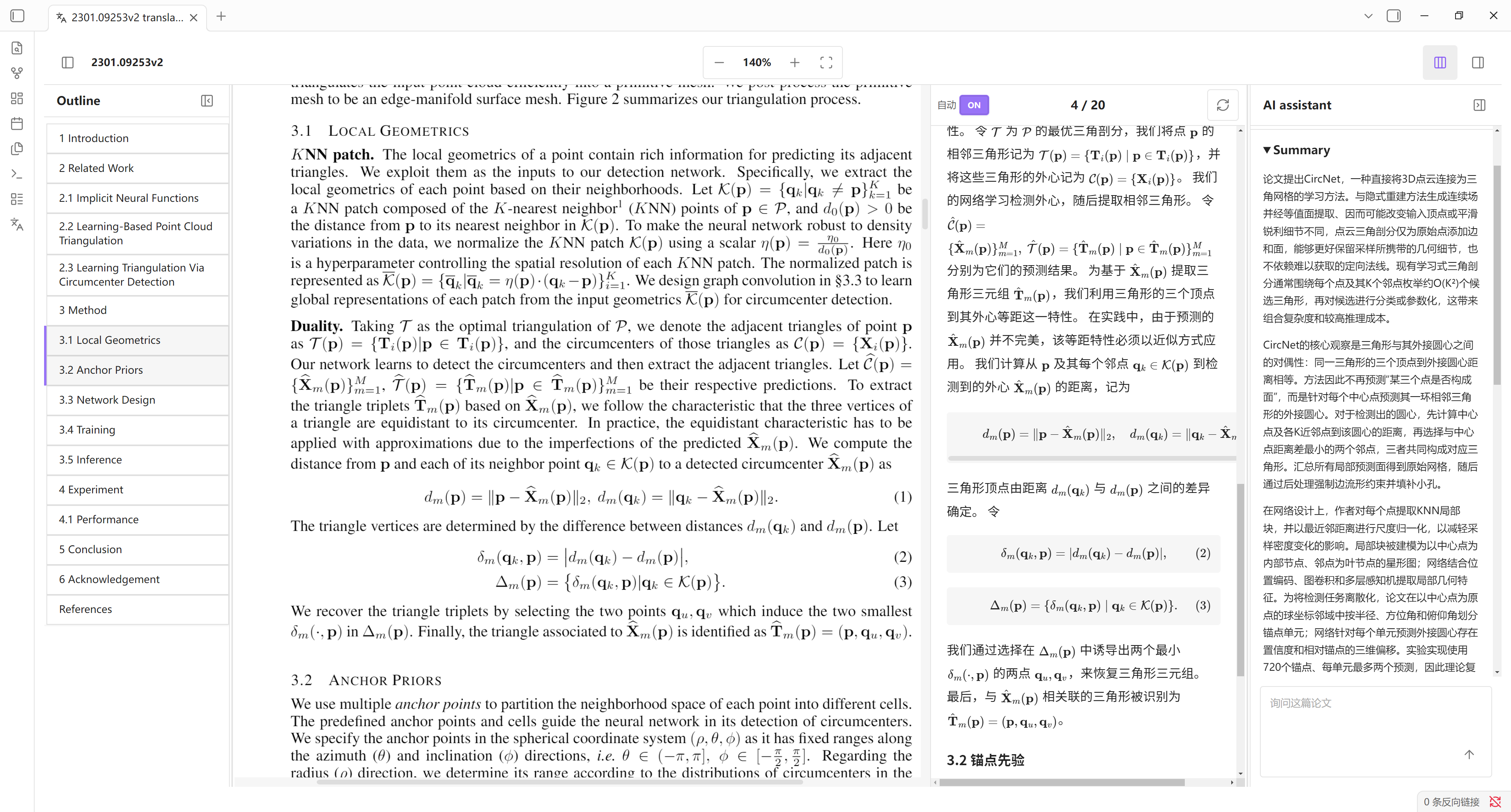
Unlike text-only PDF translators, it combines the PDF text layer with a rendered image of each page. The model can use its visual understanding to reconstruct equations, symbols, and reading order when PDF extraction loses mathematical structure. Source and translated sentences retain segment mappings, so hovering either side highlights its counterpart. A paper-aware AI assistant shares the document context and can summarize the paper or answer focused questions.
Design inspiration
PDF Translator is an independent open-source project inspired by aspects of the academic PDF reading workflow found in Moonlight. It is not affiliated with, sponsored by, or endorsed by Moonlight, and does not claim to be an official Moonlight product. Moonlight and any related names or trademarks belong to their respective owners.
The goal is to provide an open-source option for users who want a similar integrated paper-reading workflow inside Obsidian, while implementing the translation, alignment, formula rendering, caching, and assistant features independently.
Model requirements
[!IMPORTANT] Page translation requires an OpenAI-compatible model with vision/image input support. A text-only model cannot reliably reconstruct equations, symbols, figures, or page layout. The AI assistant can use a separate text or multimodal model.
The configured API should:
- Accept OpenAI-compatible
POST /chat/completionsrequests. - Accept image content through
image_urlmessage parts. - Support sufficiently long context for complete PDF pages and paper summaries.
- Support streaming responses for page translation and conversations.
- Produce reliable structured output and LaTeX.
Features
Vision-assisted page translation
- Translates complete PDF pages instead of isolated sentences, preserving the context needed for academic prose.
- Sends both structured PDF text and a high-resolution page image to the translation model.
- Uses the model's visual capability to reconstruct equations, accents, subscripts, superscripts, delimiters, and reading order that may be damaged in the PDF text layer.
- Preserves headings, paragraphs, lists, inline formulas, and display equations.
- Streams translated blocks into the interface and renders mathematical expressions with MathJax.
- Keeps valid translations when one mapping is malformed. The affected location is marked with a visible warning and can be retranslated without hiding the rest of the page.
Precise source alignment
- Maintains source block and sentence-level segment mappings throughout translation.
- Hover over a source sentence to highlight its translated counterpart.
- Hover over translated text to highlight the corresponding region on the original PDF.
- Supports translated blocks that combine text-layer fragments belonging to one visual paragraph or equation.
Flexible reading workspace
- Document outline, PDF reader, translation, and AI assistant panels.
- Collapsible and resizable Outline and AI assistant panels.
- Toggle between per-page PDF/translation columns and an independent docked translation panel.
- The docked translation panel follows the most visible PDF page while keeping its own scroll position.
- PDF zoom from 60% to 300% with higher-resolution canvas rendering.
Ctrl+ mouse wheel zoom keeps the content under the pointer anchored.
Automatic translation controls
- Automatic translation is OFF by default.
- When enabled, translation starts only after a page is sufficiently visible and scrolling has stopped.
- Quickly scrolling across pages does not submit every intermediate page.
- PDF rendering remains independent from model requests, so nearby pages can render while automatic translation is off.
Paper-aware AI assistant
- Uses paper title, abstract, and extracted document text as context.
- Generates key terms, a three-line overview, and a detailed summary in the selected translation language.
- Answers focused questions about the paper and distinguishes the paper's claims from general explanation.
- Supports separate model choices for page translation and the AI assistant, selected directly where each model is used.
- Streams answers and renders LaTeX after generation completes.
- Summary generation remains disabled while automatic translation is off unless a cached summary already exists.
Persistent cache
- Stores completed page translations and paper summaries in the plugin directory.
- Reopening a translated PDF reuses cached pages whether automatic translation is on or off.
- Cached summaries can be displayed without another model request.
- Cache validity includes the PDF path, file size, modification time, target language, and cache schema version.
- Modifying the PDF automatically invalidates stale cached results.
- The page refresh button explicitly retranslates that page and replaces its cache entry.
Installation
Community plugins
After the plugin is accepted into the Obsidian community directory:
- Open Settings → Community plugins.
- Select Browse and search for PDF Translator.
- Select Install, then Enable.
Manual installation
Download
main.js,manifest.json, andstyles.cssfrom a GitHub release.Create this directory inside your vault:
<Vault>/.obsidian/plugins/paper-pdf-translator/Place the three release files directly in that directory.
Reload Obsidian.
Enable PDF Translator under Settings → Community plugins.
Configuration
Open Settings → PDF Translator and configure:
- Translation language: the language used for page translations, summaries, and assistant answers.
- API base URL: the OpenAI-compatible API endpoint, without
/chat/completionsunless the provider requires the complete path. - Available models: select Add model, then enter a display name and the exact model ID accepted by the API. Add one row for each model you want to use.
- API key secret: a secret stored through Obsidian's SecretStorage interface.
- Translation font size: the font size used by page translations.
API keys are not stored in plugin settings, cache files, or release artifacts.
Usage
- Open a PDF in Obsidian.
- Run Open translation view from the command palette, use the PDF context menu, or select the ribbon icon.
- Choose a vision-capable translation model from the selector in each translation toolbar. All page toolbars share the same selection.
- Choose the summary and conversation model from the selector beside the send button in the AI assistant.
- Keep automatic translation off for manual control, or select OFF in a page toolbar to switch it on.
- Use the refresh icon on a page to translate or explicitly retranslate that page. If only part of a model response cannot be aligned, the valid translation remains visible and the affected location offers its own Retranslate this page action.
- Use the three-column toolbar icon to move the current page translation into an independent docked panel.
Data and privacy
PDF Translator does not include telemetry or analytics.
Model requests are sent only to the API endpoint configured by the user. Depending on the action, requests may contain:
- The paper title and abstract.
- Extracted text from the current and previous PDF pages.
- A rendered image of the current PDF page.
- Extracted paper text used to generate summaries or answer questions.
- Conversation history entered in the assistant panel.
Review the privacy and retention policy of your selected API provider before translating sensitive papers. Cache files remain inside the vault's plugin directory and are not transmitted by the plugin.
Development
Requirements:
- Node.js 18 or newer.
- npm.
Install dependencies and run a development build:
npm install
npm run dev
Create a production build and run lint checks:
npm run build
npm run lint
The required release files are main.js, manifest.json, and styles.css.
License
This project is distributed under the 0BSD license. See LICENSE.