Paipa Gallery
 paipa0333 downloads
Interactive image and video blocks with numbered figures, captions, in-text figure references, thumbnail reordering, and full-size preview.
- Overview
- Scorecard
- Updates3
Put a whole set of photos or videos into one tidy, swipeable block instead of a long column of images.
Is this for you?
- You drop ten trip photos into a note and suddenly have to scroll forever.
- You write reports, papers or project logs and want Figure 1, Figure 2… with captions, and references in your text that jump to the right image.
- You want to reorder images by dragging thumbnails, not by moving
![[...]]lines around. - Your vault has big camera photos and pages with images feel sluggish.
What you get
- One block, many images and videos: arrows / arrow keys to browse, click the main image to open the original.
- Thumbnails you can drag to reorder. Drag a thumbnail out to place it in the note, or drag an image from the note or your file manager into the gallery.
- Figures and captions: every item is numbered (
Figure N). Double-click to write a caption; numbering follows the order automatically. - Figure references: right-click a thumbnail → Insert reference puts a small button in your text that scrolls to that figure.
- Video player: play / pause, seek, volume, playback speed.
- Fast with large photos: thumbnails and the main view use small copies made on the fly; the full file loads only when you open it.
Quick start
- Select a few image or video links in a note.
- Right-click → Gallery (or run Create gallery).
- That's it. Drag thumbnails to reorder, double-click
Figure 1to add a caption.
Coming from Lite Gallery? Put the cursor in a litegal block and run Convert Lite Gallery at cursor.
Your data
A gallery is a fenced code block with a small JSON list of your images:
```gallery-view
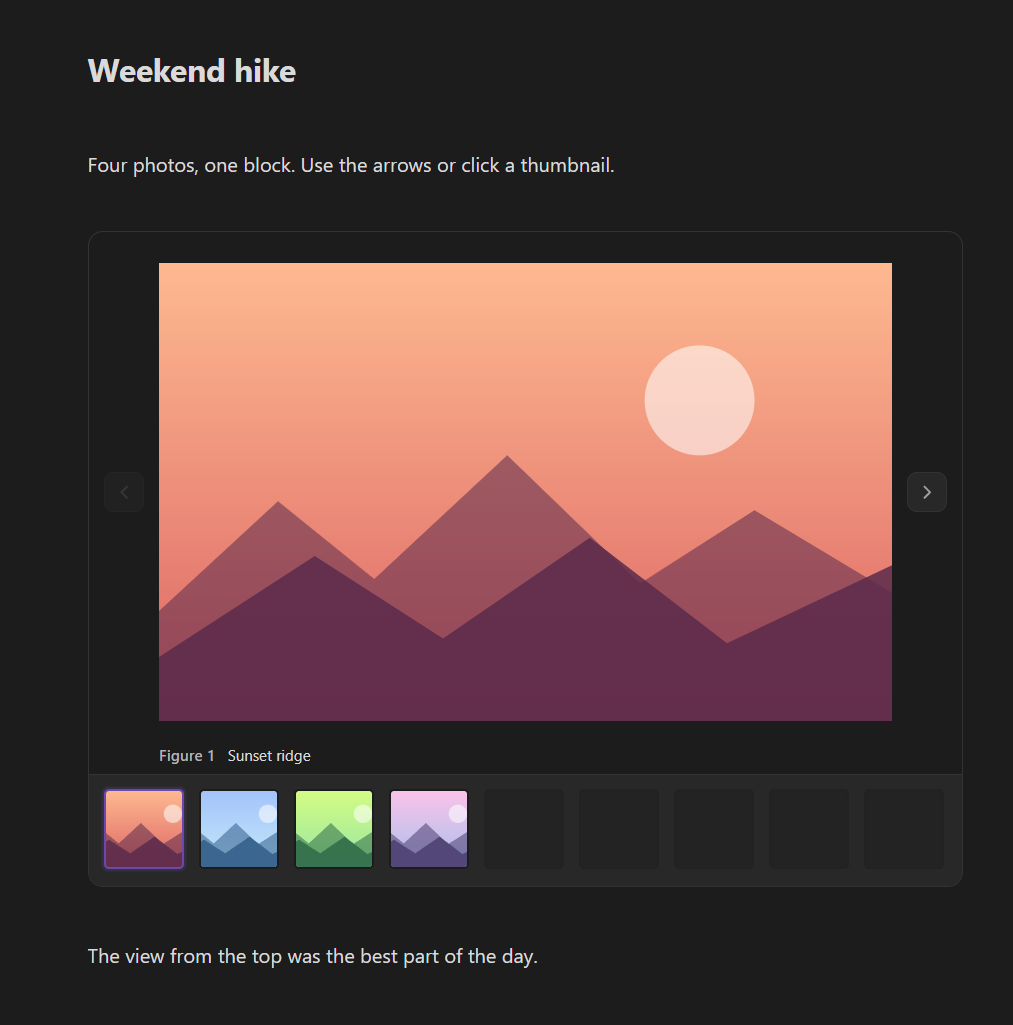
{"v":1,"id":"gal-hike","images":[{"id":"a","link":"![[ridge.jpg]]","caption":"Sunset ridge"}]}
```
Your images stay normal files in your vault. Without the plugin you see the code block, and the files are untouched.
Works on
Windows, macOS, Linux, iPhone / iPad and Android. On touch screens, tap a thumbnail to select it and long-press to drag.
Works well with
All optional.
- Editor Enhancer: drag the whole gallery like any other block.
- Section Blocks: files dropped into a gallery are saved in a
<note name> mediafolder next to the note. Without it, Obsidian's own attachment setting decides where they go.
Notes
- Interface in English and Chinese: follows Obsidian's language by default, or pick one under the plugin's Language setting.
- UI inspired by Lite Gallery.
Install
Settings → Community plugins → Browse, search Paipa Gallery, then Install and Enable.
License
MIT
HealthExcellent
ReviewSatisfactory
About
Put a whole set of photos or videos into one tidy, swipeable block instead of a long column of images.
Use it if ten trip photos make your note scroll forever, if you write reports or project logs and want numbered figures with captions, or if pages with large camera photos feel sluggish.
Select image or video links and right-click → Gallery. Browse with arrows, click the main image to open the original, drag thumbnails to reorder, drag images in from the note or your file manager, or drag a thumbnail out into the text. Every item gets a Figure number; double-click to caption it, and insert references that jump to a figure. Videos get play, seek, volume and speed controls.
Thumbnails and the main view use small copies made on the fly, so large photos stay fast; the full file loads only when you open it. Images remain normal files in your vault and the gallery is a plain code block. Works on desktop and mobile; long-press to drag on touch screens.Details
Current version
1.4.0
Last updated
Last week
Created
Last week
Updates
3 releases
Downloads
33
Compatible with
Obsidian 1.5.0+
Platforms
Desktop, Mobile
License
MIT